Multitasking on a computer isn’t just about opening multiple apps, it’s about moving between them quickly, staying organized, and reducing friction in everyday workflows. Whether you’re working, studying, creating content, or managing files, keyboard shortcuts can dramatically improve how efficiently you use your system.
On modern PCs powered by Microsoft Windows, shortcuts are designed to reduce dependency on the mouse, streamline workflows, and help you stay focused. From snapping windows to capturing screenshots and managing virtual desktops, mastering the right combinations can save minutes every hour, and hours every week.
Let’s look at the most useful Windows shortcuts that make multitasking easier, faster, and more intuitive.
Security and Locking

These shortcuts help protect your data and maintain privacy when stepping away from your computer.
-
Windows + L
Instantly locks your system and takes you to the sign-in screen.
-
Ctrl + Alt + Delete
This shortcut opens a secure system screen with options like Lock, Switch User, Sign Out, Change Password, and Task Manager.
-
Windows + O
Locks or unlocks screen rotation on supported devices, preventing accidental display changes.
-
Ctrl + Shift + Esc
Opens Task Manager directly, allowing you to monitor running processes and close unresponsive or suspicious applications.
Window Management
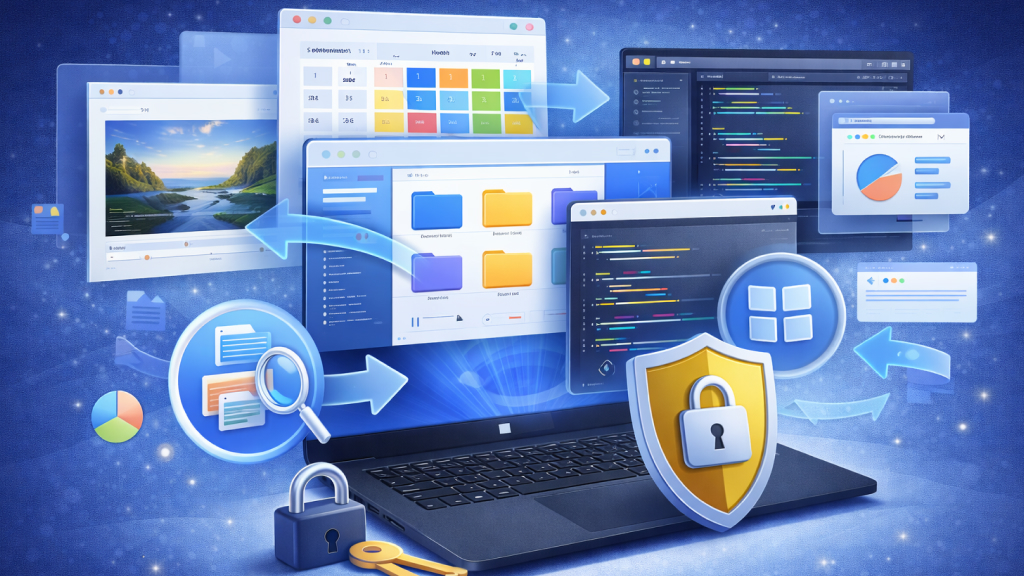
Managing multiple windows is at the heart of multitasking. These shortcuts help you switch, arrange, and organize open applications.
-
Windows + Home
This shortcut minimizes all open windows except the one you’re currently using, helping you focus on a single task.
-
Windows + Shift + M
Restores all windows that were previously minimized back onto the desktop.
-
Alt + F4 / Ctrl + F4
Alt + F4 closes the active application, while Ctrl + F4 closes the current document or tab within an app.
-
Windows + Ctrl + D
Creates a new virtual desktop for organizing separate workflows like work, research, or personal tasks.
-
Windows + Ctrl + Left/Right Arrow
Lets you move quickly between different virtual desktops without interrupting your workflow.
-
Windows + Ctrl + F4
Closes the active virtual desktop and moves its apps to another desktop automatically.
-
Windows + T
Cycles through apps pinned on the taskbar and shows previews for quick selection.
-
Alt + Spacebar
Opens the shortcut menu for the active window, including options like move, resize, minimize, and close.
-
Windows + Z
Opens snap layout options for arranging multiple windows in organized grid formats.
Navigation and Search
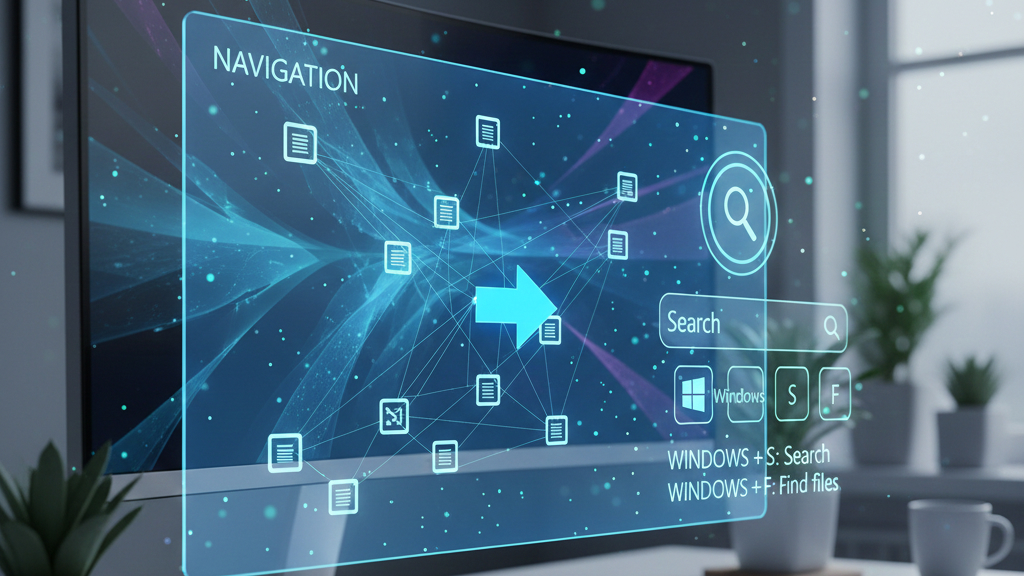
These shortcuts help you move through your system quickly without navigating menus.
-
Windows + S or Windows + Q
Quickly opens system search to find apps, files, and settings on Microsoft Windows.
-
Windows + E
Instantly opens File Explorer for fast access to folders, files, and drives.
-
Alt + Tab
Allows you to quickly move between running applications without using the mouse.
-
Windows + Tab
Displays all open windows and virtual desktops for easier navigation and task switching.
-
Alt + Left/Right Arrow
Helps you navigate backward or forward through folders, pages, or browser history.
-
Alt + Up Arrow
Takes you one level up in File Explorer to the parent directory.
-
Ctrl + L or Alt + D
Highlights the address bar in File Explorer for quick navigation or path entry.
-
Windows + D
Minimizes all windows instantly to display the desktop.
Advanced Navigation and Interaction Shortcuts

These are more specific, context-based shortcuts focused on interacting within windows, File Explorer, browsers, and UI elements.
-
Ctrl + N
Quickly launches another File Explorer window to manage files side by side on Microsoft Windows.
-
Ctrl + T
Creates a new tab within File Explorer, making it easier to navigate multiple folders in one window.
-
F6
Moves keyboard focus between different sections of a window or desktop for faster navigation without a mouse.
-
F4
Shows the address bar dropdown history, allowing quick access to recently visited locations.
-
Ctrl + Mouse Scroll
Adjusts icon sizes and layout in File Explorer for better visibility and organization.
-
Windows + B
Highlights the system tray so you can access background apps and system notifications using the keyboard.
-
Windows + Ctrl + F
Helps locate devices connected to the same network, useful in office or shared environments.
-
Alt + Space
Opens the control menu for the current window, providing quick options like move, resize, minimize, and close.
Clipboard

The clipboard is one of the most essential features for everyday multitasking, allowing you to quickly copy, cut, and paste text, files, images, and other content across apps. On Microsoft Windows, clipboard shortcuts make information transfer seamless, helping you work faster, avoid repetitive steps, and manage content efficiently across multiple tasks.
-
Ctrl + C (or Ctrl + Insert)
Copies selected text, files, or elements to the clipboard for reuse anywhere on Microsoft Windows.
-
Ctrl + X
Removes the selected item and stores it on the clipboard so it can be pasted in a new location.
-
Ctrl + V (or Shift + Insert)
Pastes the most recently copied or cut content from the clipboard into the active field or location.
-
Windows + V
Opens the clipboard history panel, allowing you to access and paste previously copied items (when enabled in Settings).
-
Ctrl + Shift + V
Pastes copied text without retaining original formatting, which is useful for maintaining consistent document styling.
Screenshots

Screenshot shortcuts make it easy to capture, save, and share information instantly, helping you document tasks, errors, or visuals without interrupting your workflow on Microsoft Windows.
-
Windows + Shift + S
Opens the Snipping Tool to capture a selected area, window, or full screen with precision.
-
PrtScn (Print Screen)
Captures the entire screen and copies it to the clipboard for quick pasting.
-
Windows + PrtScn
Takes a full-screen screenshot and automatically saves it to the Pictures folder.
-
Alt + PrtScn
Captures only the active window, reducing unnecessary background content.
-
Windows + G
Opens the Xbox Game Bar, which includes built-in screenshot and recording tools.
-
Windows + Alt + PrtScn
Captures a screenshot of the active game or app using the Game Bar.
-
Windows + Shift + R
Starts screen recording in supported apps using system recording tools or integrations.
Notifications
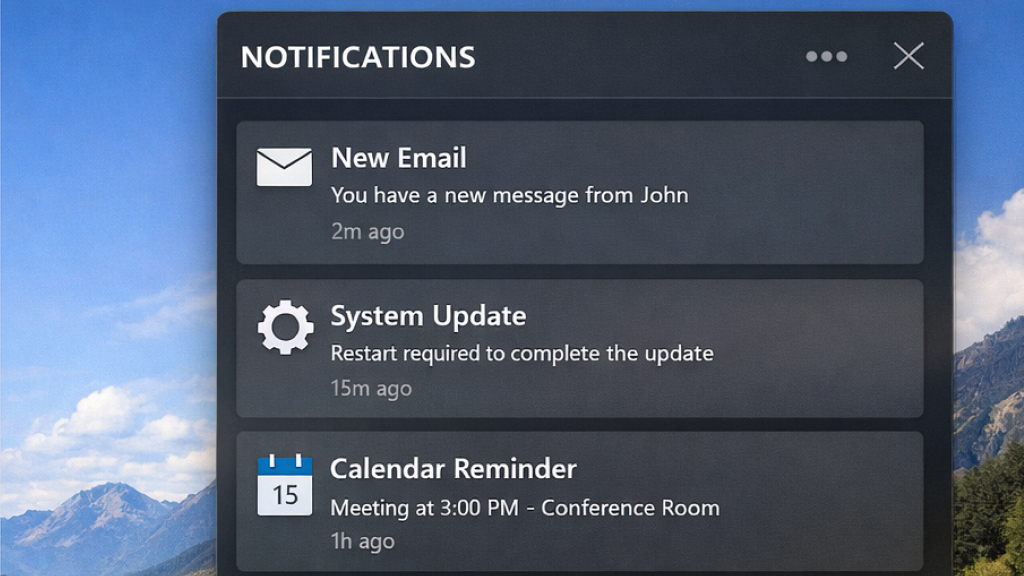
Notification shortcuts help you stay updated, manage alerts, and quickly access system messages without disrupting your workflow on Microsoft Windows.
-
Windows + N
Opens the Notification Center to view recent alerts, reminders, and system messages in one place.
-
Windows + A
Launches Quick Settings, giving fast access to Wi-Fi, Bluetooth, Focus Assist, and other notification-related controls.
-
Windows + Shift + V
Lets you cycle through notifications and clipboard-related prompts where supported, improving quick interaction with alerts.
-
Windows + Ctrl + B
Brings focus to the app displaying a notification, allowing you to respond or act on it immediately.
System Controls and Settings

System control shortcuts give you quick access to essential tools, settings, and features so you can manage your device efficiently without navigating through menus on Microsoft Windows.
-
Windows + I
Opens the Settings app instantly, allowing you to adjust system preferences, devices, and personalization options.
-
Windows + X
Launches the Quick Link menu with fast access to tools like Device Manager, Power Options, and Terminal.
-
Windows + U
Opens Accessibility settings to enable tools like Narrator, Magnifier, and high-contrast mode.
-
Windows + R
Opens the Run dialog box for quickly launching apps, commands, and system utilities.
-
Windows + K
Opens the Connect panel to link wireless displays, speakers, and other supported devices.
File and Text Productivity
File and text productivity shortcuts help you manage documents, folders, and content more efficiently, reducing manual steps and speeding up everyday tasks on Microsoft Windows.
-
F2
Renames the selected file or folder immediately without opening additional menus.
-
Ctrl + Shift + N
Creates a new folder in the current directory for faster file organization.
-
Alt + Enter
Opens the Properties window of a selected file, folder, or item.
-
Shift + Delete
Permanently deletes a file or folder without sending it to the Recycle Bin.
-
Ctrl + F / F3
Starts a search within the current document, webpage, or folder.
Browser and Tab Multitasking
Browser and tab multitasking shortcuts help you navigate multiple webpages quickly, manage research efficiently, and switch contexts without breaking your workflow.
-
Ctrl + W or Ctrl + F4
Closes the active browser tab quickly without affecting other open tabs.
-
Ctrl + Shift + T
Reopens the last closed tab and can restore multiple recently closed tabs in order.
-
Ctrl + Tab or Ctrl + PgDn
Moves to the next open tab in your browser for faster navigation.
-
Ctrl + Shift + Tab or Ctrl + PgUp
Switches to the previous tab, helping you move backward through open pages.
-
Ctrl + 1 through 8
Jumps directly to a specific tab position from left to right in the browser window.
-
Ctrl + 9
Switches instantly to the last tab, regardless of how many tabs are open.
-
Ctrl + Shift + PgUp / PgDn
Reorders tabs by moving the current tab left or right within the browser window.
Creativity and Expression
Modern multitasking isn’t just about work, it includes communication and creativity too.
-
Windows + . (Period)
Opens the emoji and symbols panel on Microsoft Windows, allowing you to quickly insert emojis, GIFs, and special characters into text.
How Shortcuts Transform Multitasking
Keyboard shortcuts do more than save time, they reshape how you work and interact with your computer on Microsoft Windows. Here’s how they improve multitasking in practical ways:
-
Reduced Cognitive Load
Keyboard shortcuts reduce cognitive load by removing the extra steps between intention and action, allowing your hands to respond almost automatically without searching through menus or settings. Over time, frequently used shortcuts on Microsoft Windows become second nature, helping minimize decision fatigue and mental friction.
-
Faster Workflow Transitions
Keyboard shortcuts make it easier to move between apps, files, and browser tabs instantly, without relying on constant mouse navigation. By reducing small but frequent delays, they keep your workflow smooth and help you maintain momentum during busy sessions on Microsoft Windows.
-
Better Workspace Organization
Keyboard shortcuts help create a more organized workspace by making it easy to snap windows for side-by-side tasks and use virtual desktops to separate different types of work. On Microsoft Windows, this reduces visual clutter, improves clarity, and makes it easier to stay focused while managing multiple activities at once.
-
Increased Focus
Keyboard shortcuts help maintain focus by reducing interruptions when switching between tasks and eliminating unnecessary actions that break concentration. On Microsoft Windows, they support deeper work by minimizing distractions and allowing you to stay engaged with what truly matters.
-
Professional Efficiency
Keyboard shortcuts improve professional efficiency by speeding up everyday operations and making it easier to manage complex workflows without constant interruptions. On Microsoft Windows, they are a common habit among power users and productivity-focused professionals who rely on them to work faster and more effectively.
Multitasking on Windows becomes significantly easier when you rely on keyboard shortcuts instead of navigating menus and icons. What starts as a few simple combinations quickly evolves into a faster, smoother, and more organized way of working.
Whether you’re managing multiple projects, attending meetings, editing documents, or researching online, these shortcuts help you stay in control of your digital workspace.
The real power lies not in knowing all shortcuts, but in mastering the ones you use daily. Over time, they become second nature, turning your computer into a seamless extension of how you think and work.