


Windows 11 is designed to deliver a modern computing experience, complete with visual effects, intelligent background services, cloud integrations, and productivity features. While these additions can be useful, they also consume valuable system resources. As a result, even laptops equipped with fast SSDs, capable processors, and generous amounts of RAM can sometimes feel slower than expected.
In many cases, sluggish performance is not caused by aging hardware but by software configurations that prioritize convenience and visual polish over efficiency. Startup applications, background services, and manufacturer-installed utilities can quietly consume resources long before users begin their daily tasks.
Startup applications, background processes, visual effects, and manufacturer-installed software can all contribute to sluggish performance. Adjusting a few of these defaults can often make a laptop feel noticeably faster without spending money on upgrades.
Here are the Windows 11 settings worth changing to improve speed, responsiveness, and overall system performance.
1. Disable Unnecessary Startup Apps
One of the easiest ways to improve Windows 11 performance is to reduce the number of applications that launch during startup. Many Windows laptops are configured to load a range of software automatically at startup, including vendor utilities, cloud synchronization services, communication apps, and background maintenance tools that most users rarely need immediately after booting.
Each program that launches during boot extends startup time and reserves memory that could otherwise be available for active workloads. To review startup applications, navigate to:
Settings → Apps → Startup
Windows displays every application configured to launch at boot, along with its estimated impact on performance.
Applications such as Microsoft Teams, OneDrive, Spotify, Discord, gaming launchers, manufacturer utilities, and various update assistants often do not need to run immediately after startup. Disabling unnecessary entries can reduce boot times and free resources for more important tasks. If an application later requires its startup component, it can easily be re-enabled.
2. Uninstall Manufacturer Bloatware and Unused Apps
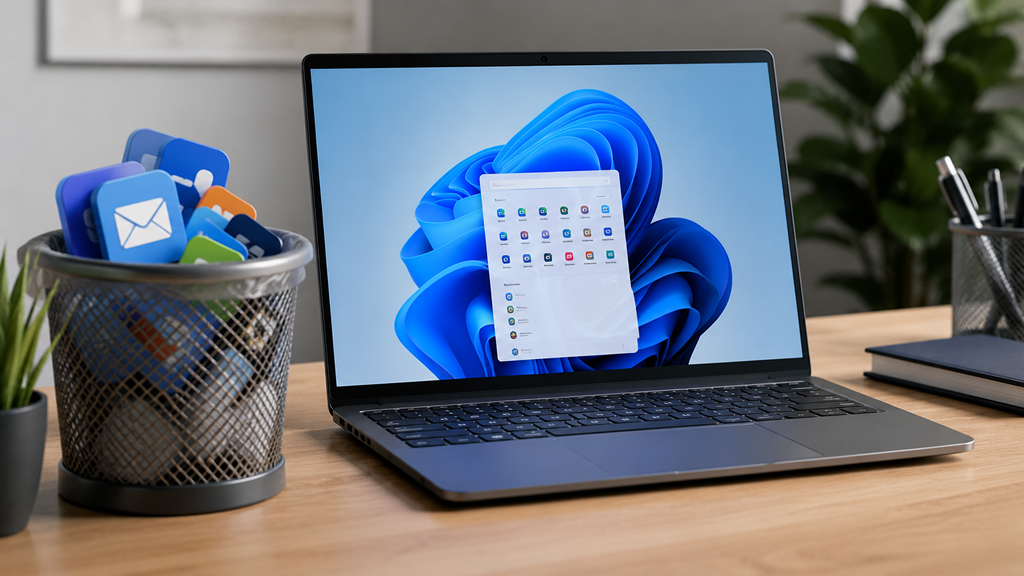
Many new laptops include preinstalled software that users never intend to use. These applications often run background services, schedule updates, and generate notifications while offering little practical value. To review installed software:
Settings → Apps → Installed Apps
Sorting applications by publisher can quickly reveal manufacturer-installed software. Users may also sort by size to identify large applications occupying storage space. Removing software that serves no practical purpose can reduce background workload, simplify system maintenance, and recover valuable storage capacity.
3. Stop Apps From Running in the Background
Windows 11 allows many applications to continue running even when they are not actively open. While background activity is useful for communication tools such as Outlook, Teams, or Slack, it is often unnecessary for media players, image editors, manufacturer utilities, and various Microsoft apps. To manage background permissions:
Settings → Apps → Installed Apps → Advanced Options
Applications configured to run in the background can be switched from Power Optimized to Never when background functionality is not required. Restricting unnecessary background permissions helps prevent idle applications from consuming memory and processor time throughout the day.
4. Turn Off Transparency and Animation Effects
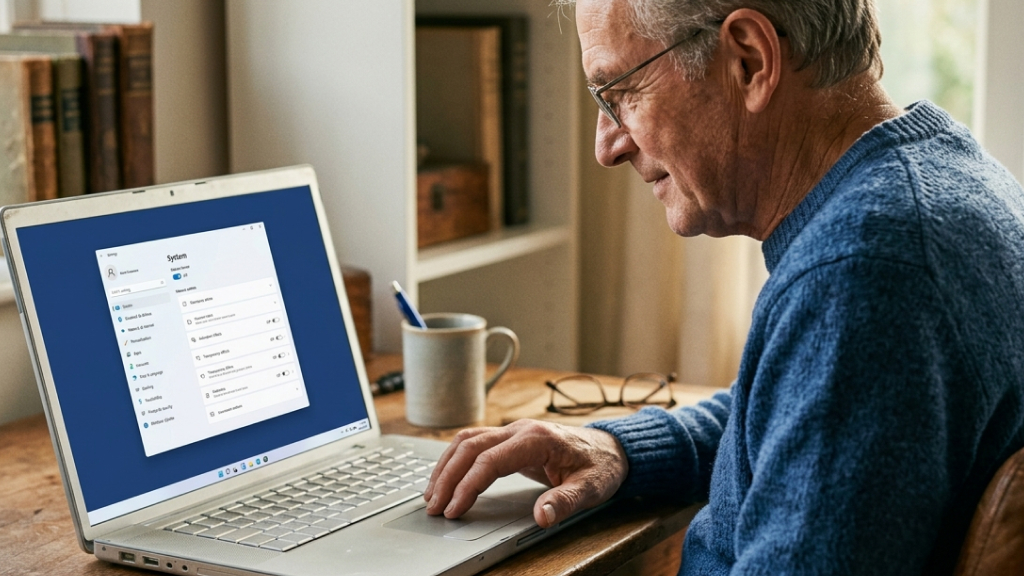
Windows 11 relies heavily on visual enhancements such as transparency, blur effects, and interface animations. Although these features improve appearance, they also require additional graphics processing. This impact is most noticeable on systems that rely on integrated graphics. To adjust these settings:
Settings → Accessibility → Visual Effects
Users can disable both transparency effects and animation effects. Although the visual difference is largely cosmetic, reducing these effects can help Windows feel more immediate, particularly on systems that rely on integrated graphics.
5. Enable Storage Sense
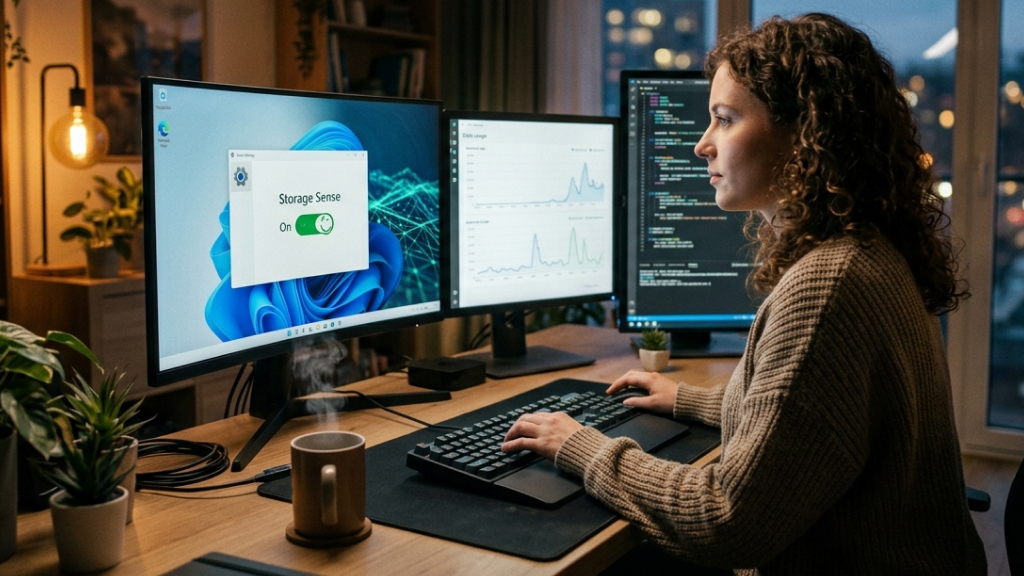
Storage performance has a direct impact on overall system responsiveness. Temporary files, cached data, Windows update remnants, and recycle bin contents gradually consume storage space over time. Windows 11 can take care of many housekeeping tasks on its own through Storage Sense, a feature that periodically removes files that are no longer needed. To enable it:
Settings → System → Storage → Storage Sense
Storage Sense can automatically remove temporary files, clear recycle bin contents, and delete unnecessary system files according to a schedule. Maintaining adequate free space is particularly important for SSDs, as heavily filled drives can experience performance degradation.
6. Turn On Fast Startup
Fast Startup combines elements of a traditional shutdown with hibernation to reduce boot times. Rather than loading every component from scratch during startup, Windows stores portions of the system state and reloads them during the next boot. To enable Fast Startup:
Control Panel → Hardware and Sound → Power Options → Choose What the Power Buttons Do
Then enable: Turn On Fast Startup
On compatible systems, Fast Startup can shorten the time between pressing the power button and reaching the desktop.
7. Switch to Best Performance Power Mode
Windows often prioritizes battery life over maximum performance, especially on laptops. While this approach extends battery runtime, it can also limit processor performance and system responsiveness. To change the power profile:
Settings → System → Power & Battery
Under Power Mode, select: Best Performance
This setting allows Windows to allocate more resources toward speed and responsiveness. It is particularly useful when the laptop is connected to a power source.
8. Keep Windows and Drivers Updated
Many users associate Windows updates solely with security improvements, but updates frequently include performance optimizations, bug fixes, and driver improvements as well. To check for updates:
Settings → Windows Update
Regular updates often include refinements that improve compatibility, stability, and hardware performance across a wide range of devices. Driver updates can be particularly beneficial for laptops experiencing graphics, battery, or storage performance issues.
9. Reduce Notifications and Windows Suggestions
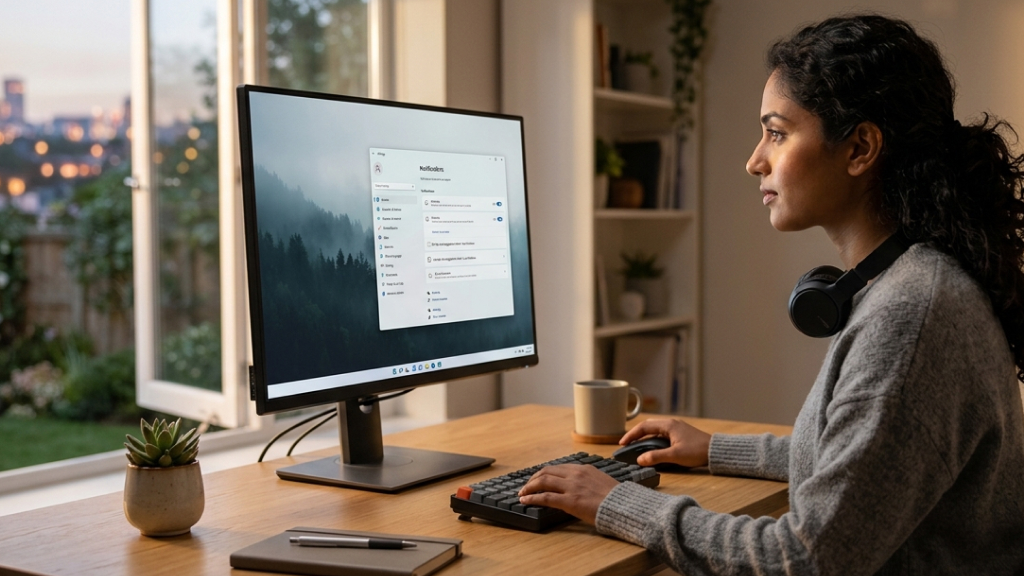
Windows generates notifications from numerous applications, system services, and recommendation features. Although individual notifications consume minimal resources, dozens of apps constantly checking for updates and generating alerts can contribute to unnecessary background activity. To manage notifications:
Settings → System → Notifications
Users can disable notifications from applications that are not essential and turn off Windows tips and suggestions. The result is a less distracting environment and fewer unnecessary tasks running behind the scenes.
10. Optimize Search Indexing
Windows Search relies on indexing to deliver fast search results. However, maintaining the search index can consume processor and storage resources, particularly on older systems. Users who rarely search their computers can reduce indexing activity. Search for Indexing Options.
From there, unnecessary folders can be excluded from indexing, reducing the workload placed on the system. This tweak is most beneficial for older laptops and entry-level hardware.
11. Scan for Malware and Unwanted Software
Malware, spyware, and unwanted applications remain a common cause of slow system performance. Even legitimate software can install browser extensions, background services, and startup processes that gradually reduce responsiveness.
Running regular scans using Windows Security helps identify potential issues before they affect performance. To run a scan:
Settings → Privacy & Security → Windows Security
Identifying unwanted software early can prevent performance degradation before it becomes noticeable during everyday use.
12. Adjust Advanced Performance Settings
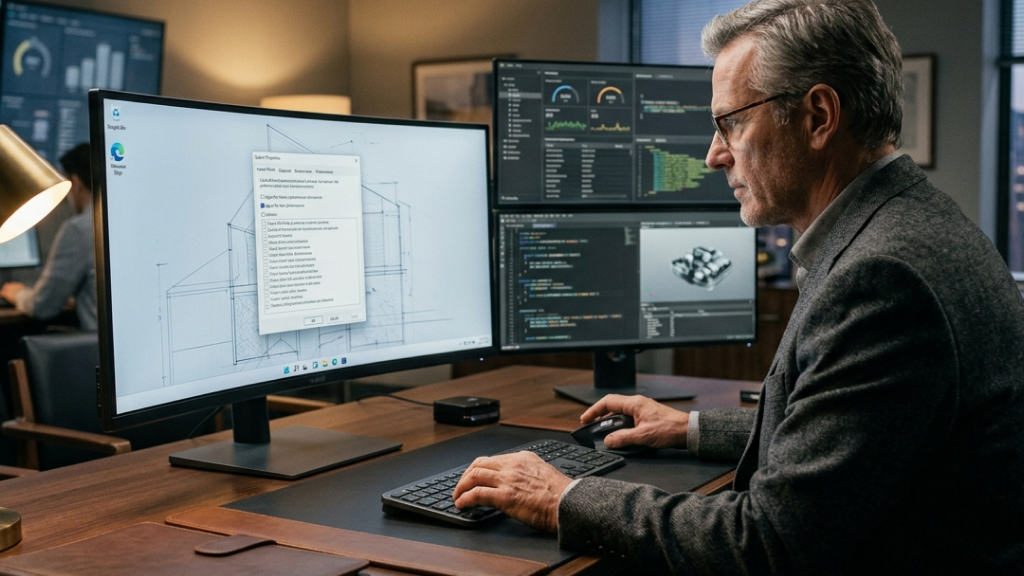
Windows includes a dedicated performance panel that allows users to prioritize speed over visual appearance. To access it search for; Adjust the Appearance and Performance of Windows.
Users can select; Adjust for Best Performance. Alternatively, individual visual effects can be disabled while retaining preferred interface elements. This setting can significantly improve responsiveness on older hardware while having minimal impact on usability.
13. Consider Microsoft PC Manager
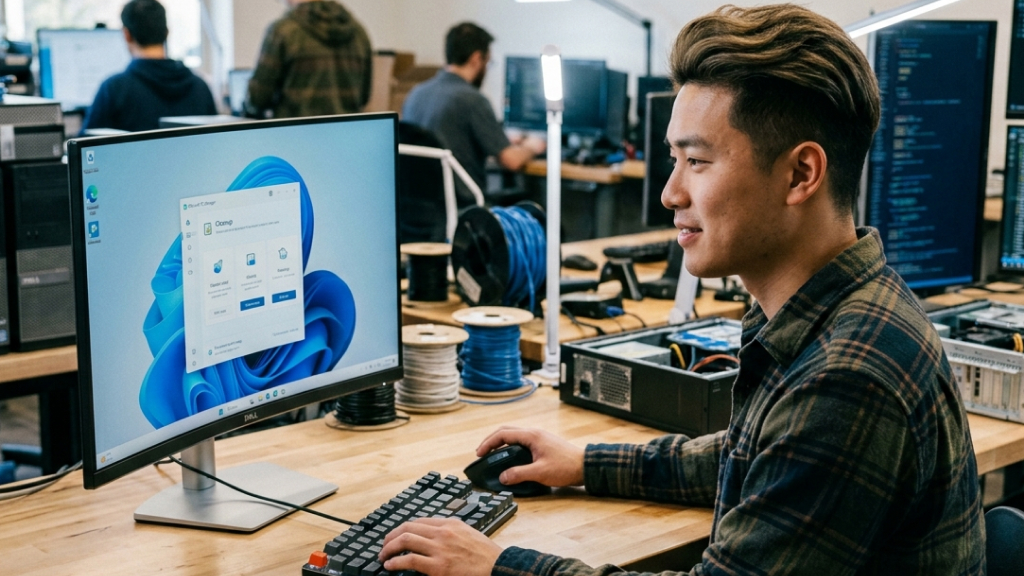
Microsoft offers a free utility called PC Manager that combines several optimization tools into a single interface. The application provides quick access to:
- Temporary file cleanup
- Startup management
- Storage optimization
- Memory management
- System health checks
While the performance gains are generally modest, the tool simplifies maintenance for users who prefer a centralized optimization dashboard.
When Hardware Upgrades Become Necessary
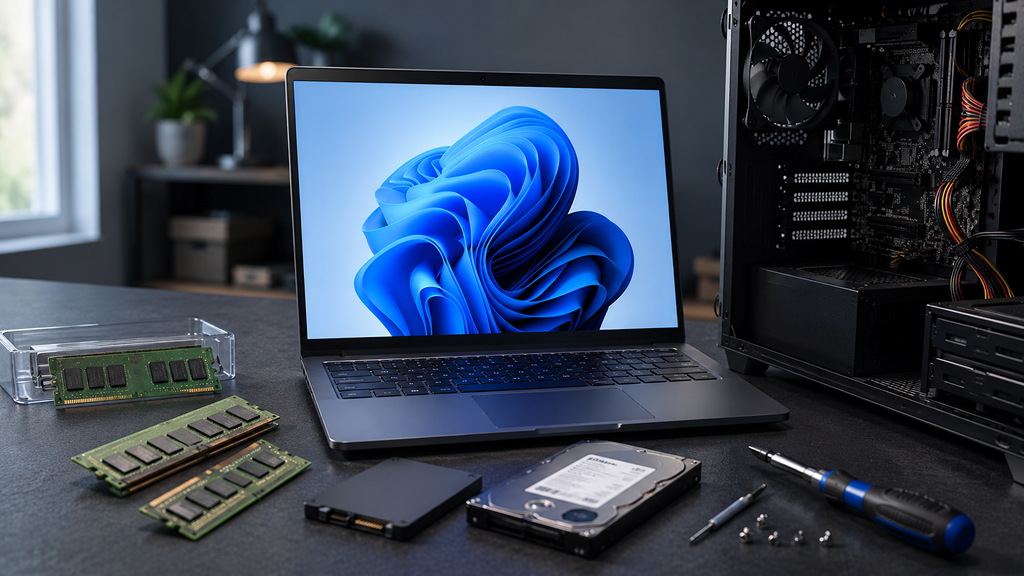
Software optimizations can significantly improve performance, but they cannot overcome severe hardware limitations. If a laptop consistently struggles despite applying these changes, upgrading RAM or moving to a larger SSD may provide the most noticeable improvement.
Additional memory helps with multitasking, while a fast SSD improves boot times, application launches, file transfers, and overall system responsiveness. For laptops that support upgrades, these improvements often deliver a greater performance boost than any software tweak.
Windows 11 includes numerous convenience features that improve usability, but many of them are enabled with little consideration for performance. Reviewing startup behavior, background permissions, visual effects, and storage management can significantly reduce unnecessary overhead.
In many cases, the operating system’s default settings, startup applications, background processes, and preinstalled software are responsible for much of the perceived sluggishness.
While each setting delivers only a small improvement on its own, the combined effect can result in a faster, smoother, and more efficient Windows 11 experience. Disabling unnecessary startup apps, reducing background activity, enabling Storage Sense, adjusting visual effects, selecting the appropriate power mode, and keeping Windows updated can collectively make a noticeable difference.
While no single change will transform every system, applying several of these optimizations together can result in faster startup times, smoother multitasking, and a more responsive computing experience.
For most users, these adjustments require only a few minutes to implement and can provide immediate benefits without spending a single rupee on new hardware.










