


Sumo Paint is a browser-based image editor and digital painting tool that works on any device with a modern web browser, no installation needed. You can use Sumo Paint’s web-based editor at no cost, but installing the desktop version requires a Pro subscription. Sumo also provides a free Pro trial, simply create an account and follow the setup steps to explore all premium features before committing. Once the trial ends, you can choose one of the available subscription plans.
The Pro tier is priced at $9 per month, which may feel a bit steep for some users, especially considering that Adobe’s entry-level Photoshop plan adds only a small additional cost while offering industry-leading tools and cloud benefits. It’s aimed at people who want a capable creative workspace without buying heavy desktop software.
Browser-First, Layer-Based Workflow
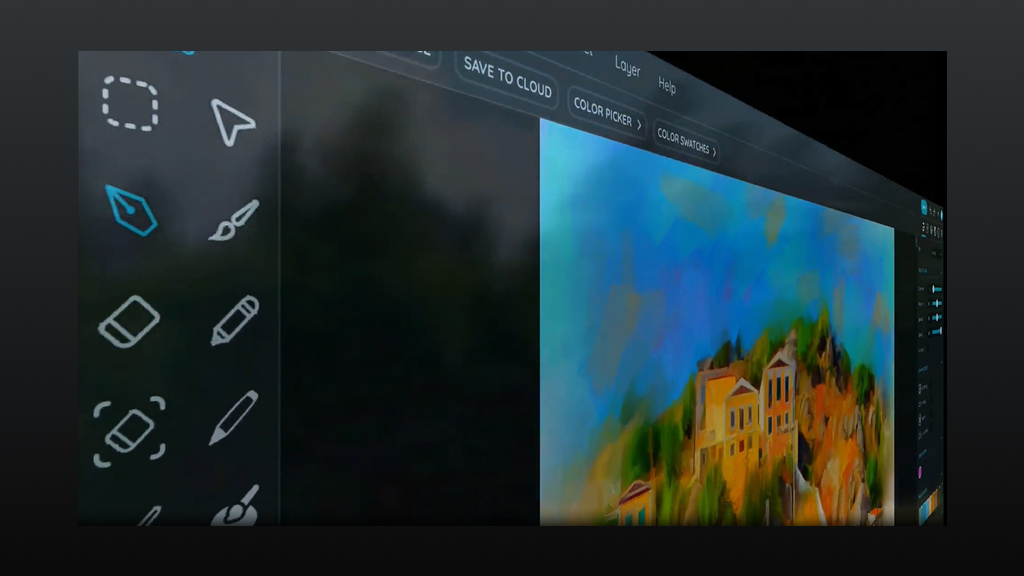
One of the strongest advantages of Sumo Paint is its browser-first design, which gives you the flexibility to start editing or illustrating instantly, no downloads, installations, or high-end hardware needed. Despite running entirely online, it still offers a fully functional layer-based workflow similar to what you’d find in desktop apps like Photoshop or Pixelmator.
You can add, delete, duplicate, hide, lock, rename, reorder, and blend layers with ease, allowing you to keep every part of your artwork organized.
This system supports non-destructive editing, smooth compositing, and the freedom to experiment. Whether you’re sketching, painting, or retouching photos, layers make even complex projects far easier to manage.
Robust Editing Tools
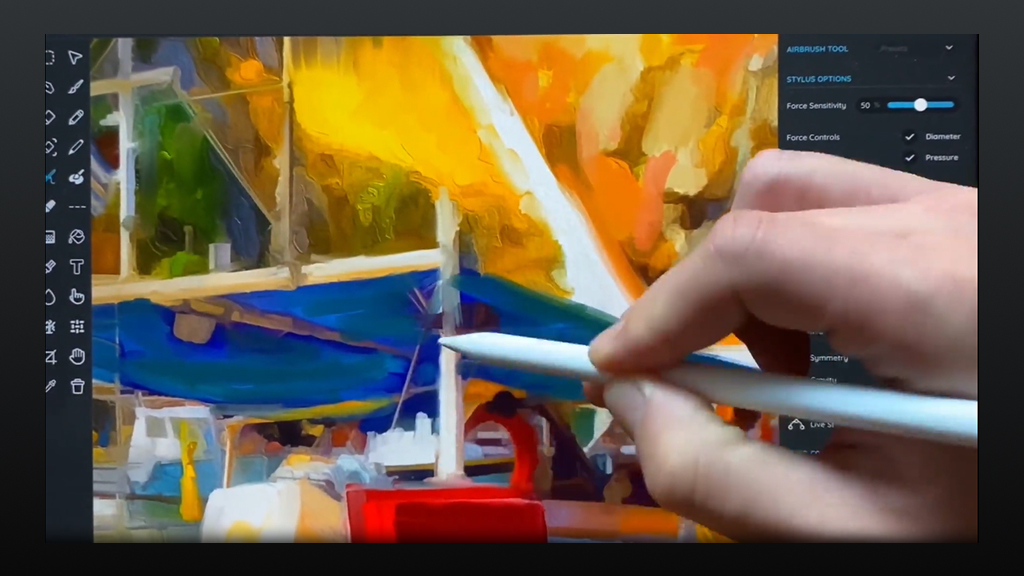
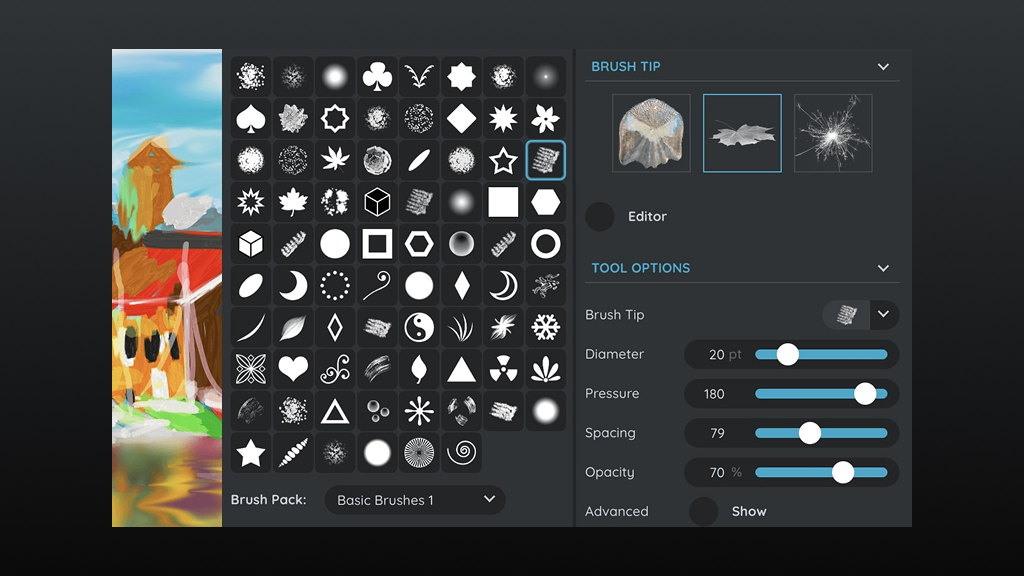
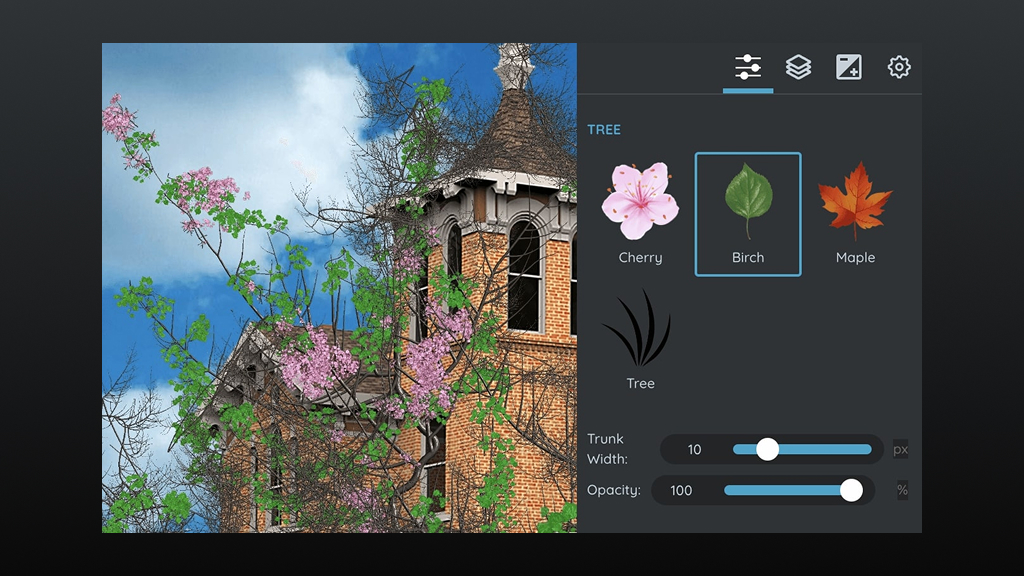
Even though Sumo Paint runs entirely in your browser, it delivers an impressive range of editing tools that rival many lightweight desktop applications. Its painting engine is especially versatile, offering hundreds of brushes along with adjustable parameters like diameter, opacity, flow, scattering, and pressure simulation. Artists can even design their own custom brushes, giving them more control over texture and style.
For precision work, tools like the lasso, magic wand, and marquee selections make isolating parts of an image simple, while transform options like, rotate, scale, flip, and distort, help refine compositions with accuracy.
The program also supports multiple layer effects, including shadows, glows, bevels, and strokes, as well as a full suite of blending modes. These features allow users to create polished, professional-looking artwork or enhance photos with subtle visual effects. On the photo-editing side, Sumo Paint includes essential filters and adjustments such as unsharp mask, levels, brightness/contrast, hue/saturation, and color balance, making it suitable for both basic and moderately advanced correction tasks.
However, being web-based comes with limitations. Users may encounter lag when working with large files, applying complex filters, or using detailed masking tools. The performance can vary depending on your device and internet speed. While Sumo Paint is powerful for a browser tool, it may feel slower and less responsive compared to dedicated desktop software.
Basic Editing
Beyond its creative tools, Sumo Paint shines when you need quick and simple adjustments. Its clean interface makes common edits easy to access, so you don’t have to dig through menus to fix small issues. The editor responds well to light tasks, allowing you to refine images in just a few clicks.
Features like instant previews help you see changes as you make them, which is helpful when you’re unsure about the final look. The workflow feels intuitive, making it ideal for beginners who want reliable results without a steep learning curve. Whether you’re polishing a photo for a presentation or enhancing a quick sketch, Sumo Paint’s basic editing tools keep the process smooth and efficient.
Importing Images
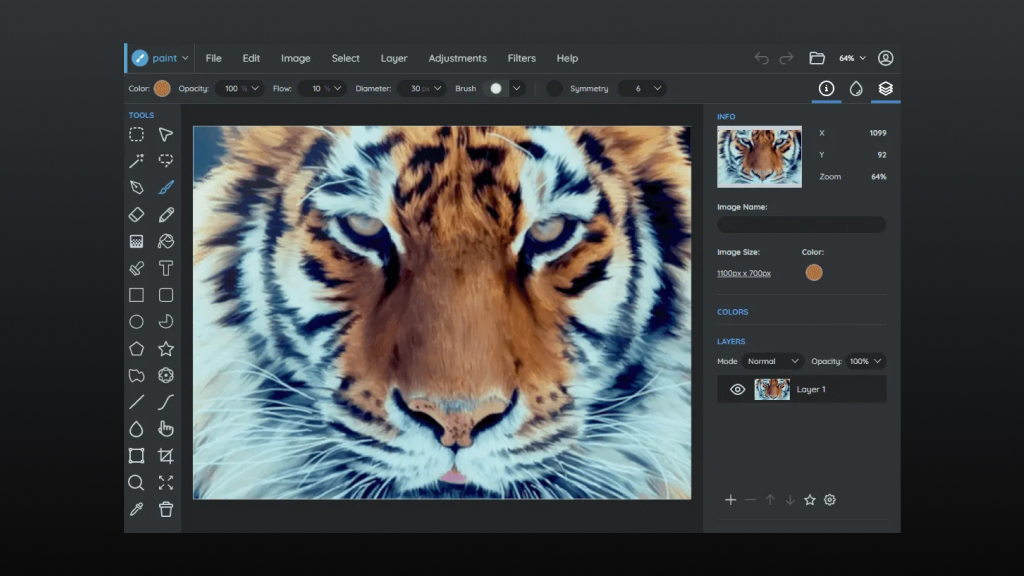
Sumo Paint makes bringing images into your workspace straightforward, which is essential for both beginners and frequent editors. You can easily upload files from your computer in popular formats like JPEG, PNG, and GIF, ensuring compatibility with most photos and graphics. The “Open Image” button is clearly visible, allowing you to get started without navigating through complex options. Once your project is complete, exporting in PNG or JPEG keeps your work usable across different platforms, whether you’re sharing online or adding it to another design.
For users who prefer working without relying on an internet connection, the Pro/desktop version adds even more convenience, offering a similar experience with offline access and additional flexibility.
Why Artists and Designers Love Using Sumo Paint
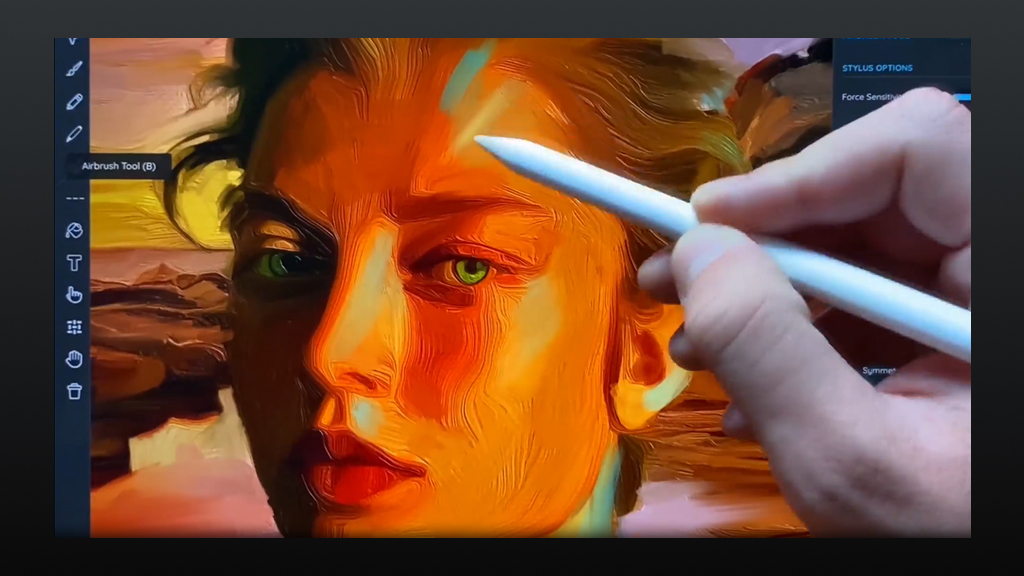
Sumo Paint isn’t just convenient, it offers thoughtful design choices that genuinely support creative workflows. Here’s why artists and designers enjoy working with it.
-
Artist-Friendly Workspace
Sumo Paint’s interface feels familiar to users of desktop editors, reducing the learning curve and making transitions seamless for illustrators and designers.
-
Clean, Customizable Layout
Panels and tools can be arranged for convenience, helping artists maintain an organized workflow without unnecessary clutter.
-
Natural Drawing Experience
Brush strokes feel smooth and responsive, making it suitable for stylus users who want a fluid drawing experience even inside a browser.
-
Experimentation Encouraged
Real-time visual feedback makes it easy to test new ideas, whether you’re trying different textures, shapes, or lighting effects.
-
Layer-Centric Creativity
Its flexible layering environment allows artists to explore variations without altering the main artwork, supporting iterative and non-destructive creation.
-
Versatility for Different Styles
Whether you’re sketching, painting, or combining graphical elements, the toolset adapts well to both structured design and spontaneous artistic expression.
-
Useful Despite Web Limitations
Although performance varies with large canvases, the creative freedom it offers still makes it a strong choice for browser-based art.
Sumo Paint vs Other Popular Editors
Sumo Paint’s browser-based design makes it uniquely accessible, but understanding its strengths becomes clearer when compared to established desktop tools like Krita, Paint.NET, GIMP, and Pixelmator.
Compared to Krita, Sumo Paint is lighter and far easier to jump into, no installation, fast loading, and compatible with nearly any device. It’s a strong choice for quick sketches, basic illustrations, and simple edits. Krita, however, is built for professional digital artists who need advanced brush engines, high-end tablet support, animation tools, and strong performance on large canvases. Sumo Paint wins on convenience; Krita wins on depth and creative power.
Against Paint.NET, the main differences lie in platform and focus. Sumo Paint runs in any modern browser, making it flexible and more painting-oriented. Paint.NET, available only on Windows, is exceptionally fast and known for its simplicity and plugin ecosystem. It’s great for everyday image manipulation and graphic tweaks but lacks the artistic brush features that Sumo Paint offers. Choose Sumo Paint for creative flexibility; choose Paint.NET for speedy, native Windows editing.
When compared with GIMP, Sumo Paint remains the more approachable option. It delivers a clean, beginner-friendly interface ideal for learning, lightweight projects, and everyday touch-ups. GIMP, in contrast, is a powerful open-source platform built for advanced users.
With detailed masking, scripting, batch processing, and extensive plugins, GIMP handles complex image manipulation far beyond what a browser app typically offers. Sumo Paint emphasizes simplicity; GIMP focuses on professional-grade control.
Next to Pixelmator, the difference is largely about polish and platform. Pixelmator (and Pixelmator Pro on macOS) offers beautifully refined tools, AI-powered enhancements, non-destructive workflows, and excellent performance on Apple hardware. It’s a premium, desktop-class editor designed for photographers and designers who want speed and sophistication.
Sumo Paint, while feature-rich for a browser tool, can’t match Pixelmator’s advanced machine-learning features, color workflows, or hardware acceleration. However, it wins in accessibility since it requires no downloads and works on any operating system.
Overall, Sumo Paint delivers unmatched convenience and ease of use, while Krita, Paint.NET, GIMP, and Pixelmator each excel in specialized, performance-heavy or platform-specific areas.
Who Should Use Sumo Paint?
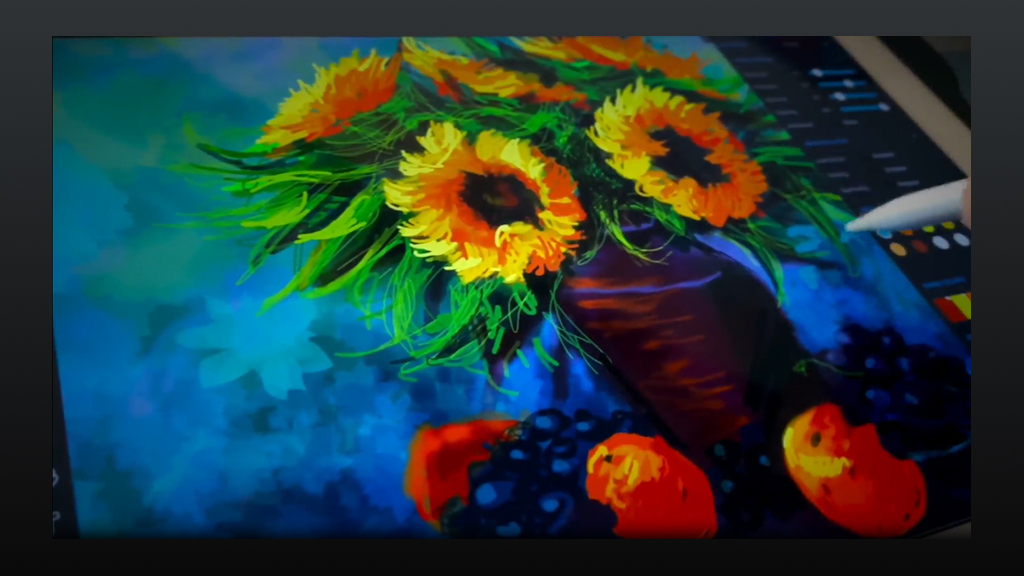
Before choosing an editing tool, it helps to understand who it’s designed for. Sumo Paint’s feature set and browser-based design make it especially appealing to certain types of users.
- Students, teachers and classrooms that need a no-install tool for lessons and assignments.
- Hobbyists and illustrators who want quick access to a brush-rich environment from any computer.
- People who need occasional editing without investing in licenses or learning heavy desktop tools.
Sumo Paint is a mature and surprisingly powerful web-based image editor that gives you many of the core tools artists and photo editors need, layers, custom brushes, filters, and decent color controls, all inside a browser. Its accessibility and ease of use are the primary draw; performance and advanced workflows can sometimes lag behind native desktop tools. For quick projects, teaching, and creative exploration across devices, Sumo Paint is a top pick. For heavy, professional work, consider pairing it with a desktop-native app.










