
WhatsApp may feel simple on the surface, but beneath its familiar interface lies a powerful set of hidden features that most users rarely explore. From smart shortcuts and privacy controls to productivity-boosting tools, there are dozens of secret WhatsApp tricks that can completely change how you chat, share, and stay organized. Knowing these lesser-known tips not only helps you use the app more efficiently but also gives you greater control over your personal data and conversations.
At the same time, WhatsApp’s massive popularity makes it a prime target for hackers and scammers. Account takeovers, phishing links, fake verification codes, and spyware attacks are far more common than many users realize. A single careless click or shared OTP can be enough for attackers to hijack your WhatsApp account. This guide uncovers powerful WhatsApp tricks you probably didn’t know, while also showing how hackers exploit weak settings and how you can stay one step ahead.
Whatsapp Tricks and Tips You (Probably) Didn’t Know
1. PIN Chats to the Top (Android Device/iPhone)

(Image Source: geeksforgeeks)
WhatsApp allows you to pin important chats so they always stay at the top of your chat list. This is useful for frequent contacts like family, work groups, or close friends. On Android, long-press a chat and tap the pin icon; on iPhone, swipe right on the chat and tap “Pin.” You can pin up to three chats at a time. This saves time and ensures you never miss important conversations.
2. Use Starred Messages for Quick and Easy Access Later
(Image Source: techpp)
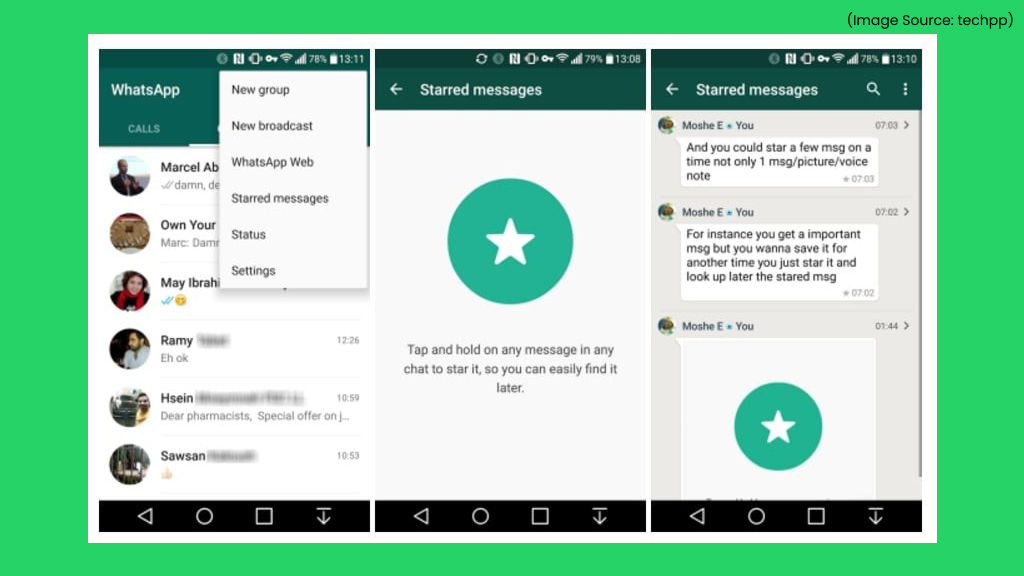
Starred Messages work like bookmarks for important texts, links, or media. Simply long-press a message and tap the star icon to save it. You can access all starred messages from a single place without scrolling through chats. This is perfect for saving addresses, reminders, or important instructions. It’s one of the fastest ways to retrieve crucial information later.
3. Use Filters To Search
(Image Source: wabetainfo)
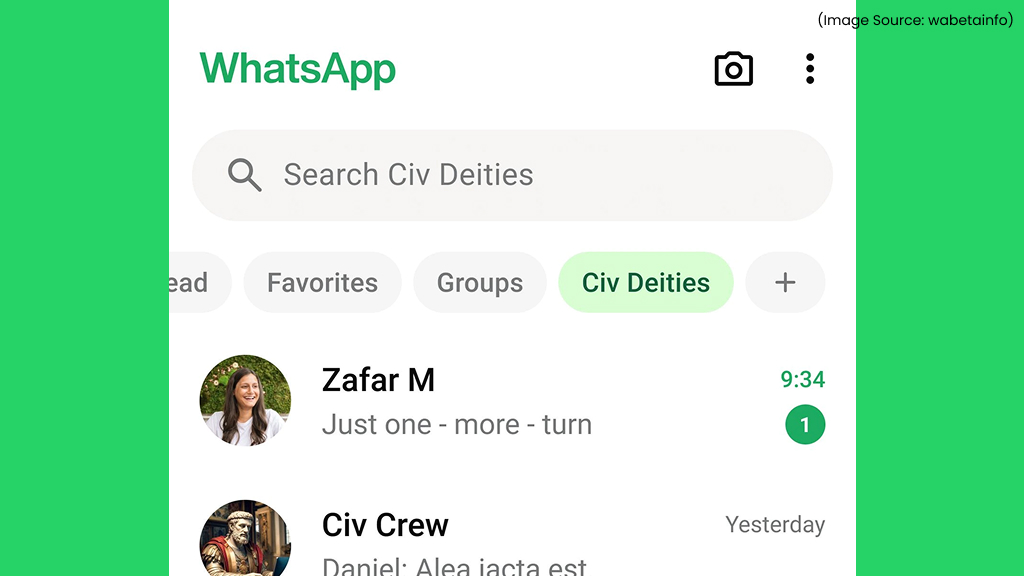
WhatsApp’s search feature lets you filter results by photos, videos, links, GIFs, or documents. Instead of manually browsing chats, you can find exactly what you need in seconds. Just tap the search icon and select a filter to narrow results. This is especially helpful in long group conversations. It’s a powerful tool most users don’t fully utilize.
4. Broadcast Messages Without Groups
(Image Source: wadesk)
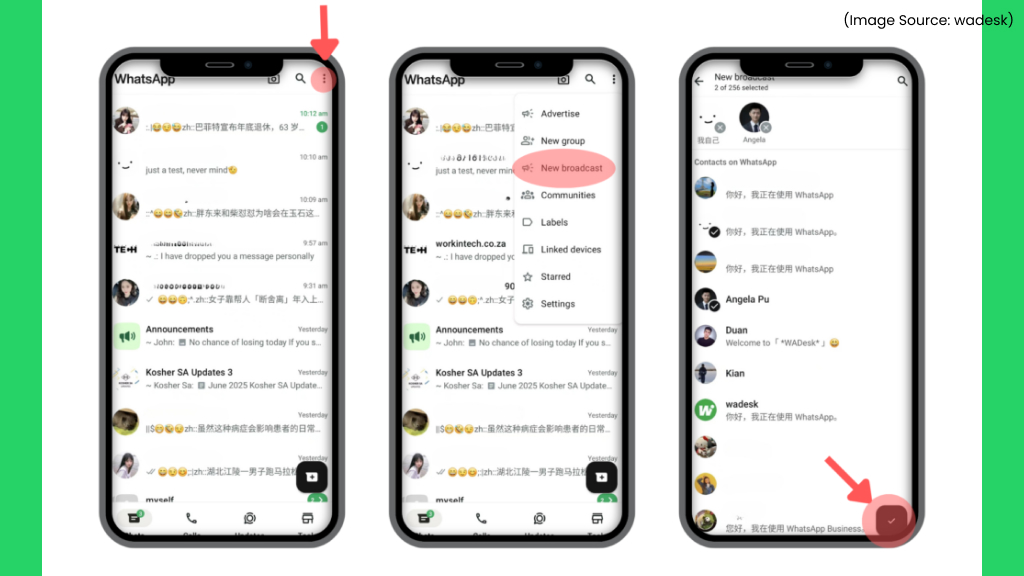
Broadcast Lists allow you to send the same message to multiple contacts at once without creating a group. Each recipient receives the message as a private chat, keeping responses separate. This is ideal for announcements, invitations, or updates, and only your saved contacts will receive the broadcast, making it efficient and privacy-friendly.
5. Apply Text Formatting To Highlight and Emphasize Important Parts of Your Messages
(Image Source: newsbytesapp)
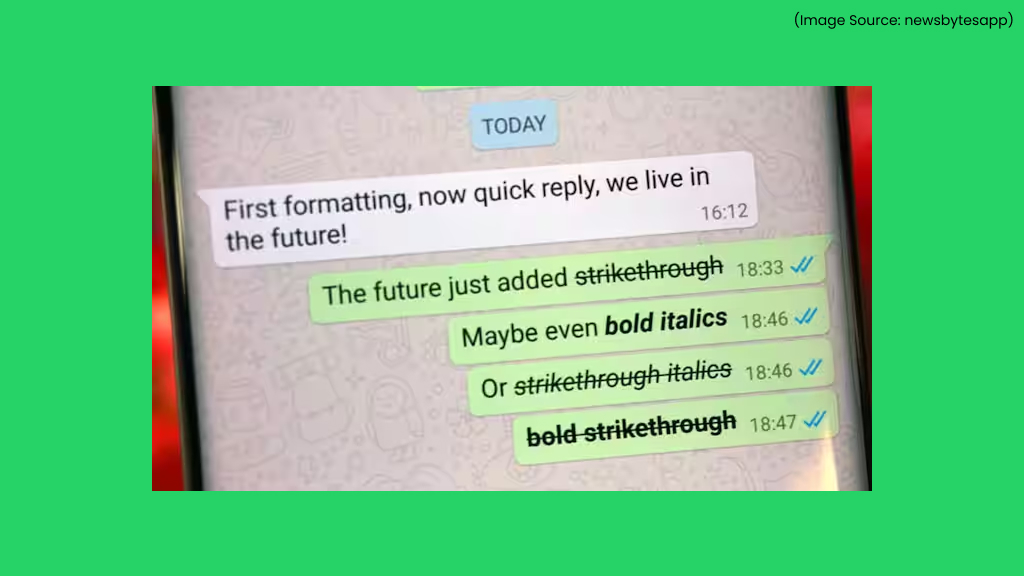
WhatsApp lets you format text using simple symbols. Add asterisks for bold, underscores for italics, and ~tildes~ for strikethrough text. You can also use monospace formatting for code-style text. Formatting helps highlight key points or convey tone more clearly. It’s great for professional and expressive messaging.
6. View Messages Privately
(Image Source: airdroid)
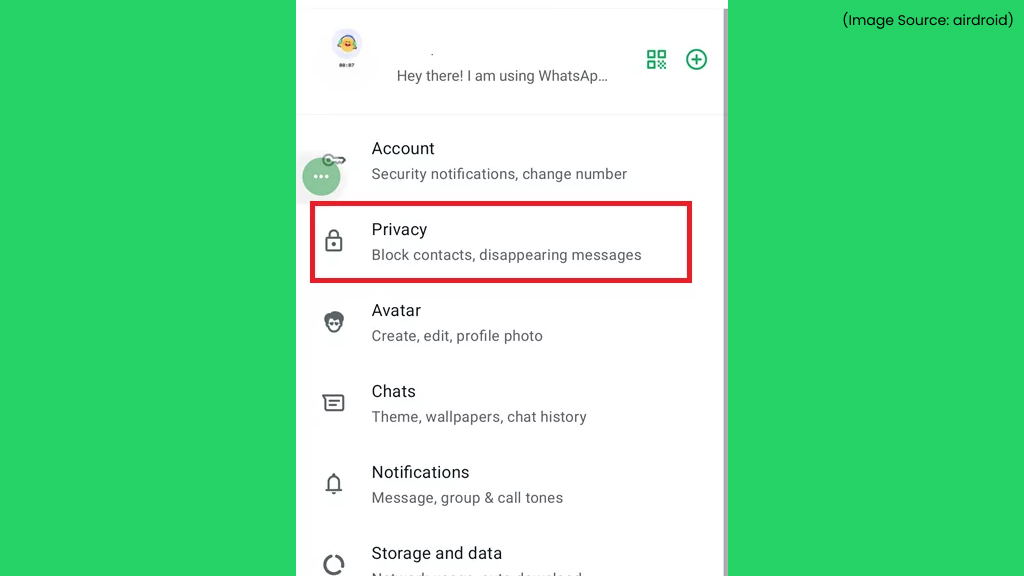
You can read messages without sending blue ticks by disabling read receipts in Settings > Privacy. Another trick is reading messages from notifications or enabling airplane mode before opening WhatsApp. This allows you to stay informed without alerting the sender. However, disabling read receipts also means you won’t see others’ read status. It’s a trade-off worth knowing.
7. Message Through Voice
(Image Source: idownloadblog)
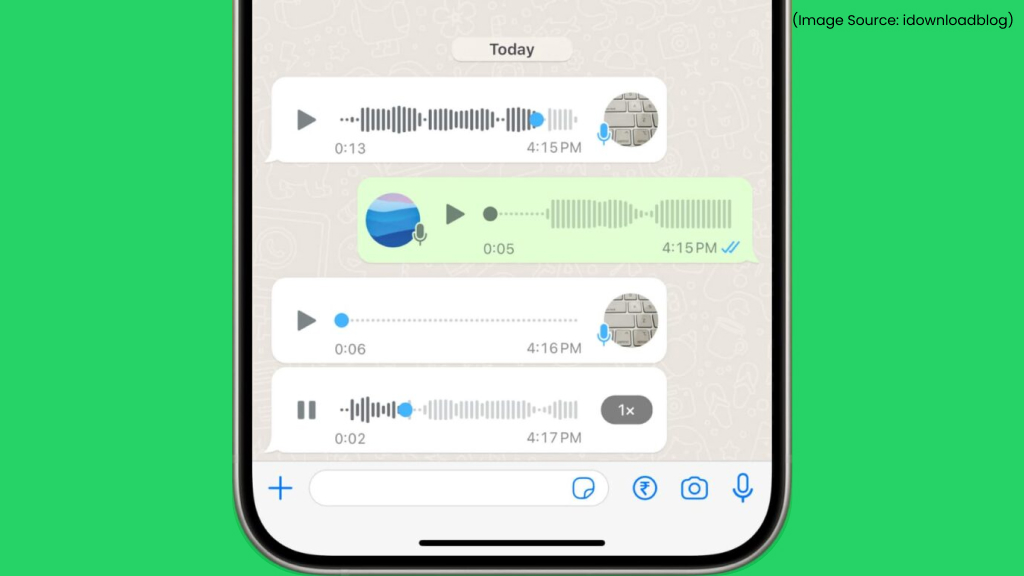
Voice messages are perfect when typing isn’t convenient. You can record hands-free by locking the mic. They convey tone and emotion better than text. Playback speed controls add convenience.
8. Listen To Voice Notes Faster by Adjusting the Playback Speed
(Image Source: tnwcdn)
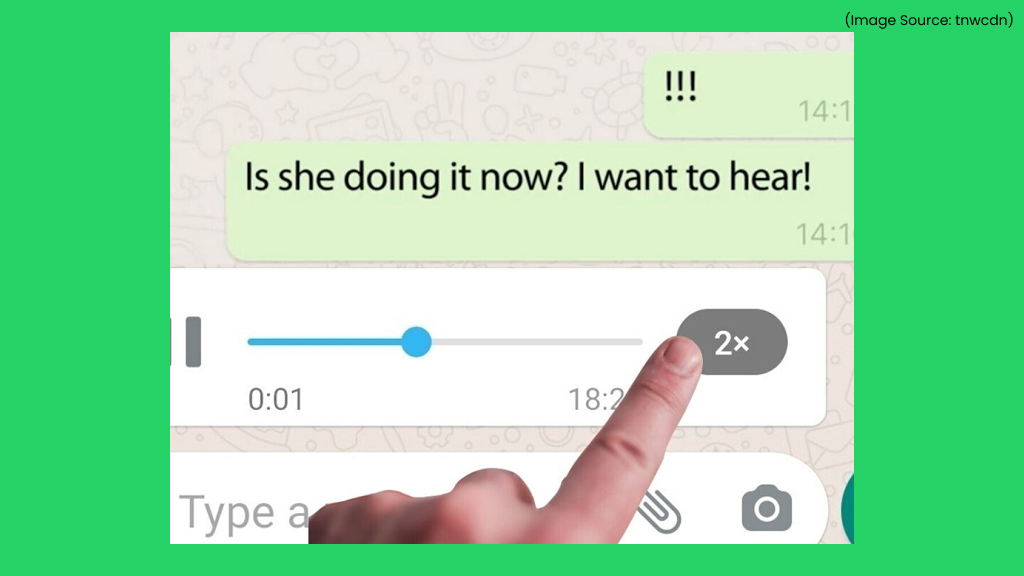
WhatsApp allows you to play voice notes at 1.5x or 2x speed. Simply tap the speed icon while listening to a voice message. This saves time, especially for long audio notes. The feature keeps voices clear while speeding them up.
9. Turn on Two-Step Verification
(Image Source: beebom)
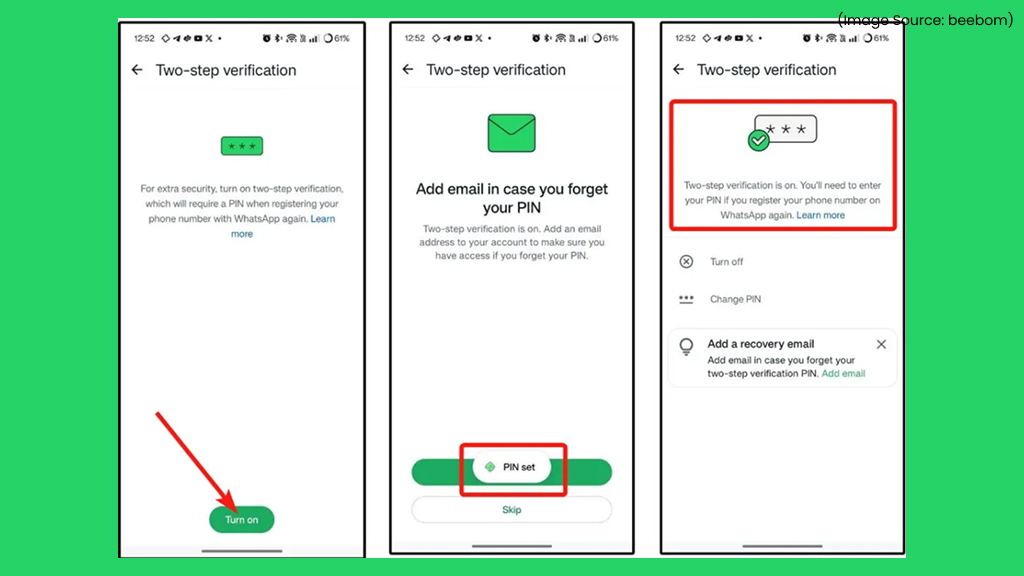
Enabling two-step verification helps protect your account with an extra layer of authentication. It requires a PIN whenever your number is registered on a new device. You can enable it from Settings > Account > Two-Step Verification. This protects your account from unauthorized access. It’s a must-enable security feature.
10. Limiting Access to Your Profile Details
(Image Source: vpnoverview)
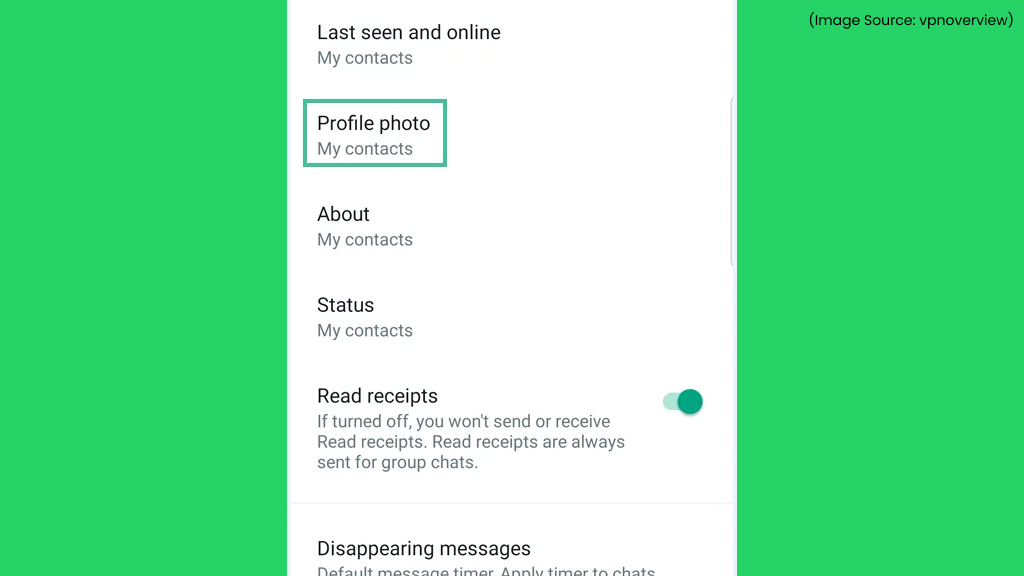
WhatsApp allows you to control who sees your profile photo, last seen, about info, and status. You can set visibility to Everyone, My Contacts, or Nobody. This helps maintain privacy and avoid unwanted attention. Custom settings can be applied for specific contacts. It’s a simple but powerful privacy tool.
11. Use Fingerprint for the App
(Image Source: thenextweb)
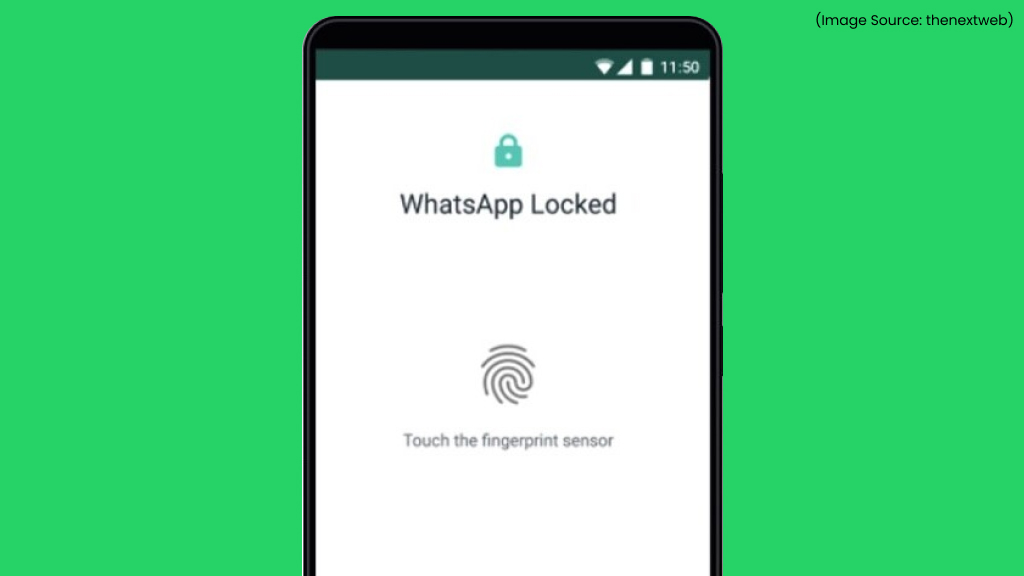
You can lock WhatsApp using fingerprint or Face ID for extra security. This ensures no one can access your chats even if they unlock your phone. Enable it from Settings > Privacy > App Lock. You can also set an auto-lock timer. It’s ideal for protecting personal and work conversations.
12. Disable Cloud Backups
(Image Source: unictool)
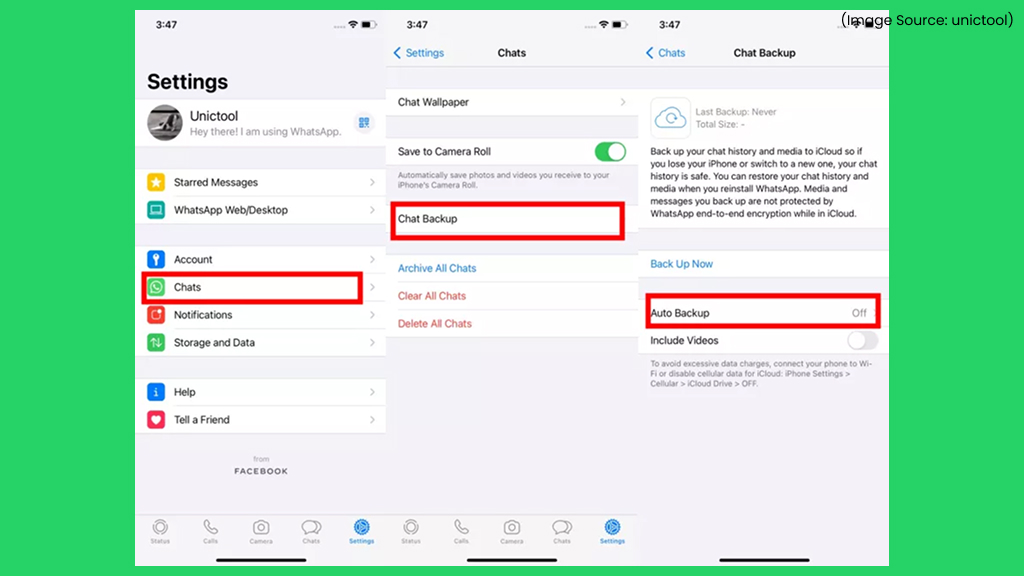
Cloud backups may not be end-to-end encrypted depending on settings. You can manage this under Settings > Chats > Chat Backup. Turning it off prevents data from being stored online. This is useful for confidential conversations.
13. Use Private Chat as Your Personal Notes Space
(Image Source: ajmaurya)
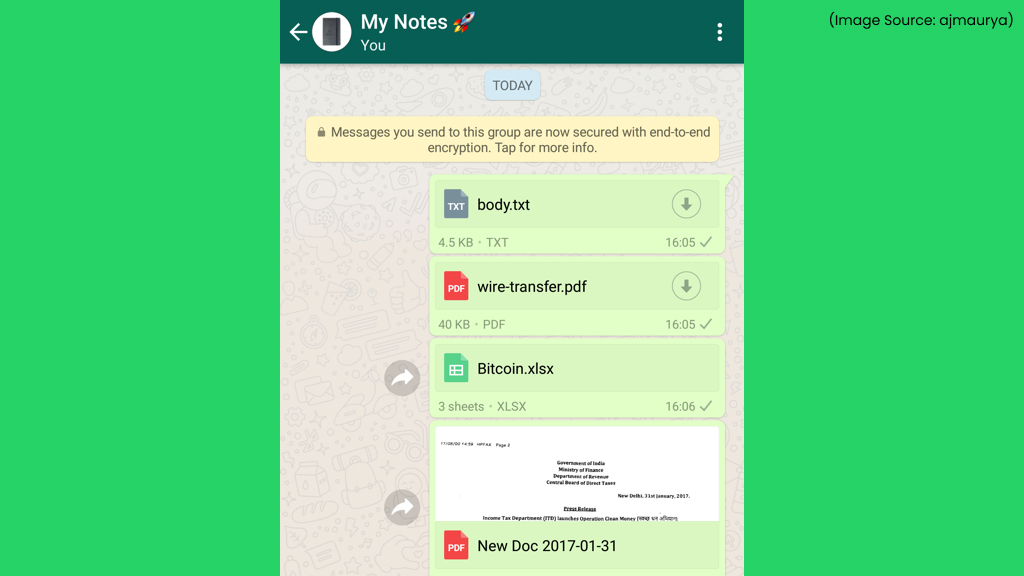
You can create a private notes chat by messaging yourself or creating a solo group. This space can store reminders, links, and to-do lists. It syncs across devices and is easy to access. Many users rely on it as a quick digital notebook. It’s a simple productivity hack.
14. Custom Notifications for Priority Contacts
(Image Source: v-user)
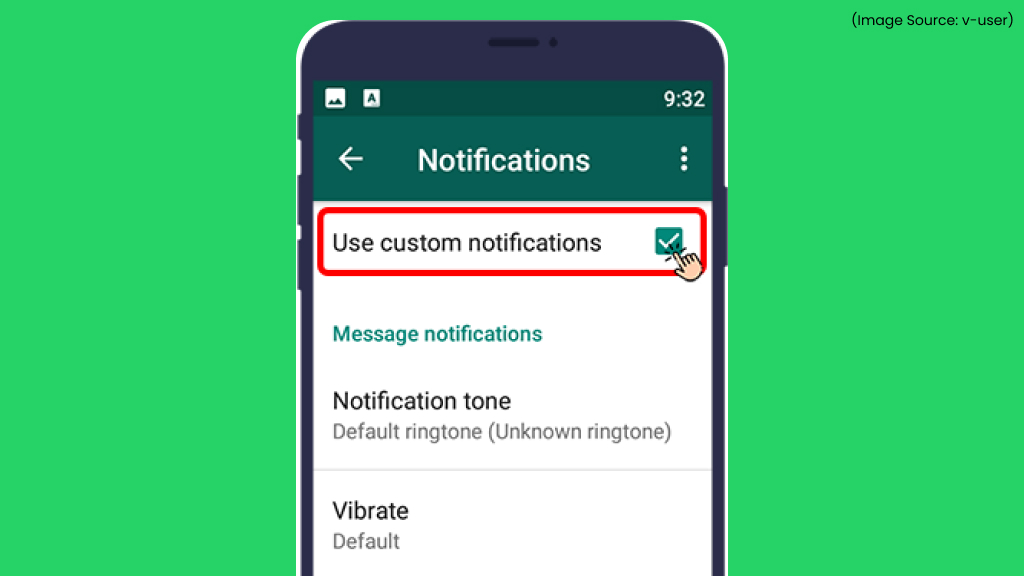
You can assign unique notification tones to important contacts or groups. This helps you identify messages without checking your phone. Custom alerts ensure you never miss urgent messages. It’s especially useful for work or family chats. The feature is easy to set from contact info settings.
15. Automate Replies with WhatsApp Business
(Image Source: yellow.ai)
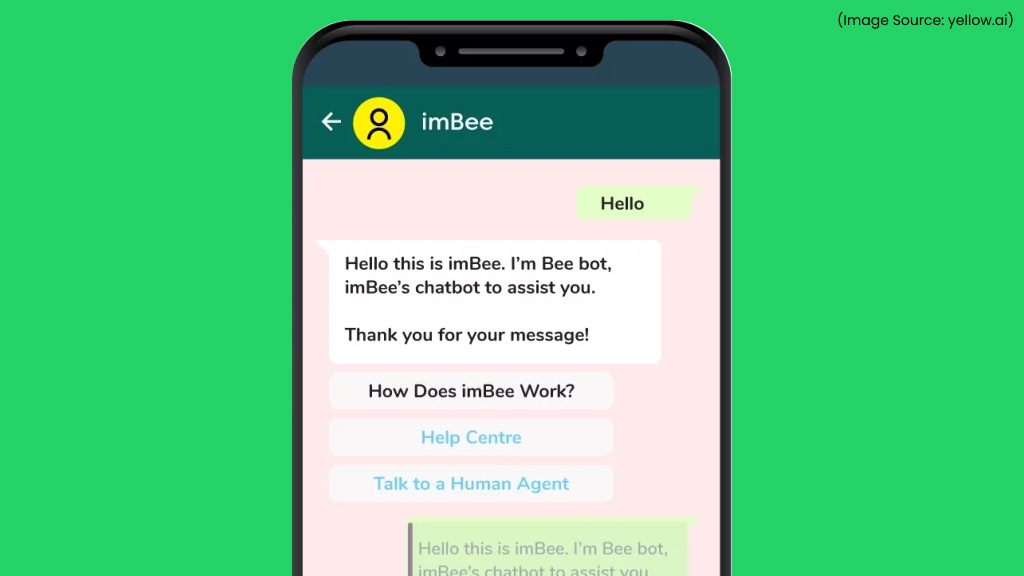
WhatsApp Business lets you set automated greetings and away messages. This is perfect for businesses or professionals managing customer queries. You can respond instantly even when unavailable. Labels and quick replies further streamline communication.
16. Label Your Chats
(Image Source: zixflow)
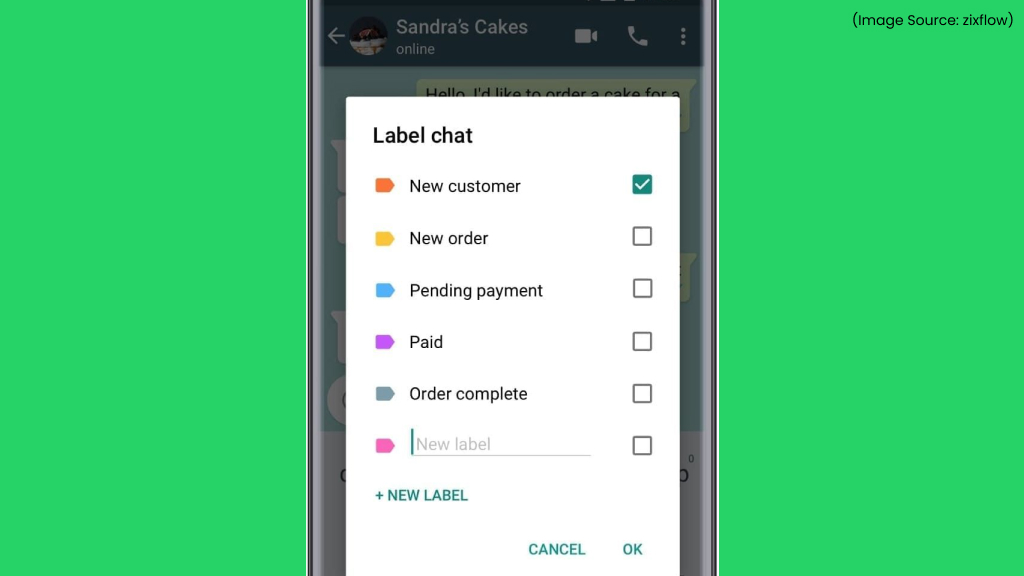
Labels help categorize chats into groups like “New Customer,” “Pending,” or “Follow-Up.” This feature is available in WhatsApp Business. It improves workflow and chat management. You can filter conversations based on labels. It’s ideal for handling multiple conversations efficiently.
17. Mute Groups
(Image Source: gadgethacks)
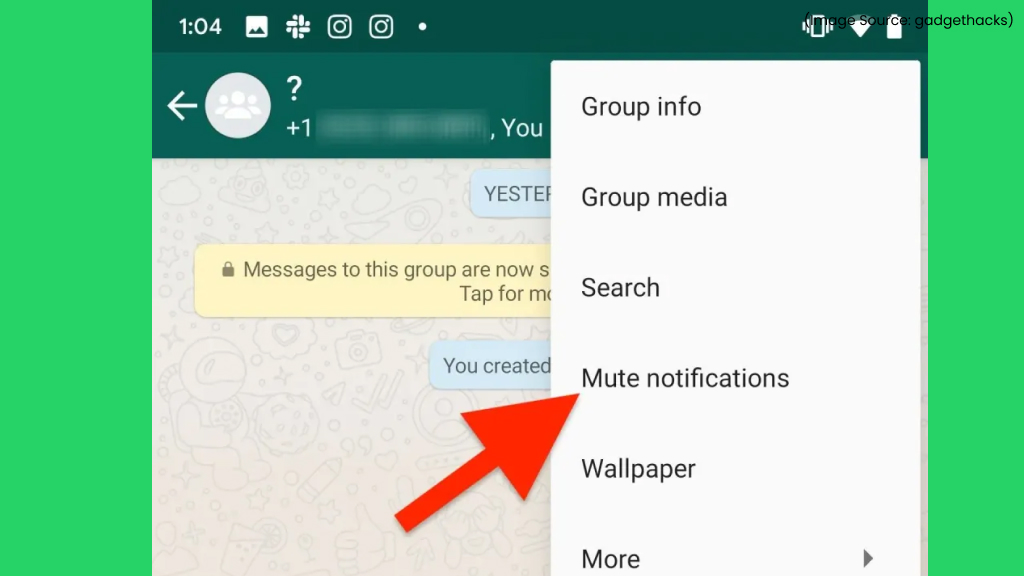
Group chats can be noisy and distracting. WhatsApp lets you mute groups for 8 hours, 1 week, or forever. Muting stops alerts while keeping the group accessible whenever you want to check messages.
18. Identify Conversations That Use up the Most Storage Space
(Image Source: ionos)
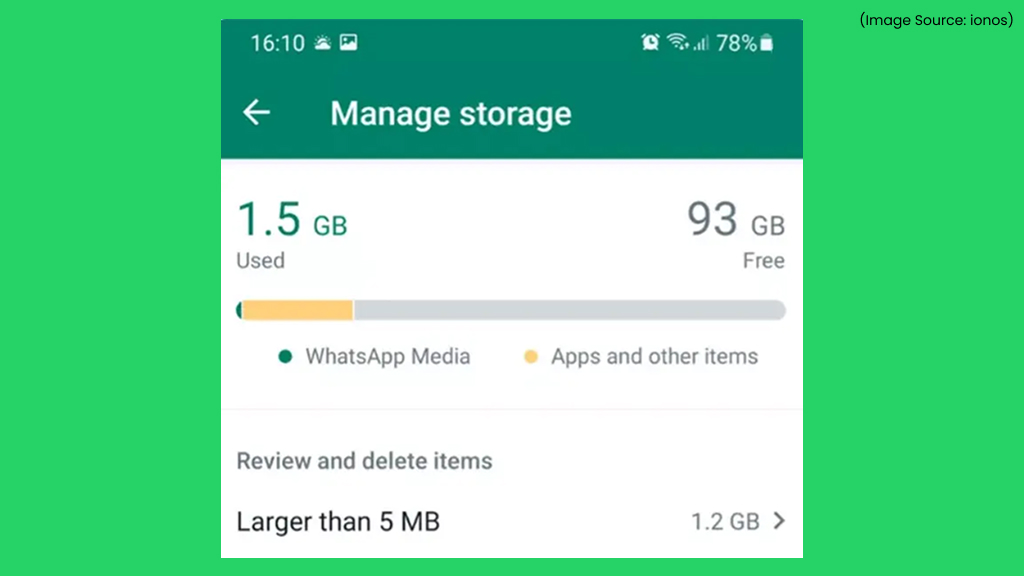
WhatsApp shows chat storage usage under Settings > Storage and Data > Manage Storage. This reveals which chats take up the most space. It indirectly shows who you message the most. You can also delete large media files from these chats. It’s useful for storage management and curiosity.
19. Avoid Unnecessary Storage Clutter
(Image Source: softorino)
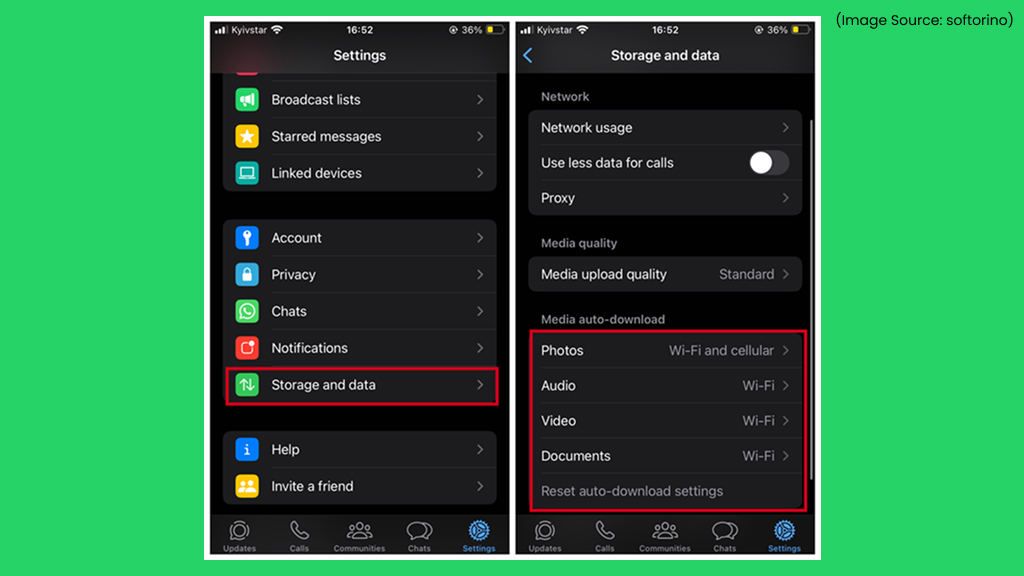
WhatsApp automatically saves received media to your phone, filling up storage. You can disable this by going to Settings > Chats and turning off “Save to Gallery.” This prevents unwanted photos and videos from cluttering your gallery. The media will still remain in chats.
20. Search Within a Specific Chat
(Image Source: guidingtech)
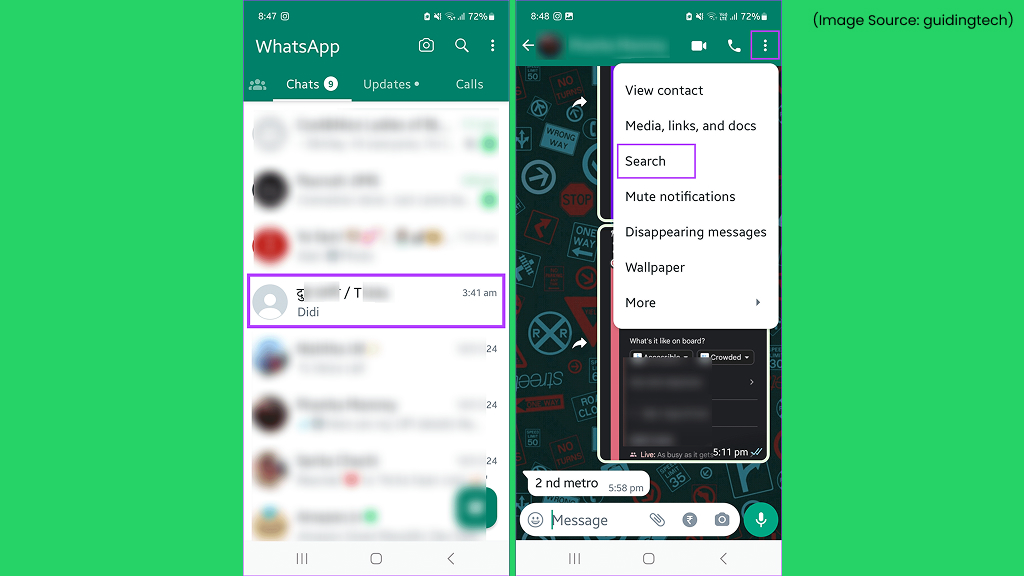
Instead of scrolling endlessly, you can search within a specific chat. Open the chat, tap the search icon, and type a keyword. WhatsApp highlights matching messages instantly. This is helpful for finding addresses or important details, and saves time and effort.
21. Turn On Disappearing Messages
(Image Source: fb)
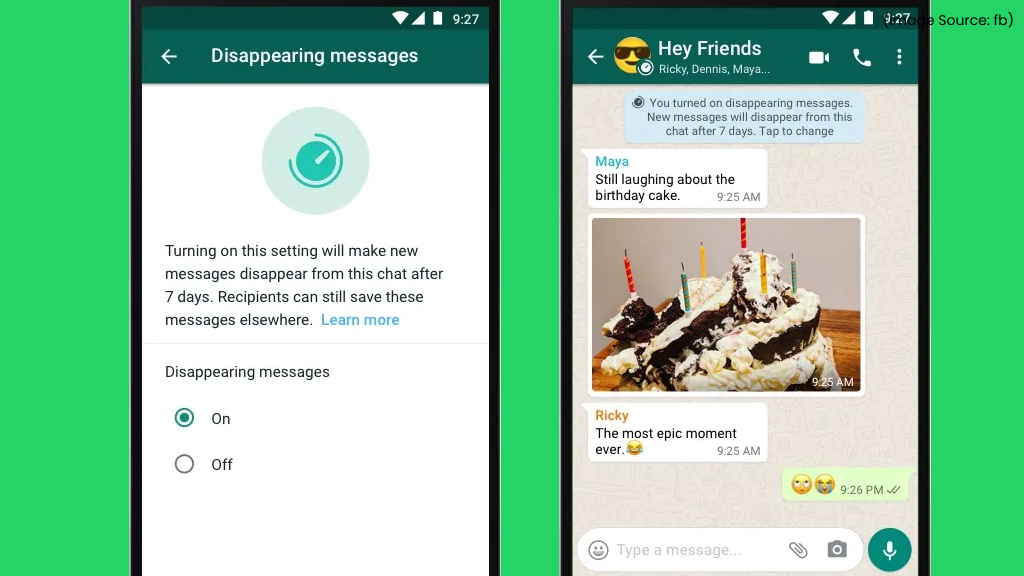
Disappearing Messages automatically delete chats after a set duration. You can enable this for individual or group chats. Options include 24 hours, 7 days, or 90 days. This feature enhances privacy and reduces clutter. It’s ideal for temporary conversations.
22. The View Once Feature
(Image Source: fb)
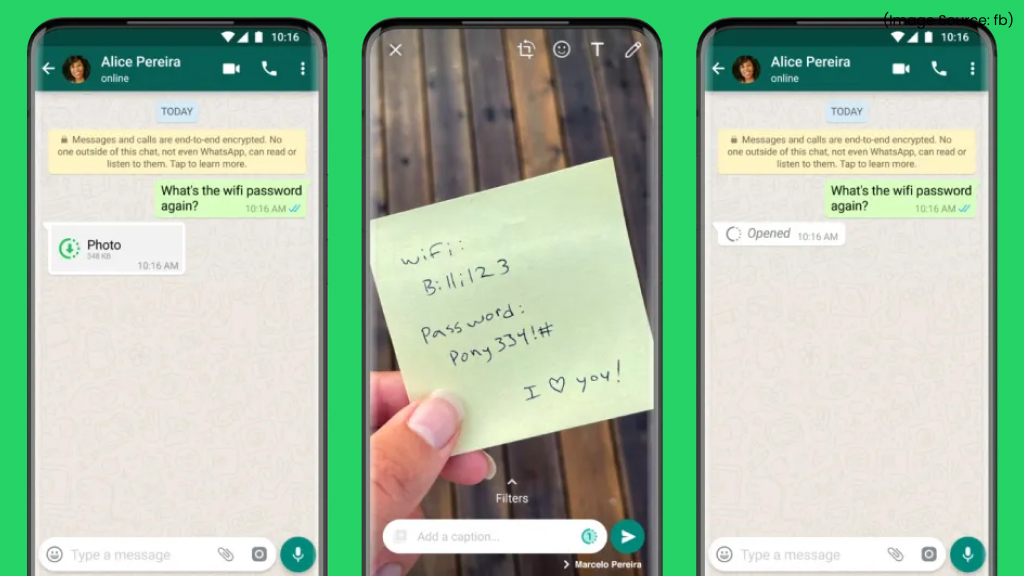
View Once lets you send photos or videos that can be opened only once. After viewing, the media disappears automatically. This reduces the risk of screenshots or forwarding. It’s designed for privacy-sensitive content.
23. Customize Alert Tones
(Image Source: idownloadblog)
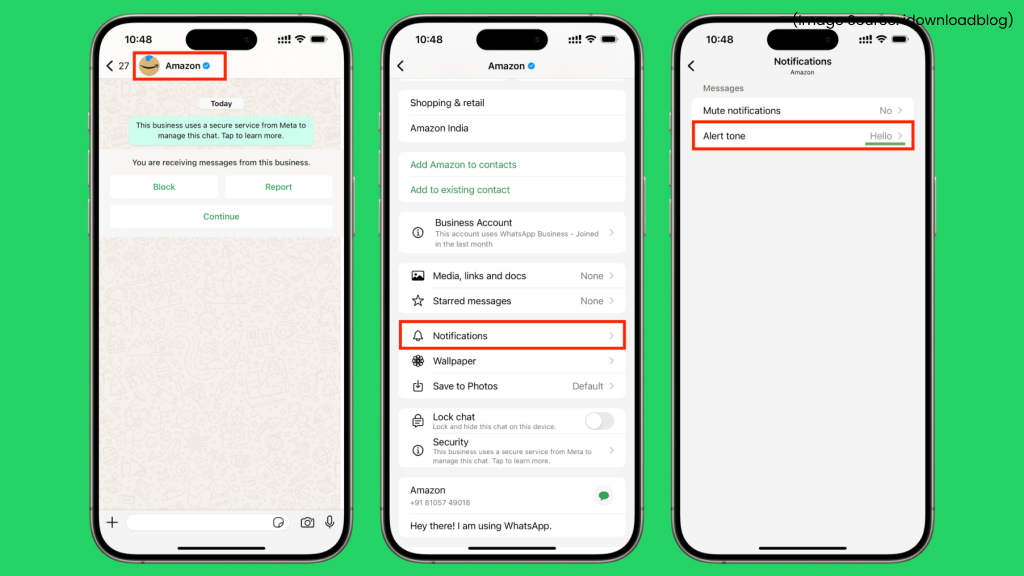
Different notification tones make it easier to help differentiate between personal and work chats. You can assign custom sounds to groups and contacts. This lets you prioritize messages without checking your phone. It’s especially useful for busy users, and improves notification management.
24. Customize Chat Wallpaper
(Image Source: pocket-lint)
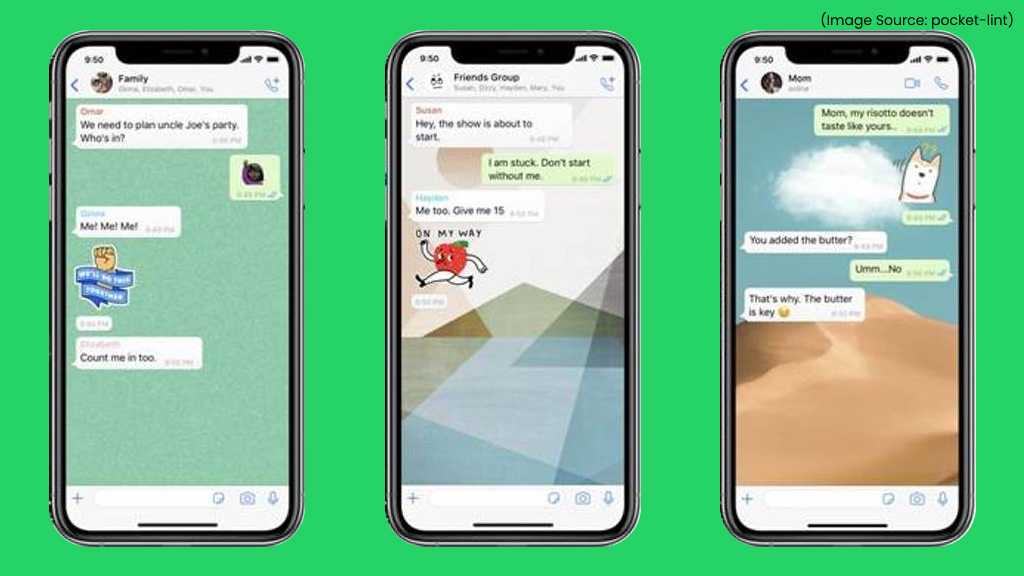
WhatsApp lets you personalize chat backgrounds either across all conversations or for individual chats, where you can choose colors, images, or default themes. This makes chats visually distinct and personal.
You can apply a universal wallpaper by clicking on Settings > Chats > Default Chat Theme. If you want a different look for a specific conversation, open that chat, and click on Chat Theme. You can pick from solid colors, images from your gallery, or built-in themes, and even adjust the brightness to suit your preference.
25. Hiding Your Profile Pic
(Image Source: ytviews)
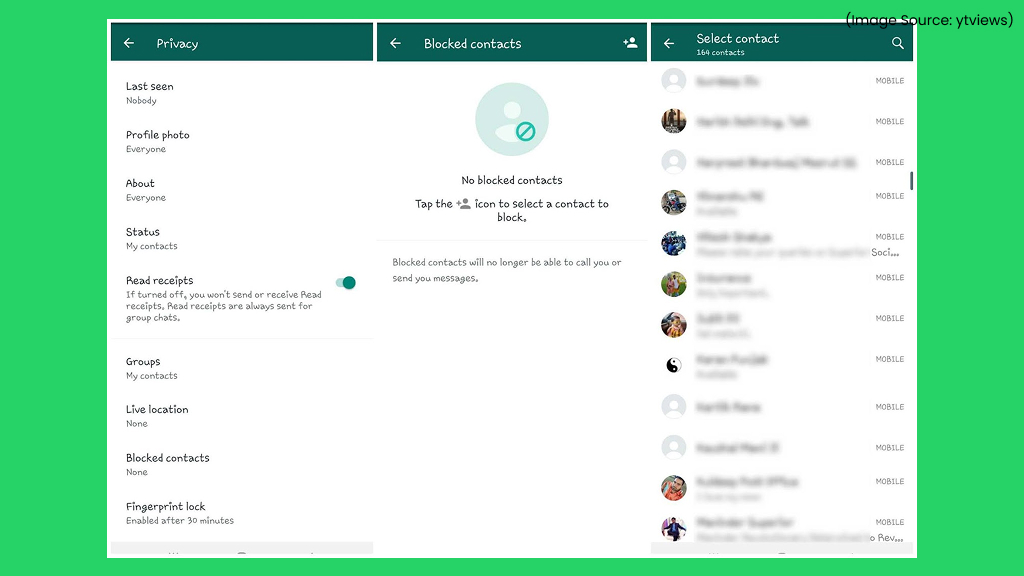
You can hide your profile photo from specific contacts or everyone. Go to Settings > Privacy > Profile Photo to adjust visibility. It allows you to choose who can view your profile photo (Everyone, My Contacts, Selected Contacts, or no one at all.) This setting helps keep your identity private and prevents strangers from accessing your personal image.
26. Shortcuts to Conversations
(Image Source: v-user)
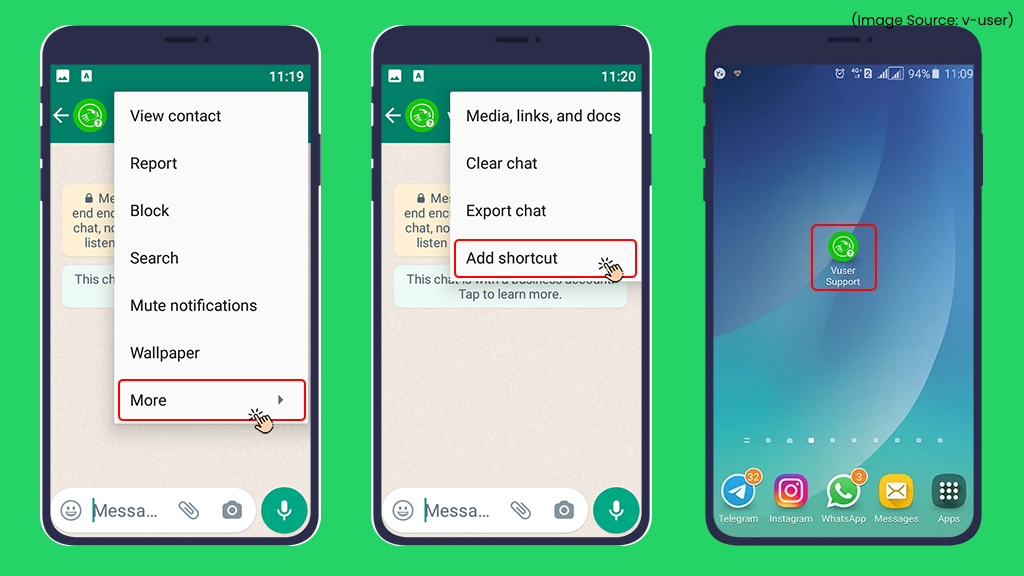
On Android, you can create chat shortcuts on your home screen. This gives instant access to specific conversations. It saves time and reduces navigation steps. It’s ideal for frequently contacted people.
27. Go Incognito
(Image Source: gedistatic)
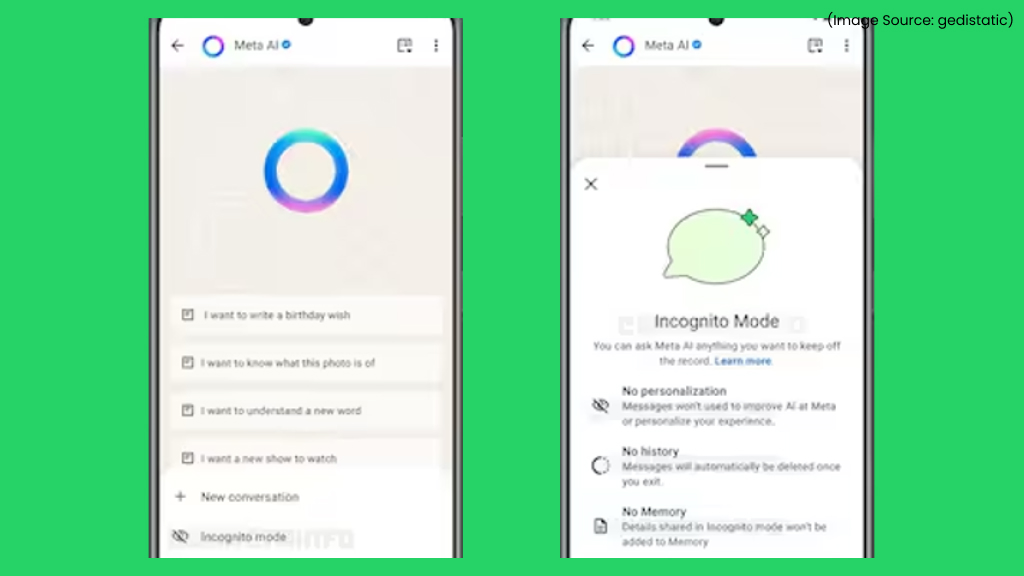
WhatsApp doesn’t offer a dedicated “Incognito Mode,” but you can create a similar level of privacy using its built-in settings. By visiting Settings > Privacy, you can control who sees your last seen, your online status, and your status updates. You can also turn off read receipts to avoid sending blue ticks, although this means you won’t be able to see when others have read your messages either.
28. Back up Your Chat History in Whatsapp
(Image Source: wideanglesoftware)
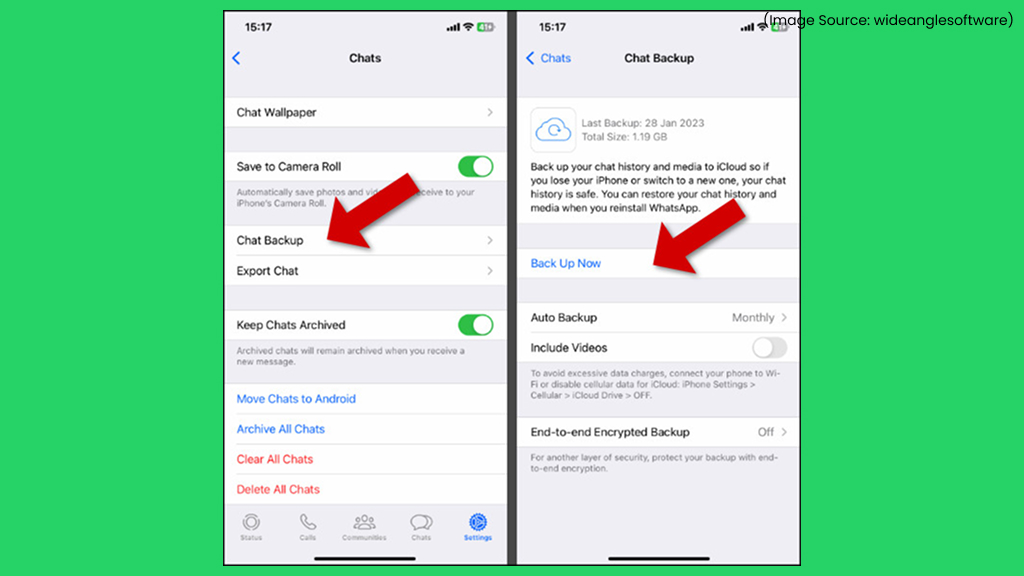
Regular backups protect your chat history from data loss. You can back up to Google Drive or iCloud by enabling automatic WhatsApp backups. You need to go to Settings > Chats > Chat Backup. From there, choose how often backups should run, such as daily, weekly, or monthly, and decide whether videos should be included.
Once configured, WhatsApp will regularly save your chat history on its own, so you don’t have to back up conversations manually.
29. Draw on Your Pics
(Image Source: idownloadblog)
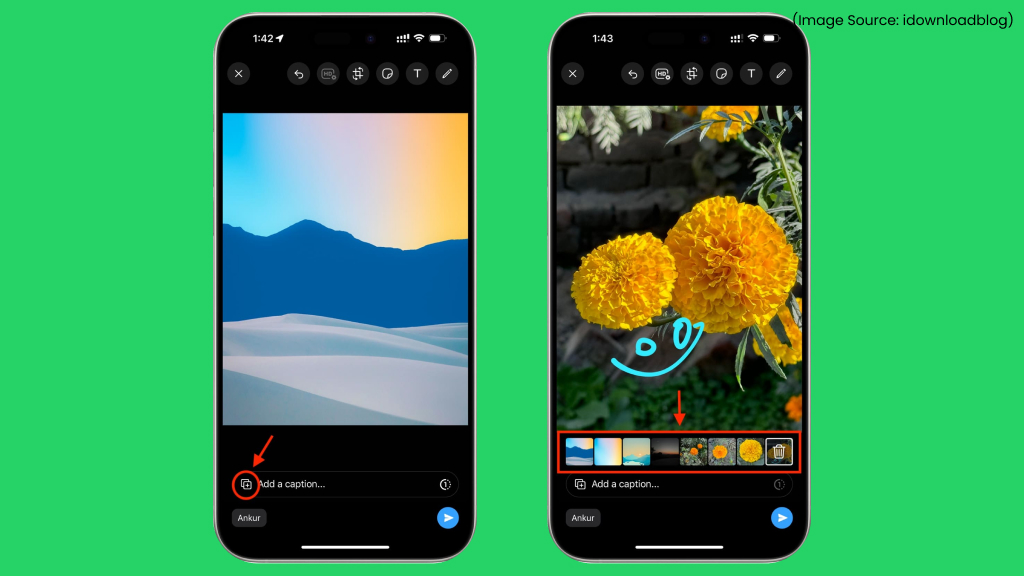
You can sketch or add markings to photos directly in WhatsApp before sending them. Open a chat, tap the camera icon to capture a photo or pick one from your gallery, then use the drawing tool to select colors and line thickness and draw on the image with your finger. You can also enhance the picture by adding text, emojis, or stickers, giving it a more personalized touch before sharing.
30. Star Messages
(Image Source: lowyat.net)
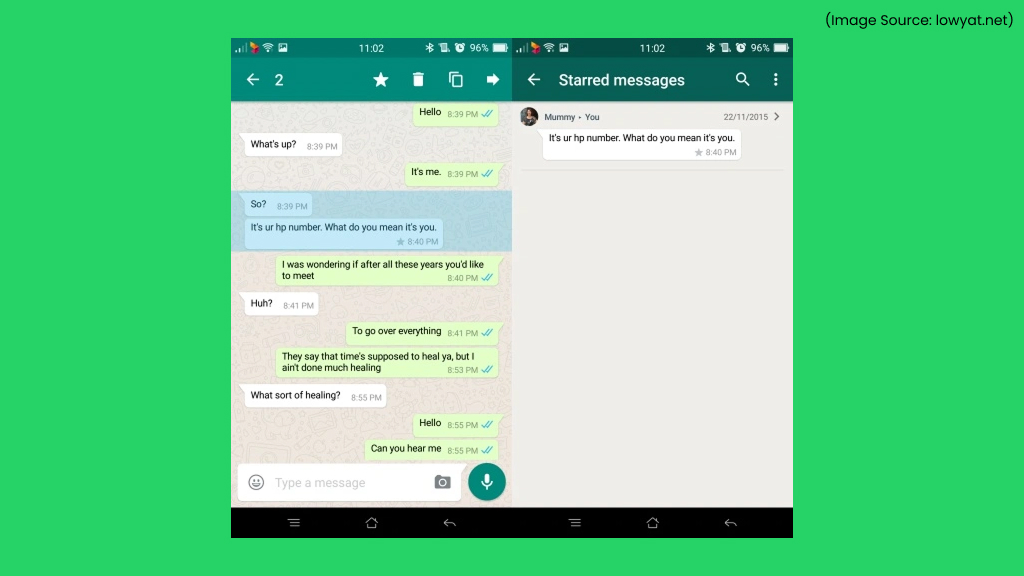
Starred Messages in WhatsApp act as a handy bookmarking tool for saving important conversations in one easily accessible place. Whether it’s an address, a reminder, a link, or key instructions, starring a message ensures you can find it later without scrolling through long chat threads.
To use this feature, simply press and hold a message on your phone, or right-click it on WhatsApp Web or Desktop, and tap the star icon. The saved message appears in the Starred Messages section, accessible from the app’s menu. Starred messages sync across devices and can be unstarred at any time, making this a simple yet effective way to stay organized, especially in busy group chats.
31. Keep Your Messages Secret
(Image Source: pocketlintimages)
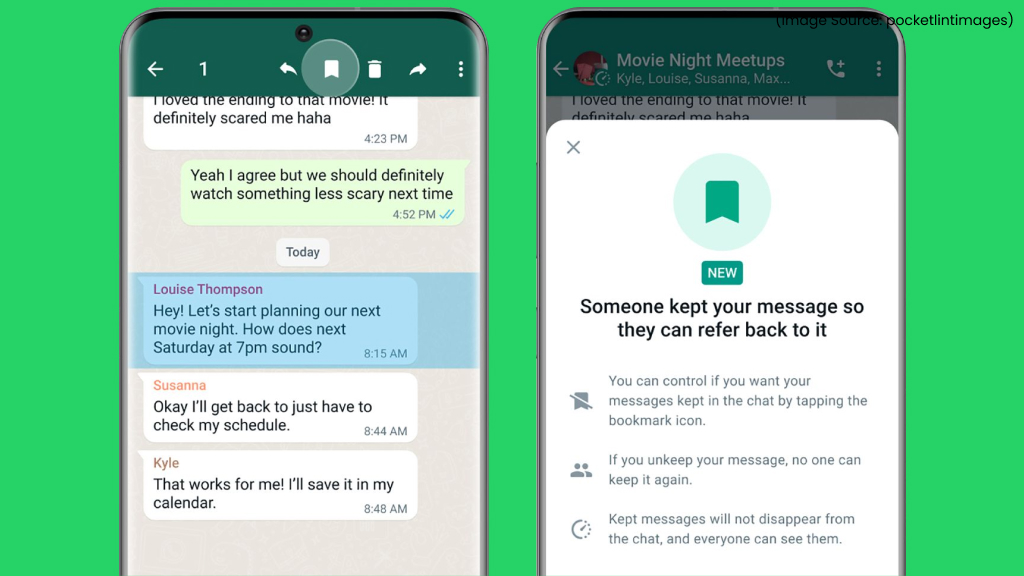
WhatsApp messages are private, but not when they are left unattended. You can hide WhatsApp message previews so texts don’t appear on your lock screen. On iPhone, open WhatsApp > Settings > Show Previews. Now switch this off to keep message content hidden.
On Android, open Whatsapp and go to Settings > Notifications > Use high priority notification. Turning off the notification, controls pop-ups and banners for messages, thus preventing previews from showing.
32. Clear Your Unread Message Count
(Image Source: huaweicentral)
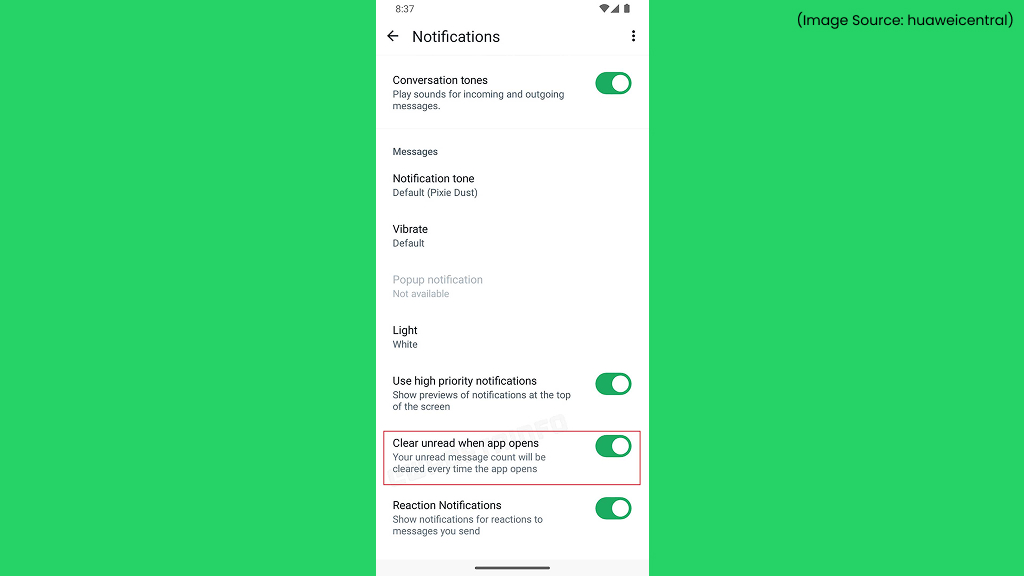
Unread message badges can quickly pile up and make your inbox feel cluttered or stressful. Clearing the unread message count in WhatsApp helps you regain a sense of control and keep your notifications tidy. You can remove badges by opening Whatsapp > Settings > Notifications > Clear Badge. Managing unread message counts not only keeps your home screen clean but also helps you focus on conversations that truly matter.
33. Edit Sent Messages
(Image Source: fb)
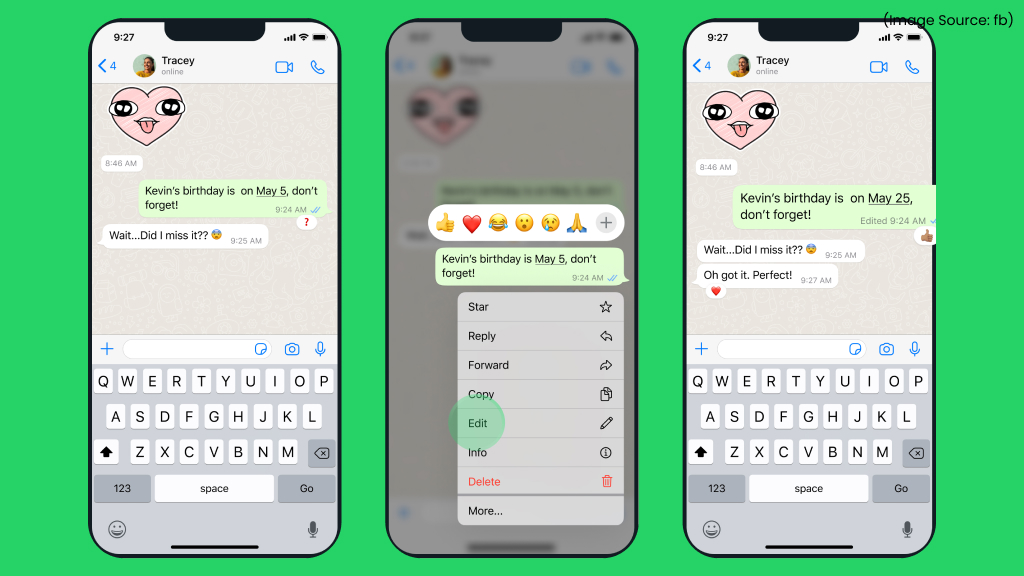
WhatsApp allows you to edit sent messages within a 15-minute window, making it easy to fix typos or clarify mistakes without sending a follow-up text. To edit a message, simply press and hold the sent message, tap Edit, make your changes, and resend it. The updated message will display an “Edited” label so recipients know it was modified.
This feature works in both individual and group chats and helps keep conversations clean and accurate. It’s especially useful when autocorrect goes wrong or when you need to quickly rephrase something you just sent.
34. Send HD Photos and Videos
(Image Source: idownloadblog)
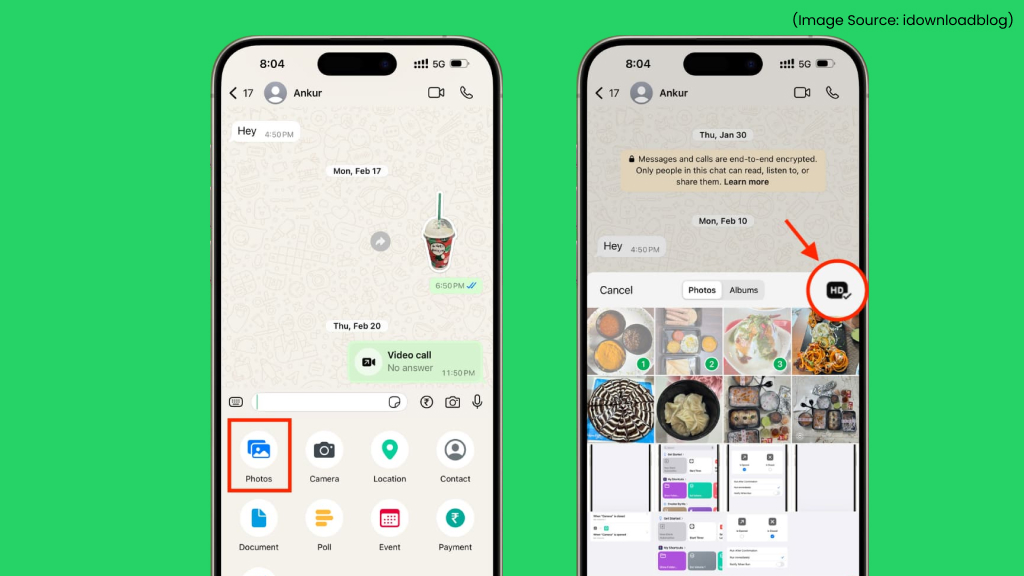
Earlier, WhatsApp automatically compressed photos and videos, which often reduced quality and made the app unsuitable for sharing design drafts, contracts, or visual portfolios. WhatsApp now lets you send images and videos in HD quality. Open the chat window where you want to send the photo or video. Select the media from your gallery, tap the HD icon that appears at the top right, and then tap the send button.
35. Companion Mode
(Image Source: wabetainfo)
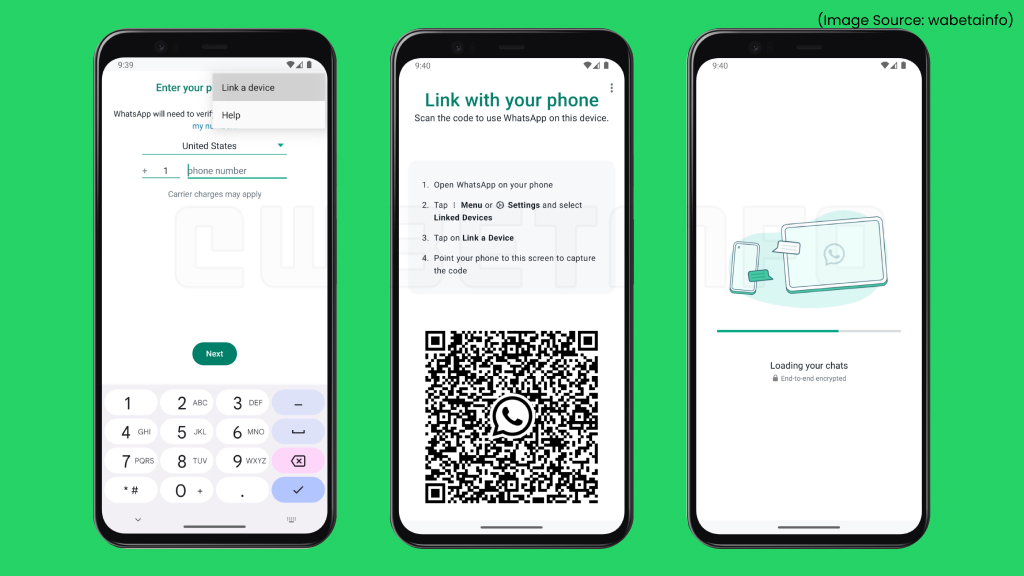
Earlier, WhatsApp restricted each phone number to a single device, but Companion Mode changes that limitation completely. This feature allows you to link up to four additional devices, such as another phone, tablet, or desktop, to the same WhatsApp account. It’s especially helpful for users who juggle between personal and work devices or want access on a backup phone.
All chats and calls stay synced across linked devices, and end-to-end encryption remains active to protect your privacy. Even better, your primary phone doesn’t need to stay online constantly. To set it up, install WhatsApp on the secondary device, select Link to an existing account, and scan the QR code from the Linked Devices section on your main phone.
36. Keep Important Messages from Disappearing Chats
(Image Source: fonearena)
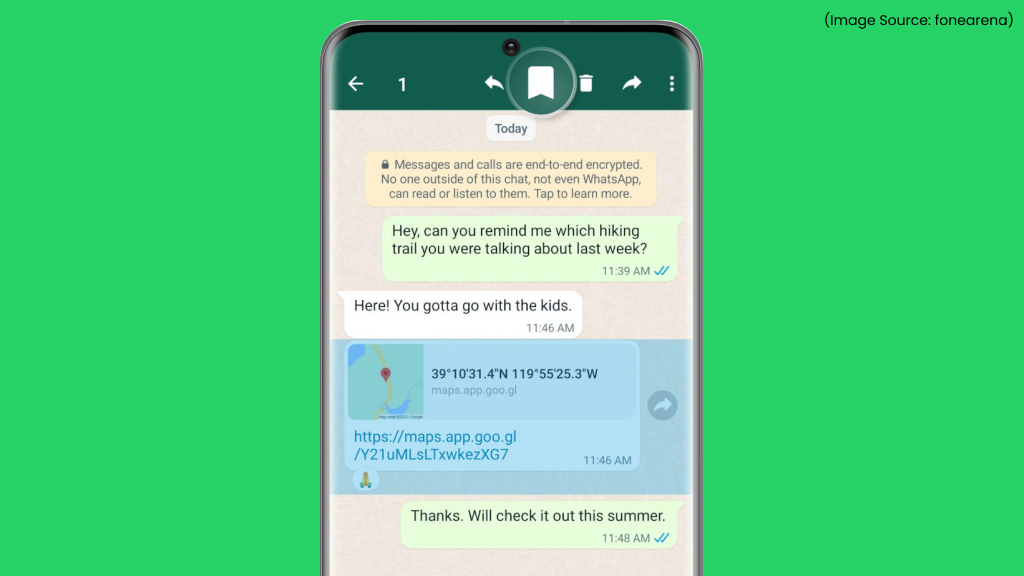
Disappearing messages are designed to enhance privacy, but not every message is meant to vanish forever. WhatsApp now lets you keep specific messages from disappearing chats, giving you more control over important information. If there’s a message you want to save, simply long-press it and tap Keep. That message will remain in the conversation even after the auto-delete timer expires, while the rest of the chat continues to disappear as scheduled.