Mozilla Firefox has long been considered one of the most privacy-friendly mainstream browsers available. Developed by the nonprofit Mozilla, it is open-source, transparent, and equipped with built-in protections that block many common tracking techniques by default.
However, Firefox is configured to balance privacy with convenience. While its default setup is safer than many competitors, it is not fully hardened. Some features still allow background data collection, predictive connections, or monetization tools that privacy-focused users may prefer to disable.
The good news is that Firefox gives you many ways to customize your browser. With a few smart adjustments, you can significantly improve your browser’s privacy and security without breaking your favorite websites. Let’s explore the essential tweaks that can help make your firefox browsing safer and more secure.
1. Switch Enhanced Tracking Protection to Strict

Mozilla Firefox comes with Enhanced Tracking Protection (ETP), a built-in privacy feature that blocks trackers, cross-site cookies, social media trackers, cryptominers, and known fingerprinting scripts. By default, it runs in Standard mode, which offers balanced protection and smooth website compatibility. However, users who want stronger privacy can switch to Strict mode.
Simply go to Settings → Privacy & Security → Enhanced Tracking Protection → Select Strict.
Strict mode blocks more aggressive tracking elements and limits third-party data collection, helping reduce how much of your browsing activity is monitored. In rare cases, a website may not load properly, but you can quickly disable protection for that specific site using the shield icon in the address bar.
2. Enable HTTPS-Only Mode
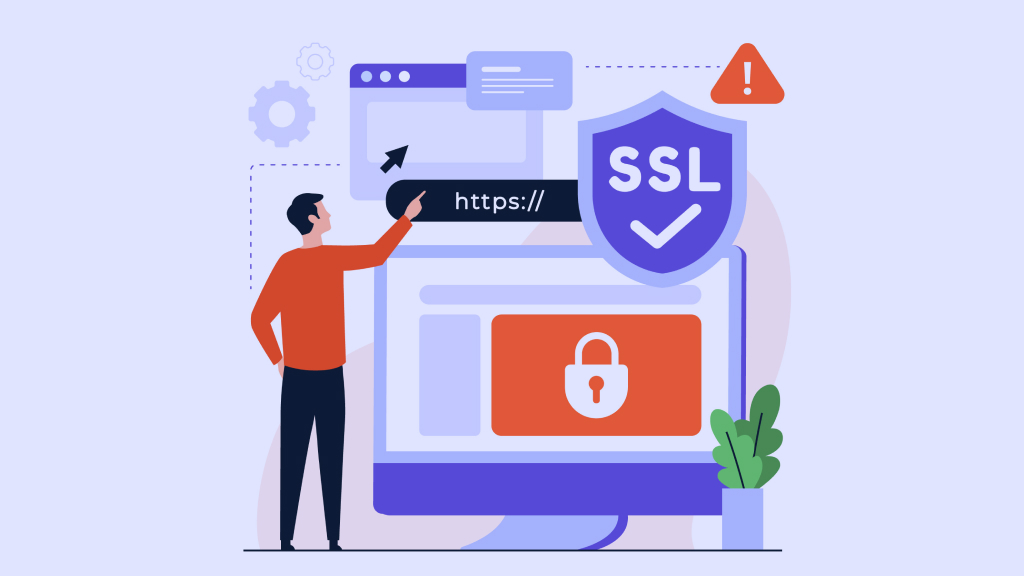
Not every website uses encrypted connections by default. When you visit an HTTP site, your data can be exposed to interception, especially on public Wi-Fi networks. Thankfully, Mozilla Firefox offers an HTTPS-Only Mode that forces secure connections whenever possible.
To enable it on desktop, go to Settings → Privacy & Security → HTTPS-Only Mode → Enable in all windows. On mobile, open Settings → Privacy & Security → HTTPS-Only Mode and toggle it on.
Once activated, Firefox automatically upgrades insecure HTTP requests to HTTPS. If a secure version is not available, you will see a warning before proceeding. This feature protects sensitive data such as passwords and payment details, helps prevent man-in-the-middle attacks, and reduces the risk of malicious code injection. If needed, you can add exceptions for trusted sites that do not support HTTPS.
3. Disable Telemetry and Data Collection
Mozilla Firefox is widely respected for its privacy-focused approach, but it still collects certain technical and interaction data to improve performance and features. This may include usage patterns, device details, crash reports, and participation in studies. If you prefer to reduce the amount of data sent from your browser, you can disable telemetry in just a few steps.
Go to Settings → Privacy & Security → Firefox Data Collection and Use, and uncheck all available boxes, including options for sending technical data, installing studies, and submitting crash reports.
Once turned off, Firefox states that previously collected technical data will be deleted within 30 days. For users who want tighter control over their digital footprint, disabling telemetry is a practical and effective privacy measure.
4. Stop Saving Passwords and Autofill Data

Firefox allows you to store login credentials, addresses, and payment information for convenience. While useful, this data can become a liability if your device is compromised. Malware, information-stealing attacks, or unauthorized access to your computer can expose saved credentials.
To disable password saving go to Settings → Privacy & Security → Logins and Passwords. Now uncheck “Ask to save logins and passwords.”
Then disable autofill under:
Settings → Privacy & Security → Forms and Autofill
Turn off saved addresses and credit cards. Using a dedicated password manager with encryption is generally safer than relying on browser storage alone.
5. Change Your Default Search Engine

Your search engine sees everything you type into it. If privacy is your priority, switching to a search engine that doesn’t log queries or build advertising profiles is important. To change it:
Settings → Search → Default Search Engine → Select DuckDuckGo
You may also want to disable:
- Search suggestions
- Address bar suggestions
- Sponsored suggestions
These features send real-time typing data to search providers to generate predictive results. Disabling them reduces unnecessary data sharing.
6. Disable WebRTC to Prevent IP Leaks
WebRTC enables real-time communication features such as video calls and peer-to-peer sharing. However, it can sometimes expose your real IP address, even when using a VPN. To disable WebRTC:
- Type ‘about:config’ in the address bar
- Accept the warning
- Search for ‘media.peerconnection.enabled’
- Set it to false
Keep in mind that disabling WebRTC may affect browser-based calling platforms. If you frequently use web conferencing tools, you may need to re-enable it temporarily.
7. Strengthen Fingerprinting Resistance

Fingerprinting is an advanced tracking method that identifies users based on device characteristics like screen size, system fonts, operating system, and time zone. Firefox includes a built-in anti-fingerprinting option:
- Search for ‘privacy.resistFingerprinting’ in ‘about:config’
- Set it to true
This standardizes certain browser attributes to reduce uniqueness. While it improves privacy, some websites may display minor layout inconsistencies. Fingerprinting protection is especially valuable for users concerned about sophisticated tracking techniques.
8. Control Cookies More Aggressively
Taking control of cookies is one of the most effective ways to improve privacy in Mozilla Firefox. Cookies help websites remember logins and preferences, but third-party cookies are often used for cross-site tracking. To reduce this, start by setting Enhanced Tracking Protection to Strict under Settings → Privacy & Security. This blocks most trackers and fingerprinting scripts.
Firefox also includes Total Cookie Protection by default, which places cookies in separate “jars” for each website, preventing them from following you across the web. For tighter control, switch to Custom and block all third-party cookies. You can also enable Delete cookies and site data when Firefox is closed for a clean session every time.
For advanced users, adjusting cookie behavior in about:config or using Multi-Account Containers can further isolate browsing activity and minimize long-term tracking.
9. Disable Speculative Connections and Prefetching
Firefox may preload websites based on what you type or hover over to improve speed. While this boosts performance slightly, it also:
- Connects to sites you may not intend to visit
- Uses bandwidth unnecessarily
- Reveals browsing intent prematurely
To disable speculative connections:
Set ‘browser.urlbar.speculativeConnect.enabled’ to false in ‘about:config’
You can also disable DNS prefetching by setting ‘network.dns.disablePrefetch’ to true. These tweaks slightly reduce predictive performance but enhance privacy.
10. Review and Restrict Site Permissions
Websites frequently request access to camera, microphone, location, notifications, and autoplay. Even if you initially allowed access, you can revoke permissions.
Go to Settings → Privacy & Security → Permissions
Review each category and remove unnecessary permissions. You can also block new permission requests entirely for added protection. This prevents accidental access to sensitive hardware components.
11. Disable Sponsored Suggestions and New Tab Content

Recent Firefox updates introduced monetization features such as sponsored suggestions in the address bar and curated content on the New Tab page. While not inherently unsafe, these features rely on contextual data to deliver suggestions.
To disable them:
Settings → Search → Disable sponsored suggestions
Settings → Home → Turn off Recommended Stories and Sponsored Shortcuts
Removing these features reduces background data processing and declutters your browsing interface.
12. Consider Using Containers
Container Tabs in Mozilla Firefox help isolate your browsing activity into separate environments. Each container keeps its own cookies, login sessions, site preferences, and tracking data, preventing information from one container from carrying over into another.
For example, you can open social media in one container and work accounts in another, reducing cross-site tracking between activities.
The easiest way to use this feature is by installing the Multi-Account Containers add-on, which provides a simple interface for managing containers. Advanced users can enable it manually in about:config by setting ‘privacy.userContext.enabled’ and ‘privacy.userContext.ui.enabled’ to true. Containers are especially useful for separating personal, professional, and financial browsing.
13. Install Best Privacy Extensions
While Firefox includes strong built-in protections, carefully chosen extensions can further strengthen your privacy. The key is to install only what you truly need to avoid increasing browser fingerprinting.
-
uBlock Origin
uBlock Origin is a lightweight yet powerful ad and tracker blocker. It filters ads, malicious domains, pop-ups, cryptominers, and tracking scripts using respected filter lists such as EasyPrivacy and Peter Lowe’s List. Advanced users can enable dynamic filtering to control exactly which scripts and frames load on each website.
Unlike many ad blockers, uBlock Origin does not allow “acceptable ads” and operates independently, with no corporate influence. It significantly reduces third-party requests, lowering the risk of tracking and fingerprinting.
-
NoScript
NoScript blocks JavaScript, Flash, and other active content by default unless you explicitly allow it. This prevents many common attack methods, including cross-site scripting (XSS) and malicious code injection.
You can grant temporary or permanent permissions for trusted websites. Because scripts are a major source of tracking and fingerprinting, NoScript provides strong protection, though it may require more hands-on management.
-
Privacy Badger
Privacy Badger takes a different approach by using behavioral analysis instead of only relying on filter lists. It automatically detects third-party domains that appear to track you across multiple sites and blocks them.
It also shows detailed information about what is being blocked and why. While it allows non-tracking ads, pairing it with a strong ad blocker like uBlock Origin offers better overall protection.
Adding too many privacy tools can make your browser more unique and increase security risks. For most users, one strong ad and tracker blocker is enough. Advanced users may add script control if needed. Keep your extension list minimal and install only from trusted developers.
Understand Your Threat Model
Before making major privacy changes in Mozilla Firefox, take a moment to define your threat model. Ask yourself who you want to shield your data from and what resources you are willing to commit. Your objective may be to reduce targeted ads, limit data collection by large tech companies, prevent ISP monitoring, or lower your exposure to fingerprinting.
Each goal requires a different level of effort. Overloading your browser with aggressive settings or too many extensions can make it more identifiable and even weaken security. More tools do not automatically equal better privacy. Instead, focus on sensible protections like blocking trackers and controlling cookies while keeping your browser usable.
Troubleshoot Safely
Privacy features in Mozilla Firefox can sometimes cause websites to load incorrectly, especially if you are using Strict Enhanced Tracking Protection, blocking cookies aggressively, or modifying advanced settings in about:config. Most problems can be fixed without disabling privacy entirely.
If a website stops working after changing settings:
- Disable Enhanced Tracking Protection for that site
- Reset modified ‘about:config’ entries (bold entries indicate changes)
- Launch Firefox in Troubleshoot Mode
Reverting individual changes is safer than resetting the entire browser. Out of the box, Firefox already provides stronger privacy protections than many mainstream browsers. However, its default configuration prioritizes usability alongside protection.
By enabling Strict Enhanced Tracking Protection, activating HTTPS-Only mode, disabling telemetry, tightening cookie policies, blocking WebRTC leaks, and reviewing permissions regularly, you can significantly strengthen your browsing privacy. Over-hardening your browser can lead to frustrating site breakage, while under-configuring leaves unnecessary exposure.
With a thoughtful set of adjustments, Firefox becomes not just a privacy-friendly browser, but a powerful tool for secure, controlled, and confident web browsing.