


There is nothing more frustrating than noticing your Google Pixel’s battery percentage dropping steadily, even when the device is barely being used.
Google Pixel smartphones are widely appreciated for their clean Android experience, intelligent features, and exceptional camera capabilities. However, battery performance can sometimes feel inconsistent. While the hardware and software are optimized, several default settings and background processes can quietly consume power throughout the day.
In many cases, the issue is not the battery itself, but how the device is configured out of the box. Features designed for convenience, connectivity, and automation often remain active in the background, gradually draining power without being immediately noticeable.
The good news is that improving battery life does not require sacrificing the core Pixel experience. With a few strategic adjustments, it is possible to significantly extend battery performance and achieve more reliable, all-day usage.
The following tips focus on practical, effective changes that can make a real difference.
1. Switch to LTE Instead of 5G (When You Don’t Need It)
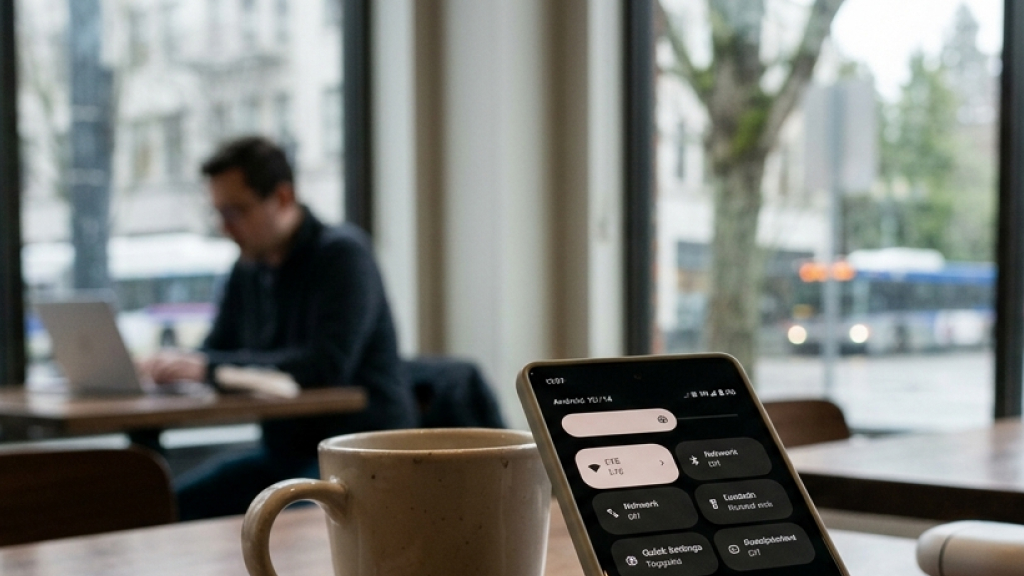
5G sounds great on paper, faster downloads, lower latency, and future-ready connectivity. But in reality, it’s not always worth the battery cost.
If you’re not in an area with strong and stable 5G coverage, your Pixel constantly searches for a better signal. This back-and-forth switching between 4G and 5G puts extra strain on the modem, generates heat, and drains battery faster.
Switching to LTE (4G) can significantly improve battery life without affecting everyday tasks like browsing, social media, or music streaming.
How to change it:
- Go to Settings > Network & Internet > SIMs
- Tap Preferred network type
- Select LTE
You can also disable Adaptive Connectivity, which prevents the phone from switching networks unnecessarily.
2. Turn Off Always-On Display (AOD)

The Always-On Display is one of those features that feels useful, but adds up in battery drain over time. Even though Pixel devices use OLED panels (which are more efficient), AOD still keeps parts of your screen active all day. That can easily account for steady battery loss, especially during idle time.
Instead, rely on smarter alternatives like:
- Lift to check phone
- Tap to check phone
These gestures wake your screen instantly when you need it, without constantly consuming power.
3. Disable “Now Playing” If You Rarely Use It
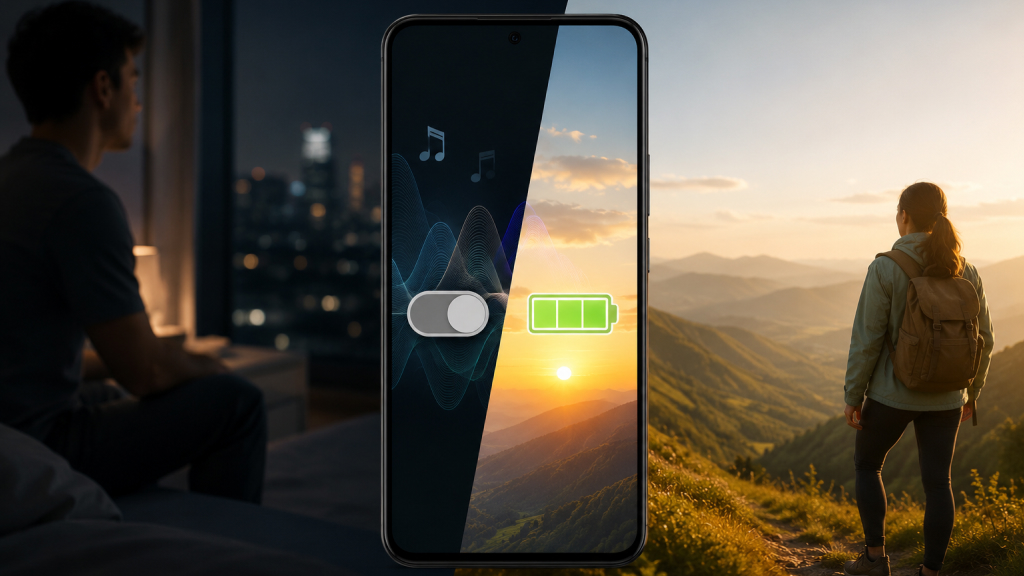
“Now Playing” is one of the most distinctive features on a Google Pixel device. It automatically detects and identifies songs playing in your surroundings, whether you’re in a café, a store, or even watching TV, without requiring any manual input. The feature works offline by comparing ambient audio against a locally stored database, which makes it both fast and privacy-friendly.
For “Now Playing” to function continuously, your Pixel keeps its microphones active at a low level and periodically processes audio in the background. Even though this process is optimized and does not consume as much power as streaming or gaming, it still contributes to steady, passive battery drain over time, especially during long idle periods when the phone is not being actively used.
This type of background activity can be particularly noticeable in standby battery performance. If the device spends several hours in a pocket, on a desk, or overnight without charging, features like “Now Playing” can quietly reduce battery levels without any visible indication.
Another factor to consider is usage frequency. If the feature is not actively adding value on a daily basis, keeping it enabled may not justify the continuous background activity. Disabling “Now Playing” can help reduce unnecessary battery consumption and improve overall standby efficiency.
To turn it off; Go to Settings > Sound & vibration > Now Playing. Toggle off Identify songs playing nearby
Instead of relying on constant background listening, a more battery-friendly approach is to use on-demand music recognition. The Google song search button, available in the Quick Settings panel or via the Google app, allows manual song identification whenever needed. This method offers the same core functionality without the ongoing battery cost.
By evaluating how often “Now Playing” is actually used and switching to an on-demand alternative when appropriate, it becomes easier to strike the right balance between convenience and battery efficiency.
4. Automate Dark Mode for Better Efficiency
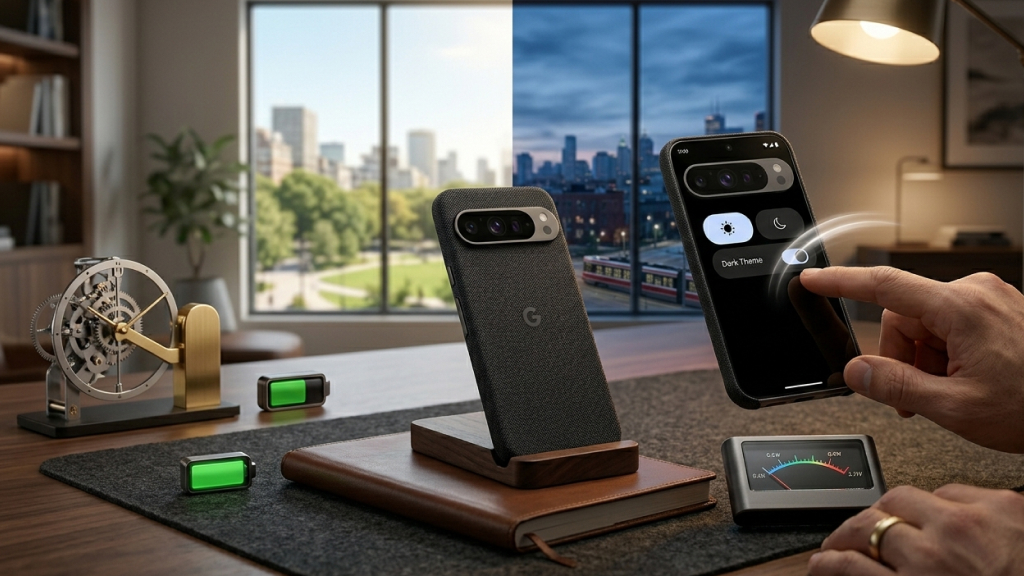
Dark Mode isn’t just about aesthetics, it’s one of the easiest ways to save battery on OLED screens. On Pixel devices, black pixels are essentially turned off, meaning less power consumption compared to bright white backgrounds.
However, using Dark Mode all day may not always be ideal, especially in bright sunlight. A better approach is to schedule it automatically:
- Turn on Dark Mode in the evening
- Switch back to Light Mode during the day
This way, you get both visibility and efficiency without manually toggling it.
5. Monitor Battery Usage Like a Pro
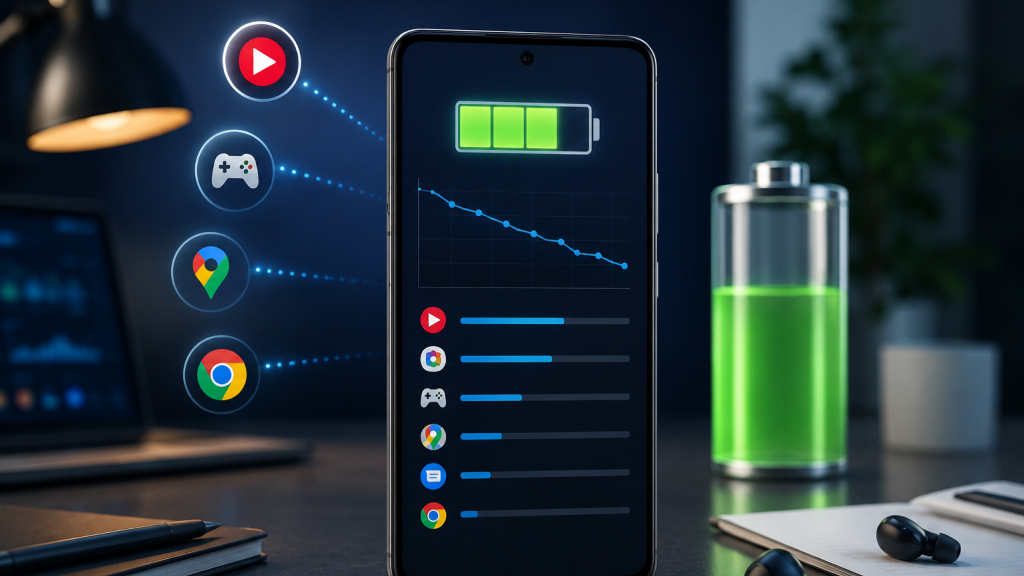
Improving battery life depends on understanding exactly where power is being consumed. Instead of making random adjustments, it is far more effective to rely on actual usage data.
The Battery Usage section in your Pixel settings provides a detailed breakdown of how your battery is being used. It shows which apps consume the most power, how much is used during active screen time versus background activity, and how system processes contribute to overall drain. To access it go to Settings > Battery > Battery Usage.
When reviewing this data, pay close attention to apps that:
- Consume a high percentage of battery in the background
- Are rarely opened but remain active
These apps often run unnecessary processes that quietly drain power. Restricting their background activity, or uninstalling them if they are not essential, can lead to a noticeable improvement in battery life and overall efficiency.
6. Stop Overcharging and Charging Too Frequently
Charging habits play a bigger role in battery performance than most users realize. Plugging in the phone multiple times a day, especially when the battery isn’t significantly low, can lead to inefficiencies over time.
While modern smartphone batteries are designed to handle regular charging, frequent top-ups can still:
- Generate excess heat
- Gradually impact long-term battery health
- Reduce overall efficiency with repeated cycles
A more balanced approach is to maintain the battery within an optimal range rather than constantly draining it to 0% or charging it to 100%. Some best practices include:
- Keeping the charge level between 20% and 80%
- Avoiding unnecessary top-ups throughout the day
- Letting the battery discharge naturally before recharging
Google Pixel devices also include Adaptive Charging, a feature that intelligently slows down charging, especially overnight, to reduce stress on the battery and extend its lifespan.
7. Restrict Background Usage for Unnecessary Apps
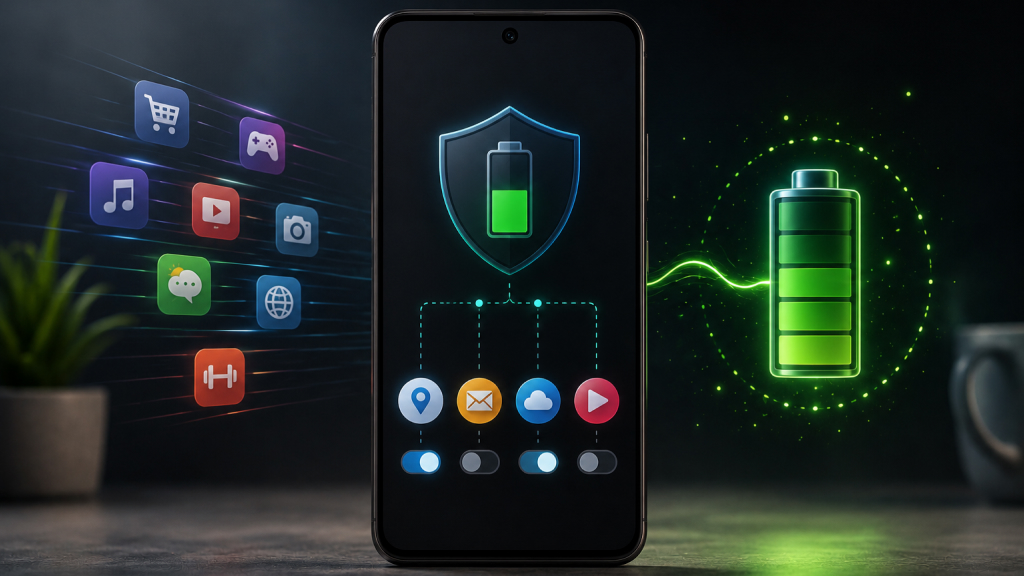
Background apps are one of the most common yet overlooked causes of battery drain on a Google Pixel device. Even when not actively in use, many apps continue running processes such as syncing data, sending notifications, and refreshing content in the background. Over time, this constant activity can significantly impact battery life without being immediately noticeable.
This becomes more relevant for apps that are rarely opened, such as shopping platforms, wallpaper apps, or companion apps for accessories. These apps often provide minimal daily value but continue consuming power behind the scenes. To reduce unnecessary drain, it is advisable to restrict their background activity.
How to do it:
- Go to Settings > Battery > Battery Usage
- Select the app you want to manage
- Turn off Allow background usage
This ensures that the app only uses battery when actively opened, helping improve overall efficiency and extending your device’s battery life.
8. Turn Off “Mobile Data Always Active”
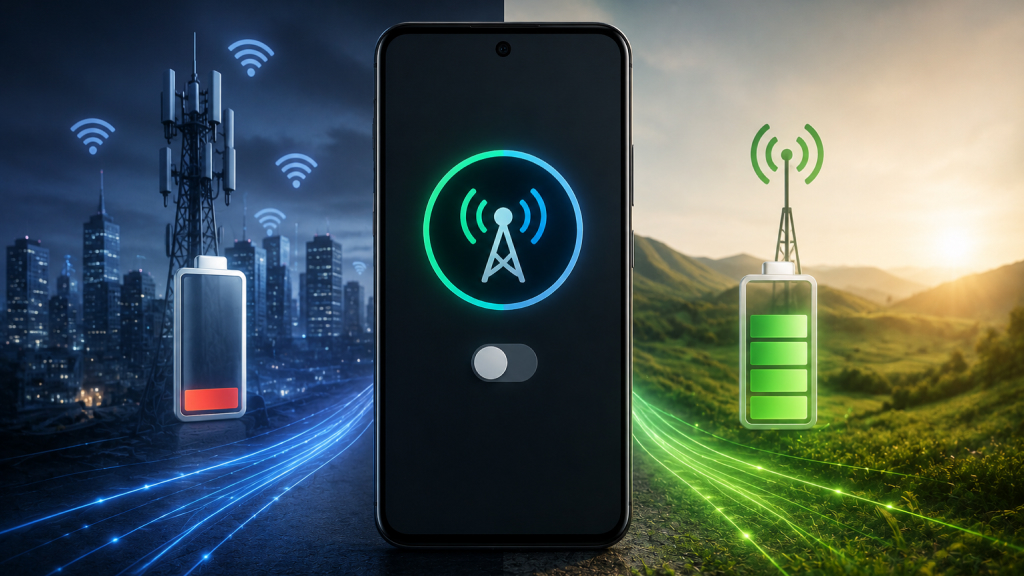
“Mobile Data Always Active” is a lesser-known setting that can quietly impact battery life on your Pixel device. When enabled, it keeps your mobile data connection active even while you’re connected to Wi-Fi. The goal is to allow seamless switching between networks if your Wi-Fi becomes unstable, but this convenience comes at the cost of additional power usage.
In everyday scenarios, especially at home or in the office where Wi-Fi is stable, this constant background activity is often unnecessary. Keeping both Wi-Fi and mobile data active at the same time forces the modem to work harder, leading to gradual battery drain throughout the day.
Disabling this setting can help reduce unnecessary power consumption without affecting regular usage. To turn it off:
- Enable Developer Options (if not already enabled)
- Go to Settings > System > Developer options
- Toggle off Mobile data always active
This simple adjustment can contribute to better standby battery performance and overall efficiency.
9. Disable Background Wi-Fi Scanning
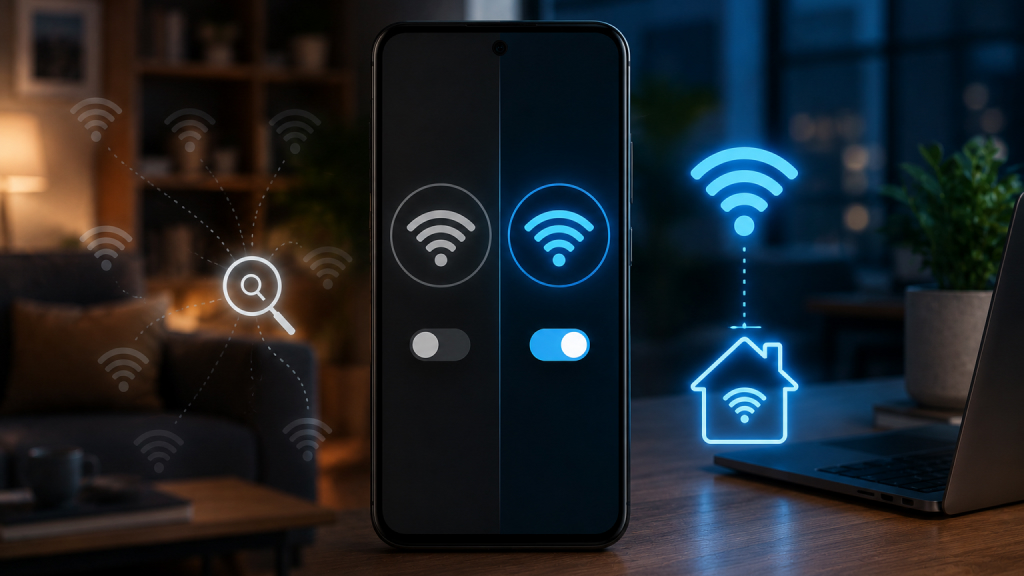
Your Pixel continuously scans for available Wi-Fi networks, even when you’re not actively connecting. This helps with quick connections and location accuracy, but it also uses up battery. If you mostly connect to known networks (home, office), you can safely disable this feature.
How to do it:
- Go to Settings > Network & Internet > Internet
- Tap Network preferences
- Turn off:
- Turn on Wi-Fi automatically
- Notify for public networks
Your phone will still connect to saved networks, but without constant background scanning.
10. Reduce Display Power Consumption

The display is one of the most power-hungry components on any smartphone, including Google Pixel devices. Since it’s active during most interactions, browsing, streaming, messaging, optimizing display settings can have a noticeable impact on overall battery life.
One of the most effective steps is enabling Adaptive Brightness, which automatically adjusts screen brightness based on your surroundings. This prevents the screen from staying unnecessarily bright, especially indoors. Additionally, reducing the screen timeout to 30 seconds or one minute ensures the display turns off quickly when not in use, avoiding wasted power.
If your Pixel supports multiple resolutions, switching to a slightly lower resolution can also help conserve battery without a major difference in visual quality.
11. Use Battery Saver and Extreme Battery Saver Modes
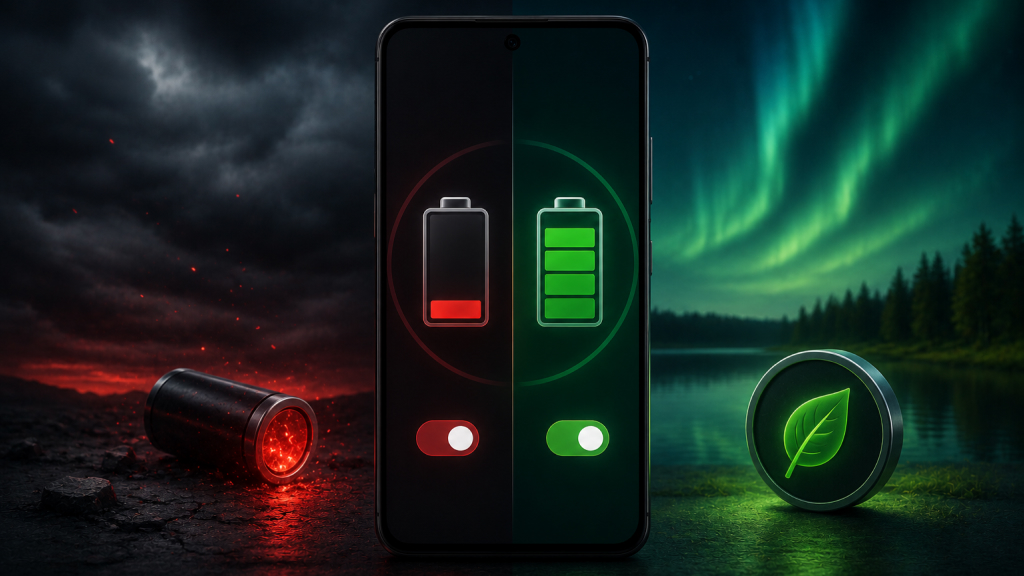
Google Pixel devices include built-in power management tools designed to extend battery life when needed. Battery Saver is the first line of defense, it reduces background activity, limits location usage, tones down visual effects, and slightly lowers performance to conserve power without heavily impacting everyday tasks.
For more critical situations, Extreme Battery Saver takes things further by pausing most apps and allowing access only to essential ones like calls, messages, and a few selected apps. This mode is especially useful when the battery is running very low and charging isn’t immediately available.
Both modes can be activated manually or set to turn on automatically at a specific battery percentage. Using these features strategically, particularly during long days or travel, can significantly extend usage time and prevent unexpected shutdowns, ensuring the device remains functional when it matters most.
12. Keep Your Apps and Software Updated
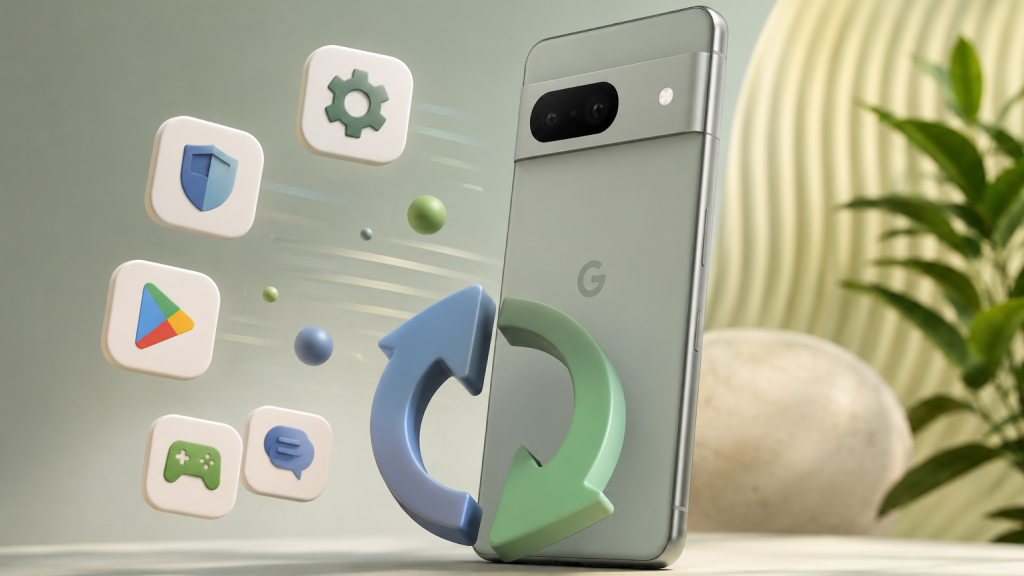
Regularly updating your Pixel helps ensure optimal battery efficiency and overall performance. Software updates from Google often include bug fixes, performance improvements, and battery optimizations that address hidden issues causing unnecessary drain. Similarly, app updates ensure better compatibility with the latest Android version and reduce background inefficiencies.
Outdated apps or system software can lead to higher power consumption due to poor optimization or unresolved bugs. Make it a habit to:
- Install system updates regularly
- Update apps via the Play Store
Staying up to date helps ensure your device runs smoothly while minimizing avoidable battery drain.
13. Uninstall or Replace Battery-Hungry Apps
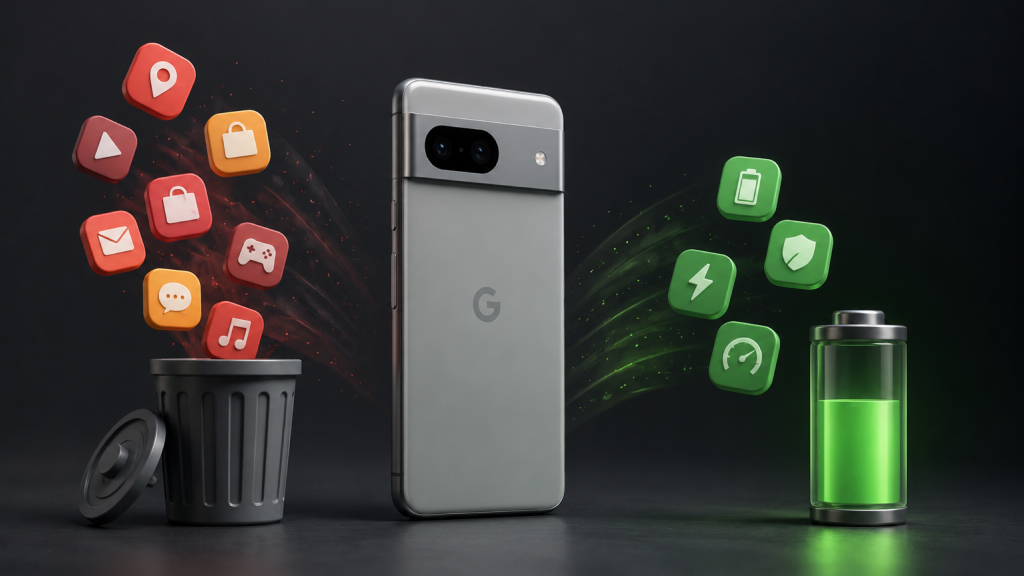
Some apps are simply not optimized well and can drain a significant amount of battery, even with minimal use. Over time, these apps can impact overall performance and reduce how long your Pixel lasts on a single charge.
It’s important to regularly review which apps are consuming the most power and take action where needed. Here’s what to look for:
- Apps with unusually high battery usage
- Apps running heavily in the background
- Apps you rarely open but still consume power
If an app is not essential, uninstalling it is the best option. For apps that are necessary, consider switching to lighter alternatives or using web versions instead. Keeping your app list clean and optimized can make a noticeable difference in battery life.
14. Manage Connectivity Features Smartly
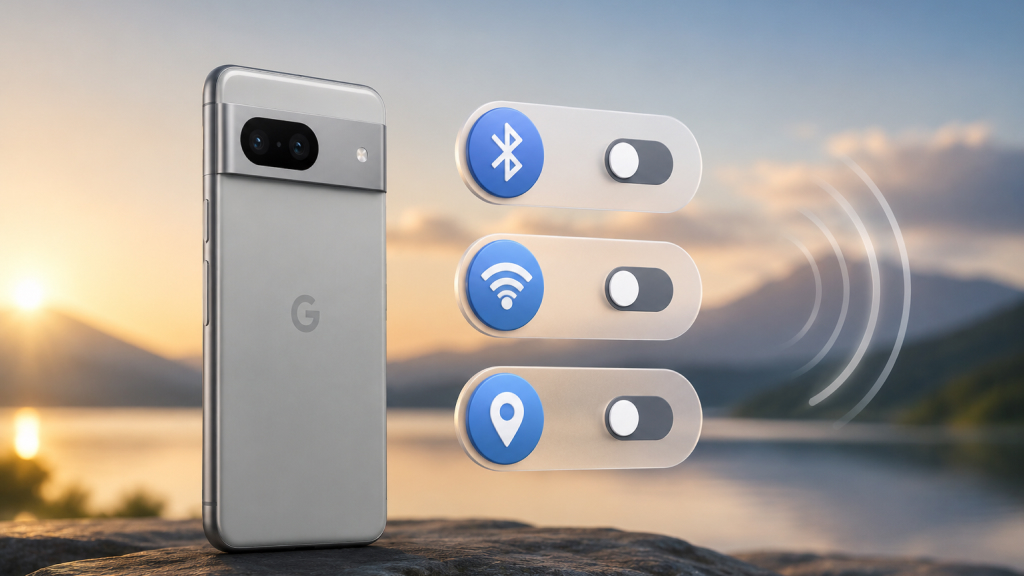
Connectivity features play a key role in everyday smartphone usage, but they can also contribute to unnecessary battery drain when left enabled at all times. Services like Bluetooth, GPS (location), and mobile hotspot continue running in the background, even when they are not actively being used.
To improve battery efficiency, it is important to manage these features more selectively:
- Turn off Bluetooth when no devices are connected
- Disable Hotspot after use
- Set Location access to “While using the app” instead of “Always”
Limiting constant background activity from these features reduces power consumption without affecting daily usability, helping your Pixel last longer on a single charge.
Improving battery life on a Google Pixel doesn’t require drastic changes, just smarter choices. By fine-tuning a few key settings, limiting unnecessary background activity, and adopting better charging habits, it’s possible to get more consistent, all-day performance. These small adjustments add up over time, helping the device run more efficiently while preserving long-term battery health without compromising the overall experience.










