If you’ve ever opened an email on your iPhone only to see a blank space where images or content should be, you’re not alone. Many users running iOS 15 encounter the frustrating “Unable to Load Content Privately” message in the Mail app. At first glance, it might seem like a simple glitch, but it’s actually tied to one of Apple’s biggest privacy upgrades.
With iOS 15, Apple introduced Mail Privacy Protection to block email tracking and hide your IP address. While this feature enhances your security, it can also prevent emails from loading properly under certain conditions, especially when combined with VPNs or network restrictions. Striking a balance between privacy and usability is easier than it seems.
Here’s a clear look at what’s causing the issue and the most effective ways to resolve it.
Why iOS 15 Mail Shows Content Loading Errors?
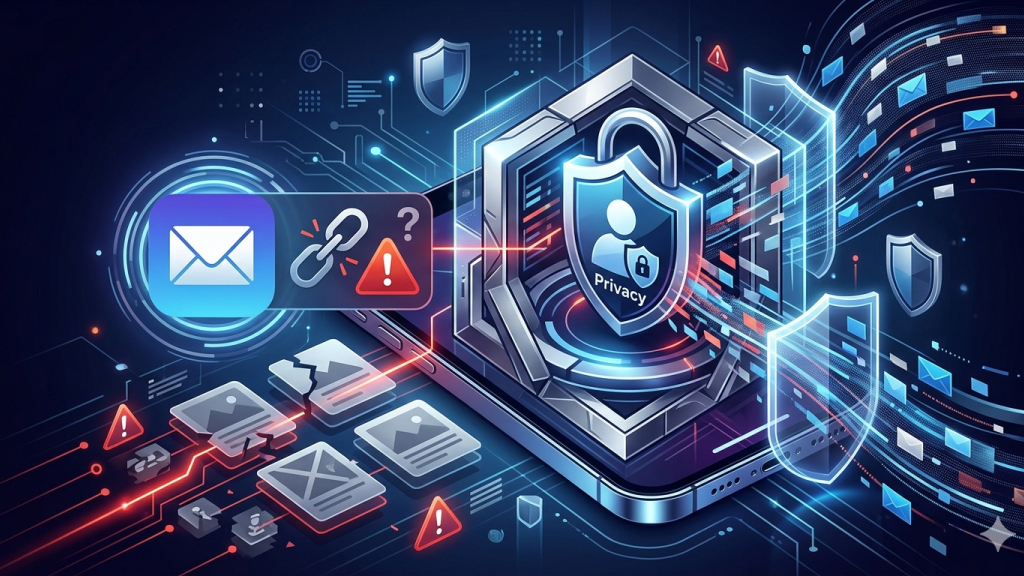
Content loading errors in iOS 15 Mail are primarily caused by Apple’s enhanced privacy features, especially Mail Privacy Protection. This feature is designed to prevent email tracking by hiding your IP address and blocking invisible tracking pixels. Instead of connecting directly to a sender’s server, the Mail app attempts to load remote content, such as images, through secure proxy servers to maintain your privacy.
However, this process doesn’t always work smoothly. If Mail cannot retrieve content while preserving these privacy safeguards, it blocks the content entirely and displays the “Unable to Load Content Privately” message.
The issue becomes more likely when additional tools like VPNs, firewalls, or iCloud Private Relay are active, as they can interfere with how data is routed. In such cases, iOS prioritizes protecting your data over loading external content, which is why some email elements may fail to display properly.
What Happens When You See This Error?
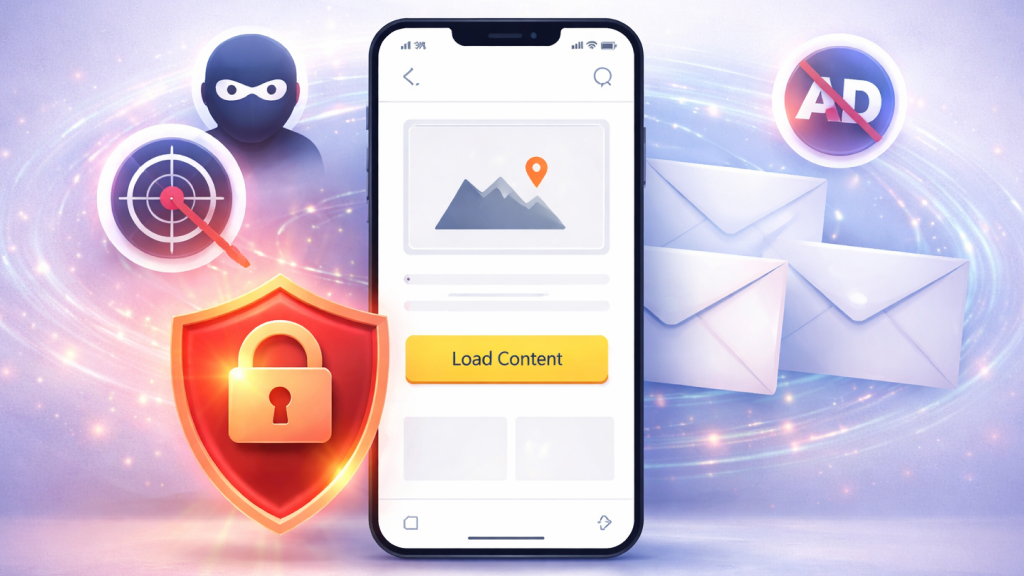
When this error appears in the Mail app, it means your iPhone has blocked certain parts of the email, usually images, graphics, or other externally hosted content. Instead of loading these elements automatically, Mail stops the process to maintain your privacy and displays a warning message at the top of the email.
At this point, the email itself is still accessible, but any remote content remains hidden until you take action. You’ll typically see a “Load Content” option, which allows you to manually fetch and display the blocked elements. If you choose to tap it, the Mail app will retrieve the content directly from the sender’s server, bypassing some privacy protections in the process.
If you don’t interact with the prompt, the content stays blocked. This gives you control over whether to prioritize privacy or view the full email as intended.
Key Fixes for iOS 15 Mail Errors
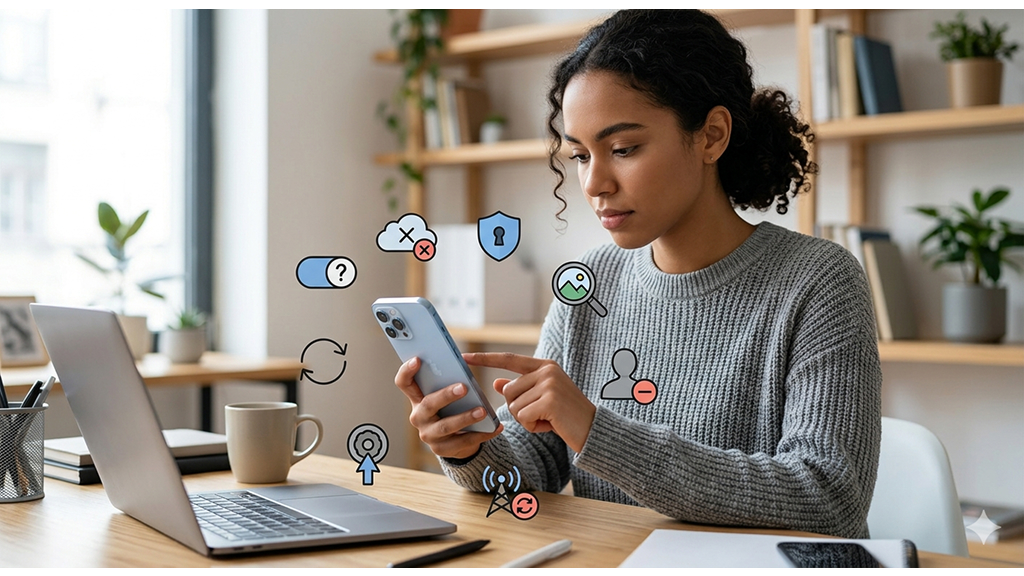
To fix the issue effectively, it’s important to try the right solutions in order. The following instructions outline how to address the issue effectively.
1. Adjust Privacy Settings (Most Effective)
Mail Privacy Protection is the most common reason behind content loading errors in iOS 15. While it’s designed to enhance your privacy by hiding your IP address and blocking tracking elements, it can also prevent emails from loading images and external content properly. Modifying these settings can quickly help restore normal functionality.
To do this, open Settings, go to Mail, then tap Privacy Protection, and turn off Protect Mail Activity. This allows the Mail app to load content directly without restrictions.
If you prefer not to disable the feature entirely, you can keep it enabled but relax stricter options, such as blocking all remote content. Keep in mind that reducing these protections may improve email functionality, but it also limits some of the privacy benefits Apple introduced.
2. Disable iCloud Private Relay
iCloud Private Relay is another privacy feature that can sometimes interfere with how the Mail app loads content. It works by routing your internet traffic through multiple servers to hide your IP address, but this process can occasionally disrupt the connection needed to fetch images and other remote elements in emails.
To check if it’s causing the issue, go to Settings, tap your name (Apple ID), open iCloud, then select Private Relay and turn it off. Once disabled, reopen the Mail app and try loading the affected email again.
If the content appears normally, Private Relay was likely the cause. You can choose to keep it off for smoother email performance or enable it again later if privacy is your priority.
3. Toggle VPN or Firewall Settings
If you’re using a VPN or firewall on your iPhone, it could be blocking the Mail app from retrieving external content. VPNs route your internet traffic through secure servers, which can sometimes interfere with how emails load images and other remote elements. Similarly, strict firewall settings may restrict these connections altogether.
To fix this:
- Start by temporarily turning off your VPN and checking if the email content loads properly.
- If that resolves the issue, consider adding the Mail app to your VPN’s whitelist or trusted apps list so it isn’t restricted.
- You should also review any firewall or security app settings that might be blocking content.
In many cases, VPN or firewall interference is a key reason behind this error.
4. Manually Load Email Content
Manually loading content is the quickest way to bypass this issue without changing any settings. When you open an email and see the error message, simply tap “Load Content” at the top of the screen. This prompts the Mail app to fetch images and other remote elements for that specific message, allowing you to view it as intended.
This method is ideal if the problem occurs occasionally and you trust the sender. However, it’s important to note that doing this may expose your IP address, as the content is loaded directly instead of through Apple’s privacy protections.
5. Force Refresh the Mail App
In some cases, the content loading error is caused by a temporary glitch or syncing issue within the Mail app. A simple refresh can often resolve this without changing any settings. To do this, open the Mail app, navigate to your inbox, and pull down on the screen to refresh.
This action forces the app to reconnect to the mail server and reload your messages, which can help trigger the download of missing images or content. It’s a quick and safe step that’s worth trying before moving on to more advanced fixes.
6. Remove and Re-add Your Email Account
If the issue continues, your email account settings may be causing conflicts within the Mail app. Refreshing the account can help resolve hidden configuration problems. Start by going to Settings > Mail > Accounts, selecting your email account, and toggling Mail off and then back on. This simple step can reset how emails sync and load.
If that doesn’t fix the issue, you can take it a step further by removing the account entirely. Tap Delete Account, then add it again using your email credentials. This process refreshes the entire setup, often resolving persistent loading errors and restoring normal email functionality.
7. Update iOS to the Latest Version
Sometimes, the content loading error isn’t caused by your settings but by bugs in early versions of iOS 15. Apple regularly releases updates to fix known issues, including problems with the Mail app. Keeping your device updated ensures you have the latest bug fixes and performance improvements.
To check for updates, go to Settings > General, then tap Software Update and install any available updates. Once your iPhone is updated, reopen the Mail app and check if the issue is resolved. In many cases, a simple update can fix underlying software glitches and restore normal email functionality.
8. Reset Network Settings
If other fixes haven’t worked, resetting your network settings can help resolve deeper connectivity issues affecting the Mail app. Network conflicts, especially involving Wi-Fi, VPNs, or custom configurations, can prevent email content from loading properly.
To do this, go to Settings > General, tap Transfer or Reset iPhone, then select Reset > Reset Network Settings. This will clear all saved Wi-Fi networks, VPN settings, and related configurations. After the reset, you’ll need to reconnect to your Wi-Fi network and re-enter passwords.
While it may seem like a big step, this method often fixes persistent issues by restoring your network settings to their default state.
Should You Disable Mail Privacy Protection?
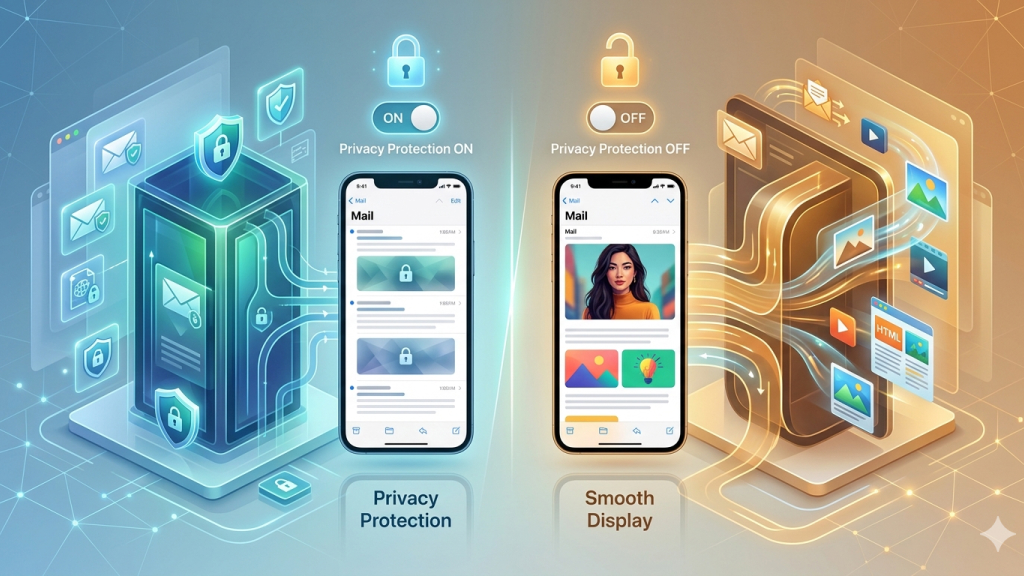
Whether you should disable Mail Privacy Protection depends on how you balance privacy and convenience.
- If privacy is your top priority, it’s best to keep the feature enabled and manually load content only when necessary.
- If you prefer a smoother and uninterrupted email experience, turning it off can help emails display fully without extra steps.
A practical approach is to adjust the settings based on your needs rather than disabling everything completely. This way, you can maintain a reasonable level of privacy while ensuring your emails function as expected.
By understanding how these features work, you can strike the right balance between privacy and usability, and ensure your emails always display as expected.