(Image Source: Microsoft)
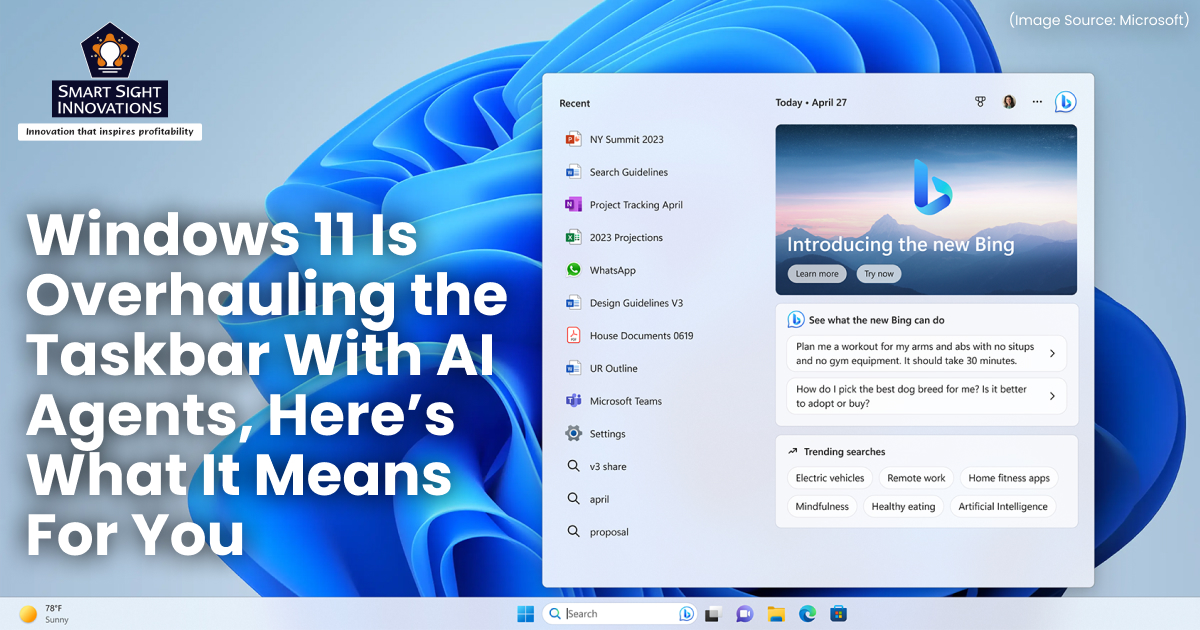
Microsoft is making one of the most significant architectural changes to Windows in decades. With Windows 11, the company is transforming the operating system into what it calls an agentic OS, a system where AI doesn’t just respond to commands but actively performs tasks on a user’s behalf.
This shift begins with a major redesign of the Windows 11 taskbar, which is evolving from a simple launcher into an intelligent command center for AI agents. Rather than adding another standalone AI app, Microsoft is embedding intelligence directly into the part of Windows users interact with the most.
AI Agents Are Moving Into the Windows 11 Taskbar
(Image Source: Microsoft)
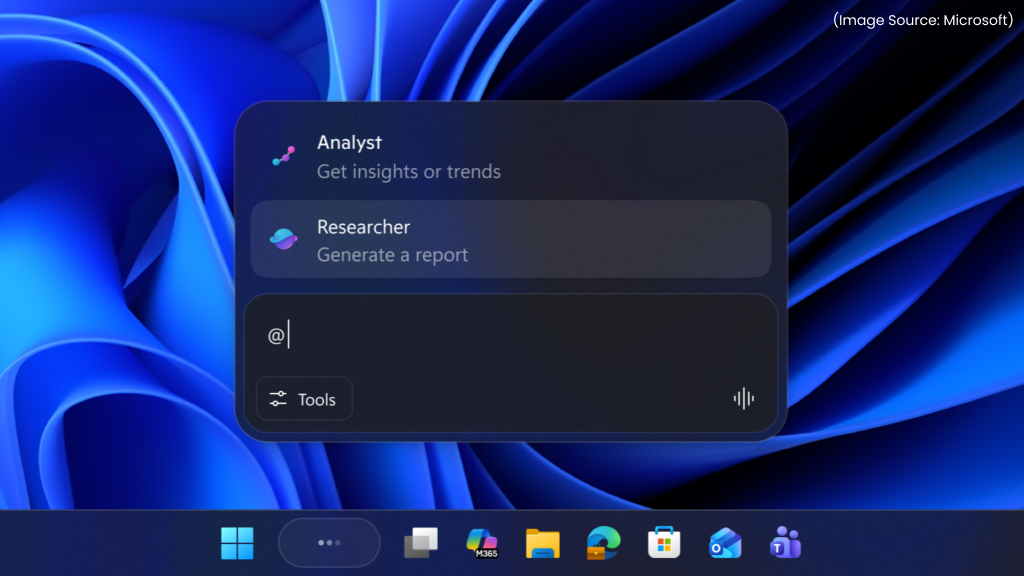
At the core of this overhaul is the integration of AI agents directly into the Windows 11 taskbar. These include Microsoft’s own Microsoft 365 Copilot, along with agents developed by third-party creators. Unlike traditional assistants, these agents are designed to take action, not just provide answers.
From the taskbar, users can launch Copilot, start conversations, or assign tasks such as searching for information, managing files, or automating repetitive administrative work. The taskbar becomes a persistent access point for AI, ensuring help is always one click away. Rather than opening separate apps or browser tabs, users interact with intelligent agents from a space they already use constantly.
A More Capable Successor to Cortana
(Image Source: Microsoft)
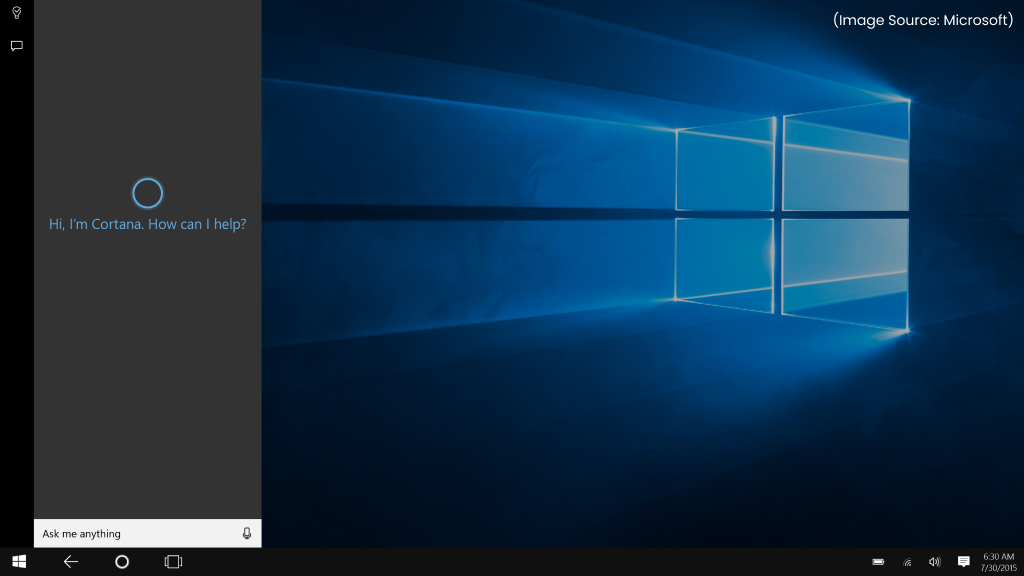
This new approach may feel familiar to longtime Windows users. Microsoft previously attempted something similar with Cortana, which also lived on the taskbar. However, Cortana was limited in scope and often failed to integrate deeply into everyday workflows.
The new Ask Copilot experience is fundamentally different, as it combines conversational AI with action-based agents that can control parts of the system, reason through tasks, and operate independently. Instead of just responding to voice commands or reminders, these agents can complete multi-step jobs with minimal supervision.
How Background AI Tasks Work in the New Taskbar

(Image Source: Microsoft)
One of the most compelling features of the updated taskbar is how it manages background AI activity. When you assign an agent a task, such as researching data, organizing files, or handling time-consuming admin work, it doesn’t disappear into a black box. Instead, the agent moves into the taskbar and runs quietly in the background. Users can hover over the agent’s icon at any time to see exactly what it’s doing, creating a level of transparency rarely seen in AI features.
Microsoft has also added visual status indicators:
- A yellow exclamation mark means the agent needs user input
- A green checkmark signals that the task has been completed successfully
This design ensures AI feels helpful rather than intrusive, keeping users informed without constant interruptions.
Notifications
(Image Source: Microsoft)
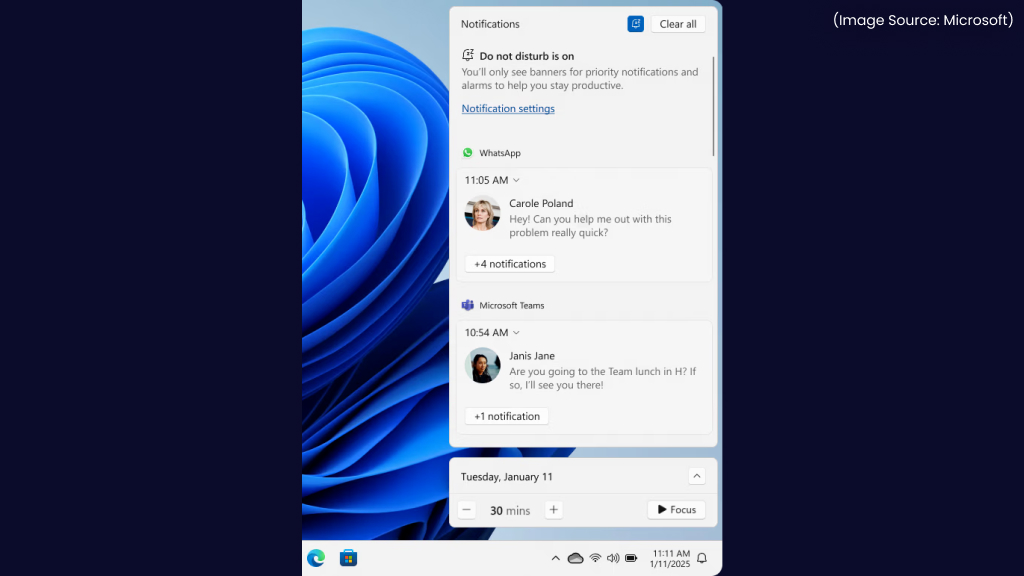
Rather than overwhelming users with pop-ups, the taskbar uses subtle badges and icon states to communicate progress. If an agent finishes a task or requires attention, it updates its status directly on the taskbar. This approach fits naturally into Windows’ existing notification philosophy and reinforces the idea that AI agents are co-workers, not background processes users can’t see or control.
Security Concerns and the Agent Workspace Solution
(Image Source: Microsoft)
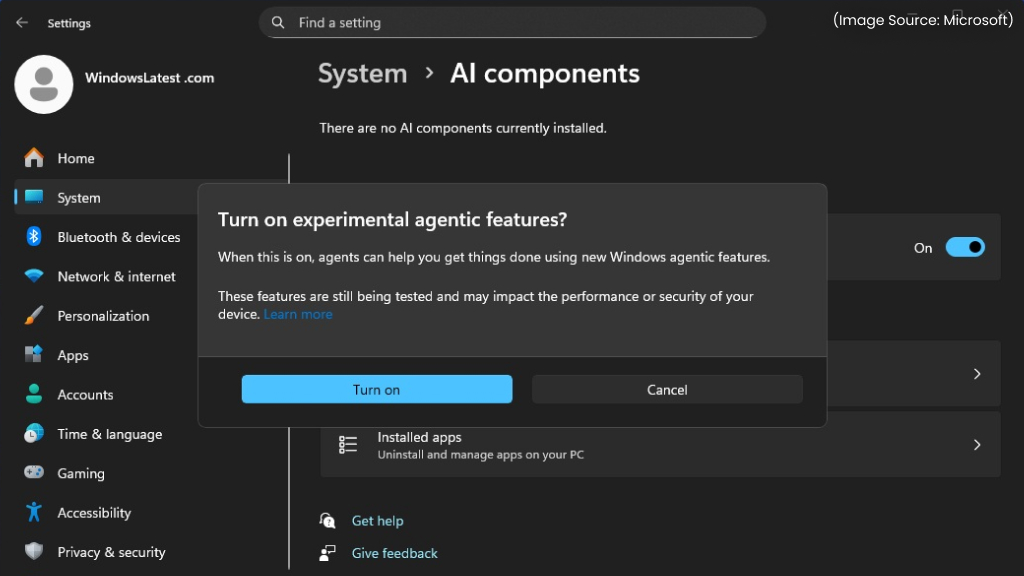
Powerful AI features inevitably raise questions about security, privacy, and control. Microsoft addresses these concerns with a new system called Agent Workspace.
Agent Workspace is a policy-controlled sandbox designed specifically for AI agents. It allows agents to interact with software similarly to a human user, but within carefully defined boundaries.
Crucially, each AI agent runs under its own dedicated Windows account, separate from the user’s personal account. This separation ensures:
- Clear runtime isolation
- Better auditing and visibility
- Stronger protection against misuse or escalation
Users can delegate tasks confidently, knowing agents can’t freely roam the system.
Performance and System Resource Management
(Image Source: Microsoft)
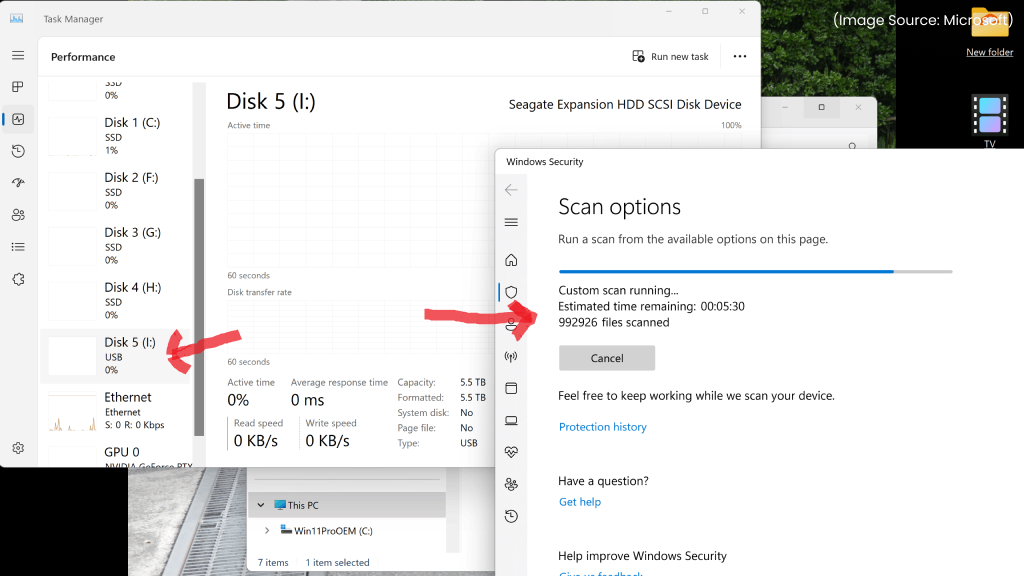
AI features often raise questions about system performance, especially on entry-level PCs. According to Microsoft, these agents are designed to operate quietly in the background without placing a constant strain on system resources.
Agents dynamically adjust their activity based on system load. If CPU or memory usage spikes, tasks may slow down or pause automatically. On battery-powered devices, background agents are expected to scale back activity to preserve power. This adaptive behavior suggests Microsoft is aiming for AI that feels integrated, not disruptive.
Least-Privilege Access by Default
(Image Source: Microsoft)
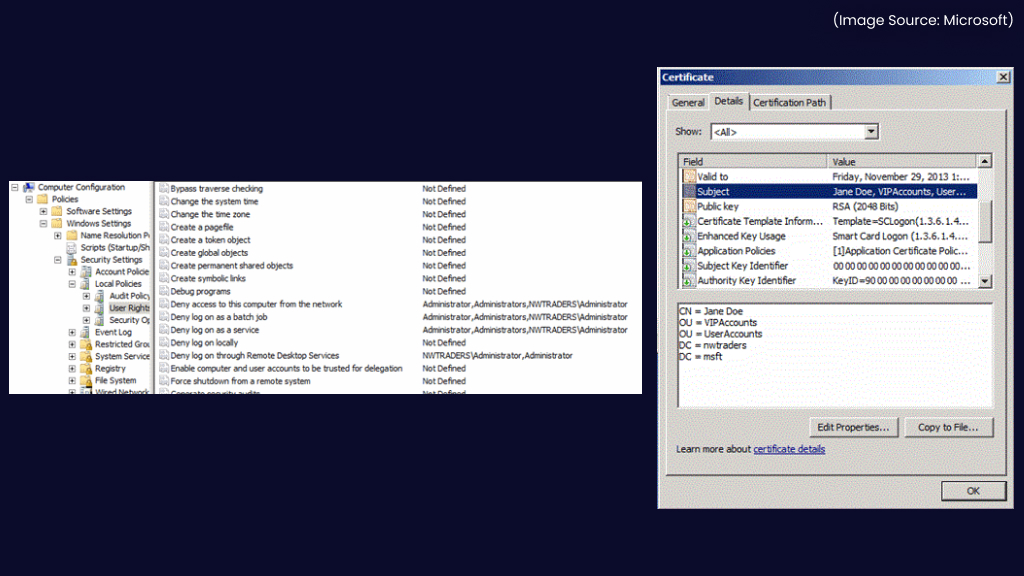
Agent Workspace follows the principle of least privilege, a cornerstone of modern security design. By default, agents only have access to common folders such as documents, downloads, desktop, pictures, music, and videos.
Even this limited access is only granted if an administrator explicitly enables the Experimental Agentic Features setting. If something goes wrong, Microsoft makes it clear that access was intentionally granted by the user or admin, not silently assumed. This model gives users control without sacrificing the benefits of automation.
Battery Life and Laptop Optimization
(Image Source: Microsoft)
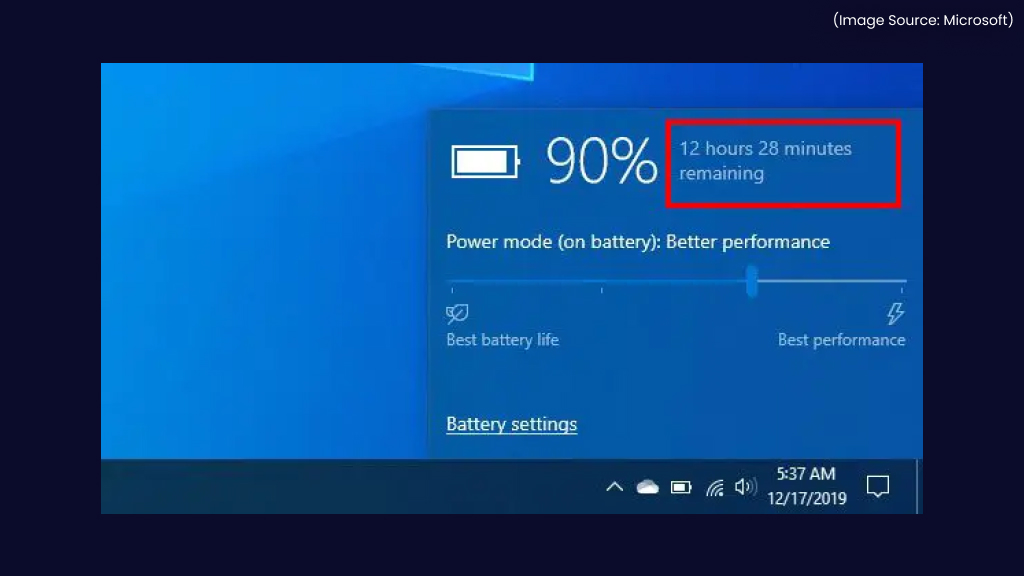
Battery life is another critical factor, particularly for Windows laptops and tablets. AI agents are designed to be battery-aware, meaning they respond to power states such as Battery Saver mode. When Battery Saver is enabled, agents may delay non-urgent tasks, reduce background activity, or wait until the device is plugged in. This makes the feature more practical for mobile professionals who rely on Windows devices throughout the day.
Copilot Is Expanding Into File Explorer
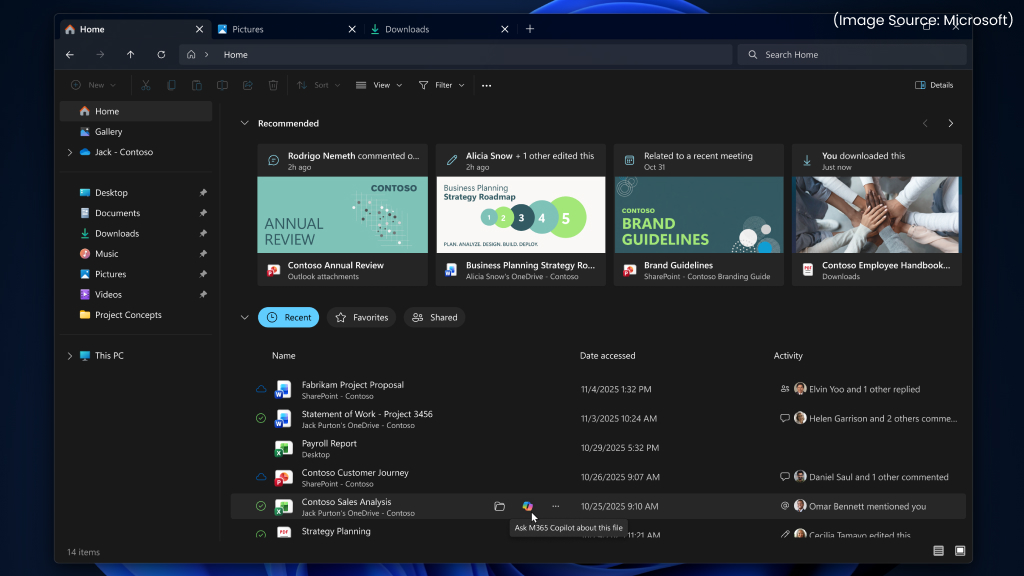
(Image Source: Microsoft)
The agentic transformation of Windows 11 doesn’t stop at the taskbar. Microsoft is also integrating Copilot directly into File Explorer, bringing AI assistance closer to where users manage their files every day.
With this integration, users can:
- Summarize documents with a single click
- Ask questions about a file’s contents
- Generate drafts or emails based on documents they’re viewing
Instead of switching between apps, users can extract insights or create content directly from File Explorer, making file management faster and more intuitive.
How to Enable the New Agentic Features
(Image Source: Microsoft)
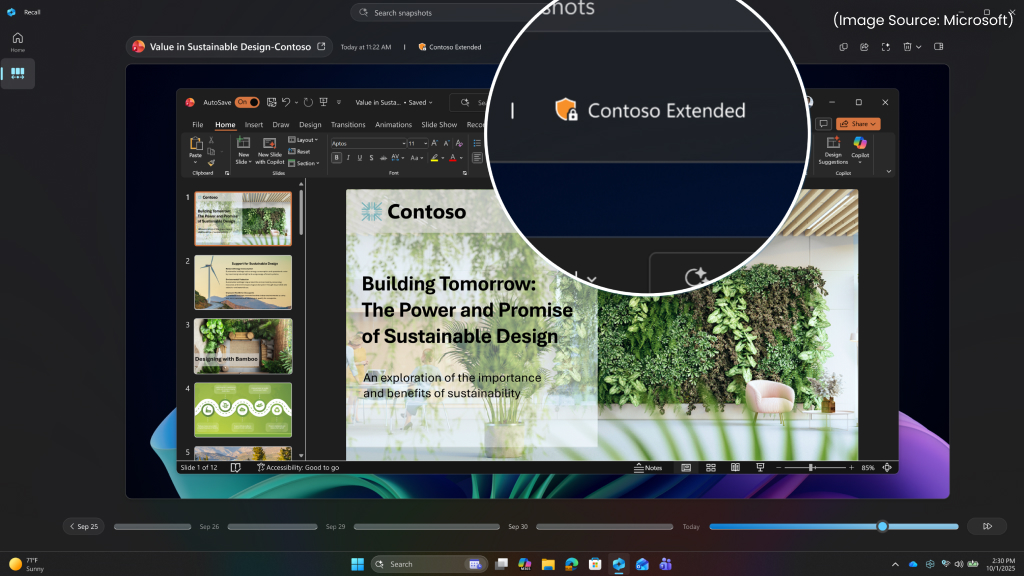
Users interested in trying these features must sign in using an administrator account. From there, they can navigate to:
Settings → System → AI Components
Within this section, users will find a toggle to enable Experimental Agentic Features. Once activated, AI agents become available through the taskbar and other supported areas of Windows 11. Importantly, Microsoft emphasizes that these features are entirely opt-in. If you prefer a more traditional Windows experience, you don’t have to enable anything.
Third-Party AI Agents and the Ecosystem Potential
(Image Source: Microsoft)
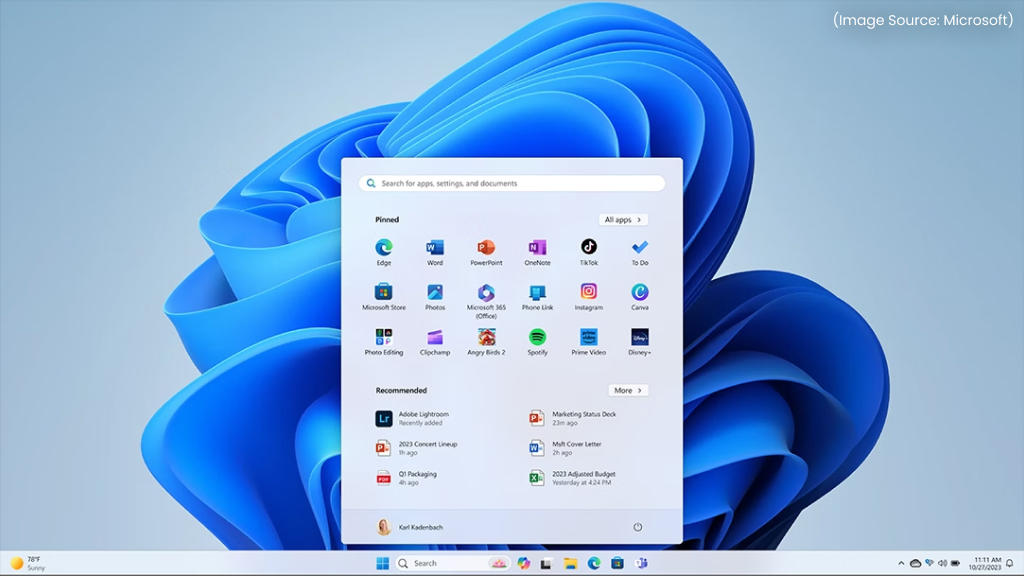
Microsoft isn’t limiting this vision to its own tools. Third-party developers can build custom AI agents that integrate directly into the Windows taskbar. Over time, this could lead to an ecosystem of specialized agents, for design, development, research, or workflow automation. If Microsoft opens this further, Windows could eventually host an AI agent marketplace, similar to browser extensions or app stores, but more deeply integrated into the OS.
Windows 11’s agentic taskbar is a promising glimpse into the future of desktop computing, but it’s still early. Power users and professionals will find real value, while others may want to wait until the feature matures.
With this taskbar overhaul, Microsoft is redefining what an operating system can do. By embedding AI agents directly into Windows 11’s most visible interface, the company is shifting from passive tools to proactive collaboration. The emphasis on transparency, security, and opt-in control suggests Microsoft understands the risks as well as the rewards.
If this agentic vision succeeds, the Windows taskbar may no longer be just a place to launch apps, but the central command center for how work gets done.