If you’ve ever powered on your Windows laptop or desktop only to sit through a painfully long startup, you know how frustrating slow boot times can feel. Whether you’re in the middle of your workday or trying to get a project going, waiting for your system to become usable can derail your momentum. The good news is that Windows 10 and Windows 11 usually don’t slow down for no reason — there are specific triggers that gradually build up and drag your device’s startup process.
Understanding what causes sluggish boot behavior helps you take the right steps to restore your system’s speed and stability. In this guide, you’ll walk through the most common reasons Windows takes longer than it should to get going, why each issue matters, and what you can do to identify the culprit.
1. Too Many Programs Trying to Launch at Startup
One of the biggest causes of slow boot times in both Windows 10 and Windows 11 is the collection of apps that automatically launch in the background when you sign in. Many programs assume you want them to start immediately, even when you never asked for that behavior. As you install new tools over the months or years, the list of startup items quietly grows.
Every application that tries to open right after you log in adds seconds — or even minutes — to your overall boot time. Messaging tools, game launchers, cloud storage clients, audio utilities, and office apps are common examples. You may not notice their impact individually, but together they can significantly slow your workflow before it even begins.
Windows gives you a built-in dashboard that shows what’s set to launch automatically and how heavy each item is. If you’ve never reviewed this list, you may be surprised by how many programs are competing for your system resources the moment you sign in.
2. Services Running in the Background Without Your Knowledge
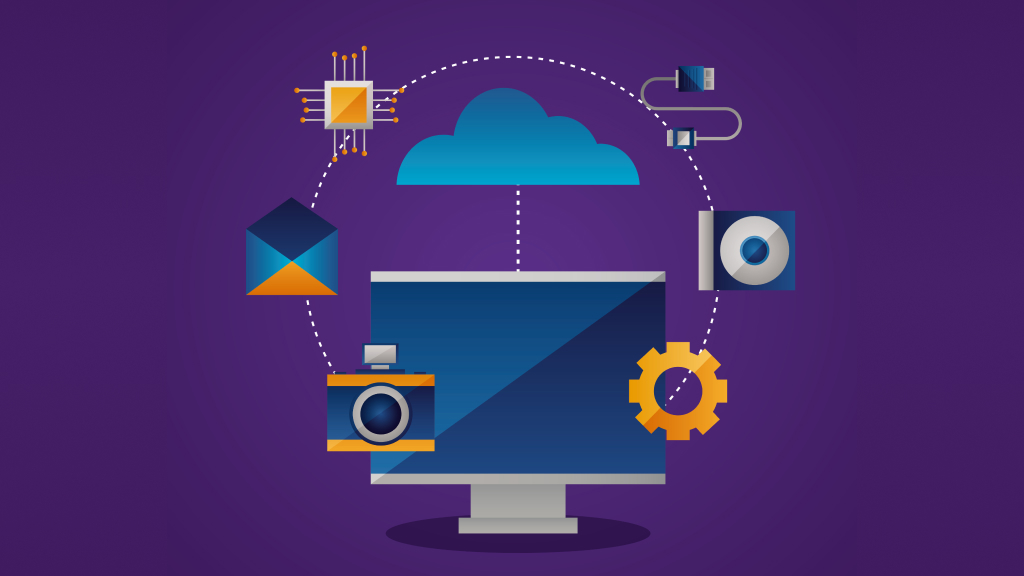
Beyond visible apps, Windows also loads a variety of background services. These include everything from drivers to third-party tools that run silently. Many services are essential for your PC to function correctly, but others are remnants of older software or optional components you no longer need.
When these background services accumulate, your computer has to process and initialize them during startup. Some services have dependencies, meaning they can delay one another. Even if you never interact with these services directly, they still participate in the boot sequence.
For example, certain audio enhancements, printer utilities, legacy updaters, or device-specific service packages may run at startup despite offering little value to you. The more of these you have, the longer it takes for your PC to transition from powering on to becoming usable.
3. Outdated System Updates or Pending Maintenance
Windows relies heavily on regular system updates to maintain performance, security, and smooth operations. When updates accumulate or fail to install properly, your device may experience slow startup behavior. A system that has several pending updates can waste effort trying to apply them each time you power on.
You may also run into issues when Windows tries to repair or finalize updates in the background. These maintenance tasks can momentarily tie up your hard drive, processor, and memory, especially if the update process encountered errors earlier.
If you tend to postpone or skip updates, your machine might be carrying older files, patch remnants, or compatibility mismatches that influence how quickly Windows boots. Even if everything seems to work normally, outdated components can cause unexpected slowdowns without producing obvious warning messages.
4. Fragmented or Failing Storage Drives
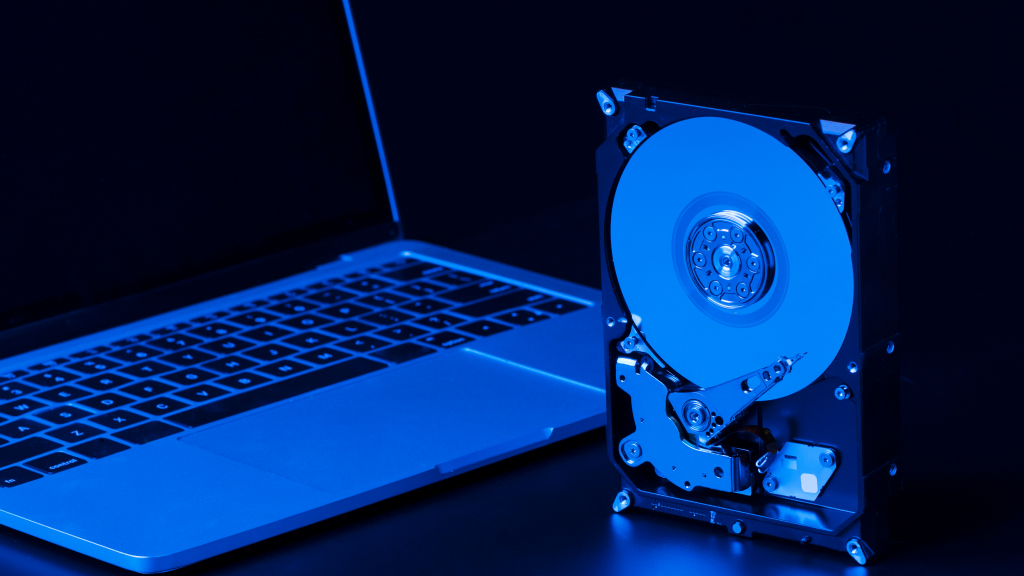
Your storage drive plays one of the biggest roles in startup performance. If you’re still using an older mechanical hard drive (HDD), slow boot behavior is extremely common. Mechanical drives physically spin, which makes them significantly slower than solid-state drives (SSDs).
Over time, HDDs also become fragmented, meaning parts of files get scattered across the disk. When your system tries to load Windows during boot, it has to search around the drive to collect the data it needs.
Even SSDs can slow down if they’re reaching the end of their lifespan or if they’re nearly full. Low available space, read/write degradation, and firmware issues can all cause delays. When your device has to struggle to retrieve essential startup files, you’ll feel the impact immediately.
If your drive is starting to fail, you may also notice clicking noises (for HDDs), occasional startup errors, or unusual freezes. These are red flags indicating that the drive is no longer performing efficiently.
5. Too Many Programs Installed Over Time
A Windows system that has been used for several years typically carries the digital equivalent of clutter. Old applications, half-installed tools, deprecated utilities, and companion software components can all become part of your startup journey. Even programs that don’t explicitly launch at startup may leave behind services, registry entries, or background tasks that need to load when Windows boots.
This digital buildup often happens without you realizing it. For instance, installing a photo editing tool might add a monitor service for cameras. A VPN client might leave a mini-service running even when it’s not active. Older drivers from devices you no longer use may still load.
Eventually, this excess software footprint contributes to a slower, heavier startup process.
6. Heavy Antivirus Scans During Boot
Security software is essential, but certain antivirus products can overstep when it comes to startup behavior. Some tools perform immediate scans as soon as your system boots, checking core files or running a quick sweep before everything loads.
These early scans consume CPU time, memory, and storage bandwidth — all of which affects how quickly Windows becomes usable. If your antivirus is set to run a startup scan or real-time operations that trigger during boot, you may feel the impact immediately. While these scans serve a purpose, they can make your morning routine feel slower than it needs to be.
Windows’ built-in security tools are generally efficient, but third-party antivirus solutions vary widely in how aggressively they operate.
7. Corrupted System Files Slowing Windows Initialization
Corrupted or missing system files can also contribute to slow boot times. These issues often appear after unexpected shutdowns, failed updates, malware infections, or improper program installations. When Windows tries to boot with damaged files, it may take extra time to verify or reconstruct the necessary components.
If the Windows boot loader or dependencies are damaged, you might notice unusually long delays on the Windows logo screen or intermediate black screens. While the operating system often compensates for damaged components, it usually does so at the expense of speed.
In some cases, corrupted system files can cause longer-term issues that affect every boot until repaired.
8. Too Many Browser Extensions and Sync Processes

Your system startup process doesn’t simply end once you reach the desktop. If you use a browser such as Chrome, Edge, or Firefox, your browser may automatically restore tabs, load extensions, or start syncing data as soon as it opens.
If your browser launches at startup — or even if it simply loads in the background — these activities can slow down the transition from boot to productivity.
Cloud synchronization, bookmark syncing, autofill data updates, or extension initialization can all create extra delays. While these tasks aren’t technically part of the core startup process, you still feel their effects in that critical minute after Windows boots.
9. Overloaded Startup Tasks in Task Scheduler
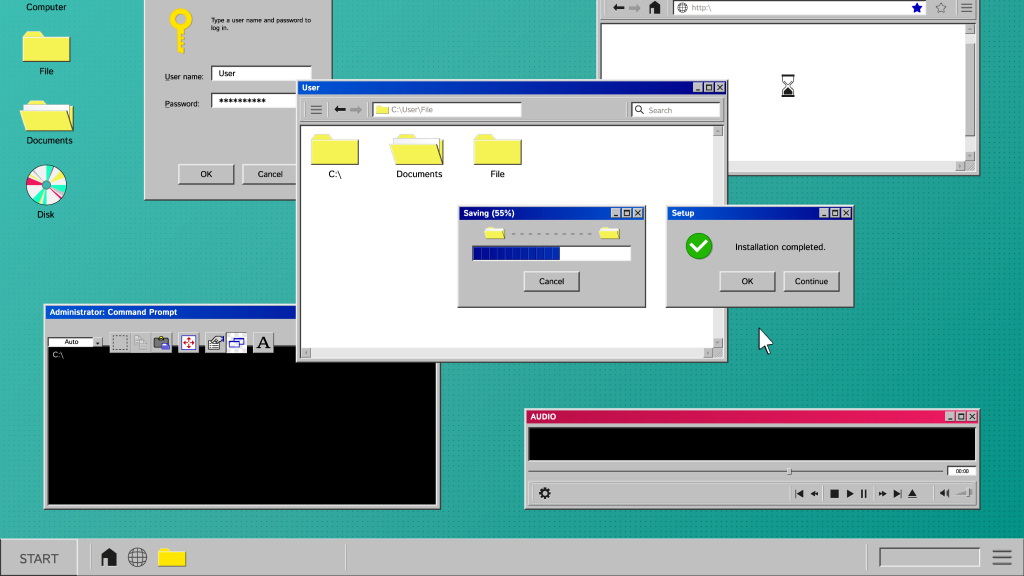
Windows includes a powerful scheduling tool that allows applications and services to run at specific times. Many developers use the Task Scheduler to initiate updates or launch “helper” tasks during startup. Over time, your system can collect dozens of these tasks — some of which you may never use.
The Task Scheduler can initiate scripts, maintenance operations, cleanup jobs, or diagnostic tasks during boot. These processes can consume resources and delay your ability to start working, especially if they involve scanning your disk, retrieving online data, or preparing hardware components.
10. Hardware Bottlenecks That Hold Back Your System
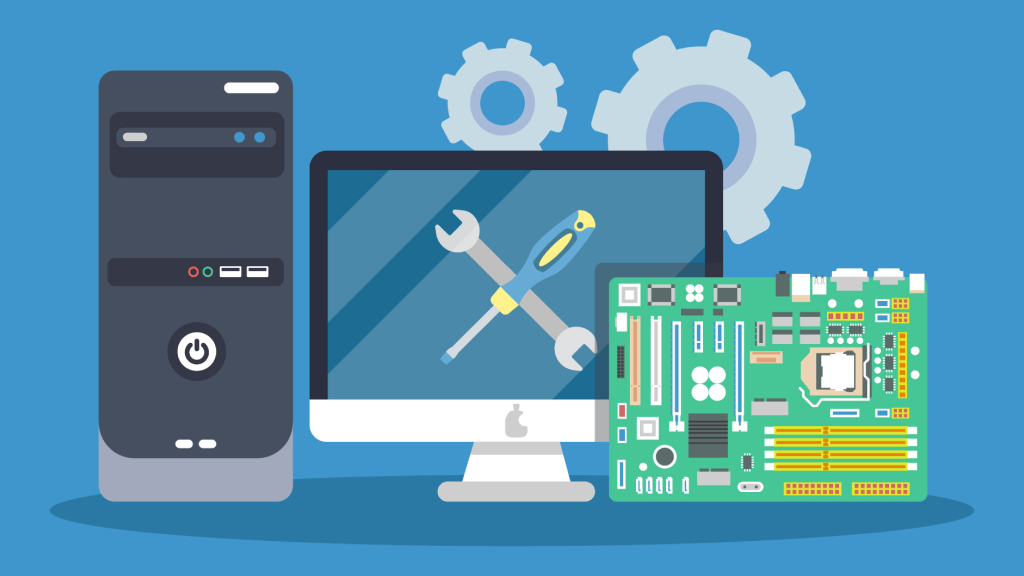
Even with perfect software hygiene, your PC’s hardware can influence how fast Windows boots. Some of the most common hardware-related bottlenecks include:
- Low memory (RAM): If your device has 4GB or even 8GB of RAM, modern Windows builds may struggle to keep things smooth during startup.
- Old CPU: A decade-old processor may not handle Windows 10 or Windows 11 initialization tasks efficiently.
- Slow graphics adapter drivers: Outdated or incompatible display drivers can slow the handoff between system initialization and desktop rendering.
- Motherboard/BIOS issues: If your BIOS is slow to load hardware drivers or has old firmware, the startup process can stretch out.
You’ll usually see hardware-related delays before Windows’ logo even appears.
11. BIOS and Firmware Setups That Delay Boot Behavior
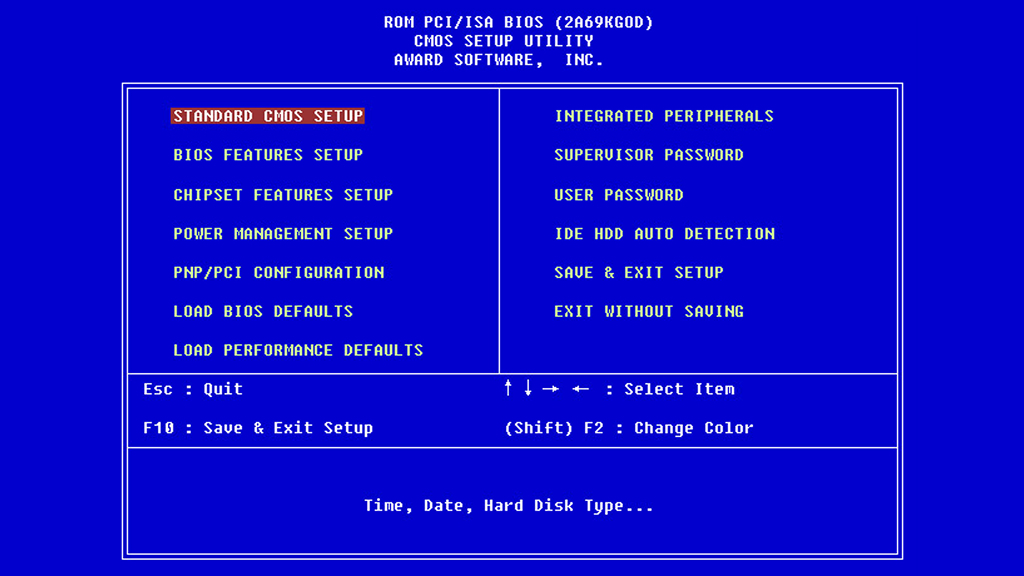
Your device’s BIOS or UEFI firmware controls the startup sequence before Windows takes over. Depending on how your system is configured, the firmware may be performing extended hardware tests, waiting for network timeouts, or searching for drives that don’t exist.
Some BIOS settings even prioritize booting from network sources or other drives before your main system disk. This can add several seconds to your startup process. If your firmware is outdated, it may also struggle with newer hardware, which leads to longer device initialization times.
12. Power Settings and Fast Startup Conflicts
Windows includes a feature called Fast Startup, designed to shorten the time it takes to power on your machine. However, on some systems, Fast Startup can lead to longer boot times if your hardware or drivers don’t fully support it.
Additionally, power settings that revolve around hybrid shutdown, hibernation, or sleep mode can interfere with startup. If you frequently switch between shutdown and hibernation, your system files may not load cleanly, leading to delays.
Fast Startup is helpful for most users, but in certain configurations, turning it off can actually result in faster and more predictable boot behavior.
13. Third-Party Drivers Causing Delays

Drivers are essential for your PC’s components to work correctly, but older or non-optimized drivers can increase startup time. Drivers for printers, audio systems, webcams, keyboards, and specialized controllers often load background processes that become part of the boot sequence.
If your drivers are outdated or inefficient, Windows may spend extra time initializing them during startup. In some cases, drivers may hang or retry, causing visible or invisible delays.
Graphic drivers, in particular, can cause unusually long black-screen delays between BIOS and desktop if they’re not functioning correctly.
14. Malware, Adware, and Suspicious Processes

Malicious software doesn’t always show obvious symptoms, but slow boot times are a frequent sign. Adware, spyware, and other unwanted programs often try to start at boot to ensure they stay active. These programs may monitor your online activity, inject ads into your browser, or run hidden mining operations — all of which put pressure on your system.
Even if the malware itself is lightweight, the extra processes, services, and startup entries can add friction to your boot time. A system that once started quickly may gradually slow down due to repeated exposure to suspicious downloads or untrusted websites.
15. Low Free Disk Space Blocking Essential Startup Operations
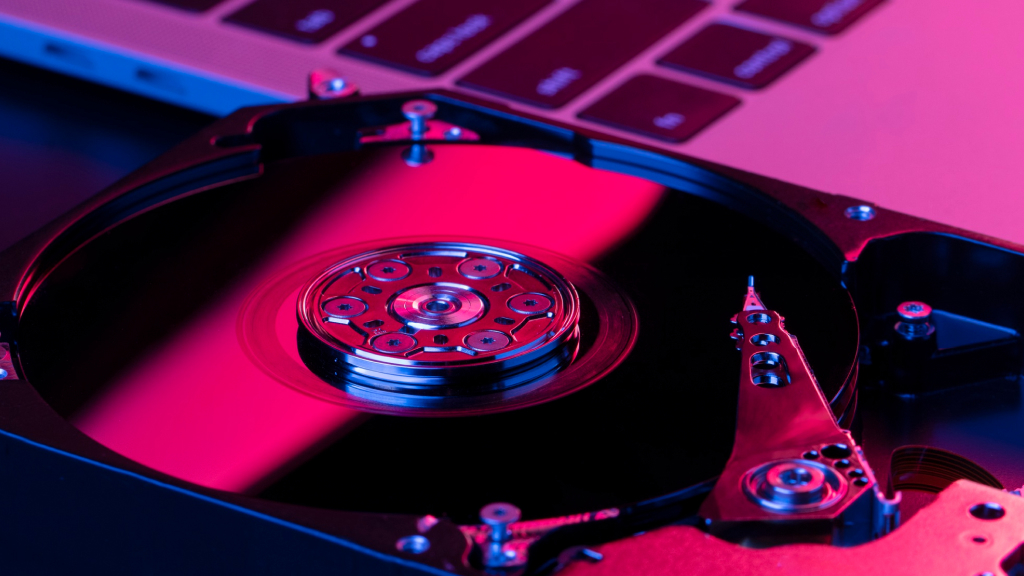
Windows needs a certain amount of free space to operate efficiently. If your system drive is nearly full, the operating system may struggle to load essential components during startup. Low space can interfere with virtual memory, caching, update installation, and background indexing.
When your device runs out of space, even basic tasks like opening the Start Menu can feel slow — and the boot process becomes one of the first places you experience the consequences.
16. Windows Indexing Ramping Up During Startup
Windows includes an indexing feature that speeds up search results. While indexing is helpful, it can place additional load on your system if it triggers heavily during startup. For example, if you recently added new files, changed folder structures, or connected a new drive, Windows may attempt to index that content immediately.
During the first few minutes after you boot, you may notice disk spikes or sluggishness if indexing is at work. It doesn’t usually stop the boot sequence itself, but it can significantly slow the point where your system feels ready to use.
17. Cloud Sync Services Adding Extra Load

Services like OneDrive, Google Drive, Dropbox, and iCloud often launch as soon as you sign in. These platforms begin syncing files right away, checking for updates, retrieving metadata, or scanning for changes.
If you store large amounts of data in cloud folders or sync multiple devices, these services may spike disk usage during startup. You might have fast storage, but simultaneous sync tasks can still create noticeable delays.
18. Windows Startup Repairs After Crashes or Power Interruptions
If your system didn’t shut down properly — like when the power goes out or you force a restart — Windows may try to run checks during the next boot. These automatic repairs can slow down the process, especially if the operating system is scanning for corrupted data or verifying disk integrity.
Startup repair attempts often lead to longer loading times without explicitly telling you what’s happening. If you’ve had several unexpected shutdowns recently, slow boot behavior is a natural consequence.
19. Security Policies and Enterprise Tools (If You Use a Work Device)
If your device is connected to a workplace environment — even if you work remotely — your PC may load enterprise policies, drive encryption tools, login scripts, or monitoring software during startup. Tools like VPN clients, authentication services, or corporate management agents can all add delays.
These processes protect your organization’s data, but they also participate in the boot process before Windows becomes available to you.
Slow Boot Times Usually Have Identifiable Causes
Slow startup behavior on Windows 10 or Windows 11 rarely happens at random. Whether it’s too many programs launching at once, outdated system components, heavy drivers, hardware limitations, or background processes stacking up, there’s always a clear reason behind the slowdown.
Once you understand what’s influencing your startup performance, you can begin clearing out unnecessary software, updating your system, adjusting your settings, or upgrading your hardware so your device boots quickly and predictably again.
If your PC has been taking longer to load than it used to, there’s a strong chance that solving one or more of the issues listed above will get you back to fast, smooth boot times.
How You Can Keep Your System Fast Over Time

Once you’ve fixed the root cause of your slow startup, you can prevent future delays by following a simple maintenance routine:
- Keep drivers and Windows updates current.
- Remove apps you no longer use.
- Clean up temporary files regularly.
- Avoid loading too many apps at startup.
- Monitor storage space and stay above 20% free capacity.
- Run periodic scans for malware.
Just a small amount of regular upkeep can keep your PC fast, stable, and reliable.