



In today’s connected world, reliable high-speed internet is no longer a luxury — it’s a necessity. Yet many households struggle with sluggish Wi-Fi, dropped connections, and frustratingly slow download speeds despite having adequate internet plans.
The problem often isn’t your internet service provider or your subscription speed. Instead, poor Wi-Fi optimization, network congestion, and suboptimal equipment placement are the culprits.
This comprehensive guide reveals industry-tested strategies to dramatically improve your home Wi-Fi performance without expensive upgrades.
Understanding Why Your Wi-Fi Speed Matters
The gap between your advertised internet speeds and actual Wi-Fi performance can be substantial. Internet service providers guarantee speeds only on wired connections — your wireless network introduces variables that can significantly reduce actual throughput.
Walls, interference from other devices, distance from your router, and network congestion all play roles in determining what speeds you actually experience when streaming, gaming, or working from home. Slow Wi-Fi doesn’t just frustrate users; it impacts productivity and entertainment quality.
Video streaming buffers, video calls freeze, online games lag, and file uploads take forever. The good news: most Wi-Fi problems have straightforward solutions that require minimal investment and technical knowledge. By implementing the optimization strategies outlined in this guide, you can reclaim your internet speeds and eliminate those Wi-Fi dead zones.
1. Restart Your Equipment Regularly
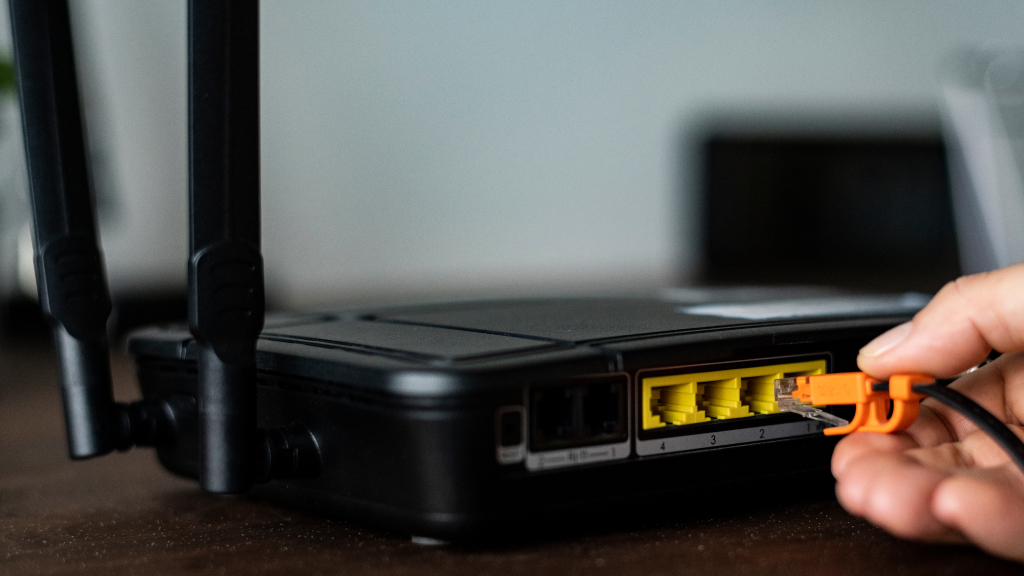
While it may seem overly simplistic, restarting your modem and router represents the single most effective troubleshooting step for slow Wi-Fi. Think of your router and modem as small computers that process massive amounts of data continuously.
Over time, they accumulate temporary files, cached data, and minor errors that gradually degrade performance. When you power cycle your equipment, you’re essentially clearing its temporary memory and forcing it to recalculate optimal network parameters from scratch.
This reboot clears any errors that were bogging down performance and allows the system to establish fresh connections. Many users report noticeable speed improvements immediately after restarting.
Industry testing shows that rebooting equipment regularly can prevent the gradual performance degradation that typically occurs. Some modern routers even allow you to schedule automatic reboots during off-peak hours like midnight, ensuring you never wake up to slow speeds.
2. Update Your Router Firmware Consistently
Firmware is essentially your router’s operating system — the code that controls how it processes data and manages network traffic. Just like Windows, macOS, and Android operating systems, router firmware is never perfect when it ships from the factory. Developers continuously optimize the code, patch security vulnerabilities, and fix bugs that can dramatically impact performance.
Outdated firmware is a common reason for poor Wi-Fi performance. Manufacturers release firmware updates not just for security but specifically to improve speed and stability. Unfortunately, many consumers never check whether their router’s firmware is current.
Problematic firmware updates are rare but possible, which is why some manufacturers don’t enable automatic updates by default. If you experience issues after an update, you can usually downgrade to the previous version. However, the vast majority of updates improve performance and security without creating problems.
3. Optimize Your Frequency Band Selection
Modern routers broadcast on multiple frequency bands, each with different characteristics and performance profiles. Understanding these bands and choosing the right one for your specific situation can yield dramatic speed improvements.
Wi-Fi Frequency Band Comparison
2.4 GHz Band
Range: Long (penetrates walls better)
Speed: Slower
Congestion: High
Best For: Smart home devices, legacy equipment, distance coverage
5 GHz Band
Range: Shorter (blocked by obstacles)
Speed: Faster
Congestion: Moderate
Best For: Gaming, streaming, computers, tablets
6 GHz Band (WiFi 6E+)
Range: Shortest
Speed: Fastest
Congestion: Minimal
Best For: Gaming, 4K+ streaming, multi-gig internet
The 2.4 GHz band has excellent range and penetrates walls effectively, but it’s also the slowest and most congested. This band is where your neighbors’ networks, cordless phones, microwave ovens, and countless IoT devices operate. When your router automatically selects the 2.4 GHz band — which many do by default to maximize coverage — you’re likely experiencing slower speeds than necessary.
The 5 GHz band offers significantly faster speeds but has shorter range and is more easily blocked by obstacles. If you’re within 40 feet of your router, the 5 GHz band typically provides better performance. Newer routers with 6 GHz support (Wi-Fi 6E) offer a third option that operates on a completely new spectrum with minimal interference, providing the fastest speeds with less congestion.
If your router uses “band steering,” it automatically selects which band to use. This intelligent feature sometimes chooses the 2.4 GHz for coverage reasons, even when you’d get better speed on 5 GHz from your current location. Many mesh systems don’t allow you to disable band steering, but you can work around this limitation by using separate network names for each band and manually connecting to the band you prefer.
4. Choose the Right Wi-Fi Channel

Beyond frequency bands, routers broadcast on specific channels within each band. Think of channels as individual highways within a larger frequency spectrum. When multiple routers use overlapping channels, they create interference similar to two radio stations broadcasting on frequencies that bleed into each other.
The 2.4 GHz band has only three completely non-overlapping channels: 1, 6, and 11. Most other channels overlap with these, creating interference if multiple routers use them. The 5 GHz band offers many more channels — 24 channels in most regions — providing considerably more flexibility.
Channel Distribution by Band
2.4 GHz Optimal Channels: 1, 6, or 11 (non-overlapping)
2.4 GHz Current Situation:
Modern routers often ignore this rule and select optimal channels based on real-time analysis
5 GHz Channels:
24 available channels, much less congestion than 2.4 GHz
6 GHz Channels:
Available with Wi-Fi 6E routers, provides the widest selection and least interference
To find the best channel for your situation, you can use Wi-Fi scanning tools. On Apple computers, hold Option and click the Wi-Fi icon to access wireless diagnostics. Windows users can install free apps like WiFi Analyzer or NetSpot to see which channels your neighbors are using and identify the clearest options.
That said, manually changing channels is becoming less necessary. Modern routers are quite effective at selecting optimal channels themselves, even if they don’t follow the traditional channel guidelines. For most users, the router’s automatic channel selection is sufficient. However, if you’re experiencing persistent interference issues, manually selecting a less-congested channel may help.
5. Adjust Your Router’s External Antennas
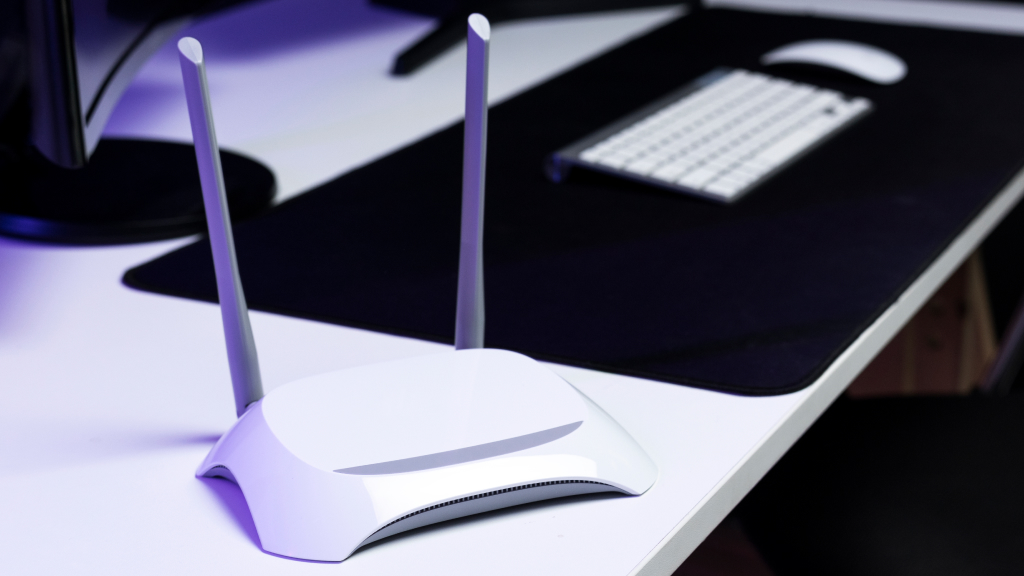
If your router has external antennas, their positioning significantly affects signal coverage patterns. Routers with vertically positioned antennas broadcast outward in a horizontal pattern — excellent for covering a single floor or apartment, but poor for multi-story homes.
By repositioning antennas to different angles — some vertical, some horizontal, or some at 45-degree angles — you can reshape your Wi-Fi coverage to better match your home’s layout. The exact optimal position depends on your specific space, so some experimentation is necessary.
Mesh systems and modern routers with internal antennas don’t offer manual adjustment, but manufacturers design these systems with optimal internal antenna configurations already in place.
6. Reduce Connected Devices and Manage Bandwidth Hogs

Every device connected to your network consumes bandwidth and processing capacity from your router. While modern routers can technically handle dozens of connections, they have practical limits on how many devices they can actively communicate with simultaneously — typically around 12 devices receiving data at once.
Beyond this throughput limit, each connected device — even when idle — consumes some router resources. That old smartphone constantly syncing emails, the unused smart speaker in the guest room, or the rarely-used gaming console still draws power from your network.
Device Management Checklist
✔
Disconnect devices you don’t actively use from Wi-Fi
✔
Block guest devices from auto-connecting each time they’re near your router
✔
Change your Wi-Fi password periodically to ensure only authorized devices remain connected
✔
Review connected devices in your router’s management interface monthly
✔
Disable Wi-Fi on devices when you leave home (airplane mode on phones and tablets)
✔
Move low-priority devices like security cameras to a separate network if your router supports guest networks
Even more important than device count is bandwidth consumption. A single 4K streaming device uses far more bandwidth than ten connected smart lights. If you’re experiencing slow speeds, identify which devices are actively consuming bandwidth through your router’s management interface. Many modern routers show per-device bandwidth usage, making it easy to spot the culprits.
Some routers offer Quality of Service (QoS) settings that allow you to prioritize certain applications or devices. If you prioritize your work-from-home laptop and video call application, your router will ensure those always get sufficient bandwidth, even if other household members are streaming videos simultaneously.
7. Configure Device Connection Preferences

Beyond choosing between frequency bands, you can configure individual device preferences in many modern routers and mesh systems. This granular control ensures each device connects through the optimal mesh node or network configuration for its location.
Consider this scenario: you’re streaming video in the living room, but your smartphone is still connected through the kitchen mesh node two rooms away because it was configured weeks ago. Your device is trying to reach the internet through a weak Wi-Fi connection when a closer, stronger node is available.
This approach prevents the scenario where an active device is stranded on a distant node while waiting for automatic band-switching to recognize the problem. By pre-configuring preferences, you ensure optimal connectivity immediately.
8. Optimize Your Router’s Physical Placement

Router placement is perhaps the most underrated factor affecting Wi-Fi performance. Your router’s location determines which areas receive strong signals and which become dead zones.
Ideally, routers should be positioned in a central location, elevated above floor level, and in an open area free from obstacles. The reasoning is straightforward: Wi-Fi signals radiate in all directions from your router. A centralized position means no area of your home is too far away. Elevated placement ensures signals can spread both horizontally and downward to cover multiple floors.
However, this ideal is rarely achievable because routers must connect to the modem through an Ethernet cable, and modems are typically located wherever your internet service enters the home. To relocate your router away from the modem, you’d need to run a long Ethernet cable through your home or have pre-installed networking infrastructure.
If central placement is impossible, consider using Wi-Fi extenders, mesh systems, or access points to extend coverage to distant areas rather than trying to place your primary router in a suboptimal location.
9. Extend Your Wi-Fi Coverage to Dead Zones

Even with optimal router placement, larger homes, multi-story buildings, and homes with unusual layouts often have areas where Wi-Fi signal is weak or nonexistent. Rather than replacing your entire router, several cost-effective extension options are available.
| Solution Type | How It Works | Best For | Cost Level |
|---|---|---|---|
| Wi-Fi Extender (Repeater Mode) |
Connects wirelessly to router and rebroadcasts signal | Extending coverage one room away, temporary coverage | Budget-friendly ($30-100) |
| Wi-Fi Extender (Access Point Mode) |
Connects via Ethernet to router and creates secondary network | Reliable extended coverage, better performance | Moderate ($50-150) |
| Powerline Adapters | Uses existing electrical wiring to transmit network signal | Homes without Ethernet infrastructure, reliable extension | Moderate ($60-150) |
| Mesh Wi-Fi System | Multiple coordinated nodes create seamless network | Whole-home coverage, seamless roaming, future expansion | Premium ($150-400) |
| Standalone Access Point | Independent router set to access point mode, connected via Ethernet | Professional installations, larger homes, enterprise needs | Moderate to Premium |
Wi-Fi extenders in repeater mode — the most common and affordable type — have a significant limitation: they must split their bandwidth between receiving the signal from your main router and rebroadcasting it. This effectively cuts your available bandwidth in half. They work fine for basic browsing but are suboptimal for streaming or gaming.
For better performance, connect an extender to your router using an Ethernet cable (if possible) to use “access point mode.” This delivers the full signal without bandwidth loss. Powerline adapters offer an alternative by using your home’s electrical wiring to transmit the network signal to distant rooms.
Mesh Wi-Fi systems, while more expensive, offer superior performance because all nodes work together intelligently. Your devices automatically connect to the nearest node with the strongest signal, eliminating dead zones while maintaining full bandwidth. Newer mesh systems supporting the EasyMesh standard allow you to mix and match components from different manufacturers.
10. Replace Aging Equipment When Necessary

If you’ve implemented all the optimization strategies above and still experience slow speeds, your equipment may be the limiting factor. Routers and modems are subject to technological obsolescence — as internet speeds advance and new standards are adopted, older hardware simply cannot keep pace.
Understanding Your Internet Needs
Rule of Thumb: Reserve 100 Mbps per person in your household as a planning guideline. This includes a buffer so each person has more than strictly necessary.
Example: A household of five people needs approximately 500 Mbps to ensure everyone can work, stream, and game simultaneously without conflicts.
Plan Assessment: Log into your internet provider’s account to confirm your advertised speed. Run a speed test using a wired computer connection (not Wi-Fi) to see what speeds your plan actually delivers. Compare this to how many simultaneous users you typically have.
An older router might support only Wi-Fi 5 (802.11ac), while modern routers support Wi-Fi 6 (802.11ax) or even Wi-Fi 7 (802.11be). Each generation delivers substantially better speeds and efficiency. Similarly, older modems may not support the latest cable or fiber internet speeds.
If your modem is more than five years old, upgrading is likely worthwhile. When considering upgrades, purchase your own equipment rather than renting from your internet service provider.
Owning your modem and router saves money over time — rental fees of $10-15 monthly add up to over $1,000 within the five-year lifespan of networking equipment. Remember that your devices matter equally.
A smartphone that only supports 2.4 GHz Wi-Fi connections will never achieve the speeds a modern device supporting all bands can achieve. If you’ve recently upgraded your internet service but aren’t seeing improvements, check whether your devices support current Wi-Fi standards.
Measuring and Verifying Your Improvements

Before implementing changes, establish a baseline by running a speed test using a wired computer connection from your modem. Record the results, then repeat the test using Wi-Fi. Document the difference — this shows what loss you’re experiencing due to wireless transmission. After implementing optimizations, run additional tests from the same Wi-Fi location to measure improvements.
Use consistent testing methodology: run tests at the same time of day (avoiding peak hours), from the same location, on the same device. This controls for variables that could skew results. Perform multiple tests and take the average result rather than relying on a single test.
Free speed testing tools are available at HighSpeedInternet.com and Speedtest.net. Professional Wi-Fi analysis apps like WiFi Analyzer, NetSpot, and Xirrus Wi-Fi Inspector show signal strength, channel usage, and interference patterns that help identify problems.
Reclaiming Your Wi-Fi Performance

Slow Wi-Fi is rarely an internet service problem — it’s a Wi-Fi optimization problem. By systematically addressing the factors that degrade wireless performance, most households can achieve dramatic speed improvements without expensive equipment upgrades.
Start with simple changes like restarting your equipment and updating firmware. Progress to optimization steps like band selection and device management. Finally, consider equipment upgrades or expansion if needed.
The difference between poor Wi-Fi and optimized Wi-Fi extends beyond just speed numbers. With properly optimized Wi-Fi, video calls remain clear and stable, streaming content loads instantly without buffering, online gaming has minimal lag, and file transfers complete in seconds rather than minutes.
These improvements significantly enhance daily quality of life in our increasingly connected world.
The good news is that most optimization requires no financial investment and minimal technical knowledge.
Begin with the strategies outlined here, test results systematically, and make incremental improvements. Within hours, you’ll likely observe measurable speed increases and more reliable connections throughout your home.










