


Android smartphones offer incredible flexibility and customization. You can install apps from different sources, organize them into folders, hide them from view, and even create private spaces for sensitive data. While these features are useful, they can sometimes make it difficult to know exactly what apps are installed on your device.
Hidden apps are more common than many people realize. Some are legitimate system tools that run quietly in the background, while others may have been intentionally hidden to reduce clutter or protect personal information. In certain situations, however, hidden apps could also be linked to unwanted software or malicious activity.
If your phone feels slower than usual, or battery drains faster, or starts showing frequent ads, or you simply want to review everything installed on your device, learning how to check for hidden apps can be extremely helpful. Fortunately, Android provides several ways to reveal these concealed apps.
Let’s explore multiple methods to find hidden apps on any Android phone, along with tips for identifying suspicious software and keeping your device secure.
What Are Hidden Apps on Android?
Hidden apps are applications installed on your Android device that do not appear in the usual places, such as the Home screen or app drawer. Even though they are not immediately visible, they may still run in the background and perform various tasks without drawing attention. Below are some reasons why apps may be hidden:
- System applications that help Android run smoothly
- Parental control or monitoring tools
- Apps intentionally hidden by the user to reduce clutter or protect privacy
- Malicious or disguised apps designed to stay unnoticed
Because of this, it’s a good idea to occasionally check your device for hidden apps. Most people rarely review the complete list of apps installed on their phones, but doing so can be useful. If you suspect an app may be hidden on your device, there are several simple checks you can perform. Android includes built-in tools that allow you to view all installed apps, review permissions, and locate software that might be concealed. Here are some of the most effective ways to find hidden apps on an Android phone.
1. Check the App Drawer
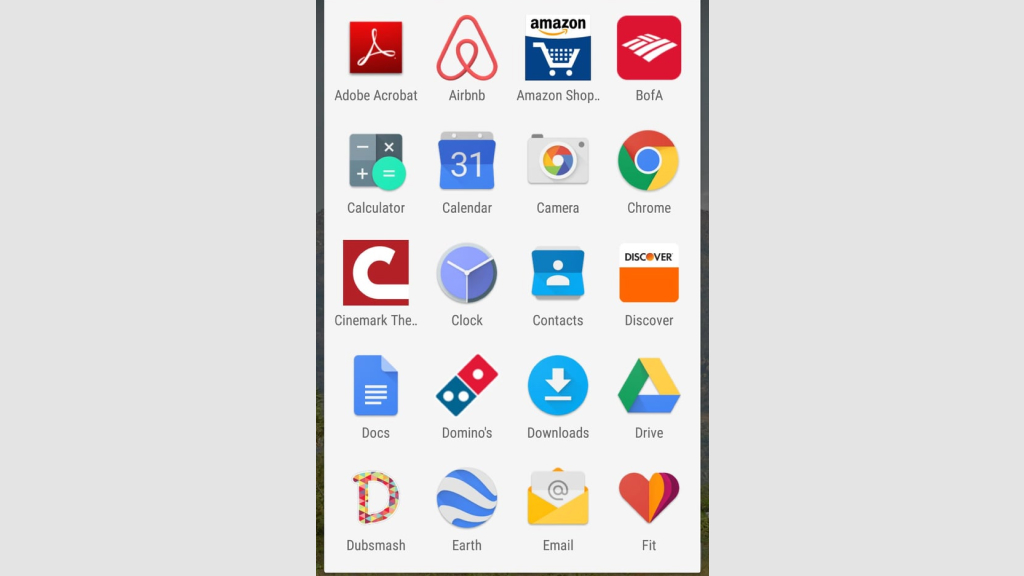
The app drawer is the main place where Android stores a complete list of installed apps. Even if an app doesn’t appear on the Home screen, it may still be visible in the app drawer. To access it, simply swipe up from the bottom of your Home screen. This will open a page that lists all installed apps in alphabetical order.
Some Android launchers also include a feature that allows users to hide apps from this list. To check whether any apps are hidden:
- Open the app drawer.
- Tap the three-dot menu in the corner
- Select Settings or Home Screen Settings
- Look for an option called Hide Apps or Hidden Apps
If any apps have been concealed, they will usually appear in this section. From here, you can choose to unhide them so they become visible again.
2. View the Full App List in Settings
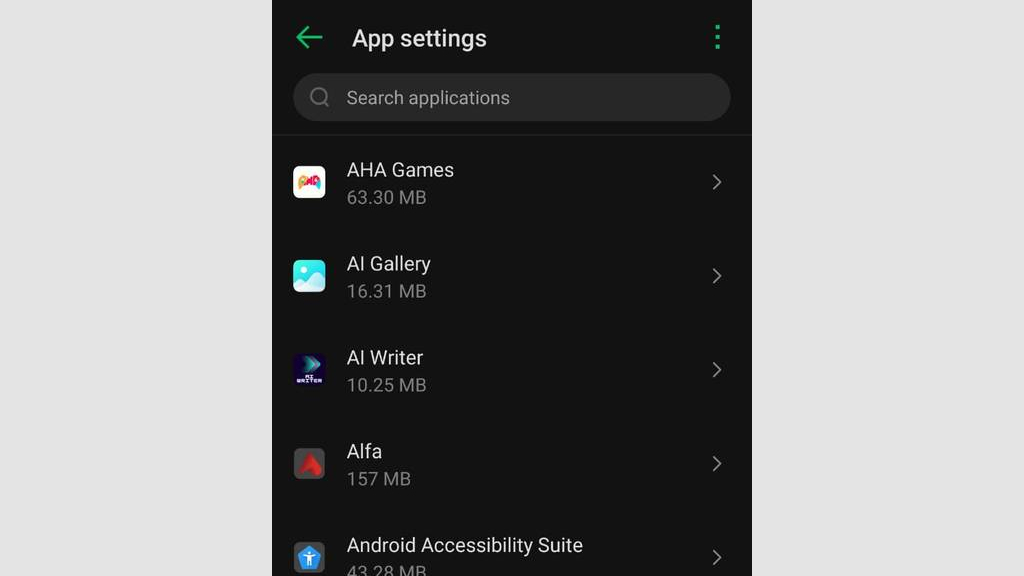
Another reliable way to check for hidden apps is by using the Settings menu. This method shows every application installed on your device, including those that don’t appear on the Home screen. To view the complete list:
- Open Settings
- Tap Apps or Apps & Notifications
- Select See All Apps
- The phone will display a full list of applications currently installed.
Many Android devices also include an option to show system apps. These are built-in components that help the operating system function properly. While most of them are legitimate, reviewing the list can sometimes reveal unfamiliar apps that deserve closer inspection.
If you notice something you don’t recognize, tap the app name to view details such as:
- Storage usage
- Permissions
- Installation source
- Battery consumption
This information can help you decide whether the app is safe or unnecessary.
3. Search for Apps Directly
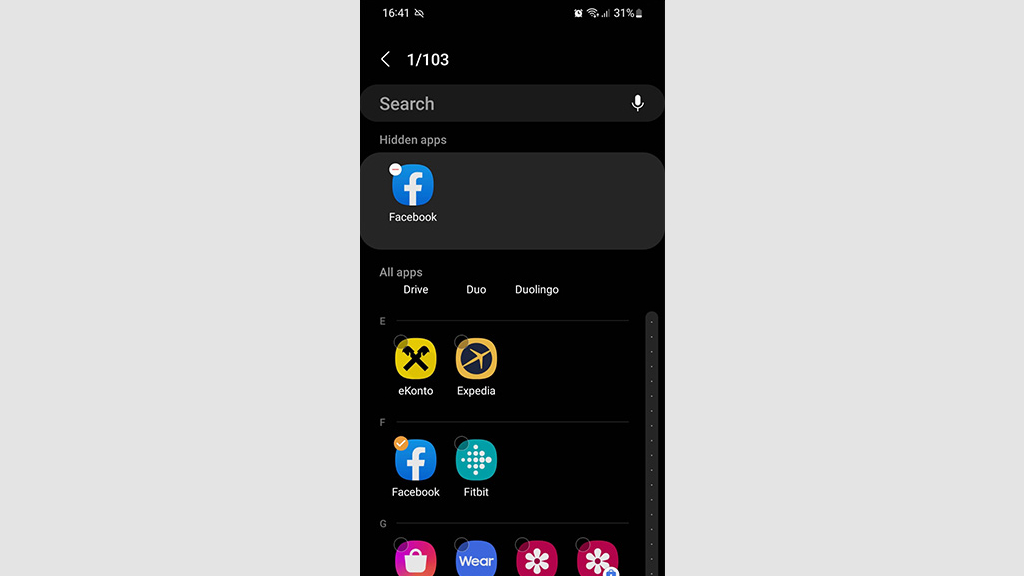
Android devices also include a built-in search feature that can help locate hidden apps quickly. If you suspect an app exists but cannot find it manually, try searching for its name. To do this:
- Swipe down on the Home screen or open the app drawer
- Tap the search bar
- Type the name of the app
If the app is installed on your device, it should appear in the search results, even if it’s hidden from the Home screen. Tapping the result will allow you to open the app or access its App Info page, where you can manage settings or uninstall it if necessary.
4. Check Your Google Play Store App History
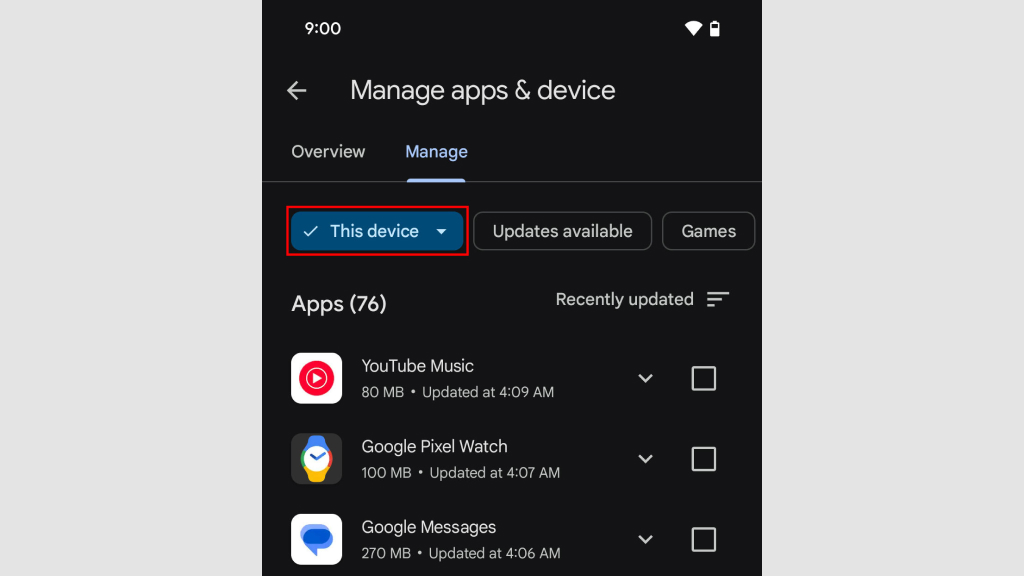
The Google Play Store keeps a record of apps associated with your account. This can help you identify apps that may not appear elsewhere on your device. To review your installed apps:
- Open the Google Play Store
- Tap your profile icon
- Select Manage apps & device
- Tap the Manage tab
You’ll see a list of apps linked to your account. You can filter them by Installed, Not Installed, or All. If you notice an app in this list but can’t locate it on your device, it may be hidden, disabled, or removed from the Home screen.
5. Look for Disguised or Vault Apps

Some apps are specifically designed to hide files, photos, or even other applications. These tools often disguise themselves as ordinary utilities such as calculators or calendars. A well-known example is a calculator app that works normally but reveals a hidden storage area after entering a specific PIN. To check for such apps:
- Look for duplicate app icons, such as two calculator apps
- Open apps with generic names like “Vault,” “Storage,” or “Manager”
- Check if the app asks for a password immediately
You can also press and hold the app icon and select App Info to learn more about its permissions and source.
6. Check App Permissions and Device Admin Access
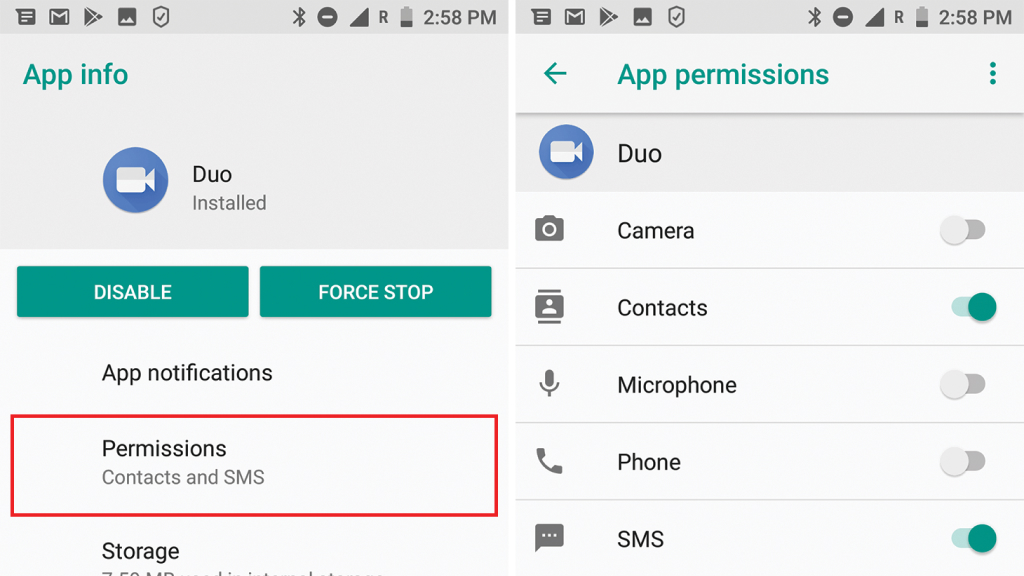
Some hidden apps rely on powerful permissions to operate quietly in the background. Reviewing these permissions can reveal apps that might otherwise go unnoticed. To check permissions:
- Open Settings
- Tap Privacy
- Select Permission Manager
This section shows which apps have access to sensitive features such as camera, Microphone, Location, Contacts, and Storage. If an unfamiliar app has access to several important permissions, it may be worth investigating further.
You should also check Device Admin Apps, which have elevated control over your phone. Apps with administrator privileges can sometimes prevent themselves from being easily removed.
7. Explore Home Screen Folders and Additional Screens
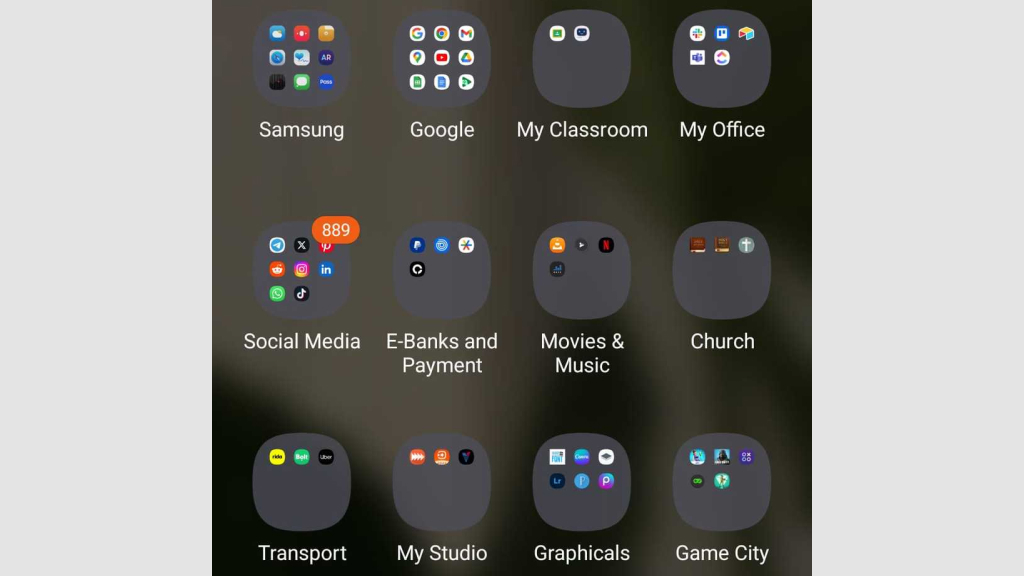
Hidden apps aren’t always concealed through system settings. Sometimes they are simply placed in locations that are easy to overlook. For example, many users create folders on their Home screen to organize apps. An application might be tucked inside a folder that you rarely open.
Additionally, Android Home screens often extend across multiple pages. Swiping left or right may reveal additional screens containing apps and widgets. Take a moment to explore every page and open any folders you see. You might discover apps that were simply out of sight.
8. Check Private Space or Secure Folders
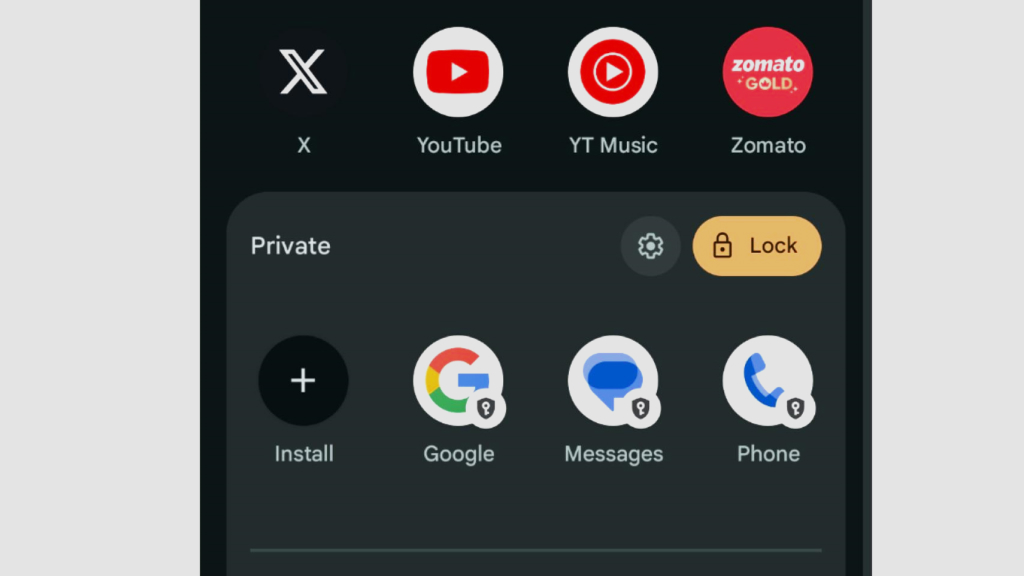
Some Android phones include features designed to create a private area for apps and files. This space is usually protected by a password, PIN, or biometric authentication. Apps stored in this area won’t appear in the regular app list. If your device supports this feature, look for options such as:
- Private Space
- Secure Folder
- App Lock
These features are often used to protect sensitive data, but they can also hide apps from casual viewing.
9. Use Security Apps to Scan for Hidden Threats

If you suspect malicious software on your device, running a scan with a trusted mobile security app can help. Security tools can detect suspicious behavior, hidden spyware, or disguised apps that may not be obvious through manual inspection. These apps typically scan your device for Malware, Spyware, Adware, and unsafe permissions.
While Android’s built-in protections are already strong, an additional security scan can provide extra reassurance. Some additional security scans include:
10. Check for Disabled Apps
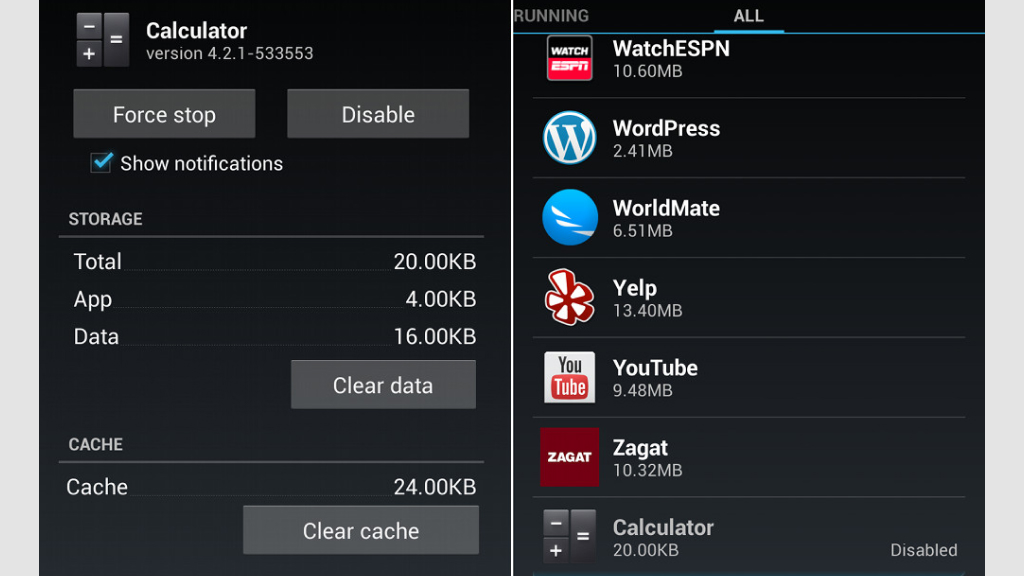
Some apps may not appear on your Home screen or in the app drawer because they have been disabled rather than hidden. When an app is disabled, it remains installed on the device but cannot run until it is enabled again. To check for disabled apps:
- Open Settings
- Tap Apps
- Select See all apps
- Look for apps labeled Disabled
If you find an app that is disabled, you can tap it to view more details. From there, you can choose to enable it again if needed.
Disabled apps are often preinstalled system tools or applications that users have turned off to save storage or reduce background activity. However, reviewing them occasionally helps ensure nothing important has been accidentally turned off.
11. Check Storage for Unknown App Data
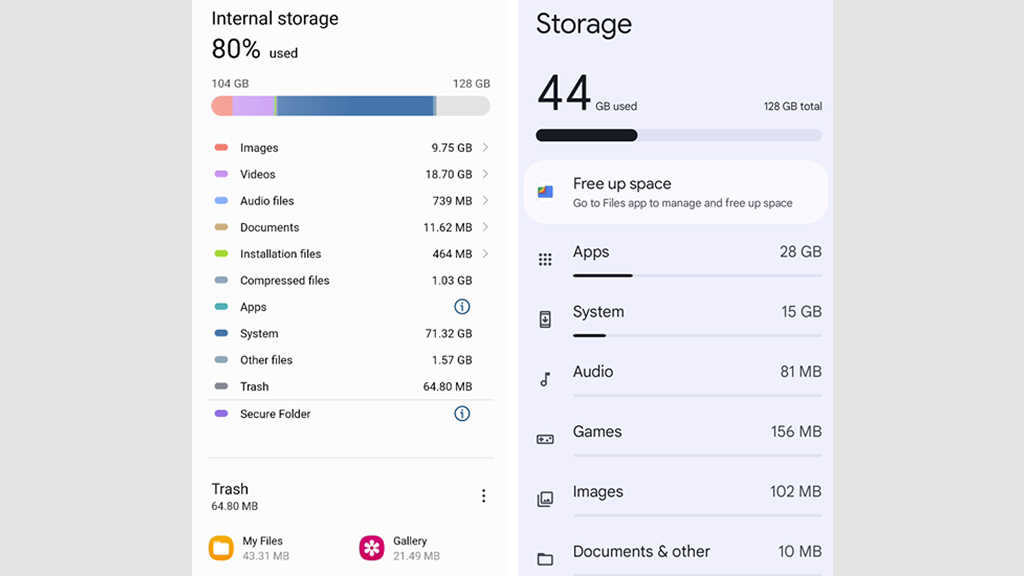
Another way to detect hidden apps is by reviewing how your phone’s storage is being used. Even if an app is hidden or disguised, it still occupies space on your device. To check storage usage:
- Open Settings
- Tap Storage
- Select Apps or App storage
This section displays a list of apps along with the amount of storage they consume.
If you notice an unfamiliar app using a significant amount of storage, it may be worth investigating further. Tap the app name to view its details and determine whether it is necessary.
Large storage usage from unknown apps could indicate hidden media vaults, background services, or other concealed applications.
12. Review App Data and Battery Usage
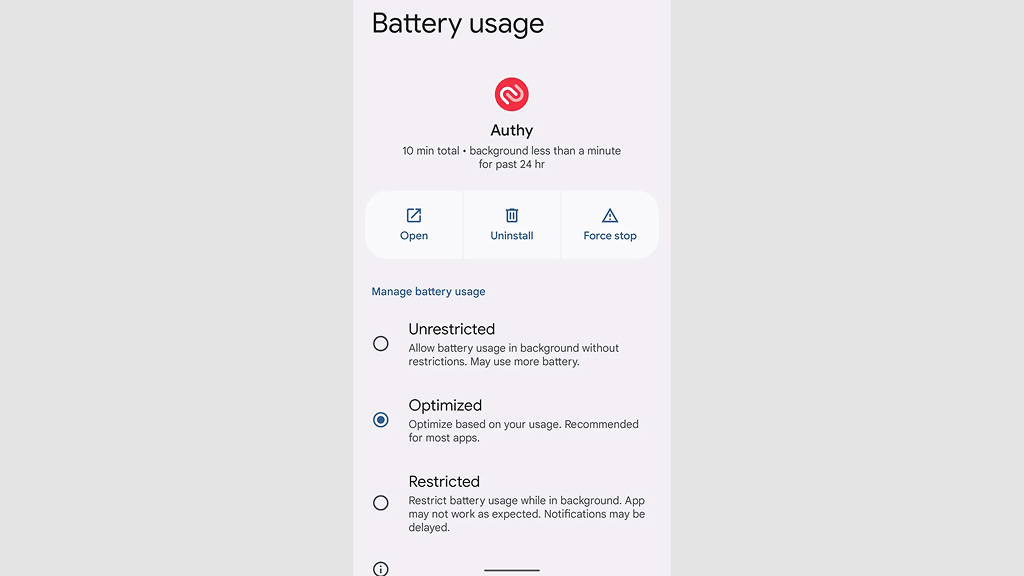
Hidden apps that run constantly in the background often leave clues in your phone’s battery usage statistics. To review this information:
- Open Settings
- Tap Battery
- Select Battery Usage or Battery Activity
Here, you’ll see a breakdown of which apps consume the most power. If an unfamiliar app appears near the top of the list, it could be running in the background without your knowledge.
Similarly, checking data usage can reveal apps that frequently access the internet. You can review this by going to:
Settings → Network & Internet → Data Usage
Apps that use large amounts of data despite rarely being opened may deserve closer inspection.
13. Check for Apps Without Icons
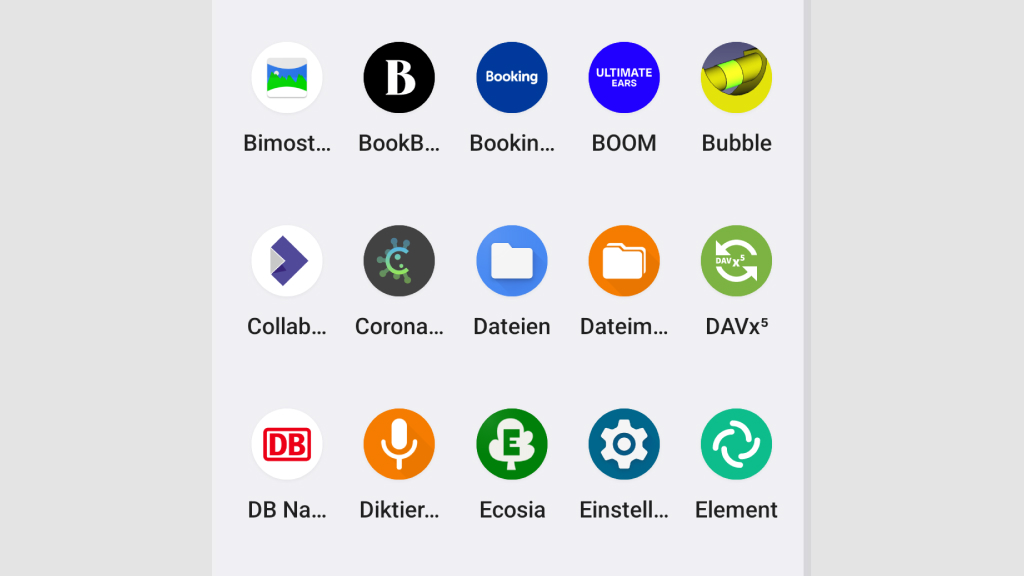
Some hidden apps intentionally remove their icons from the Home screen to remain unnoticed. Even though the icon disappears, the app itself still exists within the system. These apps often appear in the full Settings → Apps list but cannot be launched normally. To identify them:
- Look for apps with generic names
- Check apps that do not have visible icons
- Review apps that appear to have no clear function
Opening the App Info page can help you determine the app’s purpose by reviewing its permissions, installation source, and storage usage.
14. Use a File Manager to Look for Suspicious Folders
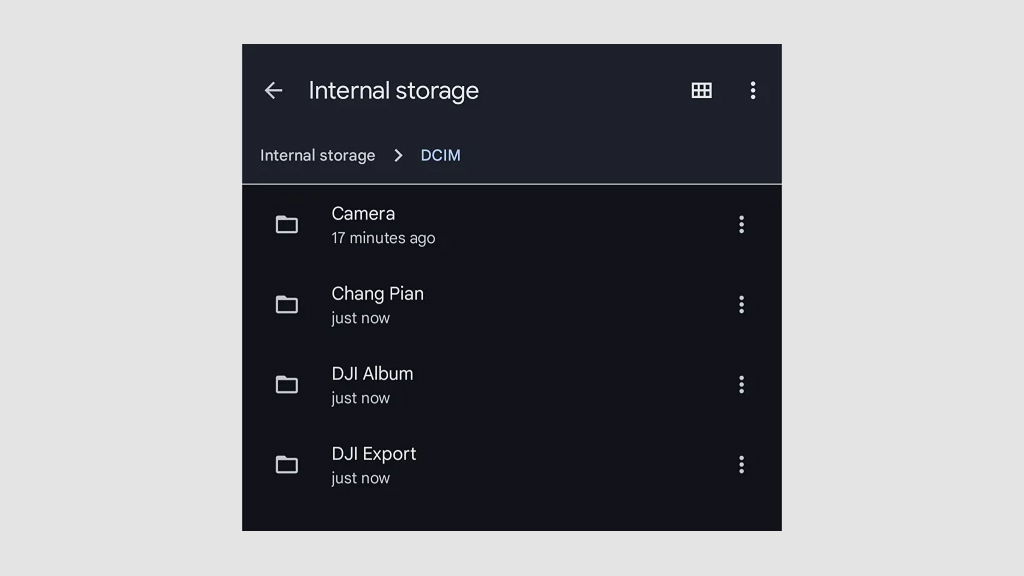
Hidden apps often create folders inside your phone’s internal storage to store data, photos, or configuration files. Using a file manager app can help you identify unusual directories.
- Open your File Manager
- Navigate to Internal Storage
- Review folder names carefully
Here you can look for folders that have unusual names, contain large amounts of hidden files, or appear related to apps you don’t recognize. While many system folders are normal, unfamiliar directories linked to unknown apps could indicate hidden applications.
15. Keep Your Phone Secure

After learning how to find hidden apps, it’s equally important to take a few precautions to stop suspicious software from appearing on your device in the future. Here are a few good security practices:
- Make sure you download apps only from trusted platforms, such as official app marketplaces
- Avoid clicking suspicious links in messages or emails
- Regularly review app permissions
- Keep your Android system updated
- Delete apps you no longer use
Adopting a few simple safety habits can significantly lower the risk of unwanted or harmful apps appearing on your phone without your awareness. While Android devices often include hidden apps as part of the system, most of these are harmless components that help the operating system function properly. Some apps may also stay out of sight because they run quietly in the background or support privacy features that users rarely interact with directly.
Still, it’s useful to stay aware of what is installed on your device. Taking time to review the list of apps, check permissions, and monitor storage or battery usage can reveal software that you may not recognize. If something looks unfamiliar or unnecessary, you can investigate further or remove it.
Occasionally checking your phone in this way helps keep your device organized and running smoothly. More importantly, it ensures that only the apps you trust are active on your Android device, giving you better control over your privacy and overall security.










