


Managing photo storage on your iPhone can quickly become overwhelming, especially if you capture a lot of pictures and videos. At some point, you may want to free up space on your device without losing those precious memories stored in the cloud. This is where many users get confused, as deleting a photo on your iPhone often removes it from iCloud as well.
So, is it possible to delete photos from your iPhone but keep them safely stored in iCloud? The answer is yes, but only if you understand how iCloud Photos works and use the right approach.
Let’s walk through everything you need to know, including the safest methods, alternative solutions, and important precautions.
Understanding How iCloud Photos Works

To manage your photos effectively, it’s essential to understand how iCloud Photos actually functions. Unlike a traditional backup service, iCloud Photos works as a real-time syncing system. This means your photo library is kept consistent across all your Apple devices, including your iPhone, iPad, Mac, and even the iCloud website.
When iCloud Photos is enabled:
- Every image or video you take is automatically uploaded to iCloud.
- The same library appears across all devices (iPhone, iPad, Mac, and iCloud website) and is accessible through your Apple ID.
- Any edits you make, such as cropping or applying filters, are instantly reflected everywhere.
While this creates a seamless experience, it also means that your devices are not storing separate copies of your photos. As a result, deleting a photo from your iPhone will also remove it from iCloud and any other synced device. This is where confusion often arises, as many users assume iCloud acts as a backup that keeps files safe independently.
In reality, iCloud Photos ensures uniformity, not duplication. Understanding this distinction is crucial before attempting to delete photos, as it helps prevent accidental loss and ensures you choose the right method to manage your storage safely.
With that in mind, here are the best methods to free up iPhone storage without deleting photos from iCloud.
Method 1: Turn Off iCloud Photos Sync (Safest Method)
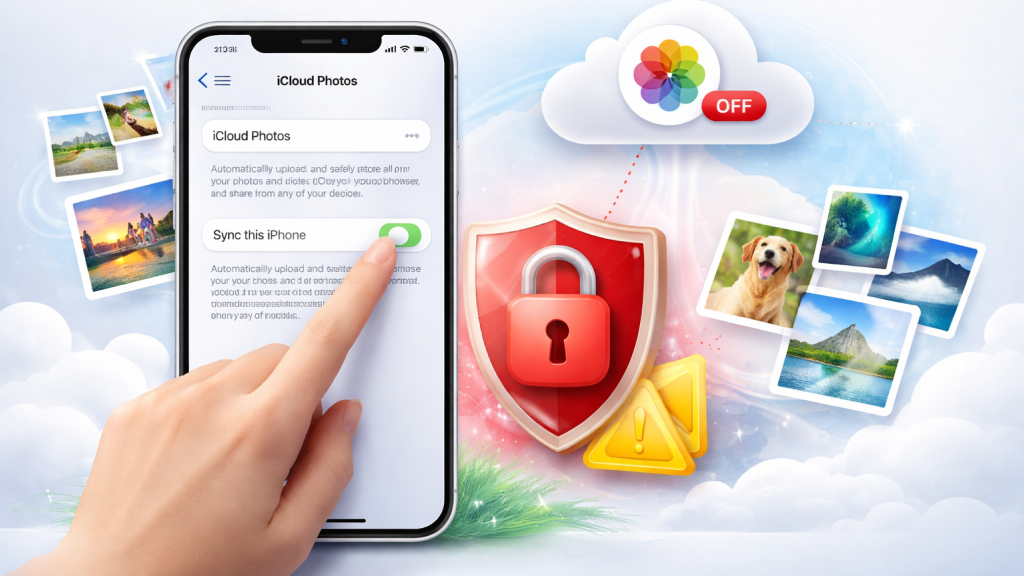
The most reliable way to delete photos from your iPhone without affecting iCloud is to disable syncing first.
Steps to turn off iCloud Photos:
- Open Settings
- Tap your name at the top (Apple ID)
- Go to iCloud
- Tap Photos
- Toggle off Sync this iPhone
Once syncing is disabled, your iPhone and iCloud will no longer stay in sync. This allows you to safely delete photos from your device without removing them from iCloud. It’s important to note that once you turn syncing back on, your iPhone may attempt to sync changes again, including deletions. So use this method carefully if you plan to re-enable syncing in the future.
Method 2: Use “Optimize iPhone Storage” (Best for Saving Space)

If your main goal is to free up storage rather than permanently deleting photos, this is the most efficient solution. Instead of removing photos entirely, you can let your iPhone store smaller versions locally, while keeping full-resolution images in iCloud.
How to enable it:
- Go to Settings
- Tap Photos
- Select Optimize iPhone Storage
With this setting enabled:
- Your original, high-quality photos and videos are securely stored in iCloud
- Your iPhone retains smaller, device-optimized versions that take up significantly less space
- Full-resolution versions are automatically downloaded whenever you view, edit, or share a photo
- Storage is intelligently managed in the background, freeing up space when your device starts running low
This approach allows you to keep your entire photo library accessible without cluttering your iPhone’s storage. It’s a seamless, hands-off solution that eliminates the need to manually delete photos while still ensuring you always have access to the full-quality versions when needed.
Method 3: Back Up Photos to Another Cloud Service
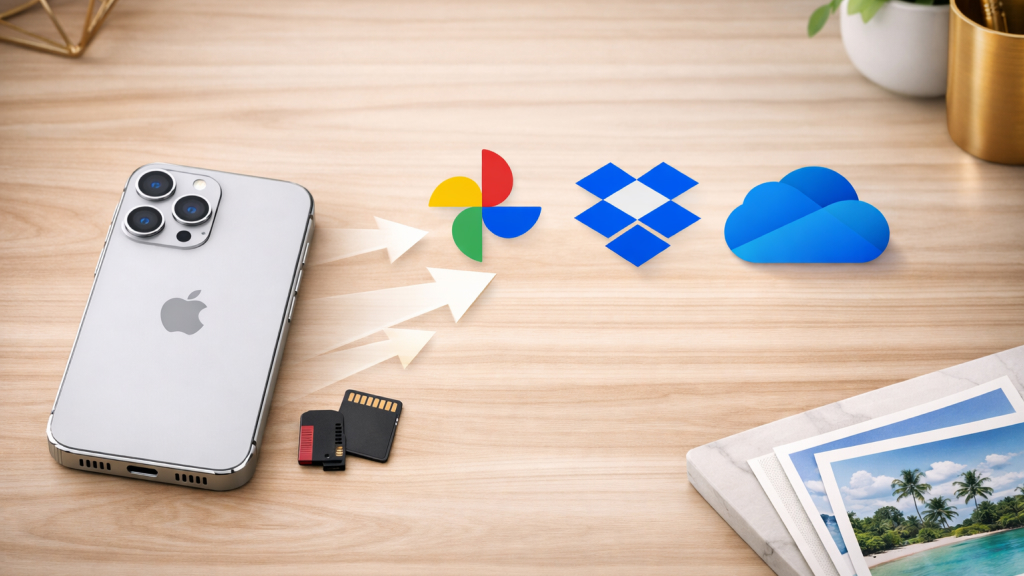
A practical alternative is to back up your photos to a separate cloud service before removing them from your iPhone. This ensures your images are safely stored outside of iCloud, giving you more flexibility. Some widely used options include Google Photos, Dropbox, and Microsoft OneDrive.
How it works:
- Download and install your preferred cloud storage app
- Turn on the photo backup or sync feature within the app
- Allow time for all your photos and videos to upload fully
- Once the backup is complete, delete the photos from your iPhone’s Photos app
After the upload is finished, your photos will remain accessible in the selected cloud service, even if they are removed from your device. This method is especially useful for long-term storage, as it lets you manage your iPhone space without relying entirely on iCloud.
Method 4: Save Photos to Files App
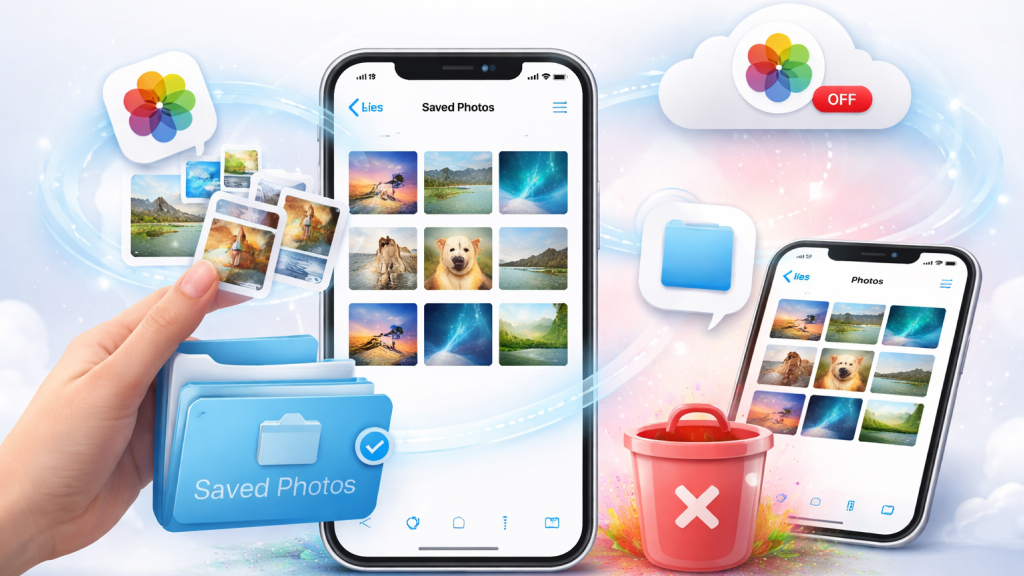
If you’d rather keep your photos on your device but remove them from the main Photos library, you can transfer them to the Files app instead. This lets you store images locally without keeping them in your synced photo collection.
Steps:
- Open the Photos app
- Choose the images you want to move
- Tap the Share button
- Select Save to Files
- Pick a folder and confirm the save
Once the images are stored in Files, you can safely delete them from the Photos app to free up space. Just be sure to turn off iCloud Photos syncing beforehand to avoid those deletions being reflected in iCloud.
Method 5: Use a Different iCloud Account
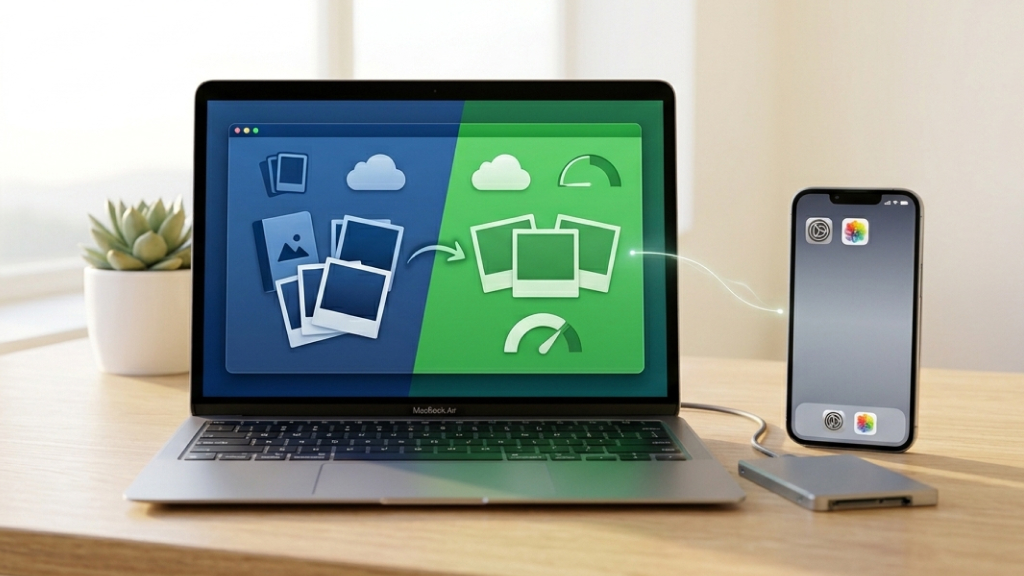
This approach is less common but can be helpful in specific scenarios. By signing out of your current iCloud account and using a different one on your iPhone, you effectively separate your device from your existing photo library.
When you do this:
- Your existing photos remain stored safely in the original iCloud account
- Your iPhone starts with a fresh, empty photo library
- You can remove photos from your device without impacting the original collection
Steps:
- Open Settings
- Tap your name at the top
- Scroll down and select Sign Out
- Enter your Apple ID password to confirm
- Sign in with a different iCloud account
This method is particularly useful if you want to keep a large collection stored in one account while freeing up space on your device using another.
Recovering Deleted Photos (Important Safety Tip)
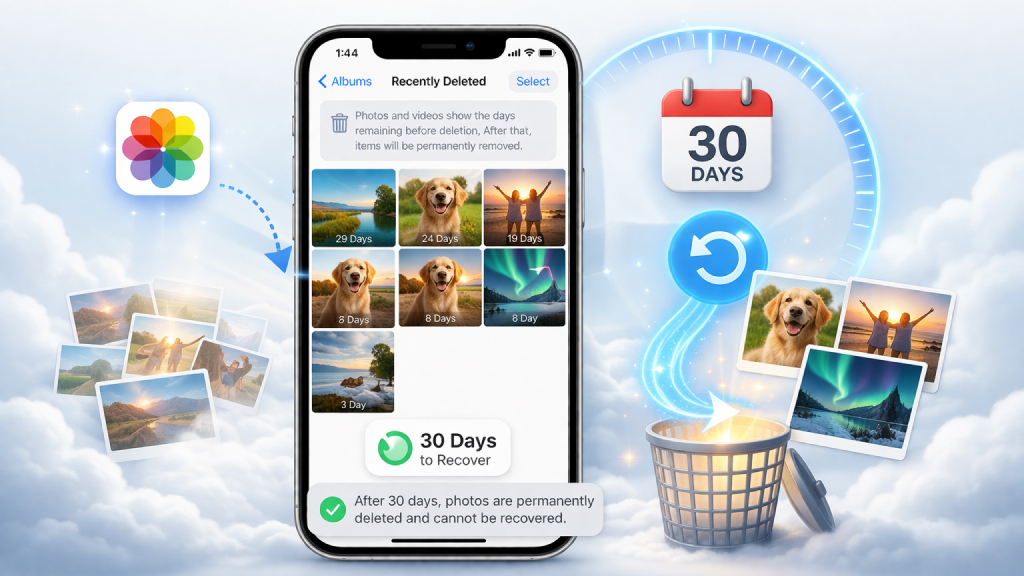
If you accidentally delete a photo, don’t panic. Apple provides a recovery window. You can find your deleted photos by following these steps:
- Open the Photos app
- Go to the Albums tab
- Scroll down to Recently Deleted
- Unlock the folder
- Select photos and tap Recover
Deleted photos remain in this folder for up to 30 days, after which they are permanently removed from your device.
Common Mistakes to Avoid
It’s easy to lose photos unintentionally if you’re not fully aware of how iCloud Photos works. A few common mistakes can lead to permanent deletions, so it’s important to be cautious.
-
Treating iCloud as a traditional backup
iCloud Photos is designed to sync your library across devices, not store independent copies. This means any change you make is reflected everywhere.
-
Deleting photos while sync is still enabled
If iCloud syncing is active, removing a photo from your iPhone will instantly remove it from iCloud and other connected devices as well.
-
Re-enabling sync without checking settings
Turning syncing back on after making changes can cause your iPhone to sync those changes to iCloud, potentially deleting photos you intended to keep.
-
Skipping backup verification
Before deleting anything, always make sure your photos are safely backed up, whether in iCloud or another storage service, to avoid accidental loss.
Freeing up space on your iPhone doesn’t have to mean losing your photos. Once you understand how iCloud Photos functions, you can choose the approach that best suits your needs. Whether it’s optimizing storage, turning off sync, or using an alternative backup, you can manage space efficiently without putting your photos at risk.
With a little planning, you can keep your photo library organized and accessible while making the most of your device’s storage.










