


Safari on macOS is far more than just a default browser, it’s a powerful, privacy-focused tool designed to seamlessly integrate with the Apple ecosystem. While many users stick to basic browsing, Safari includes a wide range of features that can significantly improve productivity, organization, and security.
From managing tabs efficiently to leveraging built-in privacy protections, mastering these features can transform your browsing experience. Below are the most effective tips to help you get the most out of Safari on macOS.
Tab and Window Management
1. Organize Your Workflow with Tab Groups
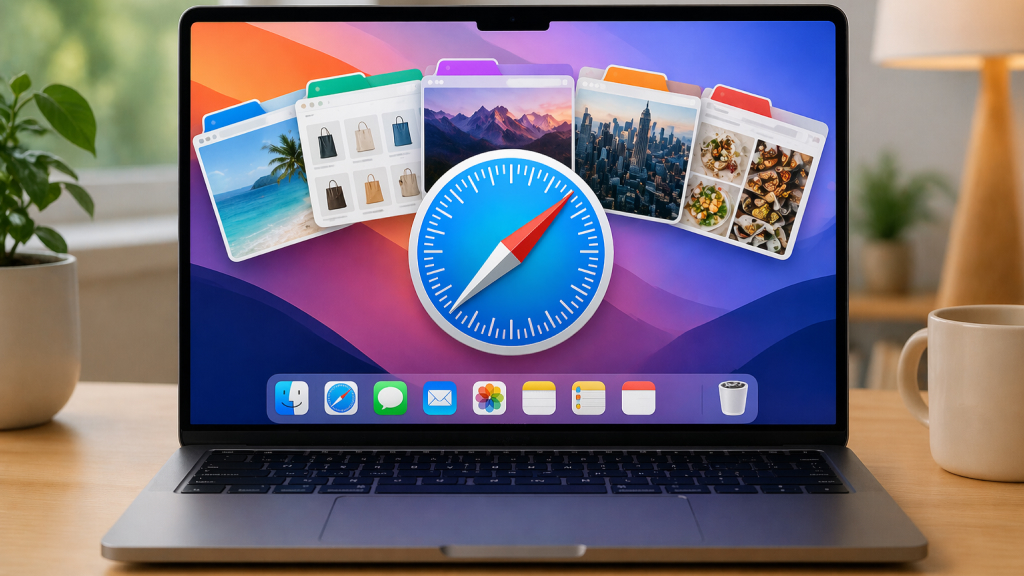
Tab Groups are one of Safari’s most useful features for managing multiple browsing sessions. Instead of cluttering your browser with dozens of open tabs, you can organize them into separate groups based on projects, topics, or workflows.
To create a Tab Group:
- Open multiple tabs
- Click the Sidebar button
- Select “New Tab Group with X Tabs”
This allows you to switch between different contexts, such as work, research, or entertainment, without losing track of your pages.
2. Pin Frequently Used Tabs

Pinning tabs ensures that your most important websites are always accessible. These tabs stay fixed on the left side of the tab bar and reload automatically when you launch Safari.
To pin a tab:
- Right-click on a tab
- Select Pin Tab
This is ideal for web apps like email, dashboards, or communication tools.
3. Automatically Close Old Tabs

If you tend to accumulate too many tabs, Safari can automatically clean them up for you.
To enable this:
- Go to Safari > Settings > Tabs
- Choose to close tabs after one day, one week, or one month
This helps maintain a clutter-free browsing environment and improves performance.
4. Quickly Search Through Open Tabs

When you have dozens, or even hundreds, of tabs open, manually scanning through them can quickly become inefficient. Safari simplifies this with a built-in tab search feature that helps you locate any open page in seconds.
Simply click the tab overview button in the top-right corner of the tab bar, then type a keyword, website name, or page title into the search field. Safari instantly filters and highlights matching tabs, saving time and reducing clutter. This feature is particularly valuable during research, multitasking, or when working across multiple projects.
Productivity and Customization
5. Customize the Safari Toolbar
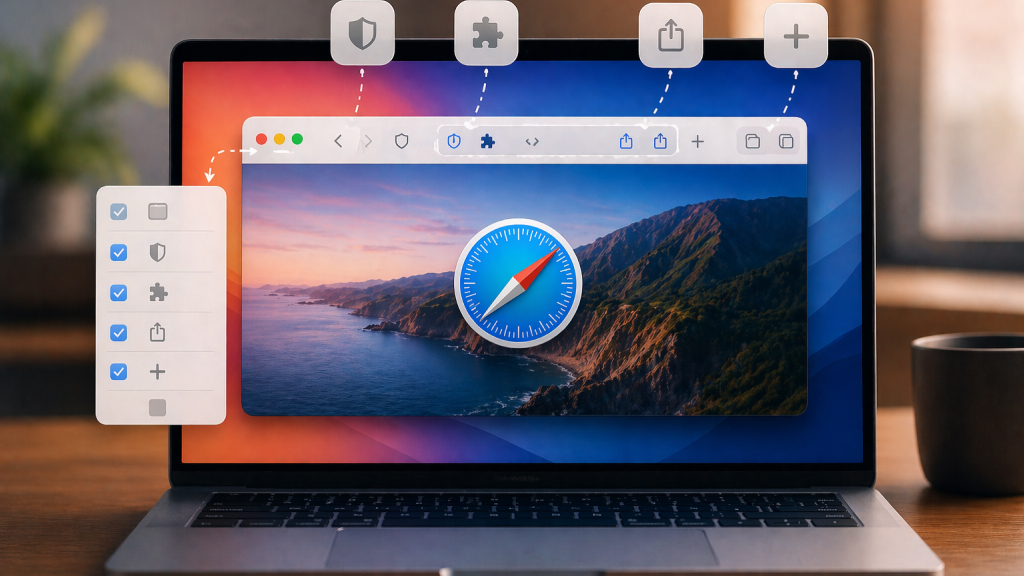
Safari allows you to tailor the toolbar to suit your workflow. You can add shortcuts for frequently used actions like sharing, extensions, or bookmarks.
To customize:
- Right-click on the toolbar
- Select Customize Toolbar
Drag and drop icons to rearrange or remove items as needed.
6. Create a Personalized Start Page
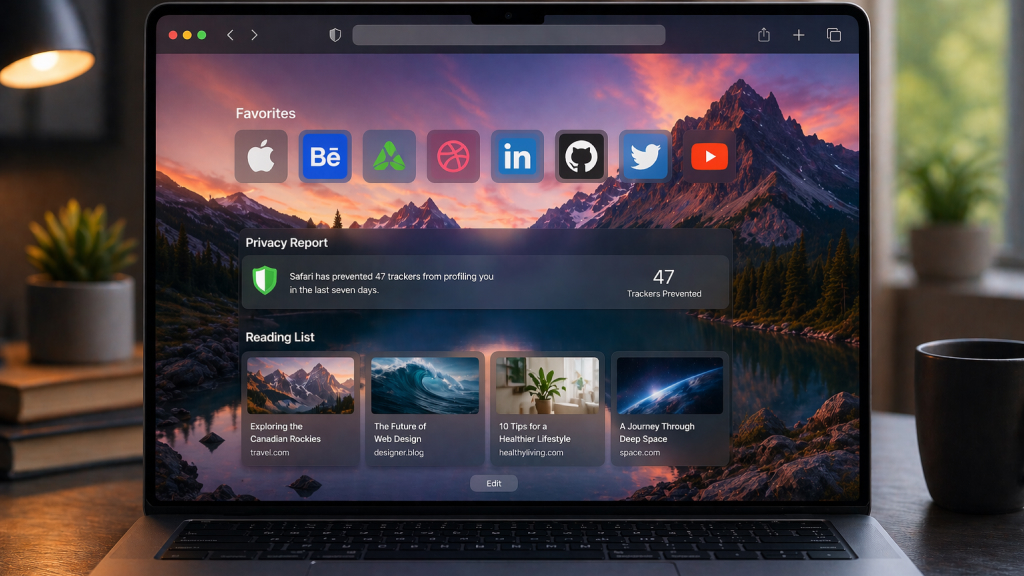
The Start Page in Safari serves as your central hub every time you open a new tab, and customizing it can make your browsing experience both more efficient and visually appealing. You can tailor it to display key sections such as Favorites for quick access, Frequently Visited sites for convenience, and Privacy Reports to stay informed about blocked trackers.
Safari also lets you choose a custom background image, adding a personal touch. To set it up, click the settings icon in the bottom-right corner of the Start Page and select the elements you want to display.
7. Use Reader View for Distraction-Free Reading
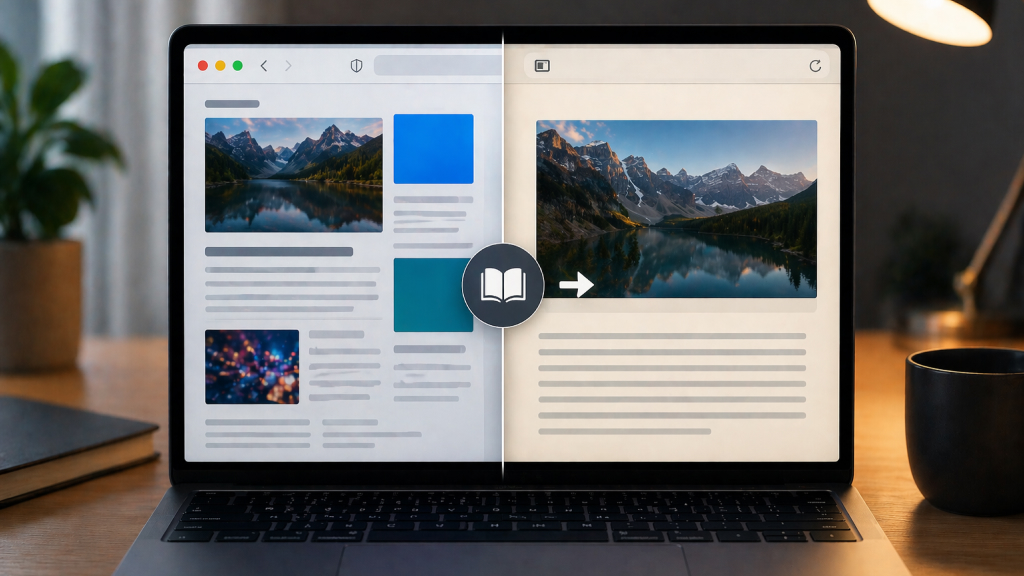
Safari includes a built-in Reader View that removes ads, pop-ups, and visual clutter, allowing you to focus solely on the main content of a page. You can enable it by clicking the Reader icon in the address bar whenever it’s available.
This feature is especially helpful for reading long-form articles, blog posts, or research material, offering a clean and comfortable reading experience without unnecessary distractions.
8. Hide Distracting Elements on Webpages
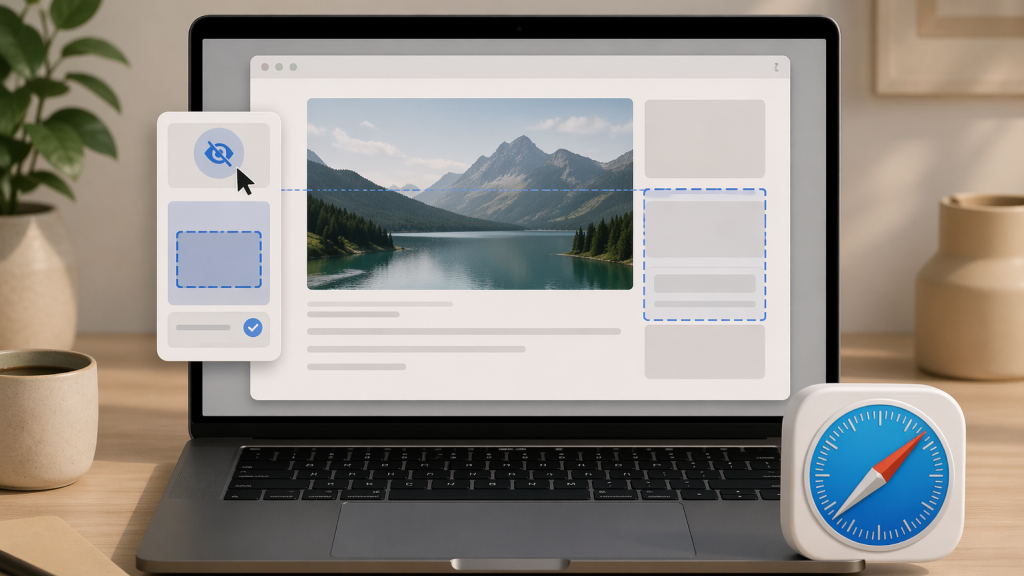
Safari lets you hide specific elements like banners, ads, or sign-in prompts on supported websites.
- Click the page settings icon (left of the address bar)
- Choose to hide distracting items
This creates a cleaner, more focused browsing experience.
Efficiency and Keyboard Shortcuts
9. Master Essential Keyboard Shortcuts
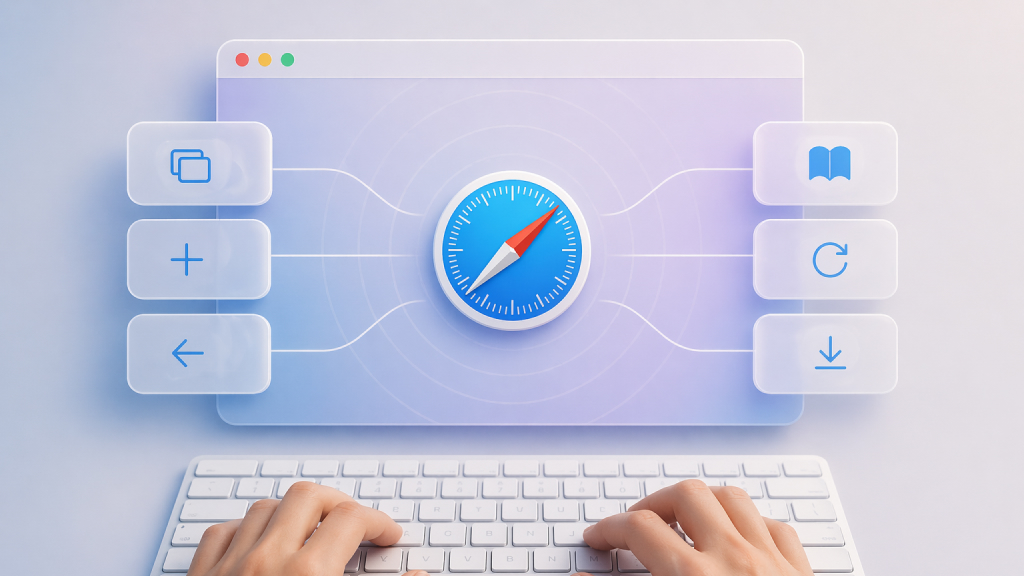
Keyboard shortcuts can significantly speed up navigation in Safari. Some of the most useful include:
- Command (⌘) + T: Open a new tab
- Command (⌘) + W: Close current tab
- Command (⌘) + L: Jump to the address bar
- Command (⌘) + Shift + T: Reopen last closed tab
- Command (⌘) + Number (1–9): Switch between tabs
Learning these shortcuts can save time and reduce reliance on the mouse.
10. Use Split View for Side-by-Side Browsing
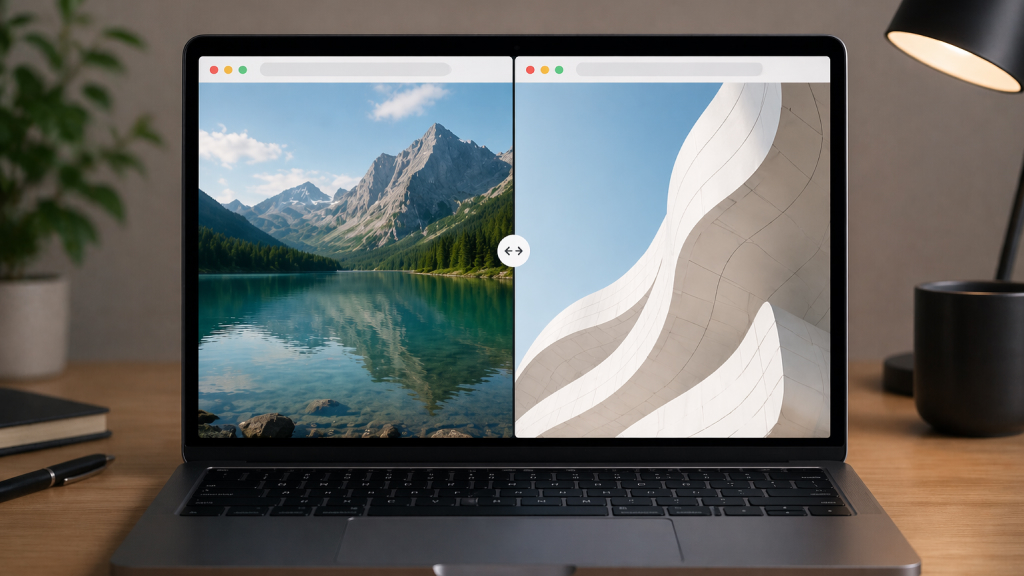
Safari supports Split View, allowing you to view two tabs side by side. To use it:
- Click and hold the green window button
- Choose to tile the window left or right
- Select another Safari window for the other side
This is ideal for comparing information, writing, or multitasking.
11. Leverage Spotlight for Quick Searches

Spotlight can be used to search the web without opening Safari manually.
- Press Command (⌘) + Space
- Type your query
- Press Enter to open results in Safari
This provides a faster way to initiate searches.
12. Customize Website Settings
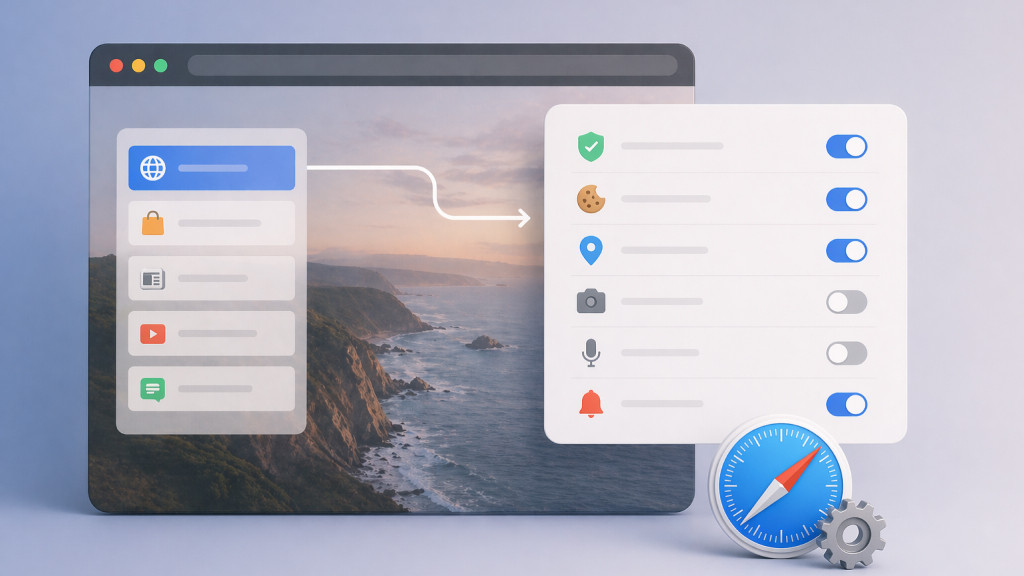
Safari allows per-site customization, giving you control over how each website behaves. To access this in Safari,
- Right-click the address bar
- Select Settings for This Website
Here, you can tailor individual site preferences to suit your needs. For example, you can enable Reader View automatically for cleaner reading, adjust zoom levels for better visibility, block pop-ups to reduce interruptions, and manage permissions such as camera, microphone, or location access, all on a site-by-site basis for a more controlled browsing experience.
Seamless Apple Ecosystem Integration
13. Sync Tabs Across Devices with iCloud Tabs

iCloud Tabs allow you to access open tabs from your other Apple devices.
- Open the Sidebar
- Click on iCloud Tabs
This is useful when switching between a Mac, iPhone, or iPad.
14. Use Handoff for Continuity

Handoff lets you start browsing on one device and continue on another without interruption.
For example:
- Open a webpage on your iPhone
- Look for the Safari icon in your Mac’s Dock
- Click to continue instantly
This seamless integration is a major productivity boost.
Security and Privacy Features
15. Enable Intelligent Tracking Prevention

Safari includes built-in tracking protection that prevents websites from monitoring your activity across the web. To ensure it’s enabled:
- Go to Safari > Settings > Privacy
- Enable Prevent cross-site tracking
This enhances your online privacy without requiring extensions.
16. Use Keychain for Secure Password Management

iCloud Keychain offers a built-in, secure solution for managing passwords, credit card details, and login information directly within Safari. It not only stores your credentials safely using end-to-end encryption but also helps you create strong, unique passwords whenever you sign up for new accounts.
These credentials are automatically filled in when you revisit websites, saving time and reducing the risk of errors. Everything syncs seamlessly across your Apple devices via iCloud, ensuring access wherever you browse. Additionally, Keychain can alert you to compromised or reused passwords, helping you maintain better security hygiene without relying on third-party tools.
17. Hide Your IP Address from Trackers

Safari can mask your IP address to prevent trackers from identifying your location and activity.
- Go to Privacy settings
- Enable Hide IP address from trackers
This adds an extra layer of anonymity.
18. Use Built-in Privacy Reports

Safari includes a built-in Privacy Report feature that gives you clear insight into how websites attempt to track your activity. You can access it by opening a new tab and viewing the Privacy Report section on the Start Page. It highlights the number of trackers blocked and identifies the websites responsible, helping you better understand and manage your online privacy.
19. Secure Payments with Apple Pay

Apple Pay enables fast and secure payments directly within Safari, eliminating the need to manually enter card details on websites. Transactions are authenticated using biometric methods like Touch ID or Face ID, adding an extra layer of security. Additionally, payment information is encrypted, ensuring your financial data remains protected. This makes online shopping not only quicker but also significantly safer.
20. Use Extensions to Expand Functionality

Safari supports a wide range of extensions that can enhance productivity, block unwanted ads, and integrate useful tools directly into your browsing experience. You can manage these by navigating to Safari > Settings > Extensions, where you can enable, disable, or remove them as needed. It’s important to install extensions selectively, as too many or untrusted ones can impact performance and compromise privacy.
21. Manage Performance with Resource Monitoring

If Safari slows down, certain tabs may be consuming excessive resources.
- Open the Activity Monitor
- Look for tabs labeled “Significant Energy”
Close or unpin such tabs to improve performance.
22. Take Advantage of Offline Reading

Safari allows you to store webpages in its Reading List so you can access them later, even without an internet connection. Simply click the Share button and select “Add to Reading List.” This allows you to revisit articles or pages later, even without an internet connection, making it ideal for uninterrupted reading on the go.
23. Use Drag-and-Drop for Faster Navigation
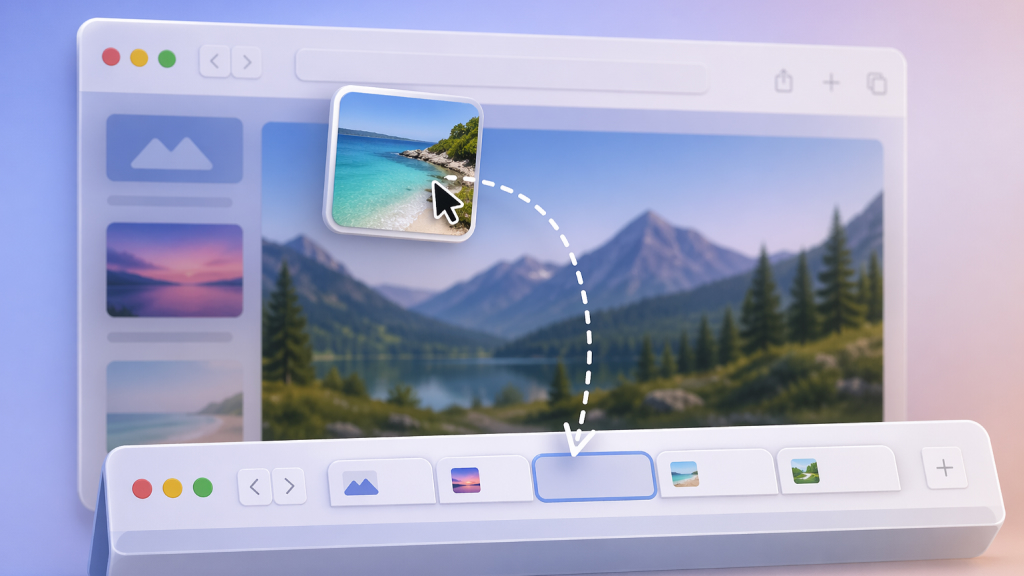
Safari supports intuitive drag-and-drop actions:
- Drag links into the tab bar to open new tabs
- Drag tabs to rearrange or create new windows
These small interactions can improve workflow efficiency.
Safari on macOS offers a robust combination of speed, privacy, and deep system integration. By mastering features like Tab Groups, Reader View, keyboard shortcuts, and built-in security tools, you can significantly enhance your browsing experience. Whether you’re managing multiple projects, researching content, or simply browsing the web, these tips ensure that Safari works smarter and faster for you.










