



Windows includes far more than the apps and settings most users interact with every day. Hidden behind the Run dialog, Command Prompt, and system menus are dozens of powerful built-in tools that can help you diagnose problems, improve performance, manage hardware, automate tasks, and customize your PC without installing additional software.
Many of these utilities have existed for years, quietly helping IT professionals, developers, system administrators, and advanced users solve problems faster. The best part is that most of them are already included with Windows, which means you can access them instantly by typing a simple command into the Run dialog or Command Prompt.
Lets explore 50 secret Windows tools and commands every power user should know.
How to Open These Windows Tools
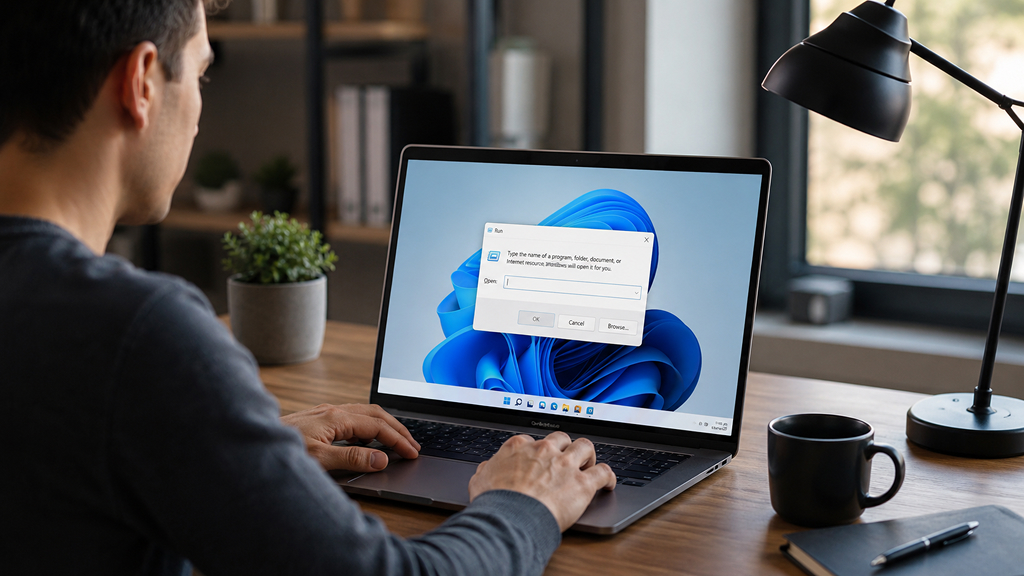
Most of these hidden Windows tools can be launched in seconds using the Run dialog or Command Prompt.
The fastest method is:
- Press ‘Windows + R’ to open the Run dialog
- Type the command name
- Press Enter
For example, typing `msconfig` opens System Configuration instantly, while `devmgmt.msc` launches Device Manager.
Many of these commands also work directly inside:
- Command Prompt (Click the Start menu and type ‘cmd’)
- Windows Terminal (Right-click the Start button and select Windows Terminal)
- PowerShell (Right-click the Start button and select Windows PowerShell)
- File Explorer address bar (Open File Explorer and type the command into the address bar)
- Start menu search (Press the Windows key and type the command directly into search)
Some advanced utilities may require administrator privileges to function properly. In those cases, right-click Command Prompt or Windows Terminal and choose Run as administrator before entering the command.
Once you start using these shortcuts regularly, accessing advanced Windows tools becomes dramatically faster than navigating through multiple Settings menus.
1. changepk
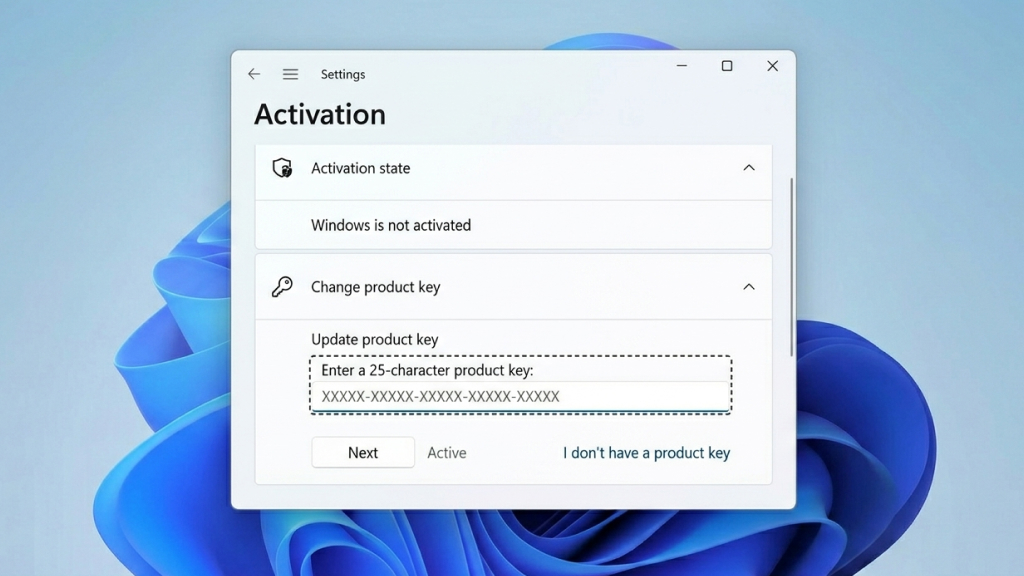
The ‘changepk’ command opens the Windows product key activation interface.
This tool is useful when:
- Upgrading Windows editions
- Replacing activation keys
- Troubleshooting activation problems
This is best for Windows activation and license management. Instead of navigating through multiple Settings menus, this command takes you straight to the activation screen.
Where to open it: Press Windows + R, type ‘changepk’, and press Enter.
2. charmap
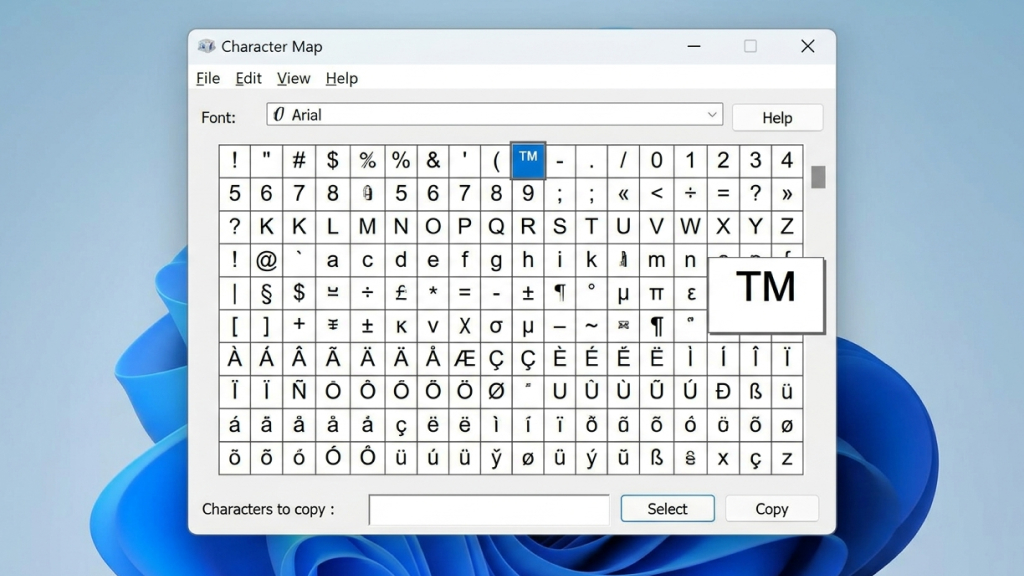
Character Map is one of the oldest and most underrated Windows utilities. It lets users browse and copy special characters that are not easily accessible from a keyboard, including:
- Mathematical symbols
- Unicode characters
- Currency signs
- Foreign language characters
Writers, designers, and developers often use it for inserting symbols that are not available on a standard keyboard.
Where to open it: Search for “Character Map” in the Start menu or type ‘charmap’ in Run.
3. choice

The ‘choice’ command is a command-line utility that lets batch scripts ask users to select between options.
It allows scripts to wait for keyboard input before continuing. System administrators often use it to automate workflows and deployment scripts.
Where to open it: Run inside Command Prompt, PowerShell, or Windows Terminal.
4. cleanmgr
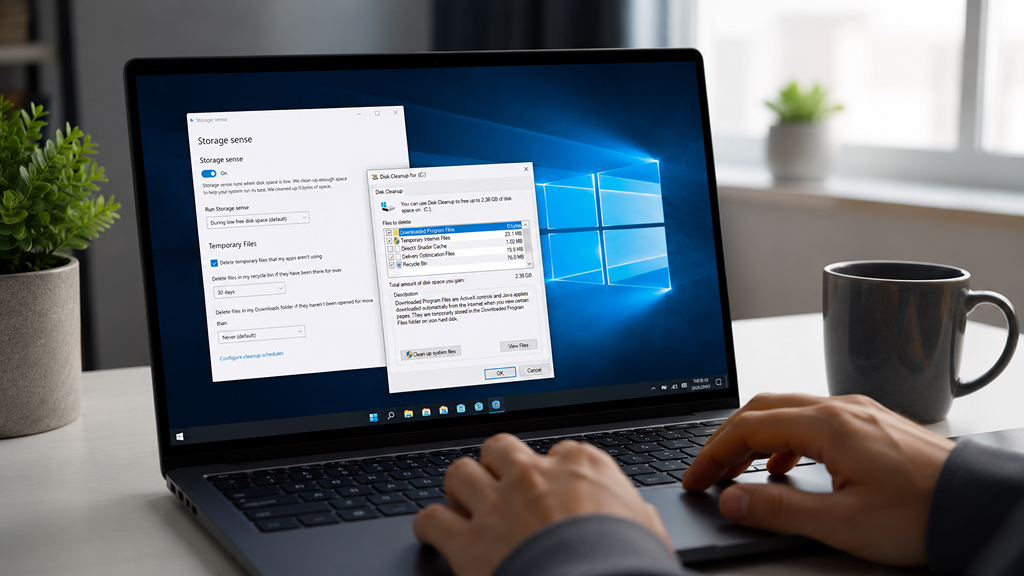
Disk Cleanup may look old, but it remains surprisingly useful. ‘cleanmgr’ helps remove:
- Temporary files
- Cached update files
- Recycle Bin data
- System error logs
- Old Windows installation files
Although Windows now includes Storage Sense, ‘cleanmgr’ remains a quick and reliable cleanup utility. On systems with limited storage, this tool can recover several gigabytes of space in minutes.
Where to open it: Press Windows + R, type ‘cleanmgr’, and press Enter.
5. control userpasswords2
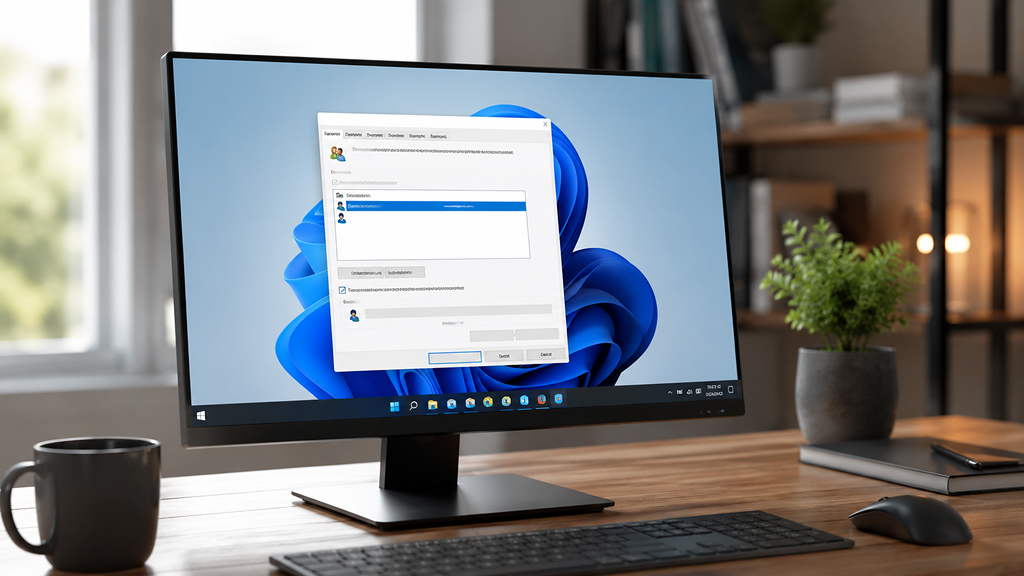
This hidden command opens the advanced user account management panel. It allows users to:
- Configure login behavior
- Manage local accounts
- Adjust password requirements
- Enable automatic sign-in
From here, you can manage login behavior, reset passwords, and configure automatic sign-in.Many power users still prefer this interface over the newer Settings app because it exposes more account-related controls.
Where to open it: Open the Run dialog and type ‘control userpasswords2’.
6. clip
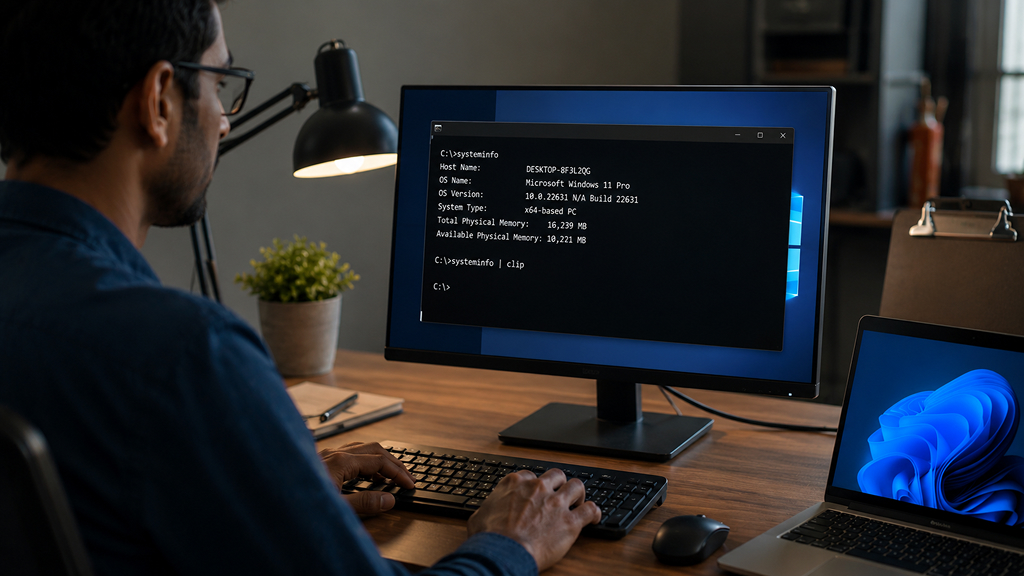
The ‘clip’ command copies Command Prompt output directly to the clipboard. For example, instead of manually copying terminal output, users can redirect results instantly for sharing or documentation purposes.
Where to open it: Use inside Command Prompt, PowerShell, or Windows Terminal.
7. computerdefaults

This utility opens the default apps configuration panel in Windows. It is useful for changing:
- Default browsers
- PDF readers
- Email applications
- Media players
It helps users assign preferred browsers, media players, email clients, and other applications.
Where to open it: Type ‘computerdefaults’ in the Run dialog or Start menu search.
8. control
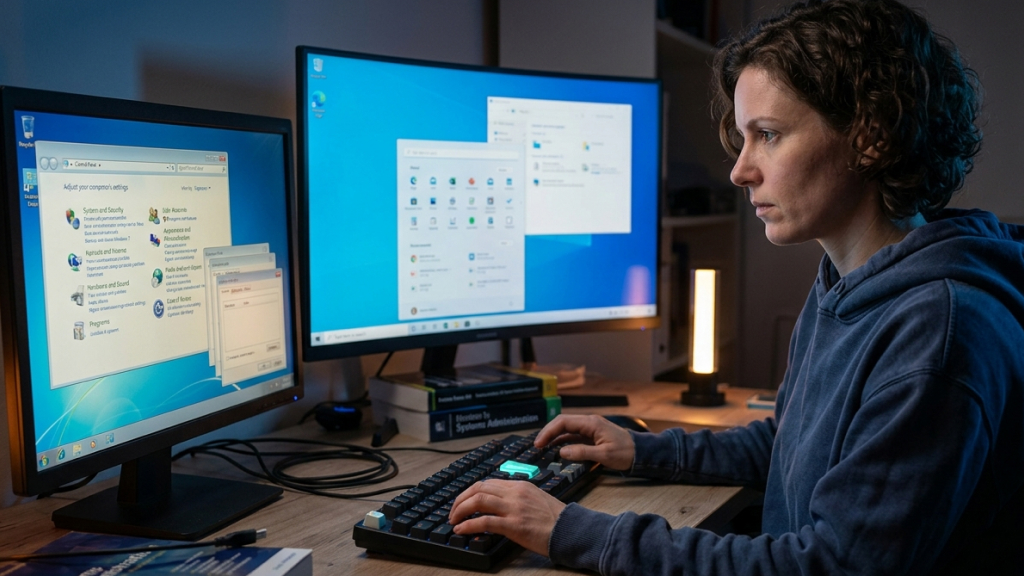
Typing ‘control’ opens the classic Control Panel. Even in modern Windows versions, many advanced settings are still easier to access through the traditional Control Panel interface.
Where to open it: Press Windows + R, type ‘control’, and press Enter.
9. cttune
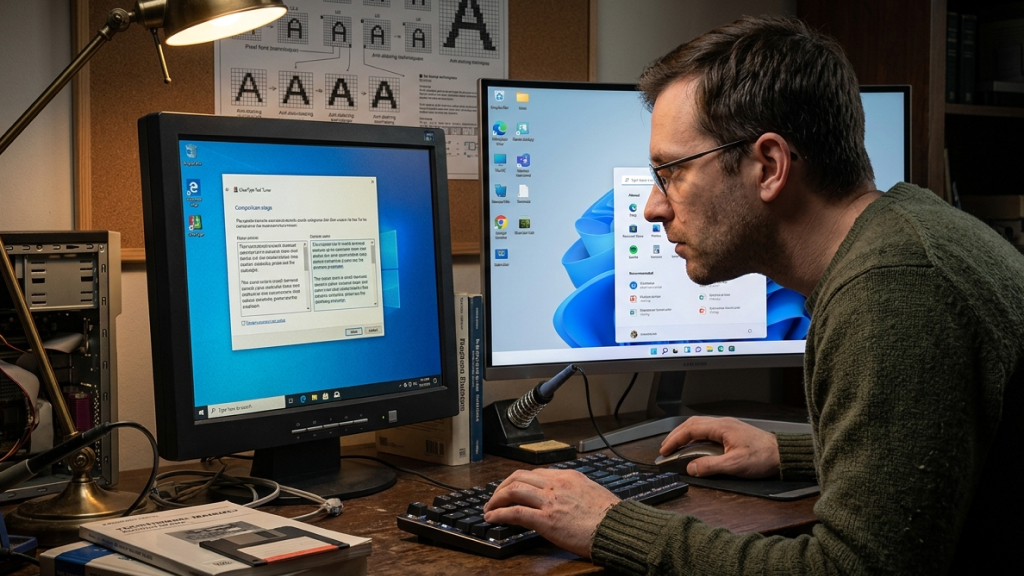
ClearType Text Tuner improves text readability on LCD displays. This built-in wizard helps optimize font rendering for sharper and clearer text. It can make a surprisingly noticeable difference, especially on older monitors or lower-resolution screens.
Where to open it: Search “Adjust ClearType text” in Start or type ‘cttune’ in Run.
10. devmgmt.msc
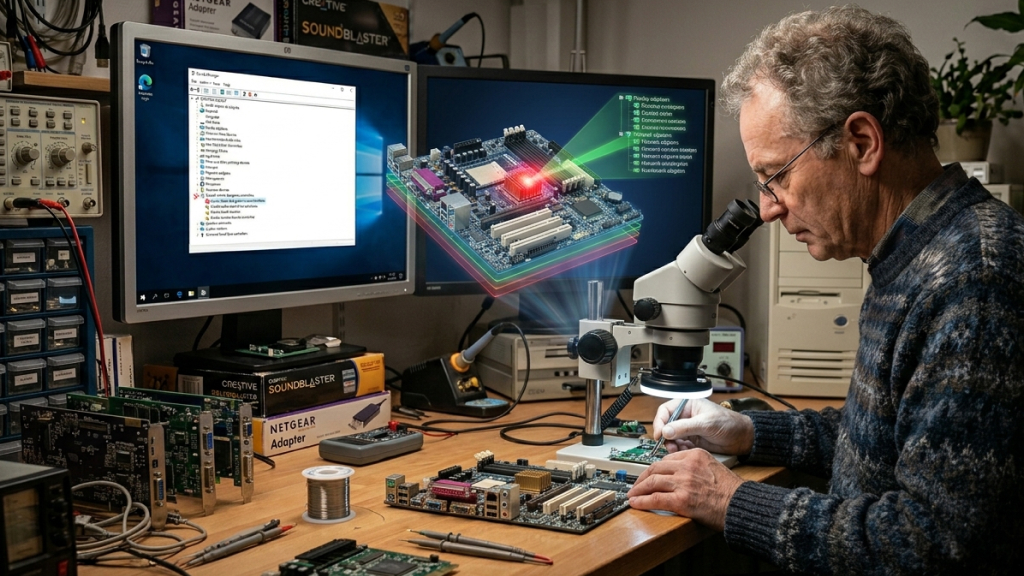
This command opens Device Manager. It provides detailed control over hardware components, including:
- Drivers
- USB devices
- Graphics cards
- Bluetooth adapters
- Network hardware
It is one of the most important troubleshooting tools in Windows.
Where to open it: Open Run and type ‘devmgmt.msc’.
11. diskmgmt.msc
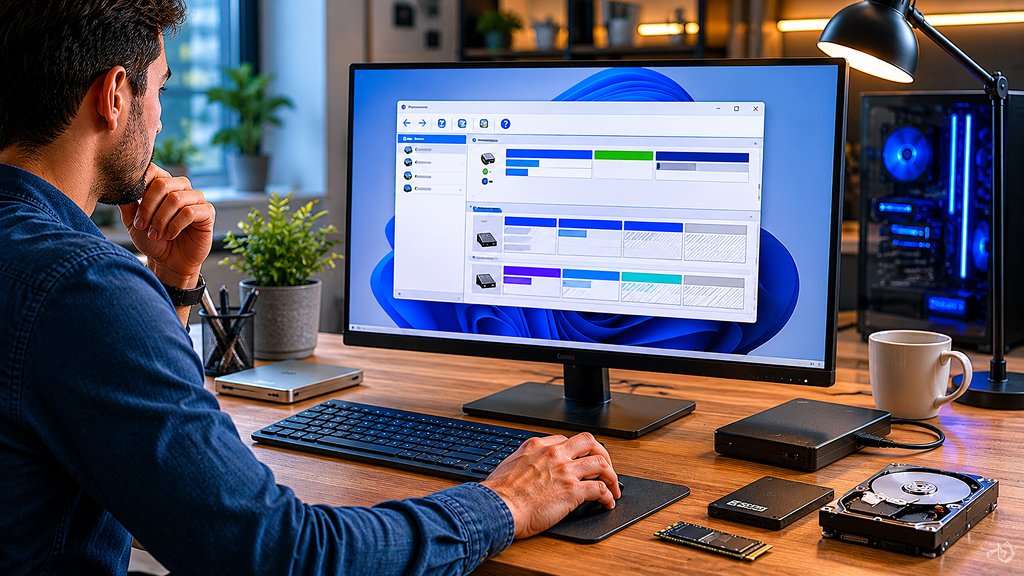
Disk Management is one of the most useful built-in Windows utilities. It allows users to:
- Create partitions
- Format drives
- Assign drive letters
- Initialize disks
- Manage external storage
It helps users create, delete, resize, and format partitions without third-party software. Power users regularly rely on it when installing new SSDs or organizing storage layouts.
Where to open it: Press Windows + R, type ‘diskmgmt.msc’, and press Enter.
12. diskusage
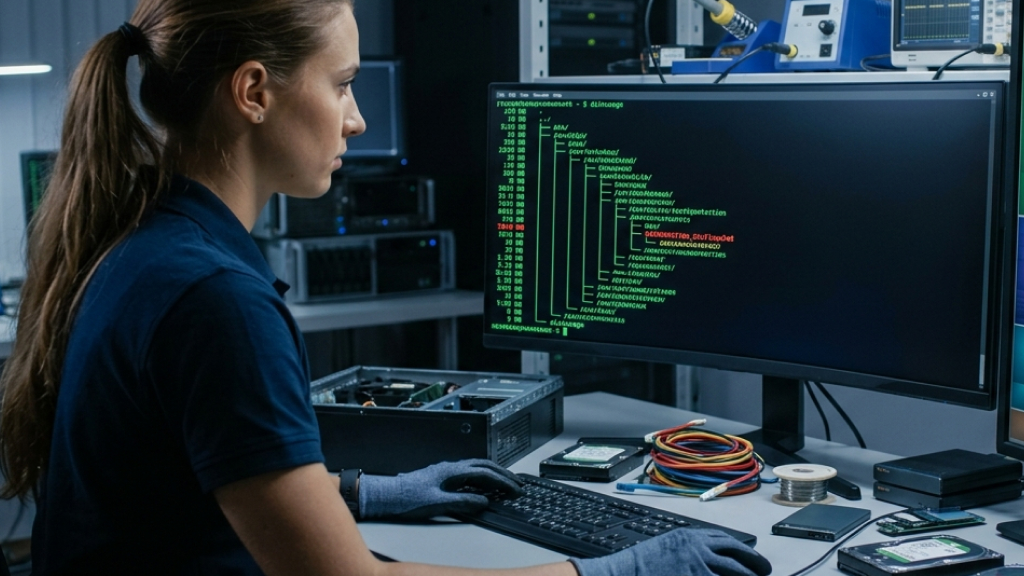
‘diskusage’ analyzes storage usage from the command line. Unlike traditional file explorers, it can quickly reveal which folders consume the most disk space. It is particularly useful for diagnosing mysteriously full drives.
Where to open it: Run inside Command Prompt or Windows Terminal.
13. displayswitch

This command manages multi-monitor display modes instantly. It can switch between:
- PC screen only
- Duplicate displays
- Extended displays
- Second screen only
Laptop users connected to external monitors often find it extremely convenient.
Where to open it: Open Run and type ‘displayswitch’.
14. dxdiag
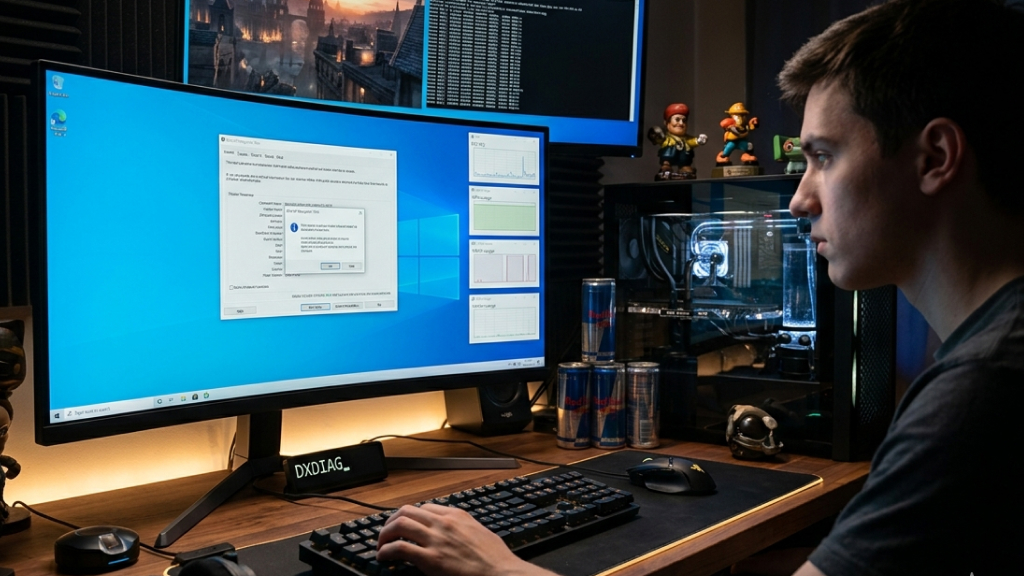
DirectX Diagnostic Tool provides detailed information about:
- Graphics hardware
- Audio devices
- Drivers
- DirectX versions
Gamers frequently use ‘dxdiag’ when troubleshooting performance issues or compatibility problems.
Where to open it: Press Windows + R, type ‘dxdiag’, and press Enter.
15. dxcpl
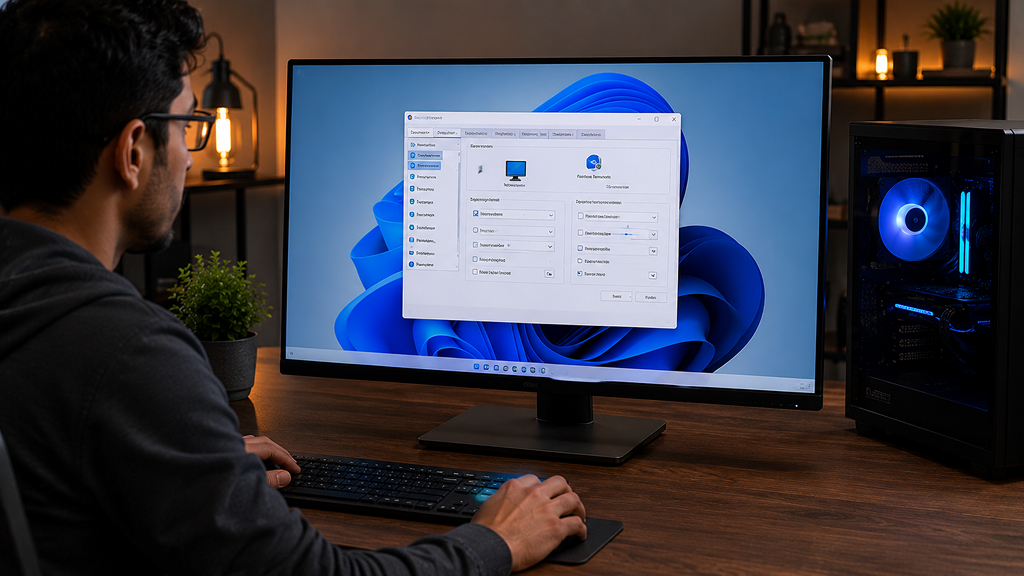
‘dxcpl’ opens DirectX Control Panel. This advanced utility exposes developer-focused graphics debugging and compatibility settings that are rarely visible in standard Windows interfaces.
Where to open it: Launch through Run, Command Prompt, or Windows Terminal.
16. findstr

‘findstr’ searches text within files and command outputs for specific words or patterns. It works similarly to Linux grep and is extremely useful in scripting and log analysis.
Developers and IT professionals use it constantly for analyzing logs, automating scripts, and filtering large amounts of command-line output more efficiently.
Where to open it: Use inside Command Prompt, PowerShell, or scripts.
17. fondue
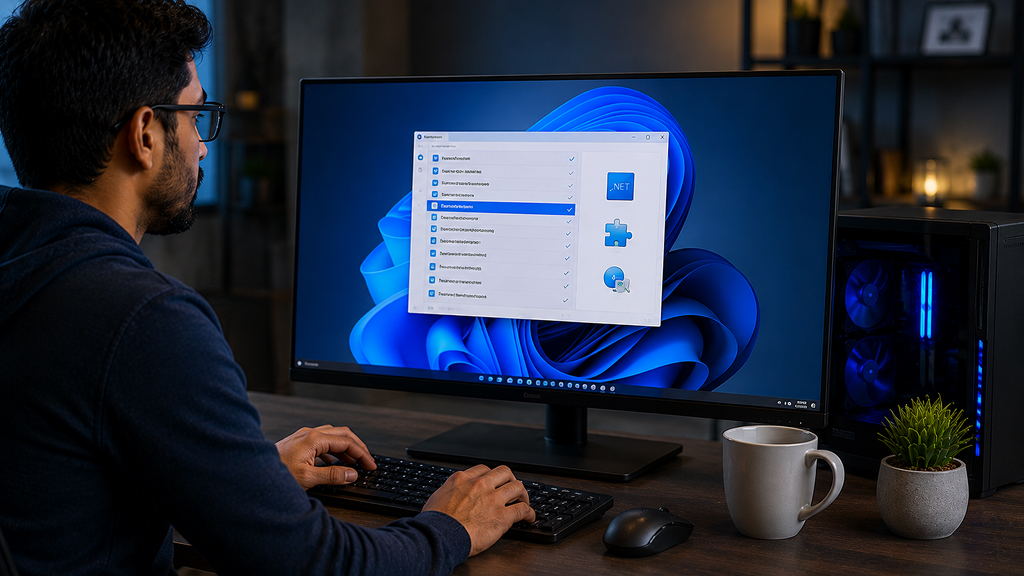
The ‘fondue’ command installs optional Windows features through the command line. It is commonly used for enabling legacy components like .NET Framework. It is commonly used in enterprise deployment environments.
Where to open it: Run in Windows Terminal.
18. getmac
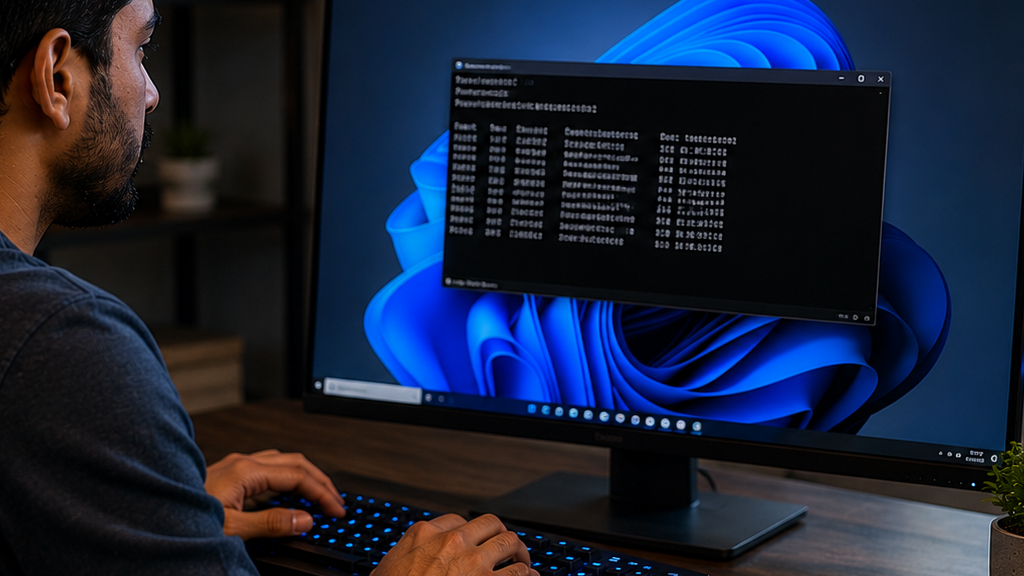
The ‘getmac’ command retrieves the MAC addresses of network adapters. This can help with:
- Network diagnostics
- Router configuration
- Device identification
- Security management
Network administrators often use it for device identification and troubleshooting.
Where to open it: Use inside Command Prompt or PowerShell.
19. hostname
The ‘hostname’ command instantly displays the current computer name. It is useful when working with networks, remote access tools, or enterprise environments.
Where to open it: Run in Command Prompt, PowerShell, or Windows Terminal.
20. isoburn
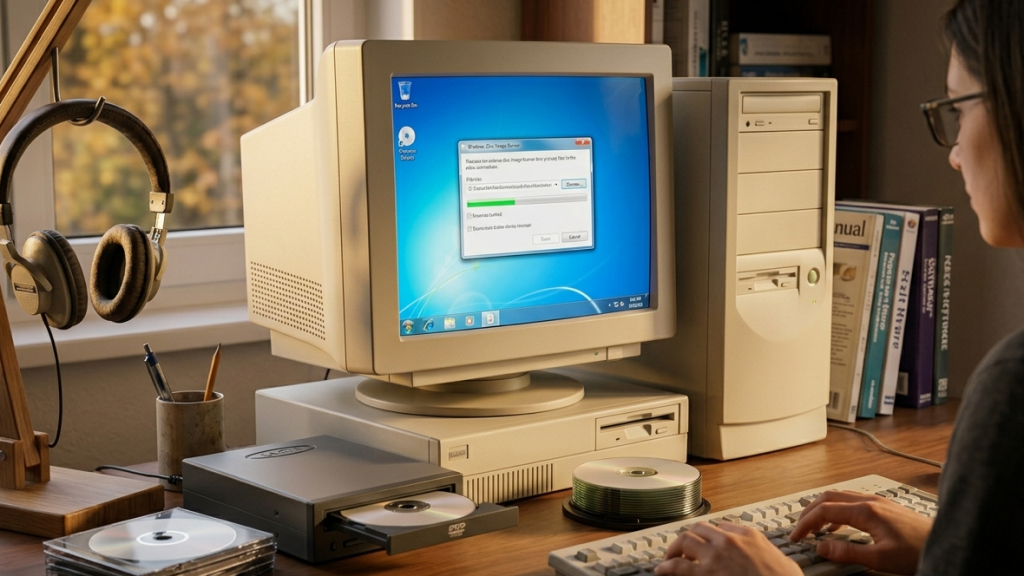
ISO Burner lets users burn ISO image files directly to CDs or DVDs. Although optical media is less common today, the tool is still useful for recovery discs and archived software.
Where to open it: Press Windows + R, type ‘isoburn’, and press Enter.
21. label
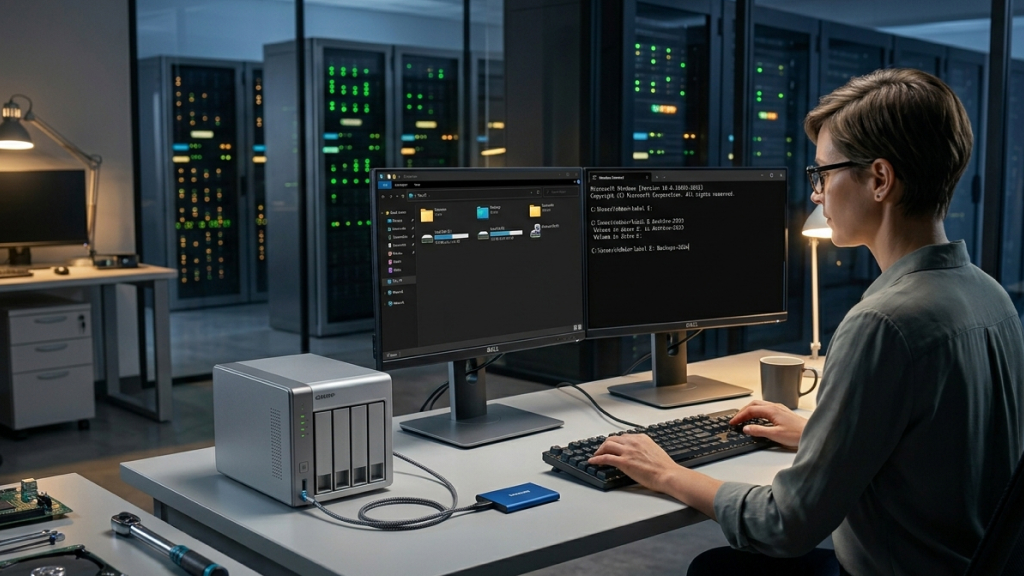
The ‘label’ command changes or displays the volume label of a drive. It offers a quick way to rename storage devices directly from Command Prompt.
Where to open it: Use inside Command Prompt or Windows Terminal.
22. msconfig
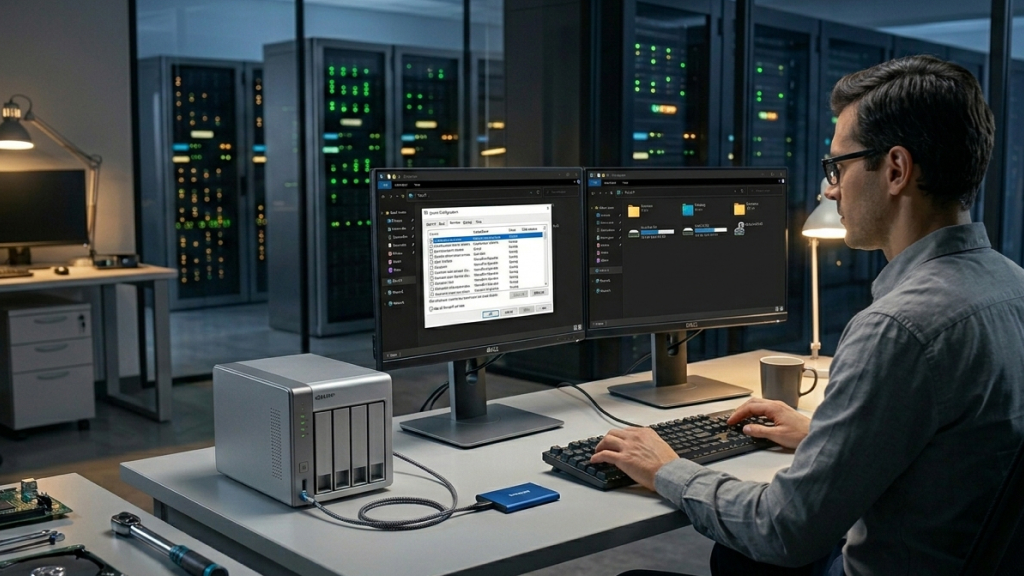
System Configuration remains one of the most powerful troubleshooting tools in Windows. It allows users to:
- Manage startup behavior
- Configure boot options
- Enable diagnostic startup modes
- Disable problematic services
It is especially useful for isolating software conflicts.
Where to open it: Open Run and type ‘msconfig’.
23. msinfo32
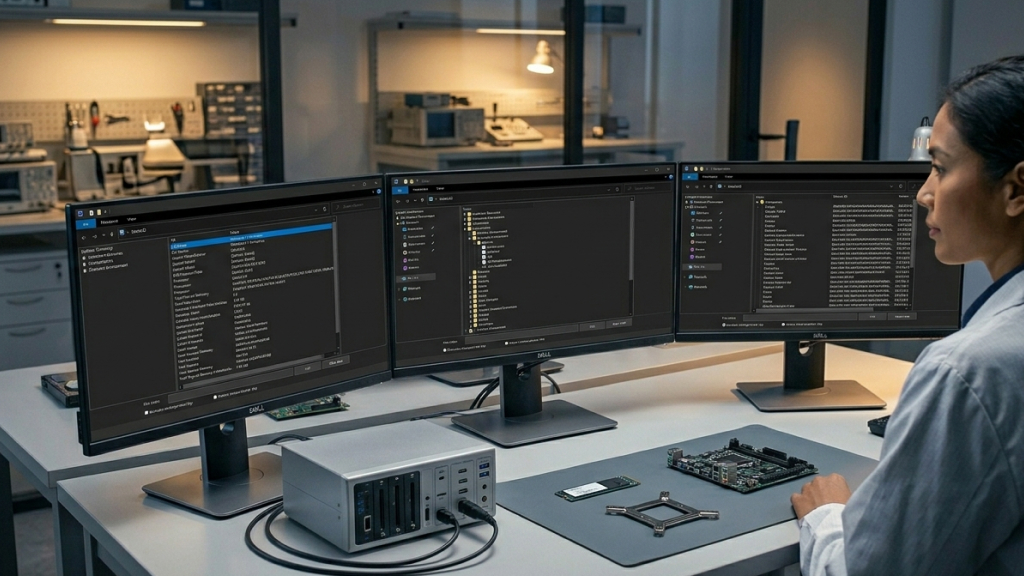
System Information provides an incredibly detailed overview of a PC. It includes:
- Hardware specifications
- BIOS details
- Installed components
- Drivers
- System resources
This tool is extremely useful when diagnosing compatibility problems or documenting system configurations.
Where to open it: Press Windows + R, type ‘msinfo32’, and press Enter.
24. netstat

‘netstat’ reveals active network connections and listening ports. It helps identify:
- Network activity
- Suspicious connections
- Open ports
- Connected services
Security professionals and advanced users rely on it frequently.
Where to open it: Run inside Command Prompt, PowerShell, or Windows Terminal.
25. optionalfeatures
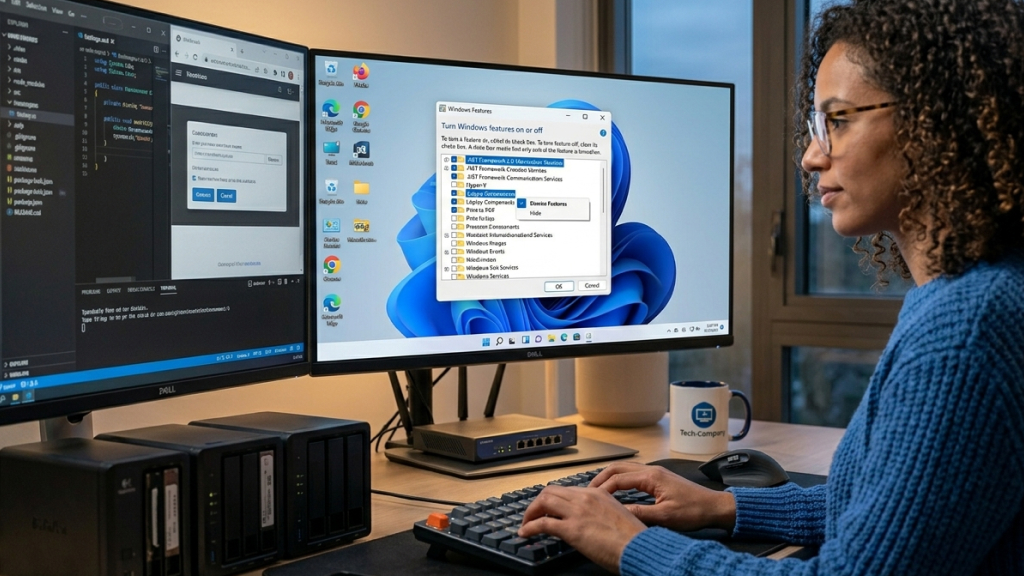
This command opens the Windows Features panel. Users can enable or disable components such as:
- Hyper-V
- Windows Sandbox
- IIS
- Legacy APIs
- Virtual machine support
Where to open it: Type ‘optionalfeatures’ in the Run dialog.
26. powercfg

‘powercfg’ is one of the most powerful management tools in Windows. It can generate detailed battery and energy reports, analyze sleep behavior, and identify power-related problems.
For example: ‘powercfg /batteryreport’
Where to open it: Use inside Command Prompt or Windows Terminal.
27. psr

Problem Steps Recorder is one of Windows’ most overlooked support tools. It records screenshots and user actions automatically while documenting each step taken on the computer. This makes it extremely useful for:
- Technical support
- Bug reporting
- Training guides
Where to open it: Press Windows + R, type ‘psr’, and press Enter.
28. services.msc

This command opens the Windows Services Manager. It provides direct control over background services that power the operating system. Advanced users often use it to:
- Disable unnecessary services
- Troubleshoot startup problems
- Optimize performance
Where to open it: Open Run and type ‘services.msc’.
29. systeminfo

The ‘systeminfo’ command displays detailed hardware and operating system information directly in the terminal. It is especially useful for remote diagnostics. It includes:
- OS version
- RAM details
- Boot time
- Processor information
- Installed updates
It is a quick way to gather technical details without opening multiple apps.
Where to open it: Run inside Command Prompt or Windows Terminal.
30. System Properties Family of Commands
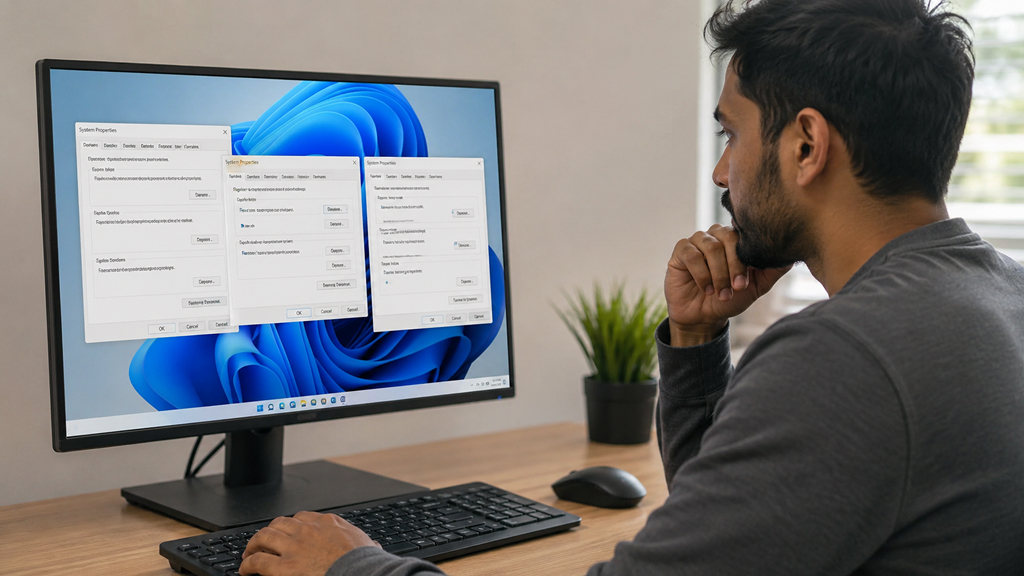
Windows includes multiple hidden shortcuts for opening specific System Properties tabs directly. Examples include:
- sysdm.cpl
- SystemPropertiesAdvanced
- SystemPropertiesPerformance
- SystemPropertiesProtection
These commands make it much faster to access advanced settings like performance tuning and system restore.
Where to open it: Type the commands in the Run dialog.
31. takeown

‘takeown’ allows users to take ownership of protected files and folders. This is particularly useful when:
- Removing stubborn files
- Recovering old drives
- Fixing permission problems
However, it should be used carefully because improper changes can affect system stability.
Where to open it: Use in Windows Terminal.
32. tasklist
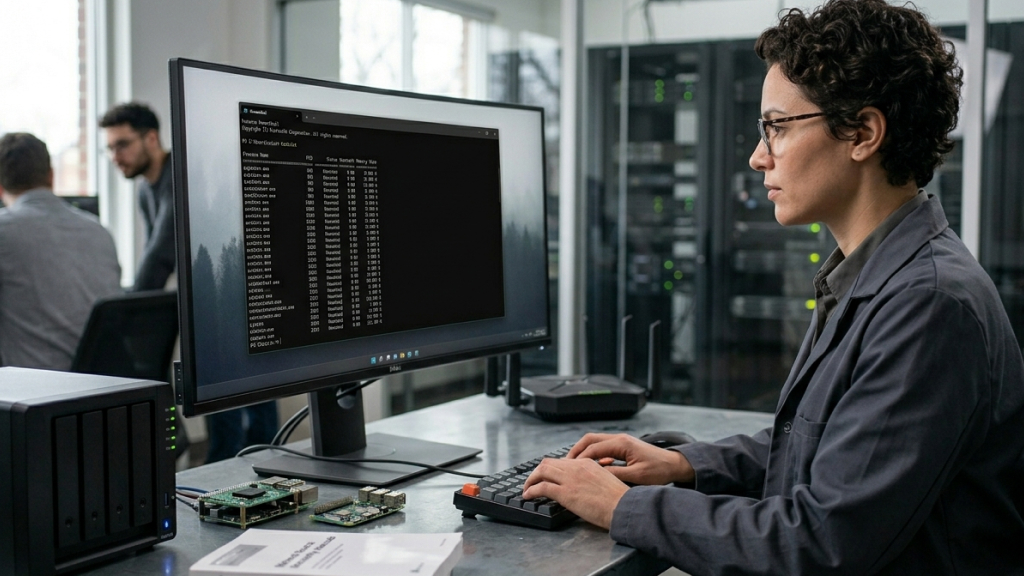
‘tasklist’ displays all running processes from the command line. It is especially useful for remote administration and scripting. Advanced users often combine it with filtering commands for process analysis.
Where to open it: Run inside Command Prompt, PowerShell, or Windows Terminal.
33. wf.msc
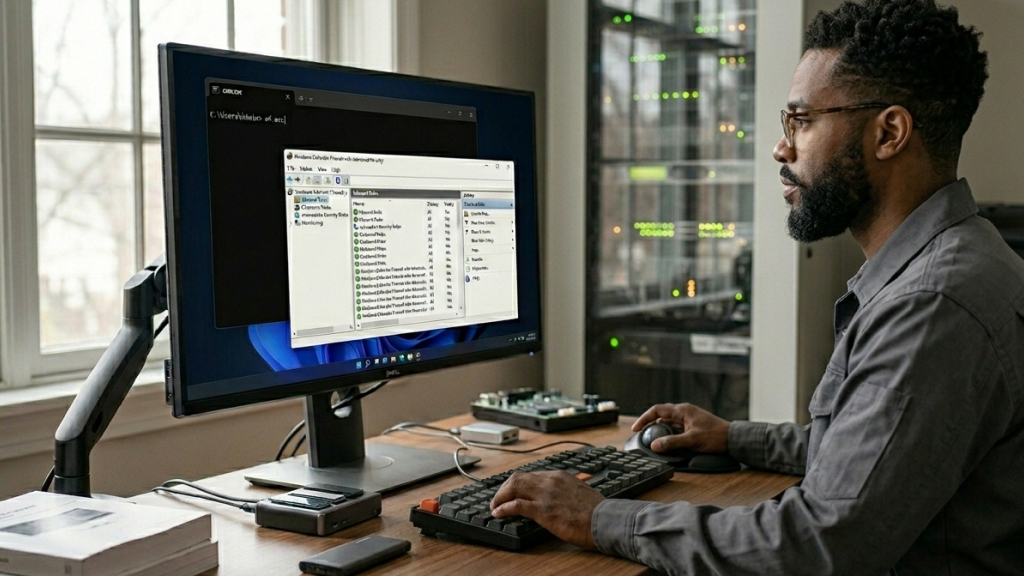
This command opens Windows Defender Firewall with Advanced Security. Unlike the simplified Settings version, this interface exposes highly detailed firewall controls and traffic rules. It is widely used in professional environments.
Where to open it: Open Run and type ‘wf.msc’.
34. where
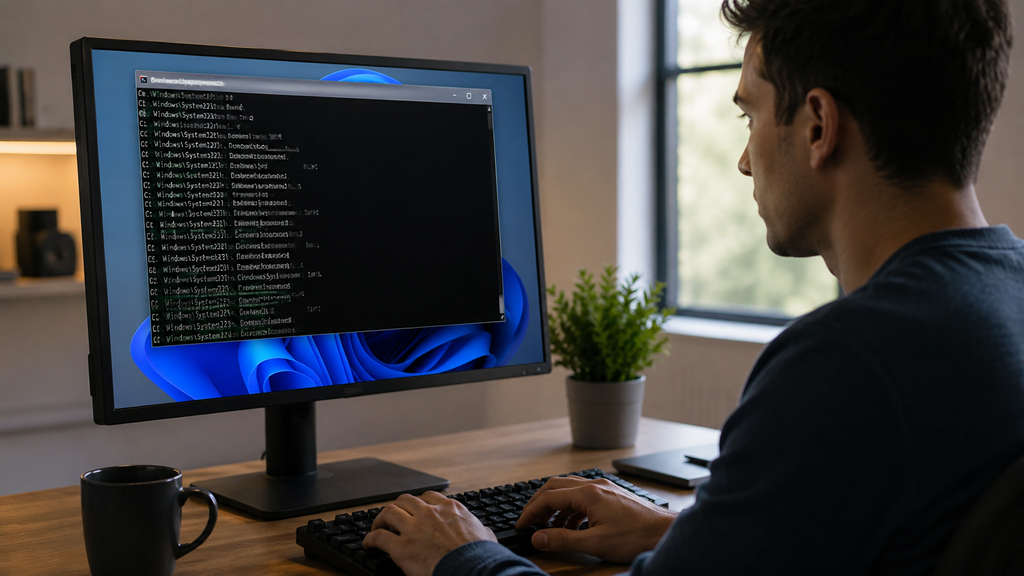
‘where’ locates executable files and commands across the system. It works similarly to the which command on Linux systems. Developers frequently use it to verify software paths and troubleshoot environment variables.
Where to open it: Use inside Command Prompt or Windows Terminal.
35. whoami

‘whoami’ instantly reveals the currently logged-in user account and security context. It is useful in enterprise environments, especially when dealing with permissions and remote sessions.
Where to open it: Run inside Command Prompt, PowerShell, or Windows Terminal.
36. winsat

Windows System Assessment Tool benchmarks hardware performance. It can evaluate:
- CPU performance
- Disk speed
- Graphics capability
- Memory performance
Although largely hidden today, it still exists inside Windows.
Where to open it: Use in Windows Terminal.
37. winver
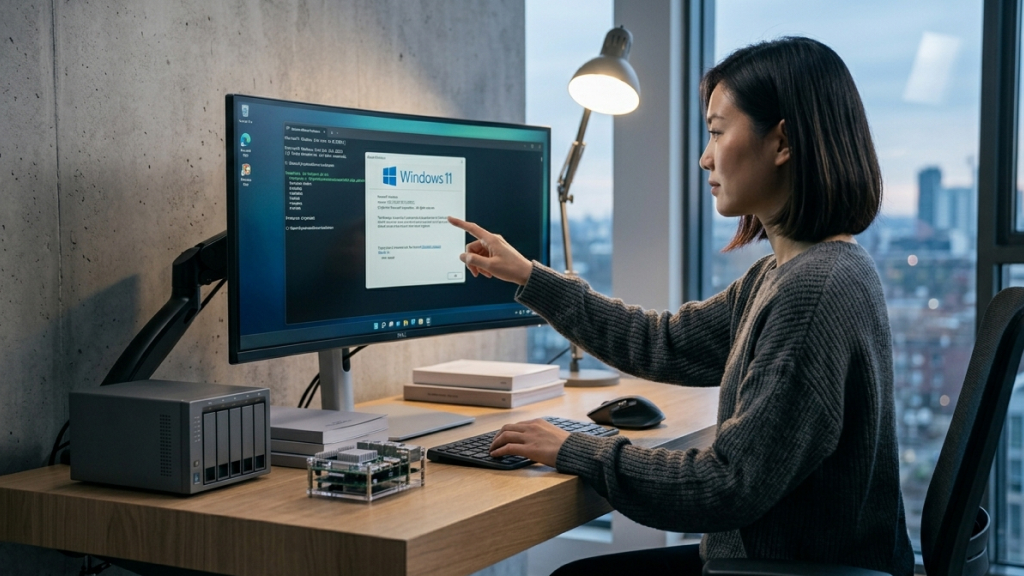
The ‘winver’ command shows the current Windows version and build number. This is often the fastest way to verify which version of Windows is installed on a PC.
Where to open it: Press Windows + R, type ‘winver’, and press Enter.
38. joy.cpl
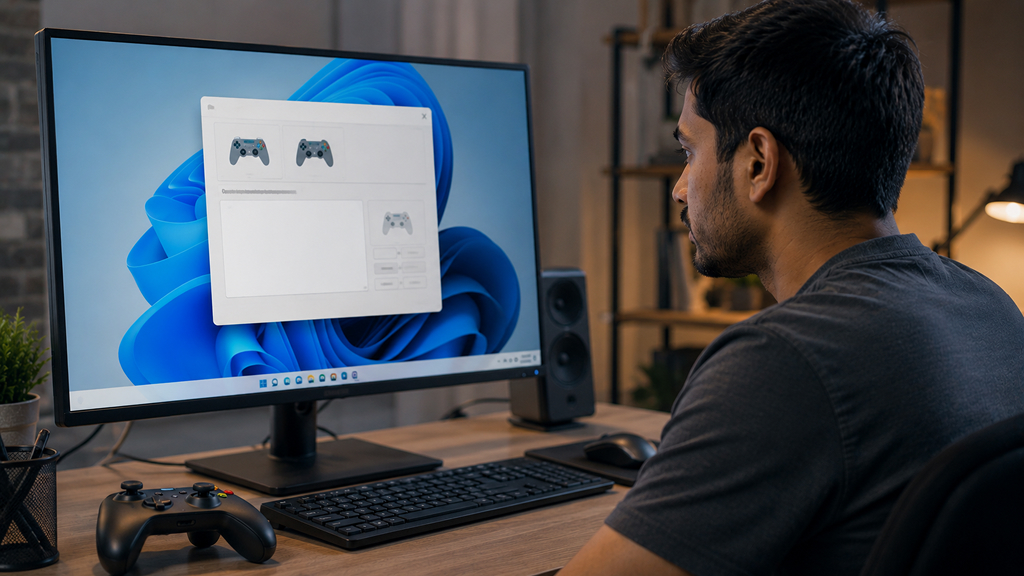
This command opens the Game Controllers panel. It helps users configure and test controllers, joysticks, and gamepads connected to the PC.
Where to open it: Open Run and type ‘joy.cpl’.
39. desk.cpl

‘desk.cpl’ launches classic display configuration settings. Although partially replaced by modern Settings pages, it still provides quick access to legacy display controls.
Where to open it: Press Windows + R, type ‘desk.cpl’, and press Enter.
40. ncpa.cpl
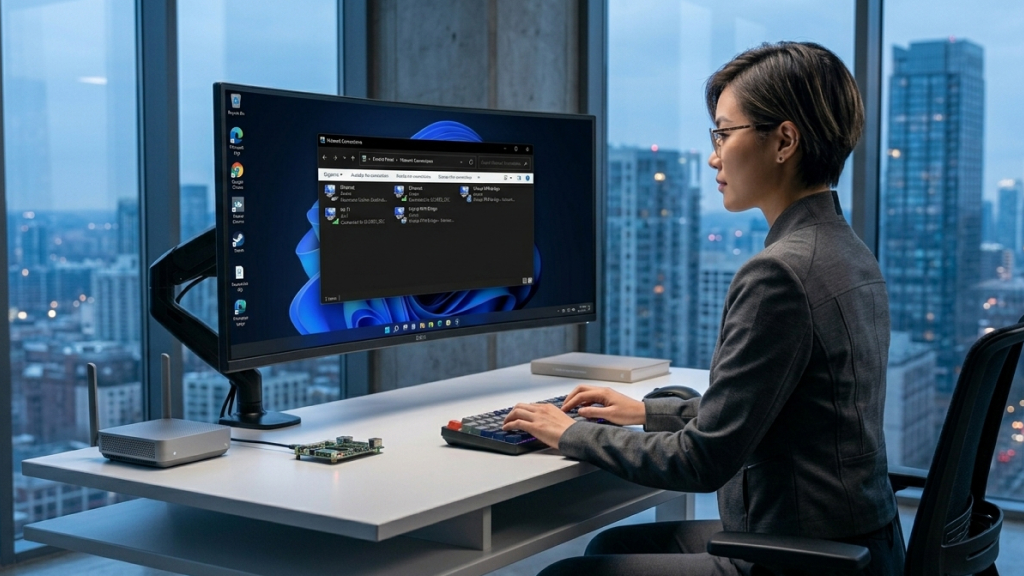
This shortcut opens the Network Connections panel directly. It allows users to manage:
- Ethernet adapters
- Wi-Fi connections
- VPNs
- Network bridges
Many networking tasks remain faster here than in the modern Settings app.
Where to open it: Open Run and type ‘ncpa.cpl’.
41. mmsys.cpl
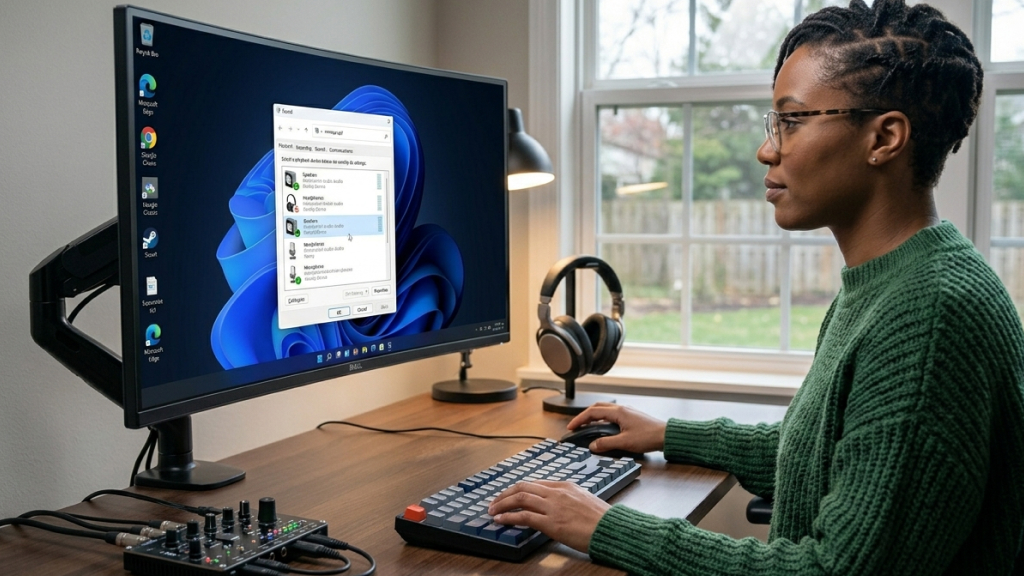
This command opens the Sound settings panel. It provides detailed control over:
- Playback devices
- Recording devices
- Audio enhancements
- Default sound hardware
Audio troubleshooting is often easier through this interface.
Where to open it: Press Windows + R, type ‘mmsys.cpl’, and press Enter.
42. sysdm.cpl
‘sysdm.cpl’ opens System Properties instantly. This includes settings related to:
- Performance
- Remote access
- Computer names
- Hardware profiles
- System protection
It remains one of the most useful hidden Windows shortcuts.
Where to open it: Open Run and type ‘sysdm.cpl’.
43. timedate.cpl

This command opens Date and Time settings directly. It is useful for quickly adjusting:
- Time zones
- System clocks
- Internet time synchronization
Where to open it: Press Windows + R, type ‘timedate.cpl’, and press Enter.
44. appwiz.cpl

‘appwiz.cpl’ opens the classic Programs and Features panel. Many users still prefer it over the modern Installed Apps page because it offers faster access to uninstall tools and Windows updates.
Where to open it: Open Run and type ‘appwiz.cpl’.
45. main.cpl

The ‘main.cpl’ command opens Mouse Properties. It allows users to customize:
- Pointer speed
- Scroll settings
- Double-click behavior
- Pointer visibility
Where to open it: Press Windows + R, type ‘main.cpl’, and press Enter.
46. tree

‘tree’ visually displays folder structures from the command line. It is useful for:
- Documentation
- File organization
- Directory analysis
Developers frequently use it when mapping project structures.
Where to open it: Use inside Command Prompt or Windows Terminal.
47. tzutil
‘tzutil’ manages time zones through the command line. IT administrators often use it in scripts and enterprise deployments.
Where to open it: Run inside Command Prompt, PowerShell, or Windows Terminal.
48. setx

‘setx’ permanently modifies environment variables. Developers often use it when configuring programming tools, SDKs, and custom system paths.
Where to open it: Use inside Command Prompt or Windows Terminal.
49. attrib

‘attrib’ changes file attributes directly from Command Prompt. It can mark files as:
- Hidden
- Read-only
- System files
- Archived
This command remains extremely useful for advanced file management.
Where to open it: Run inside Command Prompt, PowerShell, or Windows Terminal.
50. robocopy

Robocopy is arguably one of the most powerful built-in Windows tools ever created. It is designed for advanced file copying and synchronization. Features include:
- Resume support
- Mirroring
- Multi-threaded transfers
- Backup capabilities
- Network reliability
IT professionals frequently use it instead of traditional file copying because it is faster, smarter, and far more resilient.
Where to open it: Use inside Command Prompt, PowerShell, or Windows Terminal.
Why These Hidden Windows Tools Matter

Many users install third-party utilities for tasks that Windows can already handle internally. These built-in commands are lightweight, reliable, and often faster than external applications.
Learning even a handful of these tools can dramatically improve troubleshooting, productivity, and system management. Whether you are a gamer diagnosing graphics issues with ‘dxdiag’, a developer using ‘findstr’ and ‘setx’, or a power user optimizing startup processes with ‘msconfig’, these hidden Windows utilities can save both time and effort.
The biggest advantage is accessibility. Nearly all of these tools are built directly into Windows, meaning there is no need for additional downloads.
Windows hides an impressive collection of powerful tools beneath its modern interface. While most casual users never explore beyond the Settings app, advanced users know that commands like ‘powercfg’, ‘diskmgmt.msc’, ‘netstat’, ‘robocopy’, and ‘services.msc’ can unlock far greater control over the operating system.
The next time you need to troubleshoot a problem, manage storage, optimize performance, or customize your system, try using these built-in Windows tools first. You may discover that the solution has been hiding inside Windows all along.










