VLC Media Player is one of the most widely used media players in the world, trusted for its ability to play almost any audio or video format without the need for additional codecs. For many users, VLC is the go-to tool for simple tasks like watching movies, playing music, or opening a downloaded video file. But beneath its familiar orange traffic-cone icon lies a surprisingly powerful set of features that most users never explore.
What makes VLC truly stand out is not just its compatibility or its open-source nature, but the depth of functionality hidden behind its menus and shortcuts. From advanced playback controls and video effects to screen recording, media streaming, subtitle synchronization, and network-based playback, VLC can do far more than simply “play” media. In fact, many of these capabilities rival dedicated apps that users often install separately—without realizing VLC already has them built in.
Let us uncover the hidden features of VLC Media Player that can completely change how you use it. Whether you’re a casual viewer, a power user, or someone who relies on VLC daily, these lesser-known tools can help you get more control, better performance, and greater flexibility from a player you already trust.
Top 12 Hidden Features of VLC Media Player
1. Convert Videos and Audio to Different Formats
(Source Image: VLC Help)
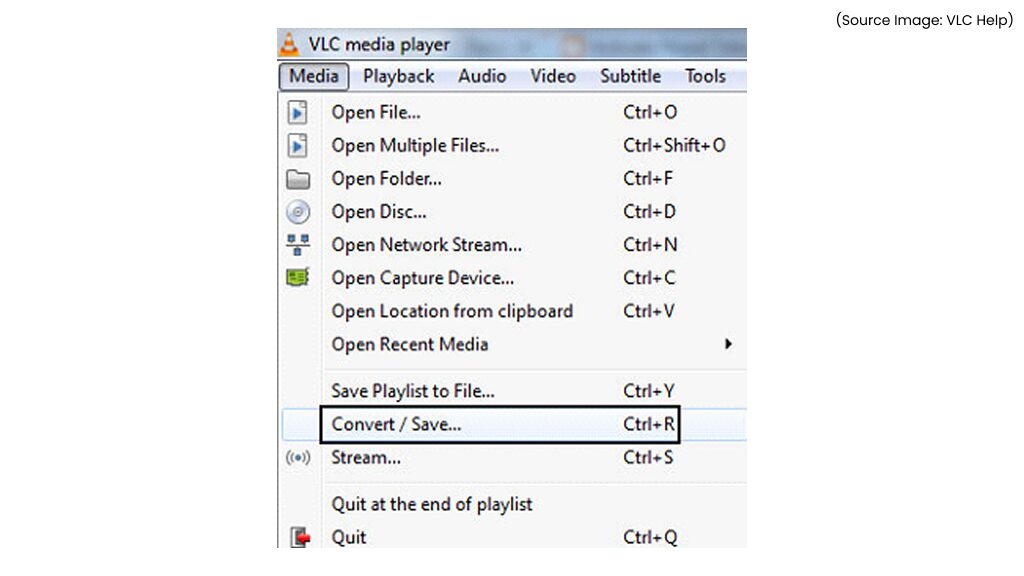
VLC Media Player is widely known for playing almost any file format, but far fewer users realize it can also convert video and audio files just as effectively. This built-in conversion tool allows you to transcode media into formats like MP4, MKV, AVI, MP3, or WAV without relying on online converters or additional software.
The biggest advantage here is privacy and reliability. Online conversion tools often compress files heavily, impose size limits, or raise concerns around data security. VLC performs all conversions locally, giving you full control over output quality, codecs, and file size. You can also convert multiple files or prepare videos for specific devices like smartphones, tablets, or TVs.
Use cases
- Convert large videos into smaller MP4 files for easy sharing
- Change unsupported formats so they play on older devices
- Extract audio from videos for podcasts or offline listening
How to use it
Navigate to Media → Convert / Save, add your file, choose an output format, and start the conversion. Advanced users can fine-tune codecs and bitrates via profile settings.
Tips
- Use H.264 + MP4 for the best compatibility
- Lower bitrate for faster sharing, higher bitrate for archiving
- Batch conversions save time when working with multiple files
2. Automatically Search and Download Subtitles
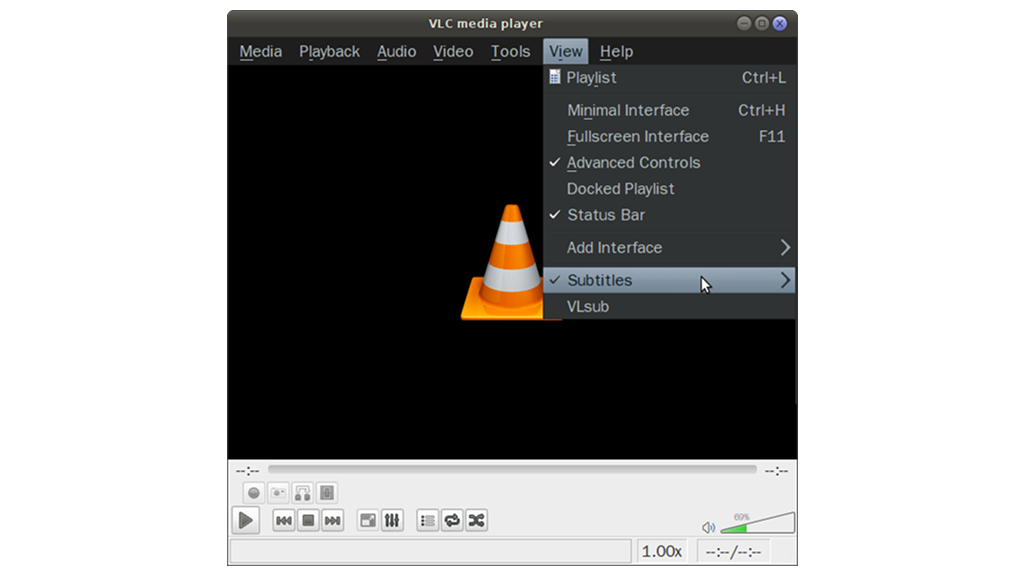
Subtitles are essential for accessibility, language learning, and understanding dialogue in noisy environments. VLC simplifies the entire process by allowing users to search and download subtitles directly within the player, eliminating the need to manually browse subtitle websites.
This feature works by matching your video file with online subtitle databases and suggesting available subtitle tracks. Once selected, subtitles load instantly and sync with playback, improving the viewing experience with minimal effort.
Use cases
- Watching foreign-language films or international TV shows
- Improving comprehension of fast or accented dialogue
- Accessibility support for hearing-impaired viewers
How to use it
Go to View → VLsub (or subtitle extensions depending on version), search by file name or hash, and download subtitles instantly.
Tips
- Choose subtitles with higher download counts for accuracy
- Use subtitle delay settings if timing feels off
- Combine with playback speed control for learning languages
3. Show Remaining Playback Time Instead of Elapsed Time
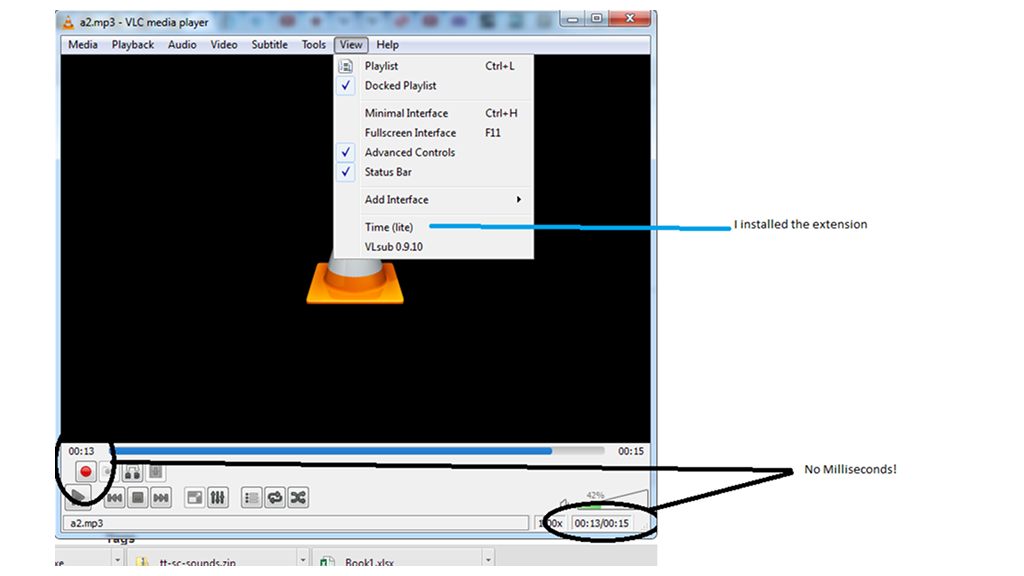
While most media players show how much time has passed, VLC allows you to switch to time remaining, which is often far more practical. This small but powerful customization helps users better manage their time, especially during long videos or limited breaks.
With a simple click on the time display, you can toggle between elapsed and remaining time instantly, no settings menu required.
Use cases
- Checking if you can finish a video before a meeting
- Managing watch time during work breaks
- Planning content consumption efficiently
Tips
- Combine with playback speed adjustments
- Useful for podcasts and long lectures
- Works across video and audio files
4. Quick Scrubbing and Precision Navigation
(Source Image: How To Geek)
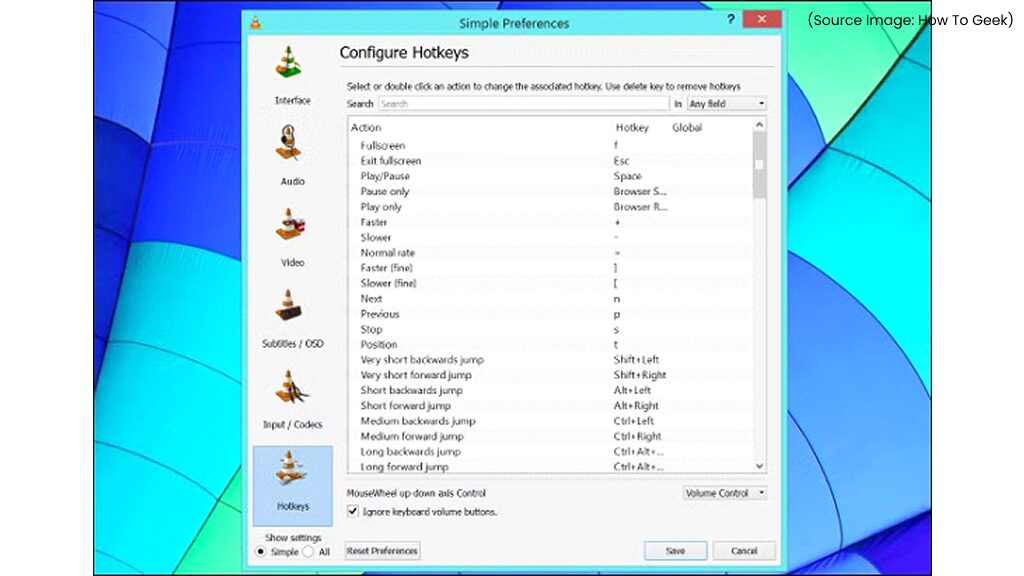
VLC’s keyboard shortcuts transform it into a precision playback tool. Using arrow keys and shortcuts, you can jump forward or backward by seconds or minutes, making navigation far faster than dragging the progress bar. This feature is invaluable for tutorials, technical walkthroughs, interviews, or long videos where you frequently revisit specific moments.
Use cases
- Skipping intros or ads
- Replaying key explanations in tutorials
- Reviewing recorded meetings or lectures
Popular shortcuts
- Left/Right arrows: short jumps
- Ctrl + arrows: larger jumps
- Spacebar: play/pause
Tips
- Customize shortcuts under Preferences → Hotkeys
- Combine with frame-by-frame playback for analysis
- Ideal for content creators and editors
5. Customize Audio and Video With Built-In Effects
(Source Image: xda)
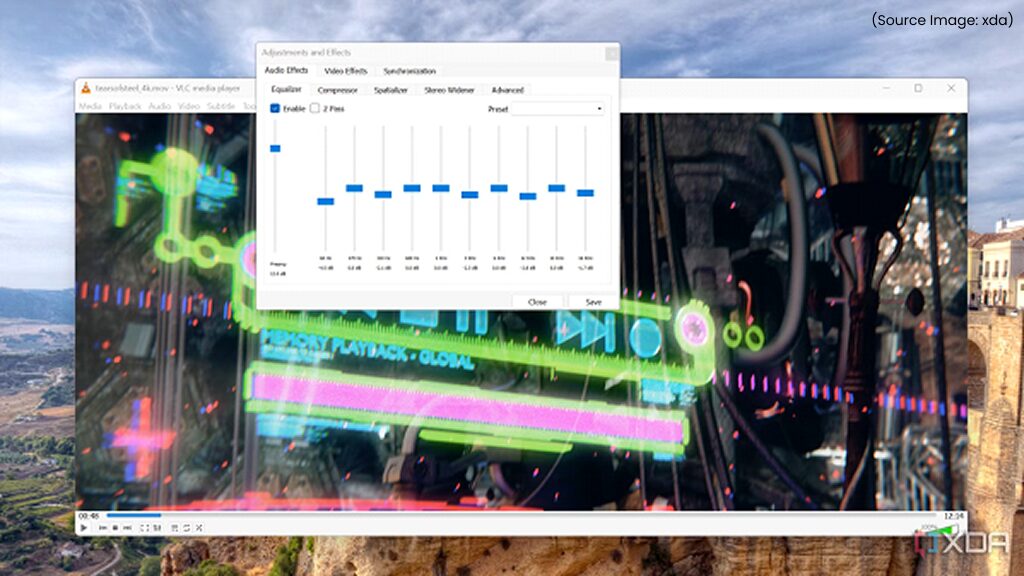
VLC includes a powerful set of audio and video enhancement tools that rival standalone editors for playback improvement. You can adjust brightness, contrast, saturation, sharpness, and even apply artistic effects to video files.
On the audio side, VLC offers an equalizer with presets optimized for music, movies, or spoken content, allowing you to enhance clarity and depth instantly.
Use cases
- Fixing dark or washed-out videos
- Enhancing dialogue clarity
- Improving low-quality recordings
Tips
- Save custom presets for repeat use
- Avoid extreme settings to prevent distortion
- Combine video effects with subtitle visibility improvements
6. Watch Online Videos Directly in VLC
(Source Image: xda)
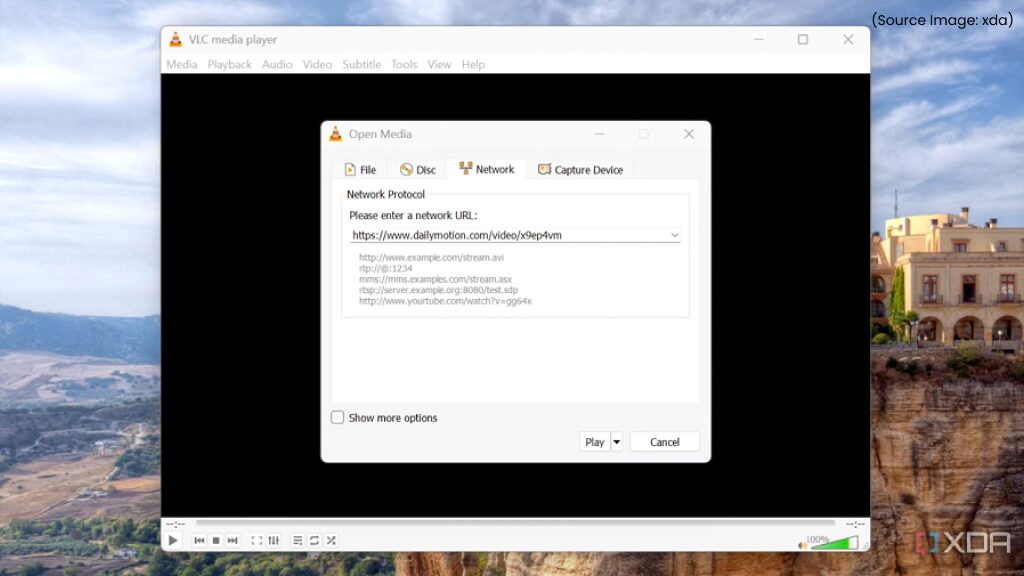
VLC Media Player can function as a full IPTV streaming client, allowing you to watch live TV channels using network-based streaming protocols. Instead of relying on browser-based IPTV players or sketchy third-party apps, VLC lets you stream channels directly using M3U playlists or network URLs.
This feature supports a wide range of streaming standards, including HTTP, RTP, RTSP, and UDP, making VLC compatible with many IPTV services and public broadcast streams. Once a playlist is loaded, VLC organizes channels in a simple list, allowing you to switch between them just like a traditional TV interface.
Use cases
- Watching live news or international TV channels
- Accessing free-to-air IPTV streams
- Viewing local network TV streams
Tips
- Use playback speed for faster learning
- Combine with subtitle tools
- Ideal for bandwidth-controlled environments
7. Stream Local Media to Chromecast
(Source Image: reddit)
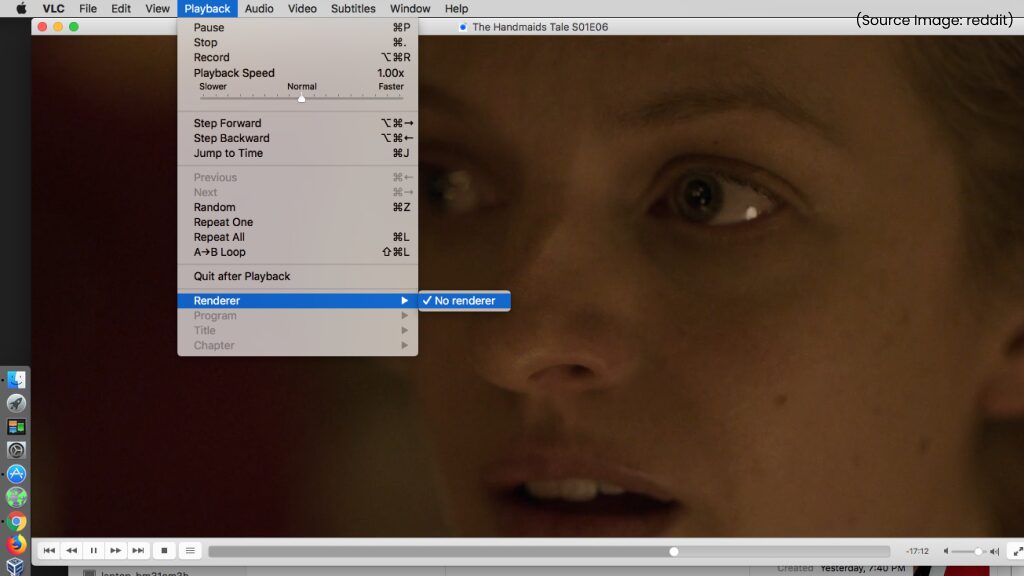
VLC can cast media directly to Chromecast-enabled devices, turning your local files into a personal streaming library. No subscriptions or additional apps are required.
Use cases
- Streaming downloaded movies to TV
- Sharing personal videos on larger screens
- Watching offline content wirelessly
Tips
- Ensure both devices are on the same network
- Use wired connections for smoother playback
- Best for MP4 and MKV formats
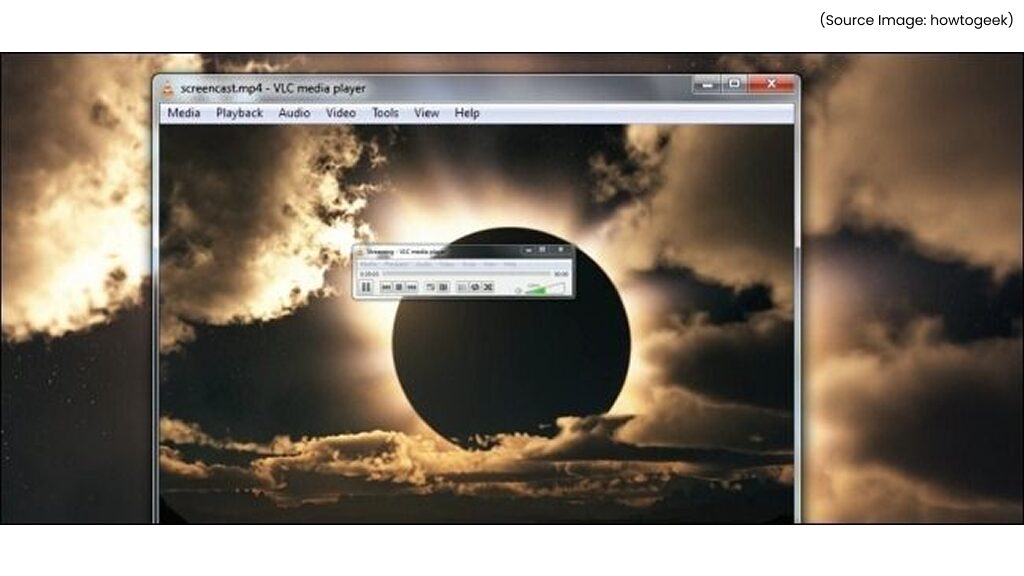
8. Record Your Desktop Screen
(Source Image: howtogeek)
VLC includes a basic desktop screen recorder, perfect for quick captures, tutorials, or demonstrations. It’s ideal when you don’t want to install heavy tools like OBS.
Use cases
- Recording quick tutorials
- Capturing presentations
- Demonstrating software workflows
Tips
- Adjust frame rate for smoother recordings
- Combine with microphone input if needed
- Best for short recordings
9. Instantly Hide What You’re Watching
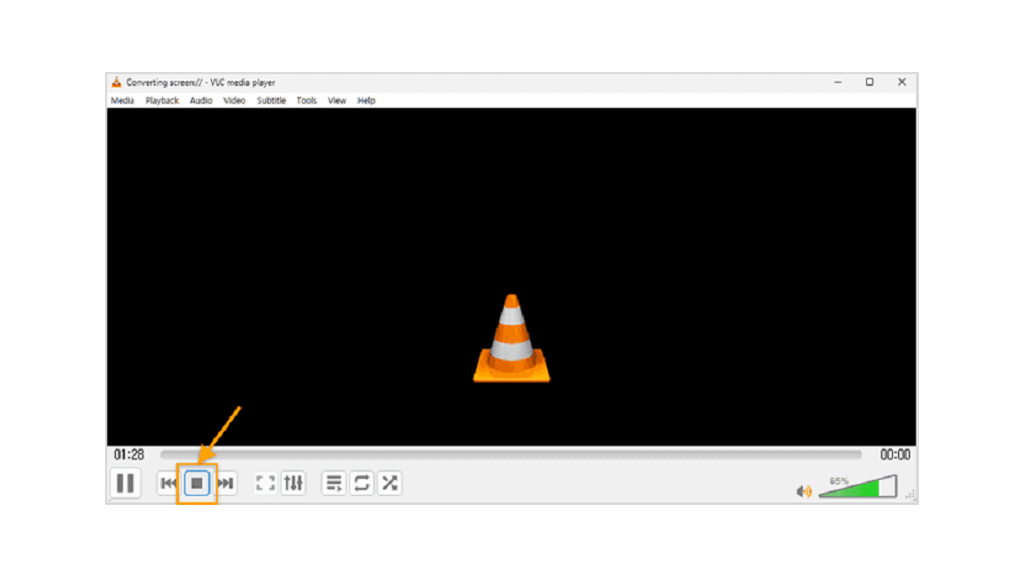
With a simple shortcut, VLC lets you hide the video window instantly, keeping playback running in the background. This is useful in shared or professional environments.
Use cases
- Quick context switching
- Discreet listening during work
- Minimizing distractions
Tips
- Combine with audio-only mode
- Customize shortcut keys
- Useful for podcasts and interviews
10. Use a Video as Your Desktop Wallpaper
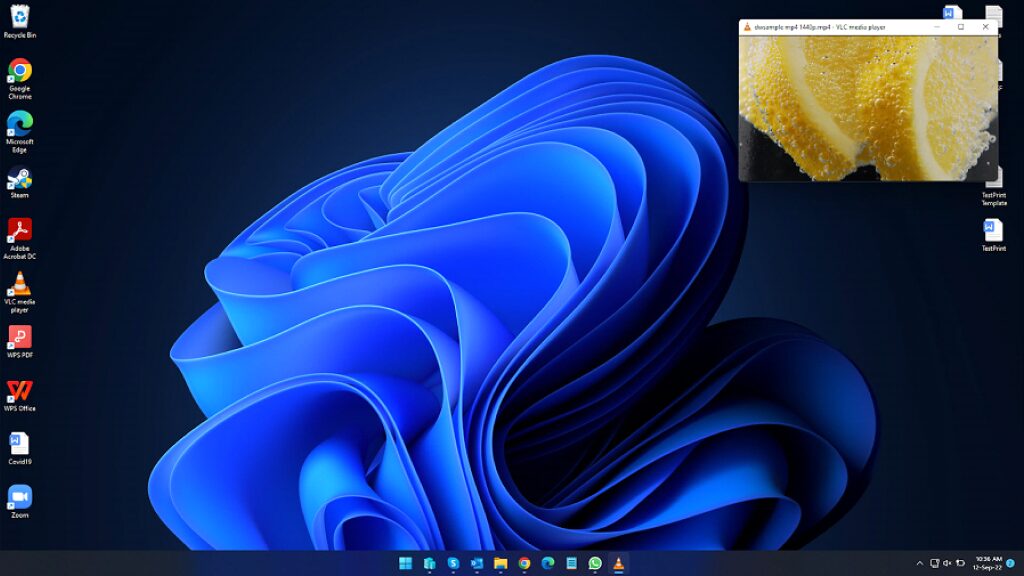
VLC can play videos directly on your desktop background, acting as a live wallpaper. While niche, it highlights VLC’s flexibility.
Use cases
- Ambient visuals
- Creative setups
- Demo displays
Tips
- Use low-resolution loops to save resources
- Disable audio
- Not recommended for daily use
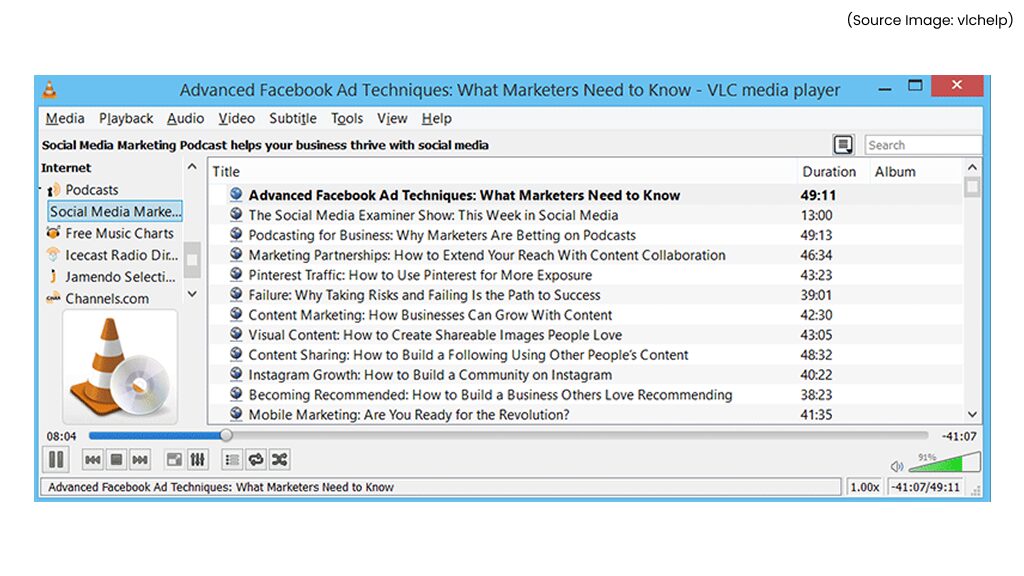
11. Manage and Listen to Podcasts Using VLC’s Built-In Podcast Manager
(Source Image: VLC Help)
VLC includes a built-in podcast manager that allows users to subscribe to podcast RSS feeds directly within the player. Unlike many modern podcast apps, VLC’s approach is refreshingly simple and free from ads, tracking, or algorithm-driven recommendations.
By subscribing via RSS, you retain full control over what you listen to, without your activity being monitored or used for profiling. VLC automatically fetches new episodes from subscribed feeds and organizes them in the playlist panel, making it easy to stream or download episodes for offline listening.
Use cases
- Listening to podcasts without ads or tracking
- Managing niche or independent podcast feeds
- Offline playback of downloaded episodes
How it works
Navigate to the Playlist view, expand the Podcasts section, and add an RSS feed URL. New episodes appear automatically as they’re published.
Tips
- Use VLC’s playback speed controls for podcasts
- Combine with audio equalizer presets for speech clarity
- Ideal for long-form educational or technical podcasts
12. Play and Share Media Over a Local Network
(Source Image: cnet)
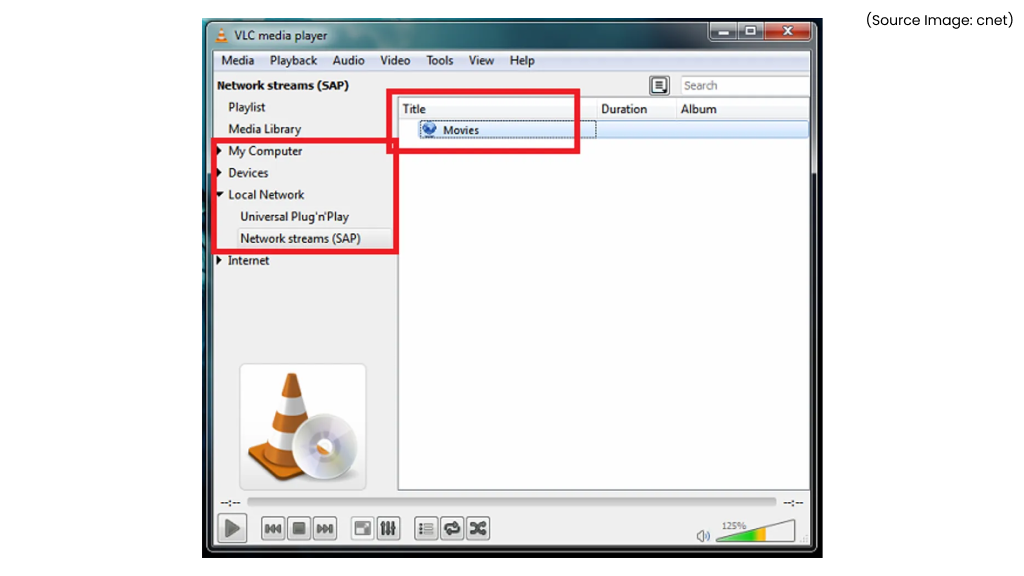
VLC excels at network-based media playback, allowing users to stream or access media files across devices on the same local network. Whether you want to play a video stored on another computer or stream content from one device to another, VLC handles it with ease.
This feature supports protocols like SMB, FTP, HTTP, and UPnP, enabling seamless access to shared folders, media servers, or other VLC instances. It’s particularly useful in home networks, offices, or collaborative environments where media needs to be shared quickly without cloud uploads.
Use cases
- Playing videos stored on another PC
- Accessing shared media servers
- Streaming content within a home network
Tips
- Enable media sharing permissions properly
- Use wired connections for high-resolution files
- Combine with Chromecast streaming for TV playback
VLC Media Player is far more than a simple tool for playing videos, it’s a feature-rich multimedia powerhouse hiding in plain sight. From converting file formats and downloading subtitles to streaming online videos, recording your screen, and even acting as a lightweight streaming hub, VLC quietly replaces multiple standalone applications most users install separately.
As search behavior shifts toward AI-driven answers and contextual discovery, content that highlights practical, real-world capabilities, like these hidden VLC features, becomes increasingly valuable. Articles that demonstrate depth, usability, and problem-solving are more likely to be referenced by AI search engines and surfaced in generative responses.
If you’ve only been using VLC for basic playback, you’re missing out on its true potential. By exploring these hidden features, you can simplify your workflow, improve your viewing experience, and get significantly more value from a free, open-source tool you already trust.