


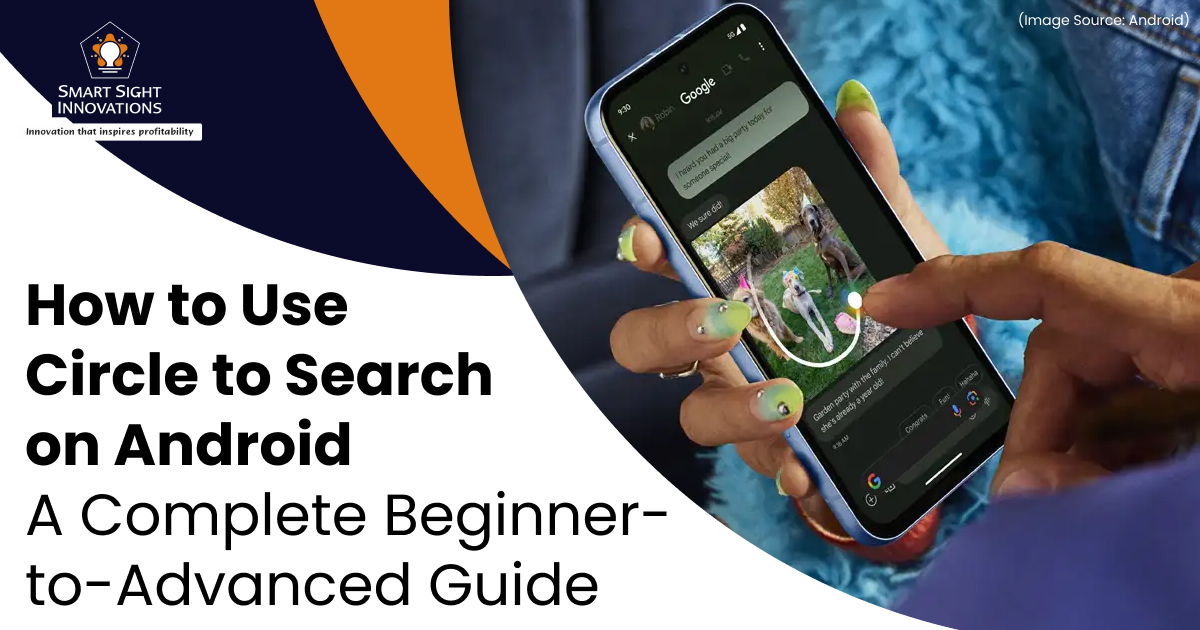
Searching for information on a smartphone has long felt unnecessarily fragmented, often requiring users to copy text, switch apps, or type out full search queries. Google’s Circle to Search changes that by making discovery feel instant and intuitive. Instead of interrupting what you’re doing, it lets you look up information directly from your screen using simple gestures, keeping your focus exactly where it belongs.
Designed to reduce friction and make mobile search more natural, Circle to Search turns everyday curiosity into immediate answers. Whether you want to identify a product in a video, translate text in an image, or learn more about something you’ve just spotted online, the feature delivers results in seconds without forcing you to leave the app you’re using.
Introduced as part of Google’s move toward context-aware search, Circle to Search reflects a broader shift toward faster, more visual discovery that adapts to what’s on your screen in real time.
What Is Circle to Search?
(Image Source: Android)
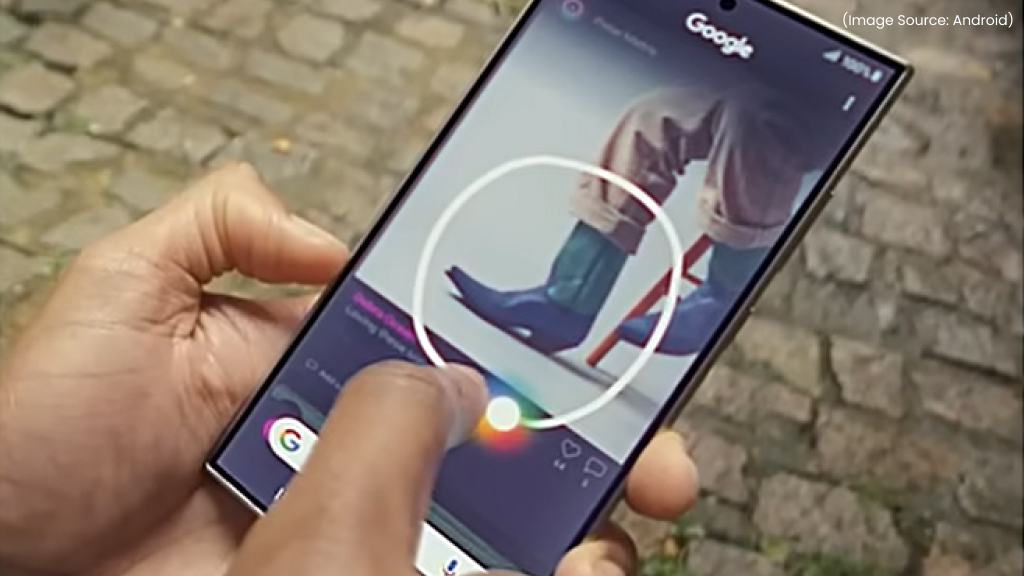
Circle to Search is a system-wide visual search feature developed by Google that allows users to start a search directly from any screen on their Android device. Instead of typing keywords or opening a separate app, users can interact with on-screen content using simple gestures to trigger relevant search results instantly.
What sets Circle to Search apart is its deep integration into the Android system. Unlike Google Lens, which requires launching a dedicated interface, Circle to Search is always accessible through the navigation bar or home button. It can understand text, images, objects, and even partially visible elements, enabling more precise and context-aware searches. Some of the Key capabilities of Circle to Search are:
- Visual object recognition
- Text extraction and explanations
- Product identification and shopping suggestions
- On-screen text translation
- Context-aware search recommendations
These capabilities are powered by Google’s AI (AI Software & AI Web) models, which combine image recognition, natural language processing, and real-time contextual analysis to deliver accurate results without disrupting the user experience.
How to Set Up Circle to Search on Your Android Device
(Image Source: samsung)
Circle to Search is designed to make searching faster and more intuitive by letting you look up information directly from your screen, without switching apps or typing search queries. Once enabled, you can simply use your finger or an S Pen to circle text or objects in images and instantly trigger a Google search. The feature works across most apps that allow screen capture, making it incredibly versatile for everyday use.
Before setting it up, keep in mind that Circle to Search requires an active internet connection to function. The exact setup steps may also vary slightly depending on your phone’s manufacturer, but the overall process remains largely the same across supported devices.
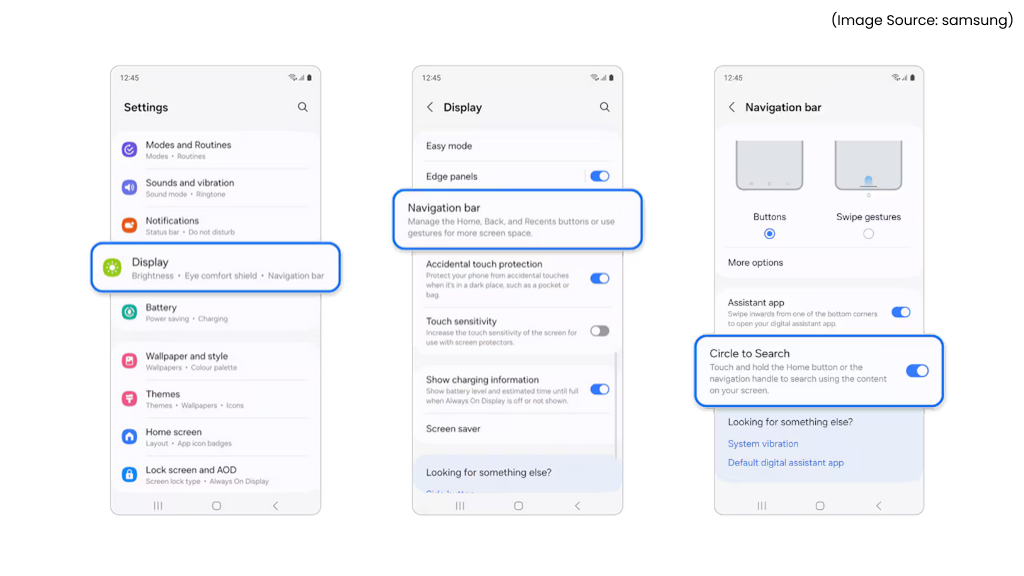
Step-by-Step Setup Instructions
- Open Settings on your Android phone.
- Scroll down and tap System or Display, depending on your device.
- Navigate to Navigation mode or System navigation.
- Look for the option labeled Circle to Search or Search your screen.
- Toggle the feature On.
- Grant any permissions requested during setup.
In some devices, Circle to Search may already be enabled by default following a software update. When setting up your device for the first time, a long press on the Home button, whether you’re using button-based or gesture navigation, may prompt you to choose between Circle to Search and the standard Google Assistant. Selecting Circle to Search here sets it as the default action.
Once Circle to Search is enabled, activating it is simple and consistent across supported devices.
- If you use gesture navigation: Long-press the navigation bar at the bottom of the screen.
- If you use 3-button navigation: Long-press the Home button.
When activated, the screen will dim slightly, indicating that Circle to Search is ready for input. If Circle to Search doesn’t activate or respond, start by checking your internet connection, as the feature relies on online processing.
If you encounter a message such as “Screen search isn’t available,” go to Settings > Apps > Choose default apps > Digital assistant app and confirm that Analyze on-screen images is enabled. It’s also a good idea to verify that Circle to Search is turned on under Settings > Display > Navigation bar or System navigation, depending on your device.
Custom navigation settings can sometimes interfere with activation. Restoring the default gesture or button layout often resolves the issue. If problems persist, restarting your device can help apply recent system or app updates.
How to Use Circle to Search on Your Android Smartphone
(Image Source: Android)
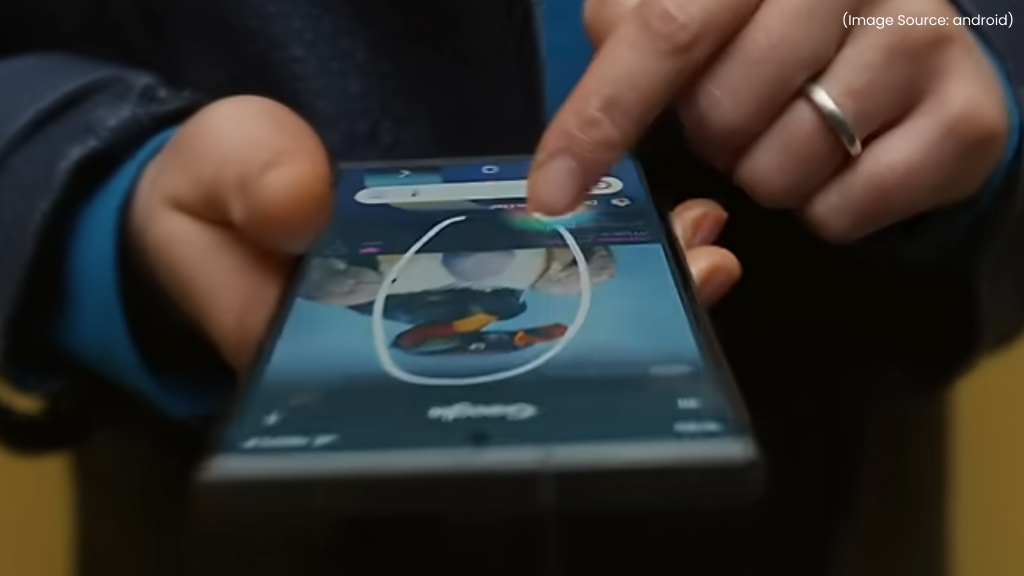
After enabling Circle to Search, using it is quick and intuitive. Open any app where the content you want to search is visible, this could be a social media post, a video, a webpage, or even a message. With the item on screen, long-press the Home button or navigation bar to activate Circle to Search.
A subtle, blue-tinted overlay will appear, along with a Google Search bar at the bottom of the screen. From here, interact directly with the content you want to look up. You can circle an object, highlight text, tap an image, or loosely mark an area of interest. Google will instantly analyze your selection and surface relevant search results without taking you out of the app you’re using.
If the results don’t quite match what you were looking for, you can simply adjust your selection and try again. There’s no need to exit the feature or repeat the activation step, making exploration fast and fluid.
Supported Gestures
Circle to Search supports several easy-to-use gestures, allowing you to choose what feels most natural:
- Circle objects or areas you want to identify
- Highlight text for definitions or explanations
- Tap images or on-screen elements for instant results
- Scribble over irregular shapes or partially visible items
Example
While scrolling Instagram, you notice a jacket that catches your eye. Activate Circle to Search, circle the jacket, and instantly view brand details, similar products, and shopping links, all without leaving the app.
Circle to Search works across a wide range of scenarios, including identifying objects and landmarks, translating on-screen text, understanding unfamiliar terms, and discovering media, products, or cultural references. Results appear in a compact overlay, allowing you to continue what you were doing without interruption.
Best Use Cases of Circle to Search
(Image Source: Android)
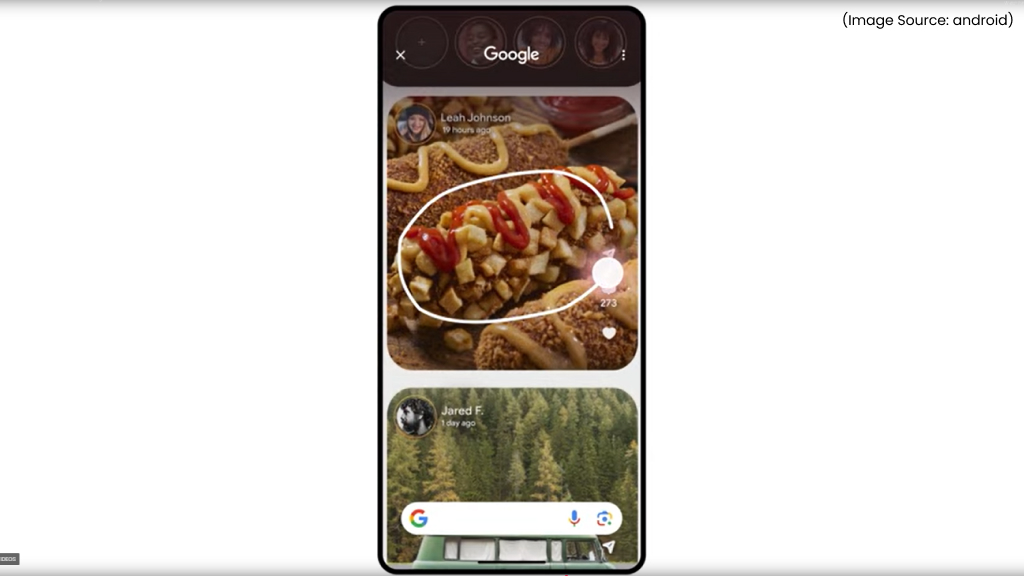
Circle to Search becomes truly powerful when applied to real-world situations where switching apps or typing queries would normally slow you down. From shopping and travel to learning and entertainment, the feature shines in moments of spontaneous curiosity and quick decision-making.
1. Shopping and Product Identification
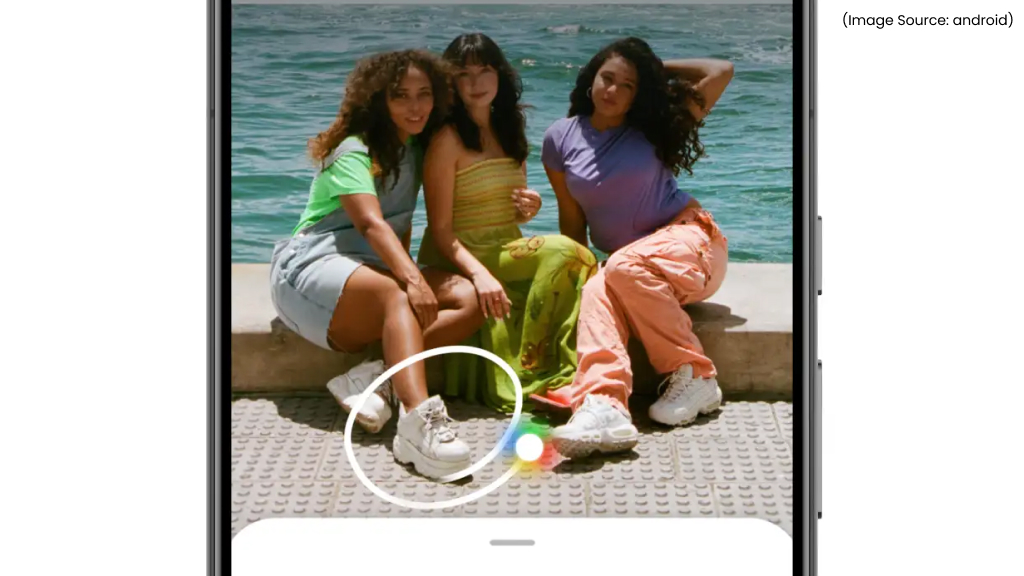
One of the most practical uses of Circle to Search is shopping. If you come across a stylish jacket in a social media post, a gadget in an ad, or even a phone someone is holding in an image, you can simply circle the item to learn more about it. Circle to Search helps identify the product, surface similar alternatives, and compare prices across retailers.
This makes it especially useful for quick price checks. Whether you’re watching a video, browsing Instagram, or seeing an ad on your screen, you can instantly understand what the product is and where to buy it. After highlighting the item, you can explore shopping results through the Product tab or refine your search using the search bar to find specific retailers.
2. On-the-Fly Information and Quick Research
Circle to Search is ideal for gathering information in moments when you don’t want to break your flow. You might spot a landmark in a movie trailer, see a news headline you don’t fully understand, or come across a trending topic you’re unfamiliar with. Instead of opening a new tab or app, you can circle the relevant part of the screen and get immediate context.
This is particularly helpful when exploring unfamiliar topics. If you know very little about a subject, Circle to Search can provide summaries and explanations that help you get oriented quickly, making it easier to decide whether you want to dive deeper.
3. AI (AI Software & AI Web) Overviews for Faster Understanding
In supported regions, Circle to Search can surface AI (AI Software & AI Web) Overviews directly within Google Search results. This is useful when you want a concise summary instead of scrolling through long descriptions. For example, if you’re considering watching a new TV show or anime and don’t want to dig through slow-loading app descriptions, circling the title can bring up an AI-generated (AI Software & AI Web) overview with key details.
AI (AI Software & AI Web) Overviews are enabled by default for eligible Google accounts in the US, while users elsewhere may need to opt into the “AI (AI Software & AI Web) Overviews and more” experiment through Search Labs. When available, this feature makes Circle to Search a powerful tool for fast comprehension.
4. Translation of Text, Menus, and Packaging
Circle to Search is extremely useful for translation, especially while traveling or encountering unfamiliar languages. You can translate posters, menus, signs, or even ingredient lists on food packaging by circling or highlighting the text and tapping the translate option.
This works with both images and videos, allowing translations to appear directly on your screen. It’s particularly helpful if you have dietary restrictions and want to understand ingredients quickly, or if you’re navigating a new place without being fluent in the local language.
5. Music Identification and Discovery
If you hear a song playing in a video, TV show, or nearby environment and can’t identify it, Circle to Search can help. By activating the feature and tapping the music note icon, your phone listens through the microphone and identifies the song.
Once identified, you’ll see details like the song title, artist, lyrics, and album information. This makes Circle to Search a convenient tool for music discovery, especially when credits aren’t easily accessible.
6. Travel, Landmarks, and Local Exploration
Circle to Search is also valuable when you’re on the move. You can identify landmarks, learn more about locations, or understand what’s around you by circling what you see on your screen or through the camera. While it doesn’t provide turn-by-turn navigation directly, it can help identify where you are and connect you to relevant Google Search or Maps results.
This is useful during road trips, city exploration, or when you want more context about your destination without stopping to manually search.
7. Learning, Work, and Everyday Productivity
For students and professionals, Circle to Search can support learning and productivity. You can circle charts, diagrams, or unfamiliar terms to get quick explanations, summaries, or references. During meetings or while reviewing documents, it allows you to look up information discreetly and efficiently.
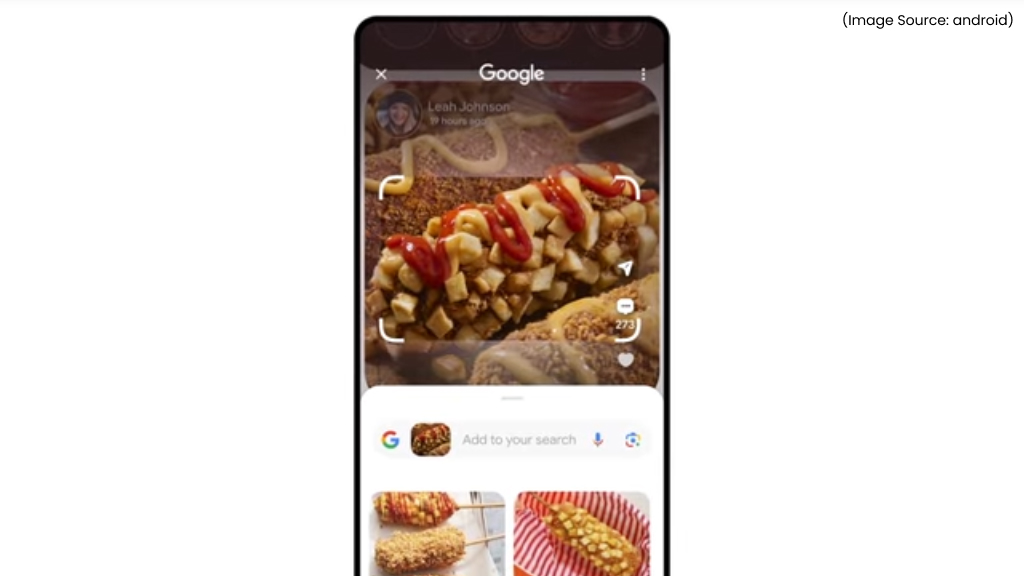
The ability to refine searches by adding text, such as asking for a “vegan recipe” after circling a dish, also makes results more targeted and useful.
8. Use Circle to Search to Compare Options
Circle to Search makes side-by-side comparisons effortless, especially when you don’t want to leave your current screen. It works seamlessly in split-screen or full-screen mode, allowing you to highlight different items, such as movies, apps, products, or reviews, and instantly view ratings, summaries, or key differences in the bottom overlay.
This is far more convenient than opening multiple browser tabs or repeating searches manually. Whether you’re deciding between two movie rentals or comparing product features, Circle to Search keeps everything in one place, reducing friction and saving time.
9. Use Circle to Search to Ask for Context
Not everything on your screen comes with labels or explanations. When you encounter unfamiliar symbols, icons, charts, or visual references in images or videos, Circle to Search helps fill in the gaps. Simply highlight the part you don’t understand and add a quick question like “What does this symbol mean?” or “What is this used for?”. Google then provides contextual explanations, related visuals, and supporting information.
This makes Circle to Search especially useful for learning and exploration, helping you understand what you’re seeing, not just identify it.
Circle to Search is still evolving. Reports suggest that Google may expand the feature to new areas, such as video game assistance, where players could get help directly while playing. While niche, this hints at a broader future where Circle to Search offers more specialized, context-aware support across different types of content. As Google continues to develop the feature, its usefulness is likely to grow well beyond the scenarios outlined here.
Devices That Currently Support Circle to Search
(Image Source: Android)
While Circle to Search offers powerful capabilities, availability still depends on your device model and software support. It is currently available on a growing list of newer Android devices, primarily from Google and Samsung. The feature first launched on flagship models and has since expanded to include older premium devices through software updates.
Circle to Search made its debut in mid-January 2024 with the Samsung Galaxy S24 series, including the Galaxy S24, S24 Plus, and S24 Ultra. Shortly after, Google rolled it out to its own flagship devices, the Pixel 8 and Pixel 8 Pro, by the end of the same month. Since then, support has steadily expanded to older Pixel and Galaxy phones, as well as select tablets and foldables. At present, Circle to Search is available on more than 30 devices.
Supported Samsung Devices
- Galaxy S24, S24 Plus, S24 Ultra
- Galaxy S23, S23 Plus, S23 Ultra, S23 FE
- Galaxy S22, S22 Plus, S22 Ultra
- Galaxy S21, S21 Plus, S21 Ultra
- Galaxy Z Fold 5 and Galaxy Z Flip 5
- Galaxy Z Fold 4 and Galaxy Z Flip 4
- Galaxy Z Fold 3 and Galaxy Z Flip 3
- Galaxy Tab S9, S9 Plus, and S9 Ultra
- Pixel 8 and Pixel 8 Pro
- Pixel 7 and Pixel 7 Pro
- Pixel 6 and Pixel 6 Pro
- Pixel 6a and Pixel 7a
- Pixel Fold
- Pixel Tablet
Privacy and Data Considerations
(Image Source: Android)
Google processes on-screen content temporarily to deliver results. According to Google, Circle to Search does not store screenshots permanently. However, search results may still be influenced by your Google account settings. You can manage search history, activity controls, and personalization preferences, through your Google account’s privacy dashboard. Users concerned about privacy should periodically review these settings.
Circle to Search represents a clear shift in how Android users discover information. By eliminating app switching, manual searches, and repeated typing, it transforms everyday moments of curiosity into instant understanding. Whether you’re shopping, studying, traveling, or simply exploring what’s on your screen, the feature delivers answers in a way that feels seamless and intuitive.
As context-aware search becomes the norm, Circle to Search feels less like an optional feature and more like the future of how Android users interact with information. With broader device support and steadily improving AI (AI Software & AI Web) capabilities, it’s positioned to become a core part of the Android experience, redefining what fast, intelligent search looks like on a smartphone.










