


The quiet revolution of solid-state storage has transformed computing, but it introduced an often-overlooked vulnerability: SSDs can deteriorate without warning. Unlike mechanical hard drives that announce trouble through grinding sounds and clicking noises, flash memory degradation happens invisibly — until suddenly your system freezes, files become corrupted, or your drive vanishes from the operating system entirely.
By the time these catastrophic signs appear, you may have only hours to recover critical data. Fortunately, understanding the technical indicators buried within your drive’s SMART monitoring system and implementing preventive maintenance strategies can provide early detection of problems.
SSD Failure Explained: Why SSDs Wear Out Differently

Solid-state drives have fundamentally different failure mechanisms than traditional hard disk drives. While HDDs fail through mechanical wear — spinning platters degrade, read/write heads deteriorate, and bearings lose precision — SSDs fail through electrical degradation of flash memory cells.
This critical distinction explains why traditional hard drive diagnostics sometimes miss SSD problems entirely. Every SSD has a rated terabytes written (TBW) limit based on its NAND flash memory endurance. This limit exists because each time an SSD writes data, the flash memory cell experiences electrical stress that gradually diminishes its ability to reliably store charge.
However, and this is crucial, reaching the TBW limit doesn’t necessarily mean immediate failure. Many SSDs continue operating well beyond their rated lifespan, while others fail for completely unrelated reasons before approaching the TBW threshold.
The real threat comes from errors — particularly uncorrectable errors that accumulate over time. Research from Backblaze provides perspective on actual SSD reliability.
Their data comparing boot drives shows SSDs have an annualized failure rate (AFR) of just 1.05% compared to 6.41% for mechanical drives. This means SSDs are statistically far more reliable than traditional drives. However, when SSDs do fail, the failure can be sudden and catastrophic, providing minimal warning time for data recovery.
The Five Critical Warning Signs Your SSD Is Failing
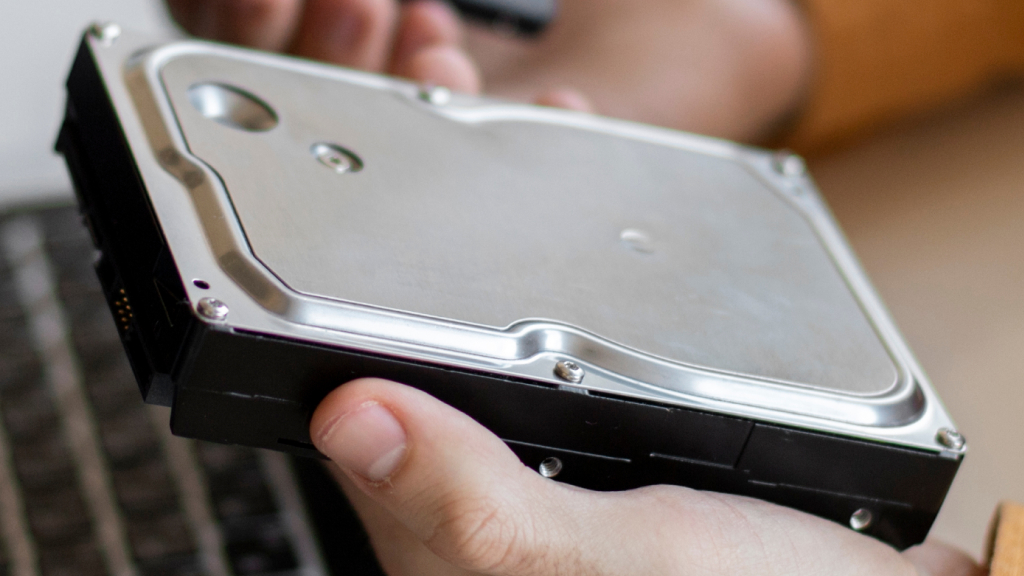
While SMART data provides technical metrics, observable system behavior often provides the earliest practical warning of SSD deterioration. Recognizing these warning signs enables you to back up critical data before failure becomes complete.
Bad Block Errors
The computer attempts to read or write files but takes unusually long time and fails. Similar to bad sectors on hard drives, bad blocks represent sections of storage that have become unreliable and cannot reliably store data.
File System Corruption
Error messages appear demanding file system repair. These often result from unsafe shutdowns but can indicate developing SSD problems. The system detects inconsistencies in data structure that require intervention.
Read-Only Mode Activation
The drive suddenly switches to read-only status, refusing all write operations. This is your SSD’s last-ditch protection mechanism—a critical signal that replacement is imminent.
Boot Process Failures
Your computer crashes during startup but works fine after reset attempts. This suggests bad blocks affecting critical system files or broader controller instability.
A fifth critical warning manifests when your SSD stops appearing in BIOS entirely. When a drive disappears from system detection, it indicates catastrophic controller or firmware failure. Professional data recovery becomes your only remaining option.
Additional Symptoms of Potential SSD Problems
- Frequent application crashes and system freezes, especially during file-heavy operations
- Files becoming inaccessible, corrupted, or unreadable despite appearing to exist
- Painfully slow performance even with adequate free space and minimal background processes
- Random system crashes without clear error messages or apparent cause
- Repeated “file cannot be read or written” error messages
- Difficulty saving files or experiencing write failures despite available storage space
SMART Data Explained: Understanding SSD Health Metrics
SMART — Self-Monitoring, Analysis, and Reporting Technology — continuously monitors drive performance and tracks health metrics in real-time. Built into virtually every commercial SSD, SMART measures parameters like temperature, error rates, sector reallocation attempts, and electrical characteristics.
However, understanding SMART’s limitations is as critical as understanding what it reveals. SMART provides probabilistic assessment rather than precise prediction.
A SMART warning indicating “Pred Fail” (predicted failure) suggests heightened failure probability; it doesn’t guarantee failure within hours, days, or weeks. Different manufacturers implement SMART differently using proprietary formulas to calculate health status.
Additionally, some SSDs fail catastrophically without electrical precursors—sudden controller failures that SMART cannot anticipate.
Critical SMART Attributes You Should Monitor
Wear Leveling Count (For SSDs Specifically)
Measures flash cell degradation from 100% (new) declining toward 0% (end of life). When this value reaches 10% or lower, immediate replacement planning becomes essential. This represents your primary endurance indicator.
Reallocated Sectors Count
Tracks sectors marked as bad and remapped to spare blocks. An increasing count indicates progressive drive degradation. Higher values suggest imminent failure risk, as spare blocks become depleted.
Uncorrectable Error Count
Counts read/write errors that error correction mechanisms cannot fix. Any value above zero indicates permanent damage. This is the most critical attribute for SSD failure prediction, as it directly indicates data integrity loss.
Device Temperature
Monitors SSD operating temperature. SSDs performing normally operate 30-65°C. Sustained operation above 70°C causes performance throttling and accelerated aging. Monitor maximum recorded temperature against current temperature.
Unsafe Shutdowns Count
Tracks instances where the system powers down improperly. Each unsafe shutdown creates potential for data errors. High values indicate a pattern of rough handling or system instability requiring investigation.
Health percentage reported by monitoring tools often represents simplified wear estimation rather than comprehensive health assessment. One SSD might show 95% health while quietly collecting error logs that presage failure.
Endurance rating alone doesn’t capture error accumulation, integrity issues, or controller problems. This explains why comprehensive monitoring requires examining multiple attributes rather than relying on health percentage alone.
Checking SSD Health in Windows: Built-In and Third-Party Solutions
Windows users possess multiple options for monitoring SSD health, ranging from native tools requiring no downloads to sophisticated third-party applications providing detailed analysis.
Option 1: Windows PowerShell Method (Native Tool)
Advantage: No installation required, uses built-in Windows functionality
- Open PowerShell with administrator privileges and execute: “Get-PhysicalDisk”
- “Get-StorageReliabilityCounter” to retrieve SMART data showing wear level, temperature, read/write errors, and overall health assessment.
- For deeper analysis, identify your specific drive name using “Get-PhysicalDisk,” then query it specifically using “Get-PhysicalDisk -FriendlyName “[Your Drive Name]”
- “Get-StorageReliabilityCounter”
- Format-List to see error counters, temperature data, and latency metrics.
Option 2: Disk Management (Native Tool)
Advantage: Graphical interface, intuitive for non-technical users
- Right-click your SSD in Disk Management → Properties → Tools → “Check now” button → Select “Scan drive”.
- This identifies file system issues and provides readable results.
- However, this tool focuses on data structure integrity rather than drive hardware health.
Option 3: CrystalDiskInfo (Third-Party, Free)
Advantage: Most comprehensive free option, intuitive visualization, SMART attribute tracking
- CrystalDiskInfo displays drive health using color coding — green for “Good,” yellow for “Caution,” red for “Bad” — immediately communicating status without technical SMART knowledge.
- The tool provides real-time temperature monitoring, power-on hours tracking, firmware version reporting, and individual SMART attribute graphs showing values over time.
- Portable version available and requires no installation.
Most Important Step:
Beyond checking overall health status in any tool, examine the SMART attribute list specifically for data integrity indicators—uncorrectable errors, error counts, critical warnings, and unsafe shutdowns. If error logs are empty or close to empty and no data integrity issues appear, your drive is likely healthy.
Monitoring SSD Health on macOS

Mac users historically faced limited SSD monitoring options compared to Windows peers. Recent developments have expanded availability, though specialized solutions remain important for comprehensive health assessment.
Option 1: Disk Utility (Native Tool)
- Open Disk Utility, select your physical drive, and check the SMART status line.
- You should see “Verified” if nothing is wrong.
- Any other message warns of potential drive failure.
- This is the simplest macOS health check requiring no additional software.
Understanding Bad Blocks: The Primary Threat to SSD Reliability
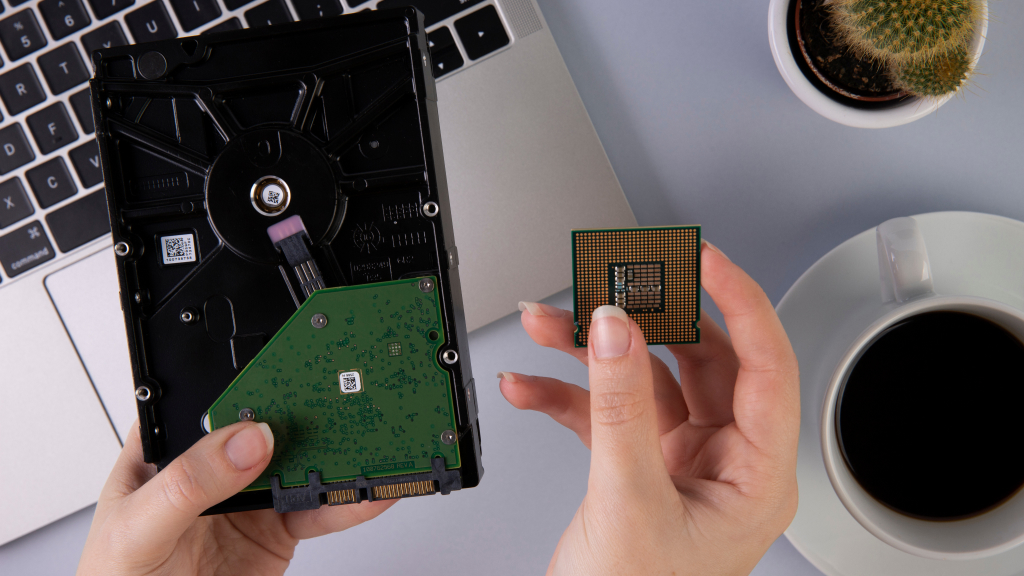
Bad blocks represent the primary SSD failure mechanism you’ll encounter. Similar to bad sectors on mechanical drives, bad blocks are sections of storage that have become unreliable and cannot reliably read or write data.
However, SSD bad blocks present unique challenges because they can cascade rapidly once they begin appearing. When bad blocks develop, your SSD’s firmware attempts to reallocate data from the problematic block to spare blocks.
This process succeeds in most cases — the SSD quietly handles the problem without user awareness. However, when reallocation attempts fail, it signals spare block exhaustion, meaning the drive’s redundancy is depleting.
Drives with failed reallocations typically have only days or weeks before complete failure. Bad blocks affect files through two distinct scenarios. First, the system detects the bad block during write operations and refuses to write data — the data never corrupts because it was never written.
Usually the system resolves this automatically by attempting a different location. Second, the system detects bad blocks after data has been written, making those files permanently inaccessible. Recovery proves extremely difficult in this scenario.
When to Worry vs. When to Act
Data Recovery When Read-Only Mode Activates
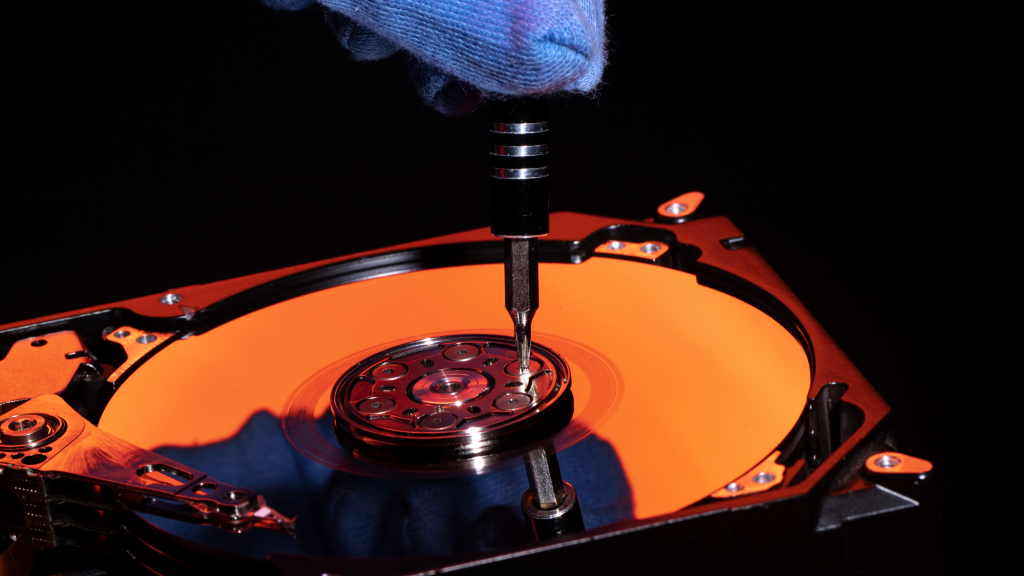
When an SSD switches to read-only mode — a rare but definitive failure indicator — your drive is essentially putting itself into protective status. The SSD refuses write operations but allows reading existing data.
This represents a critical window for data recovery, but action must be immediate. To recover data from a read-only SSD, connect it as an external drive or secondary internal drive to another computer.
Do not attempt booting your operating system from the failing drive. Instead, boot your main system from your computer’s primary drive and access the read-only SSD as external storage.
This prevents the operating system from attempting repairs that could damage the read-only-protected data. If you don’t have access to another computer, boot a Linux Live distro from USB on your existing machine.
This alternative operating system provides access to the failing SSD’s data without triggering your problematic operating system. Once you have read access to the failing drive, copy all accessible data to another drive immediately. Read-only mode can transition to complete unresponsiveness at any moment.
Extending SSD Lifespan: Prevention and Maintenance Strategies
Beyond monitoring, operational practices meaningfully extend SSD lifespan and reduce failure probability. Many failures are preventable through proper usage patterns and environmental management.
Temperature Management is Critical:
SSDs operate most reliably in the 30-65℃ range. Sustained operation above 70°℃ causes performance throttling and accelerates aging. Ensure adequate airflow around internal SSDs-avoid blocking NVME slots or covering drives with heat sinks that trap hot air. External SSDs benefit from ventilated environments and protection from direct sunlight.
Power protection prevents corruption and controller damage. Use surge protectors or UPS systems to protect against electrical anomalies. A $30-50 UPS prevents failures costing $200+ in drive replacement and data recovery.
Firmware updates address performance issues, improve reliability, and patch vulnerabilities. Regularly check manufacturer utilities for available updates and apply them following recommended procedures. Always backup data before major firmware updates, though data corruption is unlikely.
Workload management acknowledges that while modern operating systems optimize wear distribution, excessive write-heavy operations still accelerate cell degradation. Minimize unnecessary writes by avoiding excessive temporary files and repeated data reprocessing.
Running resource-intensive processes continuously accelerates aging. Free up extra space on your SSD when issues appear. Having available storage allows the SSD to move data away from problematic blocks during reallocation attempts. When SSD storage is nearly full, the drive has limited flexibility to manage bad blocks proactively.
The Three-Two-One Backup Rule: Your Ultimate SSD Insurance
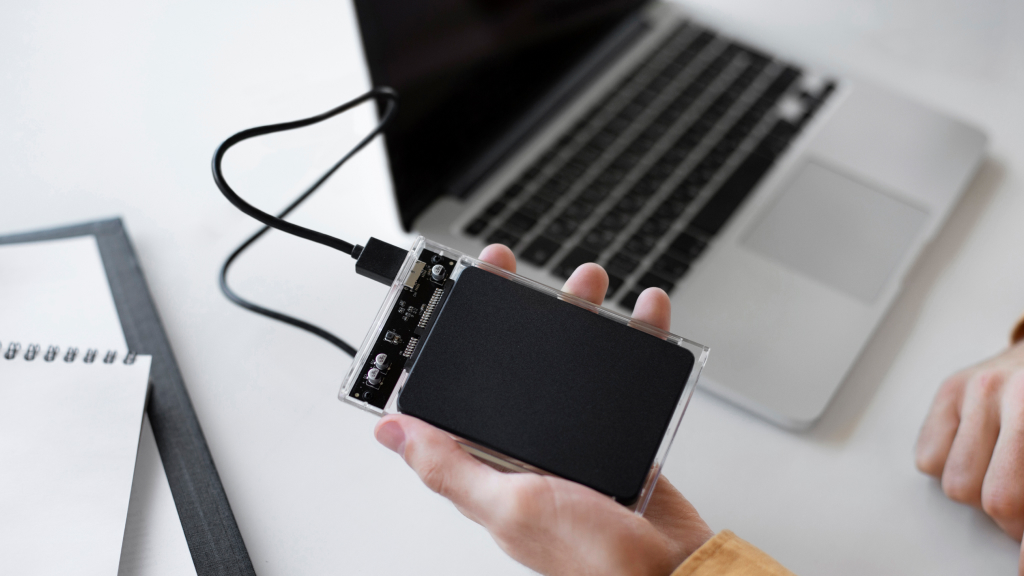
No SSD health monitoring system prevents all failures. Even drives exhibiting no warning signs can fail suddenly. The only reliable protection is implementing the three-two-one backup rule: maintain three copies of critical data, on two different storage types, with one copy offsite.
This approach ensures that even catastrophic SSD failure doesn’t result in data loss. One copy resides on your SSD. A second copy lives on external storage (USB drive or external SSD) physically located in your home.
The third copy stored in cloud storage or offsite location protects against physical disasters affecting your home.
For Windows users, create backups using Windows Backup or dedicated backup software. macOS users have Time Machine providing automated continuous backups. Additional third-party options like Backblaze or Carbonite provide cloud backup options for critical data.
Why Is SSD Health Percentage Misleading? The Complexity Behind Simple Numbers

One of the most dangerous misconceptions about SSD health involves interpreting the health percentage reported by monitoring tools. Most users assume a single health percentage number accurately describes overall drive condition. The reality is far more complicated. Different tools calculate health percentage in fundamentally different ways.
Some treat it as a straight wear estimate based solely on program-erase cycles. Others consider spare block availability. Windows reports health without explaining underlying calculations.
On NVMe (Non-Volatile Memory Express) SSDs, the health percentage reported is often just a simplified wear indicator — essentially tracking how much rated endurance the SSD has consumed. This simplified approach creates dangerous illusions.
A drive showing 95% health can simultaneously be collecting critical error logs or running into integrity issues that could cause sudden failure. Endurance rating is just one metric and one part of overall SSD health. This is why examining individual SMART attributes matters more than fixating on the summary health percentage.
A better approach involves establishing baseline health by recording initial readings when first monitoring a drive, then tracking changes over time. Increasing uncorrectable errors or rising reallocated sectors matter more than absolute health percentage. A drive at 50% wear with zero errors is healthier than a drive at 75% wear with accumulating errors.
Troubleshooting Performance Issues: When Is Your SSD the Problem?
Slow SSD performance doesn’t automatically indicate drive failure. Multiple factors beyond SSD health cause performance degradation, and misdiagnosing the problem wastes time and effort. Before assuming your SSD is failing due to poor performance, verify available storage space.
When SSD storage approaches capacity (above 90% full), performance degrades significantly as the drive lacks space for wear leveling and garbage collection. Clearing files to bring capacity below 80% often resolves performance complaints.
Additionally, insufficient RAM forces your system to use storage for virtual memory, appearing as SSD slowness when RAM is the actual bottleneck. Background processes and scheduled maintenance consume SSD bandwidth.
Windows Search indexing, backup programs, antivirus scans, and cloud synchronization simultaneously accessing your SSD creates performance perception of slowness. Disable unnecessary background processes and schedule intensive operations during off-hours.
Older SSDs from the SATA era suffer inherent speed limitations compared to modern NVMe drives. This isn’t failure — it’s technology progression. If your drive shows healthy SMART attributes but performance seems inadequate compared to modern standards, upgrading to newer technology solves the problem more effectively than troubleshooting a healthy older drive.
Only after ruling out storage space, RAM, background processes, and technology limitations should you suspect SSD hardware problems. If monitoring tools show healthy SMART attributes and error logs are clean, performance issues likely originate elsewhere.
SSD health monitoring is a valuable yet underutilized data protection practice. Unlike mechanical drives announcing approaching failure, SSDs deteriorate silently. Only through dedicated monitoring and SMART attribute understanding can you detect problems before catastrophic failure and data loss occur.










