


Smartphones have become our primary communication devices. We type emails, reply to messages, draft documents, post on social media, and even manage business conversations directly from our keyboards. Yet most users barely scratch the surface of what their mobile keyboard can actually do.
If you’re using Gboard, you already have access to one of the most powerful virtual keyboards available today. Developed by Google, Gboard is packed with lesser-known productivity tools, advanced editing controls, multilingual support, and smart automation features that many users never explore.
Let us uncover the most useful hidden Gboard tricks that help you type faster, communicate smarter, and customize your keyboard for a better everyday experience on both Android and iPhone.
What Is Gboard?
(Image Source: Google)
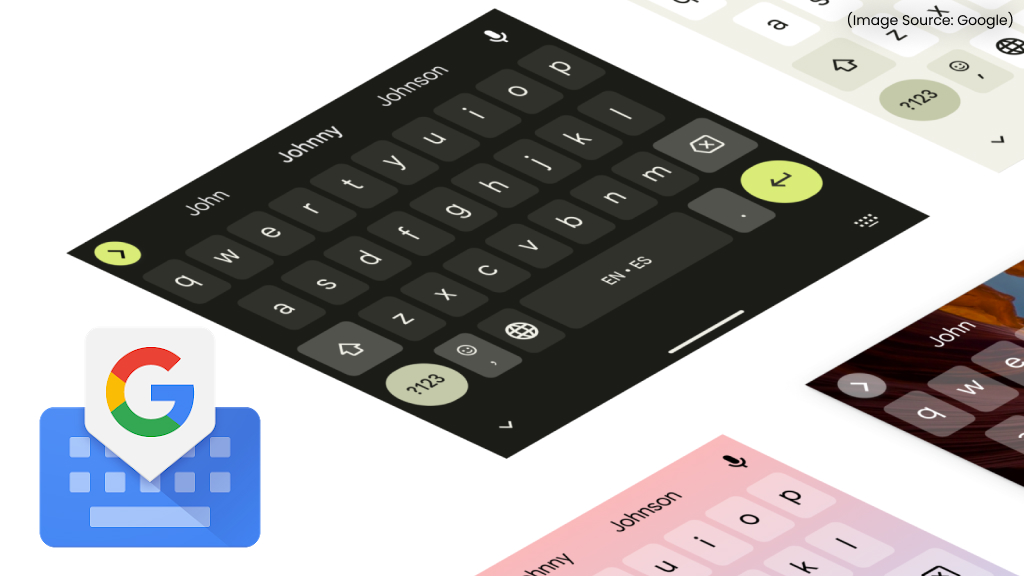
Gboard is Google’s official virtual keyboard app, developed by Google. It comes pre-installed on most Android devices and is also available for iPhone users through the App Store. What makes Gboard stand out isn’t just its clean design, but its deep integration with Google services and intelligent features powered by AI (AI Software & AI Web). Some of its core capabilities include:
- Glide (gesture) typing
- Voice typing with advanced speech recognition
- Built-in Google Search access
- Real-time translation
- Emoji, GIF, and sticker suggestions
- Smart autocorrect and predictive text
- Clipboard history and text editing tools
Unlike basic keyboard apps, Gboard continuously evolves with updates, introducing smarter suggestions, multilingual typing, and productivity-focused enhancements. Many of these features are located within settings menus or activated through long-press actions, making them less obvious to discover.
1. Productivity-Boosting Gboard Tricks
(Image Source: Google)
a. Pin Frequently Used Text and Images to the Clipboard
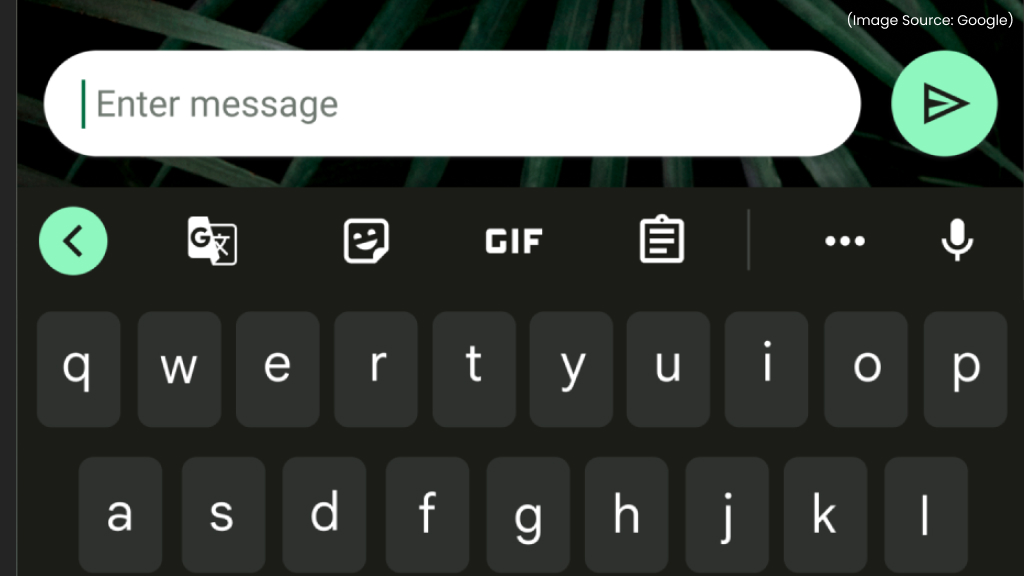
If you constantly copy and paste your address, email signature, banking details, template responses, or frequently shared links, Gboard’s clipboard manager can save you significant time.
Instead of switching between apps to retrieve saved text, Gboard stores recently copied content directly inside your keyboard.
How to Enable Clipboard History
- Open Gboard in any app
- Tap the Clipboard icon in the toolbar
- Turn Clipboard on
Every time you copy text or supported images, they appear in the clipboard panel. To keep something permanently:
- Long-press the item
- Tap Pin
Pinned items won’t disappear after an hour like regular copied text.
Why This Matters
- Store professional email templates
- Save delivery instructions
- Keep important links ready
- Pin screenshots such as account numbers
- Maintain customer support responses
For freelancers, sales teams, and business professionals, this feature acts like a mini document vault built directly into your keyboard.
b. Create Text Shortcuts with Personal Dictionary
One of Gboard’s most underrated features is text expansion. You can create shortcuts that automatically expand into full phrases.
Examples:
- omw → On my way
- sig1 → Your full email signature
- addr → Your complete address
How to set it up:
- Gboard Settings
- Dictionary
- Personal Dictionary
- Choose your language
- Tap the + icon
- Add phrase and shortcut
After setting it up, typing the shortcut triggers the full phrase to appear in your predictions. For business users, freelancers, customer support agents, and content creators, this is a massive time saver.
c. Sync Learned Words Across Devices
Gboard learns your typing habits over time. But when you switch devices, that learning usually resets. You can fix that by enabling word sync:
Settings → Dictionary → Sync Learned Words
Your personalized dictionary will stay consistent across devices linked to your Google account.
2. Editing and Text Control Features
(Image Source: Google)
a. Swipe on the Spacebar to Move the Cursor
Positioning a cursor precisely can be frustrating. Instead of tapping repeatedly:
- Place your finger on the spacebar
- Slide left or right
- The cursor moves accordingly
It works like arrow keys on a desktop keyboard and makes editing dramatically easier.
b. Enable Gesture Delete for Fast Erasing
Deleting word by word wastes time. Instead you can turn on:
Settings → Glide Typing → Enable Gesture Delete
Now:
- Touch the Backspace key
- Slide left
- Words get highlighted and deleted instantly
Slide further to delete more. Slide right to reduce selection. It’s efficient and surprisingly satisfying.
c. Use the Built-In Text Editor for Precision
Gboard includes a hidden Text Editing mode. To access it tap the three dots in the toolbar and Select Text Editing. You’ll get:
- Arrow keys
- Select controls
- Copy / Cut / Paste buttons
- Precise cursor movement
If you’re editing long documents, emails, or reports, this feature gives far more control than standard tapping.
d. Change Case After Typing
If you’ve typed a word in lowercase but realize it should be in uppercase, you just need to:
- Double-tap the word
- Tap Shift once → Sentence case
- Tap again → ALL CAPS
- Tap again → lowercase
There’s no need to delete and retype it.
e. Capitalize Letters with a Swipe
If you need a quick way to capitalize a letter without switching keyboard modes, you have to:
- Press and hold Shift
- Slide to the letter
- Release
That letter becomes capitalized instantly. This is perfect for acronyms and quick corrections.
3. Smart Typing and Automation Features
(Image Source: Google)
a. Double-Tap Space for Instant Period
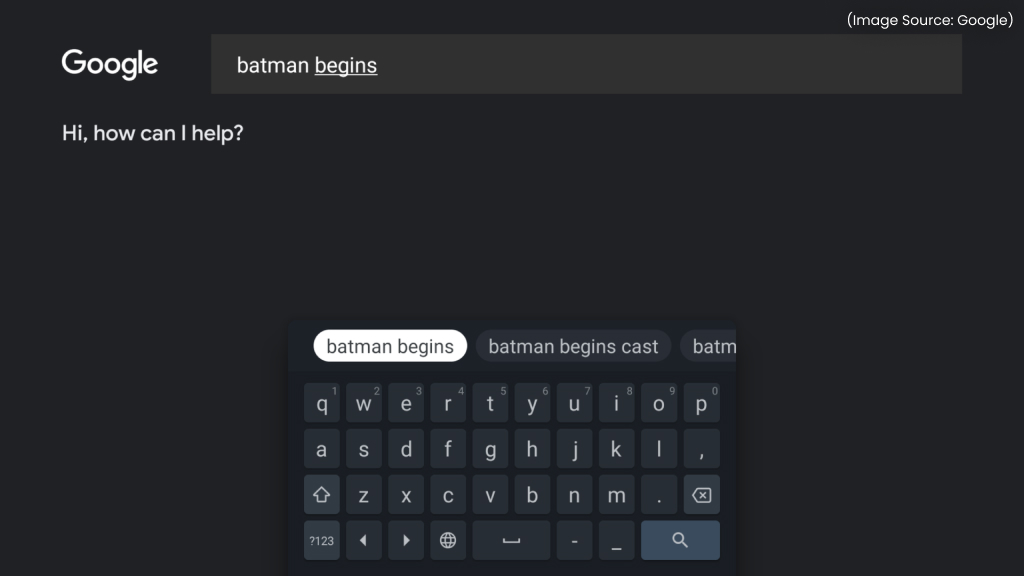
Small shortcuts can make a big difference when typing quickly on your phone. One such time-saving feature in Gboard is the double-tap space shortcut. Simply double-tap the spacebar and Gboard will:
- Insert a period
- Add a space
- Automatically capitalize the next letter
While it may seem like a minor feature, this shortcut noticeably improves typing speed and keeps your sentences properly formatted with minimal effort.
b. Autospace After Punctuation
Clean formatting shouldn’t require extra effort while typing. With the Autospace After Punctuation feature in Gboard, spacing becomes automatic. To enable it:
Settings → Text Correction → Autospace After Punctuation
Once turned on, Gboard automatically adds a space after punctuation marks, reducing manual taps and keeping your writing neat and properly formatted.
c. Remove Annoying Word Suggestions
If Gboard keeps suggesting a word you never use:
- Long-press the suggestion
- Drag it to the trash icon
That word won’t appear again. Over time, this improves prediction accuracy significantly.
d. Add a Permanent Number Row
Switching back and forth between letters and numbers can slow down your typing flow. Instead of toggling between keyboard panels, you can display numbers permanently at the top of your layout in Gboard. To enable it:
Settings → Preferences → Number Row
Once activated, a dedicated number row appears above the alphabet keys, making it much easier to enter passwords, OTPs, PINs, and financial details without interruption.
e. Type Common Fractions Instantly
Certain symbols, like fractions, can be surprisingly difficult to find on a standard keyboard. Thankfully, Gboard makes it easy to insert them without copying and pasting. To type fractions such as ½ or ¾:
- Tap ?123
- Long-press the relevant number
- Select the desired fraction from the pop-up options
This feature is especially useful for academic writing, recipe measurements, financial details, or technical documentation where precise values matter.
4. Multilingual and Translation Power
(Image Source: Google)
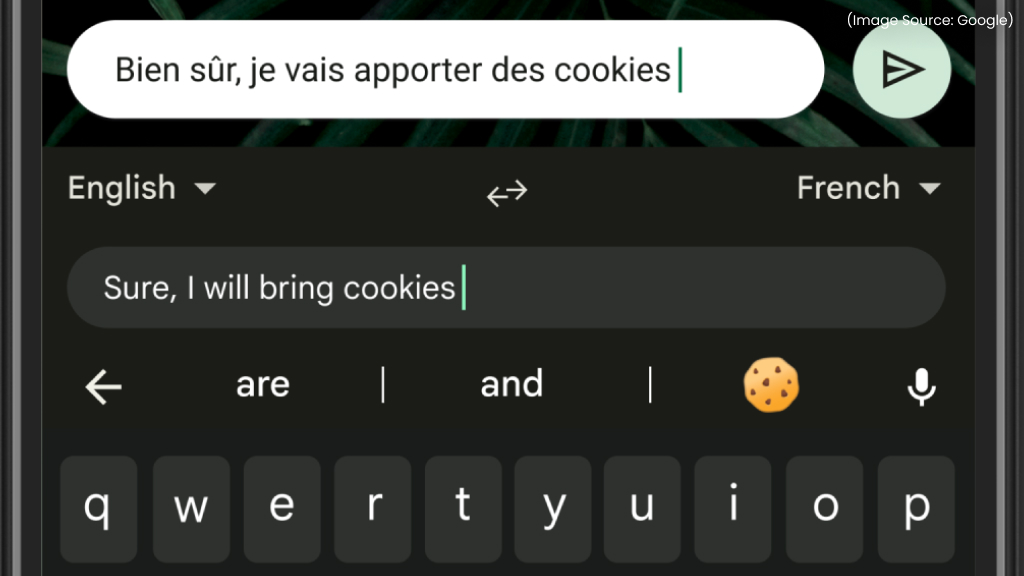
a. Translate As You Type
Communicating across languages doesn’t have to mean switching between multiple apps. Gboard integrates seamlessly with Google Translate, allowing you to translate messages directly within your keyboard. Instead of copying and pasting text elsewhere:
- Tap the Translate icon
- Select your source and destination languages
- Type as you normally would
Your message is translated in real time, ready to send instantly. This feature is especially valuable for international business communication, traveling abroad, or staying connected with multilingual friends and colleagues.
b. Add Multiple Languages
If you regularly communicate in more than one language, switching keyboards shouldn’t slow you down. With Gboard, you can add and manage multiple languages within a single keyboard. To add a new language:
Settings → Languages → Add Keyboard
Once added, you can switch between languages instantly by long-pressing the spacebar, or by tapping the globe icon. Gboard automatically adjusts predictions, autocorrect, and suggestions based on the selected language, ensuring a smooth multilingual typing experience.
c. Voice Typing That’s Surprisingly Accurate
Typing isn’t always convenient, especially when you’re multitasking or on the move. With Gboard, you can switch to voice typing and let your speech do the work. Simply tap the microphone icon and start speaking. Gboard converts your voice into text in real time with impressive accuracy. You can:
- Dictate long emails or messages
- Say punctuation like “comma” or “period”
- Minimize the keyboard while continuing to speak
Voice typing supports multiple languages and is particularly useful when your hands are occupied or when you need to compose longer content quickly.
5. Fun and Expressive Features
(Image Source: Google)
a. Emoji Kitchen: Create Custom Emoji Mashups
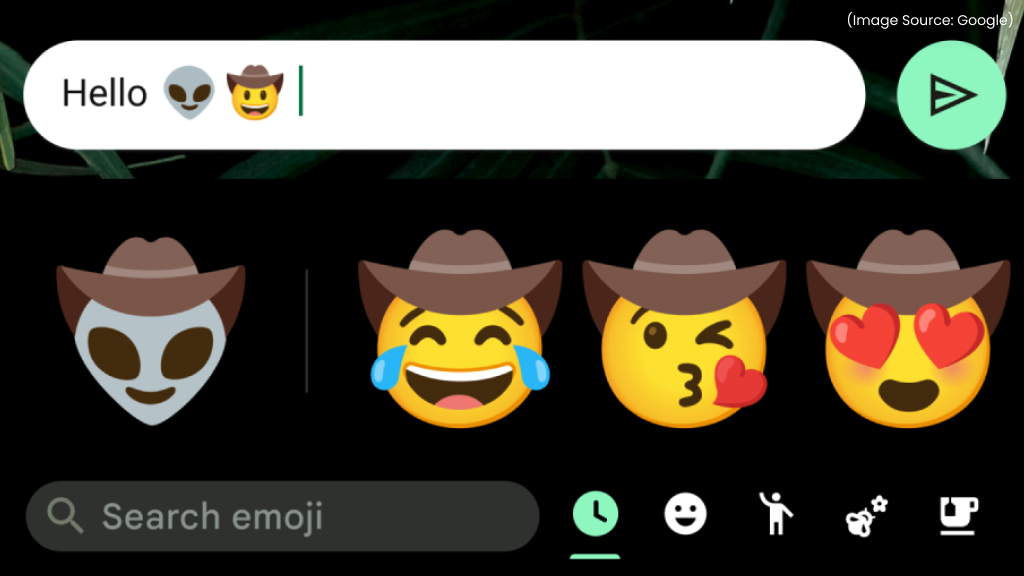
Sometimes a single emoji isn’t enough to express exactly how you feel. That’s where Emoji Kitchen inside Gboard adds a creative twist to your conversations. Emoji Kitchen allows you to combine two emojis into a unique, sticker-style mashup that blends their expressions into something entirely new.
How It Works:
- Open the emoji panel
- Select one emoji, then choose another
- Pick from the generated mashup suggestions
The final creation is sent as a sticker rather than standard inline emoji text, making it more visually distinct and expressive. Google frequently updates Emoji Kitchen with new combinations, ensuring your chats stay fun, fresh, and full of personality.
b. Search Emojis, GIFs, and Stickers in One Place
Scrolling endlessly to find the right reaction can slow down fast-moving conversations. With Gboard, you can quickly locate the perfect emoji, GIF, or sticker using a single search bar. Instead of browsing manually:
- Open the emoji panel
- Tap the search icon
- Enter a keyword
Gboard instantly searches across Emojis, GIFs, Stickers, and Integrated avatar packs. This streamlined search feature helps you respond faster and keeps up with busy group chats without breaking your typing flow.
c. Use Bitmoji Directly in Gboard
Personalized avatars can make your messages more engaging and fun. If you use Bitmoji, you can access your custom stickers directly within Gboard without switching apps.
Simply set up your avatar in the Bitmoji app, and your personalized stickers will become available through the emoji panel in Gboard. This seamless integration makes conversations more expressive, visually appealing, and uniquely yours.
6. Layout Customization and Accessibility
(Image Source: Google)
a. Enable One-Handed Mode
Typing on large smartphones can feel uncomfortable when you’re using just one hand. Devices like the Google Pixel 7 Pro have bigger displays, which can make reaching keys on the opposite side difficult. Thankfully, Gboard includes a dedicated one-handed mode for easier access. To enable it:
- Tap the three dots in the keyboard toolbar
- Select One-handed Mode
Once activated, you can:
- Shift the keyboard to the left or right side
- Resize it for better reach
- Restore it to full size instantly
This feature makes typing more comfortable and practical when you’re on the move or holding your phone in one hand.
b. Use Floating Keyboard Mode
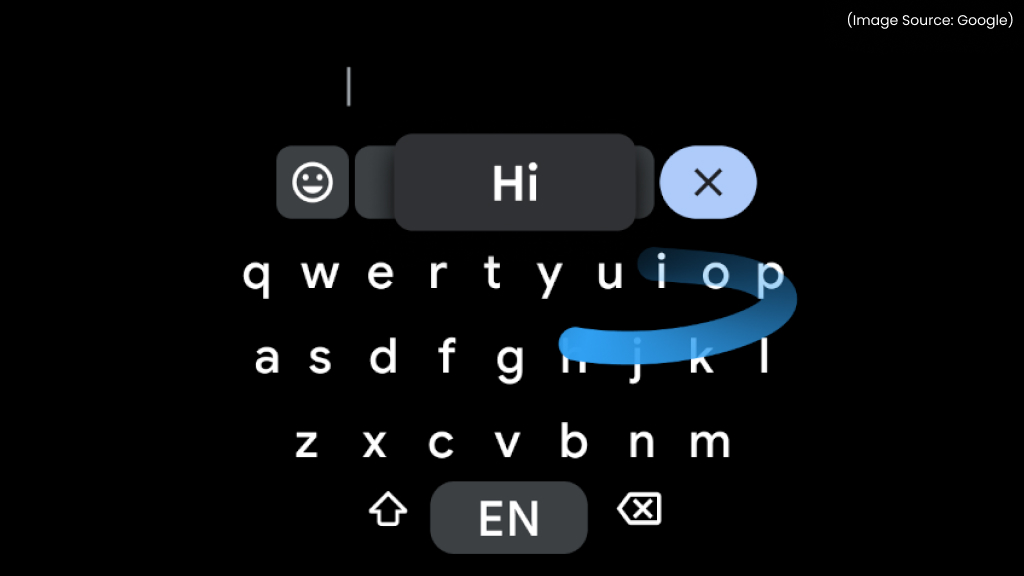
For greater flexibility while typing, you can detach your keyboard from its fixed position at the bottom of the screen. Gboard offers a Floating Keyboard mode that allows more control over placement and size. With floating mode, you can:
- Detach the keyboard from the bottom
- Drag it anywhere on the screen
- Resize it to suit your preference
This feature is especially useful when multitasking in split-screen mode or when editing longer content where screen visibility matters.
c. Switch to Handwriting (Even Morse Code)
Typing isn’t the only way to input text on your device. If your phone or tablet supports a stylus, Gboard allows you to switch to handwriting mode for a more natural writing experience. To enable it:
Settings → Languages → Select Language → Handwriting
Once activated, Gboard converts your handwritten input into typed text in real time, making it ideal for note-taking or stylus-based devices. You can also explore alternative keyboard layouts such as DVORAK, AZERTY, PC layout, and Morse Code. Gboard even supports Morse Code input and converts it into readable English text, a unique accessibility feature that few users know exists.
Why Is Gboard One of the Best Mobile Keyboards?
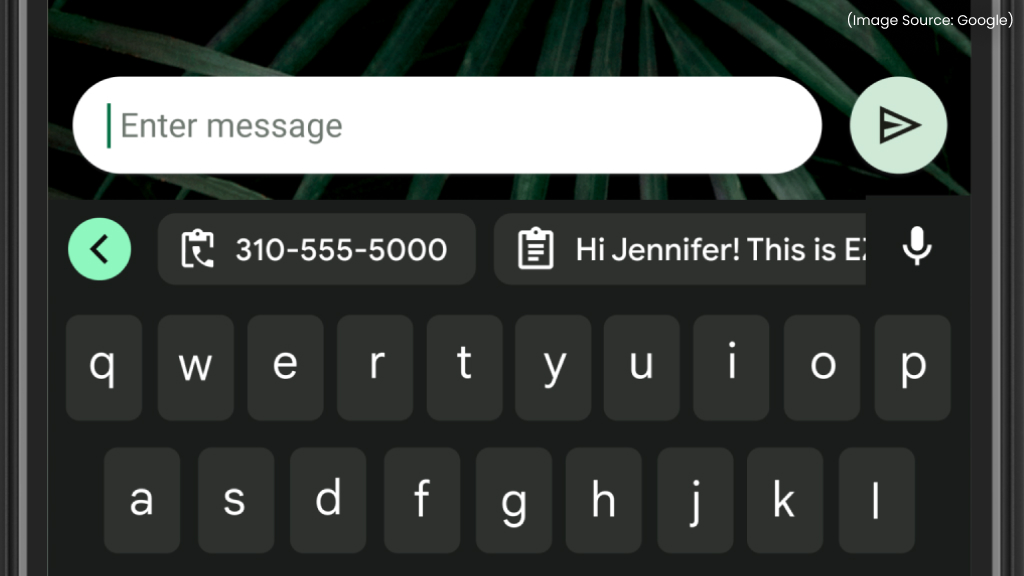
(Image Source: Google)
At first glance, the Gboard may look like a standard smartphone keyboard. But as you’ve seen throughout this guide, its true power lies in the combination of intelligent features working behind the scenes.
From AI-driven (AI Software & AI Web) predictions and gesture controls to built-in translation powered by Google Translate, clipboard management, advanced text editing tools, expressive emoji features, and flexible layout customization, Gboard brings everything together in one seamless experience. It’s not just about typing words; it’s about typing smarter.
Most users only scratch the surface of what’s available. However, once you enable even a few of these hidden Gboard tricks, everyday communication becomes faster, more accurate, more efficient, and more personalized.
Because your keyboard is something you use every single day, even small improvements can compound into meaningful time savings over months and years. Mastering Gboard isn’t just a minor upgrade, it’s a productivity boost hiding in plain sight.










