


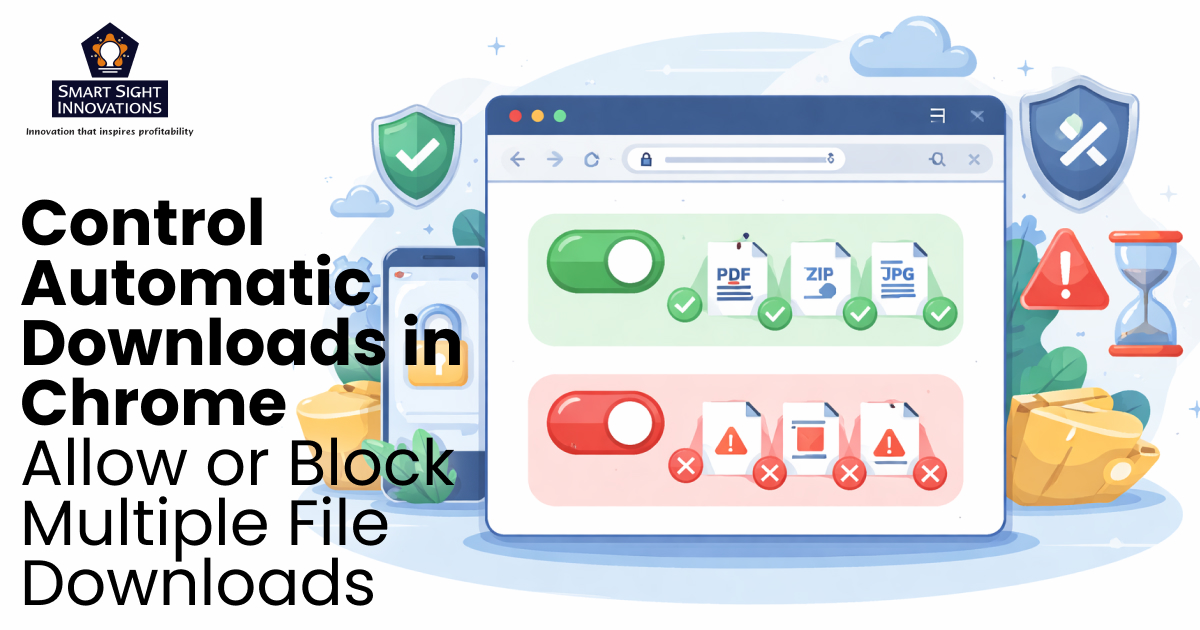
Managing downloads in your browser is more important than it might seem. While automatic multiple file downloads can be convenient, such as when downloading documents, image packs, software updates, or batch exports, they also carry notable security and privacy risks. Malicious websites often exploit this feature to deliver unwanted files, adware, spam, or even malware without your full consent. What starts as one harmless download can quickly turn into several harmful ones if left unchecked.
Google Chrome provides robust control over this behavior through its Automatic downloads permission. By default, Chrome prompts you whenever a site attempts to download multiple files in succession. This built-in safeguard helps protect against malicious multi-file download attempts while still allowing legitimate bulk downloads when you approve them.
With Chrome’s settings, you can easily choose to:
- Allow sites to ask for multiple downloads (with your confirmation),
- Block automatic multiple downloads entirely, or
- Create custom exceptions for specific trusted websites.
Whether you prefer maximum security or need occasional bulk downloads, adjusting these preferences takes just a few clicks. Let’s explore how to manage automatic downloads in Chrome across desktop and mobile, including Site Settings, permissions, and active downloads. By taking control of multiple downloads, you can enjoy a safer, more secure browsing experience without sacrificing convenience when you need it.
What Are Multiple Downloads in Chrome?
Multiple downloads occur when a website attempts to download more than one file in quick succession. This can be helpful in scenarios like downloading reports, media files, or converted documents, but it can also be misused.
To address this, Chrome includes a setting that lets you control how such requests are handled, giving you the flexibility to allow, block, or customize permissions based on your preferences.
Why You Should Manage Automatic Downloads
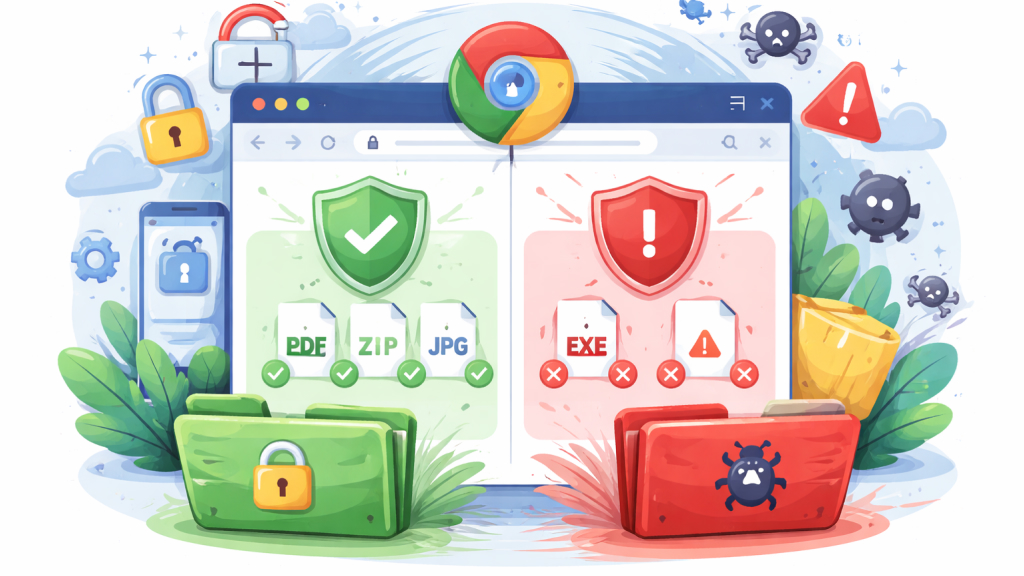
Chrome’s automatic download control strikes a balance between convenience and security. Legitimate sites, such as online editors or cloud storage platforms, may need to download several related files at once (e.g., a ZIP archive split into parts or multiple report PDFs). Without permission, these processes get interrupted, forcing manual intervention.
On the flip side, malicious actors exploit this behavior. A site might trick you into downloading one harmless file, then silently trigger others containing malware. Chrome’s prompt acts as a barrier, it notifies you with a message like “This site is attempting to download multiple files” and requires explicit approval.
Disabling the feature entirely blocks all such attempts without prompts, ideal for high-security environments or cautious users. Allowing it (with prompts) suits power users who frequently work with batch downloads. Custom rules let you whitelist trusted domains or blacklist suspicious ones.
Keeping this setting optimized reduces risks from phishing, drive-by downloads, and exploit kits while avoiding frustration from overzealous blocking.
How to Access Automatic Downloads Settings in Chrome (Desktop)
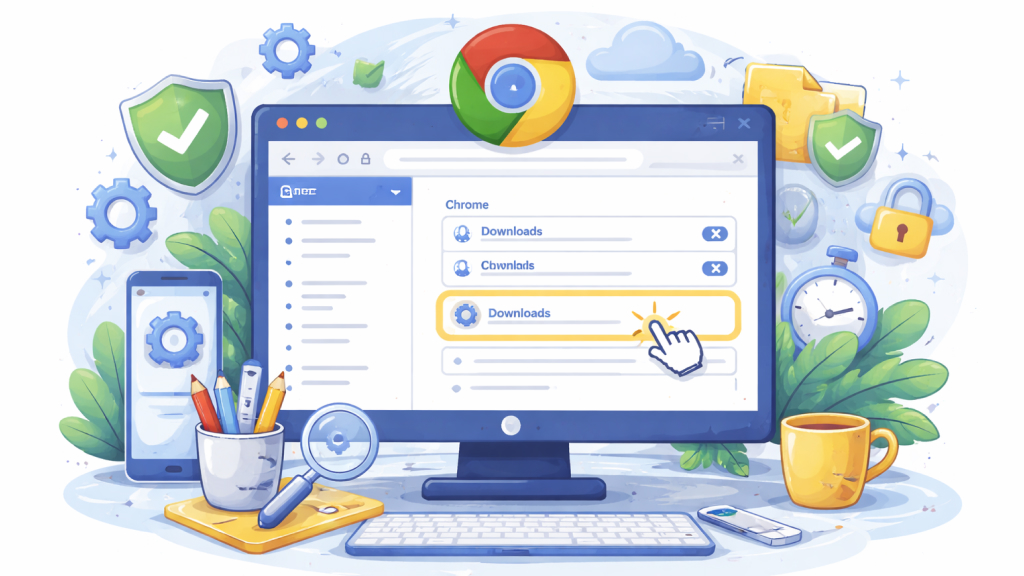
The following steps will guide you to the Automatic Downloads setting within Chrome.
- Open Google Chrome.
- Click the three-dot menu (⋮) in the top-right corner.
- Select Settings.
- In the left sidebar, click Privacy and security.
- On the right, click Site settings.
- Scroll to the Permissions section.
- Click Additional permissions (or expand it if needed).
- Select Automatic downloads.
You’ll now see the default behavior options and a Customized behaviors section for exceptions.
Option 1: Allow Multiple Downloads (with Confirmation)
Choose “Sites can ask to automatically download multiple files”. This is the recommended default for most users. When a site attempts successive downloads, Chrome displays a prompt or infobar. You can approve it once or choose “Always allow” for that site during the session.
Benefits:
- Maintains security through user confirmation.
- Supports legitimate batch downloads (e.g., from design tools, research databases, or e-commerce order exports).
After selecting this, test it on a trusted site that offers multi-file downloads. If the prompt appears, grant permission as needed.
Option 2: Block Multiple Automatic Downloads
Select “Don’t allow sites to automatically download multiple files”. This globally disables the ability for any website to trigger automatic successive downloads. Chrome will silently block attempts or limit to the first file only, without bothering you with prompts.
When to use this:
- On shared or public computers.
- If you frequently encounter suspicious sites.
- For users prioritizing maximum security over convenience.
This setting does not affect single-file downloads; it only applies to consecutive automatic downloads.
Managing Site-Specific Exceptions (Customized Behaviors)
Even with a global setting, you can create overrides:
- Allow specific sites (when global is set to block): Under Customized behaviors, click Add next to the Allowed to automatically download multiple files list.
- Block specific sites (when global is set to allow): Click Add next to the Not allowed (or Block) list and enter the URL similarly.
This per-site flexibility is powerful. For instance, allow multiple downloads from your company’s internal tools while keeping the global block active for general browsing. To edit or remove an exception, click the three dots next to the entry and select Delete or Edit.
Fixing Blocked Multiple Downloads
If a download gets blocked mid-process:
- Look for a blocked download icon (often a shield or download arrow with a slash) in the address bar or near the downloads bar.
- Click it.
- Select “Always allow [site] to download multiple files” or “Allow once”.
- Confirm with Done.
This adds the site to your allowed list temporarily or permanently. For recurring issues, revisit the Automatic downloads settings and add it manually.
Stopping Active or Queued Multiple Downloads
If multiple downloads have already started:
- Press Ctrl + J (Windows/Linux) or Cmd + J (Mac) to open the Downloads page.
- Review the list of active, queued, or paused items.
- Click Cancel all at the top to stop everything at once.
- Alternatively, cancel individual files using the X icon next to each.
You can also pause/resume downloads here and clear history if needed. For frequent bulk operations, consider Chrome extensions like “Download Manager.”
Additional Chrome Download Best Practices
- Safe Browsing Integration: Chrome’s Enhanced Safe Browsing (under Privacy and security > Security) helps block known malicious downloads automatically. Keep it enabled.
- Ask Where to Save Files: In Settings > Downloads, toggle this on for more control over file locations.
- Clear Auto-Open Preferences: If files open automatically after download (a separate feature), go to Downloads settings and click Clear next to “Open certain file types automatically after downloading.”
- Update Chrome Regularly: New versions often refine security features, including download protections. Check via the three-dot menu > Help > About Google Chrome.
- Use Incognito for Testing: Experiment with settings in an Incognito window to avoid affecting your main profile.
Combine these with a good antivirus and cautious browsing habits for layered protection.
How to Manage Multiple Downloads on Chrome for Android/iOS (Mobile)
Managing multiple downloads on Chrome for mobile is similar to the desktop version, but the interface is more streamlined:
- Open the Chrome app.
- Tap the three-dot menu (⋮) at the top-right.
- Select Settings.
- Tap Site settings (under Advanced or directly visible).
- Scroll to find Automatic downloads (it may appear under Permissions or Additional content settings).
- Toggle between Ask first (or “Sites can ask…”) and Off (block).
For site exceptions on mobile, the interface may limit options, and use desktop Chrome synced via your Google account for finer control. On Android, you can also manage downloads via the phone’s Downloads app or Chrome’s built-in Downloads section (chrome://downloads).
If a site prompts for multiple files on mobile, approve via the notification or infobar. Blocking globally prevents background multi-downloads that could consume data or battery.
Tip for Mobile Users: Enable “Ask where to save files” if available, and monitor data usage since multiple downloads can add up quickly on cellular networks.
Common Issues and Troubleshooting
-
Downloads Still Blocked Despite Correct Settings
If multiple downloads continue to be blocked even after enabling the correct option, the issue may be related to stored browser data or extensions. Start by clearing cache and cookies in Google Chrome, then restart the browser to refresh all processes.
If the problem persists, check your installed extensions by navigating to chrome://extensions/ and disable them one at a time. Some security or download manager extensions can interfere with Chrome’s built-in permissions.
-
No Prompt Appears for Multiple Downloads
In some cases, you may not see any prompt when a site attempts multiple downloads. This often happens because the website uses a different method, such as bundling files into a single compressed ZIP file. Since this counts as one download instead of multiple, Chrome does not trigger the automatic download permission prompt.
-
Trusted Websites Being Blocked
Occasionally, legitimate platforms like Google Drive or Dropbox may trigger Chrome’s restrictions. If you trust the website, you can manually add it to the “Allowed” list in your settings. This ensures smoother downloads without repeated interruptions.
-
Restrictions in Work or School Environments
If you’re using a managed device, your settings may be controlled by your organization through tools like Google Workspace. In such cases, certain permissions, including automatic downloads, may be locked or overridden. You’ll need to contact your system administrator to make any changes.
-
Outdated Chrome Version
Using an older version of Google Chrome can sometimes lead to missing features or slightly different navigation paths. Updating to the latest version ensures you have access to the most current settings, improved security, and a smoother overall experience.
When Are Multiple Downloads Useful?
While multiple automatic downloads can pose security risks, the feature is not inherently harmful. In many legitimate situations, it proves highly convenient and time-saving. It becomes especially useful when you need to:
- Download multiple images or documents in one go
- Export several files from cloud storage platforms like Google Drive or Dropbox
- Use online file conversion tools that generate multiple output formats
- Save project assets, templates, or resource packs in bulk
In these scenarios, allowing multiple downloads streamlines your workflow and reduces repetitive clicks, making browsing more efficient without unnecessary hassle.
Best Practices for Managing Automatic Downloads
While Chrome gives you strong control over multiple downloads, following a few smart habits can significantly enhance your safety and browsing experience.
-
Stick to Trusted Websites
Only allow automatic multiple downloads from reputable and well-known sites. Avoid granting permission to unfamiliar or suspicious websites.
-
Be Cautious with Download Prompts
Never click on download prompts from questionable links or pop-ups. When in doubt, it’s safer to decline.
-
Keep Chrome Updated
Always use the latest version of Chrome to benefit from the newest security improvements and bug fixes.
-
Review Permissions Regularly
Periodically check your allowed and blocked sites in the Automatic downloads settings and remove any outdated or unnecessary entries.
-
Layer Your Security
Combine Chrome’s settings with reliable antivirus software for better protection against malicious files.
By following these best practices, you can enjoy the convenience of bulk downloads while keeping your device and data secure.
Controlling multiple downloads in Google Chrome is a simple yet powerful way to improve both your browsing experience and security. Whether you want to completely block automatic downloads or allow them only for trusted websites, Chrome gives you full control in just a few clicks.
The key is to strike the right balance, stay cautious with unknown websites while allowing flexibility for the tools and platforms you use regularly. By taking a few minutes to configure these settings, you can prevent unwanted downloads, protect your device, and enjoy a smoother browsing experience.










