


Windows has never been short on features, but not all of them make a great first impression. Over the years, Microsoft has introduced countless tools that many users quickly dismissed as unnecessary, overly complicated, or simply gimmicky. Some looked like experimental additions designed to chase trends, while others felt like features nobody had actually asked for. As a result, most people ignored them entirely or disabled them after a few minutes of use.
But surprisingly, some of those overlooked tools have evolved into genuinely useful parts of the Windows experience. Features like virtual desktops, voice typing, clipboard history, and the Widgets panel now offer practical benefits that can improve productivity, multitasking, file management, and even everyday convenience. In many cases, the problem was never the feature itself, it was that people either underestimated it or never gave it a proper chance.
Let’s look at Windows features that once felt unnecessary but have since proven to be genuinely useful.
1. Widgets Panel
When Microsoft introduced the Widgets panel in Windows 11, many users dismissed it almost immediately. At launch, it mostly felt like a cluttered feed full of news headlines, weather updates, and content people never actually asked for. For a lot of users, it looked more like another distraction than a genuinely useful productivity feature. As a result, many disabled it and never looked back.
But over time, Microsoft improved the experience, and the Widgets panel has become far more useful than most people realize.
One of the biggest improvements is the ability to customize. Users are no longer stuck with only Microsoft-focused content, as support for third-party widgets has expanded significantly. More importantly, the Microsoft Start news feed can now be minimized or disabled entirely, making the interface feel cleaner and less overwhelming.
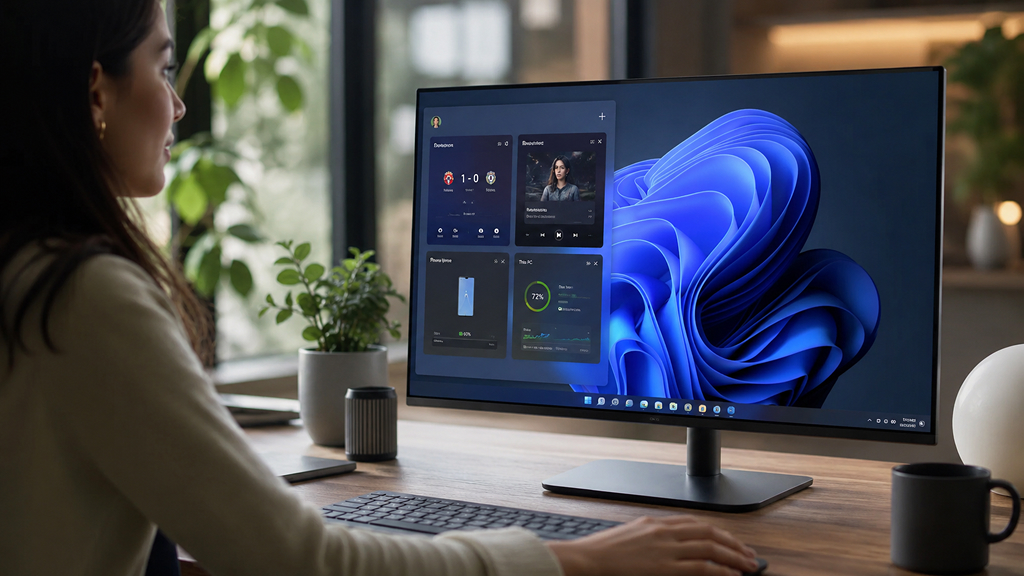
Instead of acting like a random news page, the Widgets panel can now work as a compact dashboard for useful information. Sports fans can track live scores without keeping browser tabs open all day. Spotify widgets make it easier to jump directly into playlists and recommendations. The Phone Link widget provides quick access to smartphone notifications, battery percentage, and connection status without needing to check a phone constantly.
There are also system-focused widgets that turn out to be surprisingly handy. The PC Manager widget, for example, can display RAM usage and offer one-click memory cleanup when the system starts slowing down.
Another reason the feature works well is accessibility. Pressing Win + W instantly opens the panel from anywhere in Windows, making it feel more integrated into daily workflows instead of something buried inside settings menus.
2. God Mode
Despite its dramatic name, God Mode isn’t some secret hack that unlocks hidden powers inside Windows. It’s simply a special folder that gathers hundreds of Windows settings and administrative tools into one searchable location. And surprisingly, most Windows users have no idea it even exists.
God Mode has been around since the Windows Vista days, yet Microsoft has never properly advertised it. God Mode feels even more valuable on modern versions of Windows. While the newer Settings app looks cleaner than the old Control Panel, it also spreads options across multiple categories and submenus.
Even simple tasks often require several unnecessary clicks. Adding printers, adjusting power settings, accessing backup tools, or opening advanced networking options can sometimes feel more complicated than they should be.
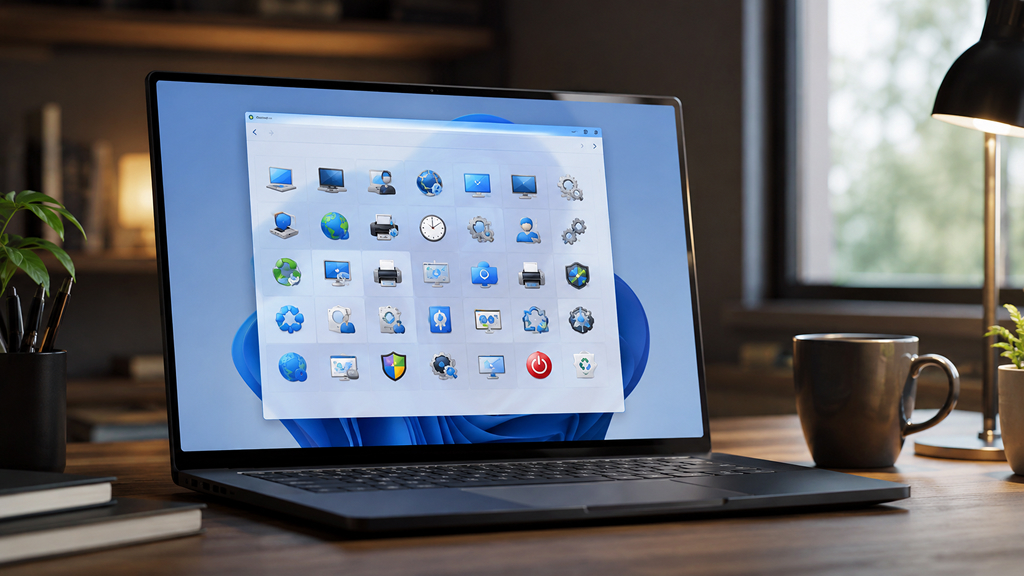
Once God Mode is enabled, it creates a folder containing more than 200 shortcuts to various Windows tools and settings. Everything is neatly grouped into categories like Administrative Tools, Backup and Restore, Devices and Printers, Power Options, Networking, and Security. Instead of navigating through layers of menus, users can simply open one folder and access everything directly.
The built-in search bar also makes the experience surprisingly efficient. Typing keywords instantly filters relevant settings, which makes troubleshooting and system management significantly faster.
Enabling God Mode only takes a few seconds:
- Right-click on the desktop
- Select New > Folder
- Rename the folder
As soon as the name is applied, the folder icon changes automatically and the feature becomes active.
What makes God Mode so useful is not that it adds new functionality, but that it removes unnecessary steps from tasks people already perform regularly. It’s one of the simplest yet most underrated Windows features, and once you start relying on it, the standard Settings app can feel unnecessarily slow by comparison.
3. Voice Typing
Voice typing is one of those Windows features many users assume is more of a novelty than a serious productivity tool. For years, speech-to-text software had a reputation for being slow, inaccurate, and frustrating to use, which made a lot of people avoid it entirely. But Windows voice typing has improved dramatically over time, and it’s now one of the most underrated features built into the operating system.
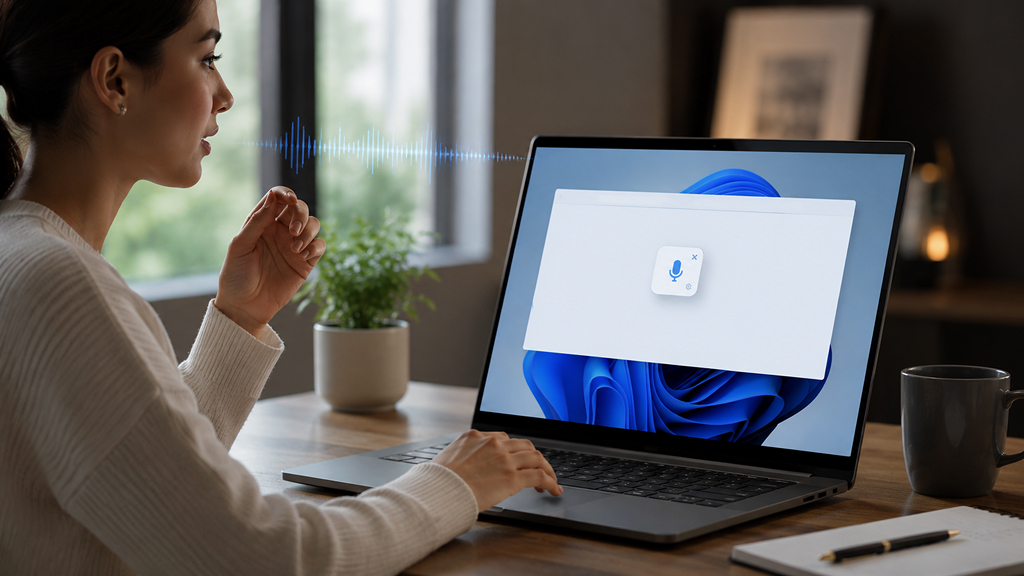
To get started, you need to press Win + H. This will open a small floating microphone panel anywhere inside Windows. From there, users can start speaking naturally while Windows converts speech into text almost instantly.
What makes the feature genuinely impressive is how accurate it has become. Modern voice typing in Windows handles punctuation surprisingly well, understands context better than expected, and can keep up with conversational speech without constantly making errors. It no longer feels like a clunky accessibility feature, it feels like a legitimate alternative to typing.
Another reason voice typing is so useful is its flexibility. It works across most applications, including browsers, note-taking apps, documents, chat windows, and even search bars. If there’s a text field available, there’s a good chance voice typing will work there too.
The multilingual support also deserves attention, wherein Windows supports more than 50 languages. That makes the feature especially useful for multilingual users who regularly switch between different keyboard layouts while typing.
Voice typing also includes spoken formatting commands. Saying phrases like “comma,” “period,” or “new line” automatically structures text correctly, making dictation feel far more natural during longer writing sessions.
While traditional typing will always feel faster for some users, voice typing can be highly effective for drafting notes, responding to messages, brainstorming ideas, or simply reducing strain during long work sessions.
4. Windows Hello
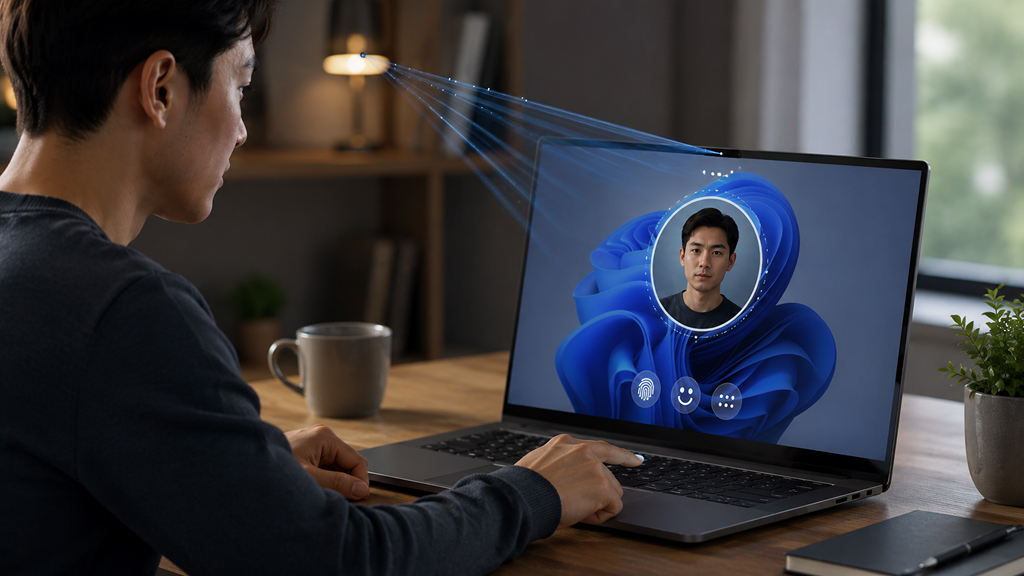
Security features are often seen as necessary inconveniences. Strong passwords, two-factor authentication, and repeated login prompts usually improve protection at the cost of convenience. That’s why many users initially dismissed Windows Hello as just another unnecessary Windows feature when Microsoft introduced facial recognition and PIN-based sign-ins.
But over time, Windows Hello has become one of the most practical security features built into modern Windows PCs.
At its core, Windows Hello is designed to make logging into a device both faster and more secure. Instead of typing long passwords every time a PC wakes up or restarts, users can unlock their system using facial recognition, fingerprint scanning, or a device-specific PIN.
The biggest advantage is speed. On supported laptops and desktops, facial recognition works almost instantly. Users simply sit in front of the screen, and Windows unlocks automatically within seconds. Fingerprint readers offer a similarly seamless experience, especially on modern ultrabooks and business laptops.
What makes Windows Hello particularly underrated is that it’s not just about convenience. In many ways, it’s actually more secure than traditional passwords. Biometric data used for facial recognition and fingerprints is stored locally on the device rather than being sent online, reducing the risk of remote credential theft.
The PIN system also works differently from regular passwords. A Windows Hello PIN is tied specifically to a single device, meaning even if someone discovers the PIN, it cannot simply be reused on another system or online account.
Another reason the feature feels so useful is frequency. Logging into a computer is something users do countless times throughout the week. Even saving a few seconds each time adds up quickly, making the overall Windows experience feel smoother and less frustrating.
Windows Hello may not look particularly impressive on paper, yet regular use quickly makes traditional password logins feel outdated and unnecessarily slow. It’s one of those underrated Windows features that improves everyday life without demanding much attention.
5. Virtual Desktops
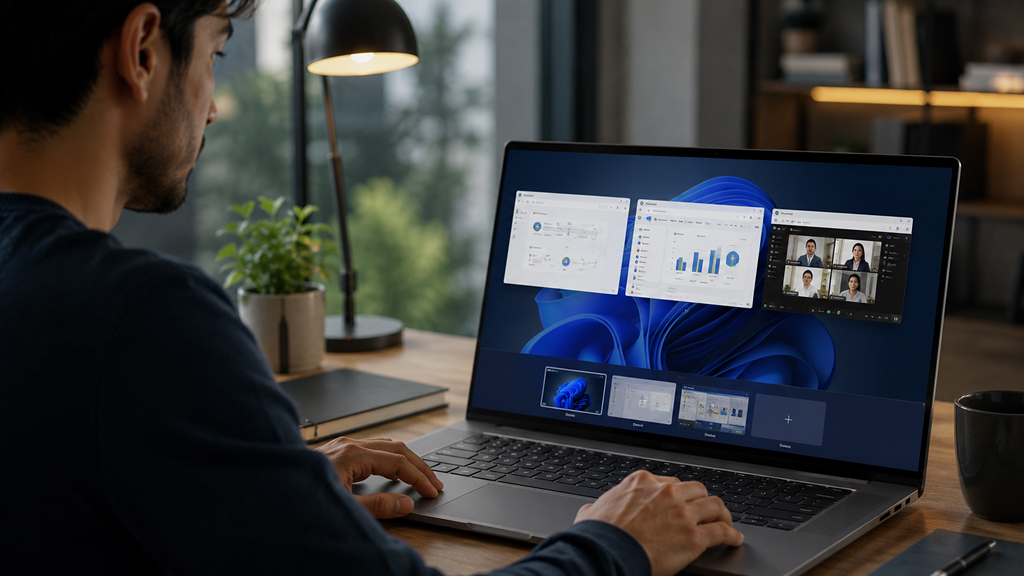
Virtual Desktops are one of those Windows features many people notice but rarely use properly. Most users see the Task View button on the taskbar, click it once or twice, and then forget it exists. At first glance, managing multiple desktops can feel unnecessary, especially when minimizing windows already seems good enough.
But once keyboard shortcuts enter the picture, Virtual Desktops become surprisingly useful. Using Windows + Ctrl + Left Arrow and Windows + Ctrl + Right Arrow allows users to switch between desktops instantly, making multitasking feel far more organized. Instead of cramming every app, browser tab, and document onto a single screen, users can separate workspaces by purpose.
One desktop can hold writing apps and documents, another can handle communication tools like Slack or WhatsApp, while a third can be reserved for entertainment, music, or YouTube. This separation reduces clutter and makes switching between tasks feel much cleaner.
Virtual Desktops are especially useful on laptops, where screen space is limited. Instead of buying another monitor, users can create separate digital workspaces inside Windows itself.
The feature may not look exciting during demonstrations, but once integrated, Virtual Desktops become one of the simplest ways to reduce distractions and improve productivity on Windows.
6. Snipping Tool OCR
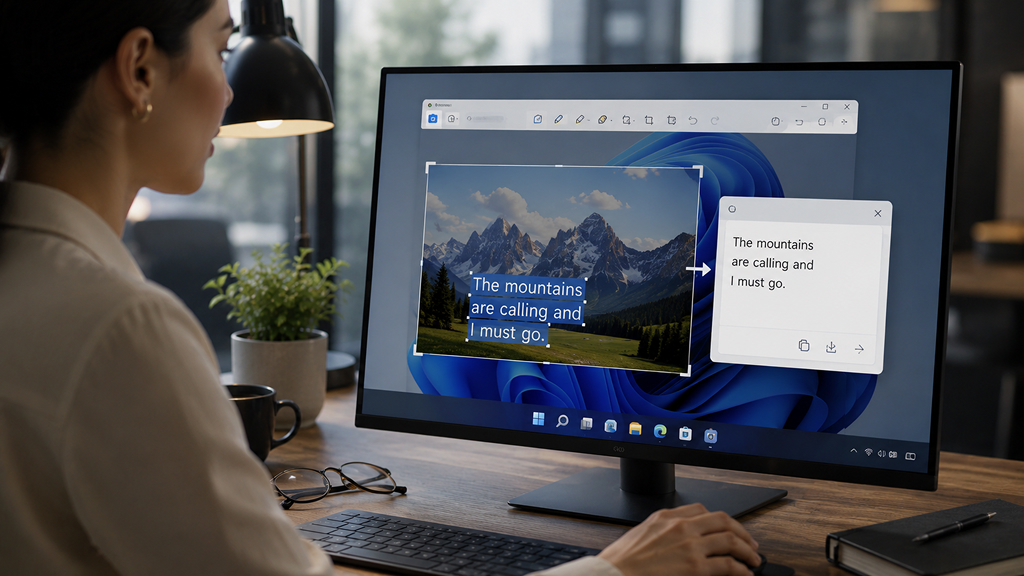
For years, the Snipping Tool was simply a basic screenshot utility built into Windows. It worked well enough for capturing images, but most users never considered it anything more than a simple convenience feature. That changed once Microsoft added OCR (Optical Character Recognition) capabilities to the Snipping Tool in Windows 11. Now, the feature can extract text directly from screenshots.
Using it is surprisingly simple. Press Windows + Shift + S to capture a portion of the screen, then open the screenshot preview inside the Snipping Tool. From there, clicking the Text actions button allows Windows to automatically detect and copy text from the image.
This becomes incredibly useful in everyday situations. Users can quickly copy text from PDFs, presentations, images, videos, or apps that normally block text selection. Instead of manually typing everything out, Windows instantly converts screenshots into editable text.
What makes the feature particularly underrated is how accurate and convenient it feels. It transforms screenshots from static images into usable information.
The Snipping Tool also includes screen recording support now, making it even more capable for tutorials, presentations, and troubleshooting. Regular use of OCR quickly turns it into one of the most useful productivity tools hidden inside Windows 11.
7. Clipboard History
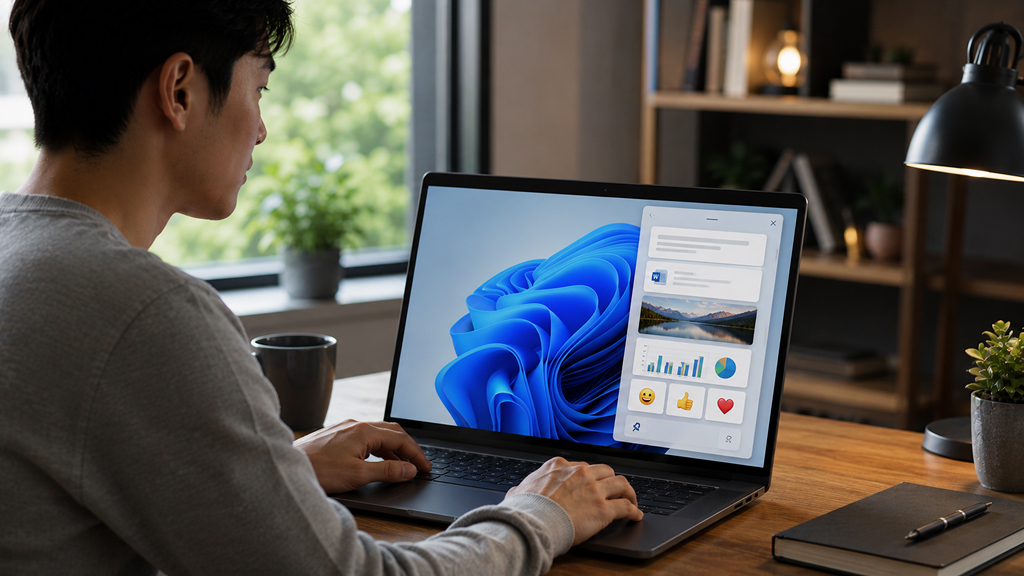
Most people use copy and paste countless times every day, yet very few realize Windows has a built-in Clipboard History feature that makes the entire process far more powerful. By default, copying something normally replaces whatever was previously stored in the clipboard, which means older copied items are instantly lost. Clipboard History changes that completely.
Pressing Windows + V opens a panel that stores previously copied text, links, and even images. Instead of relying on a single clipboard entry, users can scroll through a history of copied content and paste older items whenever needed.
It may sound like a small upgrade, but it becomes incredibly useful during multitasking. Whether copying links, transferring text between documents, saving frequently used replies, or managing research notes, Clipboard History removes the frustration of constantly re-copying information.
Another underrated feature is the ability to pin important clipboard items. Frequently used text snippets, email templates, passwords, or links can remain permanently accessible even after restarting the PC.
Windows also integrates an emoji picker directly into the same experience. Pressing Windows + Period instantly opens an emoji search menu where users can quickly find emojis, symbols, and GIFs.
Clipboard History is one of those features that improves daily productivity without demanding much attention. Once enabled, it quickly becomes difficult to imagine using Windows without it.
8. File Explorer Tabs
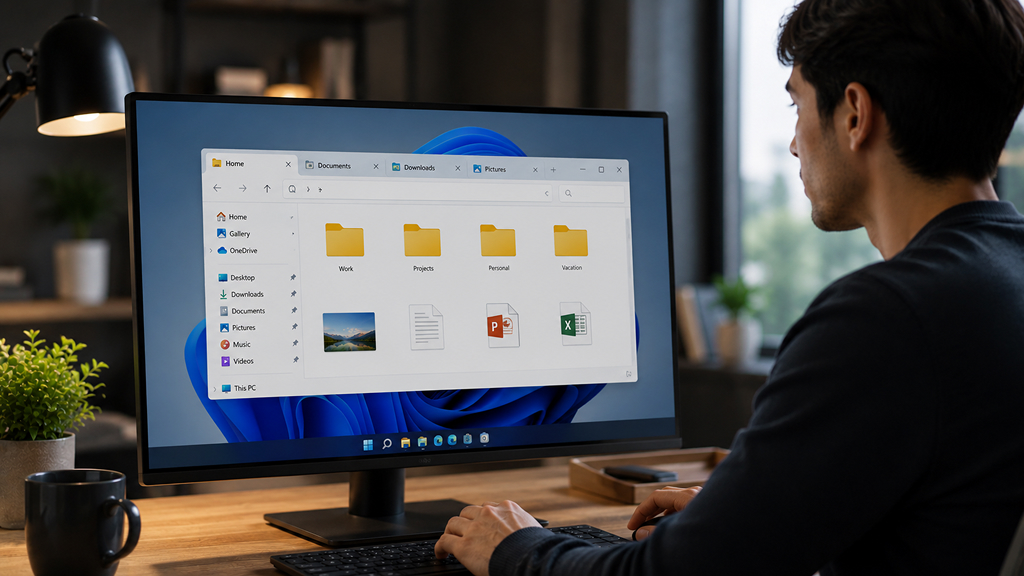
For a long time, one of the biggest limitations of Windows File Explorer was the lack of tabs. Users had to open multiple Explorer windows just to manage different folders, which quickly became messy and difficult to organize. That’s why third-party file manager apps became so popular over the years. But with Windows 11, Microsoft finally added tabs to File Explorer, and surprisingly, many users still don’t take full advantage of them.
Once the feature becomes part of a regular usage, it dramatically improves file management. Instead of cluttering the desktop with multiple windows, tabs allow users to keep several folders open inside a single File Explorer window. Downloads, documents, external drives, project folders, and cloud storage directories can all stay organized neatly in one place.
The feature also includes useful shortcuts that many people overlook. Middle-clicking a folder automatically opens it in a new tab, much like a modern web browser. Users can also switch between tabs quickly using Ctrl + Tab, making navigation feel faster and more natural.
File Explorer tabs make multitasking significantly cleaner and more efficient. Once users get used to them, going back to the old multiple-window workflow feels unnecessarily outdated and cluttered.
9. Nearby Sharing
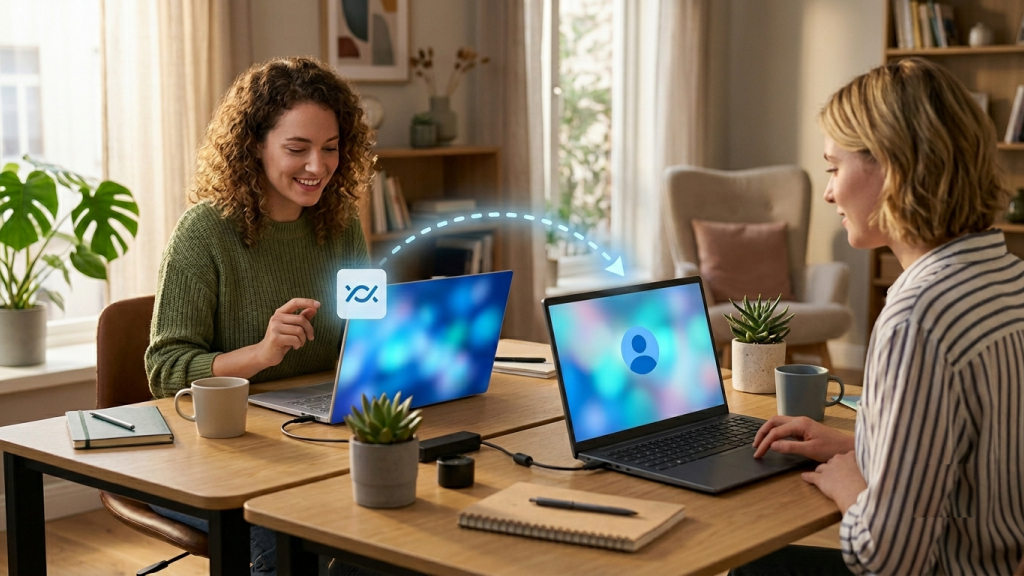
Transferring files between Windows PCs usually involves cloud storage, USB drives, messaging apps, or emailing files to yourself. That’s why many people overlook Nearby Sharing, assuming it’s either unreliable or too limited to be useful. But surprisingly, Nearby Sharing is one of the most convenient built-in features Windows users are probably ignoring.
The feature works similarly to Apple’s AirDrop, allowing users to wirelessly send files, photos, links, and documents between nearby Windows computers without needing cables or third-party apps.
Setting it up is simple. Users just need to open Settings > System > Nearby sharing, enable the feature, and choose who can send files to the device. Once enabled, sharing becomes incredibly straightforward. Right-clicking a file and selecting Share automatically displays nearby compatible PCs available for transfer.
What makes Nearby Sharing especially useful is how quickly and easily files move between devices. Small files transfer almost instantly over Bluetooth and Wi-Fi, making it perfect for quickly moving screenshots, documents, presentations, or media between devices.
The feature is particularly handy for people who own multiple Windows laptops or desktops. Instead of relying on cloud uploads or external drives, files can move directly between systems in seconds.
Nearby Sharing may not receive much attention compared to other Windows features, but in real-world use, it quickly proves itself as one of the easiest ways to transfer files across Windows devices.
10. PowerToys Advanced Paste
Microsoft PowerToys is packed with useful utilities for advanced Windows users, but one of its most underrated features is Advanced Paste. At first glance, it may feel like a minor upgrade to the standard copy-and-paste system, but its value becomes clear once you start using it regularly.
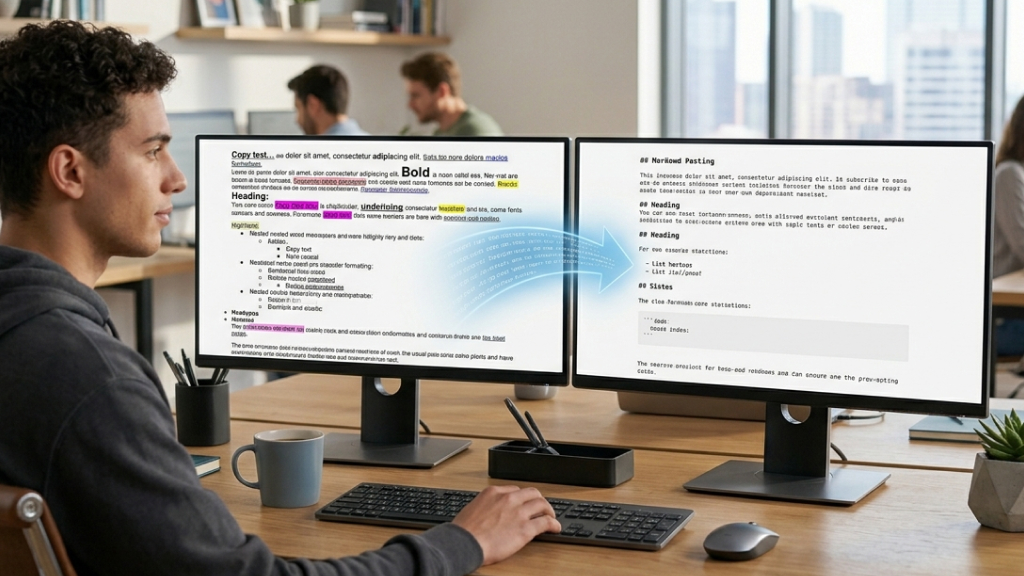
After installing PowerToys, pressing Windows + Shift + V opens the Advanced Paste menu. Instead of simply pasting copied content normally, users get several additional formatting options that can save a huge amount of time during everyday work.
One of the standout features is Paste as Markdown. This is especially useful for writers, developers, bloggers, and anyone who works with formatted text across multiple platforms. Users can copy content from Microsoft Word, websites, or rich text editors and instantly convert it into clean Markdown formatting while preserving structure like headings, lists, and links.
Advanced Paste can also strip unwanted formatting from copied text, making it much easier to move content between apps without dragging along messy fonts, colors, or layouts.
What makes the feature so useful is that it removes tiny frustrations people deal with constantly while working on Windows. PowerToys Advanced Paste becomes one of those tools users wonder how they ever lived without.
11. Snap Assist
Most Windows users are familiar with basic window snapping shortcuts like dragging a window to the edge of the screen or pressing Windows + Left Arrow to quickly position apps side by side. But Windows 11 made multitasking far more advanced with Snap Assist, and surprisingly, many users still overlook it.
Snap Assist takes traditional window snapping and turns it into a much smarter workspace management tool.
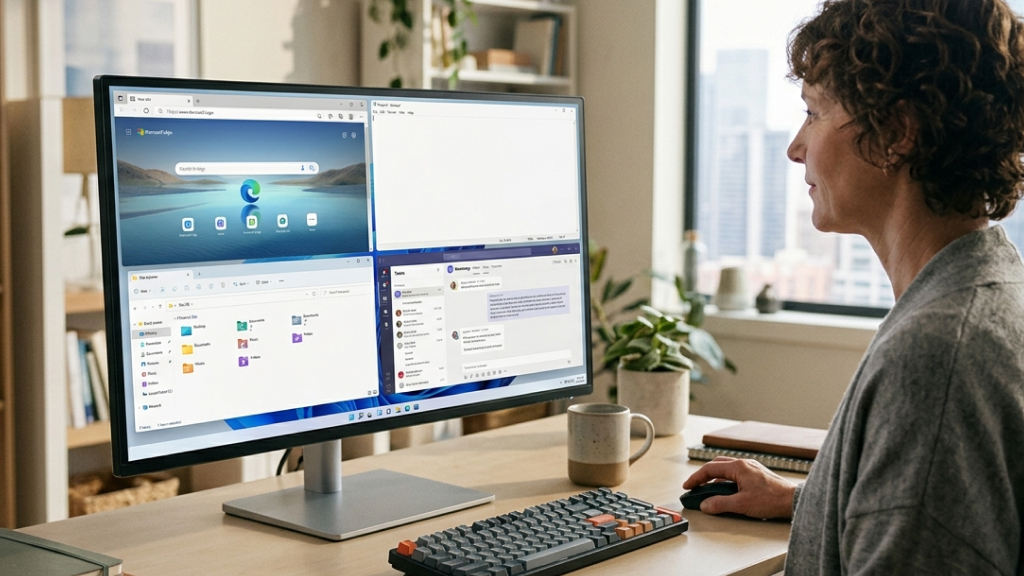
Pressing Windows + Z opens a collection of predefined layout templates that allow users to arrange apps across the screen in different configurations. Depending on the monitor size, Windows offers multiple layouts designed for productivity, including side-by-side windows, three-column setups, and larger multi-window grids.
What makes the feature especially useful is how intelligently it works. After selecting a layout, Windows automatically suggests other open apps to fill the remaining spaces, reducing the need to manually resize and arrange everything.
Snap Assist becomes particularly valuable on ultrawide or high-resolution monitors where multitasking can otherwise feel messy. Browsers, chat apps, notes, spreadsheets, and media players can all stay organized without overlapping windows cluttering the desktop, and as it becomes part of regular usage, it quickly turns into one of the most useful productivity tools built into Windows 11.
12. Storage Sense
Most people only think about storage management when Windows starts warning them about low disk space. By that point, the desktop is usually cluttered with unnecessary files, the Downloads folder is overflowing, and the Recycle Bin has turned into long-term storage. That’s exactly the kind of problem Storage Sense is designed to prevent.
Storage Sense is a built-in Windows feature that automatically cleans unnecessary files in the background, helping keep the system organized without requiring constant manual maintenance.
Users can find it under Settings > System > Storage > Storage Sense, where Windows offers several automatic cleanup options. The feature can remove temporary files, clear cached system data, empty the Recycle Bin after a selected number of days, and even delete old files from the Downloads folder if desired.
What makes Storage Sense useful is how quietly it works. Instead of forcing users to remember cleanup routines manually, Windows handles maintenance automatically in the background.
The automatic Recycle Bin cleanup feature is especially handy. Many users delete files but rarely empty the bin afterward, which means storage space slowly disappears over time. Storage Sense can handle that automatically after 30 days or any chosen interval. Storage Sense improves system maintenance and helps prevent unnecessary storage problems before they become frustrating.










