


Mobile data keeps you connected when Wi-Fi isn’t available, but it can also become expensive if you’re not paying attention. Streaming videos, scrolling through social media, downloading apps, and even background processes can quietly consume large amounts of data.
If you’ve ever received a warning about exceeding your data limit or noticed slower speeds toward the end of your billing cycle, it’s a clear sign that tracking your usage is essential. Both smartphones and mobile carriers provide built-in tools that make it easy to monitor your data consumption.
Whether you’re using an iPhone, an Android device, or relying on your carrier’s app, checking your data usage is quick and easy. Discover how to keep tabs on your data usage and manage it efficiently without exceeding your limits.
Why You Should Monitor Your Data Usage
Keeping an eye on your data usage isn’t just about avoiding extra charges, it also helps you understand how your phone works and how your habits affect consumption. Here’s why it matters:
- Prevent unexpected overage fees
- Identify apps that consume excessive data
- Optimize battery performance
- Manage family or multi-line plans more effectively
- Stay within your monthly data limit
Even if you have an “unlimited” plan, many carriers reduce speeds after a certain threshold, making monitoring just as important.
How to Check Data Usage on Your Phone
Your smartphone itself is the easiest place to start. Both iPhones and Android devices include built-in tools that show how much data you’ve used and which apps are responsible.
How to Check Data Usage on iPhone
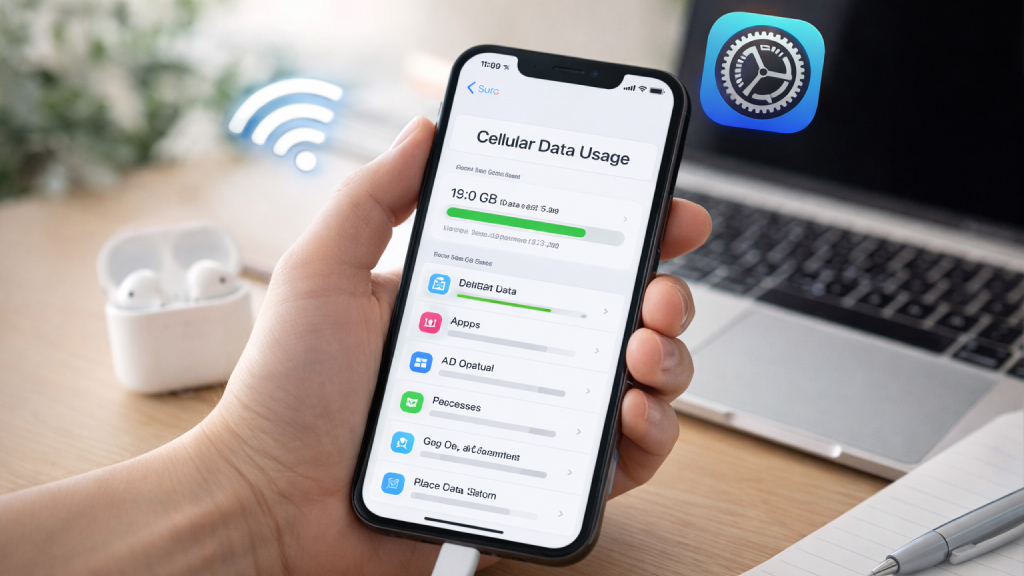
Apple makes it simple to monitor your mobile data usage directly from the Settings app.
Steps to check data usage on iPhone:
- Open Settings
- Tap Cellular (or Mobile Data)
- Scroll down to the Cellular Data section
- Look at Current Period to see total data usage
You’ll also find a detailed list of apps and how much data each one has used.
Important tips:
- The “Current Period” does not reset automatically with your billing cycle
- You can scroll down and tap Reset Statistics to manually restart tracking
- This helps you align tracking with your monthly plan
While this method works well for individual devices, it won’t show combined usage if you’re part of a family or shared plan.
How to Check Data Usage on Android Phones
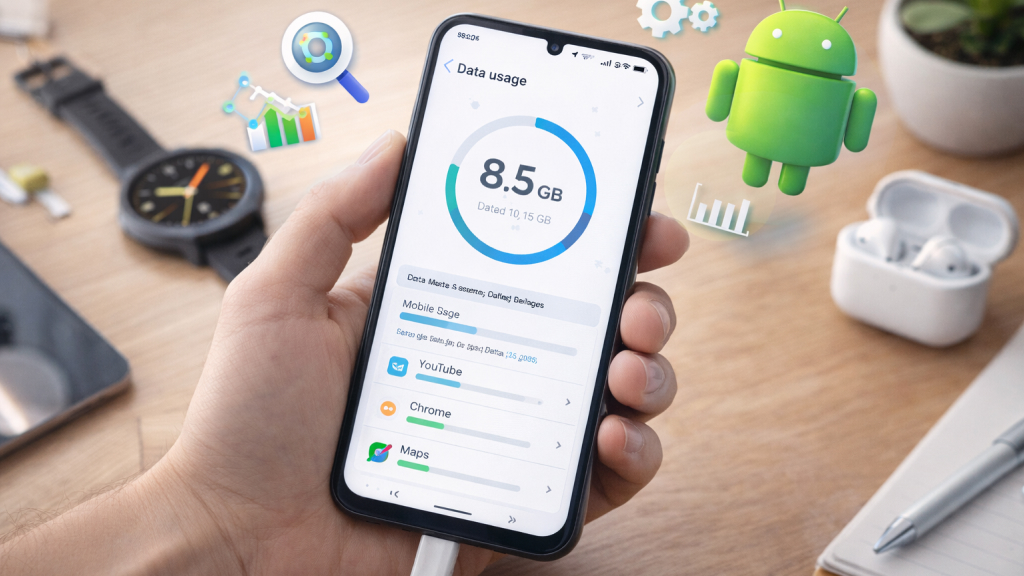
Android devices offer even more detailed insights, though the steps may vary slightly depending on the brand (Samsung, Pixel, OnePlus, etc.).
General steps
- Open Settings
- Tap Network & Internet (or Connections)
- Select Data Usage
- Tap Mobile Data Usage
You’ll see:
- Total data used during a selected period
- A graph showing usage trends
- A breakdown of data consumption by app
On Samsung devices
- Open Settings
- Tap Connections
- Select Data Usage
- Tap Mobile Data Usage
Samsung devices display a detailed graph along with app-level usage insights.
How to Set Data Warnings and Limits on Android
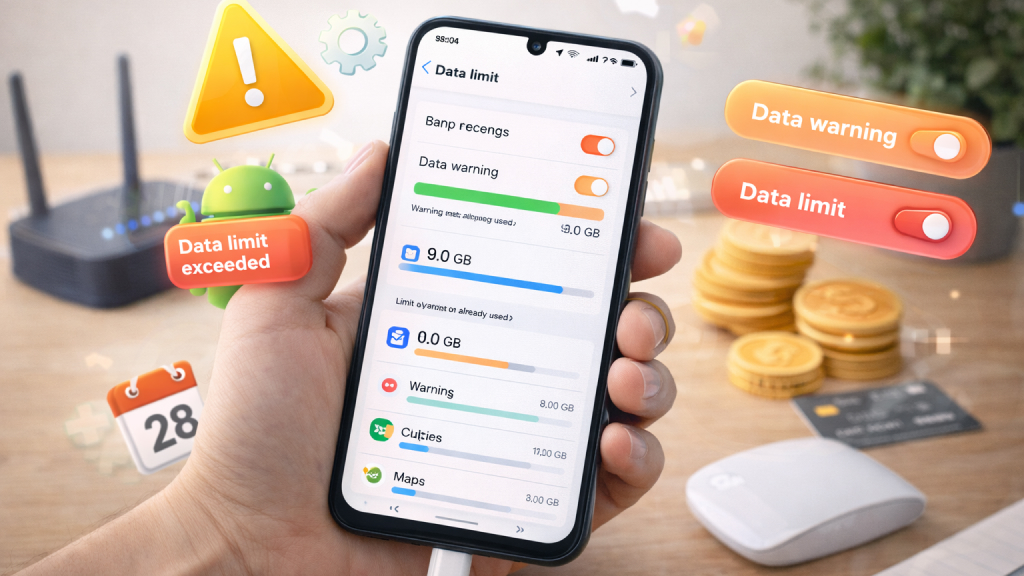
One of Android’s most useful features is the ability to set alerts and limits for data usage.
To set a data warning:
- Go to Settings → Network & Internet → Data Usage
- Tap Data Warning & Limit
- Enable Set Data Warning
- Enter your preferred limit
You’ll receive a notification when you approach this threshold.
To set a hard data limit:
- Enable Set Data Limit
- Enter the maximum data allowed
- Once reached, mobile data will automatically turn off
This is helpful if you want to avoid going over your plan entirely.
How to Check Data Usage Through Your Carrier
While your phone shows device-level usage, your carrier provides the most accurate data, especially for shared or family plans. Here’s how to check usage with major carriers:
1. AT&T
AT&T provides several easy options to help you monitor your data usage.
- You can quickly dial *DATA# or *3282# to receive a usage summary via text (For Spanish, dial *3286#)
- For a more detailed overview, the myAT&T app allows you to track your data usage, check billing cycles, and manage your account all in one place.
You can also set up alerts to get notified when you approach your data limits, helping you avoid overage charges.
2. Verizon
Verizon makes it easy to monitor your data usage with a few simple options.
- You can dial #3282 to receive a quick text message summarizing your current usage.
- For more detailed insights, use the My Verizon app and go to Account → Usage → Usage Overview.
Like AT&T, the Verizon app lets you set usage alerts, control data limits, and activate Safety Mode, which helps avoid extra charges by slowing speeds once you reach your data allowance.
3. T-Mobile
T-Mobile provides simple ways to stay on top of your data usage.
- You can dial #932# to instantly receive a summary of your current usage via text.
- You can also open the T-Mobile app and navigate to Account → Plans and Usage Details → Usage.
The app also shows your data consumption and plan details, while automatic alerts notify you when you reach 80% and 100% of your monthly data limit.
4. Xfinity
Xfinity allows you to track your data usage through both its website and mobile app.
- Log in to your account online and navigate to the Devices section to view an overview of your data consumption.
- Alternatively, open the Xfinity app, go to Account → Data Usage
You can now view and check your monthly totals along with past usage history, helping you monitor trends and manage your data more effectively.
5. Cricket Wireless
Cricket Wireless makes it simple to monitor your data usage through both its website and mobile app.
- You can log in to your account online and navigate to the Usage section to view your current data consumption.
- Alternatively, the myCricket app provides an easy way to track usage on the go.
Even with unlimited plans, keeping an eye on your data is important, as speeds may be reduced after reaching certain thresholds during network congestion.
6. Boost Mobile
Boost Mobile offers convenient tools to help you stay on top of your data usage. You can log in to your account online or use the Boost Mobile app to monitor your data consumption, along with call and message activity. The app provides real-time insights into your usage and sends alerts as you approach your high-speed data limit, helping you manage your plan and avoid unexpected slowdowns.
Why Your Phone Uses So Much Data
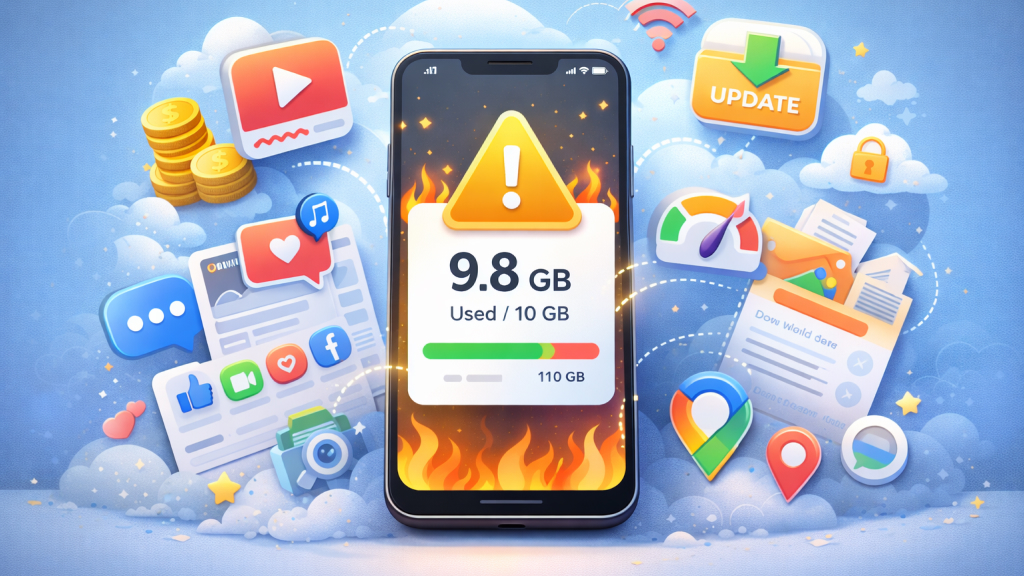
If your mobile data seems to run out faster than expected, your daily habits are often the main reason. Common data-heavy activities:
- Streaming videos in HD or 4K consume large amounts of data in a short time
- Social media apps with autoplay features continuously load videos in the background.
- Video calls and online meetings also use significant data, especially at higher quality settings.
- Background app refresh, automatic updates, and cloud backups can quietly drain data without you actively using your phone.
Together, these processes make streaming platforms and social media apps some of the biggest contributors to high data usage. In general, whenever you’re not connected to Wi-Fi, your phone depends on mobile data for almost everything, from browsing websites and sending emails to using apps like navigation, banking, or ride-sharing.
Streaming music and videos further add to this usage. Since many apps continue running in the background, they can steadily consume data throughout the day. Combined, these factors make streaming services, social media platforms, and background app activity some of the biggest contributors to high data usage on any smartphone.
What Is Android Data Saver?
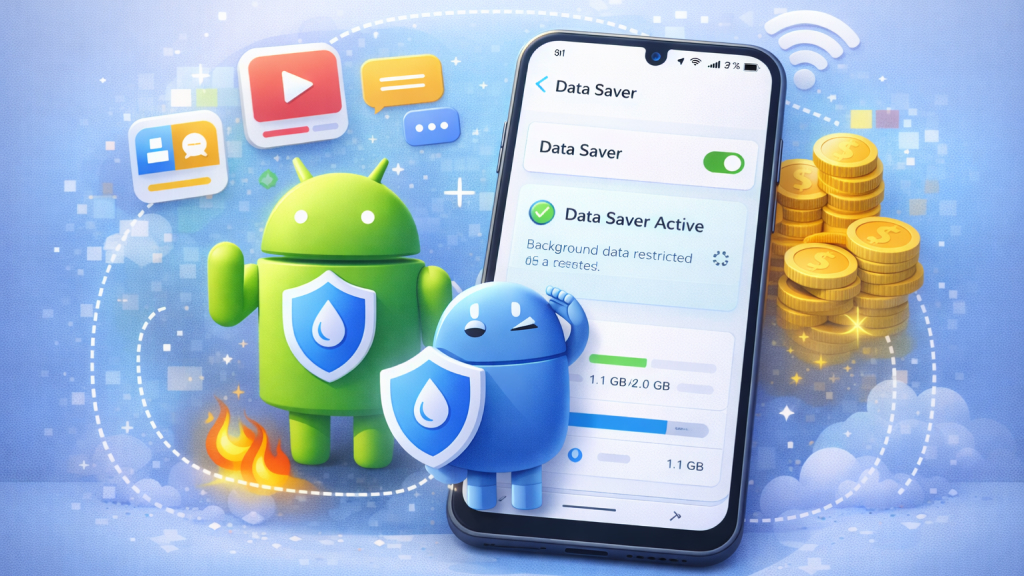
Android includes a built-in feature called Data Saver, designed to help you reduce mobile data consumption without needing third-party apps. It works by limiting how apps use data in the background, ensuring that most data is only used when you’re actively interacting with an app.
When Data Saver is enabled, background data for many apps is restricted, preventing them from syncing, refreshing, or updating unless you open them. This significantly reduces unnecessary data usage caused by apps running silently in the background. At the same time, apps you actively use can still access data normally, so your experience isn’t heavily affected.
This feature is especially useful if you’re on a limited data plan, traveling, or nearing your monthly limit. Data Saver is available on devices running Android 7.0 (Nougat) and later, making it accessible on most modern smartphones.
To Enable Data Saver on Android:
-
- Open Settings
- Tap Network & Internet
- Select Data Saver
- Turn it On
- When enabled, a small icon appears in the status bar.
Allowing Essential Apps to Use Data
While Data Saver helps reduce overall data consumption, some apps still need background access to function correctly, such as messaging, email, or navigation apps. To prevent disruptions, you can allow selected apps to bypass Data Saver restrictions.
To do this, go to Settings → Network & Internet → Data Saver, then tap Unrestricted Data and enable access for the apps you consider essential. This allows them to use mobile data even when Data Saver is turned on. By customizing these settings, you can maintain the functionality of important apps while still keeping your overall data usage under control.
Monitoring your mobile data usage helps you avoid extra charges and stay within your plan. With built-in tools on iPhone, Android, and carrier apps, tracking usage is simple. By adjusting settings and using Wi-Fi when possible, you can manage data efficiently and stay connected without unnecessary costs.










