


Unwanted calls from hidden or private numbers can quickly become one of the most frustrating parts of owning a smartphone. If your iPhone frequently rings with “No Caller ID,” “Private Number,” or “Unknown,” you’re not alone. The good news is that your iPhone already includes built-in tools to help you manage and block these calls effectively.
Apple has built several features into the iPhone that allow you to silence, filter, or completely block these anonymous calls. Whether you want a simple fix or a more advanced solution, there are multiple ways to stop such interruptions without missing important calls. Let’s explore the key ways you can stop “No Caller ID” calls from reaching your iPhone.
What Does “No Caller ID” Mean?
When a call shows up as “No Caller ID,” it means the caller has deliberately hidden their phone number. This is different from an “Unknown Caller,” where the number isn’t displayed due to network issues or international routing problems.
Hidden numbers are often used by:
- Telemarketers
- Robocall systems
- Scammers
- Fraudulent callers
While there are legitimate reasons for hiding a number, in most cases, these calls are unwanted and best avoided.
“No Caller ID” vs “Unknown Caller”: What’s the Difference?
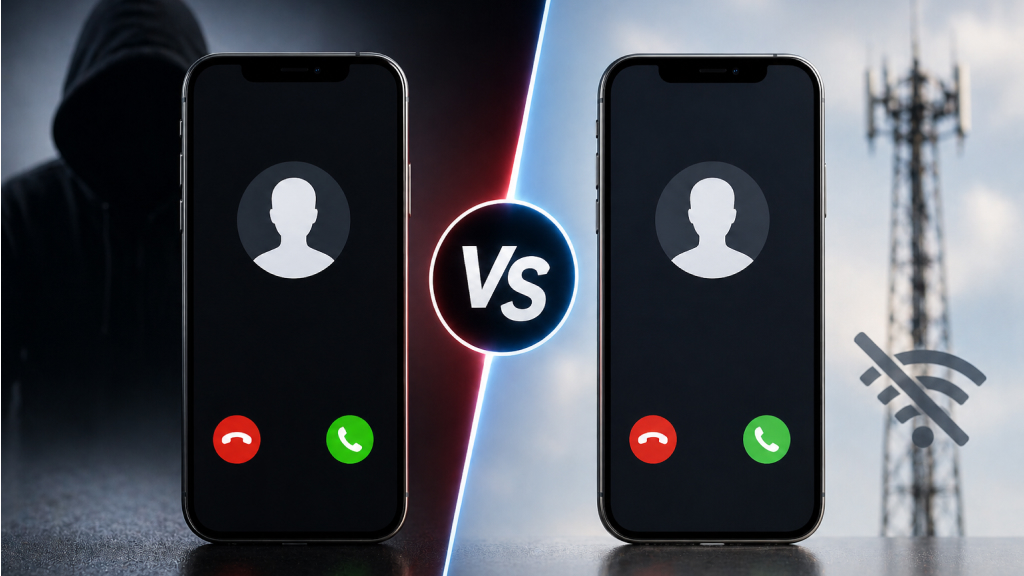
Although “No Caller ID” and “Unknown Caller” may appear similar, they refer to different situations. A “No Caller ID” call means the caller has intentionally hidden their number, which is why these calls are often associated with telemarketers, robocalls, or potential scams. On the other hand, an “Unknown Caller” typically appears due to network issues or limitations, such as international calls or carrier-related problems, where the number simply cannot be displayed.
While both types of calls can be blocked or filtered on your iPhone, understanding this distinction helps you choose the most effective method to manage them without missing important calls.
Why Blocking Anonymous Calls Matters?
Blocking “No Caller ID” calls isn’t just about avoiding annoyance, it’s also about protecting your privacy and reducing risk. Here’s why you should consider it:
- Avoid scams and fraud: Many scam calls rely on hidden identities
- Reduce interruptions: Stop unnecessary distractions during work or sleep
- Protect personal information: Prevent accidental engagement with malicious callers
- Improve focus: Eliminate random interruptions throughout the day
Even if you don’t receive these calls frequently, setting up filters ensures you’re prepared.
1. Silence Unknown Callers (Quickest and Most Effective Method)
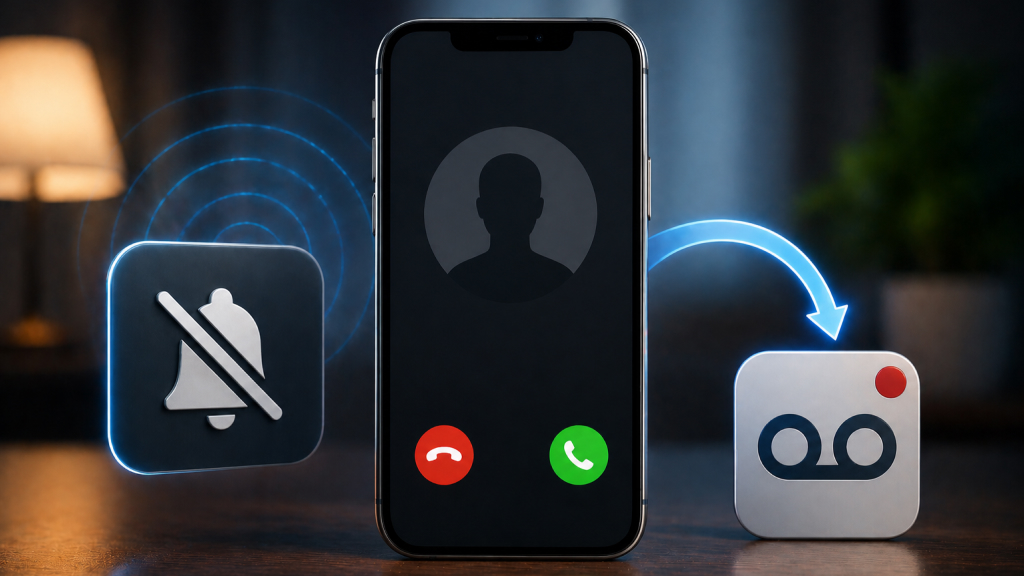
If you’re looking for the simplest way to deal with “No Caller ID” calls, enabling Silence Unknown Callers is your best bet. This built-in iPhone feature automatically filters out calls from numbers that aren’t recognized, so your phone doesn’t ring unnecessarily.
How to enable it:
- Open the Settings app
- Scroll down and tap Phone
- Tap Silence Unknown Callers
- Toggle it ON
Once this feature is enabled, calls from unknown numbers will no longer ring on your iPhone. Instead, they are automatically silenced and sent directly to voicemail, allowing you to check them later in your recent calls list. This applies to “No Caller ID” calls, numbers not saved in your contacts, as well as calls that aren’t recognized through Siri Suggestions.
This feature works so effectively because your iPhone intelligently filters incoming calls and only allows those from trusted sources to ring through. These include saved contacts, numbers you’ve recently called, and suggestions based on your usage patterns. Any other calls are quietly filtered out, helping you avoid unnecessary disturbances while still keeping a record of them in your call history.
2. Use Call Screening (iOS 17/18 and Later)
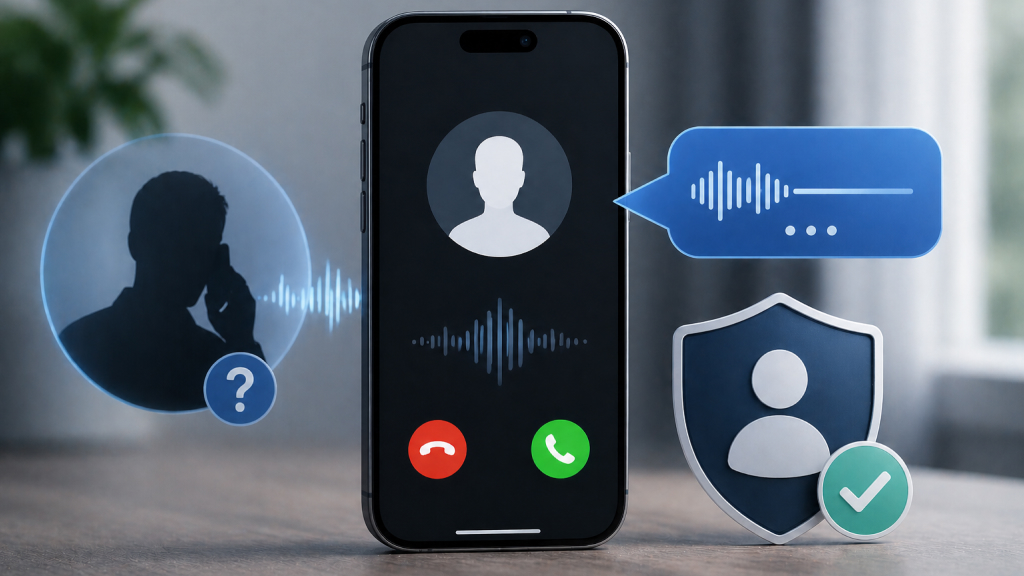
If you’re using a newer iPhone, you can take advantage of Call Screening, a smarter way to handle unknown callers. Instead of immediately silencing the call, your iPhone interacts with the caller first.
Steps to enable Call Screening:
- Go to Settings
- Tap Phone
- Select Screen Unknown Callers
- Choose Ask Reason for Calling
Call Screening works by having your iPhone answer unknown calls silently in the background. The caller is then prompted to state their name and the reason for calling, which is displayed on your screen before you decide whether to pick up. This approach is highly effective because most spam callers and robocalls fail to respond to such prompts and disconnect automatically, minimizing disruptions while still allowing legitimate callers to reach you.
3. Block Calls Using Focus Mode (Do Not Disturb)
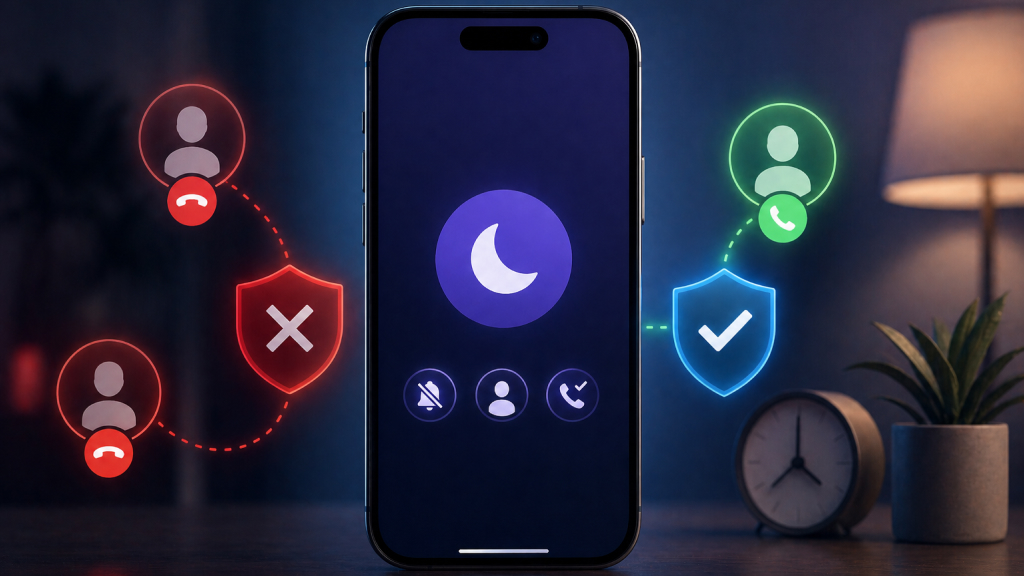
Another reliable way to block anonymous calls is by using Focus Mode, specifically Do Not Disturb.
How to set it up:
- Open Settings
- Tap Focus
- Select Do Not Disturb
- Tap People under Allowed Notifications
- Choose Allow Calls From → Contacts Only
- Turn on Do Not Disturb
When enabled, this setting ensures that only calls from your saved contacts ring through, while all other calls, including hidden or unknown numbers, are automatically silenced. It’s especially useful during times when you need minimal distractions, such as office hours, study sessions, or while sleeping.
You can also schedule it to turn on and off automatically, making it a convenient way to manage calls without constant manual adjustments.
4. Use the “Fake Contact” Trick to Block Hidden Calls
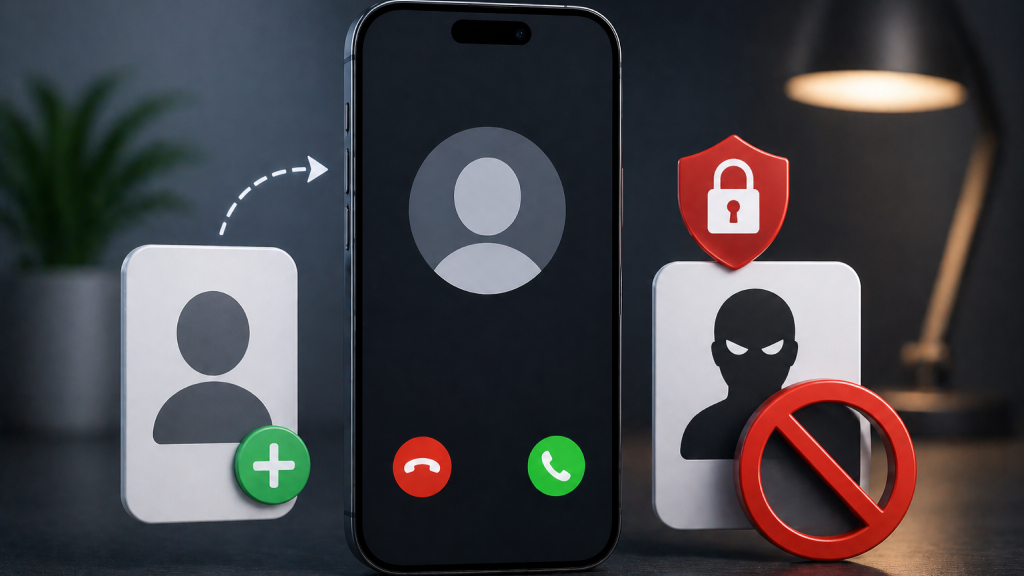
This lesser-known workaround uses a dummy contact to help block “No Caller ID” calls.
Here’s how:
- Open the Contacts app
- Tap the + icon to create a new contact
- Enter the name: No Caller ID
- Add the number: 000 000 0000
- Save the contact
- Scroll down and tap Block Contact
This method works because iOS may handle hidden or unidentified numbers in a standardized way behind the scenes. By blocking a placeholder contact, you can sometimes improve how effectively these calls are filtered. While it isn’t a guaranteed solution for every situation, it can still serve as an extra layer of protection alongside other call-blocking features on your iPhone.
5. Enable Carrier-Level Spam Protection
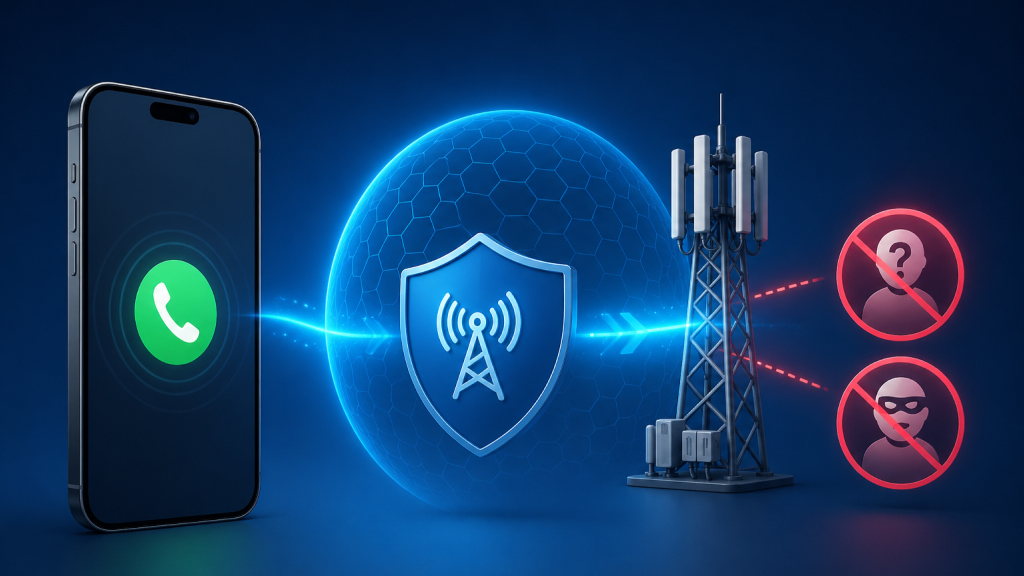
Your mobile carrier can also help block unwanted calls before they even reach your iPhone. In the U.S., leading carriers such as Verizon, AT&T, and T-Mobile provide integrated tools for spam detection and call filtering, available through their apps or network-based features. These tools can identify suspicious callers in real time and prevent many spam or “No Caller ID” calls from getting through.
One of the biggest advantages is that this protection works at the network level, so you don’t always need additional apps. While many basic features are free, some advanced protections may require a small monthly fee. Check your carrier’s app or contact support to enable these services.
6. Use Third-Party Apps for Advanced Blocking
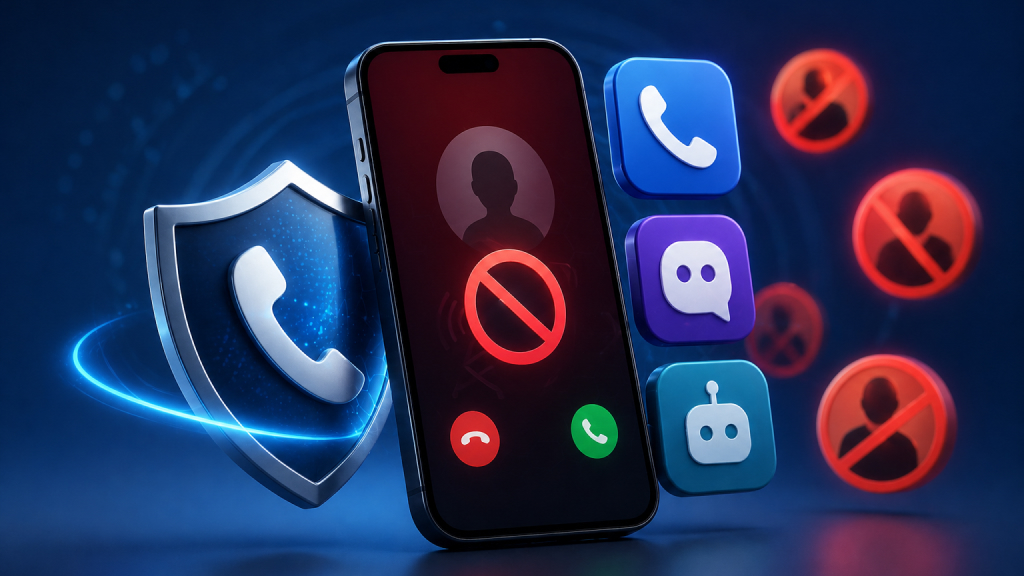
If you’re looking for more control over call filtering, third-party apps can significantly enhance your iPhone’s ability to block unwanted calls. Popular options like Truecaller, Hiya, and RoboKiller offer features such as real-time caller identification, community-driven spam detection, and automatic blocking of suspicious numbers. These apps are especially useful if you deal with frequent spam calls, though they may require access to certain call data to function effectively.
Important Things to Keep in Mind
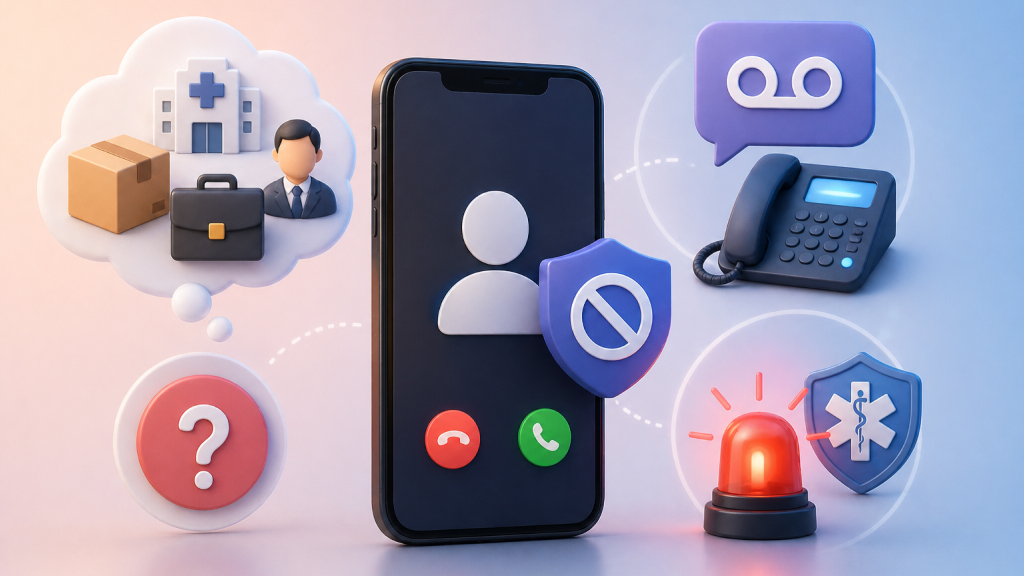
Before blocking all unknown calls, it’s worth considering a few practical limitations.
-
You may miss important calls
Not every unknown number is spam. Blocking these calls could mean missing important updates from delivery services, hospitals or clinics, new clients, or recruiters.
-
Voicemail becomes essential
Since many calls are silenced, it’s important to have voicemail set up so legitimate callers can leave a message and reach you when needed.
-
Emergency settings may override filters
After contacting emergency services, some call-blocking or screening features may temporarily disable to ensure you remain reachable in critical situations.
Best Setup for Maximum Protection
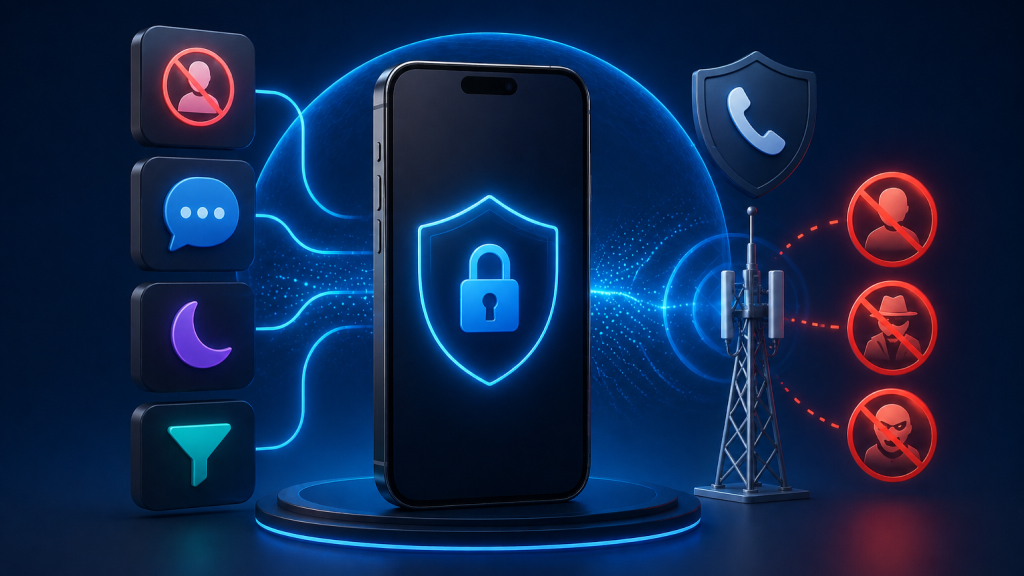
For the most effective results with minimal effort, combine multiple call-filtering features on your iPhone.
- Start by enabling Silence Unknown Callers for instant filtering.
- Then, turn on Call Screening to handle unfamiliar numbers more intelligently.
- You can also activate Do Not Disturb with calls limited to contacts during important hours, and enable your carrier’s spam protection for an added layer of security.
Together, these settings ensure your phone only rings when it truly matters.
Dealing with “No Caller ID” calls doesn’t have to be a hassle. By using the right mix of built-in iPhone features and a few thoughtful settings, you can control which calls get through without completely missing important communication. It’s not just about blocking unwanted calls, but about creating a more focused and interruption-free experience.
With a few adjustments tailored to your routine, your iPhone can work more efficiently around your needs instead of constantly disrupting you. While you may not be able to block every hidden call entirely, features like Silence Unknown Callers and Call Screening can significantly reduce them. Just keep in mind that calls from unsaved numbers may be silenced, so setting up voicemail ensures you don’t miss anything important.










