


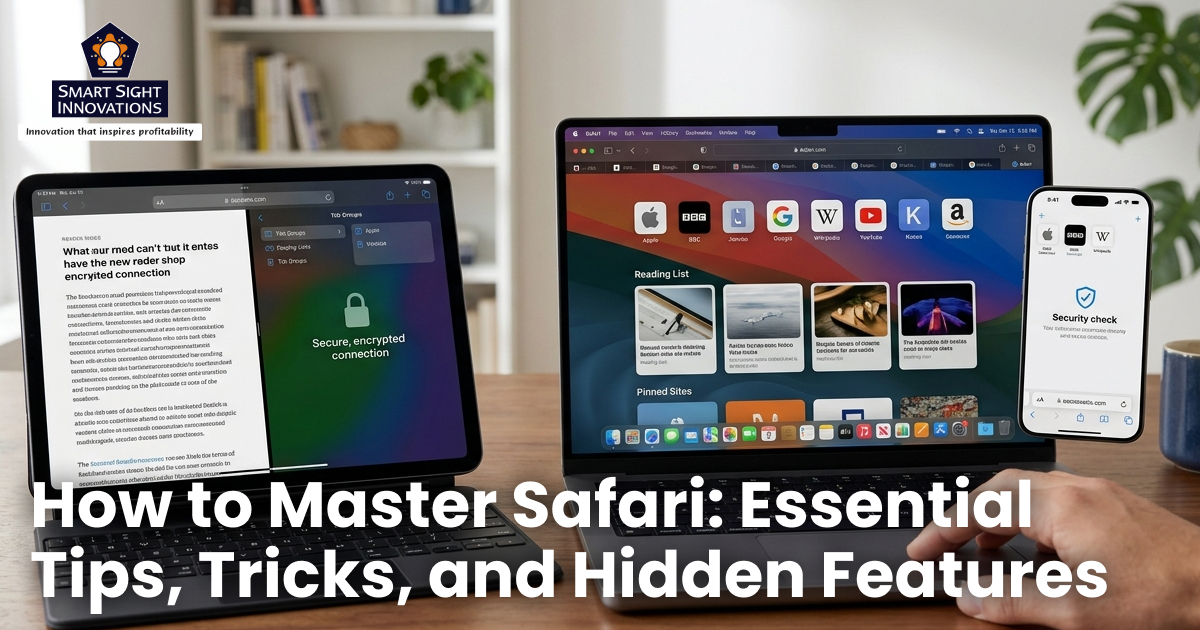
Safari often gets overlooked as just another default browser, especially with alternatives like Chrome dominating the conversation. But that perception misses the bigger picture. Built specifically for Apple devices, Safari is designed to deliver speed, efficiency, and strong privacy protections, all while consuming fewer system resources. It powers browsing on hundreds of millions of devices and includes a range of powerful features that many users never fully explore.
From advanced tab management to built-in privacy tools and seamless syncing across devices, Safari offers far more than basic web browsing. If you’re using an iPhone, iPad, or Mac, learning how to use Safari effectively can significantly improve your experience. With the right tips and tricks, you can browse faster, stay organized, and take full control of your online activity.
Master Tab Management with Tab Groups

If you frequently find yourself overwhelmed with dozens of open tabs, Safari’s Tab Groups can completely transform how you browse. Tab Groups let you organize tabs into separate categories, similar to folders. Instead of keeping everything in one chaotic window, you can create dedicated groups for different purposes, such as work, research, shopping, or entertainment.
Creating a Tab Group is simple. Follow these steps to create a new tab group if you’re on macOS Tahoe 26.
- Open the Safari app on your Mac device.
- Press the down arrow next to the Sidebar () button in the Safari toolbar. If the sidebar on your browser is already open, press the “Add Tab Group” button in the toolbar.
- Choose “New Tab Group.”
- Name the Tab Group depending on how you wish to use it, then press Return.
To create a Tab Group by selecting existing open tabs:
- Open the Safari app on your Mac device.
- Press the down arrow next to the Sidebar () button in the Safari toolbar. If the sidebar on your browser is already open, press the “Add Tab Group” button in the toolbar.
- Choose New Empty Tab Group.
- Name the Tab Group depending on how you wish to use it, then press Return.
- Press “Control-click” on the tab in the tab bar, choose Move to Tab Group, then choose the Tab Group. You can also drag tabs from the tab bar into a Tab Group of your choice.
To open a Tab Group:
- Open the Safari app on your Mac device.
- Press the down arrow next to the Sidebar () button in the Safari toolbar.
- Choose a Tab Group. If the sidebar is open, click a Tab Group in the sidebar.
To preview thumbnails of the websites in a Tab Group, Control-click the Tab Group in the sidebar, then choose Show Tab Overview.
Tab Groups go beyond simple organization, they create a focused browsing environment for each task. Every group keeps its own set of tabs, favorites, and frequently visited sites, making it easier to stay on track.
- Pin key tabs within a group for quick access
- Keep separate Favorites and browsing history for each group
- Share Tab Groups with others to collaborate more efficiently
For students, freelancers, or multitaskers, this feature alone can dramatically improve productivity.
Use Profiles to Separate Work and Personal Life
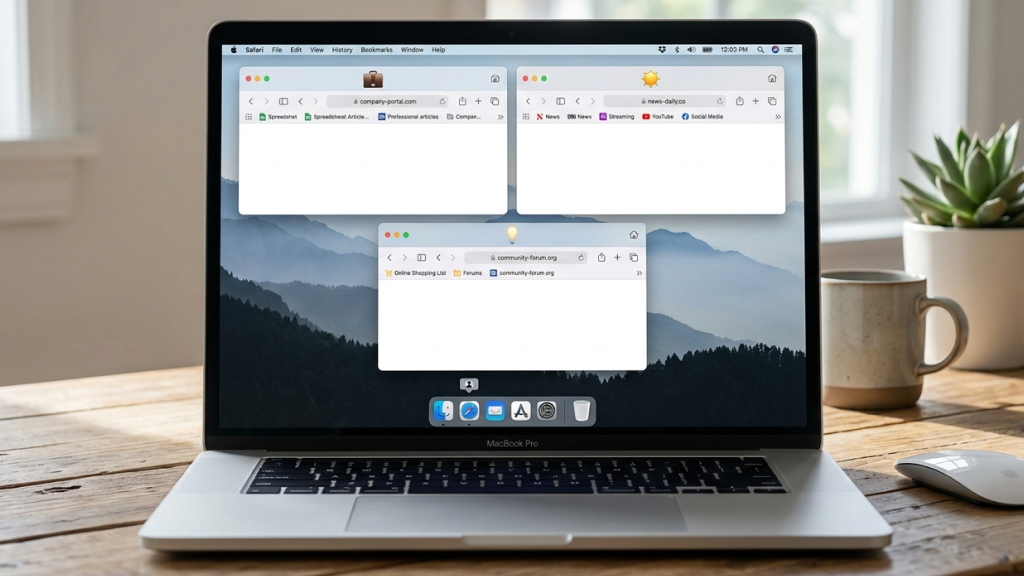
Safari Profiles take organization to the next level by letting you create entirely separate browsing environments. Each profile functions like a different version of Safari, with its own history, cookies, tabs, extensions and favorites. This is especially useful if you want to keep different areas of your life separate. For example:
- A Work profile for professional tools and research
- A Personal profile for everyday browsing
- A Study profile for academic work
Setting up Profiles in Safari is simple and only takes a few minutes:
- From the Safari Menu, select “Create Profile”
- Press the “Start Using Profiles” button to set up your profiles.
- Enter details like the “Name,” “Symbol,” and “Colour.”
- Finally, you’ll get an option to choose to “Create New Bookmarks Folder.”
- When you select “Create New Bookmarks Folder”, it will have the same name as this profile. Bookmarks saved to the favourites folder will appear in the Favourites bar for this profile.
- Click Create Profile. By default, Safari will open new windows and new tabs to your start page.
To switch between profiles:
- Click the profile name in the Safari toolbar
- Select the profile you want to use
Each profile will have its own tabs, history, cookies, and extensions, allowing you to keep work and personal browsing completely separate.
Boost Functionality with Safari Extensions

Safari extensions {Link to Blog 1 of April 2026} can significantly expand what your browser is capable of, turning it into a more powerful and personalized tool. Available through the App Store, extensions introduce features such as:
- Content blocking
- Dark mode enhancements
- Productivity tools
- Password management
You can explore and download extensions directly from the App Store, by simply heading to the Safari Extensions section to find options that suit your needs, or browse our curated list of the Best Safari Extensions to discover tools that match your workflow.
How to set it up:
- Download the extension app
- Configure its settings
- Enable it in Safari under Manage Extensions
Unlike many other browsers, Safari prioritizes performance and security. This means extensions are generally better optimized and less demanding on system resources. With the right combination of extensions, Safari can feel like an entirely different browser, which is customized to match your workflow and preferences.
Work Faster with Keyboard Shortcuts

If you use Safari on a Mac, keyboard shortcuts are essential for working efficiently. While most users know basic commands like copy and paste, Safari includes many lesser-known shortcuts for:
- Navigating tabs
- Opening history
- Accessing search quickly
A simple trick is to press and hold the Command (⌘) key to quickly view all available shortcuts. Safari will display a list of available shortcuts, allowing you to learn them naturally as you work. Over time, these shortcuts can save you a significant amount of time.
Organize Content with Bookmarks and Reading List
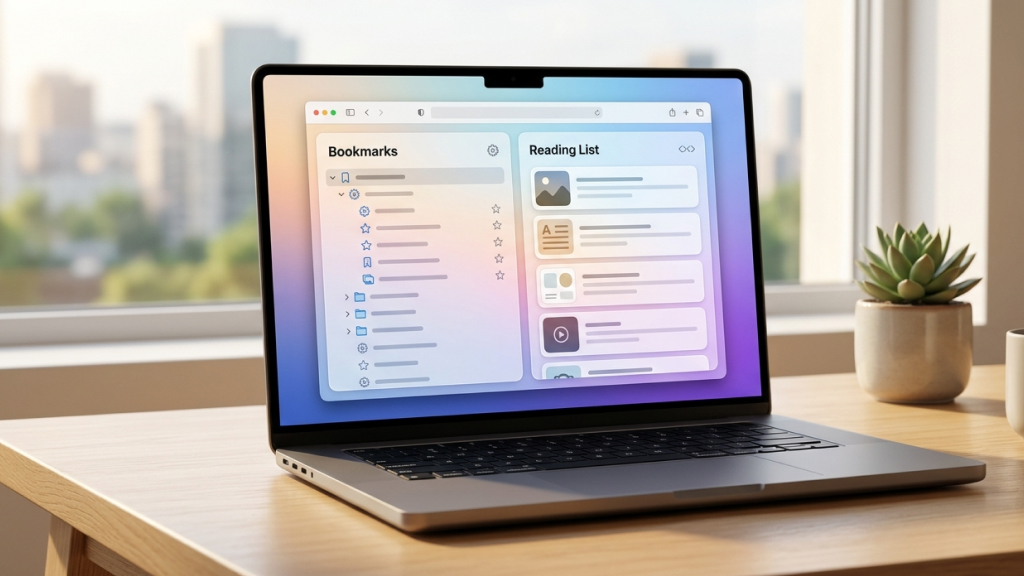
Safari offers two primary ways to save content: Bookmarks and Reading List. Understanding how to use each effectively can improve how you manage information.
Bookmarks
Bookmarks are best for long-term storage. They allow you to:
- Create folders and subfolders
- Organize links by category
- Quickly access frequently used sites
This makes them ideal for structured workflows, research, or frequently visited pages.
Reading List
Reading List is designed for temporary saves. It lets you:
- Save articles for later
- Read content offline
- Automatically track read and unread items
Accessing Bookmarks and Reading List
On Mac:
Click the Sidebar button in Safari, then select the Bookmarks (book icon) or Reading List (glasses icon). You can also save items for offline reading from the Reading List.
On iPhone/iPad:
Tap the Bookmarks icon, then switch to the Reading List tab. To save a page, tap the Share button and select Add to Reading List. You can manage items by tapping and holding them.
If you’re saving something for quick consumption, Reading List is convenient. For long-term organization, Bookmarks are far more powerful.
Customize Safari for a Better Experience
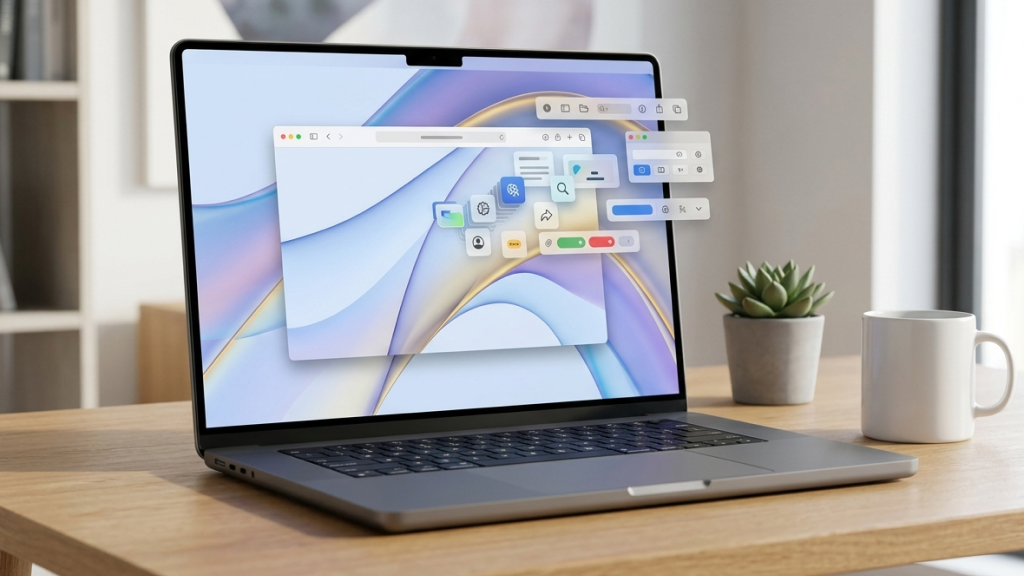
Safari offers a range of customization options that can make browsing more efficient and enjoyable.
Customize the Toolbar
You can modify the toolbar to include only the tools you use regularly:
- Right-click the toolbar
- Select Customize Toolbar
- Drag and drop items as needed
This helps reduce clutter and improves accessibility.
Customize the Start Page
Safari’s start page can be personalized to suit your preferences. You can:
- Add or remove sections
- Rearrange layout elements
- Set a custom background image
A tailored start page makes your browsing experience feel more intuitive and visually appealing.
Take Control of Tabs
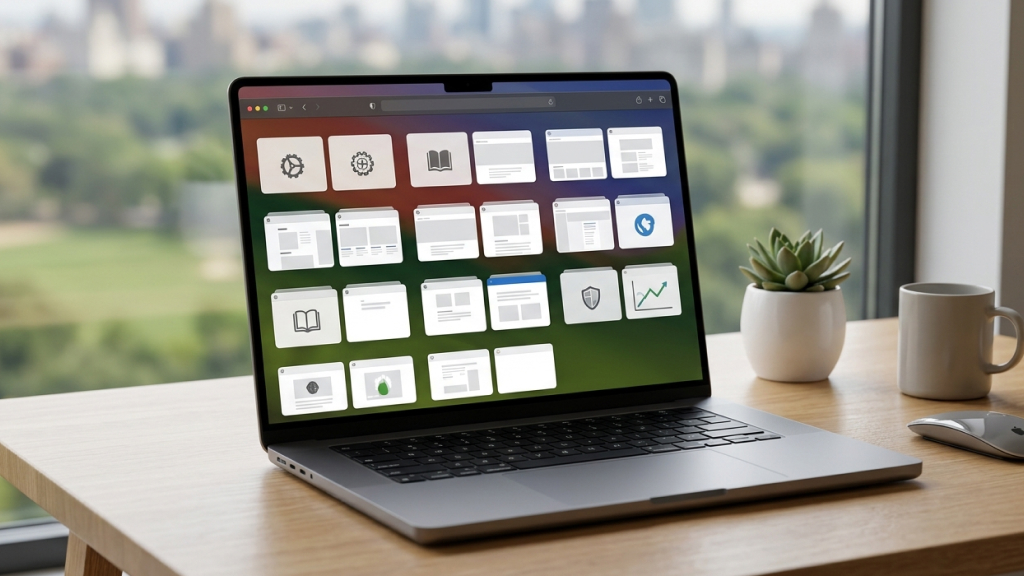
Safari includes several powerful tab management features that make it easier to stay organized, even when you have dozens of pages open. Instead of letting tabs pile up and slow you down, these tools help you keep everything structured and easy to navigate.
Pin Tabs
Pinning tabs is one of the simplest ways to keep your most important websites within reach. Once pinned, a tab stays fixed to the left side of your tab bar, so it won’t get lost among other open pages. This is especially useful for sites you use regularly, like email, dashboards, or messaging platforms, as they remain accessible no matter how many tabs you open.
Auto-Close Tabs
If you tend to leave tabs open and forget about them, Safari can automatically clean things up for you. You can set it to close tabs after a specific period, such as one day, one week, or one month. This helps reduce clutter, improves performance, and ensures your browser doesn’t become overloaded with unused pages.
Sort Tabs
When you’re working with multiple tabs, finding the right one can get frustrating. Safari allows you to sort your open tabs alphabetically or by website, making it easier to locate what you need quickly. This feature is particularly helpful during research sessions or when handling multiple projects at once.
Safari also lets you swipe across the tab bar (on mobile) or use keyboard shortcuts (on Mac) to switch between tabs instantly. This small but effective feature can save time and make browsing feel much smoother.
Together, these tools help you stay in control of your tabs, reduce distractions, and maintain a clean, efficient browsing environment, even during heavy usage.
Use Private Browsing with Enhanced Protection

Safari’s Private Browsing mode has evolved into much more than a simple “incognito” feature. It’s now a robust privacy tool designed to protect your data while still offering a smooth and functional browsing experience.
When you use Private Browsing, Safari prevents your browsing history, search history, and AutoFill information from being saved. But beyond these basics, newer updates introduce several advanced protections that make it even more secure.
Key features include:
- Automatic locking with Face ID or Touch ID
Private tabs can automatically lock when you switch apps or leave Safari idle. This ensures that anyone accessing your device won’t be able to view your private tabs without authentication.
- Advanced tracking and fingerprinting protection
Safari actively blocks trackers and limits fingerprinting techniques that websites use to identify your device. This reduces the chances of being tracked across different sites.
- Automatic disabling of certain extensions
To prevent unwanted data access, Safari disables extensions that could potentially monitor your activity while you’re in Private mode.
- Continued access to search suggestions
Unlike traditional private modes that limit functionality, Safari still provides search suggestions, helping you browse efficiently without compromising too much on convenience.
Private Browsing is especially useful when you’re logging into accounts on shared devices, researching sensitive topics, or simply want to keep certain activities separate from your main browsing history.
By combining strong privacy protections with thoughtful usability features, Safari ensures you can browse confidently without sacrificing speed or convenience.
Leverage Safari’s Built-In Privacy Tools

Safari stands out for its strong focus on user privacy, offering several built-in tools that work quietly in the background to protect your data while you browse.
- Privacy Report gives you a clear overview of how Safari is safeguarding your activity. It shows which trackers have been blocked and highlights the websites that attempted to monitor your behavior. This transparency helps you understand how often tracking occurs online.
- Hide IP Address adds another layer of protection by masking your IP from trackers. This makes it harder for advertisers and websites to build a profile based on your location and browsing habits.
- Cross-Site Tracking Prevention automatically blocks third-party trackers from following you across different websites, limiting targeted ads and unwanted data collection.
Together, these features create a safer browsing environment without requiring constant manual adjustments, allowing you to stay focused while Safari handles your privacy in the background.
Use Reader Mode for Distraction-Free Reading

Reader Mode transforms cluttered web pages into a clean, easy-to-read format by removing ads, pop-ups, and unnecessary design elements. With a single tap you can:
- Focus purely on the content
- Customize the text size, font style, and background for better readability.
This makes it especially useful for long articles, research, or reading in low-light conditions, helping reduce eye strain and improve overall focus.
Explore Built-In Productivity Tools

Safari includes several powerful built-in features that many users overlook, but they can significantly improve how you interact with content online.
-
Translate Websites
Safari makes it easy to translate web pages into your preferred language instantly—no need to switch apps or copy text. It’s especially useful when exploring international content.
-
Listen to Web Pages
You can have Safari read articles aloud, turning text into audio. This is great for multitasking or when you want to give your eyes a break.
-
Save Pages as PDFs
Safari lets you export web pages as PDFs, making it easy to save, print, or share content while preserving its original layout.
Together, these tools add convenience, improve accessibility, and reduce the need for additional apps or extensions.
Sync Your Browsing with iCloud Tabs

If you use multiple Apple devices, iCloud Tabs creates a seamless browsing experience by keeping your Safari activity in sync across all of them. Whether you’re switching from your iPhone to your iPad or moving to your Mac, your open tabs are always within reach.
With iCloud Tabs, you can:
- Access tabs from other devices and pick up exactly where you left off
- Continue browsing seamlessly without needing to search for the same page again
- Open or close tabs remotely, helping you manage your browsing across devices
This feature is especially useful for multitasking, like starting research on one device and finishing it on another. By syncing your tabs in real time, Safari ensures your workflow stays smooth, connected, and uninterrupted across your entire Apple ecosystem.
Discover Hidden Long-Press Shortcuts (iPhone & iPad)

On iPhone and iPad, long-press gestures unlock a range of hidden features in Safari that many users never notice. Instead of navigating through multiple menus, a simple press-and-hold action can reveal quick shortcuts that make browsing faster and more intuitive.
Some of the most useful long-press actions include:
-
Previewing links before opening them
Press and hold any link to see a quick preview of the page without actually opening it. This helps you decide whether the content is relevant, saving time and preventing unnecessary tabs from piling up.
-
Closing all tabs instantly
Long-press the tabs icon to reveal an option to close all open tabs at once. This is especially useful when your browser is cluttered with too many tabs and you want a quick reset.
-
Reopening recently closed tabs
If you accidentally close an important tab, simply long-press the “+” icon in the tab view to access a list of recently closed pages and quickly reopen it.
-
Downloading files directly from links
Press and hold on a downloadable link to save files instantly without opening them first. This makes it easier to manage downloads and avoid unnecessary page loads.
-
Bookmarking multiple tabs at once
Long-press the bookmark icon to save all open tabs into a single folder. This is perfect for research or reading sessions, letting you organize and revisit multiple pages later with ease.
These gestures are designed to reduce steps and save time. Once you get used to using long-press shortcuts, navigating Safari becomes noticeably faster and more efficient, especially on smaller screens where quick actions matter most.
Turn Websites into Apps

Safari allows you to convert websites into app-like shortcuts on your home screen, making them feel and behave more like native apps. This feature is especially useful for platforms you visit frequently, such as email services, dashboards, or web-based tools.
To create a web app shortcut:
- Open the website in Safari
- Tap the Share button
- Select Add to Home Screen
- Rename it if needed, then tap Add
Once added, the website appears as an icon on your home screen and can be launched with a single tap, just like any other app. In many cases, it opens in a clean, standalone view without the usual browser interface, giving it a more app-like experience.
This not only saves time but also reduces the need to repeatedly open Safari and search for the same site, making your daily workflow faster and more convenient.
Additional Pro Tips You Shouldn’t Miss
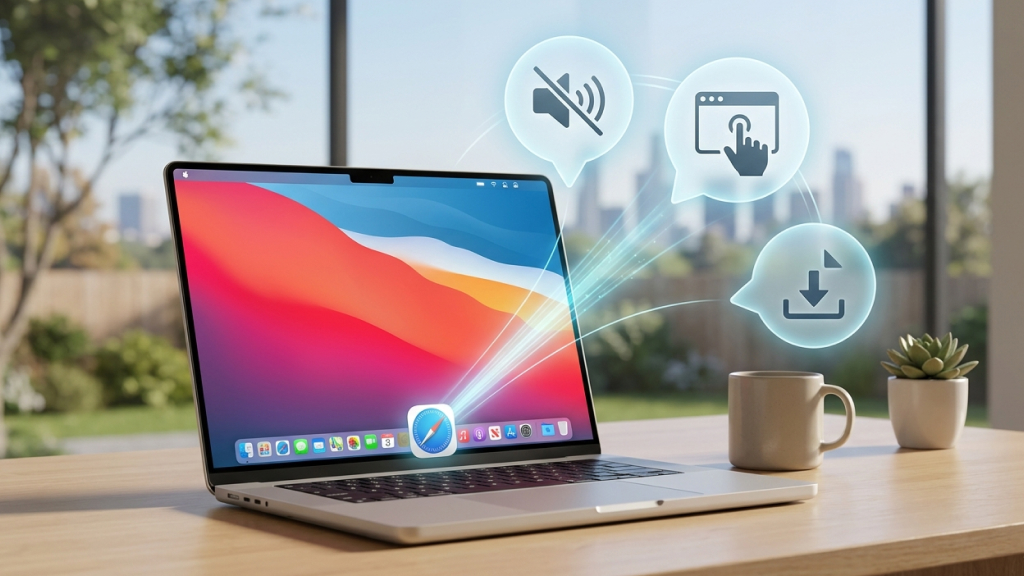
To truly get the most out of Safari, it’s worth paying attention to a few smaller features that can make a big difference in your day-to-day browsing experience.
-
Mute Tabs
If a website starts playing audio unexpectedly, Safari makes it easy to silence it. Simply click or tap the speaker icon on the tab or in the address bar to mute that specific tab, or mute all other tabs at once for a distraction-free experience.
-
Preview Links
Before opening a link, you can press and hold it to see a quick preview of the page. This helps you decide whether the content is relevant without interrupting your current browsing session.
-
Download Manager
Safari includes a built-in download manager that lets you track files in real time. You can view progress, access downloaded files, and manage them directly within the browser, eliminating the need for separate tools.
-
Arrange Tabs
When working with multiple tabs, Safari allows you to sort them by title or website. This makes it easier to locate specific pages quickly, especially during research or multitasking sessions.
While each of these features may seem small on its own, together they contribute to a smoother, faster, and more efficient browsing experience.
Safari has evolved into a powerful, feature-rich browser that goes far beyond basic web browsing. With tools for better organization, enhanced privacy, and improved productivity, it offers everything you need to browse smarter and more efficiently. The real advantage comes from using these features consistently, whether it’s managing tabs, leveraging extensions, or taking control of your privacy settings.
Once you start exploring and integrating these capabilities into your routine, Safari becomes less of a default option and more of a reliable, high-performance tool tailored to your needs.










