


Every new iOS release brings a wave of features aimed at improving the iPhone experience. From major design updates to advanced AI (AI Software & AI Web) capabilities, Apple typically highlights the most visible changes during launch events. However, many of the most useful improvements in iOS 26 aren’t the ones that get the most attention.
While iOS 26 introduces eye-catching elements like the Liquid Glass interface and deeper Apple Intelligence integration, the real value lies in the smaller, hidden features built into the system. These are the enhancements tucked away in settings, refined within existing apps, or quietly added to improve everyday usability.
Unlike headline features, these hidden iOS 26 tricks focus on practicality. They help streamline tasks, reduce unnecessary steps, and make your iPhone feel faster and more intuitive. Whether it’s smarter battery management, improved notifications, or subtle interface shortcuts, these features are designed to enhance how you use your device on a daily basis.
If you’re using iOS 26 with default settings, you’re only tapping into a portion of its full potential. Customizing these hidden features can significantly improve productivity, personalization, and overall performance. Let’s explore some hidden iOS 26 tricks that can make your iPhone smarter, faster, and more efficient for everyday use.
1. Customize Alarm Snooze Duration
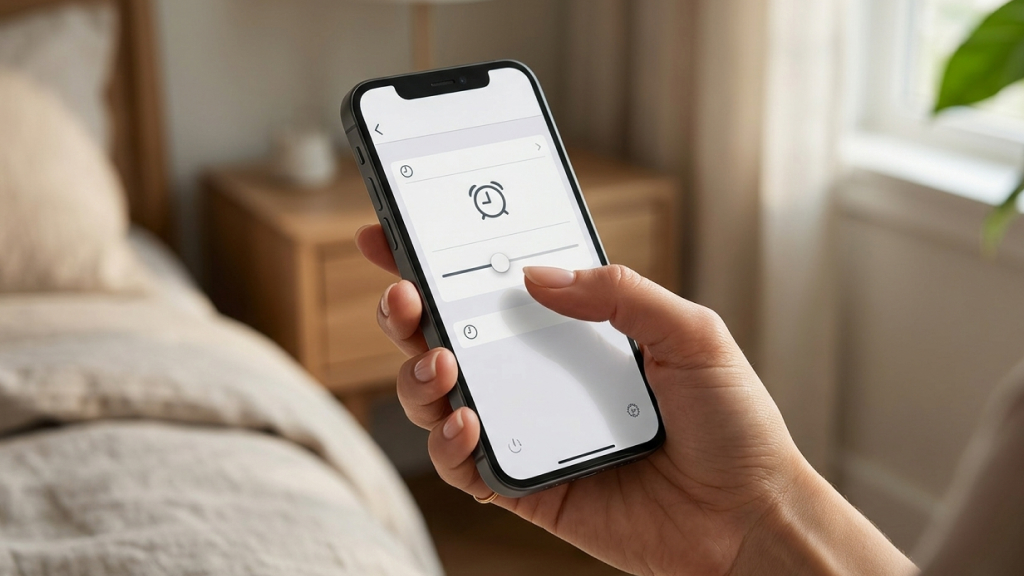
iPhone users have traditionally been locked into a fixed 9-minute snooze duration, a design choice that dates back to early mechanical alarm clocks. With iOS 26, Apple finally gives you the flexibility to adjust this setting based on your personal routine. Whether you prefer shorter intervals to avoid oversleeping or longer gaps to ease into your morning, this feature allows you to tailor alarms to your lifestyle.
To set it up, open the Clock app, tap Alarm, select an existing alarm, and choose Snooze Duration. You can set it anywhere between 1 and 15 minutes. Keep in mind that this setting applies individually to each alarm, so you may want to reuse alarms instead of creating new ones.
This small change can significantly improve how you wake up, making your mornings more controlled and less stressful.
2. Create Custom Ringtones Instantly
Customizing your iPhone ringtone no longer requires third-party apps or complicated workflows. iOS 26 simplifies the process, allowing you to turn any compatible audio file into a ringtone directly from your device. This makes personalization easier and more accessible for everyday users.
To create a custom ringtone, open the Files app and locate an MP3 or M4A file that is under 30 seconds long. Tap the Share button and select Use as Ringtone. Once added, you can assign it as your default ringtone or set it for specific contacts.
This feature is especially useful if you want unique tones for different people or prefer something more personal than the default options. It’s a simple yet powerful way to make your iPhone feel truly your own.
3. Copy Only Part of a Text Message
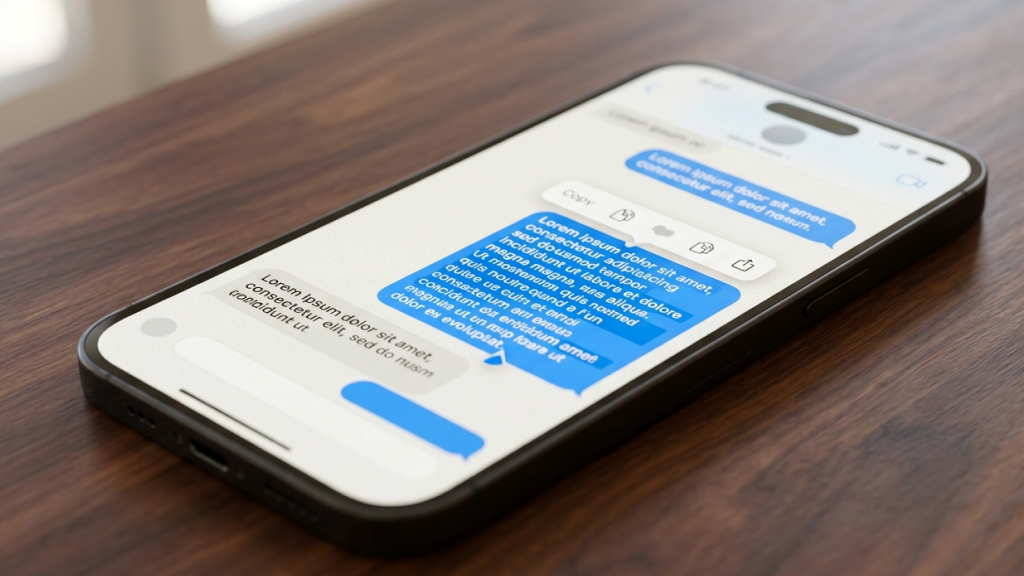
Copying text from Messages has become far more precise in iOS 26. Previously, you had to copy an entire message, even if you only needed a small portion like a link, code, or address. Now, you can select and copy only the exact text you want, saving time and effort.
To use this feature, open the Messages app, long-press a message, and tap Select. You can then drag the selection handles to highlight a specific section before copying it. This works particularly well for long messages where extracting a small piece of information would otherwise be inconvenient.
This improvement may seem minor, but it enhances everyday usability. Whether you’re copying OTPs, tracking numbers, or important details, it streamlines the process and reduces unnecessary steps.
4. View Your Visited Places in Maps
iOS 26 introduces a helpful feature in Maps that automatically keeps track of places you’ve visited. This acts like a personal location history, allowing you to revisit restaurants, stores, or landmarks without relying on memory or searching through photos.
To access this, open Maps, tap your profile icon, and navigate to Places > Visited Places. You’ll see a list of locations along with dates, making it easy to retrace your steps.
Importantly, this data is stored locally on your iPhone, ensuring your privacy is maintained. This feature is especially useful for travelers, food enthusiasts, or anyone who frequently explores new places. It eliminates the need to manually save locations and helps you rediscover places you might otherwise forget.
5. See Battery Charging Time Estimates
Charging your iPhone is now more predictable thanks to real-time battery estimates in iOS 26. Instead of guessing how long it will take to reach a certain percentage, your device now shows exactly how much time remains until it reaches 80% or 100%.
You can view this information directly on the Lock Screen when your iPhone is plugged in. Alternatively, you can check it in Settings > Battery. The estimate updates dynamically based on your charging speed and usage.
This feature is particularly useful when you’re short on time and need a quick top-up before heading out. It helps you plan better and reduces uncertainty, making your charging routine more efficient and reliable.
6. Adaptive Power Mode
Adaptive Power Mode is one of the most intelligent battery features introduced in iOS 26. Instead of manually switching between normal and Low Power Mode, your iPhone now adjusts performance automatically based on your activity.
To enable it, go to Settings > Battery > Power Mode and turn on Adaptive Power. Once activated, your iPhone reduces background activity during light usage and boosts performance when needed, such as during gaming or video recording.
This ensures optimal battery usage without compromising performance. It’s particularly useful for users who don’t want to constantly manage settings but still want better battery efficiency. Over time, the system learns your usage patterns, making your iPhone feel more responsive and intelligent.
7. Turn Photos Into 3D Spatial Scenes
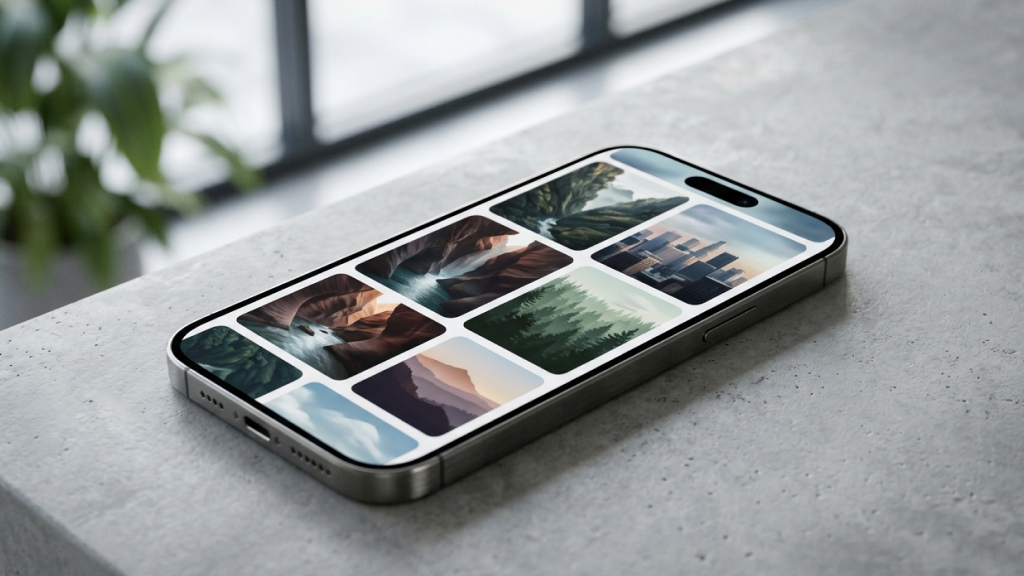
Photos in iOS 26 are no longer limited to static images. With the Spatial Scenes feature, your iPhone can add depth and subtle motion to photos, creating a more immersive viewing experience.
To use this feature, open the Photos app, select an image, and tap the Spatial option (a grey icon in the top-right corner, below the three dots). When you tilt your phone, the image responds with a 3D-like effect, adding a sense of realism and perspective.
This feature is particularly effective for landscapes, portraits, and travel photos. It enhances how you relive memories, making them feel more dynamic and engaging. While it may not replace professional 3D photography, it adds a creative touch that elevates everyday images.
8. Use Visual Intelligence for Screenshots
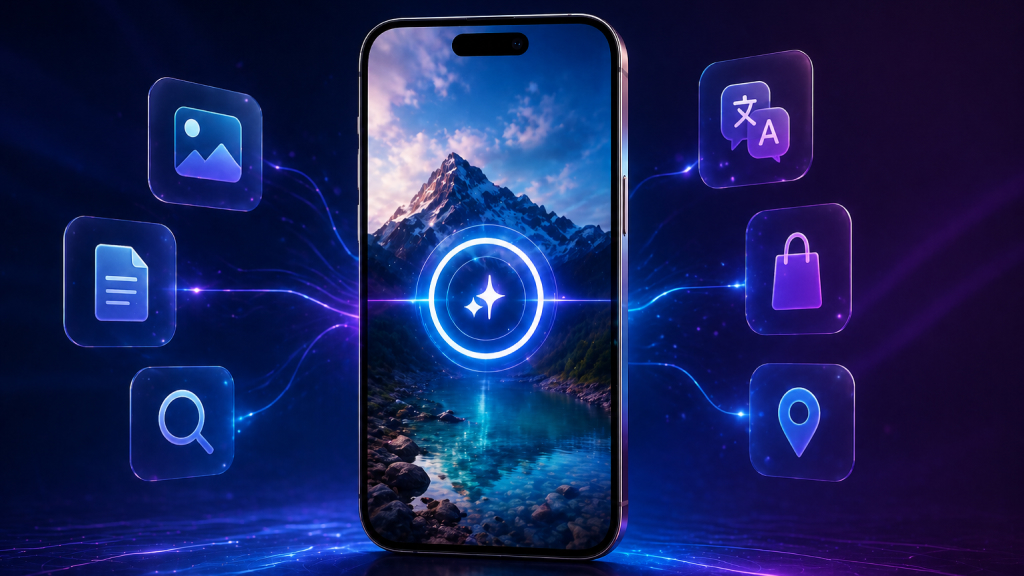
Screenshots in iOS 26 are smarter than ever, thanks to Visual Intelligence. Instead of being static images, screenshots can now trigger contextual actions and provide useful insights based on their content.
After taking a screenshot, tap the preview to open the editor. You’ll see options like Ask (for AI-based (AI Software & AI Web) explanations) and Image Search. You can even highlight a specific area to focus your query.
For example, if your screenshot contains an event, your iPhone may suggest adding it to your calendar. If it detects a product, it may show shopping results.
This feature transforms screenshots into interactive tools, making them far more useful for productivity, research, and everyday tasks.
9. Real-Time Lyric Translation in Apple Music
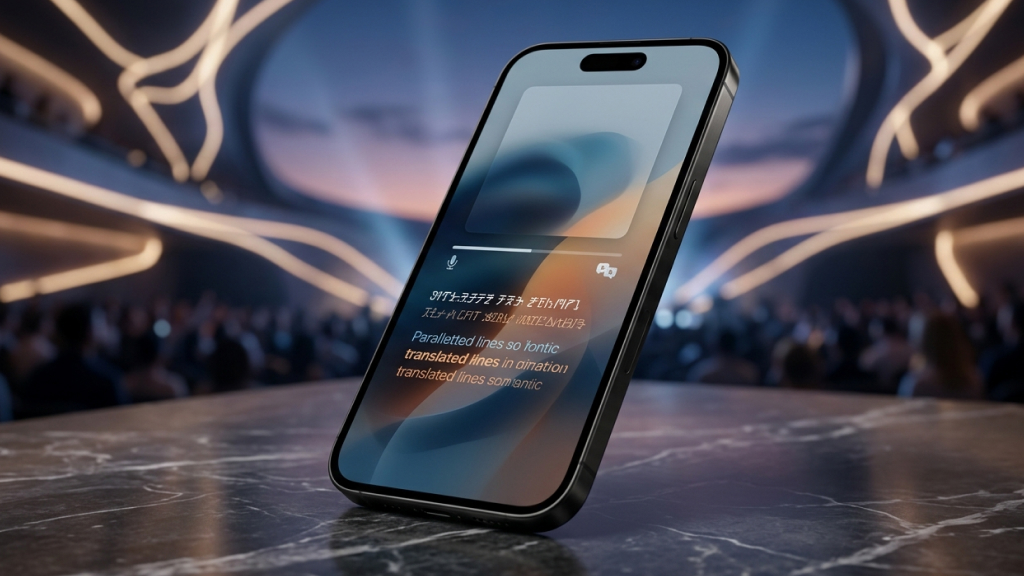
Apple Music in iOS 26 now includes real-time lyric translation, making it easier to enjoy songs in different languages. This feature allows you to understand the meaning behind lyrics without disrupting the listening experience.
To use it, play a song in Apple Music, open the Lyrics view, and tap Translate These Lyrics. The translated text appears alongside the original lyrics, synchronized with the music.
This is especially useful for discovering international music and exploring new genres. It removes language barriers and helps you connect more deeply with songs from around the world. For music lovers, it adds a new layer of engagement to the listening experience.
10. Screen Incoming Calls
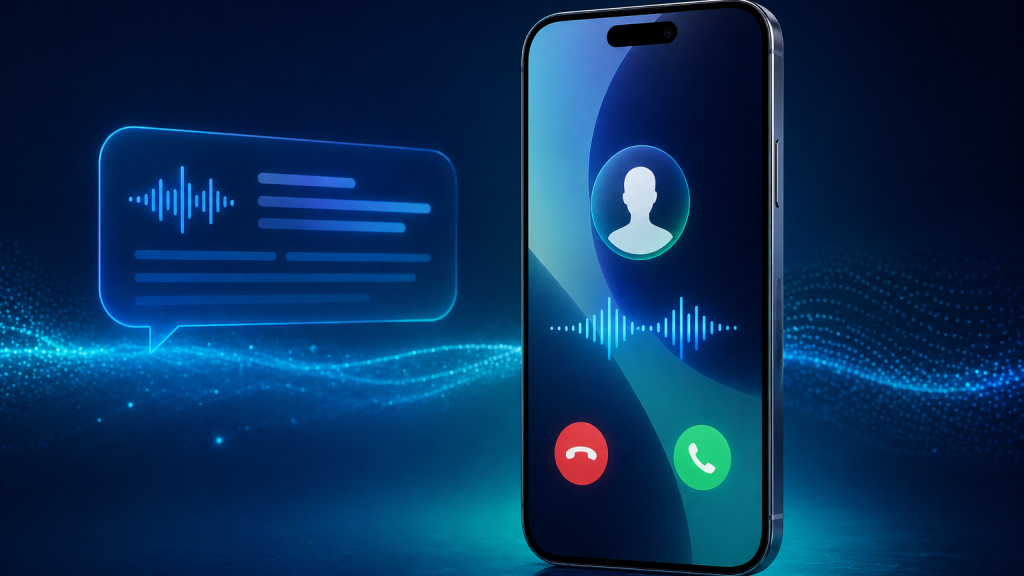
iOS 26 introduces a powerful call screening feature that helps you handle unknown calls more effectively. Instead of answering blindly, you can now see a real-time transcript of what the caller is saying.
To enable this, go to Settings > Phone and turn on Call Screening. When an unknown number calls, tap Screen Call to activate the feature. Your iPhone will transcribe the caller’s message, allowing you to decide whether to answer, decline, or ignore it.
This feature is particularly useful for avoiding spam calls and prioritizing important ones. It gives you greater control over your communication and helps reduce unnecessary interruptions throughout the day.
11. Use AirPods as a Camera Remote
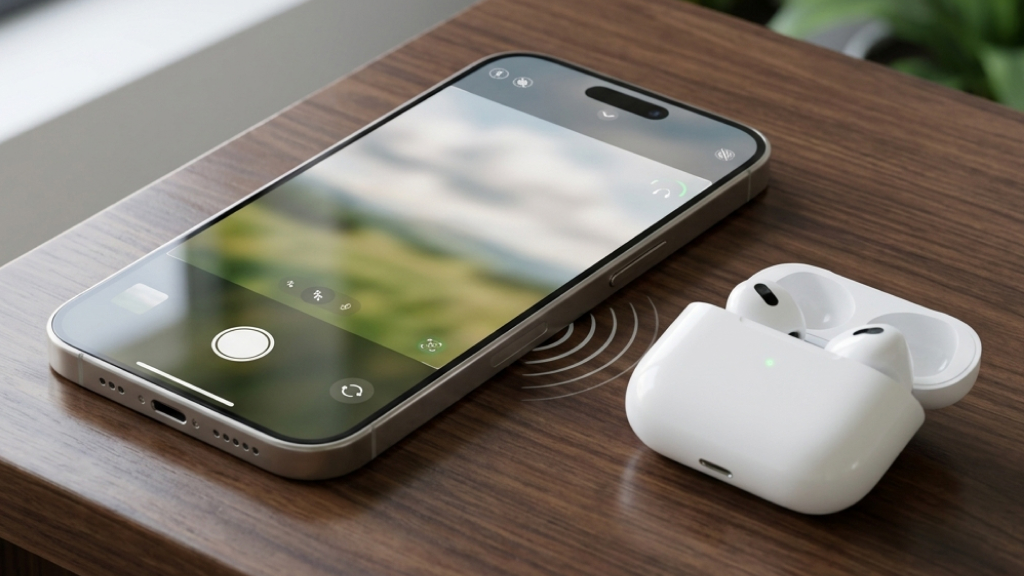
Taking photos remotely is much easier in iOS 26, thanks to deeper integration with AirPods. Instead of relying on timers or asking someone else to click your photo, you can now use your AirPods as a wireless shutter button.
To set this up, connect your AirPods and go to Settings > [Your AirPods] > Camera Control, then enable the feature. Once configured, open the Camera app, frame your shot, and press or double-tap the AirPods stem to capture the image.
This feature is especially useful for group photos, solo shots, or tripod setups. It eliminates the need to rush into frame and makes the entire process more controlled. This can be used with AirPods 4, AirPods Pro 2, AirPods Pro 3, or AirPods Max 2. It’s a simple addition, but one that significantly improves how you take photos.
12. Add Backgrounds to Messages
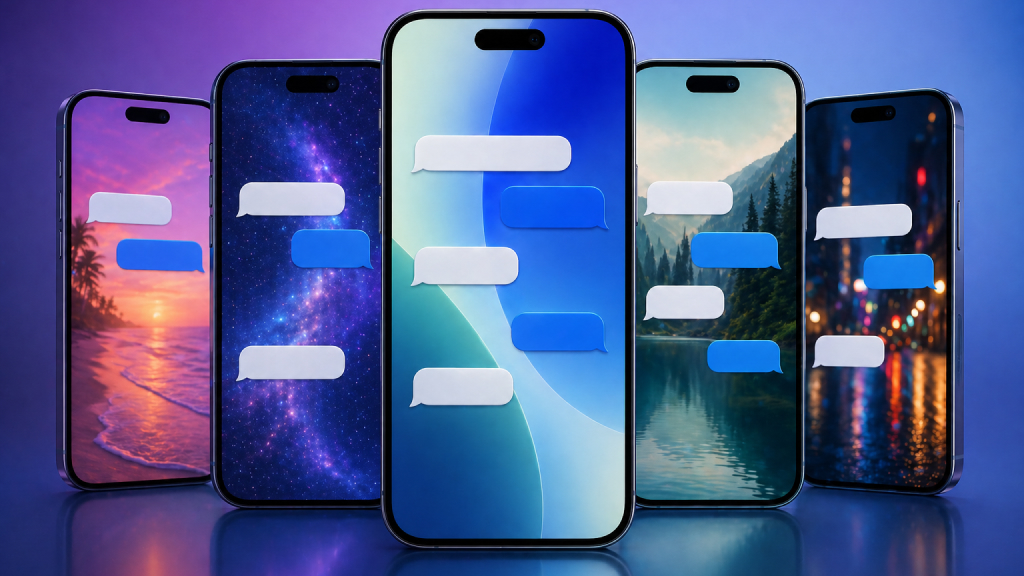
iOS 26 introduces conversation-level customization in Messages, allowing you to assign unique backgrounds to individual chats. This makes conversations feel more personal and visually distinct.
To set it up, open a conversation in Messages, tap the contact name at the top, and select Backgrounds. You can choose from colors, gradients, photos, or even generate a custom background using built-in tools.
This feature goes beyond aesthetics. It helps visually differentiate conversations, especially if you’re managing multiple chats. Over time, it can make navigation faster and more intuitive, while also adding a layer of personalization that wasn’t previously available.
13. Edit PDFs Without Apps
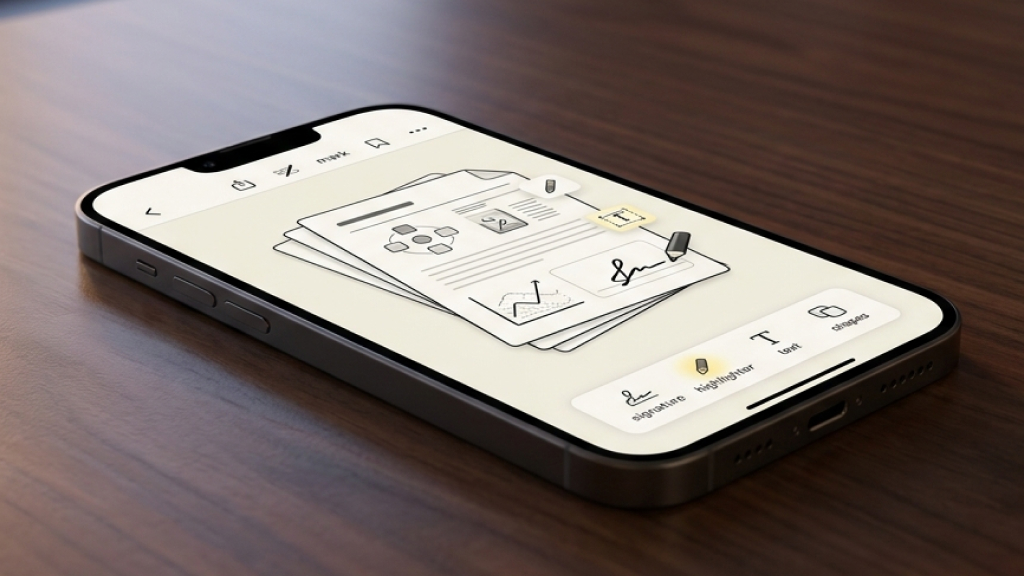
With iOS 26, your iPhone becomes a capable document editing tool. You no longer need third-party apps to make basic edits to PDFs, sign documents, or highlight important sections.
To use this feature, open a PDF in Files or Mail, tap Markup, and access tools for editing, annotating, or signing. You can also rearrange pages and add notes directly within the document.
This is particularly useful for professionals, students, or anyone dealing with digital paperwork. It reduces reliance on external apps and speeds up tasks like signing contracts or reviewing documents. It’s a practical upgrade that turns your iPhone into a more powerful productivity device.
14. Swipe from Anywhere to Go Back
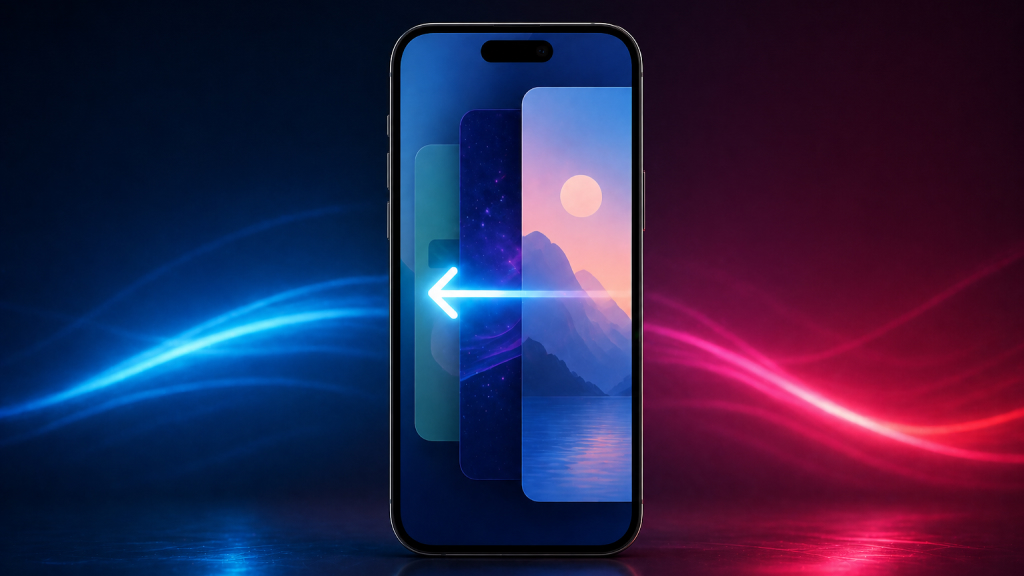
Navigation across apps is more intuitive in iOS 26. Instead of swiping only from the left edge of the screen, you can now swipe from the middle to go back.
This gesture works across several native apps like Settings, Mail, and Safari, making it easier to navigate with one hand. It’s especially helpful on larger iPhones where reaching the edge of the screen can feel uncomfortable.
While this might seem like a small tweak, it significantly improves usability over time. It reduces hand strain and makes navigation feel smoother and more natural, particularly during extended use.
15. Weather Without Internet
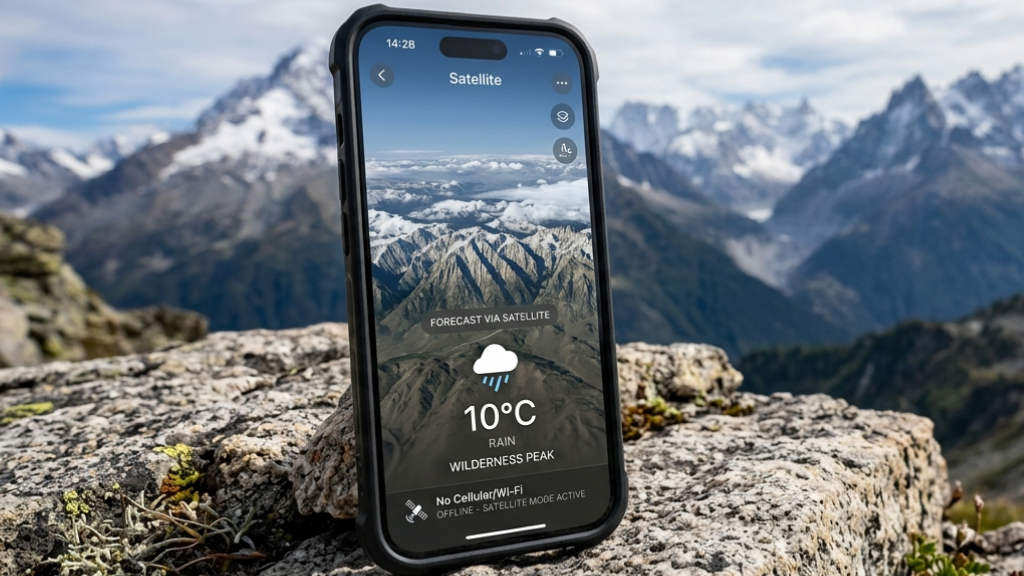
iOS 26 introduces satellite connectivity to the Weather app, ensuring you can access basic forecasts even when you’re off the grid.
When you don’t have cellular or Wi-Fi connectivity, the Weather app automatically switches to satellite mode. You’ll see a small indicator confirming this, along with essential data like temperature, precipitation chances, and alerts.
This feature is especially valuable for travelers, hikers, or anyone spending time in remote areas. While it doesn’t replace full internet access, it provides critical information when you need it most. It adds an extra layer of reliability, making your iPhone more useful in situations where connectivity is limited.
16. Camera Lens Cleaning Alerts
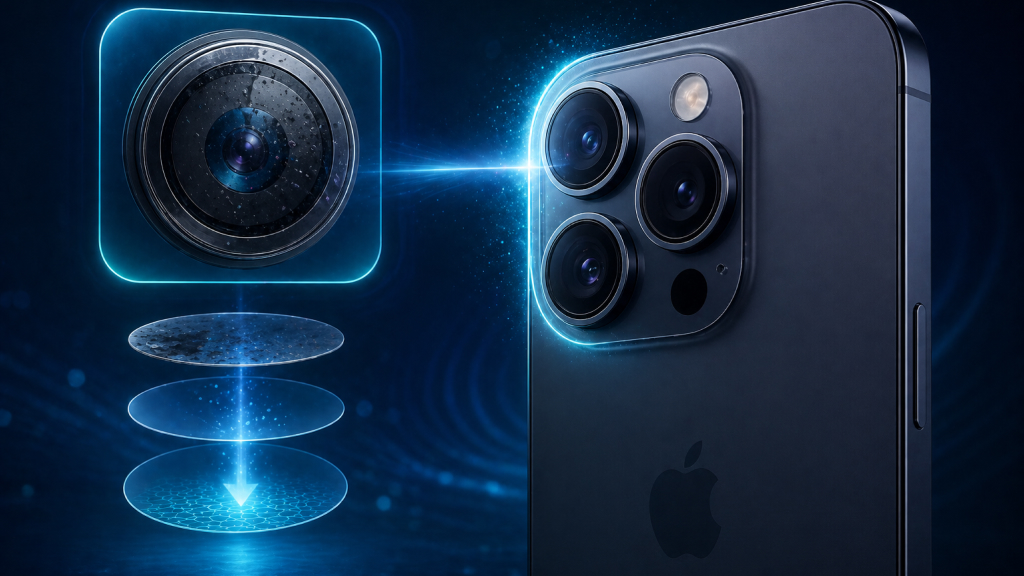
Blurry photos are often caused by something as simple as a smudged camera lens. iOS 26 addresses this with built-in lens detection alerts.
To enable this feature, go to Settings > Camera and turn on Lens Cleaning Hints. When your iPhone detects reduced clarity due to dirt or smudges, it will prompt you to clean the lens before taking a photo.
This small but thoughtful feature can make a noticeable difference in image quality. It’s particularly useful when you’re quickly snapping photos and may not notice the issue yourself. Over time, it helps ensure consistently better results without requiring manual checks.
17. HDR Screenshots
Screenshots in iOS 26 now support HDR, making them more accurate representations of what you see on your screen. This is especially noticeable when capturing high-contrast content like photos, videos, or bright interfaces.
There’s no setup required, just take a screenshot as usual, and your iPhone automatically saves it in HDR format. When viewed on compatible displays, the difference in brightness and detail becomes clear.
This feature is particularly useful for creators, designers, or anyone sharing visual content. It ensures that screenshots maintain their quality and look closer to the original display, improving both clarity and presentation.
18. Digital Passport in Wallet

iOS 26 continues to move toward a digital-first experience by introducing support for digital passports in select regions. This allows you to store and use your passport directly from the Wallet app.
To set it up, open Wallet, tap the + icon, and select Add Passport. Follow the on-screen instructions to verify and add your details.
While availability may vary, this feature represents a significant step toward replacing physical documents. It simplifies travel by keeping essential identification in one place, alongside boarding passes and payment methods. As adoption grows, it could become a standard part of the travel experience.
19. Create Polls in Messages
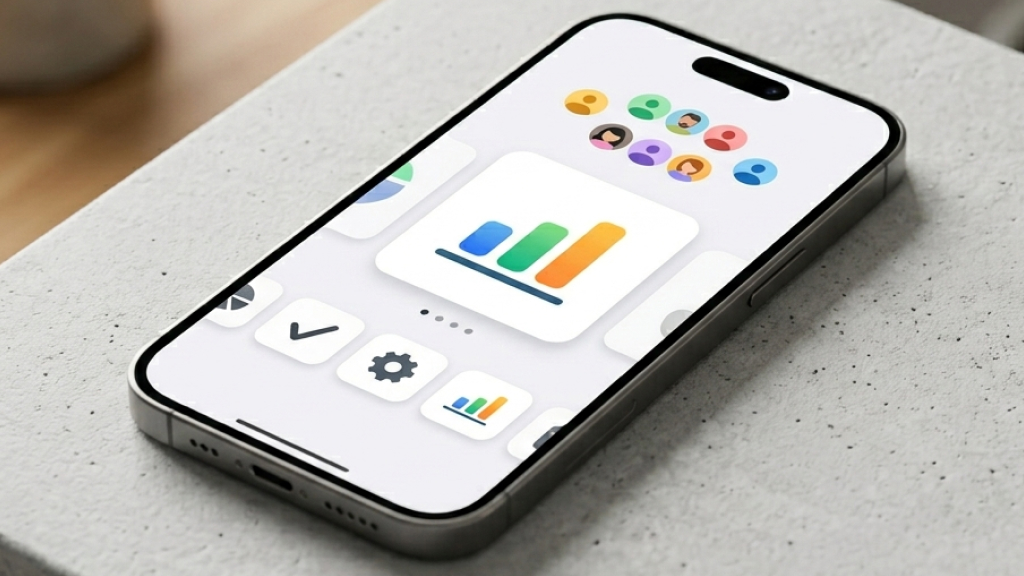
Group conversations often involve back-and-forth discussions when making decisions. iOS 26 simplifies this with built-in polls in the Messages app.
To create a poll, open a conversation, tap the + button, and select Polls. Add your question and options, then send it to the group. Participants can vote, and results update in real time.
This feature is particularly useful for coordinating plans, choosing locations, or making quick group decisions. It reduces clutter in conversations and makes communication more structured. Instead of endless messages, you get clear, instant results.
20. Callback Reminders
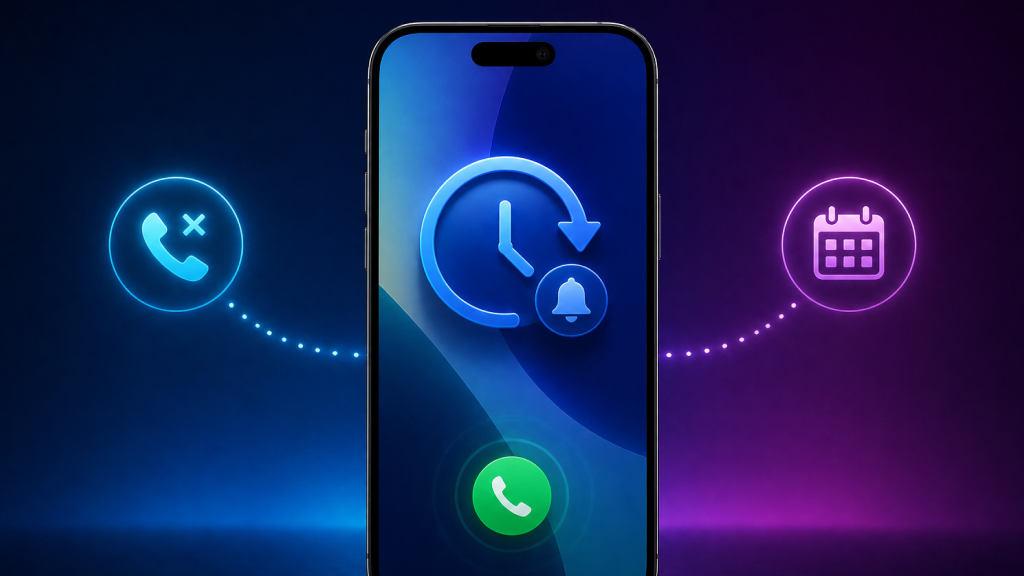
Missing a call no longer means forgetting to return it. iOS 26 allows you to set reminders directly from the Phone app.
To use this feature, open Phone > Recents, swipe left on a missed call, and tap Remind Me. You can choose predefined options or set a custom time.
This integrates seamlessly with the Reminders app, ensuring you don’t overlook important calls. It’s especially helpful during busy days when you can’t respond immediately. By turning missed calls into actionable tasks, it improves both productivity and communication.
21. Reduce Loud Sounds
Switching between apps with different audio levels can be jarring. iOS 26 introduces a feature that automatically balances sound levels to prevent sudden spikes.
To enable it, go to Settings > Sounds & Haptics and turn on Reduce Loud Sounds. This compresses the audio range, making loud sounds softer while maintaining clarity.
This feature is particularly useful when using headphones or switching between apps like streaming platforms and social media. It enhances listening comfort and protects your hearing over time, especially during extended use.
22. Send Photo Previews Faster
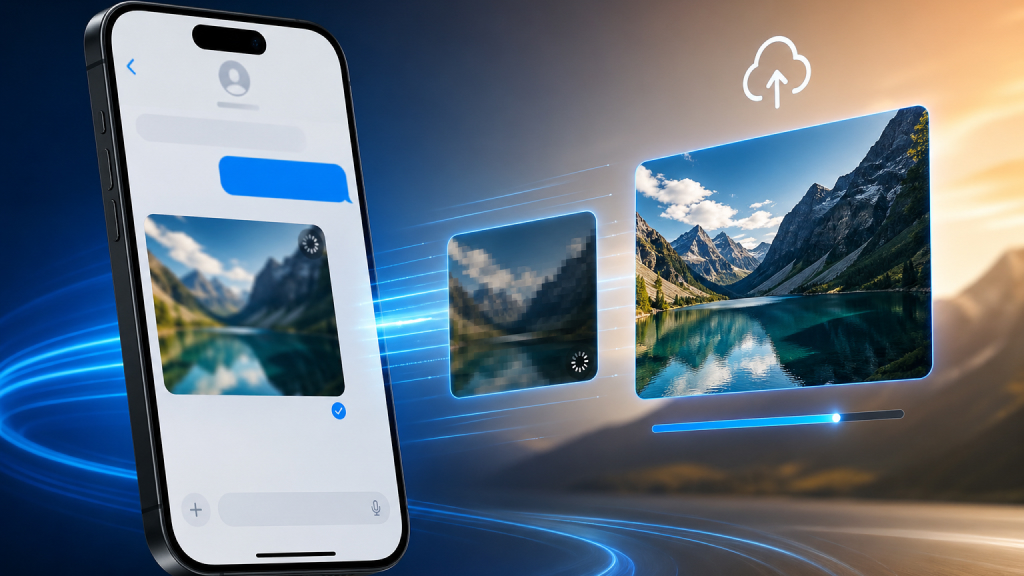
Sharing photos on slow networks can be frustrating. iOS 26 addresses this by allowing you to send low-quality previews instantly while the full-resolution image uploads in the background.
To enable this, go to Settings > Messages and turn on Send Low-Quality Photo Previews.
This ensures that recipients can view images immediately, even on weak connections. It’s especially useful when traveling or using limited data. The full-quality version still arrives later, so you don’t lose detail, and just gain speed and convenience.
23. Use AirPods as a Microphone
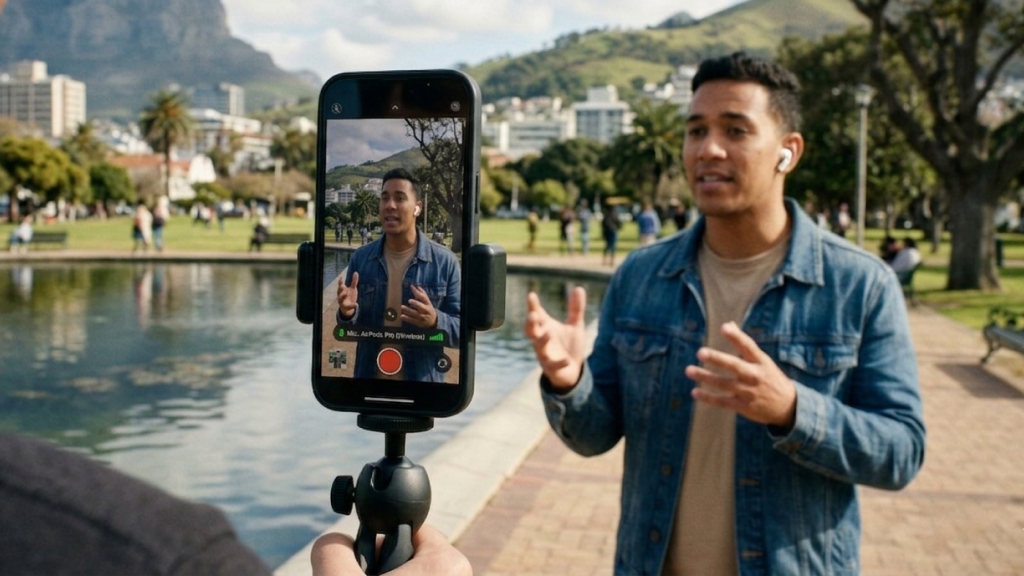
iOS 26 enhances video recording by allowing AirPods to function as wireless microphones. This significantly improves audio quality, especially in noisy environments.
To use this feature, connect your AirPods, open the Camera app, switch to Video mode, and select your AirPods as the audio input from Control Center.
This is particularly useful for vlogging, interviews, or casual recordings. It provides clearer audio without requiring additional equipment, making your videos sound more professional with minimal effort.
24. Background Sounds for Focus
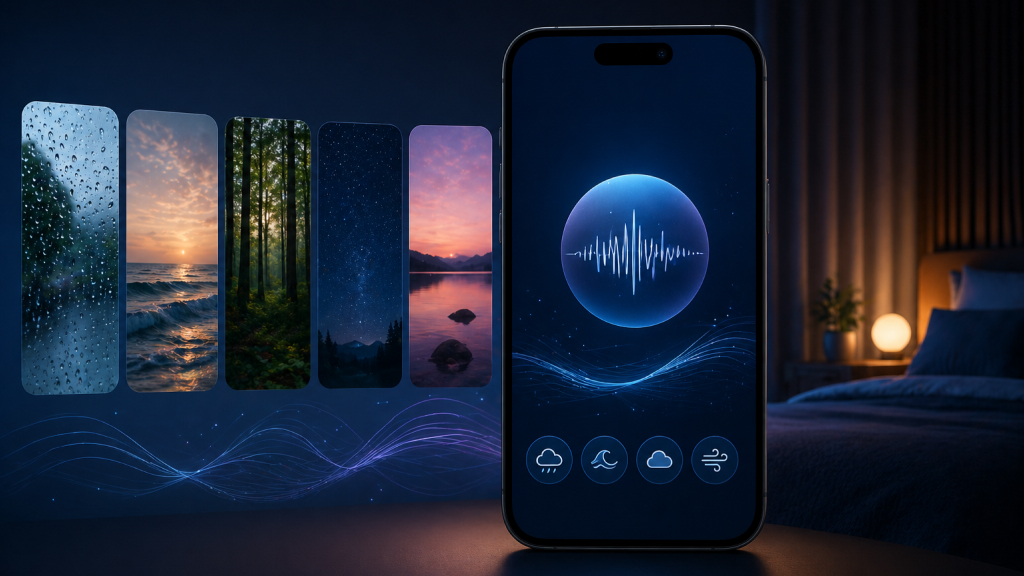
Built-in background sounds in iOS 26 help improve focus, relaxation, and sleep without needing third-party apps.
To enable this feature, go to Settings > Accessibility > Audio & Visual > Background Sounds. You can choose from options like rain, white noise, or ambient sounds.
This feature is ideal for blocking distractions in noisy environments or creating a calming atmosphere. It integrates seamlessly with your iPhone, allowing quick access via Control Center. It’s a simple yet effective way to improve concentration and overall well-being.
25. Filter Unknown Messages
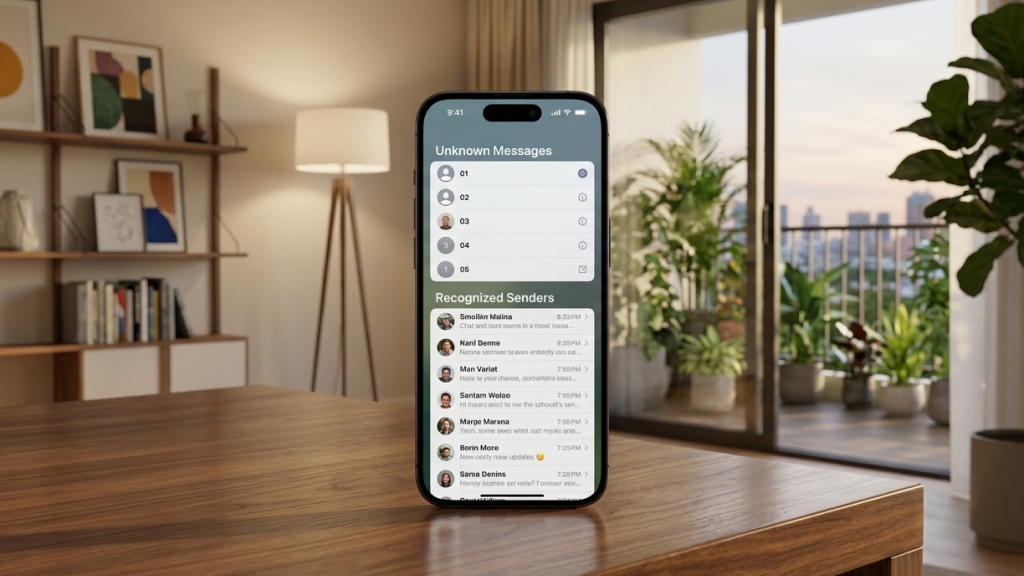
Managing unwanted messages is easier in iOS 26 with improved filtering options. Messages from unknown senders are automatically separated from your main inbox.
To enable this, go to Settings > Messages and turn on Filter Unknown Senders.
Once activated, messages from contacts not saved in your phone are placed in a separate section. This reduces distractions and helps you focus on important conversations while still allowing you to review unknown messages when needed.
26. Restore Safari Layout
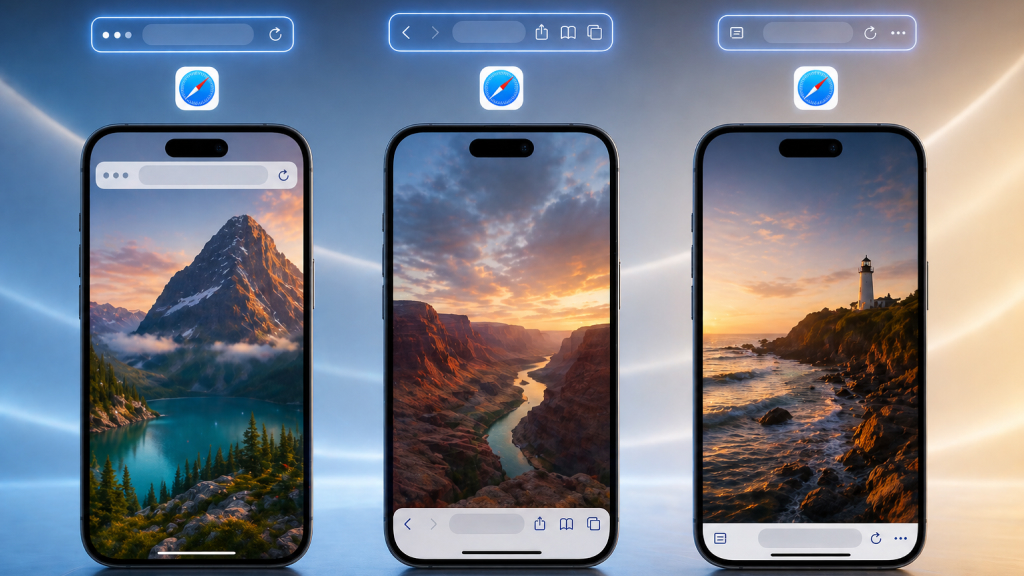
Not everyone prefers the redesigned Safari interface. iOS 26 gives you the flexibility to switch back to a more familiar layout.
To change it, go to Settings > Safari and choose between Top, Bottom, or Compact tab layouts.
This customization ensures that you can browse in a way that feels comfortable and intuitive. Whether you prefer the classic layout or want to try something new, the option to switch gives you full control over your browsing experience.
iOS 26 isn’t just another update filled with visual upgrades and headline features, it’s a refinement of how your iPhone works in everyday life. The real value lies in details like small, thoughtful improvements that remove friction, save time, and make your device feel more intuitive.
These hidden features may not be immediately visible, but once you start using them, they quietly transform your experience. From smarter battery management and better communication tools to deeper customization and AI-powered (AI Software & AI Web) assistance, iOS 26 is designed to adapt to how you use your iPhone, not the other way around.
Take a few minutes to try these features, adjust them to your needs, and make your iPhone truly your own. Because once you go beyond the default setup, you’ll realize that iOS 26 isn’t just smarter, it’s built to make you more efficient every single day.










