

Google Pixel phones are often praised for their clean Android experience, exceptional cameras, and fast software updates, but what truly makes these devices stand out is the incredible collection of intelligent features quietly built into the software.
Beyond the familiar apps and everyday functions lies an ecosystem of AI-powered (AI Software & AI Web) tools, hidden shortcuts, privacy controls, camera tricks, and productivity enhancements that can dramatically improve the way you use your smartphone. Many of these features are so seamlessly integrated into the Pixel experience that users either overlook them entirely or never realize just how powerful they can be in day-to-day life.
From automatically screening spam calls and translating conversations in real time to transforming the back of your phone into a customizable shortcut button, Google has designed Pixel devices to feel smarter, faster, and more helpful with every update.
Features like Magic Eraser, Call Screen, Recorder transcription, Adaptive Battery, and Circle to Search are not just flashy additions meant to showcase artificial intelligence, but genuinely practical tools that solve real-world problems and save valuable time every single day.
What makes the Pixel experience even more impressive is how these features continue to evolve through regular Pixel Drop updates, constantly adding new capabilities long after the phone has been purchased.
Whether you want to improve productivity, extend battery life, capture better photos, protect sensitive information, or simply discover smarter ways to interact with your device, there is a good chance your Pixel already has a hidden feature designed specifically for it.
In this article, we explore some of the best Google Pixel hacks, hidden features, and powerful tricks that every Pixel owner should know to unlock the full potential of their smartphone.
1. Use Call Screen to Block Spam and Unknown Callers
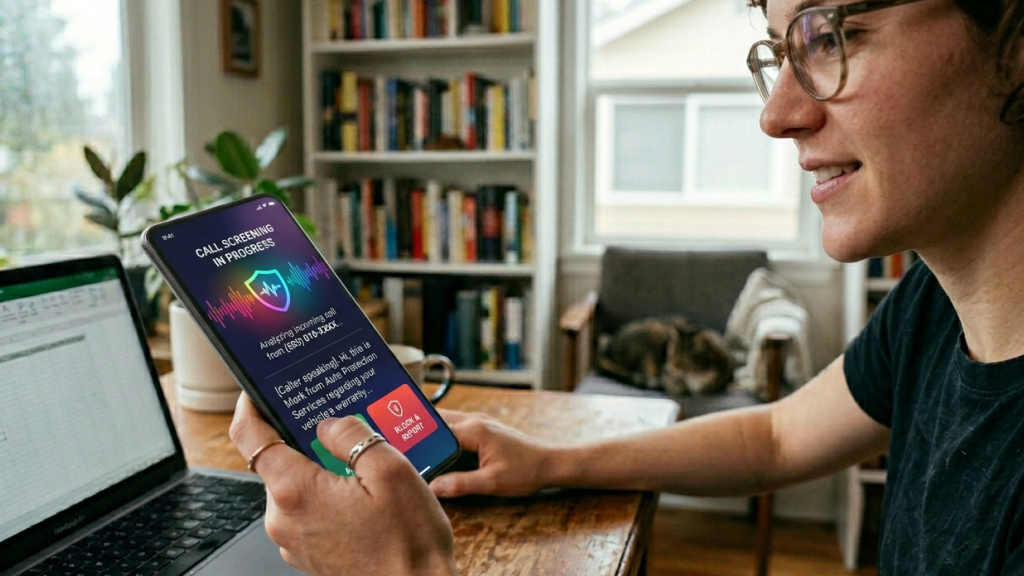
Spam calls have become a daily annoyance, and Pixel phones handle them better than almost any other smartphone.
Call Screen puts Google Assistant in charge of answering unknown calls, helping you decide whether they’re worth your attention. The assistant asks the caller why they are calling and provides a real-time transcript on your screen so you can decide whether to answer, decline, or mark the call as spam.
It feels like having a virtual receptionist built into your phone. This feature is especially useful for:
- Telemarketing calls
- Scam calls
- Unknown business numbers
- Delivery confirmations
- Screening suspicious callers
How to Enable Call Screen
- Open the Phone app
- Tap the three-dot menu
- Go to Settings
- Select Spam and Call Screen
- Tap Call Screen
- Choose your protection level
Once you enable it, your Pixel starts managing unwanted calls automatically, often stopping them before they even ring.
2. Let Your Pixel Wait on Hold With “Hold for Me”
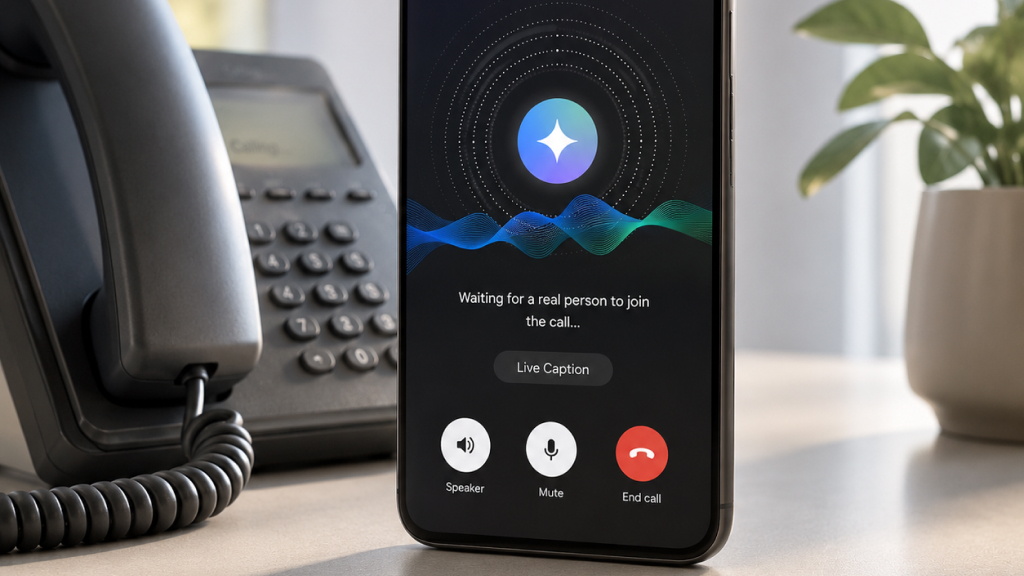
Few things are more frustrating than sitting on hold during customer service calls. Pixel’s Hold for Me feature uses AI (AI Software & AI Web) to wait in the queue for you. When a real human finally joins the call, your phone alerts you instantly so you can return to the conversation.
Instead of listening to endless elevator music, you can continue working, browsing, or simply put your phone down until needed.
How to Enable Hold for Me
- Open the Phone app
- Go to Settings
- Tap Hold for Me
- Turn the feature on
The next time you are placed on hold:
- Tap Hold for Me
- Google Assistant takes over
- Your phone notifies you once an agent responds
This is one of the most genuinely useful AI (AI Software & AI Web) features available on Pixel devices.
3. Use Private Space to Hide Sensitive Apps and Files
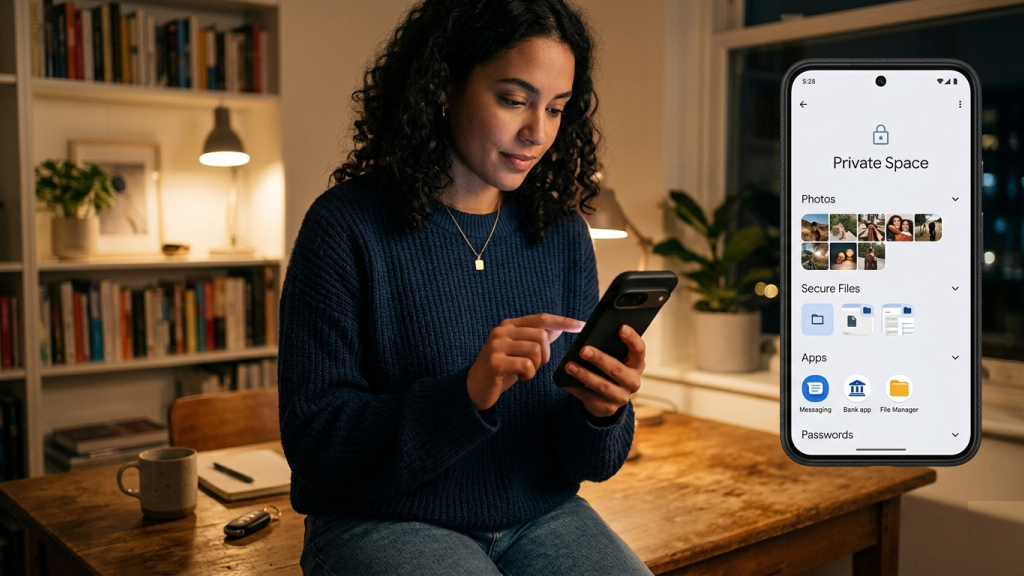
Sometimes you need an extra layer of privacy beyond a simple lock screen. Private Space creates a hidden, separately secured area on your Pixel where you can store:
- Banking apps
- Password managers
- Private photos
- Sensitive documents
- Personal messaging apps
Apps stored inside Private Space remain completely hidden from app search results, the recent apps menu, notifications, and even the main app drawer, creating an additional layer of privacy for sensitive information. This feature essentially functions like a separate phone within your existing device, allowing you to keep personal apps, files, and data isolated from the rest of your smartphone experience.
How to Set Up Private Space
- Open Settings
- Tap Security & Privacy
- Select Private Space
- Follow the setup instructions
- Create a separate PIN or use your existing screen lock
Once configured, you can install apps directly into the hidden space.
4. Turn the Back of Your Phone Into a Button With Quick Tap
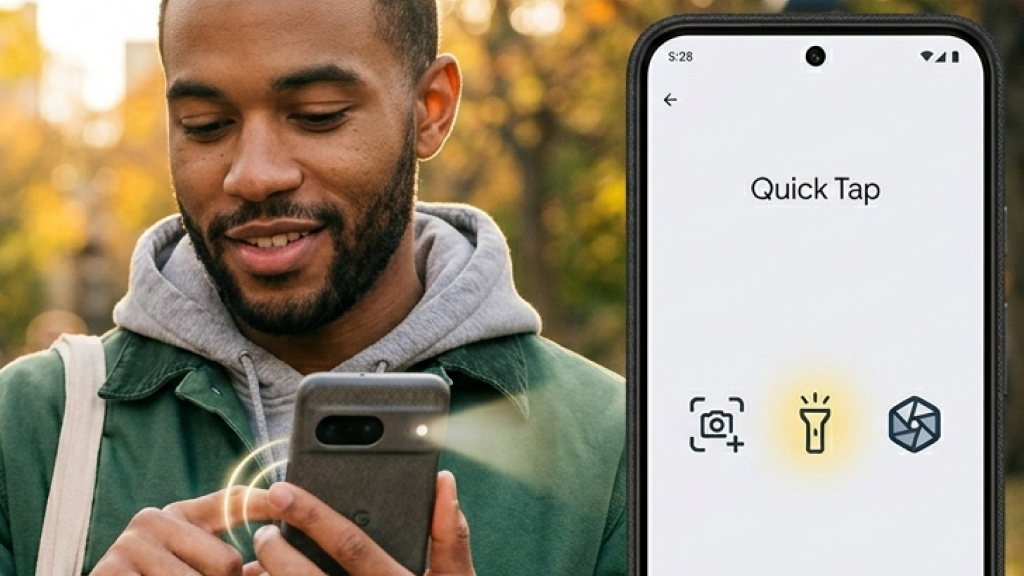
One of the most useful hidden features on Google Pixel phones is Quick Tap. This feature lets you double-tap the back of your phone to perform actions instantly.
Popular Quick Tap actions include:
- Taking screenshots
- Opening the camera
- Turning on the flashlight
- Launching Google Assistant
- Opening specific apps
- Playing or pausing music
It turns the rear panel of your Pixel into a hidden shortcut button.
How to Enable Quick Tap
- Open Settings
- Go to System
- Tap Gestures
- Select Quick Tap
- Choose your preferred action
Once you start using Quick Tap regularly, it quickly becomes second nature.
5. Circle to Search Makes Searching Effortless
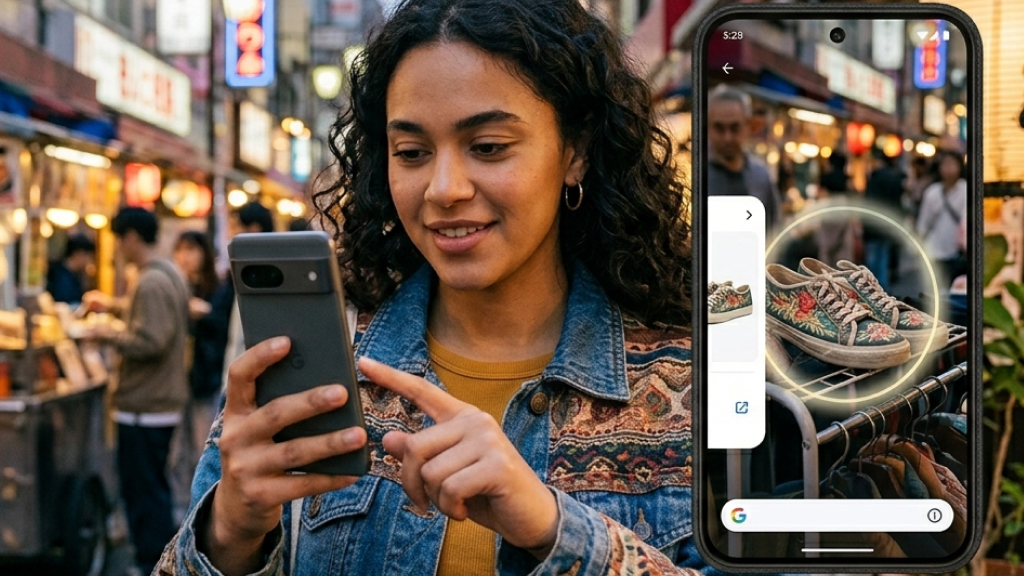
Circle to Search is one of the most impressive AI-powered (AI Software & AI Web) features available on Google Pixel phones, making it possible to search for information instantly without leaving the app you are currently using. Instead of switching between apps, taking screenshots, or manually typing queries into Google, you can simply long-press the navigation bar or home button and interact directly with whatever appears on your screen.
Whether you circle, highlight, scribble over, or tap an object, image, word, or phrase, Pixel immediately performs a contextual search and displays relevant results within seconds. The feature is incredibly useful in everyday situations. You can identify products while browsing social media, translate text on websites, look up unfamiliar words, recognize landmarks from travel videos, find clothing items seen in photos, identify celebrities, or quickly gather information from posts without interrupting your browsing experience.
Since it works seamlessly across apps like Instagram, YouTube, Chrome, TikTok, shopping platforms, and messaging apps, the entire process feels fast, natural, and surprisingly intuitive.
How to Use Circle to Search
- Long-press the navigation bar or home button
- Circle, highlight, scribble over, or tap anything on the screen
- Google will instantly search and display relevant information
After using Circle to Search for a while, traditional searching methods can start to feel unnecessarily slow and outdated.
6. Remove Unwanted Objects With Magic Eraser
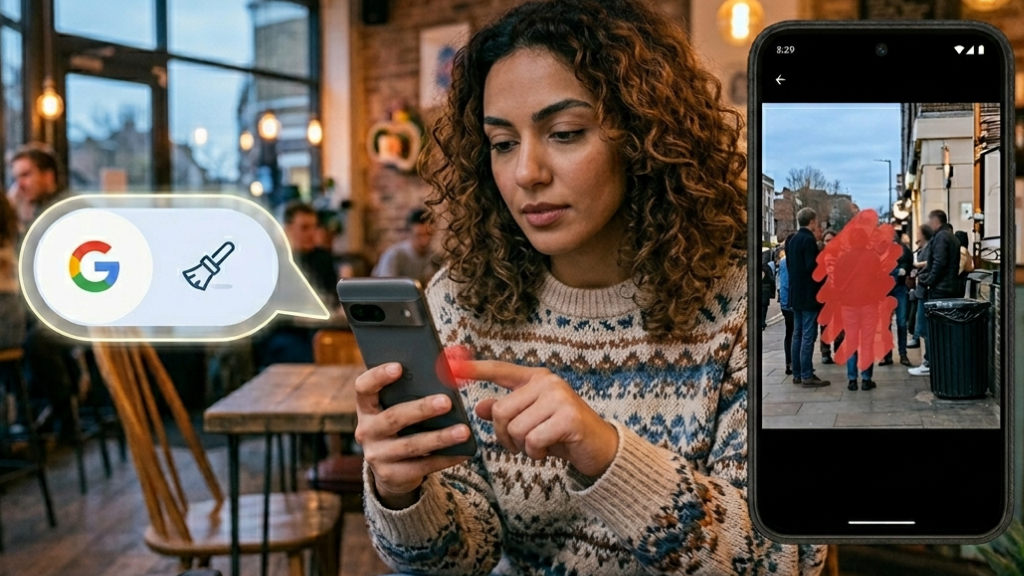
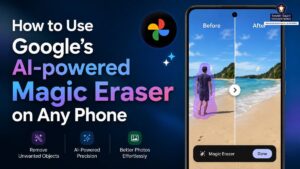
Google Pixel phones include some of the most advanced AI-powered (AI Software & AI Web) photo editing features available on smartphones today, and Magic Eraser is easily one of the most impressive among them. The tool allows users to remove unwanted elements from photos within seconds, including photobombers, power lines, trash bins, random background distractions, and other objects that can ruin an otherwise perfect shot.
Using artificial intelligence, the feature intelligently analyzes the surrounding area and fills the removed section naturally so the final image still looks clean, realistic, and professionally edited without requiring any advanced editing skills.
How to Use Magic Eraser
- Open Google Photos
- Select a photo
- Tap Edit
- Go to Tools
- Choose Magic Eraser
- Circle or tap unwanted objects
It can completely transform photos that might otherwise have been deleted or ignored.
7. Improve Group Photos With Best Take

Capturing the perfect group photo is often more difficult than expected because there is almost always someone blinking, looking away from the camera, smiling awkwardly, or moving at the exact wrong moment. Even after multiple attempts, group shots can still end up feeling imperfect, especially during family gatherings, vacations, celebrations, or spontaneous moments with friends.
Google Pixel’s Best Take feature uses AI (AI Software & AI Web) to solve this problem in an incredibly smart way. Instead of relying on a single image, the phone captures multiple frames and allows you to combine the best facial expressions from different shots into one final photo.The feature allows you to fix imperfect expressions by pulling better versions from nearby frames, helping create a final image where everyone looks their best.
Best Take is particularly useful for group selfies, travel photos, family portraits, and special occasions where recreating the moment may not be possible. By reducing the need for endless retakes and helping salvage photos that would normally be disappointing, the feature makes taking group pictures far less stressful and far more reliable.
8. Capture Stunning Night Sky Photos With Astrophotography Mode
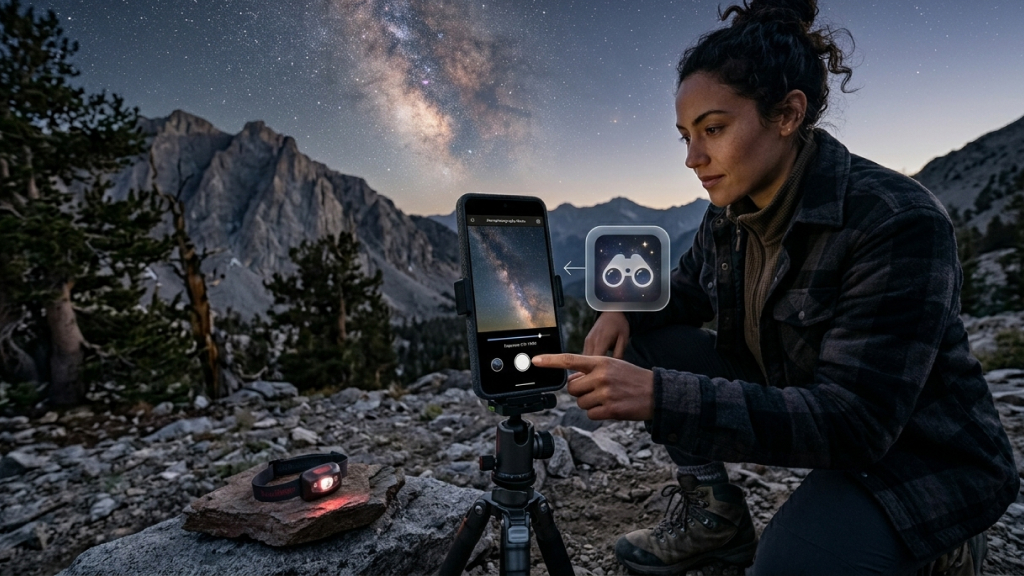
Pixel phones can capture incredible photos of stars, constellations, and even the Milky Way. Astrophotography Mode automatically activates when:
- Night Sight is enabled
- The phone is completely still
- Lighting conditions are dark enough
Tips for Best Results
- Use a tripod
- Avoid city lights
- Keep the phone stable
- Be patient during long exposure
How to Enable Astrophotography
- Open the Camera app
- Switch to Night Sight
- Place the phone on a stable surface
- Wait for Astrophotography Mode to activate
- Tap the shutter button
The exposure can take several minutes, but the results are often stunning.
9. Use Recorder for Real-Time Transcription
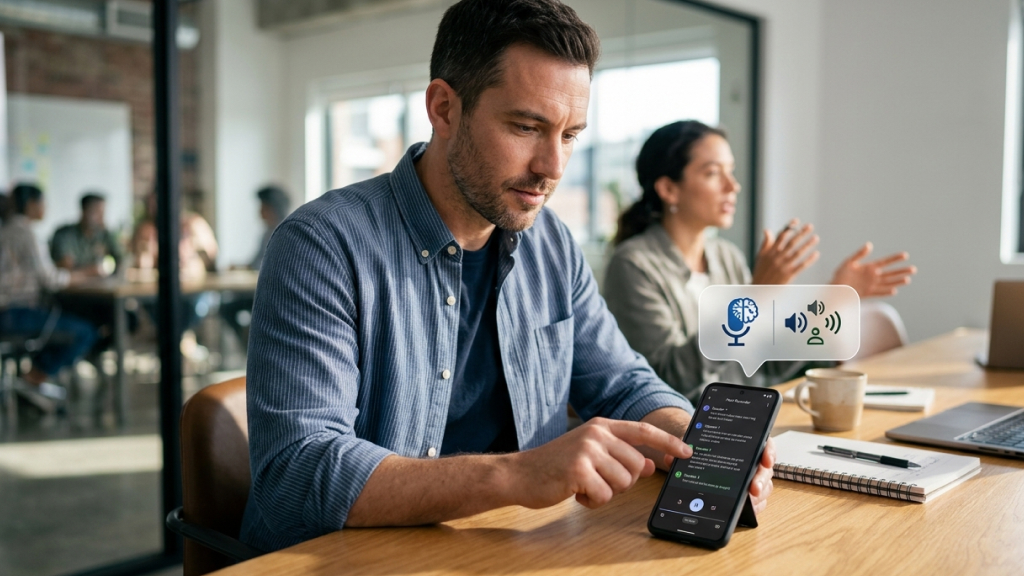
The Recorder app on Google Pixel phones is much more advanced than a traditional voice recording tool, offering powerful AI-driven (AI Software & AI Web) transcription capabilities that can automatically convert spoken words into text in real time. As conversations, lectures, interviews, or meetings are recorded, the app instantly generates live transcripts directly on the screen, making it incredibly convenient for capturing important information without needing to take manual notes.
What makes the feature even more impressive is its ability to identify and separate different speakers, search recordings using specific keywords, work entirely offline, and export full text transcripts whenever needed. This transforms the Recorder app into a highly effective productivity tool for journalists conducting interviews, students attending lectures, professionals recording meetings, content creators gathering ideas, and researchers documenting discussions or observations.
By combining accurate voice recognition with offline AI (AI Software & AI Web) processing, Pixel’s Recorder app becomes one of the most practical and underrated features available on the device.
How to Use Recorder
- Open the Recorder app
- Tap Record
- Speak normally
- Watch live transcription appear instantly
It is one of the most underrated productivity tools on Pixel phones.
10. Use Live Translate While Traveling

Language barriers feel significantly less challenging with Google Pixel’s Live Translate feature, which can translate conversations and text in real time directly on your device. Whether you are translating text messages, live face-to-face conversations, websites, signs, menus, or text captured through the camera, the feature makes communication faster, smoother, and far more convenient, especially while traveling or interacting with people who speak different languages.
How to Enable Live Translate
- Open Settings
- Go to System
- Tap Live Translate
- Turn it on
The feature is especially useful while traveling internationally, browsing foreign-language websites, communicating with multilingual contacts, or translating restaurant menus, street signs, and important information on the go. When paired with Circle to Search, the overall experience becomes even more seamless and powerful, allowing users to instantly translate and understand content directly from their screen without switching between apps.
11. Turn Your Pixel Into a Webcam
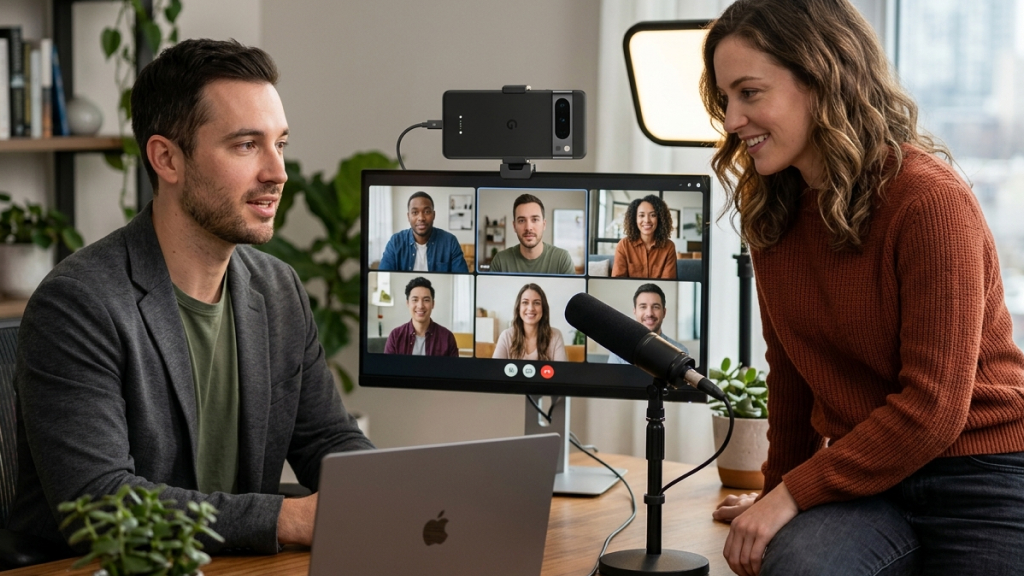
Modern Pixel phones can function as high-quality webcams for computers and tablets. Since Pixel cameras are significantly better than most laptop webcams, this instantly upgrades your video calls.
How to Use Webcam Mode
- Connect your Pixel via USB-C
- Tap the USB notification
- Select Webcam
Your computer immediately detects the phone as a webcam source. This feature works exceptionally well for video calls on platforms like Zoom and Google Meet, while also being incredibly useful for streaming, attending online classes, virtual presentations, and various forms of content creation where better camera quality can make a noticeable difference.
12. Use Desktop Mode With an External Monitor
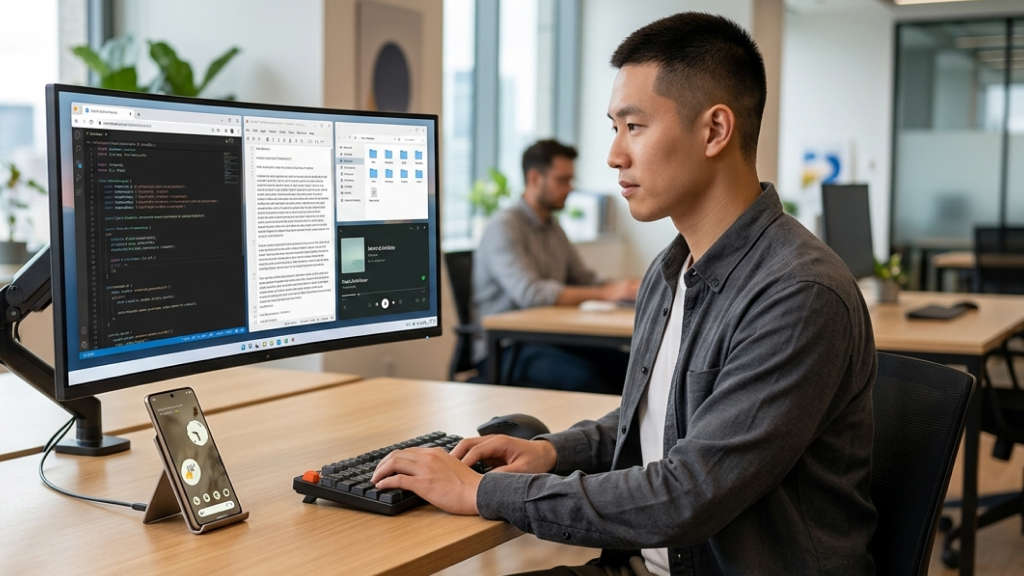
Modern Google Pixel phones can deliver a desktop-like computing experience when connected to an external monitor, allowing the device to function much more like a compact computer than a traditional smartphone. Once plugged into a display through USB-C, the interface transforms into a more productivity-focused layout where apps can open in movable windows, multitasking becomes easier, and navigation feels closer to using a desktop operating system.
When paired with accessories such as a Bluetooth keyboard, wireless mouse, or USB-C hub, the setup becomes surprisingly capable for everyday productivity tasks. Users can browse the web, respond to emails, edit documents, manage multiple apps simultaneously, or even deliver presentations without needing a separate laptop.
This feature is particularly useful for travel productivity, quick work sessions, portable workstation setups, and presentations where carrying a full computer may not be practical. For many users, it transforms the Pixel into a lightweight and highly portable productivity device.
13. Enable Adaptive Battery for Better Battery Life

Battery life remains one of the biggest priorities for smartphone users, and Google Pixel phones use artificial intelligence to manage power consumption more efficiently through Adaptive Battery. The feature learns your daily usage habits over time by analyzing which apps you use frequently, which ones you rarely open, and how you typically interact with your device throughout the day.
Based on these patterns, Pixel intelligently limits background activity and power usage for less frequently used apps, helping extend battery life without noticeably affecting everyday performance.
How to Enable Adaptive Battery
- Open Settings
- Go to Battery
- Tap Adaptive Preferences
- Enable Adaptive Battery
Over time, your Pixel becomes smarter about conserving power.
14. Protect Battery Health With Adaptive Charging
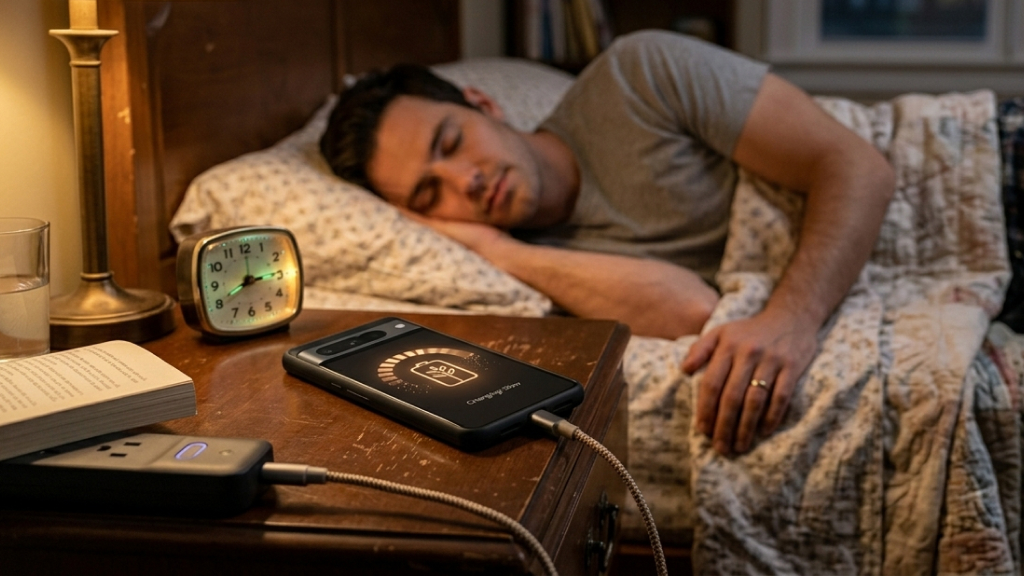
Fast charging is convenient, but constantly charging to 100% overnight can wear down battery health over time. Adaptive Charging slows down overnight charging and finishes topping up your battery shortly before you wake up.
How to Enable Adaptive Charging
- Open Settings
- Go to Battery
- Tap Adaptive Preferences
- Turn on Adaptive Charging
This helps extend long-term battery lifespan without affecting daily usability.
15. Use Extreme Battery Saver in Emergencies
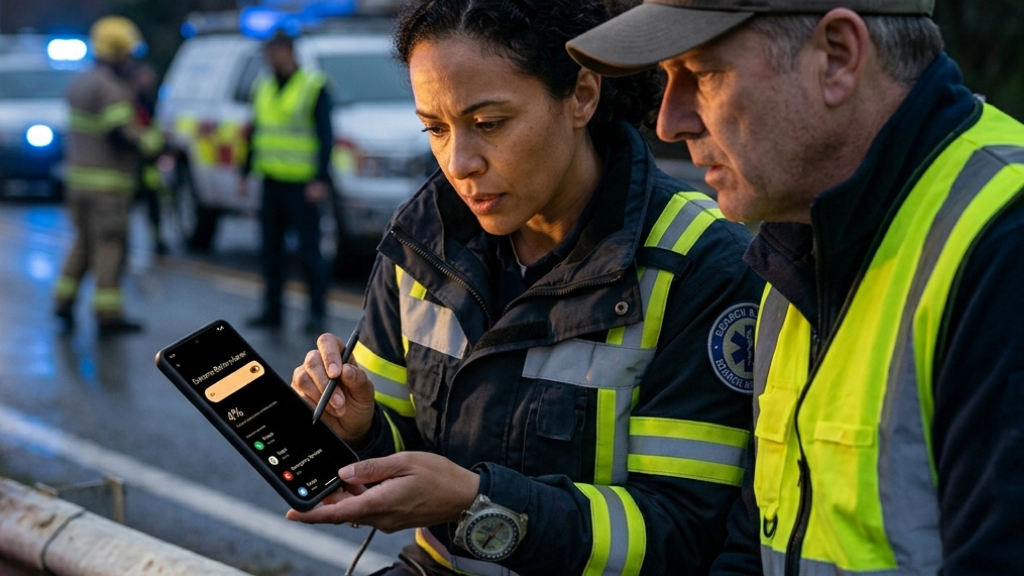
When your battery level becomes critically low, Extreme Battery Saver can significantly extend the remaining battery life by aggressively reducing power consumption across the device. The feature works by pausing background apps, limiting unnecessary activity, restricting power-intensive functions, and prioritizing only essential features, helping your Pixel last much longer during emergencies, travel, or situations where charging is not immediately possible.
How to Enable Extreme Battery Saver
- Open Settings
- Go to Battery
- Tap Battery Saver
- Enable Extreme Battery Saver
This feature can keep your phone alive for hours longer during emergencies or travel days.
16. Identify Songs Automatically With Now Playing

Now Playing is easily one of the most popular and impressive features available on Google Pixel phones. This feature identifies songs playing around you and puts the track name and artist on your lock screen, making music discovery effortless without opening another app.
What makes it even more remarkable is that it works offline using an on-device music database, allowing your Pixel to recognize songs quickly while maintaining privacy and efficiency.
How to Enable Now Playing
- Open Settings
- Tap Sound & Vibration
- Select Now Playing
- Enable Identify songs playing nearby
The feature is especially useful in places like cafés, restaurants, shopping malls, parties, concerts, and other public spaces where discovering new music often happens unexpectedly.
17. Improve Calls With Clear Calling

Background noise can often make phone conversations difficult and frustrating, particularly in loud or crowded surroundings. Google Pixel’s Clear Calling feature uses AI-powered (AI Software & AI Web) noise reduction to minimize unwanted ambient sounds while enhancing voice clarity during calls, making conversations sound significantly cleaner and easier to understand.
The feature is especially helpful in noisy environments such as airports, public transport, busy streets, cafés, and outdoor locations where background distractions would normally interfere with call quality.
How to Enable Clear Calling
- Open Settings
- Tap Sound & Vibration
- Select Clear Calling
- Turn it on
The difference can be surprisingly noticeable.
18. Stay Safer With Emergency SOS and Safety Check
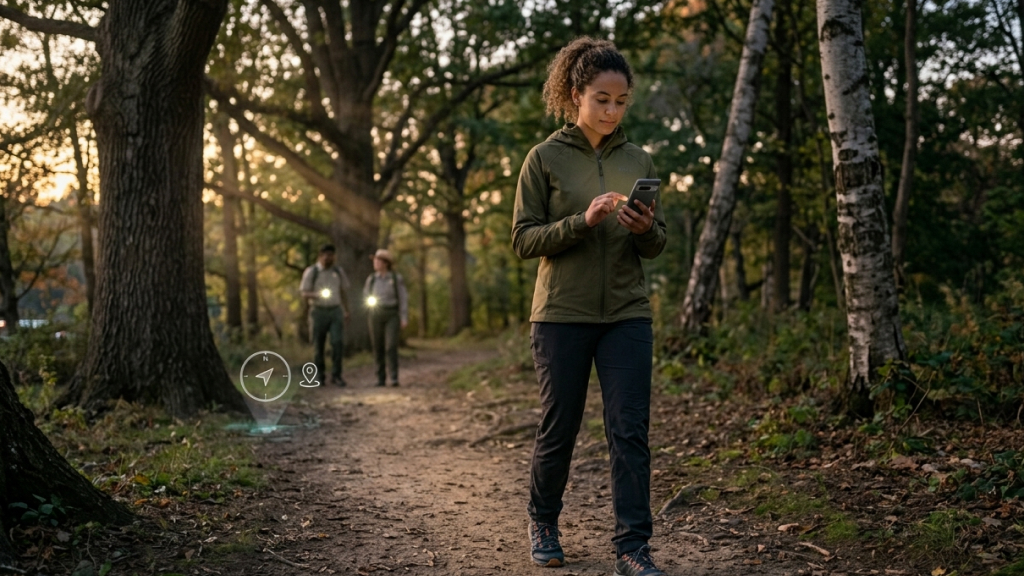
Google Pixel phones include several powerful personal safety features that many users rarely discover, despite how useful they can be during emergencies or potentially dangerous situations.
Emergency SOS
Emergency SOS is designed to provide immediate assistance when needed by quickly contacting emergency services, sharing your live location with trusted contacts, notifying emergency contacts automatically, and even recording video during critical situations. These features can be crucial during accidents, medical emergencies, or situations where quick communication is needed.
Safety Check
Safety Check adds another layer of protection by allowing users to set a timer when traveling alone, meeting someone unfamiliar, or entering situations that may feel unsafe. If the user does not respond before the timer expires, the phone automatically alerts selected emergency contacts and shares important information, helping ensure someone is aware if assistance may be needed.
How to Access These Features
- Open Settings
- Tap Safety & Emergency
- Configure: Emergency SOS, Safety Check, Emergency contacts
These features can provide genuine peace of mind during travel or emergencies.
19. Customize Your Phone With Material You
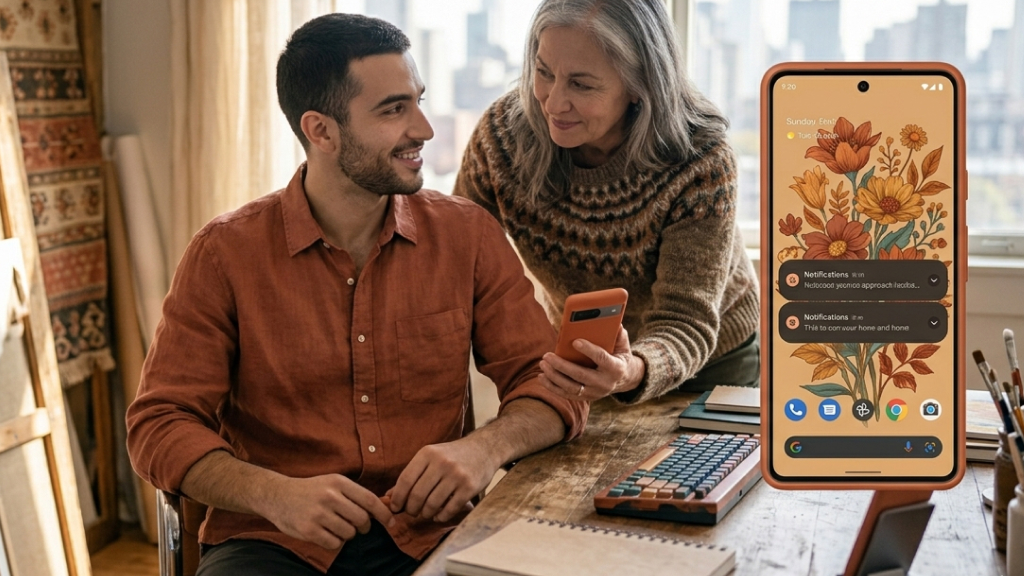
Google Pixel’s Material You design system intelligently customizes the overall appearance of your phone based on the wallpaper you choose, creating a more visually cohesive and personalized experience. The system automatically adapts elements such as app colors, menus, widgets, notification shades, and system accent tones to match your wallpaper’s color palette, giving the interface a consistent and dynamic look throughout the device. The result is a smartphone experience that feels more personal, polished, and uniquely tailored to your style.
How to Customize Material You
- Open Settings
- Tap Wallpaper & Style
- Choose: Wallpaper colors, Basic colors, Icon themes
It is one of Android’s best customization systems.
20. Use Advanced Voice Typing for Faster Dictation
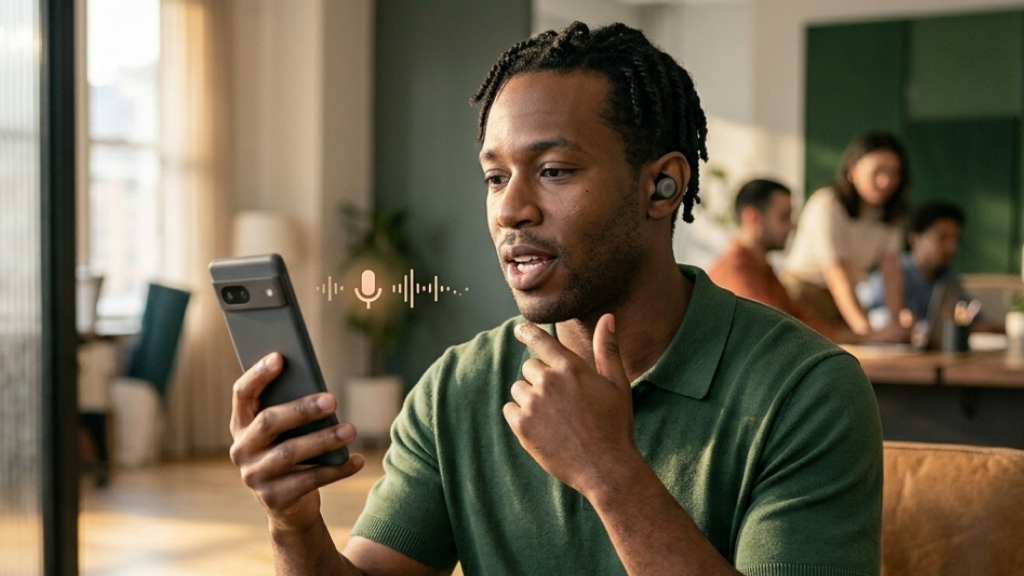
Google Pixel phones offer some of the most advanced and accurate voice typing capabilities available on Android, making dictation feel fast, natural, and surprisingly reliable. Advanced voice typing can automatically add punctuation, understand natural conversational speech, insert emojis through voice commands, process spoken corrections seamlessly, and convert speech into text with impressive speed and accuracy.
The feature creates a much smoother typing experience, especially for users who frequently send messages, take notes, or compose long pieces of text using their voice.
How to Enable Advanced Voice Typing
- Open any typing field
- Launch Gboard
- Tap the Settings icon
- Select Voice Typing
- Enable Advanced Voice Typing
Once enabled, speaking often becomes faster than typing.
Google Pixel phones are filled with hidden tools, AI-powered (AI Software & AI Web) features, and smart automation capabilities that many users never fully explore. While some features improve convenience, others can genuinely transform how you communicate, take photos, manage privacy, travel, or save time every day.
What makes Pixel devices unique is how seamlessly these features integrate into the experience. Instead of feeling like gimmicks, many of these tools quietly solve real-world problems in practical ways. If you own a Pixel device, taking the time to explore these hidden hacks can completely change the way you use your phone.