


For years, people assumed that if an app was free, it probably lacked polish, performance, or the professional features needed for serious work. But that assumption no longer holds true. Some of the best desktop applications available today are open-source tools built by passionate developers who prioritize speed, usability, customization, and transparency over subscriptions and ecosystem lock-ins.
In many cases, these apps don’t just compete with premium software, they outperform it. Whether it’s a browser that feels faster and smarter than Chrome, a video editor capable of professional workflows, or productivity tools that solve everyday frustrations better than Windows itself, modern open-source software has evolved far beyond being “good for free.”
What makes these applications stand out is that they don’t feel compromised. They feel thoughtfully built. They focus on user experience instead of monetization, offer powerful features without aggressive paywalls, and often run better on older hardware than many commercial alternatives.
Here are some open-source desktop apps so polished, capable, and genuinely enjoyable to use that it’s hard to believe they cost absolutely nothing.
1. Zen Browser
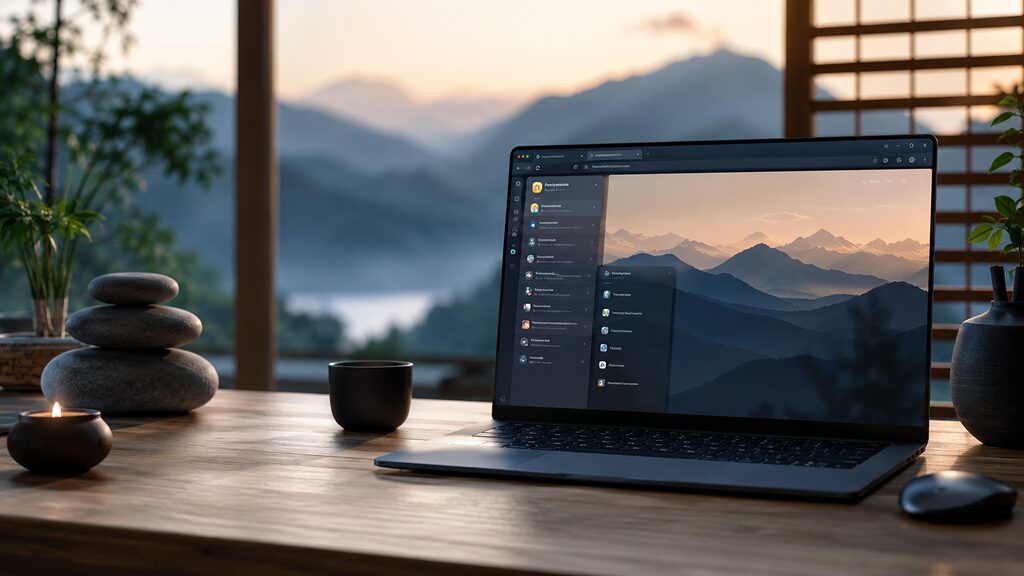
Zen Browser is a Firefox-based open-source browser that focuses heavily on productivity, organization, and customization without sacrificing performance. While most browsers today continue adding AI (AI Software & AI Web) tools, promotional integrations, and unnecessary interface clutter, Zen takes a much cleaner and more workflow-focused approach.
The browser is heavily inspired by Arc, particularly in how it handles tabs and workspaces, but it delivers a more stable and refined experience across Windows, macOS, and Linux. Instead of traditional horizontal tabs, Zen uses a vertical sidebar that makes managing large numbers of tabs significantly easier. For people who constantly multitask across research, documents, communication apps, and media, this layout feels far more practical than the conventional tab bar.
One of Zen’s biggest strengths is its workspace system. Users can create separate workspaces for different projects or activities, helping keep browsing sessions organized instead of turning into one massive collection of tabs. Pinned tabs and Essential tabs also stay persistent, making frequently used pages easier to access throughout the day.
The browser includes features like Split View for viewing multiple tabs side-by-side, compact mode for reducing interface distractions, and Glance, which allows quick previews of links without fully opening new tabs. These additions may sound small individually, but together they make browsing noticeably more efficient.
Since Zen Browser is based on Firefox, it uses Mozilla’s rendering engine instead of relying on Chromium. That means full support for Firefox extensions, strong privacy protections, and independence from Google’s browser ecosystem. The browser also tends to feel lighter on system resources compared to Chrome, especially on older systems or laptops with limited memory.
Customization is another major advantage. Zen supports themes, layout tweaks, community-created mods, and extensive interface adjustments that let users shape the browser around their workflow instead of adapting to a rigid design.
What makes Zen Browser particularly impressive is how complete it already feels despite being an open-source project. It comes across as a modern, productivity-focused browser designed for users who spend the majority of their time working inside the web.
2. Microsoft PowerToys

Microsoft PowerToys is one of the most useful productivity toolkits available for Windows users. Instead of being a single application, it’s a collection of utilities designed to improve parts of Windows that still feel incomplete or unnecessarily restrictive.
One of its most valuable tools is Command Palette, a fast launcher that can open applications, search files, run commands, perform calculations, and navigate system settings almost instantly. Compared to the default Windows Search experience, it feels dramatically faster and far more reliable.
FancyZones is another standout feature. It allows users to create custom window layouts for multitasking, making it much easier to organize apps on ultrawide or high-resolution monitors. Instead of constantly adjusting window sizes by hand, apps automatically fit into preset layouts with a single snap.
PowerToys also includes several smaller tools that become surprisingly essential over time. PowerRename enables advanced batch renaming with search-and-replace support, regular expressions, and preview functionality. Image Resizer adds quick image resizing directly into the Windows context menu, eliminating the need to open separate editing software for simple tasks.
Advanced Paste improves clipboard functionality by allowing text formatting conversion, while Text Extractor uses OCR to copy text from anywhere on the screen, including images and applications that normally block text selection.
There are also utilities like File Locksmith for identifying which apps are locking files, Keyboard Manager for remapping keys and shortcuts, Mouse Utilities for presentations and screen highlighting, and Peek for previewing files without opening them fully.
What makes PowerToys especially impressive is how seamlessly everything integrates into Windows. The tools don’t feel like third-party add-ons. They feel like features Microsoft should have included in the operating system years ago.
For power users, creators, developers, or even regular Windows users looking to streamline repetitive tasks, PowerToys can noticeably improve productivity with almost no learning curve.
3. Fluent Search
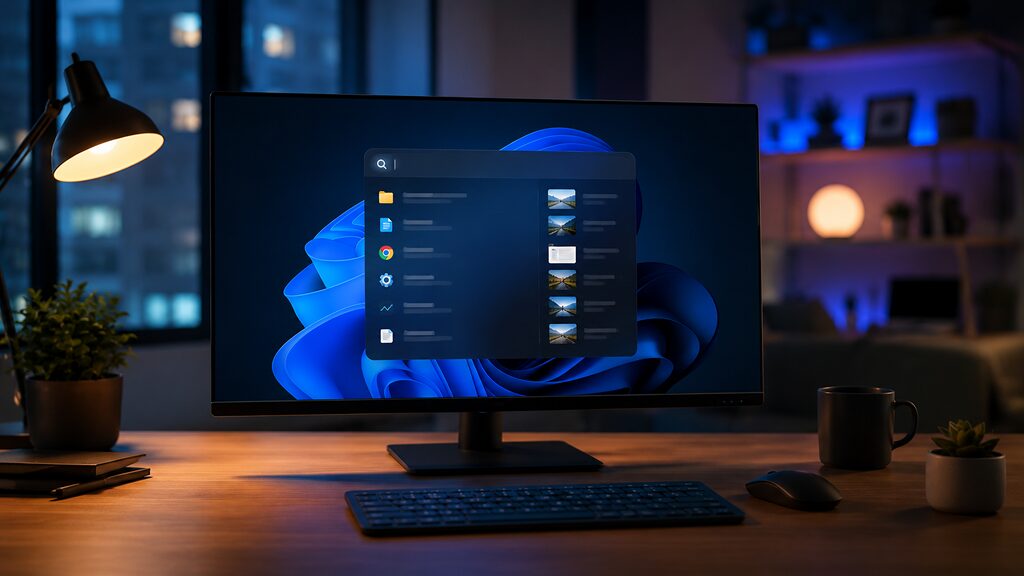
Fluent Search completely rethinks how desktop search should work on Windows. It functions more like a universal command center for applications, files, browser content, processes, and even on-screen text.
The first thing users notice is speed. Searches appear almost instantly, and the application feels significantly more responsive than Windows Search, which is often slowed down by indexing issues, web integrations, and unnecessary background activity.
Fluent Search can index files, installed applications, browser bookmarks, running processes, tabs, and system settings while still maintaining a lightweight footprint. It also supports advanced filtering and fuzzy searching, making it easier to locate content even when exact filenames or keywords aren’t remembered.
One of its most useful features is Screen Search, which uses OCR technology to identify visible text anywhere on the display. Users can quickly search for interface elements, buttons, or text shown inside applications without manually navigating menus.
The application also supports plugins and workflow extensions, allowing users to add custom actions, commands, and integrations depending on their needs. Keyboard shortcuts and hotkeys are highly customizable, making Fluent Search especially appealing for keyboard-driven workflows.
Web previews are another thoughtful addition. Instead of immediately opening links in a browser, Fluent Search can preview websites directly within the search interface, helping reduce interruptions while researching.
Unlike Windows Search, Fluent Search focuses entirely on local productivity. There are no integrated search ads or recommendations, or attempts to push cloud services. The result is a cleaner and more focused experience. For users frustrated by the limitations of Windows Search, Fluent Search feels like a modern replacement rather than just another launcher utility.
4. PhotoDemon
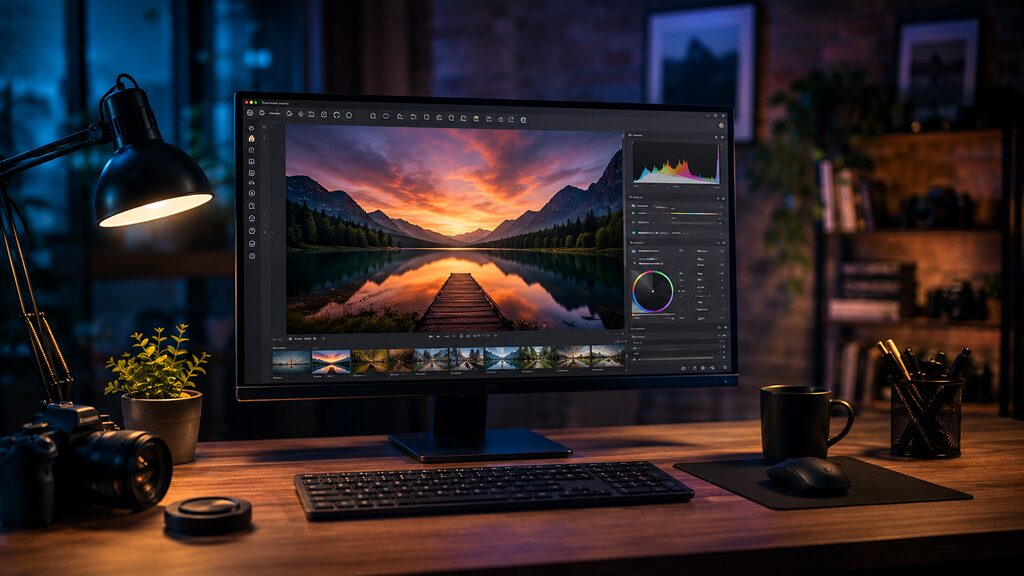
PhotoDemon is one of the most underrated open-source image editors available for Windows. While many people immediately think of Photoshop or GIMP for advanced editing, PhotoDemon offers an impressive balance between professional functionality and ease of use.
The software supports non-destructive editing workflows, layered image editing, advanced filters, real-time previews, and RAW image handling without feeling excessively heavy or complicated. Despite offering over 200 editing tools and effects, the interface remains relatively approachable compared to some other open-source alternatives.
Performance is one of its strongest advantages. PhotoDemon is lightweight enough to run well on older hardware while still handling large image files efficiently. The application launches quickly, uses minimal system resources, and remains responsive even during more demanding editing tasks.
The editor includes support for PSD files, allowing users to work with Photoshop-compatible projects. It also supports a wide range of image formats, including PNG, JPEG, GIF, TIFF, BMP, WEBP, and RAW camera files.
Features like content-aware fill, color correction, advanced selection tools, layer effects, and batch processing make it capable of handling serious editing workflows. The batch processing tools are especially useful for photographers or creators working with large folders of images.
One particularly useful feature is its macro recorder, which allows users to automate repetitive editing tasks. Complex sequences of adjustments can be recorded and replayed with a single shortcut, saving significant time during repetitive workflows.
Unlike many paid photo editing tools that are moving toward subscription models and cloud-based features, PhotoDemon remains focused on fast, locally run editing with an emphasis on performance and ease of use.
For users who want a capable image editor without paying for Adobe Photoshop or dealing with overly complex software, PhotoDemon offers far more functionality than most people would expect from a free open-source application.
5. Kdenlive
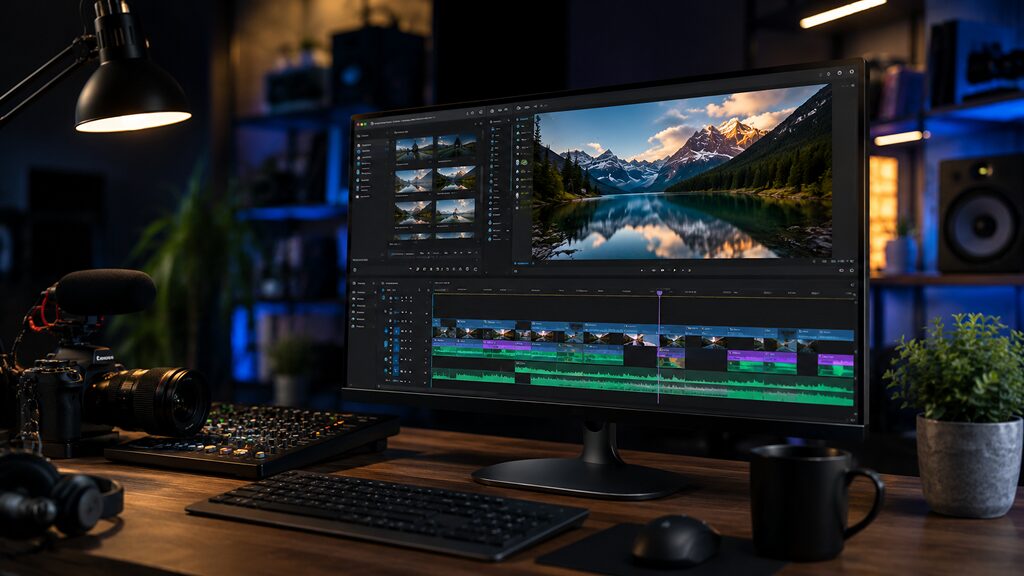
Kdenlive has evolved into one of the strongest open-source video editing applications available today. What was once considered a Linux-focused editor now delivers a genuinely professional editing experience across Windows, macOS, and Linux.
The software supports multi-track editing with unlimited video and audio tracks, giving creators flexibility for complex timelines and layered projects. Thanks to FFmpeg integration, Kdenlive also supports nearly every major video and audio format without requiring additional codec installations.
The editing interface is highly customizable. Panels can be rearranged depending on the workflow, and users can save workspace layouts optimized for editing, color grading, audio work, or effects management.
Kdenlive includes a large library of built-in effects and transitions covering color correction, stabilization, sharpening, blur, compositing, distortion, audio equalization, and motion effects. Professional monitoring tools such as waveform scopes, histograms, vectorscopes, and audio meters help creators maintain consistent quality throughout projects.
Proxy editing is another major advantage, especially for users working on older hardware or high-resolution footage. Instead of editing full-resolution files directly, Kdenlive generates lower-resolution proxy files to improve playback and editing performance.
The software also supports multicam editing, keyframe animation, subtitle tools, automatic backups, and timeline previews for smoother workflows during larger projects.
What makes Kdenlive impressive is that it no longer feels like a “good free editor.” It feels like a genuinely capable editing platform that can handle real production work without requiring expensive subscriptions.
For YouTubers, filmmakers, educators, or content creators looking for a professional-grade editor without monthly costs, Kdenlive is one of the best open-source options available.
6. Bitwarden

Bitwarden has become one of the most trusted password managers largely because it combines strong security, transparency, and ease of use without aggressively limiting free users.
At its core, Bitwarden securely stores passwords, passkeys, notes, payment information, and authentication data while syncing everything across devices. It supports Windows, macOS, Linux, Android, iPhone, and all major browsers through lightweight extensions.
One of Bitwarden’s biggest strengths is its open-source approach. The codebase is publicly available for auditing, and the platform undergoes regular independent security audits. That level of transparency gives users far more confidence compared to many closed-source password managers.
The browser extensions are fast and unobtrusive, making autofill and password generation simple during daily use. The app also supports secure password sharing, vault organization, and biometric authentication across supported devices.
Bitwarden’s free tier is unusually generous. Users get unlimited password storage, device syncing, and core password management functionality without artificial restrictions. The premium subscription mainly adds advanced features such as encrypted file storage, TOTP authentication generation, emergency access, and advanced security reports.
Another major advantage is self-hosting support. Users who want complete control over their password infrastructure can host their own Bitwarden server instead of relying entirely on cloud-hosted services.
Unlike some password managers that increasingly feel designed around upselling premium plans, Bitwarden’s approach feels more user-focused. The premium version expands functionality meaningfully without making the free version feel intentionally incomplete.
For individuals, families, and even businesses, Bitwarden delivers enterprise-grade security features while remaining accessible and easy to use.
7. OBS Studio

OBS Studio has become the standard streaming and recording platform for creators across YouTube, Twitch, podcasts, education, and professional broadcasting. What makes that even more impressive is that the software remains completely free and open-source.
OBS allows users to create advanced live production setups using scenes and sources. A single scene can combine webcams, screen captures, browser overlays, images, videos, microphones, alerts, and animations, all managed in real time during streams or recordings.
The software supports high-quality recording and live streaming with hardware acceleration for NVIDIA, AMD, and Intel GPUs, helping reduce CPU usage during demanding workloads. OBS also supports multiple streaming platforms simultaneously through plugins and integrations.
Its audio controls are especially powerful. Users can manage multiple audio sources independently, apply filters such as noise suppression and compression, and create balanced audio mixes directly inside the software.
OBS Studio also benefits from a massive plugin ecosystem. Plugins expand functionality with virtual camera support, advanced transitions, replay buffers, automation tools, custom overlays, stream management integrations, and enhanced recording controls.
Performance optimization is another reason OBS is so widely respected. Despite offering professional-grade capabilities, the application remains lightweight and stable enough to run on relatively modest systems when configured properly.
The interface can initially appear overwhelming for beginners, but the flexibility becomes a major advantage over time. Users can start with basic screen recording and gradually build more advanced production environments as their needs grow.
Few commercial streaming applications offer the same level of flexibility, hardware compatibility, and community support without expensive subscriptions. OBS Studio has effectively become the default broadcasting software for much of the internet.
8. Nextcloud
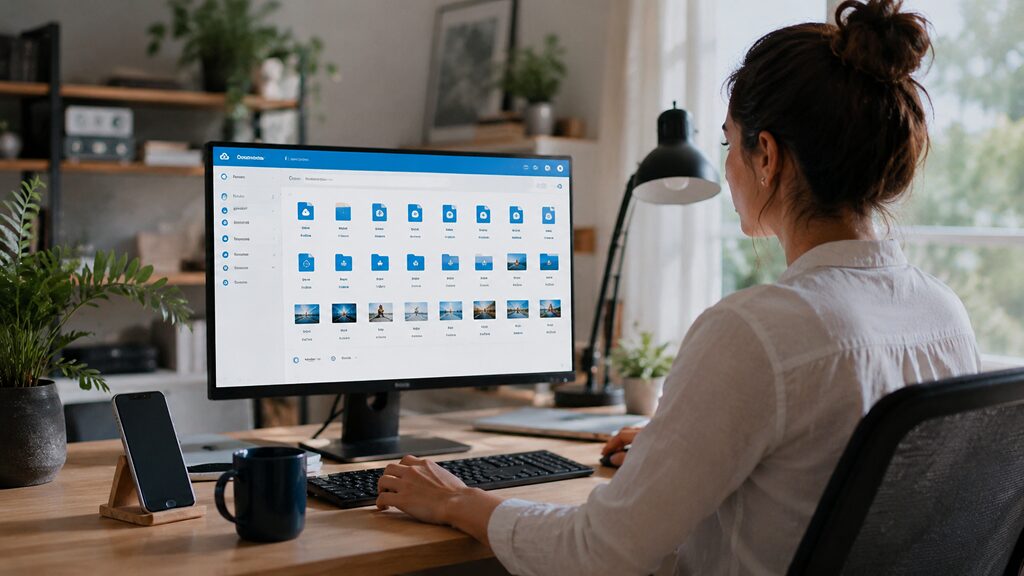
Nextcloud is far more than a simple cloud storage platform. It’s a complete self-hosted ecosystem for file management, collaboration, communication, and productivity that gives users full control over their own data.
At its foundation, Nextcloud handles file syncing and storage across desktops, smartphones, and web browsers. Users can upload, organize, share, and access files much like they would with Google Drive or Dropbox, but without depending entirely on third-party cloud providers.
The platform also includes calendar syncing, contacts management, collaborative document editing, note-taking, task management, and video conferencing through its app ecosystem. Integrations with platforms like OnlyOffice and Collabora Office allow teams to edit documents collaboratively in real time.
One of Nextcloud’s biggest advantages is privacy. Since the platform can be self-hosted on personal servers or private infrastructure, users maintain ownership and control over sensitive files and communications. That makes it especially appealing for privacy-focused individuals, businesses, schools, and organizations.
Security features include end-to-end encryption options, two-factor authentication, access controls, activity monitoring, and file versioning. Administrators can also customize permissions and storage rules depending on organizational needs.
The platform scales surprisingly well. Small home users can run Nextcloud on lightweight hardware, while larger organizations can deploy enterprise-grade environments supporting thousands of users.
Despite its advanced capabilities, the interface remains relatively modern and approachable. Earlier self-hosted platforms often felt overly technical, but Nextcloud now delivers an experience that feels polished enough for mainstream users.
For people looking to move away from centralized cloud ecosystems while retaining modern collaboration features, Nextcloud is one of the most capable open-source platforms currently available.
9. ImageGlass
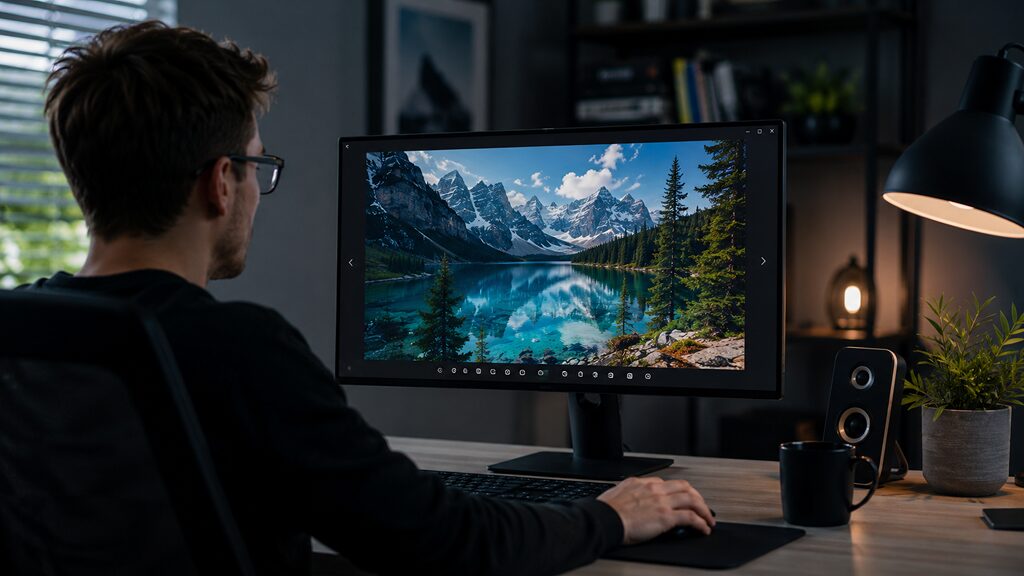
ImageGlass is often described as a simple image viewer, but that undersells what it actually delivers. While most default Windows image viewers are limited to basic opening and zooming, ImageGlass turns image browsing into a much more flexible and modern experience.
One of its biggest advantages is broad format support. It handles over 80 image formats, including common types like JPG, PNG, and GIF, as well as modern and professional formats such as WEBP, HEIC, SVG, and RAW files. This makes it especially useful for users who work with diverse image sources and don’t want to rely on multiple apps just to view files.
The interface is intentionally minimal, but not restrictive. It removes unnecessary clutter while still offering useful controls like slideshow mode, full-screen viewing, and smooth navigation between images. This makes it feel fast and distraction-free, especially when browsing large image folders.
Beyond simple viewing, ImageGlass includes practical tools that improve everyday usability. Users get features like color picking directly from images, format conversion options, GIF frame extraction, and quick image rotation and resizing tools. These small additions make it more than just a viewer, as it becomes a lightweight utility tool for quick image handling.
Customization is another strong point. The application supports themes, icon packs, language packs, and layout adjustments, allowing users to tailor the experience based on preference. It also integrates well with Windows Explorer, enabling smooth folder-based navigation without breaking workflow.
Performance is where ImageGlass truly stands out. It is extremely lightweight, launches instantly, and handles large image directories without lag or unnecessary system load. Unlike heavier photo management tools, it stays focused purely on speed and responsiveness.
For users who are tired of Windows’ limited built-in image viewer, ImageGlass offers a cleaner, faster, and far more capable alternative that respects simplicity without sacrificing functionality.
10. digiKam
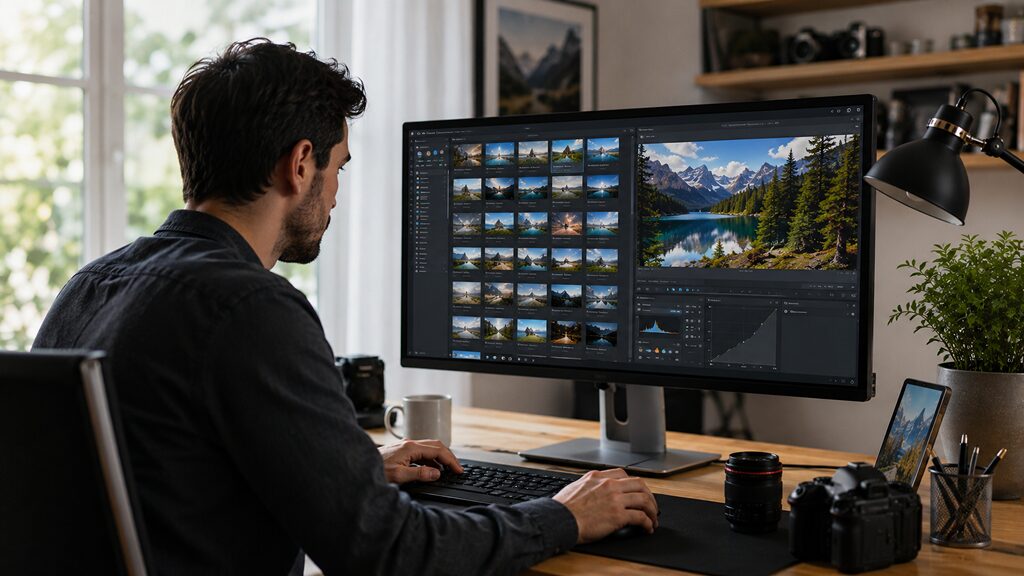
digiKam is not just an image viewer, but a full-scale photo management system designed for users who work with large and complex photo libraries. While many tools focus on editing or casual viewing, digiKam focuses on organization, indexing, and long-term photo management at a professional level.
At its core, digiKam allows users to import, organize, and manage thousands of images efficiently. It supports hierarchical album structures, tagging systems, ratings, and advanced metadata handling, making it easy to build a highly organized photo library that can scale over time.
One of its most powerful features is intelligent photo organization. digiKam uses face recognition and auto-tagging to help users sort and categorize images automatically. This is especially useful for photographers dealing with large collections where manual sorting would take hours or even days.
The application also includes a built-in image editor that supports RAW processing, color correction, white balance adjustments, red-eye removal, and other essential editing tools. While it is not meant to replace full-fledged editing software like Photoshop, it handles everyday editing tasks efficiently without requiring external tools.
For advanced workflows, digiKam includes batch processing features that allow users to apply edits, renaming rules, or metadata changes across large groups of images at once. This is particularly valuable for professional photographers managing event shoots or studio work.
Additional tools like the Light Table allow side-by-side image comparisons, while lens correction modules help adjust distortion and optical imperfections automatically. Integration with services like Flickr, Google Photos, and other online platforms further extends its usefulness for publishing and sharing work.
Performance is another area where digiKam excels. Despite handling very large photo libraries, it remains stable and responsive thanks to optimized indexing and database-driven organization.
While simpler photo managers depend on basic folder structures, digiKam approaches photo organization as a structured and fully searchable system. For photographers and serious creators, it provides the kind of control and scalability that many paid tools charge heavily for.
Open-Source Software No Longer Feels Like a Compromise

The open-source software apps are no longer niche tools aimed only at developers or Linux enthusiasts. Many now rival commercial software in design, stability, performance, and usability while remaining transparent, community-driven, and free to use.
More importantly, they often avoid the frustrations increasingly common in commercial software ecosystems: aggressive subscriptions, invasive tracking, unnecessary cloud dependencies, and feature restrictions designed around monetization.
Whether someone needs a better browser, smarter desktop utilities, professional creative tools, secure password management, or complete control over personal data, open-source software now offers serious alternatives that genuinely compete with premium products. And in many cases, these tools don’t just match paid software. They make users question why so much software became expensive in the first place.










