

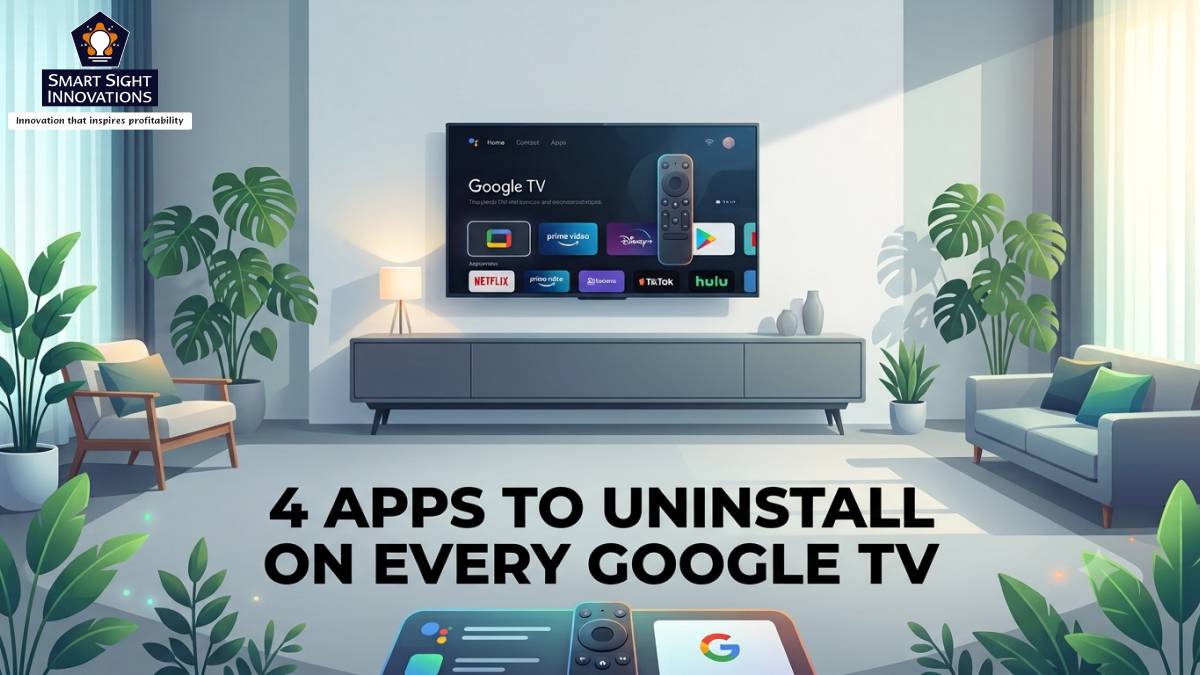
Google TV has become one of the world’s leading smart TV platforms, powering televisions from brands such as TCL, Sony, Hisense, Philips, and many others. Built on Android TV, it brings together streaming services, live TV recommendations, and personalized content into a single, easy-to-navigate interface.
Despite its convenience, there’s one issue many users notice soon after setting up a new TV. It arrives with a long list of pre-installed software, much of which may never be opened. While some applications come from Google, others are added by the TV manufacturer, leaving the home screen crowded before the TV is even used.
This wouldn’t be much of a problem if smart TVs had plenty of internal memory. Most models, however, offer only 8GB to 16GB of free space, which quickly fills up with installed apps, updates, and cached data. As available space shrinks, the interface can become less responsive, apps may take longer to open, and installing future updates can become more difficult.
Fortunately, clearing out software that’s never used is quick and straightforward. Here are four types of apps that are worth removing from almost every Google TV to free up space and create a cleaner, more responsive viewing experience.
1. Built-in Web Browsers
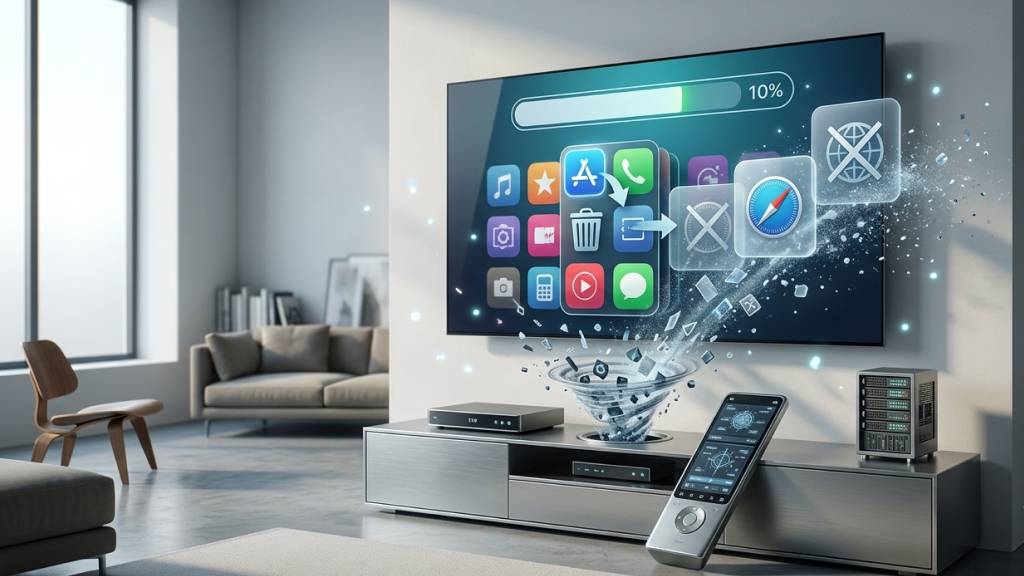
Most people already browse the web using their smartphone, tablet, or laptop. Yet many Google TVs include a dedicated web browser such as BrowseHere or HiBrowser. While these browsers technically allow internet browsing with a TV remote, the experience is rarely enjoyable. Entering website addresses using an on-screen keyboard is slow, navigating pages with a remote feels awkward, and many websites aren’t designed for television screens.
Unless web browsing is part of someone’s regular TV usage, these apps do little beyond taking up space and adding another icon to the app list. Removing them also reduces clutter in the app list.
How to uninstall
- Open Settings.
- Go to Apps.
- Select See all apps.
- Choose the browser.
- Select Uninstall.
If the uninstall option isn’t available, selecting Disable will prevent the app from appearing in most places and stop it from running in the background.
2. News and Weather Apps
Many Google TVs come with dedicated news or weather apps pre-installed. Popular examples include Haystack News, NewsON, and similar regional services. These apps are useful for users who rely on free news channels. However, many people already receive news updates through their phones, live TV services, YouTube, or dedicated streaming platforms.
Keeping multiple news apps installed often adds unnecessary clutter to the home screen without providing any real benefit. Another reason to remove them is that some news apps regularly refresh content in the background, consuming internal and internet bandwidth. Unless these services are part of someone’s daily viewing habits, uninstalling them is usually the better option.
How to uninstall
Navigate to Settings → Apps → See all apps
Select the news application and choose Uninstall or Disable, depending on what the TV allows.
3. Streaming Apps That Aren’t Being Used
Most Google TVs arrive with a selection of popular streaming services already installed. Typical examples include Netflix, Prime Video, Disney+, Paramount+, Peacock, YouTube, Apple TV, and Amazon Music. While this makes setting up a new TV easier, very few people subscribe to every streaming platform.
If someone only watches Netflix and YouTube, there’s little reason to keep several unused streaming apps installed. For users who don’t subscribe to these services, the apps simply occupy valuable space while making the home screen look more crowded than necessary. Since every major streaming app is available through the Play Store, it can always be downloaded again later if needed. Any streaming app can be downloaded again later from the Google Play Store within minutes.
4. Free Ad-Supported Streaming Apps
Free Ad-Supported Television (FAST) services have become increasingly popular over the past few years. Apps such as Tubi, Pluto TV, Freevee, Sling Freestream, and Xumo Play offer thousands of free TV shows and movies in exchange for watching advertisements. For users looking to save money, these services are excellent alternatives to paid subscriptions.
However, many TV owners never use them because they already subscribe to Netflix, Prime Video, Disney+, or another paid platform. If these apps haven’t been opened since the TV was purchased, they’re simply taking up internal memory space.
Why Removing Unused Apps Matters
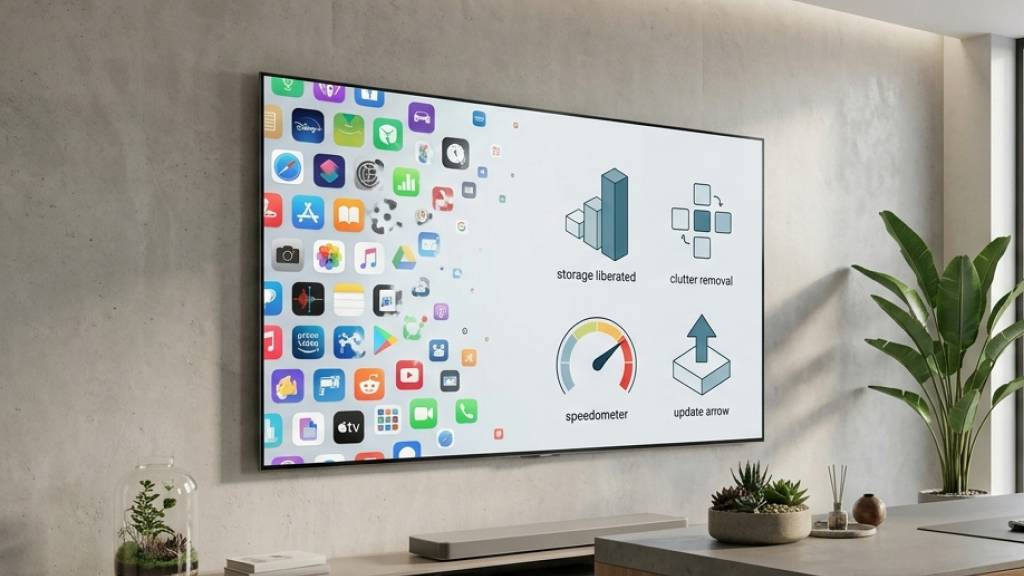
Uninstalling a few apps won’t instantly make an old Google TV feel brand new, but it can make everyday use noticeably smoother. Since most Google TVs have limited built-in storage, removing apps that are never used is one of the easiest ways to keep the system running efficiently.
-
Frees up system storage
Smart TVs usually have far less storage than smartphones. Removing apps that aren’t used creates more space for system updates, new apps, downloaded content, and cached data, helping prevent storage-related slowdowns.
-
Reduces clutter
Pre-installed streaming services, news apps, and other bundled software can crowd the home screen and app list. Removing unnecessary apps makes the interface cleaner and helps users find their favourite apps more quickly.
-
Improves performance
While deleting a few apps won’t dramatically speed up every TV, fewer installed apps generally mean less cached data and fewer background processes competing for system resources. This can make navigation feel smoother and apps load more quickly.
-
Makes updates easier
Most Google TV apps receive regular updates through the Play Store. By uninstalling apps that are never used, the TV has fewer updates to download and install, saving storage space, internet bandwidth, and time.
Spending a few minutes cleaning up unused apps can make a Google TV easier to navigate, leave more room for future downloads, and help maintain smooth day-to-day performance.
What If You Can’t Uninstall Certain Apps?
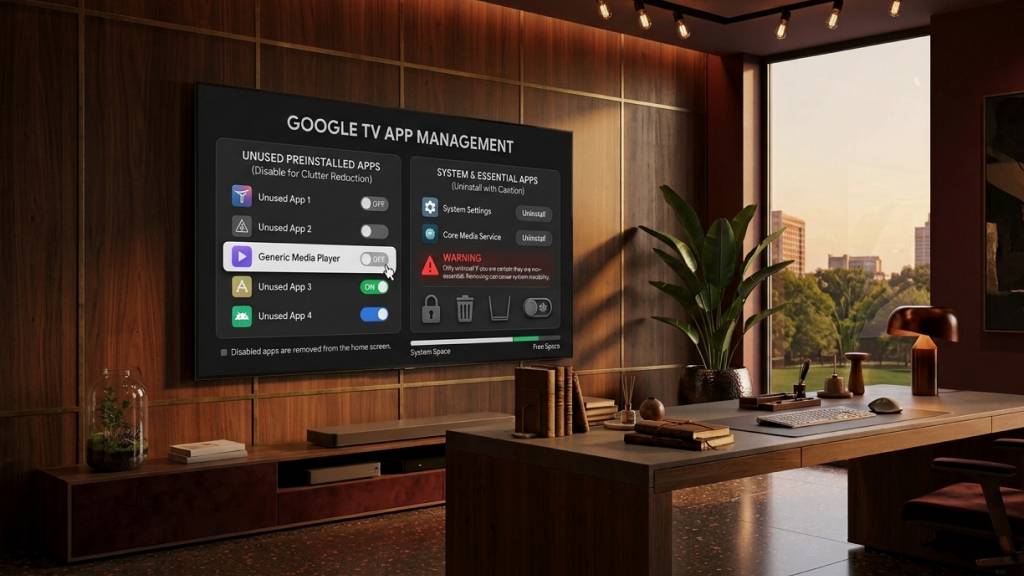
While most apps on Google TV can be removed easily, some are a different story. Many TV manufacturers pre-install their own apps, and these usually don’t include an Uninstall button. Instead, they become a permanent part of the system.
These apps can include the manufacturer’s app store, TV channel services, customer support tools, or promotional apps. For example, different manufacturers preload different apps. TCL televisions often include TCL Channel, MagiConnect, and T-Exhibition, while Hisense devices usually ship with HiBrowser and other in-house applications.
If you don’t use these apps, there are two ways to deal with them. The safest option is to disable the app. This prevents it from running in the background, stops future updates, and usually removes it from the app list. While it won’t free up much storage, it helps reduce clutter and prevents the app from using system resources.
If you want to completely remove manufacturer-installed apps, you can use a free app called ADB TV: App Manager. Unlike traditional Android Debug Bridge (ADB) tools that require a computer and command-line commands, ADB TV lets users manage installed apps directly from the television through a simple interface.
Before using ADB TV, you’ll need to enable Developer Options on your Google TV. To do this, open Settings > System > About, scroll down to Android TV OS Build, and press the OK button on the remote seven times. A message saying “You’re now a developer!” will appear.
Next, go to Settings > System > Developer Options and turn on USB Debugging. Although the name suggests otherwise, this setting also allows apps on the TV to communicate with the operating system.
After installing ADB TV from the Play Store, head to Settings > Apps > Special app access > Usage access and allow permission for ADB TV. Once that’s done, open the app, select Connect, approve the USB Debugging request, choose the app you want to remove, and tap Uninstall.
ADB TV also lets users sort apps by size and hide essential system apps, making it easier to identify unnecessary software. The free version includes almost everything most users need, while the paid version adds features such as bulk app removal.
However, caution is important. Some system apps are essential for Google TV to function properly. Removing services such as Google Play Services, Android System WebView, the Google TV Launcher, or core Wi-Fi and Bluetooth components can cause apps or system features to stop working. If there’s any doubt about an app, it’s always safer to disable it instead of uninstalling it.