



Many people believe that updating the DNS settings on their home router is enough to change how every device on the network resolves websites. While that assumption made sense in the past, modern devices often manage DNS independently, meaning the router is no longer the only authority.
Today’s computers, smartphones, browsers, and even some applications can all use their own DNS servers. A laptop may rely on one DNS service, a phone on another, while a browser may bypass both by using encrypted DNS. The result is a network where multiple DNS services operate simultaneously without the user’s knowledge.
This fragmented approach explains why one device may struggle to load websites while another works perfectly, even when both are using the same Wi-Fi network. It can also lead to inconsistent website filtering, unexpected privacy concerns, and frustrating troubleshooting sessions. Understanding where DNS is configured can eliminate many seemingly mysterious networking problems.
What DNS Actually Does and Why It Matters?

The Domain Name System (DNS) is often described as the internet’s phonebook. Instead of remembering numerical IP addresses, users type domain names such as google.com or wikipedia.org. DNS translates those names into the IP addresses that computers use to establish connections.
Every time a website is opened, a DNS lookup usually occurs before the page begins loading. If that lookup is delayed or fails, the website appears slow or unreachable, even when the internet connection itself is fast. This is why someone can run a speed test showing hundreds of megabits per second while ordinary web pages still feel sluggish.
To improve performance, devices temporarily store recent DNS lookups in a local cache. Each cached record includes a Time to Live (TTL) value that determines how long it remains valid before the device requests updated information. While caching speeds up browsing, it can also cause problems if outdated information lingers after DNS settings have changed.
DNS Isn’t Controlled in One Place Anymore

Managing DNS used to be relatively simple, with the router supplying DNS information to every connected device and most of them using those settings by default. Over time, DNS management has become increasingly decentralized, allowing multiple parts of a network to make their own DNS decisions. Each configuration point can override the settings inherited from the previous one, creating a hierarchy in which different applications may rely on different DNS servers simultaneously.
DNS can be configured independently in four different places:
1. The Router

For most home networks, the router is the first device responsible for assigning DNS settings. Whenever a new device connects, the router uses Dynamic Host Configuration Protocol (DHCP) to automatically provide important network information, including the IP address, gateway, and DNS servers that should be used.
Since most devices receive their network settings from the router through DHCP, changing the router’s DNS configuration usually updates compatible devices automatically. This makes the router the logical place to manage DNS, although it is no longer the only place where those settings can be controlled.
This is why configuring a trusted DNS provider, such as Cloudflare (1.1.1.1), Google Public DNS (8.8.8.8), or Quad9 (9.9.9.9), at the router level is often recommended. A single change can apply to smart TVs, gaming consoles, streaming devices, and other connected hardware without requiring individual configuration. However, the router only provides the default DNS configuration. Many modern devices can ignore those defaults and rely on their own DNS servers instead.
2. The Operating System

Current operating systems offer greater control over network configuration, allowing users to manually choose which DNS servers their devices use. Windows, macOS, Linux, Android, and iOS all allow DNS servers to be configured manually, either for specific network connections or across the entire device.
Once a manual DNS server is entered, the operating system usually stops relying on the DNS information supplied by the router. Instead, it sends all compatible DNS requests directly to the chosen provider.
For example, a router may be configured to use Google Public DNS, while a Windows PC is manually set to use Cloudflare. In that situation, the computer ignores the router’s DNS configuration and uses Cloudflare instead. Meanwhile, other devices on the same network may continue using the router’s preferred DNS service, resulting in a different browsing experience.
While this flexibility gives users greater control over privacy and performance, it also introduces another place where DNS conflicts can occur.
3. The Web Browser

Even when the router and operating system use the same DNS settings, a web browser can still bypass both by relying on its own DNS configuration.
Most major browsers, including Google Chrome, Microsoft Edge, Mozilla Firefox, and Brave, support DNS-over-HTTPS (DoH). Instead of sending DNS requests through the operating system, browsers using it encrypt those requests and send them directly to a compatible DNS provider over HTTPS.
Many browsers enable Secure DNS automatically or prompt users to activate it during setup, making it easy to miss that browser traffic may not follow the DNS settings used by the rest of the system. In some cases, the browser simply upgrades the existing DNS service to an encrypted connection. In others, users can manually select an entirely different provider.
As a result, websites accessed through the browser may use one DNS service, while desktop applications, email clients, or software updates continue using another. This split can make troubleshooting far more complicated, especially when only browser-based services are affected.
4. Mobile Devices
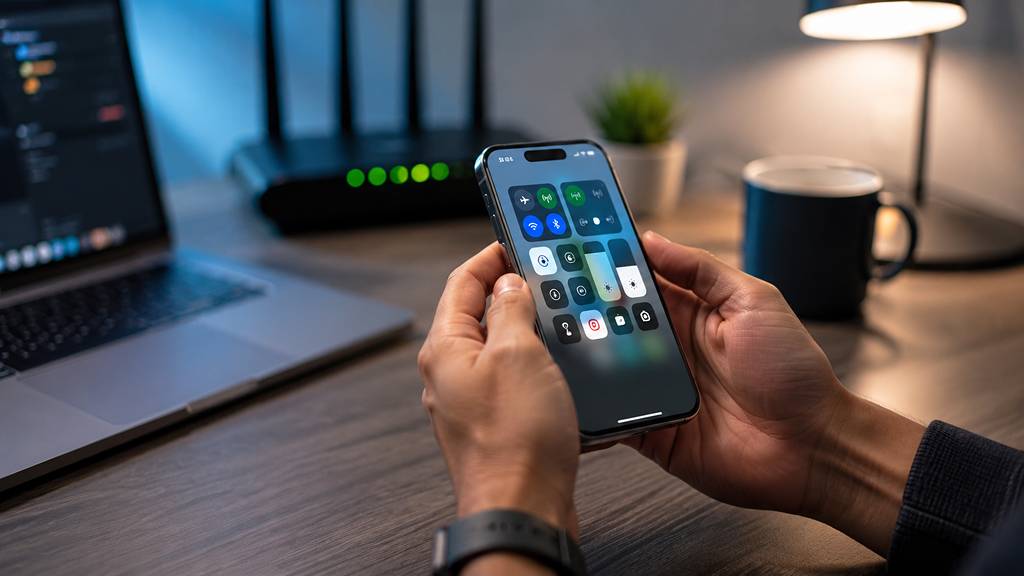
Smartphones and tablets introduce even more complexity because they regularly switch between Wi-Fi and mobile data while offering their own DNS configuration options.
Android devices running Android 9 or later include a feature called Private DNS, which uses DNS-over-TLS (DoT) to encrypt DNS requests. Unlike traditional Wi-Fi DNS settings, Private DNS can remain active regardless of whether the device is connected to a home network or a cellular connection.
Apple devices also allow users to configure DNS for individual Wi-Fi networks, while privacy features such as iCloud Private Relay can change how certain internet traffic is routed in supported regions.
As a result, two devices using the same Wi-Fi network can still rely on different DNS services. If the phone switches to mobile data, it may begin using the mobile carrier’s DNS servers, or continue using an encrypted DNS service, depending on how it has been configured.
Since smartphones frequently switch between Wi-Fi and mobile data, they are often the most difficult devices to troubleshoot. A website that fails to load on a laptop may work perfectly on a phone, even when both appear to be connected to the same internet connection, simply because they are using different DNS configurations.
Why DNS Problems Are Often Hard to Fix?
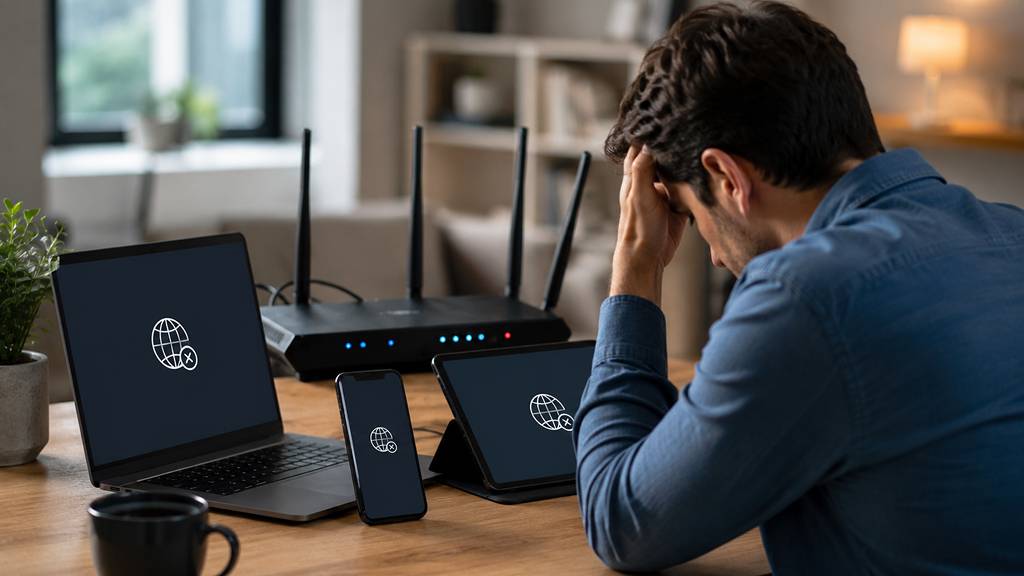
DNS-related issues can be surprisingly difficult to diagnose because there is rarely a single source of the problem. Unlike many network settings, DNS can be configured at multiple points, including the router, operating system, browser, and mobile device. If these settings are not aligned, changing one of them may have little or no effect, making it appear as though the problem has not been resolved.
Changing DNS settings in a single location rarely solves the entire problem. Browsers may continue using their own encrypted DNS service through DoH, bypassing the operating system, while individual devices can also override the DNS settings supplied by the router. As a result, different parts of the same network may continue using different DNS services even after changes have been made.
This can lead to confusing situations where the same website behaves differently across devices. A page that refuses to load on a desktop computer may open instantly on a smartphone using the same Wi-Fi network. Similarly, desktop applications may struggle to connect while websites continue to work because they are relying on different DNS services. These inconsistencies often send users looking in the wrong place, leading them to repeatedly clear DNS caches or restart routers without addressing the actual cause.
The most effective solution is to review DNS settings across the entire network rather than focusing on a single device. The router is generally the best place to begin, as it distributes DNS information to compatible devices through DHCP. From there, it is worth checking whether Windows, macOS, Android, or iOS has been configured to use a different DNS provider.
Some internet service providers restrict access to router settings, making it impossible to change DNS at the network level. In these cases, each device must be configured individually. Although this requires a little more effort, ensuring that every device and browser uses the same DNS provider helps eliminate conflicts, simplifies future troubleshooting, and creates a more consistent and reliable browsing experience.
Don’t Forget to Clear Old DNS Records
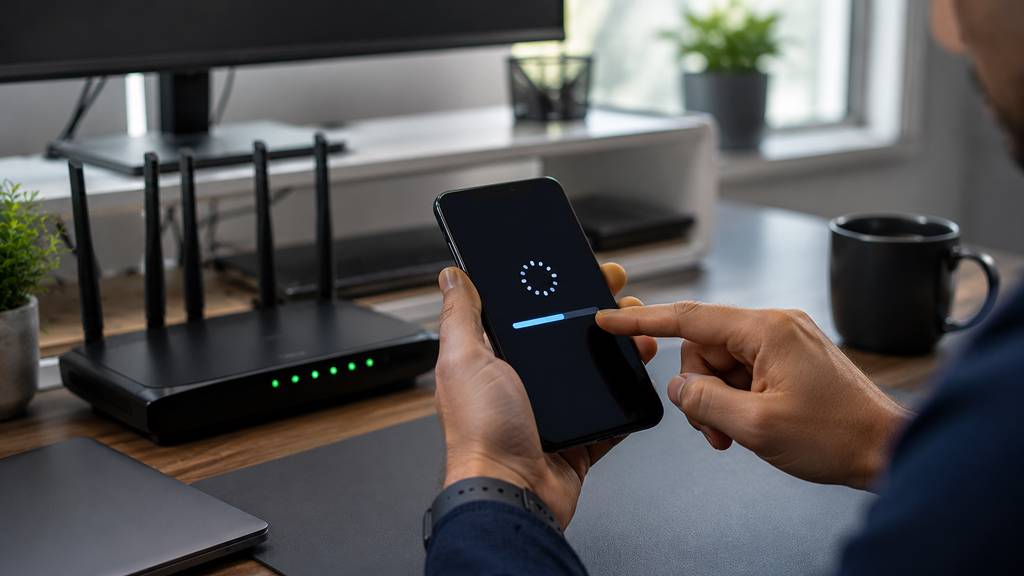
Changing DNS settings does not produce immediate results because devices may continue using cached DNS records. These cached entries remain valid until they expire, which means a system may still rely on outdated information even after a new DNS server has been configured.
Clearing the DNS cache forces the device to request fresh records from the updated server. On Windows, this can be done by running the ipconfig /flushdns command in Command Prompt or PowerShell. Restarting the router and connected devices can also help ensure the new DNS settings take effect across the network.
Why Consistent DNS Settings Matter?

DNS is one of those technologies that usually goes unnoticed until something stops working. As browsers, operating systems, routers, and mobile devices have evolved, each has gained the ability to manage DNS independently. While these features often improve privacy and security, they can also create conflicts when different parts of the same network rely on different DNS providers.
Keeping DNS settings consistent across every part of the network helps eliminate these conflicts. When each device and application relies on the same DNS service, websites load more consistently, troubleshooting becomes simpler, and the overall internet experience is far more predictable.