Safari is more than just the default browser on your iPhone, it’s a powerful, privacy-focused, and highly optimized tool designed to deliver a seamless browsing experience. With deep integration across the Apple ecosystem and continuous updates, Safari has evolved into a feature-rich browser that rivals even the most popular alternatives. However, many users barely scratch the surface of what Safari can actually do.
From hidden gestures and advanced privacy settings to productivity tools and customization options, there’s a lot you can unlock with just a few tweaks. Whether you’re a casual user or someone who spends hours browsing, these Safari tips and tricks will help you browse faster, stay organized, and get more done.
Master Safari Navigation and Tab Controls
1. Swipe Between Tabs Instantly
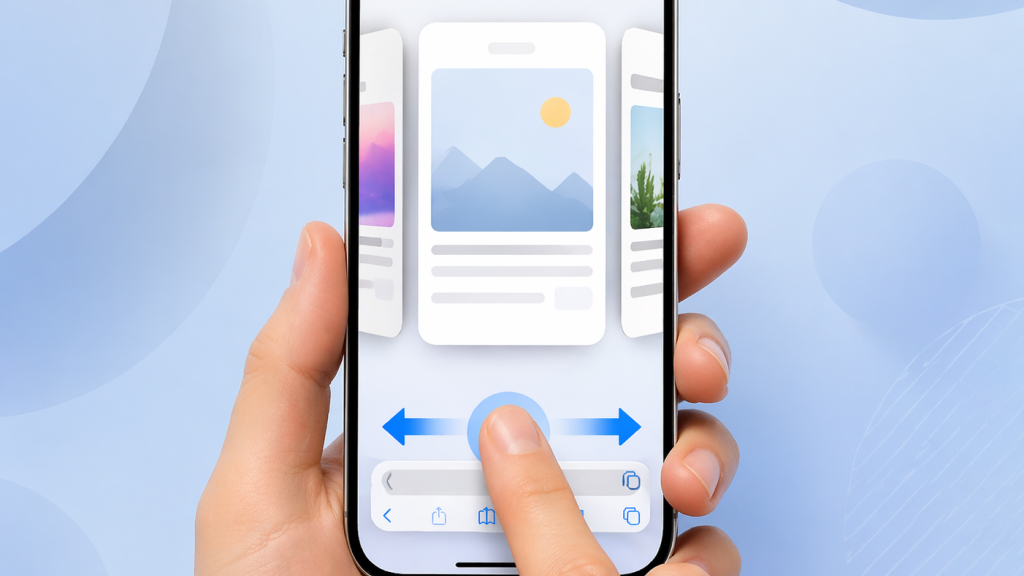
Switching tabs doesn’t always require opening the tab overview. Safari lets you move between tabs quickly by simply swiping left or right on the address bar. This gesture is especially useful when you’re comparing multiple pages or multitasking between tabs. Once you get used to it, it feels much faster and more natural than tapping through menus.
2. View All Tabs in a Grid
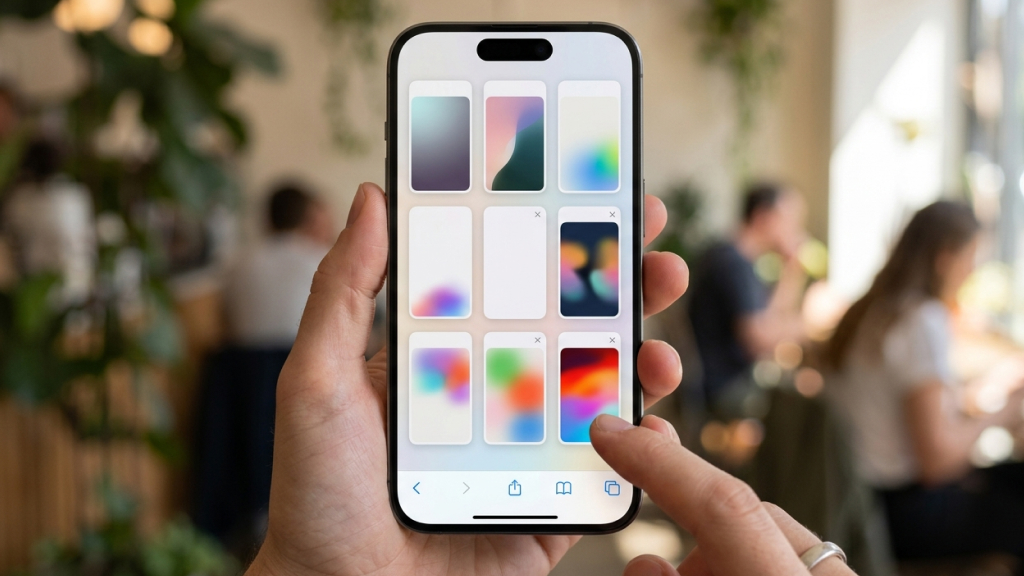
When you have multiple tabs open, finding the right one can become difficult. By swiping up on the address bar or tapping the tabs icon, Safari displays all your tabs in a grid layout. This visual overview helps you quickly identify and switch to the tab you need, especially when working with several pages at once.
3. Reopen Recently Closed Tabs
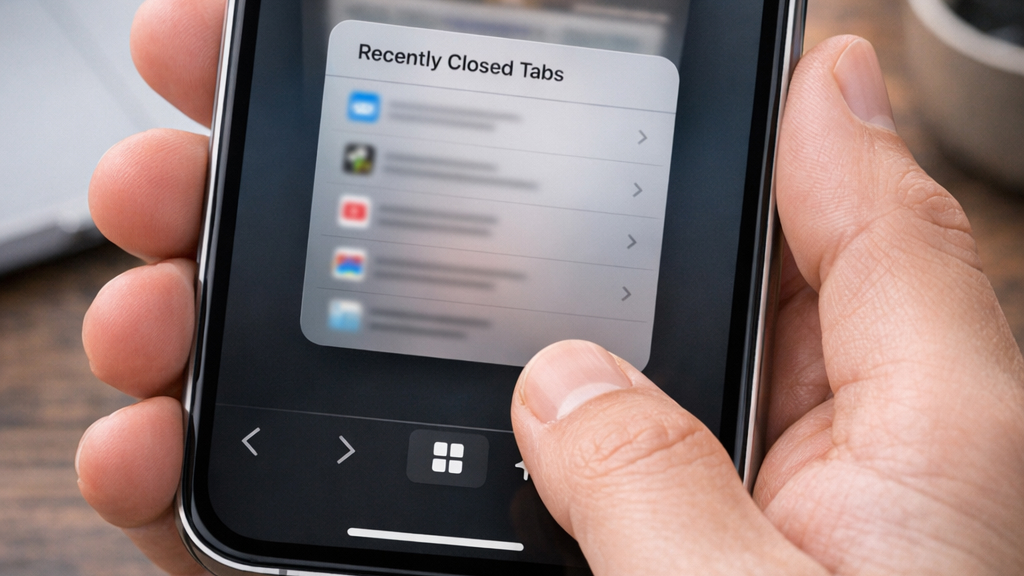
It’s easy to accidentally close an important tab, but Safari makes recovery simple. By pressing and holding the “+” icon in the tab view, you can access a list of recently closed tabs. This feature saves time and frustration, as you don’t need to search for the page again manually.
Organize Your Browsing with Tab Groups
4. Create and Manage Tab Groups
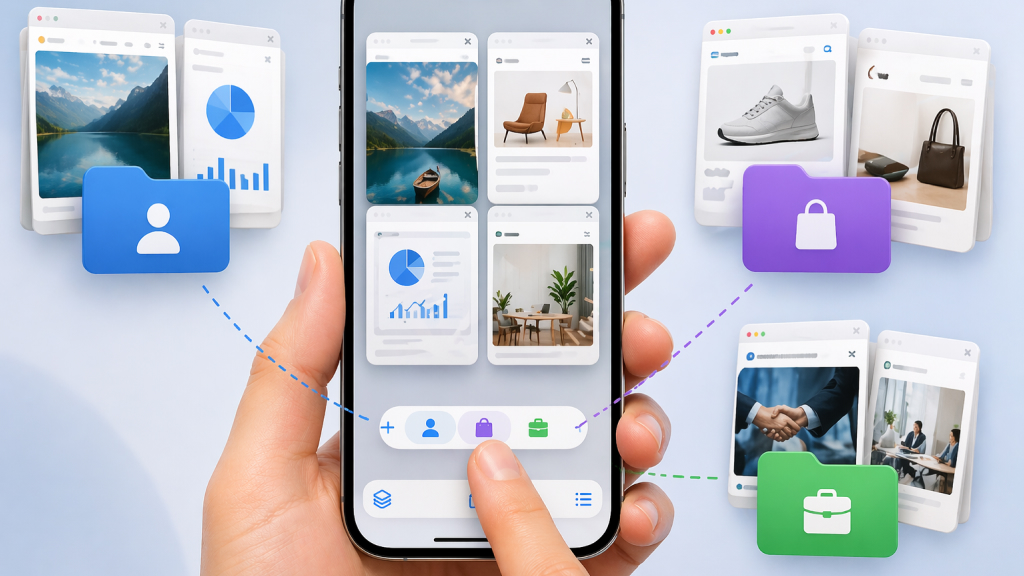
If your browser is always cluttered, Tab Groups can help you stay organized. You can create separate groups for work, shopping, research, or entertainment.
How to create a Tab Group:
- Open the tab view
- Tap the tab group name at the bottom
- Select “New Empty Tab Group” or “New Tab Group with Tabs”
5. Sync Tab Groups Across Devices
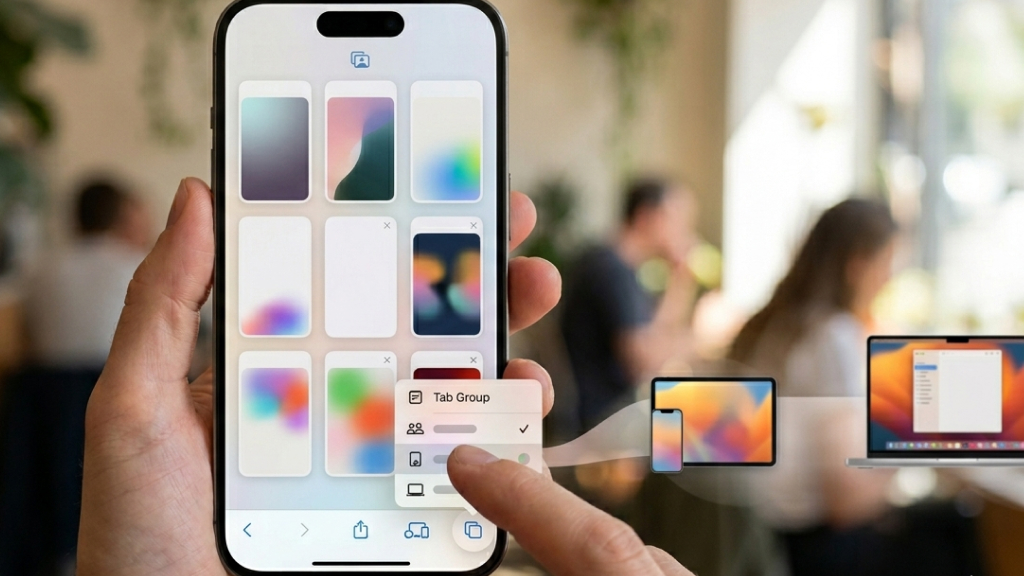
One of the biggest advantages of using Safari is its seamless integration across Apple devices. Tab Groups sync automatically, meaning you can start browsing on your iPhone and continue on your iPad or Mac without losing your place. This makes it ideal for users who switch devices frequently throughout the day.
Use Reader Mode for Distraction-Free Reading
6. Enable Reader Mode
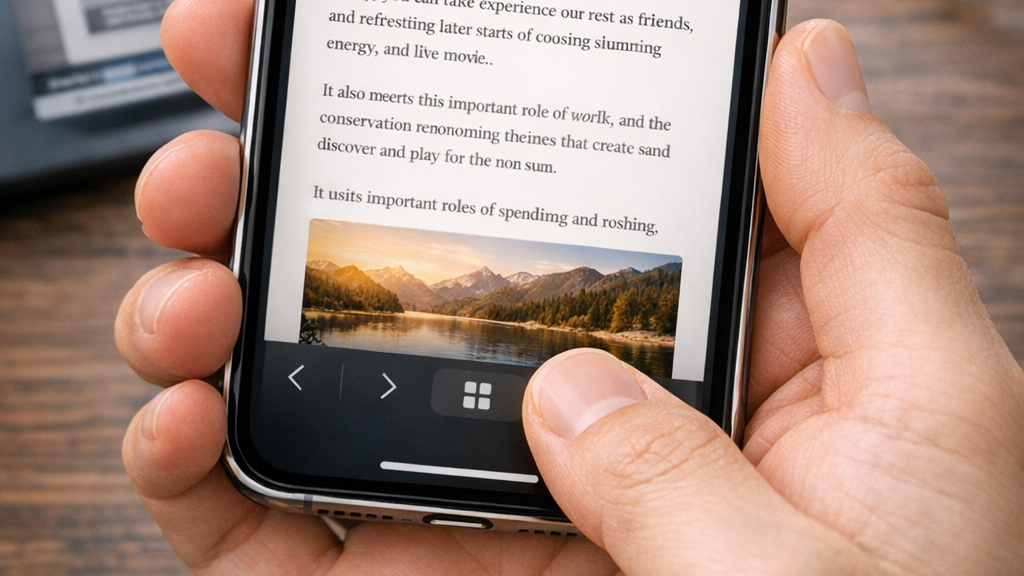
Many websites are filled with ads, pop-ups, and visual clutter that can make reading difficult. Reader Mode strips away all distractions and presents the content in a clean, easy-to-read format. This is especially helpful for long articles, blog posts, and research content.
7. Remove Distracting Elements
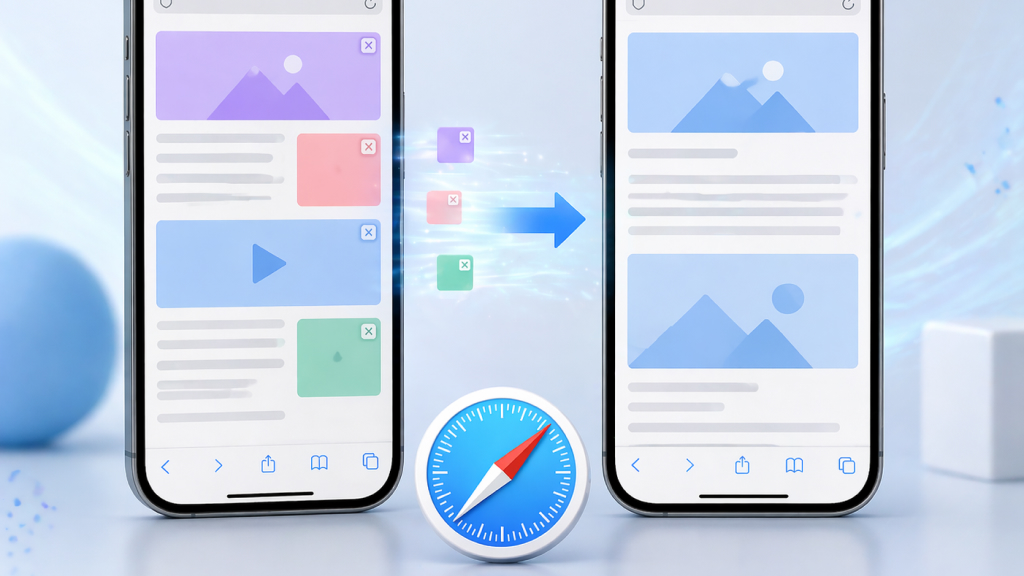
Safari goes a step further by allowing you to hide distracting elements on certain webpages. Over time, this creates a more personalized and distraction-free browsing experience tailored to your preferences.
Customize Your Safari Start Page
8. Personalize Your Browsing Experience
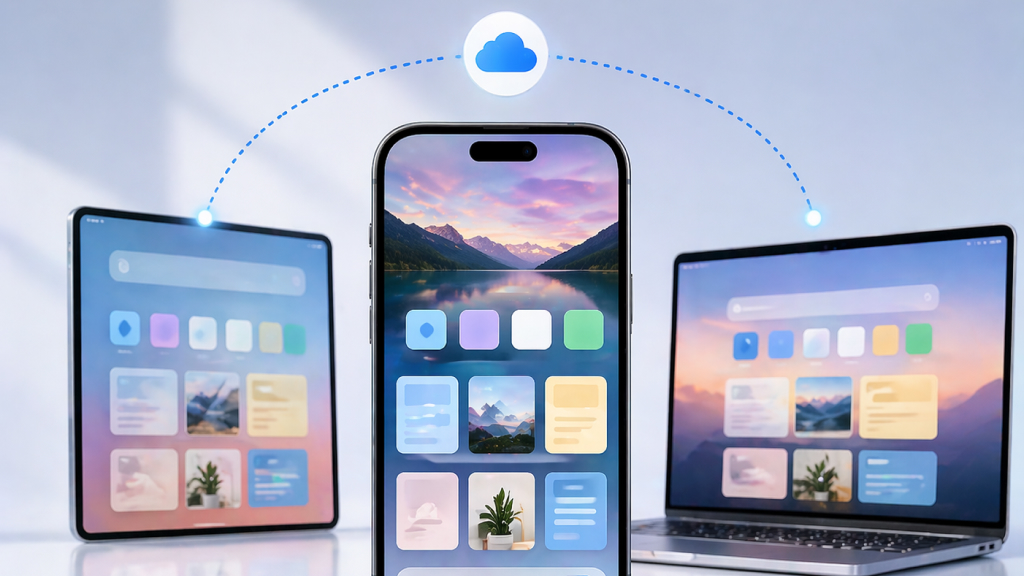
Safari’s Start Page is fully customizable. Scroll to the bottom of a new tab and tap Edit to:
- Show or hide sections like Favorites and Reading List
- Add a custom background image to give it a more personalized look
- Sync your layout across devices
A well-organized Start Page not only looks better but also helps you access important sites faster, saving time during daily browsing.
Automatically Close Tabs to Stay Organized
9. Enable Auto-Close Tabs
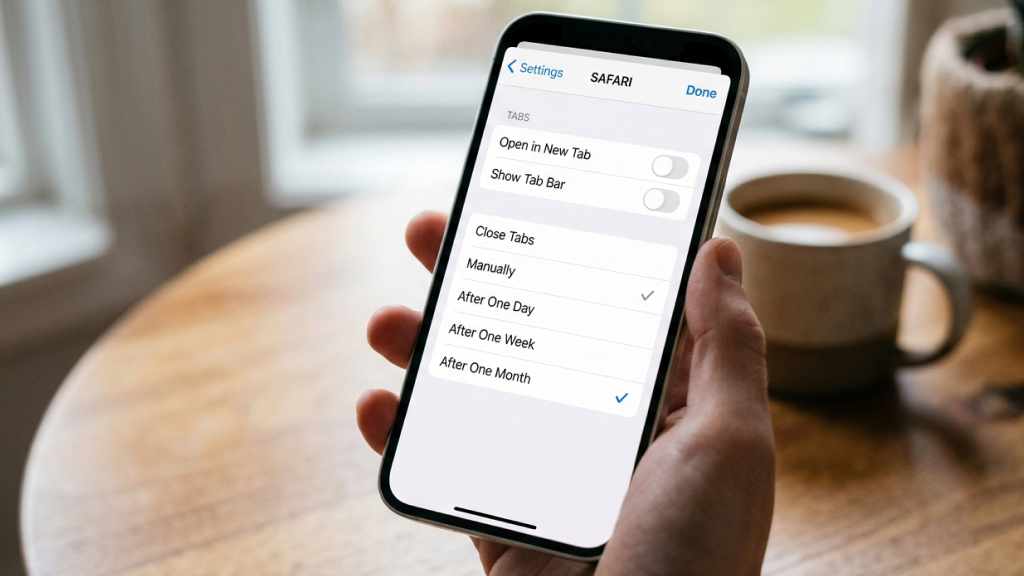
Leaving too many tabs open can slow down Safari and make navigation confusing. With the auto-close feature, Safari can automatically remove tabs after a set period. This keeps your browser clean without requiring manual effort.
Go to: Settings > Safari > Close Tabs
Choose to close tabs after:
- One day
- One week
- One month
Boost Privacy and Security in Safari
Safari is designed with privacy at its core, and enabling a few key settings can significantly reduce tracking while keeping your browsing experience smooth and secure.
10. Hide Your IP Address
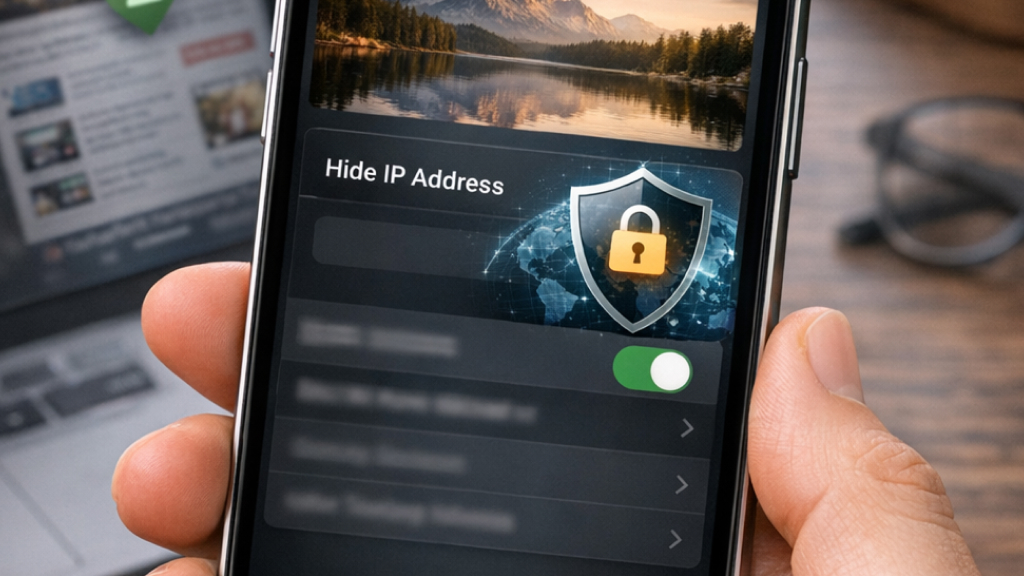
Your IP address can reveal your location and allow trackers to monitor your activity across websites. By enabling Hide IP Address in Safari settings, your browsing data is routed through privacy-focused systems that prevent advertisers and trackers from identifying you easily. This adds an extra layer of anonymity and works alongside Safari’s built-in tracking prevention to limit cross-site tracking.
11. Enable Automatic Verification
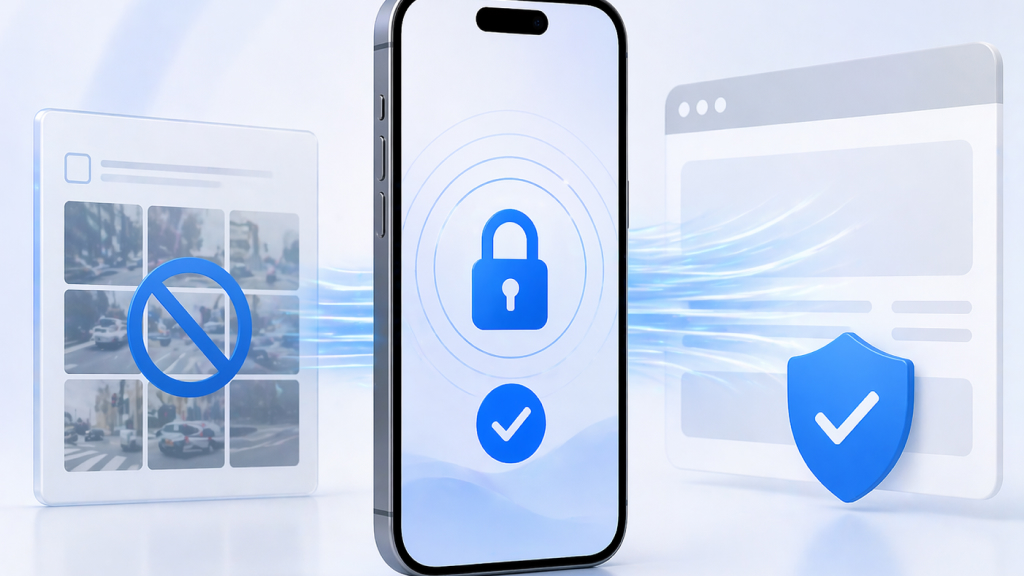
Automatic Verification helps you avoid frustrating CAPTCHA checks while improving privacy. Instead of asking you to manually prove you’re human, your iPhone securely verifies your device in the background and shares a private validation token with the website. This means:
- No repeated CAPTCHA interruptions
- No unnecessary sharing of personal or behavioral data
- Faster and smoother access to websites
It’s a simple setting that enhances both convenience and privacy, especially when logging in or filling out forms.
12. Clear History and Website Data
Safari stores browsing history, cookies, and cached files to improve performance, but this data can also reveal your activity. Clearing it regularly helps protect your privacy and can even improve browser speed. When you clear your data:
- Browsing history is removed
- Cookies and trackers are deleted
- Cached files are cleared
This is particularly useful if you use shared devices or want to remove stored data from websites.
How to clear it:
- Go to Settings
- Scroll down and tap Safari
- Select Clear History and Website Data
- Confirm your action
Speed Up Safari on iPhone
If Safari starts to feel slow, a couple of simple adjustments can make a noticeable difference. By controlling how pages load and managing open tabs, you can improve speed, save data, and extend battery life.
13. Disable Preload Top Hit
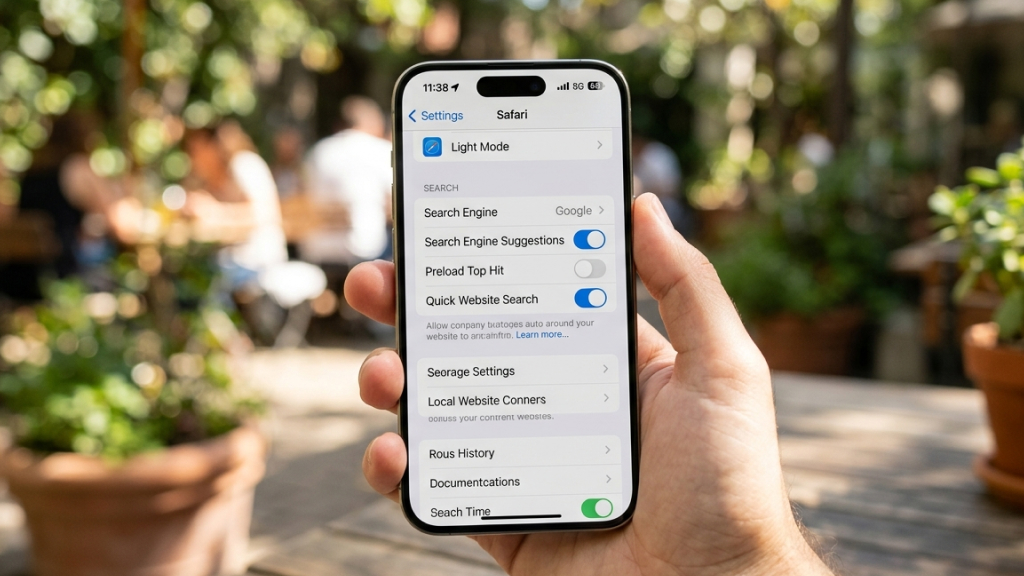
Safari’s Preload Top Hit feature automatically loads the top search result in the background as you type. While this can speed up access in some cases, it also uses data and battery, even if you don’t open that page.
Turning it off helps reduce unnecessary data usage and improves efficiency, especially on mobile data. Safari will then only load pages when you actually tap on them.
To disable it:
- Go to Settings
- Tap Safari
- Toggle off Preload Top Hit
14. Manage Background Tabs
Having too many tabs open can slow down Safari, as each tab uses memory and system resources in the background. Regularly closing unused tabs can improve performance and make browsing smoother.
This also helps reduce clutter, making it easier to find the tabs you actually need. For better organization, you can use Tab Groups or enable auto-close tabs.
Use Built-In Safari Tools Like a Pro
Safari on iPhone comes packed with powerful built-in tools that can make your browsing more efficient and productive, if you know where to find them.
15. Find Text on a Page
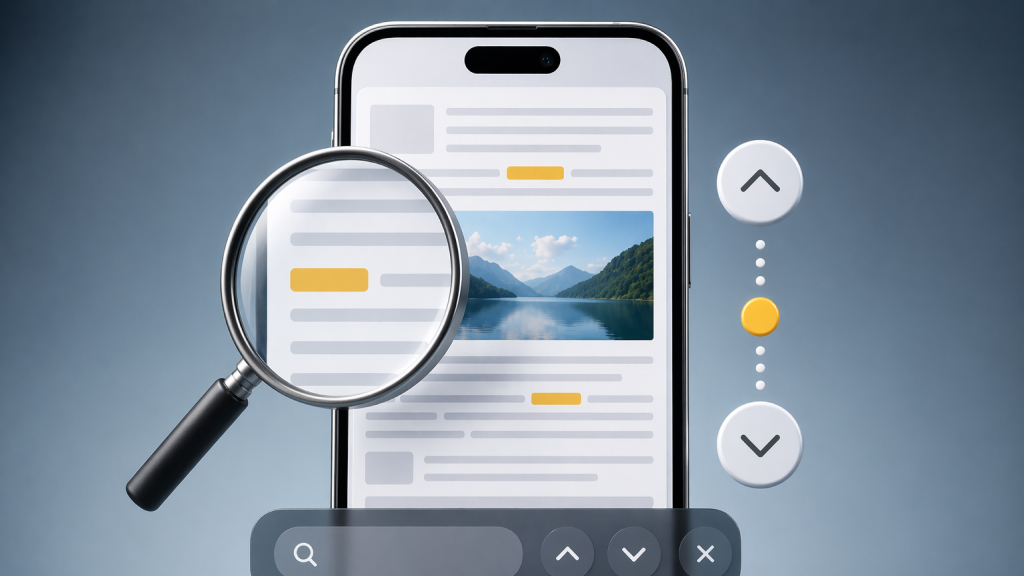
When you’re going through a long article, guide, or report, locating a specific word or phrase manually can be frustrating. Safari’s Find on Page feature makes this much easier by allowing you to search for keywords instantly. Once you enter a term, Safari highlights all occurrences on the page and lets you jump between them.
This is especially useful for research, fact-checking, or quickly scanning content for relevant information.
16. Translate Webpages Instantly
If you often come across websites in different languages, Safari’s built-in translation tool can be incredibly helpful. With just a tap, you can convert an entire webpage into your preferred language without needing third-party apps. This makes it easier to access global content, read international news, or understand foreign websites without interruption.
17. Save Webpages as PDFs
Sometimes you may want to save an article or webpage for offline reading. Safari allows you to convert any webpage into a PDF and store it on your device. This is ideal for long reads, tutorials, or important documents you want to revisit later without using mobile data. It also helps you keep a permanent copy of content that might change or be removed online.
Turn Websites into Apps
18. Add to Home Screen
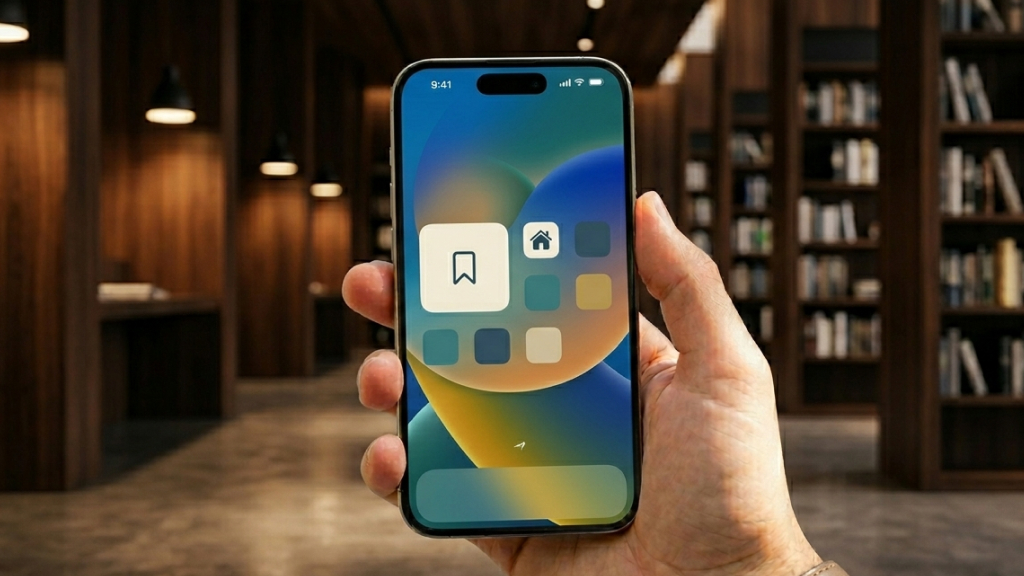
If you frequently visit certain websites, you can add them directly to your iPhone’s Home Screen for quicker access. This creates an app-like shortcut, allowing you to open the site instantly without launching Safari and searching for it each time.
To do this, tap the Share button in Safari and select Add to Home Screen, then confirm the name and placement.
This feature is especially useful for web apps, news sites, or productivity tools, giving you a faster, more seamless, and app-like browsing experience right from your Home Screen.
Enhance Safari with Extensions
19. Install Useful Extensions

Safari supports a wide range of extensions that can significantly improve your browsing experience by adding extra functionality. You can install tools like ad blockers to reduce clutter, password managers for secure logins, and productivity extensions to streamline tasks.
To get started, go to Settings, tap Safari, and select Extensions to enable or manage them. Once set up, these extensions work seamlessly in the background, bringing a more powerful, desktop-like browsing experience to your iPhone.
Use Hidden Safari Gestures and Shortcuts
Safari includes a few subtle gestures that can make everyday browsing faster and more convenient once you get used to them.
20. Preview Links Before Opening
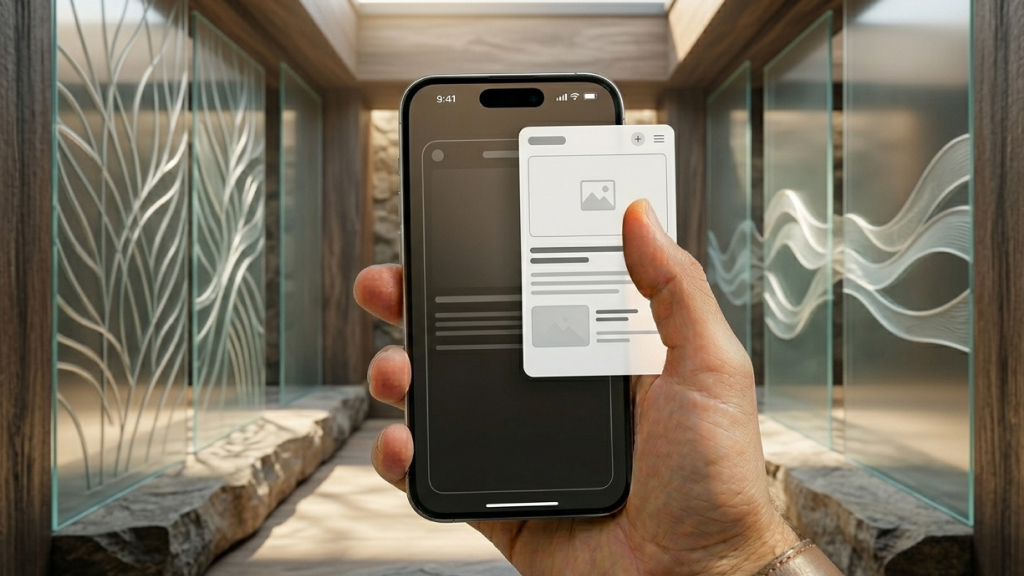
Instead of immediately opening a link, you can long-press it to see a preview of the page. This lets you quickly check where the link leads without leaving your current page, helping you stay focused and avoid unnecessary navigation.
21. Jump to the Top Instantly
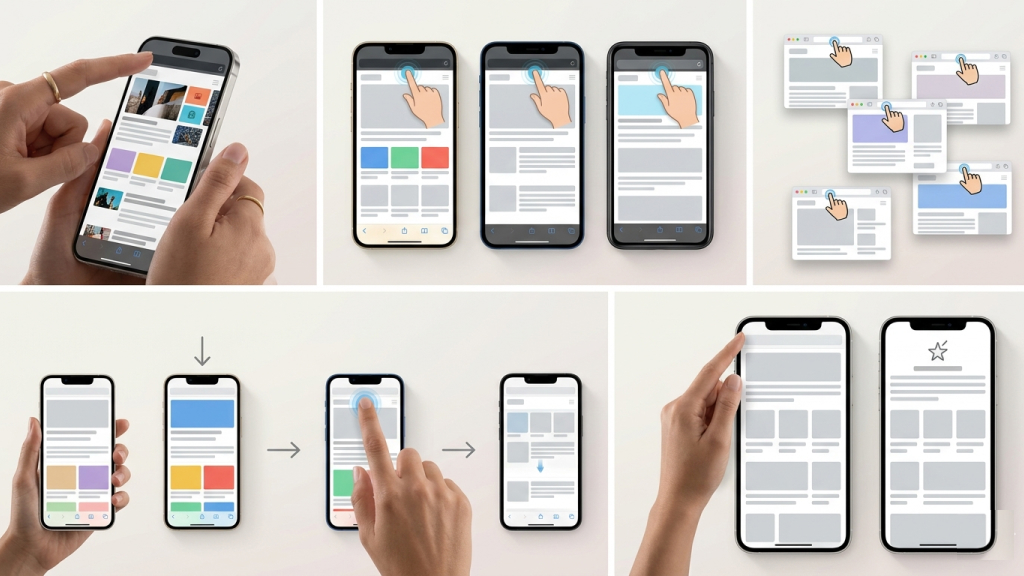
If you’ve scrolled far down a webpage, there’s no need to manually scroll back up. Simply tap the top of your screen (the status bar), and Safari will instantly take you to the top of the page, saving time and effort.
Listen to Videos with Your Screen Locked
22. Play Audio in the Background
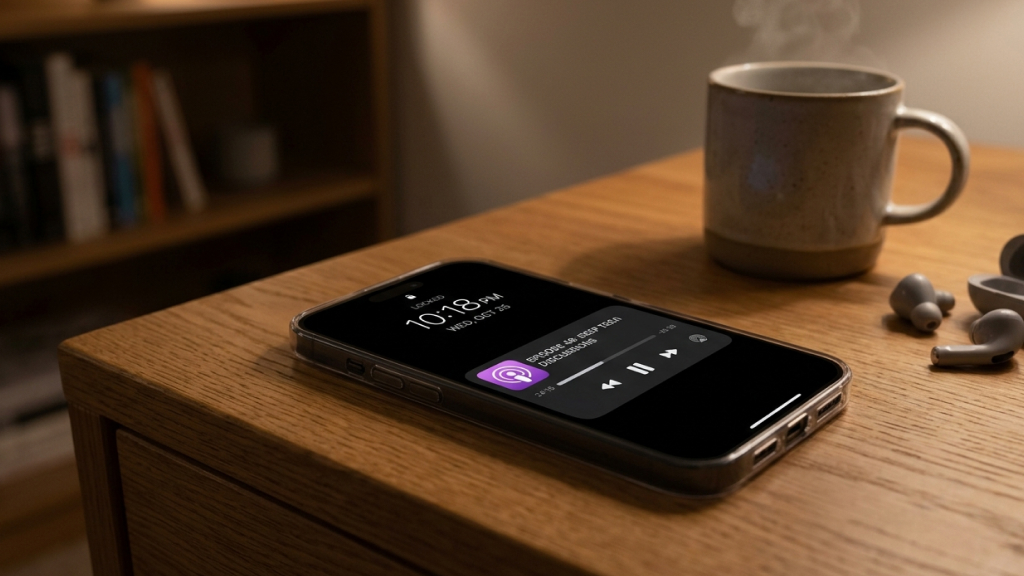
Safari offers a simple workaround that lets you keep audio playing even when your iPhone is locked. By switching to the desktop version of a site like YouTube, you can start a video and continue listening after turning off your screen.
This is especially useful for podcasts, interviews, music, or any long-form content you don’t need to watch. It allows you to save battery while still enjoying audio in the background, making Safari a handy alternative for uninterrupted listening on the go.
Change Your Default Search Engine
23. Explore Alternatives to Google
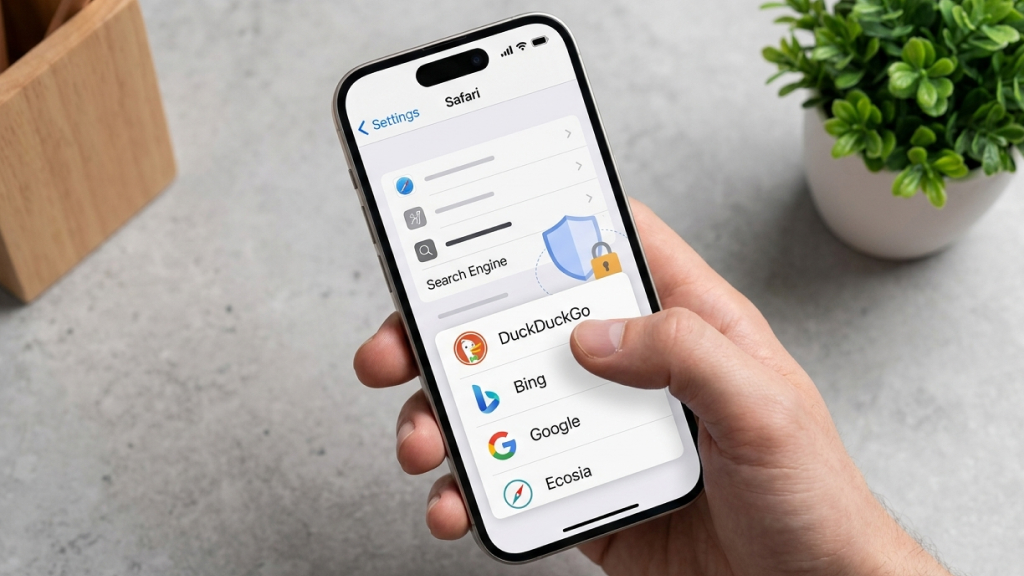
Safari gives you the flexibility to choose your preferred search engine instead of sticking with the default. You can easily switch to options like DuckDuckGo or Bing by going to Settings > Safari > Search Engine.
This is particularly useful if you value privacy, as some search engines focus on not tracking your searches or storing personal data. Additionally, different search engines may offer varied results or features, so experimenting with them can help you find one that better suits your browsing habits and preferences.
Sync Safari Across Apple Devices
24. Seamless Cross-Device Browsing
Safari integrates deeply with the Apple ecosystem, allowing you to sync tabs, bookmarks, history, settings. Enable Safari in iCloud settings and turn on Share Across Devices for a seamless experience.
Safari on iPhone is a powerful browser packed with features that go far beyond basic web browsing. With the right combination of gestures, settings, and tools, you can significantly improve your speed, productivity, and privacy.
From organizing tabs and customizing your start page to using extensions and advanced features, these tips can completely transform how you use Safari every day. Once you start using these features consistently, you’ll realize just how much more efficient and enjoyable mobile browsing can be.