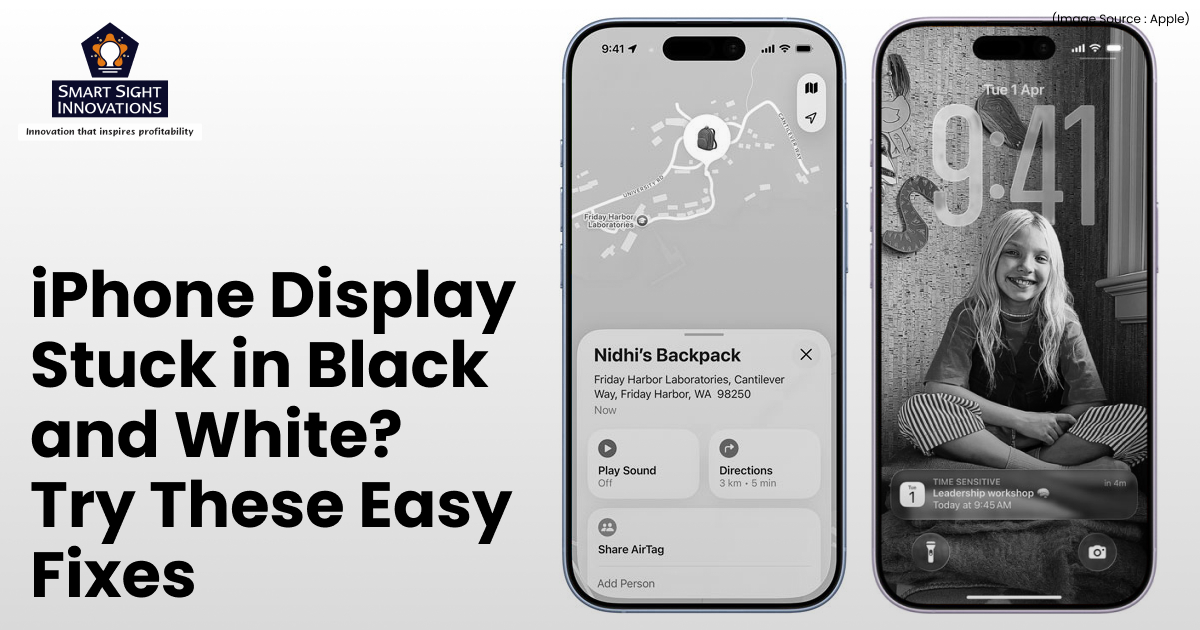
Your iPhone display is designed to be vibrant and colorful, so it can be alarming when everything suddenly turns black and white. Photos lose their detail, app icons look unfamiliar, and the entire interface appears like an old monochrome screen. While it may seem like a serious problem, the cause is usually simple. In most cases, an accessibility setting has been activated accidentally, and restoring color only takes a few quick adjustments.
iOS includes several accessibility features designed to make the screen easier to see for users with vision difficulties. Some of these options can remove color from the display entirely. If one of these settings is turned on by mistake, your iPhone may switch to grayscale mode.
Fortunately, restoring your iPhone’s colors is often quick and simple. The steps below explain the most effective ways to fix a screen that has switched to black and white.
1. Turn Off Color Filters
(Image Source: Apple)
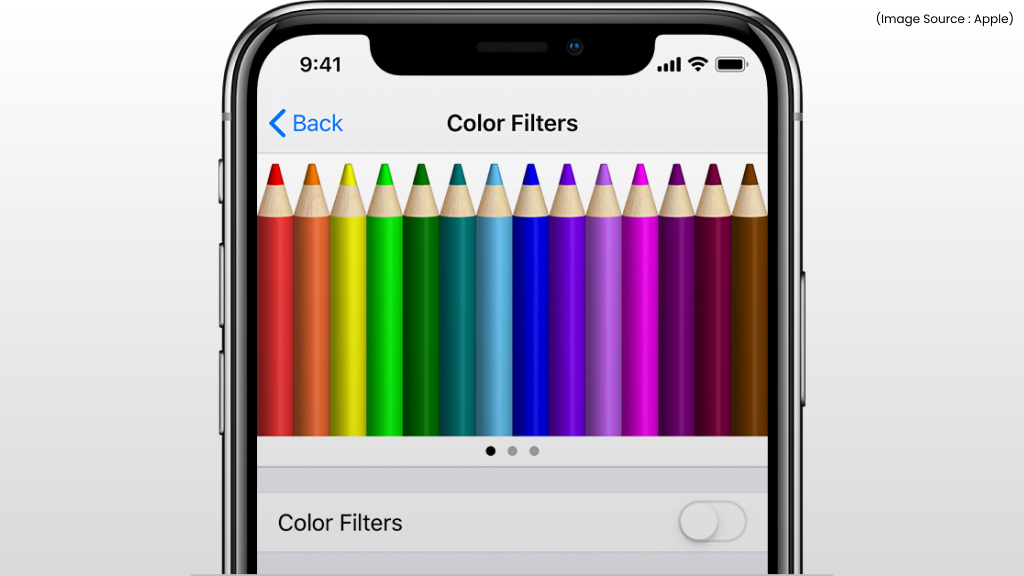
The most common reason an iPhone screen turns black and white is the Color Filters accessibility setting. This feature allows users to adjust how colors appear on the screen, which can help people with color vision deficiencies. However, when the grayscale filter is enabled, the display loses all color. To check this setting:
- Open Settings.
- Tap Accessibility.
- Select Display & Text Size.
- Tap Color Filters.
- Toggle Color Filters off.
If this feature was responsible for the issue, your iPhone’s colors should immediately return to normal.
Sometimes this setting can be activated accidentally, especially if accessibility shortcuts are enabled. That is why it is always the first thing to check when troubleshooting a grayscale display.
2. Check the Zoom Filter Setting
(Image Source: Apple)
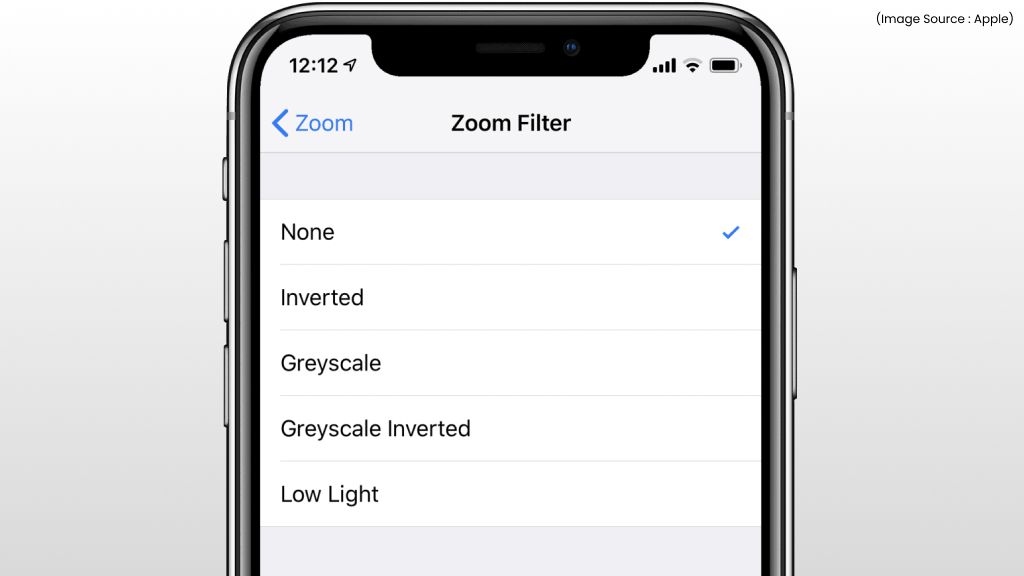
While Zoom is primarily used to magnify the screen, it also includes optional display filters that can remove color. If the Grayscale Zoom Filter is active, the entire display may appear without color. To review this setting:
- Open Settings.
- Tap Accessibility.
- Select Zoom.
- Tap Zoom Filter.
- Choose None.
If the filter was set to grayscale, switching it to None should immediately bring the colors back. It is worth noting that Zoom here refers to the iPhone’s built-in accessibility feature, not video conferencing apps or camera zoom.
3. Check the Accessibility Shortcut
(Image Source: Apple)
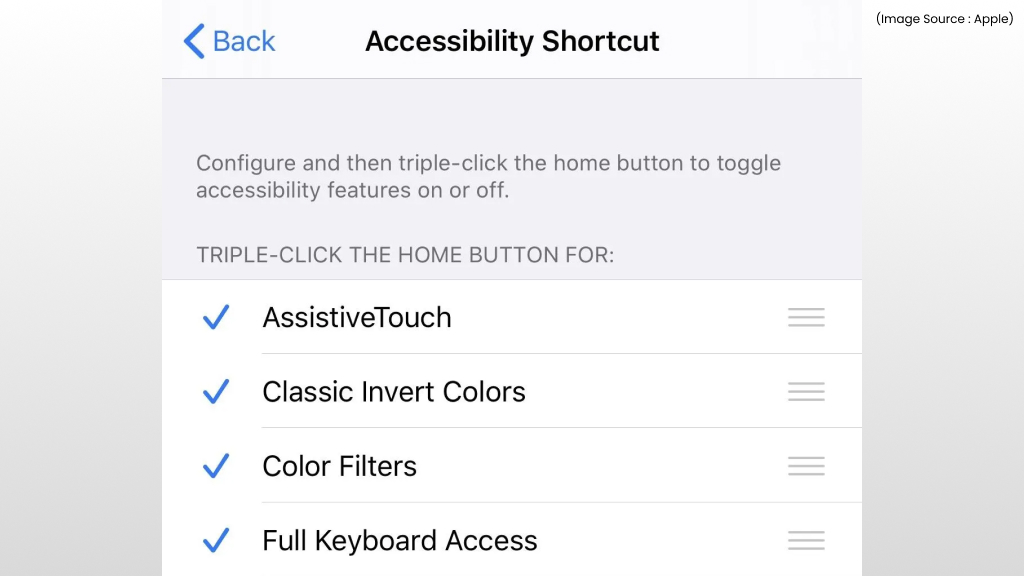
iPhones allow users to activate certain accessibility features by pressing a button three times in quick succession. Depending on your model, this is either the Side button or the Home button. If Color Filters or Zoom are assigned to this shortcut, a quick triple-press could switch your display into grayscale mode. To review your shortcut settings:
- Open Settings.
- Tap Accessibility.
- Scroll down and select Accessibility Shortcut.
- Check whether Color Filters or Zoom are selected.
If either option is enabled and you frequently trigger the shortcut accidentally, consider deselecting it. This prevents the screen from switching modes unintentionally in the future.
4. Force Restart Your iPhone
(Image Source: Apple)
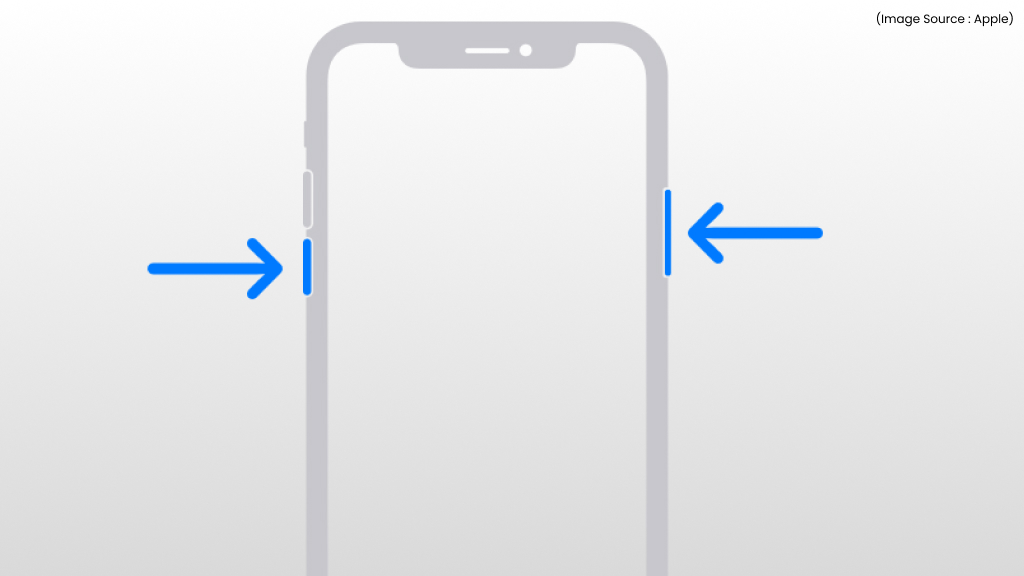
If none of the accessibility settings appear to be responsible, a simple restart may solve the issue. Occasionally, a temporary software bug can affect how the display renders on screen. A force restart refreshes the system and can fix small bugs without affecting your data. To force restart most recent iPhone models:
- Press and release the Volume Up button.
- Press and release the Volume Down button.
- Press and hold the Side button until the Apple logo appears.
After the device restarts, check whether the display colors have returned. Although it may seem simple, restarting the device can often fix display issues caused by temporary software glitches.
5. Reset All Settings
(Image Source: Apple)
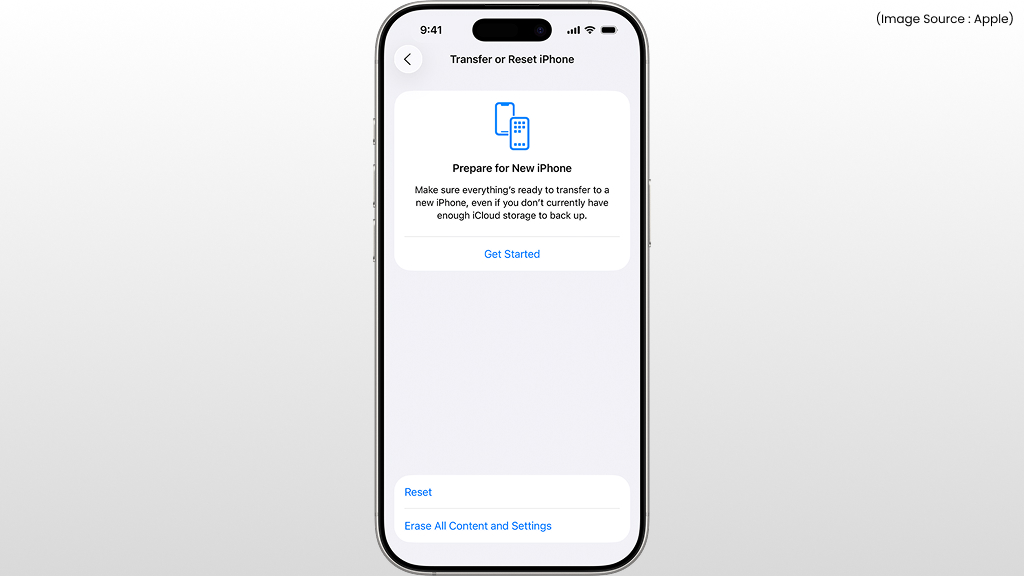
If the screen is still black and white, resetting your settings may help. This restores all system preferences to their default state, which can eliminate any hidden configuration causing the problem.
Importantly, this reset does not delete your photos, apps, or personal data. However, it will remove saved Wi-Fi networks, customized accessibility settings, and other preferences. To reset your settings:
- Open Settings.
- Tap General.
- Select Transfer or Reset iPhone.
- Tap Reset.
- Choose Reset All Settings.
After the reset is complete, your iPhone will restart with default system settings. If a configuration error was responsible for the grayscale display, this step should resolve it.
6. Check Smart Invert Settings
(Image Source: Apple)
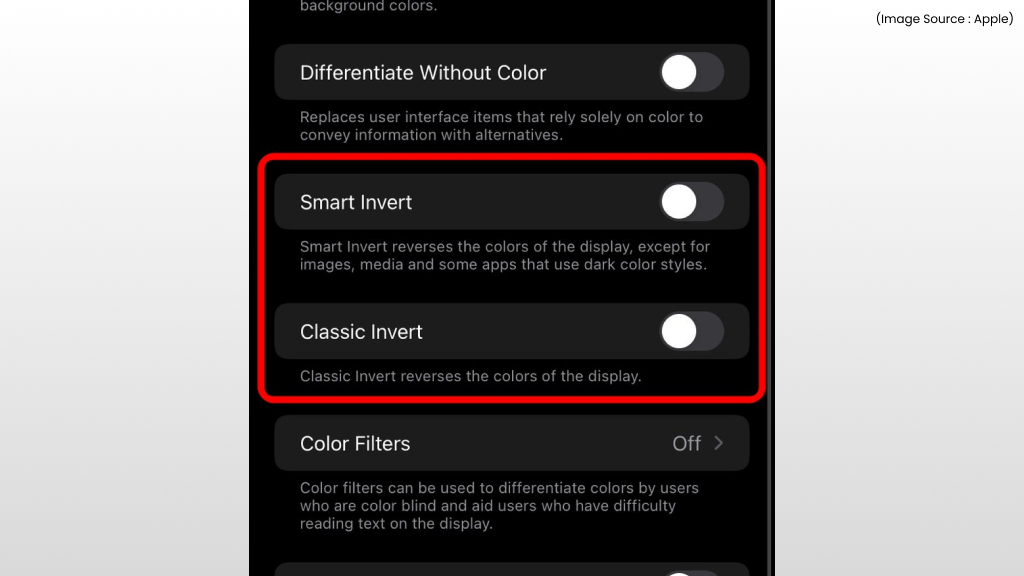
Another accessibility feature that may affect how colors appear on your iPhone is Smart Invert. This setting reverses many of the display’s colors to their opposite shades. While it does not normally create a fully black-and-white screen, it can sometimes make the interface look unusual or washed out. To review this setting:
- Open Settings.
- Tap Accessibility.
- Select Display & Text Size.
- Find Smart Invert and turn it off if it is enabled.
If Smart Invert was affecting the display, disabling it should immediately restore the normal appearance of your screen.
7. Use a System Repair Tool
(Image Source: Apple)
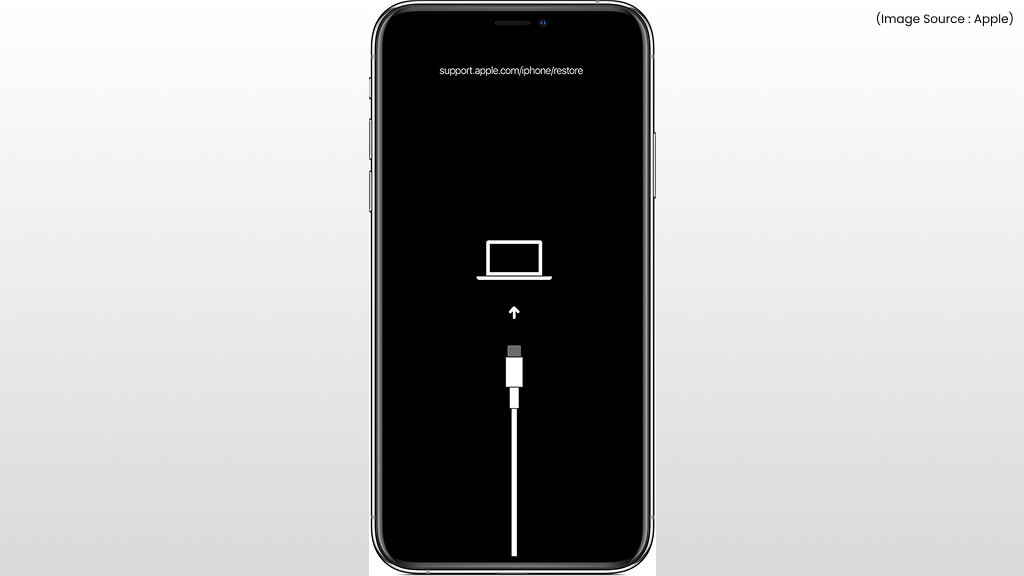
If the screen remains black and white even after resetting settings, the issue could be related to deeper iOS system glitches. In such cases, some users choose to repair the system using third-party iPhone repair tools on a computer.
These tools attempt to reinstall the iOS firmware while preserving data, which can sometimes fix software-related display issues. However, this method should only be considered after trying standard troubleshooting steps, and it is important to use reputable software.
8. Erase All Content and Settings
(Image Source: Apple)
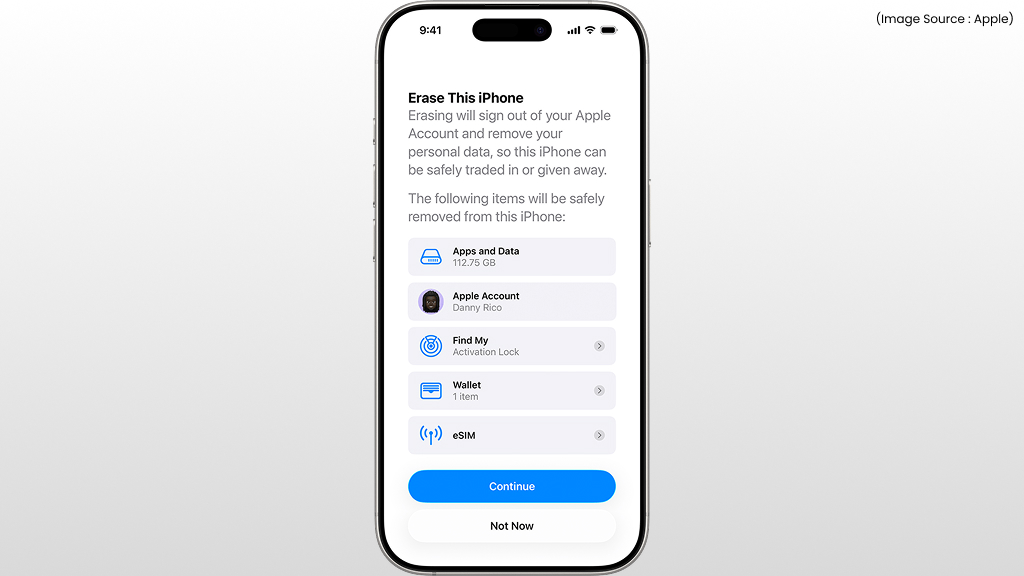
If the problem continues after trying all other fixes, restoring your iPhone to factory settings may help. This process removes all custom settings and returns the device to its original configuration.
However, this step will erase your photos, apps, and personal data, so creating a backup beforehand is strongly recommended. To reset your iPhone completely:
- Open Settings.
- Tap General.
- Select Transfer or Reset iPhone.
- Tap Erase All Content and Settings.
- Enter your passcode and confirm the reset.
Once the reset is finished, your iPhone will start as if it were new. If the grayscale display was caused by a system configuration issue, this process should restore normal colors.
Why an iPhone Screen Turns Black and White
(Image Source: Apple)
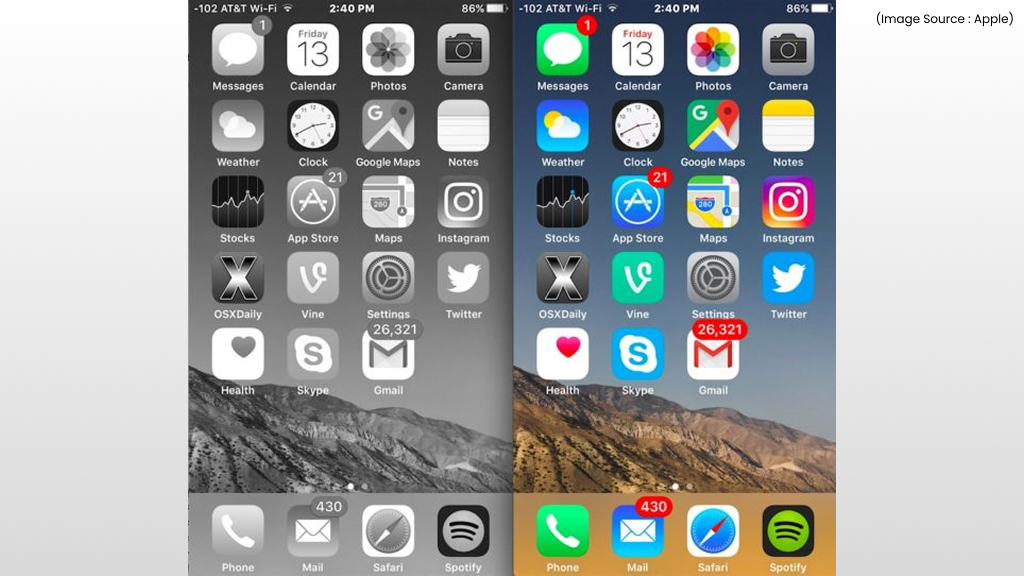
Understanding why the problem occurs can make troubleshooting much easier. In many cases, grayscale mode is triggered by an accessibility setting designed to simplify how colors appear on the screen. For example, grayscale mode can help reduce visual distractions or improve readability for some users. Since these features apply system-wide, turning them on changes how every app appears on the screen.
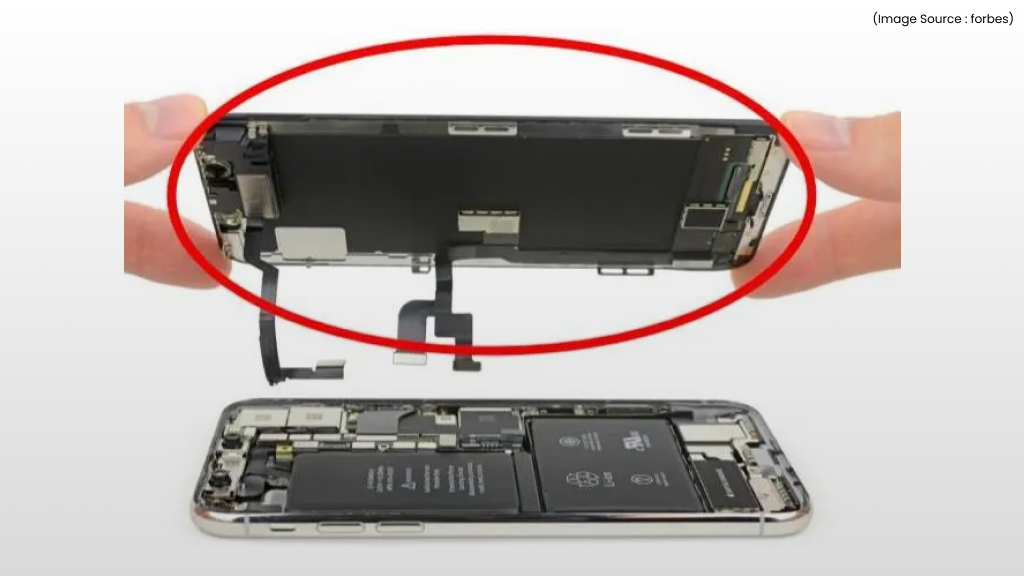
Another possible cause is a software glitch within iOS. While this is less common, temporary bugs can sometimes affect display rendering until the device is restarted. Finally, there is the possibility of a hardware problem, although this is rare. If the connection between the display and the internal components is damaged, the screen may lose color information. However, hardware issues are uncommon compared with accidental settings changes.
When the Problem Might Be Hardware-Related
(Image Source: mashable)
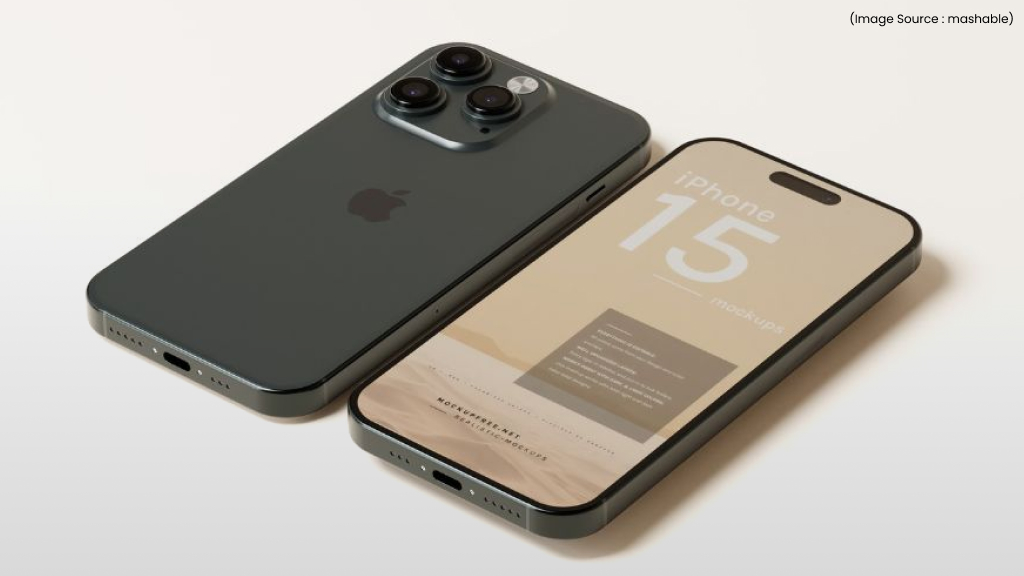
If none of the software fixes restore color to your display, the issue may involve the hardware. For example, damage to the display panel or a loose internal connection could affect how colors are shown.
Signs that the problem may be hardware-related include:
- The screen flickers between color and grayscale
- Colors appear distorted rather than fully absent
- The issue started after the phone was dropped or exposed to water
In such situations, it’s best to have the device examined by a qualified technician.You can reach out to Apple Support or take the device to an Apple Authorized Service Provider or an Apple Store. A technician can run diagnostic tests and determine whether the display or internal components need repair.
Simple Tips to Prevent the Issue in the Future
(Image Source: Forbes)
Once you restore color to your iPhone screen, a few small adjustments can help prevent the issue from happening again. First, review the Accessibility Shortcut settings and remove features you do not use. Second, be mindful when exploring accessibility settings, as some features can significantly change how the display appears.
Finally, keep your iPhone updated with the latest version of iOS. Software updates often include fixes for bugs that may affect system behavior.
Does Low Power Mode Turn the iPhone Screen Black and White?
(Image Source: Apple)
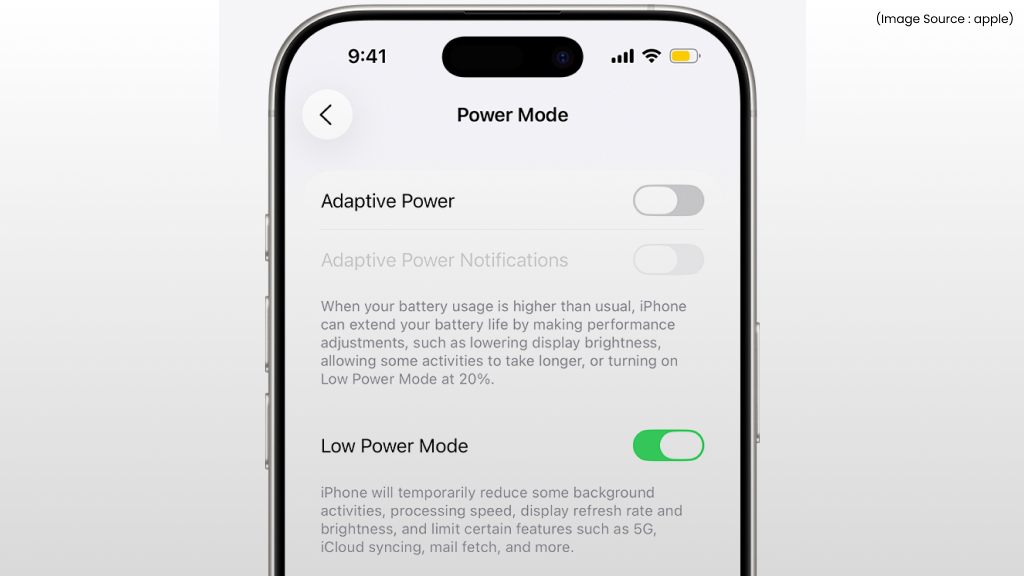
Low Power Mode helps extend battery life by reducing background activity and visual effects, but it does not normally remove color from the display. When this feature is enabled, your iPhone may dim the screen slightly or pause certain processes, but the interface should still appear in full color.
However, some users mistakenly associate the yellow battery icon with display changes and assume Low Power Mode is responsible for grayscale. In reality, the feature only manages power consumption and does not alter the phone’s color settings.
If your screen appears black and white while Low Power Mode is active, the cause is almost certainly related to accessibility features like Color Filters or Zoom filters instead.
Can Screen Time or Focus Modes Cause Grayscale?
(Image Source: Apple)
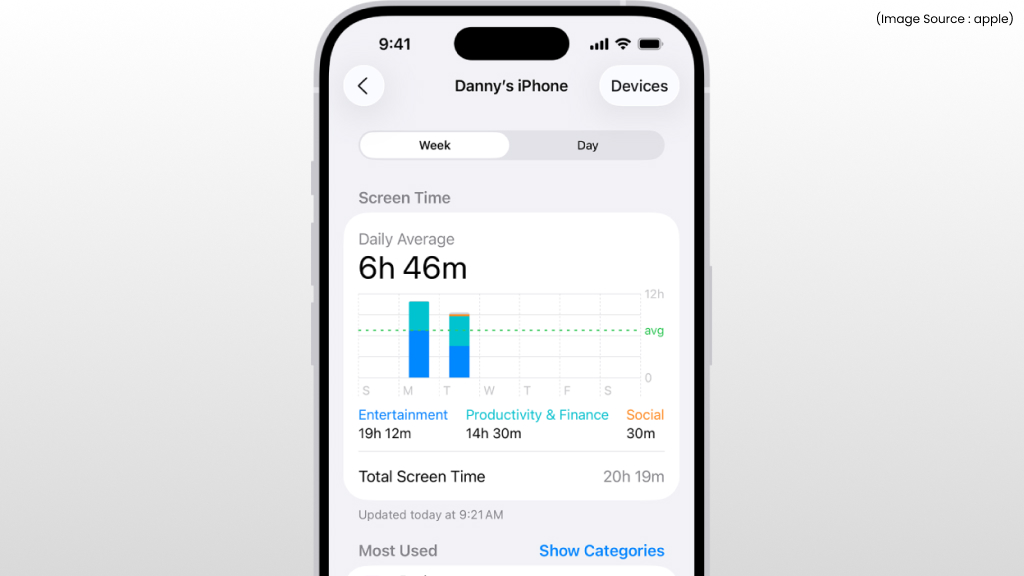
Screen Time and Focus modes control how and when you use your device, but they do not directly change the screen to black and white.
Screen Time mainly tracks usage and allows you to set limits for apps or categories. Focus modes, such as Do Not Disturb or Work Focus, help reduce distractions by filtering notifications and customizing your home screen.
While these features can change how your iPhone behaves, they do not affect display colors. If your phone suddenly switches to grayscale, it is almost always due to a display-related accessibility setting rather than Screen Time or Focus configurations.
Could an App Cause the Entire Screen to Turn Black and White?
(Image Source: techwiser)
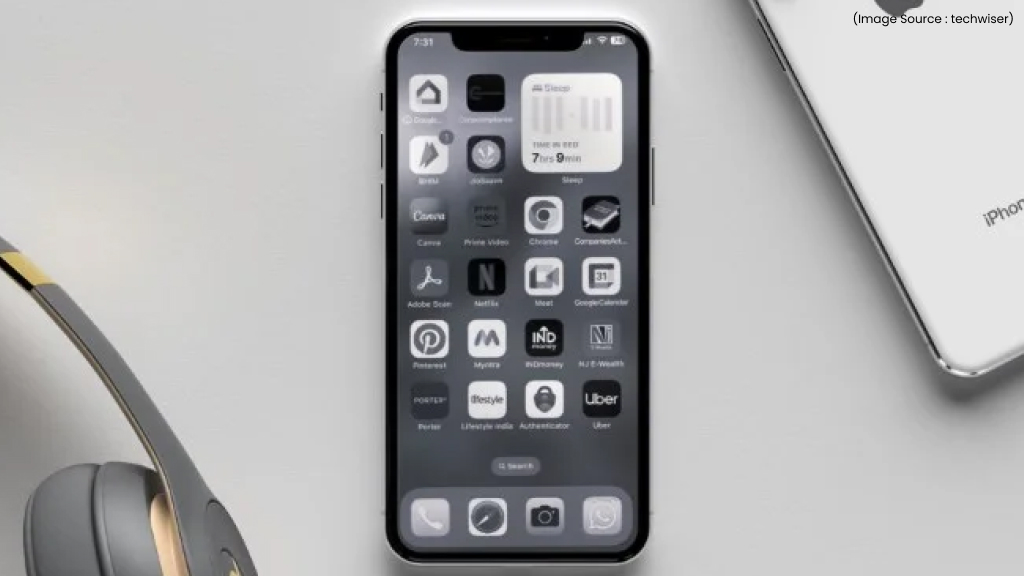
In most situations, apps cannot force the entire iPhone interface into grayscale. Individual apps can use their own visual styles, so some may appear mostly black and white by design, but they cannot change the color settings for the entire system. Only built-in system settings, especially those within the Accessibility menu, can affect the appearance of the whole display.
If every app on your device suddenly looks monochrome, the issue is almost certainly caused by an iOS setting rather than a third-party application.