


Google has introduced a fresh round of Android-focused updates, delivering smarter AI (AI Software & AI Web) features and meaningful improvements across the platform. From enhanced controls on the Pixel Buds Pro 2 and new capabilities in Android Auto to better conversation management in Google Messages and the wider rollout of voice-based AI (AI Software & AI Web) Search in the Google app, these upgrades strengthen the overall Android experience.
Together, they highlight Google’s push to make Android more intelligent, more connected, and increasingly voice-driven. Whether you’re navigating your commute, managing conversations, backing up photos, or exploring information hands-free, these latest Android enhancements are designed to make everyday tasks quicker, more seamless, and easier to manage. Let’s dive into the latest Android updates and see what’s new.
1. Google Pixel Buds Pro 2 Get Smarter With a Feature-Packed Update
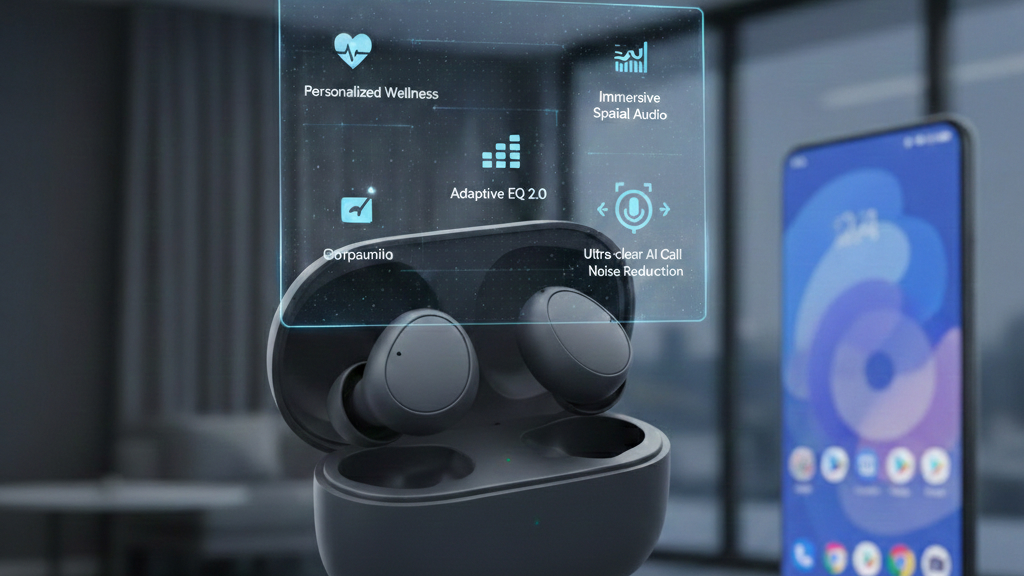
Google’s Pixel Buds Pro 2 were already seen as a meaningful leap over the previous generation, thanks to a 27% smaller, 24% lighter design and the introduction of the Tensor A1 chip. With a more secure twist-to-lock fit and soft rubberized fin, the earbuds feel noticeably more stable during workouts while reducing the “plugged ear” sensation.
Combined with stronger Active Noise Cancellation powered by Silent Seal 2.0 and a more natural transparency mode, they quickly became a top-tier option for Android users. Now, a new firmware update (version 4.467) makes them even more intelligent.
The highlight is Adaptive Audio, driven by the Tensor A1 chip. Instead of forcing users to choose between full ANC and full transparency, Adaptive Audio dynamically adjusts sound levels based on your surroundings. It reduces persistent background noise while still keeping you aware of important environmental cues. Whether you’re walking through traffic or commuting on a train, it creates a balanced listening experience without constant manual adjustments.
Google has also added Loud Noise Protection, which automatically lowers playback volume when sudden loud sounds like sirens or construction noise are detected. While not designed for extreme impulse sounds, it adds a practical layer of hearing protection for everyday city life.
AI (AI Software & AI Web) enhancements are another major focus, where Gemini Live now features improved voice isolation, helping it recognize commands more accurately in noisy environments. The update also brings:
- Longer ANC listening time,
- Improved Bluetooth 5.4 connectivity with smoother multipoint switching,
- Lower latency for gaming,
- Find My support through the case speaker.
This proves that the Pixel Buds Pro 2 continues to improve through software, not just hardware.
2. OnePlus Phones Hit by Major SMS Vulnerability in OxygenOS
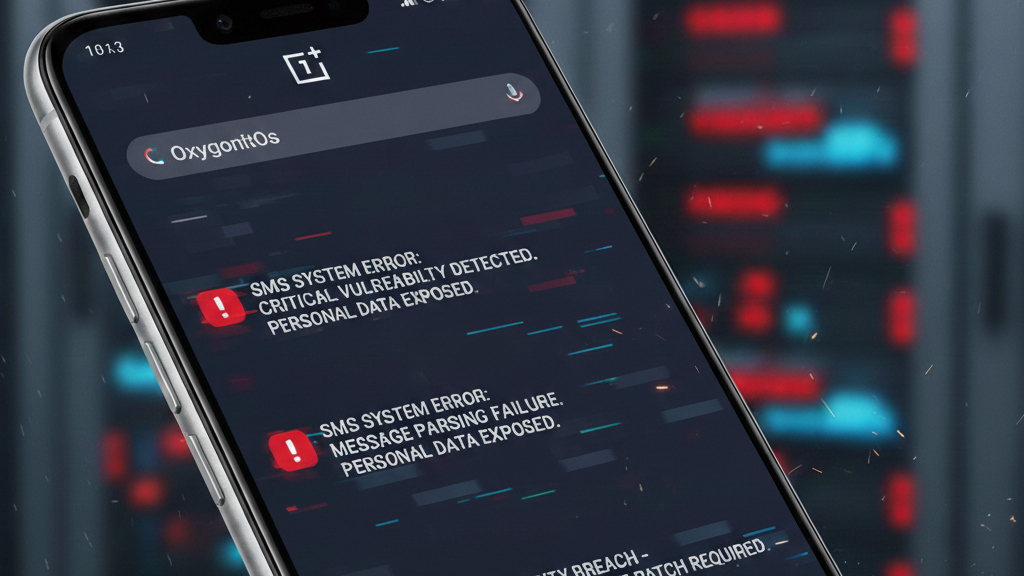
A serious security flaw has been uncovered in multiple OnePlus smartphones running OxygenOS 12 and newer, potentially exposing users’ private SMS and MMS messages to any installed app, without permission, consent, or notification. The vulnerability, officially tracked as CVE-2025-10184, was discovered by cybersecurity firm Rapid7.
According to the firm’s disclosure, the issue stems from modifications OnePlus made to Android’s core Telephony service, the system-level component responsible for handling calls and text messages. Because of these changes, apps could silently bypass Android’s permission system and access SMS data, including message content and metadata.
Even more concerning, the exploit reportedly requires no user interaction. An app would not need to request SMS permissions, and users would receive no indication that their messages were being accessed.
This creates a serious risk, particularly for sensitive information often delivered via text, such as one-time passwords (OTPs) used for two-factor authentication (2FA). Malicious or poorly secured apps could potentially harvest verification codes and private conversations without detection.
Rapid7 found the flaw present in devices running OxygenOS 12, 14, and 15, including models as far back as the OnePlus 8T. Devices running the older OxygenOS 11 appear unaffected. While only a few hardware models were tested, researchers believe the vulnerability is software-level and likely impacts a wide range of devices.
OnePlus has acknowledged the issue and confirmed that a fix will roll out globally. Until then, users are advised to install apps only from trusted sources, remove unnecessary apps, rely on encrypted messaging platforms, and consider switching from SMS-based 2FA to authenticator apps for added security.
3. CMF by Nothing Goes Independent as a Budget-Focused Smartphone Brand
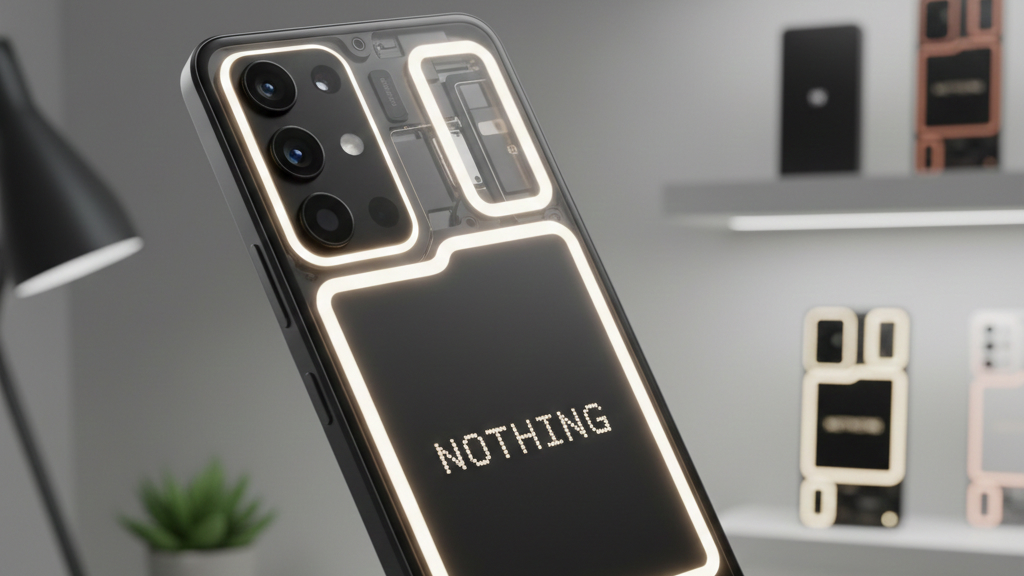
A new smartphone player is officially stepping into the spotlight. Nothing has spun off its affordable sub-brand, CMF (Color, Material, and Finish), into an independent, India-based entity focused entirely on budget-friendly devices and wearables.
Originally introduced in 2023 as Nothing’s entry-level arm, CMF quickly gained attention for offering well-designed products at accessible prices. Now operating as a separate subsidiary, CMF will manage its own research, development, and manufacturing operations, with India serving as its global headquarters. The move aligns with Nothing’s strong growth in the Indian market, where budget smartphones under $200 dominate sales.
To support this expansion, CMF has entered a joint venture with Optiemus Infracom, backed by a reported $100 million investment aimed at boosting local production and creating jobs.
On the product side, CMF has already launched devices like the CMF Phone 1 and Phone 2 Pro, offering features such as AMOLED displays and 50MP cameras at aggressive price points, all running Nothing OS based on Android. Future devices, including the anticipated CMF Phone 3 Pro, are expected to continue targeting value-conscious buyers.
By separating from Nothing’s premium positioning, CMF gains the agility to build its own identity in the highly competitive budget segment, while still leveraging the broader Nothing ecosystem.
4. Xiaomi Kicks Off the 2026 Flagship Race With Snapdragon 8 Elite Gen 5
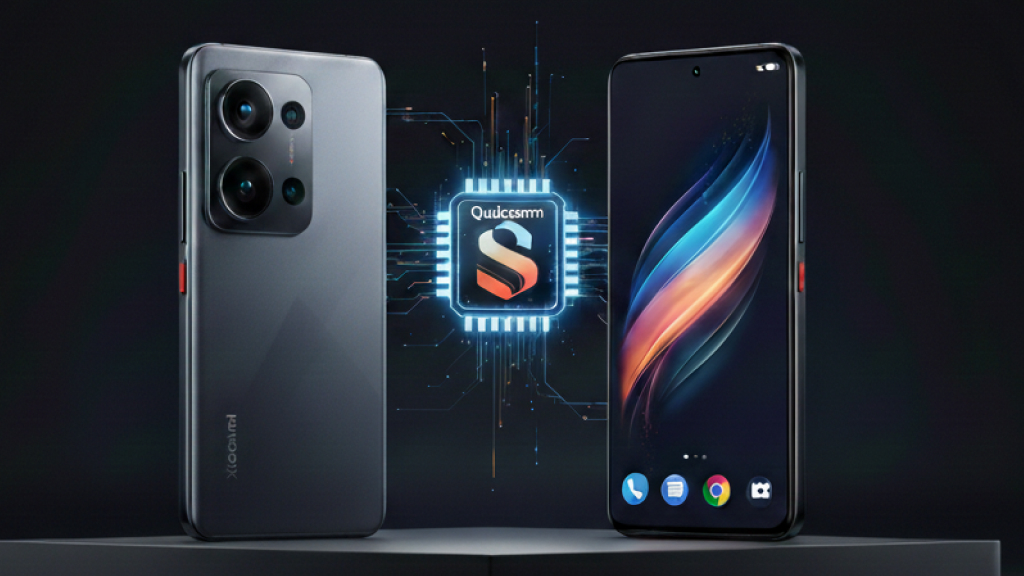
The race for 2026’s fastest Android phone has officially begun. Xiaomi is the first manufacturer to launch a device powered by Qualcomm Snapdragon 8 Elite Gen 5, debuting the chip inside the Xiaomi 17 Pro and 17 Pro Max.
Built on a cutting-edge 3nm process, the Snapdragon 8 Elite Gen 5 is expected to set the performance benchmark for Android flagships over the next year. Early indications point to major gains in AI (AI Software & AI Web) processing, graphics power, and overall efficiency, raising the bar for competitors like Samsung and Pixel ahead of their next flagship cycles.
The Xiaomi 17 series pairs this chipset with up to 16GB of RAM and 1TB of storage, running HyperOS 3 based on Android 16. AI (AI Software & AI Web) integration is a central theme, with smarter on-device processing and enhanced system optimization expected to define the user experience in 2026.
Hardware innovation doesn’t stop at performance. The Pro Max model packs a massive 7,500mAh battery, made possible through an L-shaped internal design, while maintaining an impressively slim 8mm profile. Both Pro models support 100W wired and 50W wireless charging.
Perhaps the most eye-catching feature is the “Magic Back Screen,” a 3,500-nit secondary rear display that functions as a viewfinder, notification hub, and widget panel. Combined with Leica-tuned triple 50MP cameras, the setup blends performance with creative flexibility.
The Xiaomi 17 series signals where Android hardware is headed next; bigger batteries, deeper AI (AI Software & AI Web) integration, and performance levels that could redefine flagship expectations for 2026.
5. Proton Mail Rolls Out Major Mobile App Redesign With Offline Mode
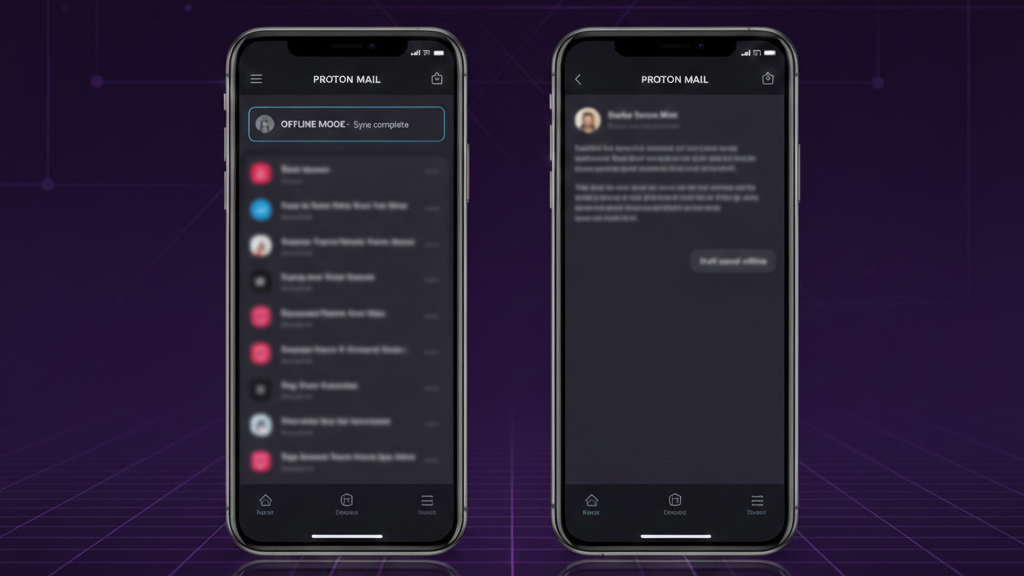
Proton Mail has released completely rebuilt mobile apps for iOS and Android, delivering a faster, cleaner, and more capable experience for privacy-focused users. The update introduces long-requested features, performance improvements, and a redesigned architecture aimed at accelerating future development.
The headline addition is a full offline mode. Users can now read, compose, and organize emails without an internet connection, with all actions automatically syncing once connectivity is restored. While offline access is standard in many mainstream email apps, it had been notably absent from Proton Mail until now. The feature activates automatically after updating, making the transition seamless.
Performance has also seen a significant boost. Proton says routine actions, including scrolling through the inbox, archiving conversations, and replying to messages, are now up to twice as fast. For users who rely on email throughout the day, these optimizations reduce friction and improve responsiveness.
The redesign simplifies navigation and improves accessibility. The compose button is now easier to reach, menus are more intuitive, and the interface feels more streamlined overall. The goal is not just aesthetic refinement but improved workflow efficiency. The rollout is gradual via the App Store and Google Play, marking a major milestone in Proton Mail’s evolution as a privacy-first alternative to mainstream email platforms.
6. Android 16 May Finally Let You Flip the Navigation Buttons
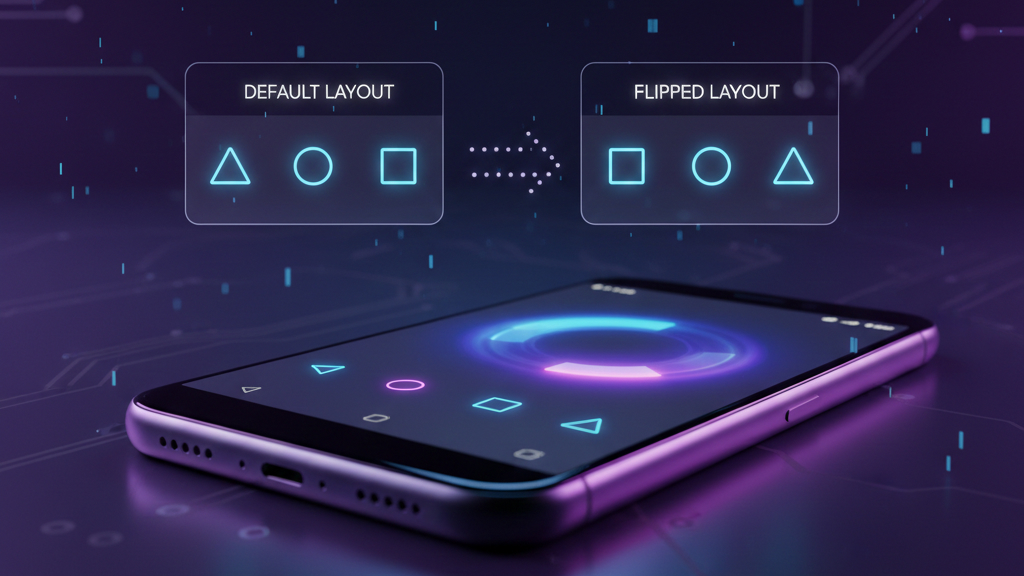
Android users may soon get a small but long-requested customization feature, one that Samsung Galaxy owners have enjoyed for years. The traditional three-button navigation layout places Back on the left, Home in the center, and Recents on the right.
While gesture navigation has become the default for many devices, three-button navigation remains widely used. The issue is Android has never allowed users to rearrange those buttons. This is finally changing with Android 16.
Spotted in recent Android 16 QPR2 Beta builds, Google appears to be adding a native “button order” setting. This would allow users to switch from the default “Back, Home, Recents” layout to “Recents, Home, Back,” effectively moving the Back button to the bottom-right corner of the screen. For right-handed users and longtime Samsung customers, this layout often feels more natural and easier to reach.
Samsung devices have not only offered this flexibility for years but have also defaulted to the reversed layout out of the box. As a result, users switching from Galaxy phones to Pixel devices often struggle with muscle memory or feel forced to adopt gesture navigation instead.
The new setting is expected to live under Settings > System > Navigation mode > 3-button navigation, with a simple toggle to change the button order. Although it’s currently visible in beta builds and not yet widely enabled, its presence strongly suggests it will arrive in a future Android 16 stable update.
7. 10 Excellent Android Apps Let Down by Their Widgets
Widgets are one of Android’s biggest strengths, offering quick access to information and controls without fully opening an app. But while the concept is powerful, execution doesn’t always match. Some of the most popular Android apps have widgets that feel unfinished, unstable, or simply poorly optimized for real-world use. Here’s a closer look at ten great apps whose widgets unfortunately fall short.
-
Trello
Trello is a fantastic project management tool, but its widget feels extremely limited. By default, it only displays cards assigned specifically to you, which makes it frustrating for solo board users or anyone who wants to monitor an entire list. Even worse, it doesn’t prioritize recent or urgent tasks, often surfacing outdated cards instead.
To make the widget even remotely useful, users sometimes have to assign themselves to every card, an awkward workaround that shouldn’t be necessary. The app itself is flexible and powerful; the widget simply doesn’t reflect that strength.
-
Google Calendar
Google Calendar’s widget struggles with information density and customization. You’re mostly limited to agenda or month views, and since the Material You redesign, there’s significantly more padding and spacing. That means fewer events visible at a glance.
Tasks also blend visually with calendar events, making it harder to differentiate between them. To make matters worse, non–all-day tasks can disappear from the widget shortly after their notification clears, reducing its reliability as a quick reference tool.
-
Google Photos
Google Photos should have one of the best widgets on Android, but it’s surprisingly unstable. The widget frequently crashes or stops loading images altogether. It also cycles through a small, repetitive pool of photos instead of showcasing a broader range from your library.
The integration with the main app also feels awkward. When you tap a photo, it doesn’t smoothly open in the editing screen, and you may have to search for the same image again inside the app.
-
Google Drive
Google Drive’s widget is functional but limited. It mostly displays recent files and offers very little control beyond basic shortcuts. Advanced features remain locked inside the full app or web version.
When resized, the widget can look awkward, sometimes compressing into unusual shapes with strange spacing between elements. For a productivity-focused app, the widget doesn’t add much value beyond what a simple shortcut could accomplish.
-
WhatsApp
WhatsApp’s widget is designed to show message previews without opening them, but in practice, it falls short of expectations. It only shows unread messages, and once you tap into the app, everything is marked as read, defeating the widget’s purpose.
Media messages don’t display previews either, instead showing a generic indicator. That limits its usefulness when someone sends a photo or video, forcing you to open the full app anyway.
-
Snapchat
Snapchat’s widget has potential but suffers from slow and clunky performance. Interactions can lag, and reliability issues persist even after updates. Strangely, it only displays friends who use Bitmoji, limiting visibility. The concept, quick access to chats, Stories, and streaks, is great, but the instability makes it hard to rely on daily.
-
Gmail
Gmail’s widget essentially shrinks your inbox into a small space, but the redesign has made it less efficient. With increased padding and rounded UI elements from Material You, fewer emails fit on screen at once. You’ll often find yourself scrolling excessively just to see older messages. It feels more like a compressed inbox than a thoughtfully designed widget optimized for quick glances.
-
Pokémon GO
Pokémon GO’s widget fails at the most basic requirement, that is staying updated. It doesn’t refresh automatically, meaning you have to open the full game to see updated information. That completely defeats the purpose of having a widget in the first place.
Considering the game already drains battery due to constant GPS tracking and background location access for features like Adventure Sync, the widget adds very little practical value.
-
Pandora
Pandora’s widget starts off working as intended but often breaks after a few songs. Playback controls may stop responding, skip commands might fail, and sometimes the music resumes on its own unexpectedly. Bluetooth syncing can become unreliable, and the widget may display incorrect playback information. In some cases, force-closing the app is the only solution.
-
Microsoft Outlook
Microsoft Outlook is an excellent email app, but its widget is inconsistent. After sitting on your home screen for a few days, it may stop syncing new emails altogether. Sometimes it gets stuck on a loading screen or crashes when you tap it.
Removing and re-adding the widget can temporarily fix the issue, but the problems often return. For staying up to date, the full app is far more dependable.
8. Unlock a Hidden Speed Boost in Developer Options
If your Android phone feels a little sluggish, there’s a simple tweak that can make it feel noticeably faster, without installing any apps. Hidden inside Developer Options is a trio of settings that control how quickly system animations run. Adjusting them won’t magically upgrade your processor, but it can make everyday interactions feel much snappier.
The settings are called Window Animation Scale, Transition Animation Scale, and Animator Duration Scale. Despite the name “scale,” these don’t change the size of animations, they control their speed. Window Animation Scale affects how fast apps open and close.
Transition Animation Scale controls how quickly you move between screens. Animator Duration Scale governs smaller animations like menu pop-ups and button effects. By default, Android sets these to 1×, which provides a balanced, smooth experience.
However, switching them to 0.5× cuts animation time in half. For example, a typical 300-millisecond transition drops to around 150 milliseconds. Apps don’t technically load faster, but because the visual delay is shorter, the phone feels more responsive. The difference is subtle yet immediately noticeable, especially on mid-range or older devices.
To enable this tweak, you first need access to Developer Options. Head to Settings > About Phone, find Build Number, and tap it seven times until you see a message confirming Developer Mode is active. Then return to Settings and open Developer Options. Scroll down to the animation scale settings and set each one to 0.5×.
You can disable animations entirely, but that often feels abrupt and can expose minor loading stutters. For most users, 0.5× strikes the perfect balance between smoothness and speed, a small change that makes daily use feel significantly quicker.
9. Four Alternative Ways to Hang Up Calls on Android
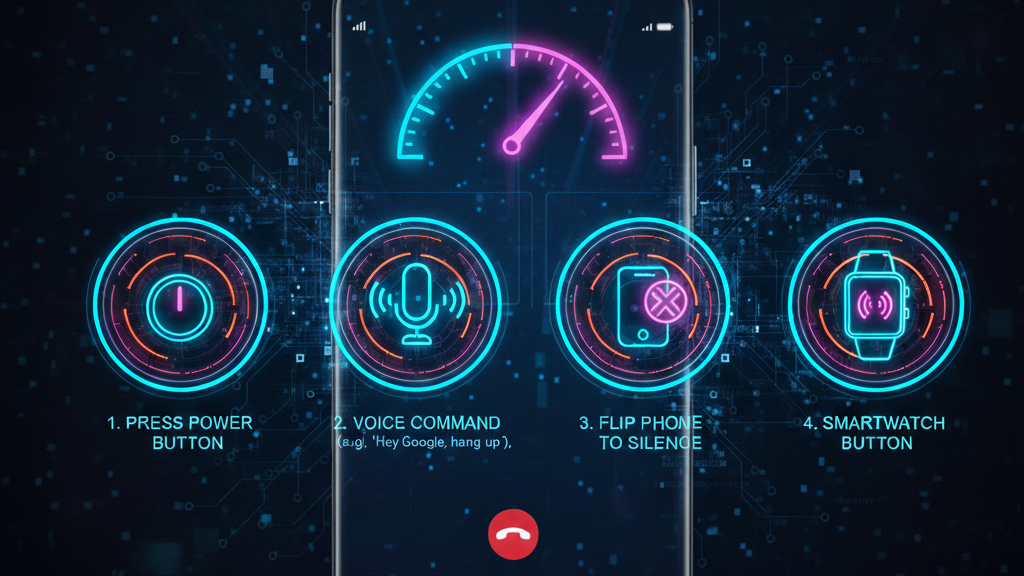
Ending a call on Android is usually as simple as tapping the red “End” button on your screen. But what happens if your display freezes, your hands are full, or you just want a quicker, more tactile way to hang up? Android actually offers several alternative methods, some built-in, others tied to accessories, that can make ending calls more convenient (and sometimes more satisfying).
-
Use the Power Button to End Calls
One of the simplest backup methods is using your phone’s power button to disconnect a call. Many Android devices include a setting that lets you hang up instantly by pressing the power key. This can be especially useful if your screen becomes unresponsive or the proximity sensor keeps the display off while the phone is against your ear.
To enable it, head to Settings > Accessibility and look for an option labeled “Power button ends call.” Once toggled on, pressing the power button during a call will immediately disconnect it.
There is a minor downside to this, wherein you might accidentally press the power button while holding the phone to your ear, which can end calls unexpectedly. If you use this feature, just be careful how you hold your phone.
-
Flip Your Phone Shut (Foldables)
If you’re using a foldable phone like the Samsung Galaxy Z Flip 7 or the Motorola Razr 2025, you can end calls the old-school way, by snapping the phone shut. On many flip-style devices, this feature is available but disabled by default to prevent accidental hang-ups.
Once activated in the Phone app settings, simply closing the device will end an active call. It’s a nostalgic, satisfying gesture that feels intentional and decisive, much like classic flip phones of the past. While not available on standard slab phones, foldable users may find this to be the most natural way to disconnect.
-
Use Earbud Controls
Modern wireless earbuds often include built-in touch or press controls for managing calls. Whether it’s a double-tap, pinch, or long press, most earbuds allow you to end a call without ever touching your phone.
For example, gestures differ between brands, so it’s worth checking your earbuds’ companion app or manual for the exact command. This method is particularly convenient when your phone is in your pocket, bag, or across the room. It also avoids marking messages or navigating away from other tasks on your screen.
-
End Calls From Your Smartwatch
If you use a smartwatch connected to your Android device, you can also disconnect calls directly from your wrist. Many smartwatches display incoming and ongoing calls, complete with answer and decline buttons.
Some watches even support gesture controls. On models like the Samsung Galaxy Watch Ultra, you can assign gestures such as a double pinch to answer or end calls. This hands-free approach is especially useful during workouts, driving (when safely mounted), or multitasking.
While the traditional red button remains the fastest way to hang up, having alternative methods can be surprisingly helpful. Whether it’s a physical button press, a satisfying flip shut, or a subtle wrist gesture, Android gives you more flexibility than you might realize.










