

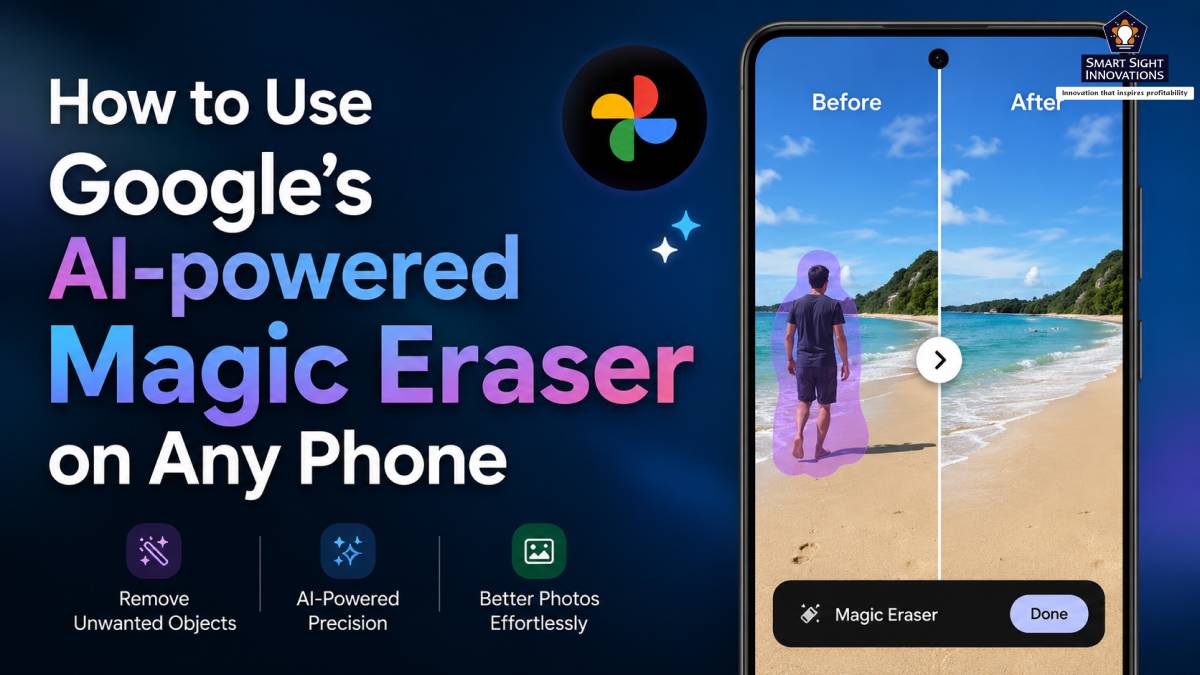
For years, some of Google’s most compelling AI-powered features were reserved for Pixel smartphones, giving the company’s own devices a clear advantage over the competition. Among them, Magic Eraser stood out as one of the most practical additions, allowing users to remove unwanted people, distracting objects, and other imperfections from their photos with remarkable ease. It quickly became one of the defining features of the Pixel experience and showcased how artificial intelligence could simplify everyday photo editing.
Google has expanded Magic Eraser beyond the Pixel lineup, making the feature available through Google Photos on a wide range of Android smartphones as well as iPhones. Even better, users no longer need a Pixel device or a Google One subscription to access it.
Whether you want to erase a photobomber from a vacation picture, clean up a scenic landscape, or simply improve an everyday snapshot, Magic Eraser makes it possible in just a few moments. Here’s what the feature is, how it works, and how you can start using it on almost any smartphone.
What Makes Magic Eraser So Special?
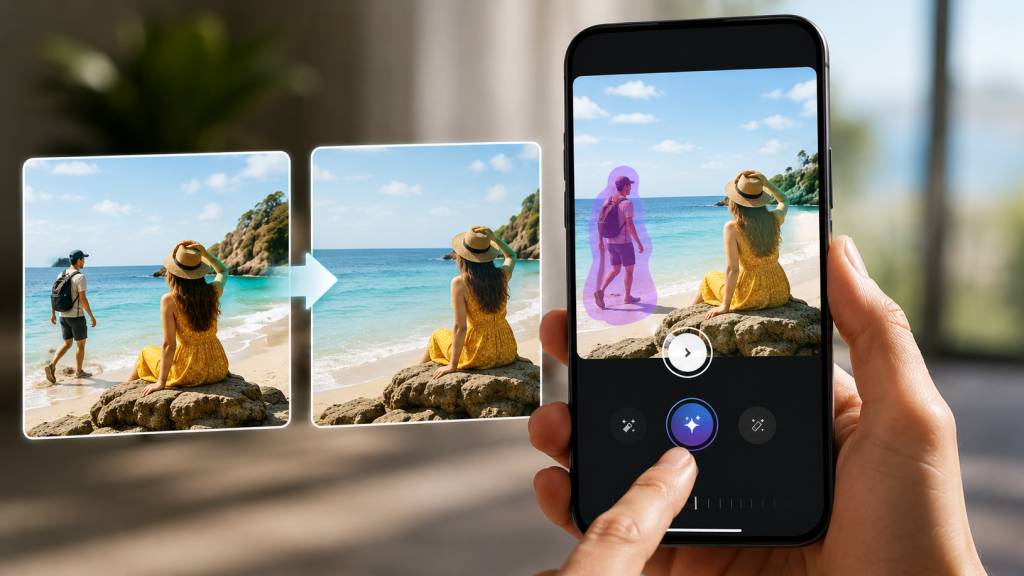
Magic Eraser is an AI-powered photo editing tool that enables users to remove unwanted objects, people, and other distractions from an image while intelligently recreating the background. Unlike traditional editing tools that simply crop part of a picture or blur unwanted areas, Magic Eraser analyzes the nearby details and generates new content that blends naturally with the rest of the photo, often producing edits that are difficult to spot at first glance.
What truly sets the feature apart, however, is not just the technology behind it but the convenience it offers. Everyday photos are often spoiled by unexpected distractions, whether it’s a stranger walking into the frame, overhead power lines cutting across a landscape, an intrusive sign, or a small object drawing attention away from the main subject. In the past, removing these distractions usually required professional editing software or advanced photo-editing skills, making such corrections impractical for most people.
Instead of spending several minutes carefully retouching an image with professional software, users can simply select the unwanted object and let Google’s editing engine handle the rest, making advanced photo editing accessible to almost anyone with a smartphone. The feature is particularly effective at removing:
- Photobombers in the background
- People walking through scenic landscapes
- Utility poles and overhead wires
- Street signs and other visual clutter
- Small objects scattered on the ground
- Dust spots and minor imperfections
Although it isn’t intended to replace professional editing software, Magic Eraser delivers impressive results for everyday photography. Its ability to simplify what was once a complex editing task is precisely why it remains one of Google’s most popular AI-powered photo tools.
How Does Google’s Magic Eraser Work?
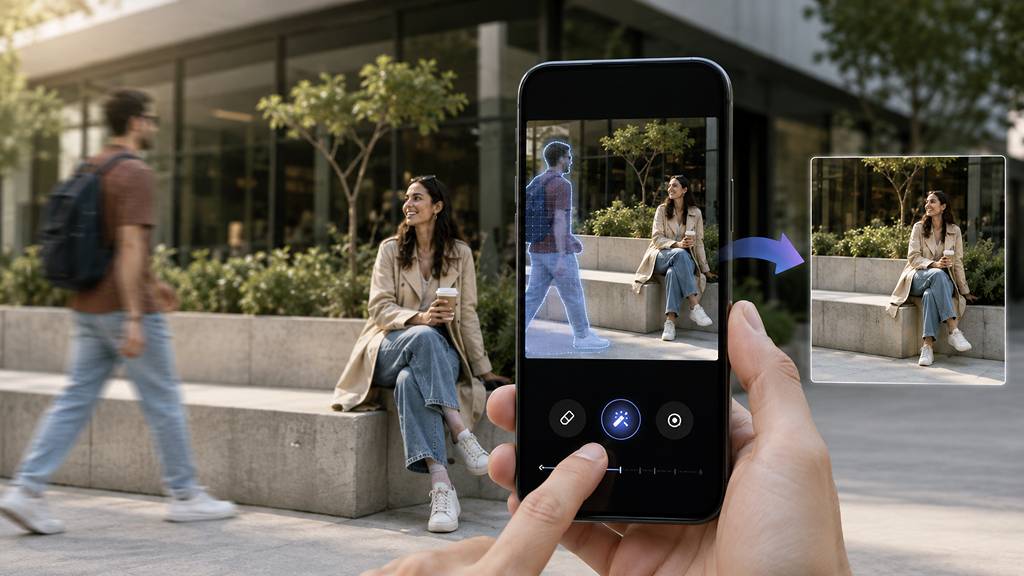
Although Magic Eraser is designed to be easy to use, the technology behind it is surprisingly sophisticated. Once an unwanted object is selected, the software analyzes the surrounding portions of the image, examining nearby textures, colors, lighting, shadows, and patterns to determine how the scene should appear after the distraction has been removed.
Using this information, Google’s machine learning models reconstruct the missing portion of the image by generating content that blends naturally with the surrounding area. Rather than leaving behind an empty space or obvious editing marks, the tool attempts to create a seamless result that preserves the overall appearance of the photograph.
The quality of the final edit depends largely on the complexity of the scene. Images with relatively simple backgrounds, such as blue skies, grassy fields, sandy beaches, roads, or plain walls, generally produce the most convincing results because they are easier to recreate. By comparison, scenes containing intricate architectural details, dense foliage, reflections, or overlapping objects present a greater challenge, making subtle imperfections more likely to appear.
This is why Magic Eraser performs best when removing smaller distractions instead of large foreground subjects. Eliminating a passerby in the distance or a stray object from the edge of the frame usually requires only minor reconstruction, whereas removing a large vehicle, building, or person standing close to the camera demands considerably more generated content and can make inconsistencies easier to spot. When images are viewed on a smartphone screen or shared on social media, the edits are often convincing enough that few people would realize anything had been removed.
How Google’s Magic Eraser Became Available to Everyone?
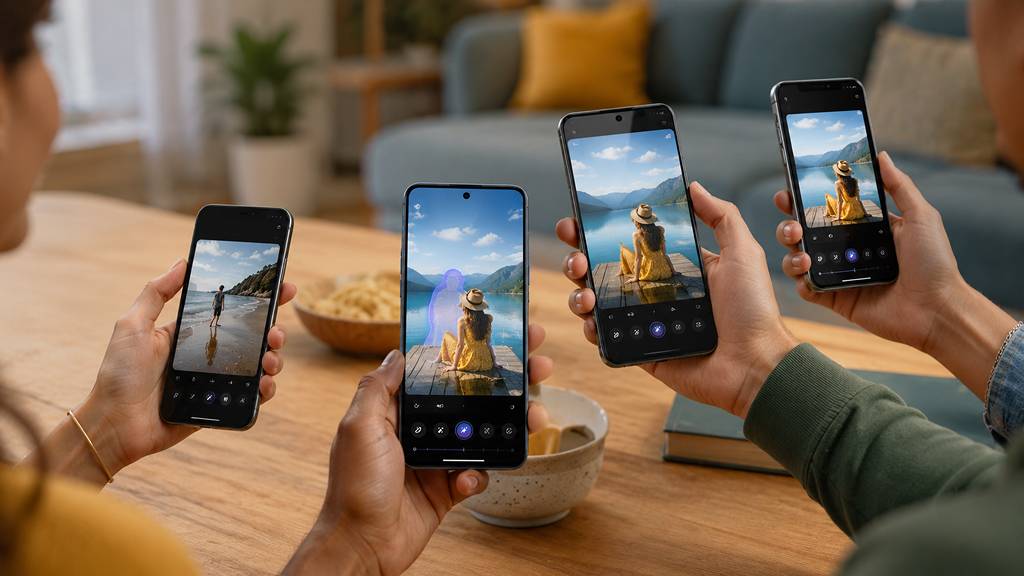
Magic Eraser debuted with the Pixel 6 series in 2021 and was initially promoted as one of Google’s signature Pixel experiences. Because it arrived alongside the company’s first Tensor chip, many users assumed the feature depended on Pixel-exclusive hardware and would remain limited to Google’s own smartphones.
Google gradually began expanding access to Magic Eraser by first making it available to Google One subscribers through Google Photos on compatible Android and iOS devices, allowing users of other smartphones to experience the feature without having to purchase a Pixel.
A few years later, Google removed that subscription requirement altogether. Today, anyone with the app and a supported Android phone or iPhone can use Magic Eraser at no additional cost, making one of Google’s most popular AI-powered editing tools accessible to a much wider audience.
That means Magic Eraser is no longer limited to Pixel devices. Magic Eraser delivers a largely consistent experience across supported smartphones, whether you’re using a Samsung Galaxy, Motorola, OnePlus, Xiaomi, Nothing Phone, Oppo, Vivo, Realme device, or an iPhone. All that’s required is an up-to-date version of Google Photos and a Google account.
Google’s decision reflects a broader shift in its software strategy. Rather than keeping every advanced editing feature tied to Pixel hardware, the company has begun making several AI-powered tools, allowing millions more users to benefit from its image-editing technology regardless of the smartphone they own.
How to Use Google’s Magic Eraser on Any Phone?
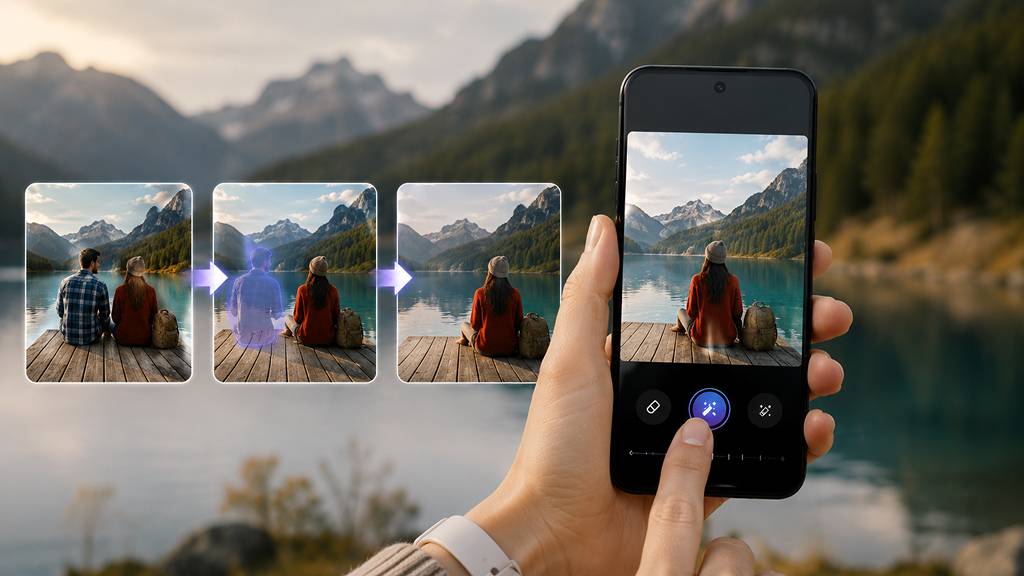
Using Magic Eraser requires only a few taps once Google Photos is installed on your device. The editing experience is virtually identical across supported Android smartphones and iPhones, so the steps remain the same regardless of the device you’re using.
Step 1: Open the Photo
Launch Google Photos and open the image you want to edit. The picture does not need to be backed up to your Google account, as photos stored locally on your device can also be edited.
Step 2: Enter the Editing Menu
Tap the Edit button at the bottom of the screen, then navigate to the Tools section and select Magic Eraser. The app will scan the image and may automatically highlight people or objects that it detects as potential distractions.
Step 3: Choose What to Remove
If the suggested selection isn’t exactly what you want, you can manually tap, circle, or brush over the object you wish to remove. For greater accuracy, the Refine Selection option lets you add to or subtract from the highlighted area before applying the edit.
Step 4: Apply the Edit
Once you’re satisfied with the selection, tap Erase and allow Google Photos a few moments to process the image. The app will generate a new version with the selected object removed and the surrounding area reconstructed.
Step 5: Review the Result
Take a moment to inspect the edited photo before saving it. If the result doesn’t look quite right, you can undo the changes and try selecting the object more precisely or editing a smaller portion of the image. Slight adjustments often produce noticeably better results.
Although the entire process usually takes less than a minute, the quality of the edit can vary depending on the image. Experimenting with different selections is often the easiest way to achieve the most natural-looking outcome.
When Does Magic Eraser Deliver the Best Results?
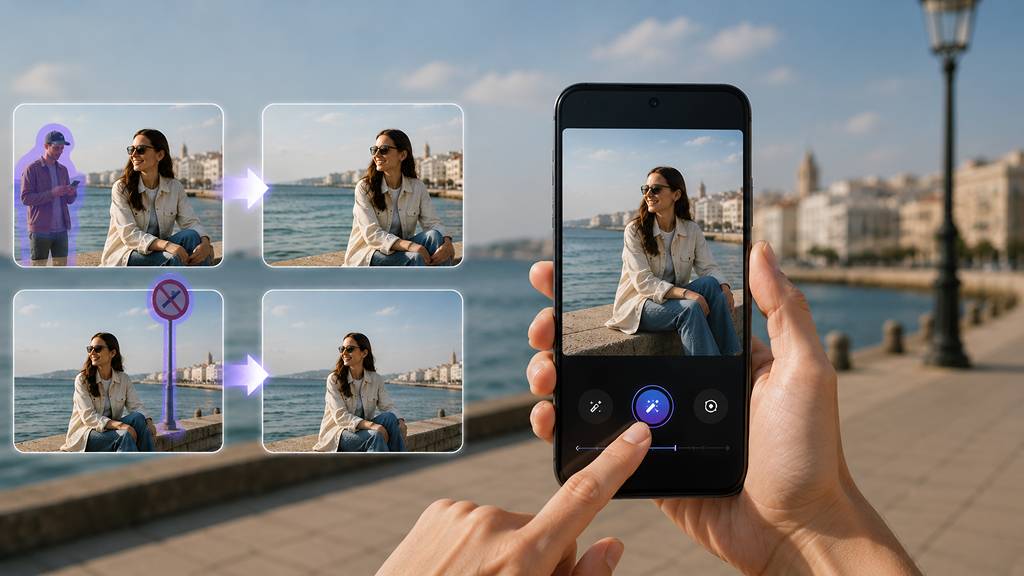
Although Magic Eraser is capable of producing impressive edits, its effectiveness depends largely on the type of image being edited. In general, the feature performs best when removing smaller distractions that occupy only a limited portion of the frame, giving Google’s AI (AI Software & AI Web) enough information to recreate the missing area naturally.
Photos with simple or consistent backgrounds tend to produce the most convincing results. Open skies, grassy fields, beaches, roads, walls, and other uniform surfaces are easier for the AI (AI Software & AI Web) to reconstruct because there are fewer complex details to replicate. In these situations, the edited area often blends seamlessly with the rest of the image.
Magic Eraser is particularly effective for removing:
- Photobombers standing in the background
- People walking through scenic landscapes
- Utility poles and overhead power lines
- Street signs and other visual clutter
- Small objects lying on the ground
- Dust spots or lens imperfections
- Loose strands of hair obscuring part of the subject
The feature also works best when the unwanted object is clearly separated from the main subject and does not cover important details in the scene. Since the AI (AI Software & AI Web) only needs to recreate a relatively small area, the final result is usually clean enough that most viewers will never notice the photo has been edited.
For photography, especially images shared on social media or viewed on a smartphone screen, Magic Eraser consistently delivers polished results that require little or no additional editing.
Magic Eraser’s Limitations
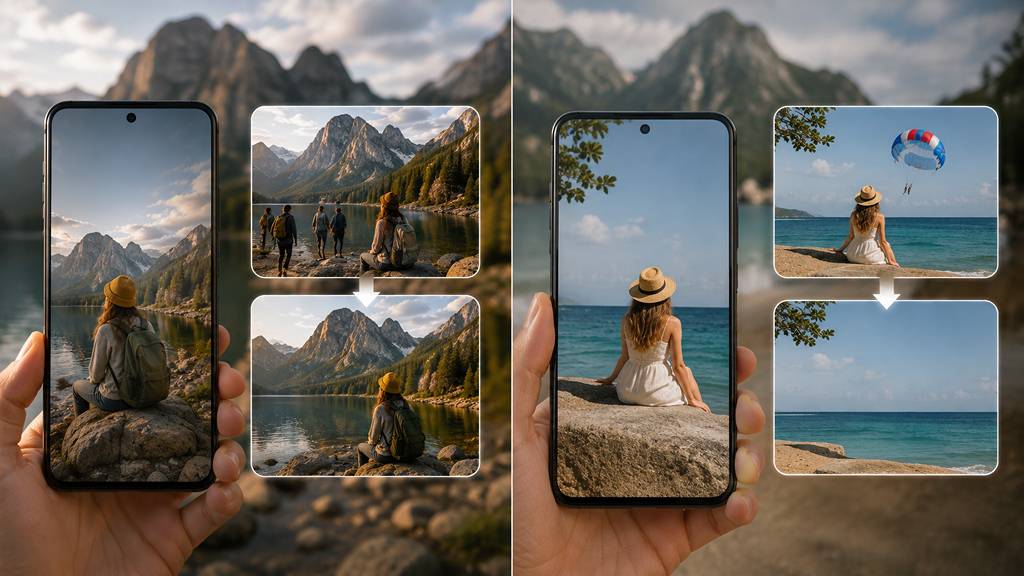
Although Magic Eraser performs exceptionally well for most everyday editing tasks, the quality of its edits can vary based on the complexity of the image. Like most AI-powered tools, it performs best when there is enough visual detail for the software to reconstruct the scene naturally.
The feature is more likely to produce visible imperfections when asked to remove large foreground subjects or objects that occupy a significant portion of the image. In these cases, the AI (AI Software & AI Web) has to generate much more of the missing background, increasing the likelihood of visible inconsistencies. Some of the more challenging scenarios include:
- Large vehicles or buildings
- People standing close to the camera
- Intricate architectural details
- Highly textured backgrounds
- Reflections in glass or water
- Complex shadows and lighting
- Objects that overlap with the main subject
Edits involving these elements may occasionally result in repeated textures, distorted lines, or areas that appear slightly artificial upon closer inspection. Although these imperfections are often difficult to notice on a smartphone screen, they can become more apparent when the image is enlarged or printed.
For the best results, consider removing one distraction at a time instead of attempting to erase multiple large objects in a single edit. Smaller, more targeted edits generally produce cleaner and more natural-looking images.
Used within its strengths, Magic Eraser is an excellent tool for enhancing everyday photographs. While it isn’t intended to replace professional editing software, it delivers impressive results in a fraction of the time required by traditional editing techniques.
Magic Eraser Isn’t Just for Fixing Photos
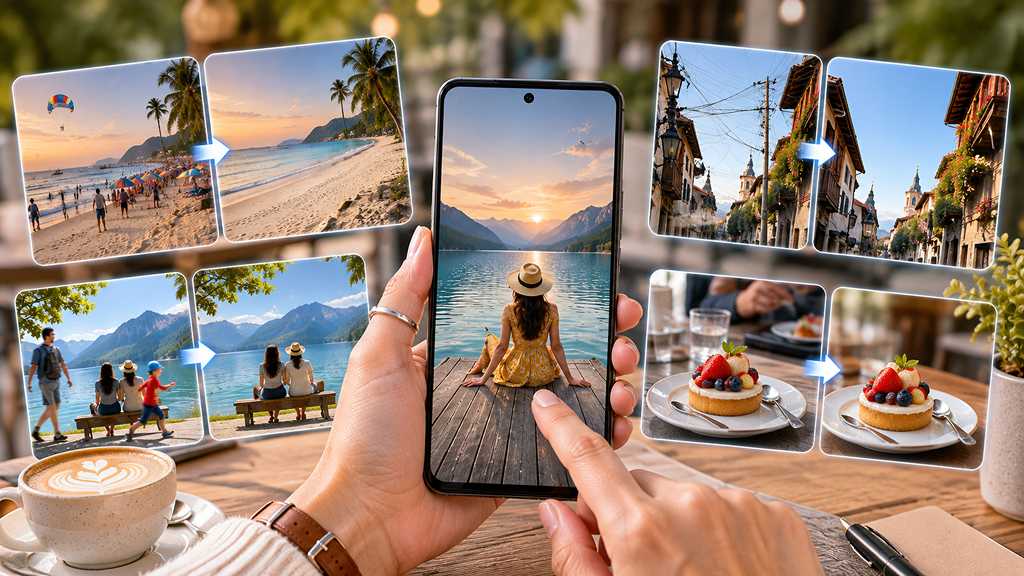
Although most people use Magic Eraser to remove distractions from their pictures, the feature can also be used to give photos a completely different look. Rather than simply correcting mistakes, it offers an easy way to experiment with compositions and create cleaner, more visually striking images.
For example, users can remove parked vehicles from a street scene to draw greater attention to the architecture, eliminate crowds from a scenic landscape to emphasize the view, or erase unnecessary objects that compete with the main subject. Even subtle changes, such as removing a stray branch, a trash bin, or an advertising sign, can make a photograph appear more polished.
Some photographers also use Magic Eraser to simplify busy backgrounds and create a stronger focal point. By eliminating elements that distract the viewer’s eye, the subject of the image naturally becomes more prominent without the need for extensive editing.
Of course, creative editing should be approached thoughtfully. While cleaning up a distracting background is unlikely to change the meaning of a photograph, removing important people or objects can alter the story the image tells. Understanding that distinction helps ensure the feature is used to enhance a photo rather than misrepresent it.
Used responsibly, Magic Eraser is more than a tool for correcting imperfections. It also provides a quick and accessible way to refine compositions, improve visual balance, and produce images that better reflect the photographer’s original vision.
The Future of AI (AI Software & AI Web) Photo Editing

As AI-powered editing tools become more sophisticated, the line between enhancing a photograph and fundamentally changing it continues to blur. Removing a stray power cable, an accidental photobomber, or a distracting object is generally viewed as a harmless way to improve an image without altering its overall story. More extensive edits, however, such as adding people who were never there or removing key elements from an important scene, raise ethical concerns, particularly in fields like journalism, documentary photography, and legal investigations where authenticity matters.
Magic Eraser largely sits on the safer side of that debate because its primary purpose is to eliminate everyday distractions rather than create entirely new scenes. When used responsibly, it serves much the same purpose as traditional photo retouching, helping users produce cleaner and more visually appealing images while preserving the essence of the original photograph. Ultimately, the responsibility lies with the user to decide where simple enhancement ends and misrepresentation begins.
Magic Eraser also represents just one part of Google’s broader vision for AI-powered photography. Over the past few years, the company has steadily expanded its editing capabilities, making advanced tools available to a much wider audience instead of restricting them to Pixel devices.
In addition to Magic Eraser, Google now includes several other AI-powered editing features, including:
- Photo Unblur, which improves the sharpness of blurry images.
- Portrait Light, which allows lighting to be adjusted even after a photo has been captured.
- Magic Editor, which offers more advanced generative editing capabilities, such as repositioning subjects, resizing objects, or modifying parts of a scene. Access to Magic Editor varies by account type, with free users receiving a limited number of edits each month, while Pixel owners and eligible Google One Premium subscribers can use the feature more extensively.
Magic Eraser may have started as one of the Pixel lineup’s defining features, but it has evolved into a tool that almost anyone can use. Whether you’re cleaning up a vacation photo, removing an unexpected distraction, or giving an old picture a fresh look, it makes advanced photo editing accessible without requiring professional skills. As Google continues expanding its AI-powered editing tools, the gap between premium smartphone features and everyday users is becoming smaller than ever.