Installing apps on a Mac is usually a seamless experience, especially with Apple’s tightly controlled ecosystem and built-in security features. Most of the time, you can download an app, open it, and start using it without any interruptions. However, things don’t always go as expected, particularly when you’re installing software from outside the Mac App Store.
At some point, you may come across a warning that says “Cannot be opened because the developer cannot be verified.” This message can feel confusing, especially if you trust the app you’re trying to install. It often leaves users wondering whether the app is unsafe or if there’s a problem with their Mac.
In reality, this alert is part of macOS’s security system designed to protect your device from potentially harmful software. Apple verifies apps from registered developers to ensure they meet strict safety standards. When an app hasn’t gone through this process, your Mac blocks it by default, even if it’s completely legitimate.
The good news is that this issue is usually easy to resolve. Let’s explore why this error occurs and the most effective ways to fix it safely.
What Does “Developer Cannot Be Verified” Mean on Mac?
(Image Source: Apple)
macOS is designed with multiple layers of security to keep your system safe, and one of its most important features is Gatekeeper. This built-in protection system ensures that only trusted and verified software is allowed to run on your Mac, reducing the risk of malware, spyware, or harmful applications.
By default, Gatekeeper restricts app installations to two trusted sources:
- Apps downloaded from the Mac App Store
- Apps from developers who are registered with Apple and have digitally signed their software
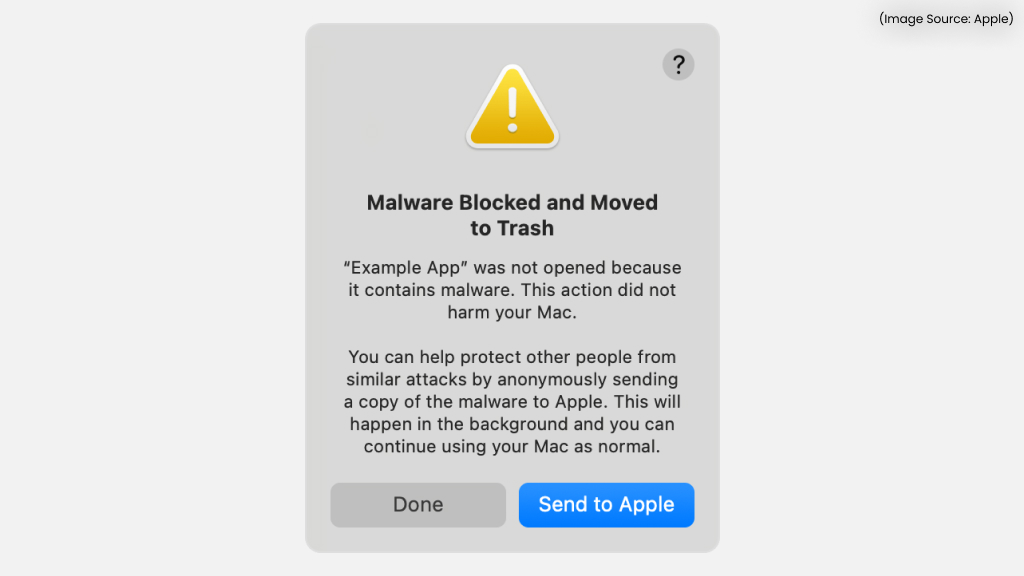
When you try to open an app that doesn’t meet these criteria, macOS blocks it and displays a warning message such as:
- “The app can’t be opened because it is from an unidentified developer.”
- “Apple cannot check it for malicious software.”
- “Cannot be opened because the developer cannot be verified.”
These messages appear because Apple cannot confirm the app’s authenticity or scan it through its notarization process. In many cases, this happens with apps downloaded from third-party websites, open-source tools, or older software that hasn’t been updated to meet Apple’s latest security requirements.
It’s important to understand that this warning doesn’t necessarily mean the app is unsafe. Instead, it indicates that the app hasn’t gone through Apple’s verification process, so macOS blocks it as a precaution.
Why macOS Blocks Unverified Apps
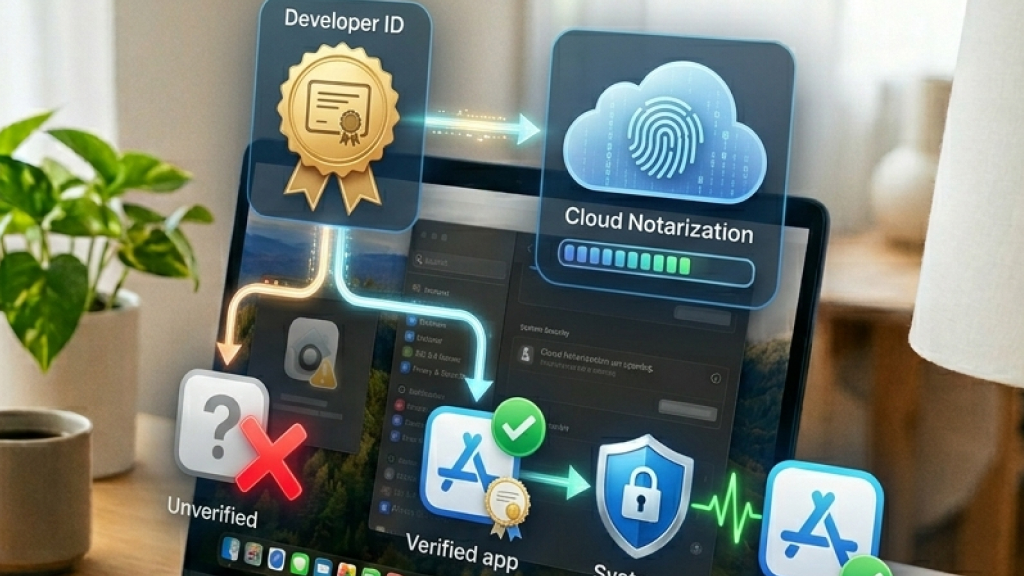
Apple follows a rigorous developer verification system to reduce the risk of malware and protect users from potentially harmful software. To distribute apps outside the Mac App Store,
- Developers must first enroll in Apple’s Developer Program
- Apps are digitally signed using a unique Developer ID.Developer ID
- Apple scans apps for malicious code before approval
This ID is used to digitally sign their applications, confirming the source and ensuring the software hasn’t been tampered with. In addition, Apple performs an automated notarization check that scans apps for malicious content. If an app doesn’t complete these steps, macOS cannot verify its integrity and blocks it as a safety measure.
Common Reasons for This Error
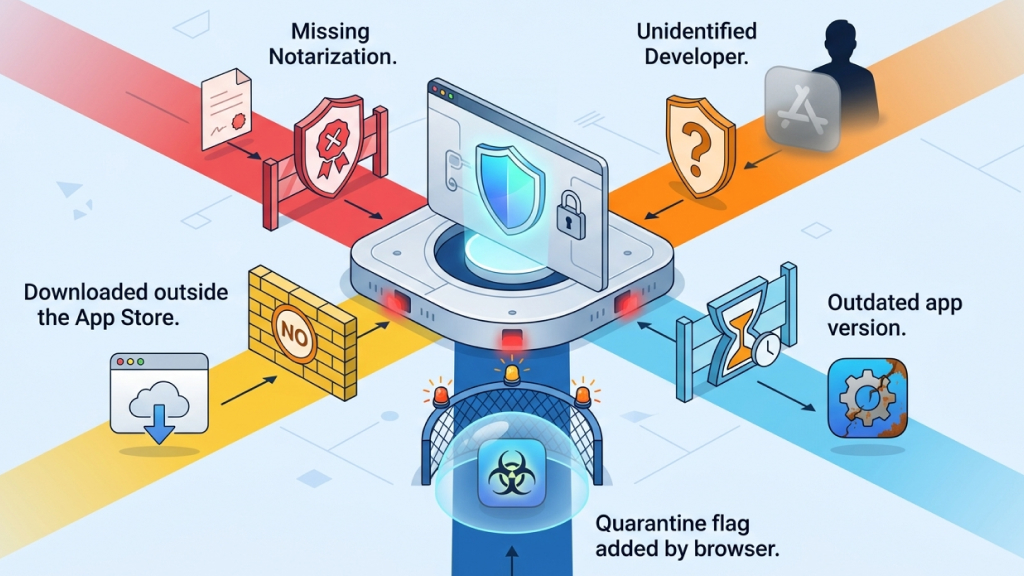
You may encounter the “developer cannot be verified” warning due to the following reasons:
-
Missing notarization
The app hasn’t been scanned and approved by Apple’s notarization process, which checks for malware.
-
Unidentified developer
The app is not signed with a valid Developer ID, or Apple cannot verify the developer’s identity.
-
Downloaded outside the App Store
Apps from third-party websites are not pre-reviewed like those on the Mac App Store.
-
Outdated app version
Older versions may not meet Apple’s latest security requirements.
-
Quarantine flag added by browser
Some browsers mark downloaded files as potentially unsafe, prompting macOS to block them.
Is It Safe to Open Apps from Unverified Developers?

The safety of unverified apps varies based on their source and intent. Here are the key factors to keep in mind:
-
Not all unverified apps are harmful
Some are legitimate tools that are open-source, independently developed, or simply not submitted for Apple’s review.
-
Lack of Apple verification
These apps haven’t gone through Apple’s security checks, so their authenticity cannot be confirmed.
-
Risk of malware and spyware
Unverified apps may contain harmful code that can steal personal or financial data.
-
Privacy concerns
Some apps may request excessive permissions and collect data without your knowledge.
-
Potential security vulnerabilities
Without proper certification, these apps may expose your system to threats.
Best Ways to Fix “Developer Cannot Be Verified” Error
If you’re unable to open an app due to the “developer cannot be verified” warning, there are several reliable ways to bypass this restriction safely. Depending on your situation, you can choose a quick workaround or a more advanced method.
1. Open the App Using Control-Click (Quickest Method)
This is the simplest and safest way to open a blocked app on macOS. It allows you to override the restriction for a specific app without changing your system settings.
Steps:
- Open Finder and locate the app in Applications or Downloads
- Hold the Control key and click the app
- Select Open from the menu
- Click Open again when prompted
Once approved, macOS will remember your choice and allow the app to open normally in the future.
2. Allow the App from Privacy & Security Settings
If the Control-click method doesn’t work, you can manually approve the app through your system settings.
Steps:
- Click the Apple menu and go to System Settings
- Select Privacy & Security
- Scroll down to the Security section
- Locate the blocked app message
- Click Open Anyway and confirm
This option is only available for a short time after you attempt to open the app, so you’ll need to act quickly.
3. Download the App Again Using Safari
The browser you use can sometimes affect how macOS handles downloaded files. Certain browsers may apply stricter security flags, which can trigger this error.
Steps:
- Delete the existing app file
- Restart your Mac
- Re-download the app using Safari
- Try opening it again using the methods above
4. Check for an Updated or Verified Version
Before bypassing macOS security, it’s always a good idea to check if a verified version of the app is available.
- Look for the app on the Mac App Store
- Visit the official developer’s website
- Download the latest signed version
Using an updated version ensures better compatibility and reduces security risks.
5. Use an Alternative App
If you’re unsure about the app’s safety, consider switching to a similar application that is already verified by Apple. This is especially helpful if the app is outdated, the developer is unknown, or the source seems unreliable.
6. Remove the Quarantine Attribute via Terminal (Advanced)
macOS assigns a quarantine attribute to internet-downloaded files; this can be removed using Terminal, provided you trust the app’s source.
Steps:
- Open Terminal (Applications > Utilities)
- Type xattr -l and drag the app file into Terminal, then press Enter
- If you see com.apple.quarantine, run: sudo xattr -r -d com.apple.quarantine
- Drag the app into Terminal again and press Enter
- Enter your administrator password
7. Temporarily Disable Gatekeeper (Last Resort)
You can disable macOS security restrictions entirely, but this method should only be used when absolutely necessary.
Steps:
- Open Terminal
- Enter: sudo spctl –master-disable
- Enter your password
This enables the “Anywhere” option in Security settings. After installing the app, re-enable protection using: sudo spctl –master-enable
Please note disabling Gatekeeper can expose your system to threats, so use this method cautiously.
How Gatekeeper and Quarantine Work

macOS uses a combination of Gatekeeper and quarantine to ensure only trusted apps run on your system. When you download a file from the internet, macOS automatically assigns it a quarantine attribute (com.apple.quarantine), marking it as untrusted. This acts as the first layer of protection.
Gatekeeper then steps in to verify the app by checking its Developer ID, confirming it hasn’t been tampered with, and ensuring it has been notarized by Apple. If the app doesn’t meet these requirements, macOS blocks it and displays a warning on first launch. In addition, built-in tools like XProtect scan apps for known malware, adding another layer of security before allowing them to run.
The “developer cannot be verified” warning is an essential part of macOS security, helping protect your system from potentially harmful software. Although it can sometimes prevent legitimate apps from opening, it’s usually simple to resolve when you trust the source. By following the appropriate methods and being cautious about where you download apps, you can safely open blocked applications without compromising your Mac’s security.