

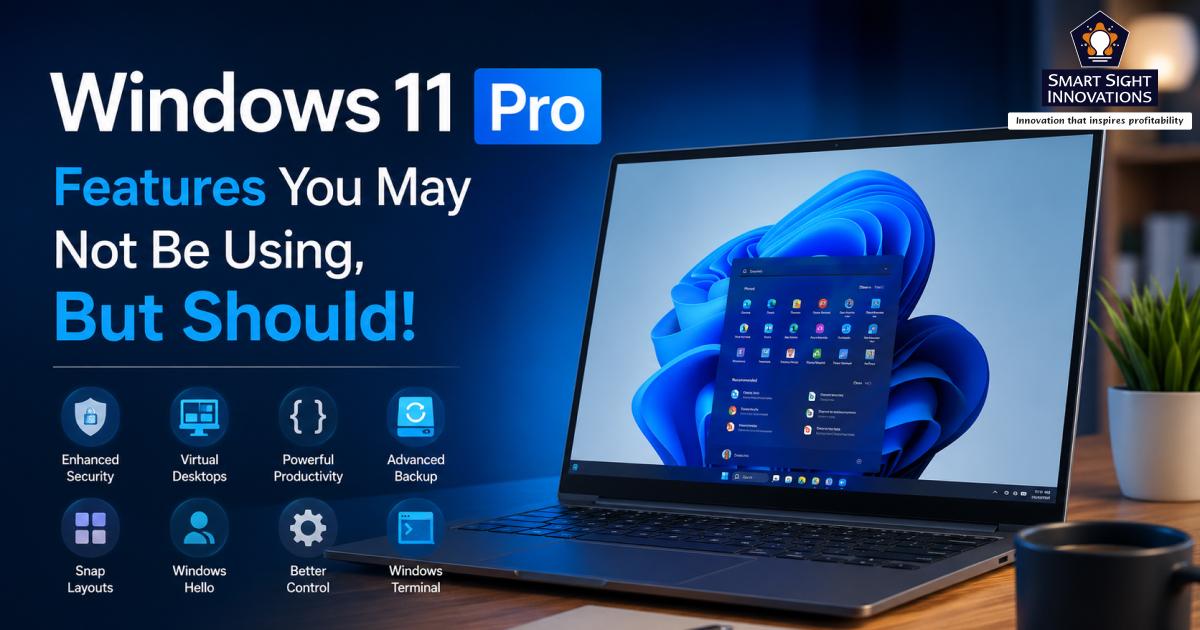
When most people buy a PC running Windows 11 Pro, they usually expect it to be a more capable version of Windows Home. However, many never go beyond the familiar apps and settings they use every day. As a result, some of the most valuable tools included with Windows 11 Pro remain untouched.
Unlike Windows Home, the Pro edition comes with a collection of advanced features designed to improve security, simplify system management, and provide greater control over how Windows operates. Some of these tools are aimed at professionals and IT administrators, but many can also benefit everyday users who want a safer, more flexible computing experience.
From secure testing environments and powerful virtualization tools to advanced encryption and remote access capabilities, Windows 11 Pro includes several features that can make a meaningful difference in how you use your PC. Here are some of the most useful Windows 11 Pro tools you may already have access to but aren’t taking advantage of.
1. Windows Sandbox
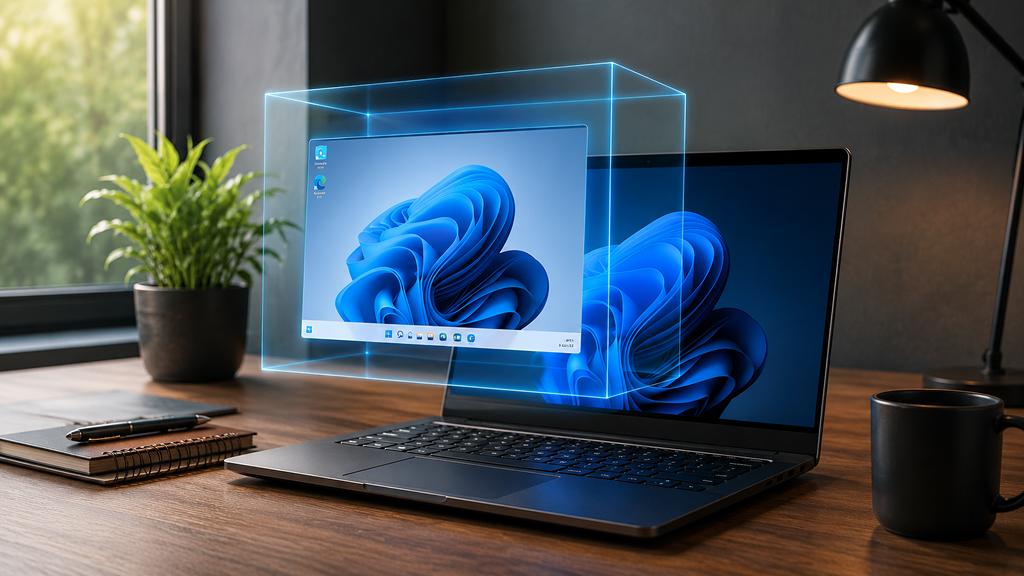
Windows Sandbox is one of the most underrated features available in Windows 11 Pro. It creates a temporary, isolated Windows environment that runs separately from your primary installation. It’s like a disposable PC, because each time you launch Sandbox, it starts with a clean copy of Windows. Any software you install, files you download, or settings you change disappear completely when the Sandbox session is closed.
Think of it as a disposable PC within your PC. Every time Sandbox launches, it starts with a fresh Windows installation. Once you close it, all files, applications, and changes are permanently deleted. This makes it incredibly useful for:
- Testing unfamiliar software
- Opening suspicious files
- Evaluating beta applications
- Troubleshooting software issues
- Experimenting with system settings
For example, if you download a utility from a website you are not completely familiar with, you can run it inside Sandbox first. If the software behaves suspiciously or contains malware, your primary Windows installation remains unaffected.
Sandbox is also an excellent troubleshooting tool. Because every session starts fresh, it helps determine whether an issue is caused by the application itself or by something unique to your main system.
Unlike traditional virtual machines, Windows Sandbox requires very little setup and launches quickly. That convenience makes it one of the easiest ways to safely experiment with software.
Why You Should Use It
If you regularly install new programs, test utilities, or handle potentially risky files, Windows Sandbox provides an extra layer of protection without requiring any third-party software.
2. BitLocker and BitLocker To Go
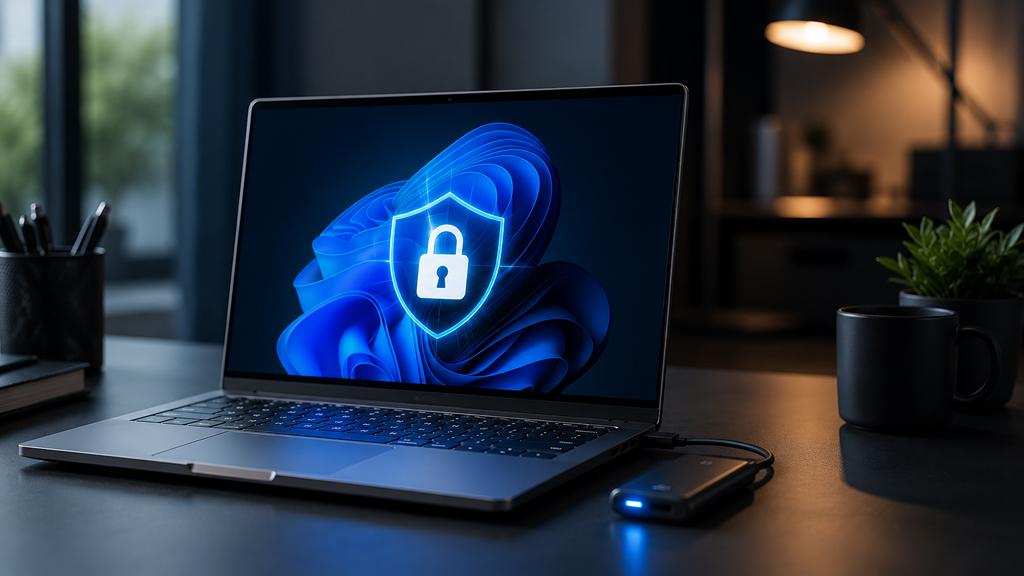
Data security is often overlooked until a device is lost, stolen, or compromised. That’s where BitLocker becomes valuable. While some Windows Home devices support basic encryption, Windows 11 Pro unlocks the full BitLocker experience, giving users more control over how their data is protected.
BitLocker encrypts an entire drive, ensuring that its contents remain inaccessible without proper authentication. This can be especially important if:
- Your laptop is lost or stolen
- Someone gains physical access to your computer
- An SSD is removed and connected to another device
Without encryption, anyone with physical access to the drive may be able to view its contents. BitLocker prevents this by securing the data itself. One of the biggest advantages of Windows 11 Pro is BitLocker To Go, which extends encryption protection to removable storage devices. This allows you to secure:
- USB flash drives
- Portable SSDs
- External hard drives
- Backup drives
This feature is particularly useful for professionals who carry sensitive documents or anyone who stores personal information on removable media. Windows 11 Pro also offers additional control over recovery methods, authentication options, and encryption management, making it a more flexible solution than basic device encryption.
Why You Should Use It
Cybersecurity threats don’t always originate online. Sometimes a misplaced USB drive or stolen laptop is enough to expose sensitive information. By encrypting your storage devices, BitLocker adds an extra layer of protection against data exposure caused by theft or loss.
3. Hyper-V
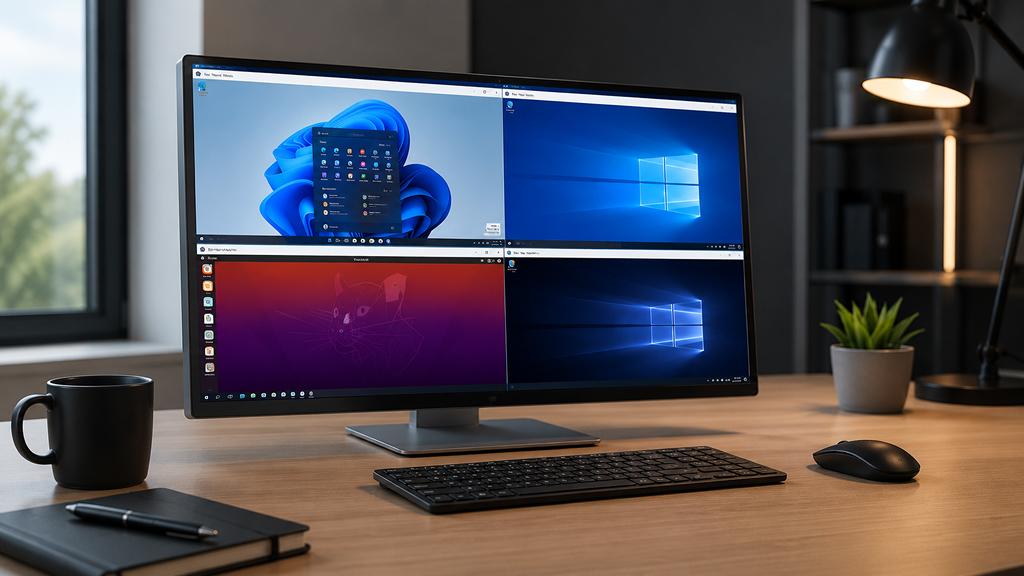
If Windows Sandbox is designed for quick and temporary testing, Hyper-V is built for long-term virtualization projects. Hyper-V is Microsoft’s built-in virtualization platform that allows you to create and run complete operating systems within Windows. Using Hyper-V, you can:
- Install Linux without modifying your main system
- Test beta operating systems
- Build development environments
- Run legacy applications
- Create isolated testing platforms
Unlike Sandbox, Hyper-V virtual machines are persistent. Everything you install, configure, and save remains available until you choose to delete the virtual machine.
This flexibility makes Hyper-V a favorite among developers, IT professionals, and technology enthusiasts. It can be used to test applications across different operating systems, experiment with Linux distributions, or simulate network environments without affecting your primary PC.
Another powerful feature is Checkpoints. These act like save points for virtual machines, allowing you to roll back to a previous state if something goes wrong. While Hyper-V does require a reasonable amount of RAM and storage space to run efficiently, it eliminates the need for complex dual-boot configurations and provides a safer way to experiment with different operating systems.
Why You Should Use It
Hyper-V allows you to explore new operating systems, test software, and create isolated environments without making permanent changes to your primary Windows installation.
4. Group Policy Editor
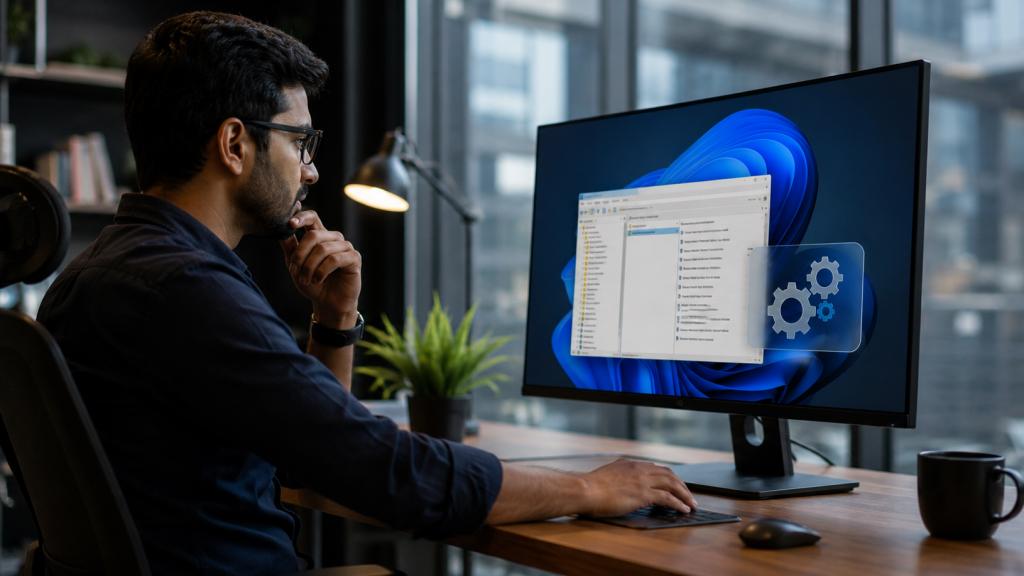
Anyone who has searched for advanced Windows tweaks online has probably encountered instructions involving the Windows Registry. Although the Registry offers extensive customization options, modifying it incorrectly can lead to unexpected behavior and difficult-to-diagnose problems.
Windows 11 Pro provides a much safer alternative through the Local Group Policy Editor. Group Policy offers a structured interface for managing advanced Windows settings and system behavior. Through it, you can:
- Control Windows Update settings
- Disable unwanted recommendations
- Adjust security policies
- Configure privacy options
- Restrict specific system features
- Fine-tune Windows behavior
Rather than navigating countless registry keys, Group Policy presents settings in a centralized and organized manner. One of its biggest advantages is reversibility. If a policy causes issues, you can often restore the default behavior simply by setting it back to “Not Configured.” This makes experimentation significantly less risky than editing registry values manually.
For power users who enjoy customizing Windows, Group Policy offers a cleaner and more manageable way to access advanced settings.
Why You Should Use It
Group Policy Editor gives you greater control over Windows while reducing the risks associated with registry modifications.
5. Remote Desktop
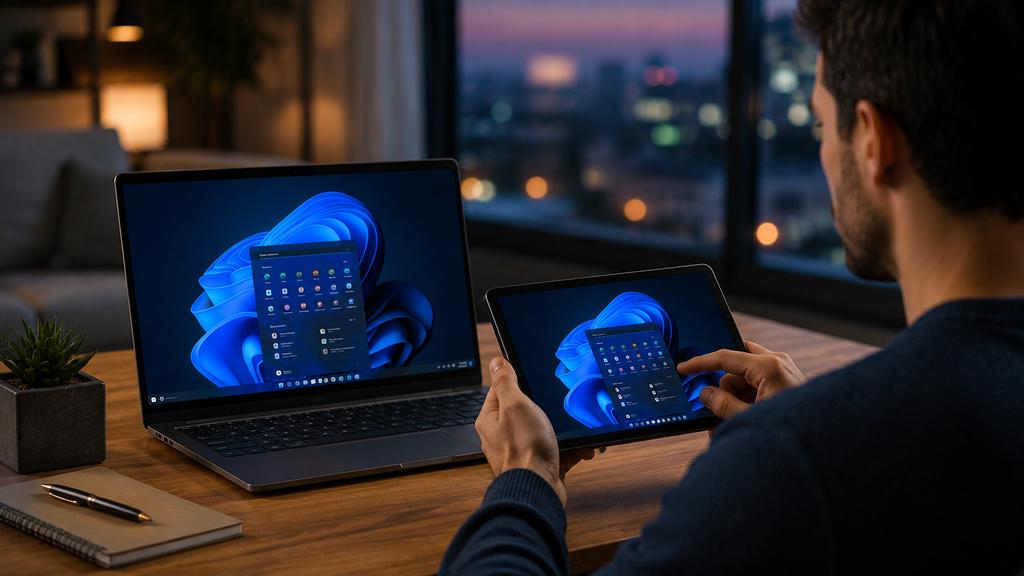
Remote Desktop is one of the most practical features included with Windows 11 Pro. It allows users to remotely connect to their computer from another device and control it as though they were sitting directly in front of it. This can be useful in many situations:
- Accessing work files while traveling
- Running applications installed on a home PC
- Helping family members troubleshoot issues
- Managing multiple computers
- Accessing powerful desktop hardware from a lightweight laptop
For example, a desktop computer with powerful hardware can remain at home while you access it remotely from a laptop, tablet, or another PC. The experience is often smoother and more capable than cloud-based alternatives because the applications continue running on your own machine.
While third-party remote access tools exist, Remote Desktop is built directly into Windows 11 Pro and integrates seamlessly with Microsoft’s ecosystem.
Why You Should Use It
Remote Desktop turns your PC into a system you can access virtually anywhere, making it especially useful for remote work and managing multiple devices.
6. Dynamic Provisioning Packages
Dynamic Provisioning is one of those features that rarely gets attention outside business environments, yet it can save a tremendous amount of time when setting up multiple computers.
Provisioning packages allow administrators and advanced users to apply a collection of settings, configurations, Wi-Fi credentials, policies, and preferences using a single package file. Instead of manually configuring every computer from scratch, much of the setup process can be automated. This can be useful when:
- Setting up multiple household PCs
- Preparing systems for a small business
- Reinstalling Windows regularly
- Creating standardized workstation environments
Provisioning packages can even help reduce setup errors by ensuring every device receives the same configuration.
Why You Should Use It
If you frequently deploy or reset Windows PCs, Dynamic Provisioning can dramatically speed up the setup process while ensuring consistency across devices.
7. Assigned Access
Assigned Access is designed for situations where a Windows PC needs to perform a specific task, allowing administrators to limit a user account to a single application. When configured, the designated account can only access the approved application, preventing users from navigating elsewhere within Windows. This feature is commonly used in:
- Reception areas
- Retail stores
- Libraries
- Public information kiosks
- Customer check-in stations
Parents can create dedicated accounts that only launch educational software, while older PCs can be converted into media stations, information displays, or purpose-built devices. By limiting access to a specific application, Assigned Access reduces distractions and prevents accidental changes to system settings.
Why You Should Use It
Assigned Access is an effective way to transform a standard Windows PC into a secure, single-purpose device.
8. Windows Update for Business
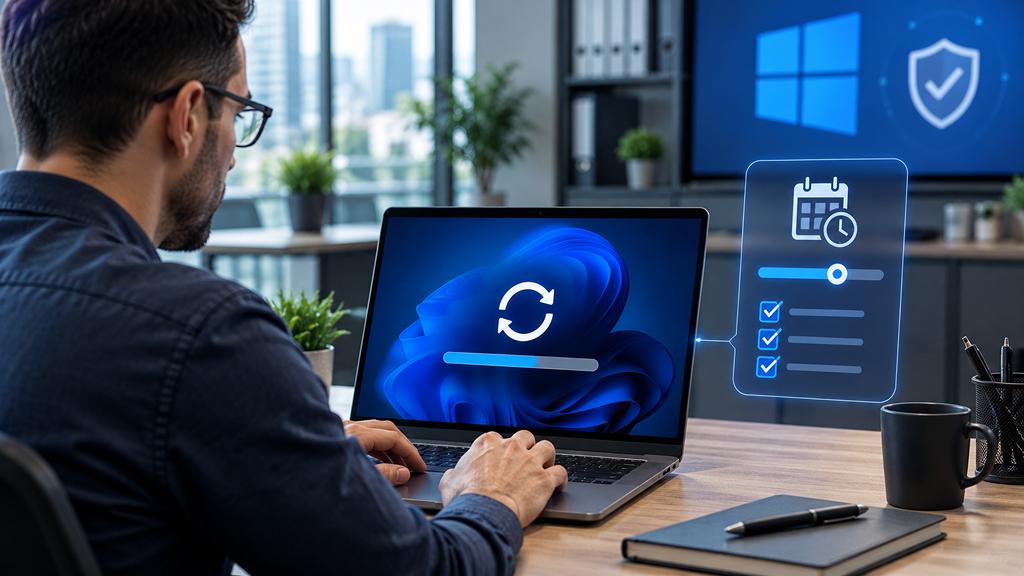
Keeping Windows updated is essential, but not every update arrives without issues. Major feature releases occasionally introduce compatibility problems, bugs, or unexpected changes that can disrupt workflows. Windows 11 Pro provides additional update management controls through Windows Update for Business. These controls allow you to:
- Delay feature updates
- Schedule update deployment
- Control installation timing
- Minimize interruptions during important work
This flexibility can be especially valuable for professionals, creators, and businesses that depend on stable systems. Rather than installing every major update immediately, users can wait until updates have been tested more widely and any major issues have been addressed.
It’s important to note that delaying feature updates does not mean ignoring security updates. Critical security patches can still be installed while postponing larger changes that may affect stability.
Why You Should Use It
Windows Update for Business gives you greater control over when and how major updates arrive, helping reduce unexpected disruptions while maintaining system security.
Windows 11 Pro offers far more than a handful of business-focused extras. Hidden behind the familiar desktop are powerful tools that can improve security, simplify troubleshooting, expand customization options, and make your PC more flexible.
Features such as Windows Sandbox, BitLocker, Hyper-V, Group Policy Editor, and Remote Desktop are already included with Windows 11 Pro, yet many users never explore them. As a result, they’re often missing out on capabilities that can make everyday computing safer and more efficient.
If you’re already paying for Windows 11 Pro, it’s worth spending a little time exploring these built-in features. They may not receive as much attention as Microsoft’s latest AI (AI Software & AI Web) tools or interface updates, but they can provide practical benefits that you’ll notice every day.